How to Remove Background in Canva
Canva is a well-known free AI tool for graphic design where you can easily create beautiful graphics. It has a great feature called the background remover, which is really helpful for both videos and photos.
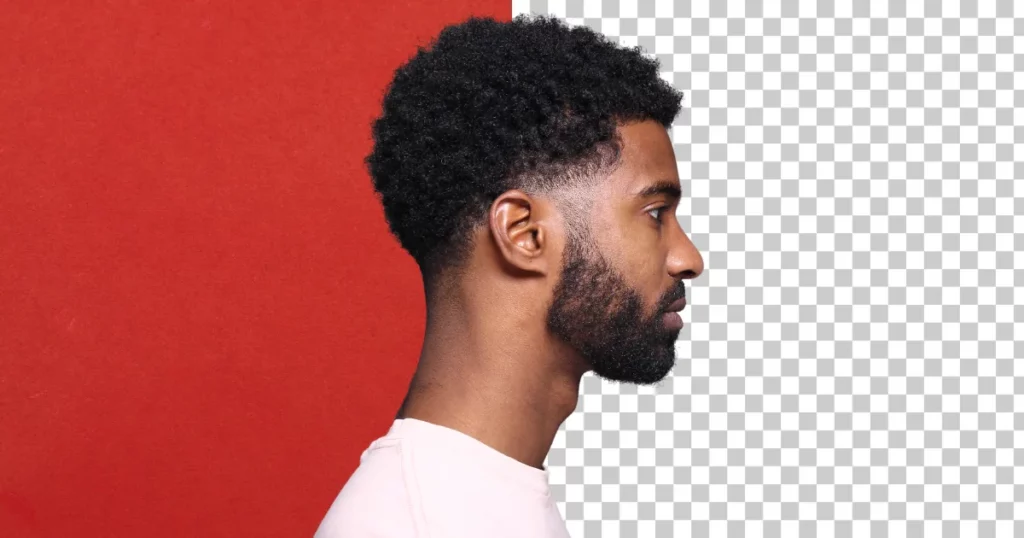
This guide will show you how to remove background in Canva for free without a PRO plan.
We will discuss:
- How to remove image background in Canva without a PRO plan on a PC and Phone device,
- How to remove images, logos, GIFs, and video backgrounds in Canva PRO using a PC and Phone device,
- Best background remover tool apart from Canva.
Table of Contents
How to Remove Background From Picture in Canva for Free
It is easy to remove the background from pictures in Canva for free if you follow these steps:
1. On PC
To remove background in Canva on PC for free:
- Visit “Canva“. Sign in there.
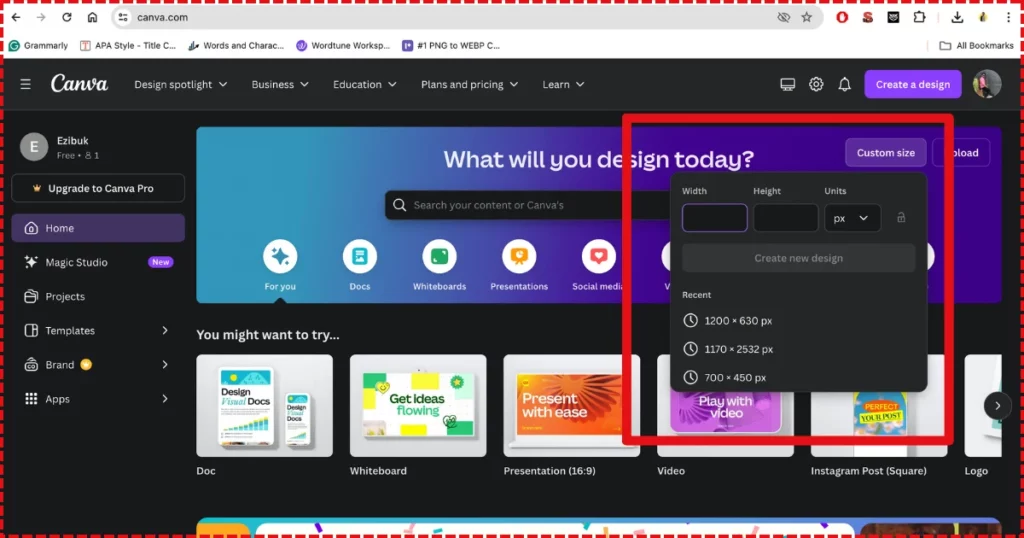
- Choose pixel size from “Custom Size“.
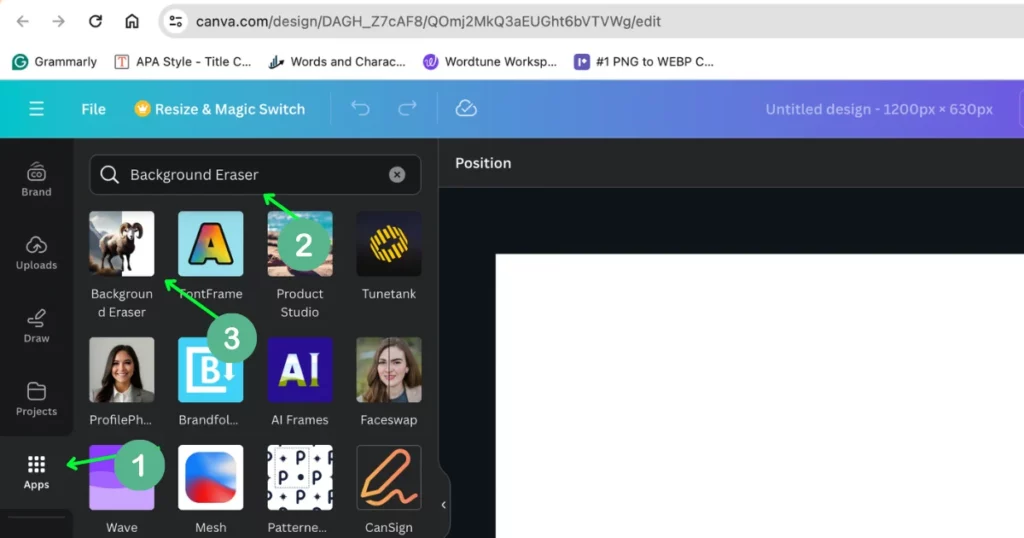
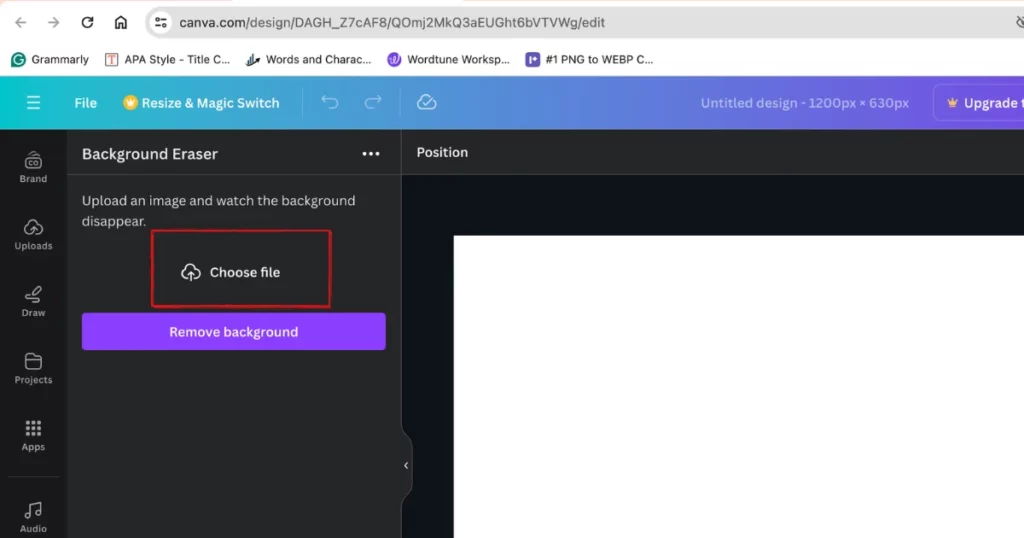
- Click “Apps” and search “Background Eraser“, and pick the first result shown below.
- Click “Choose File“.
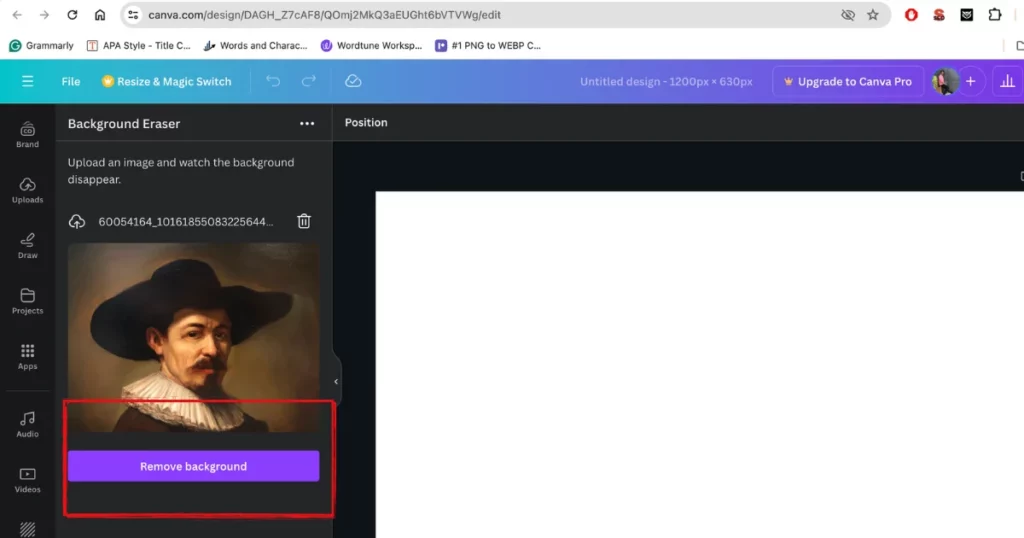
- Once it is uploaded, click “Remove Background” to start the process.
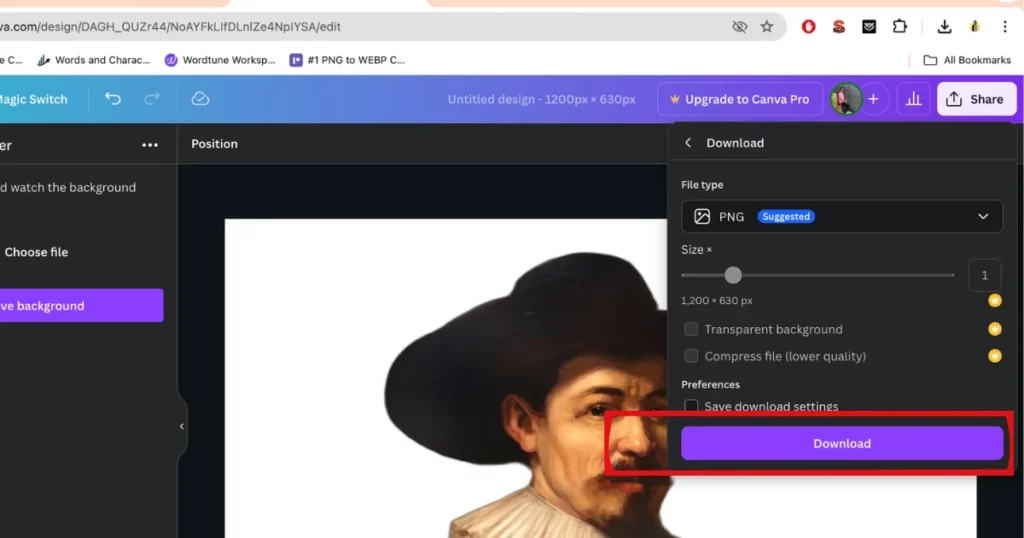
- Click “Download” after resizing the image.
2. On Mobile
This quick guide can assist you on how to remove background in Canva mobile for free.
- Go to “**https://www.canva.com/**” and sign in.
- Tap the “+” button, choose “Custom Size,” and select your pixel size.
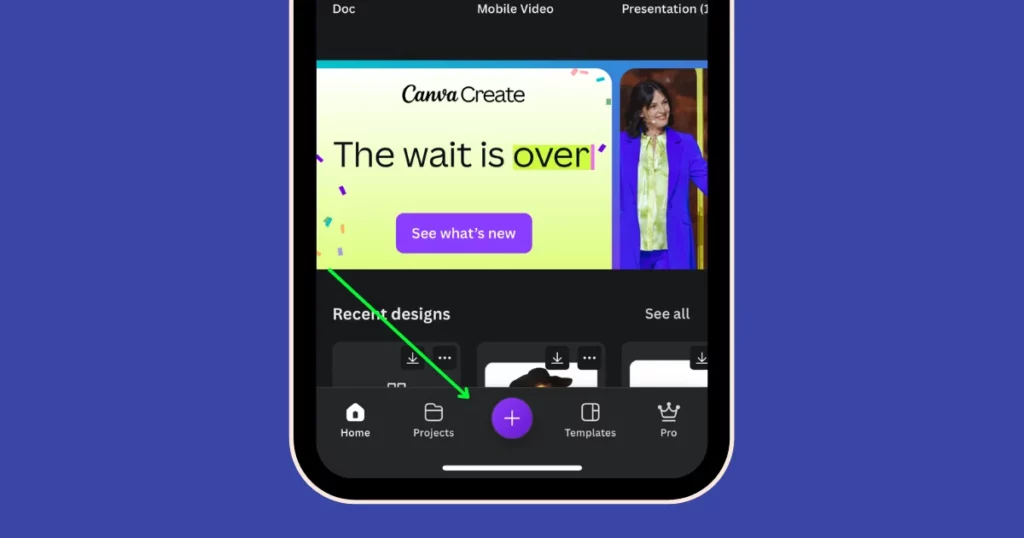
- Swipe right at the bottom to find “Apps,” then search for “Background Eraser” and select the first result.
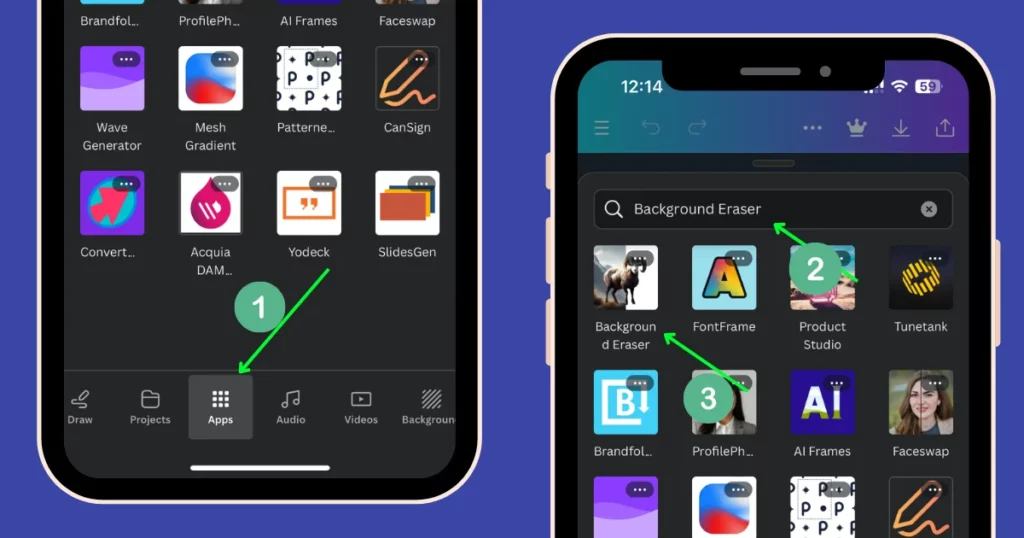
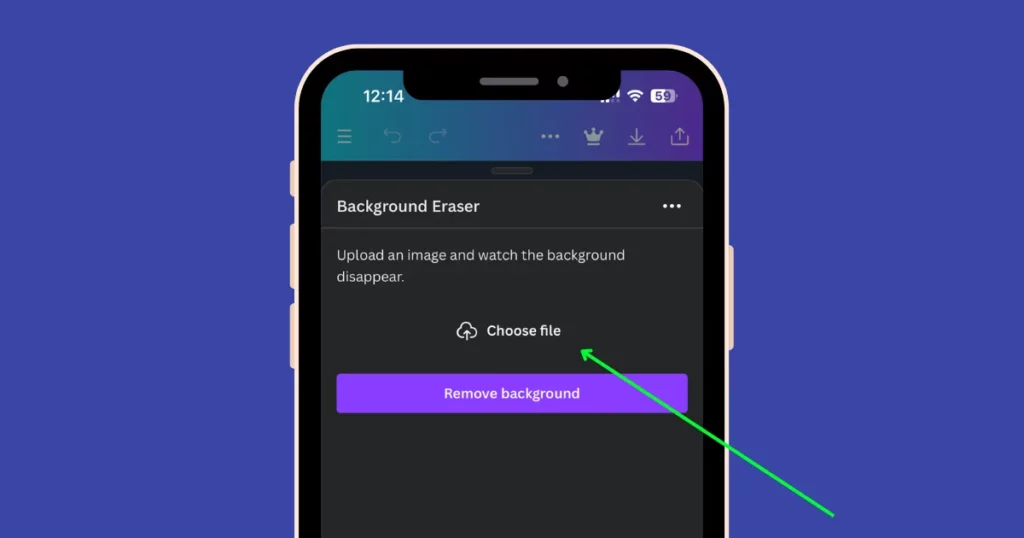
- Upload your file by tapping “Choose File.”
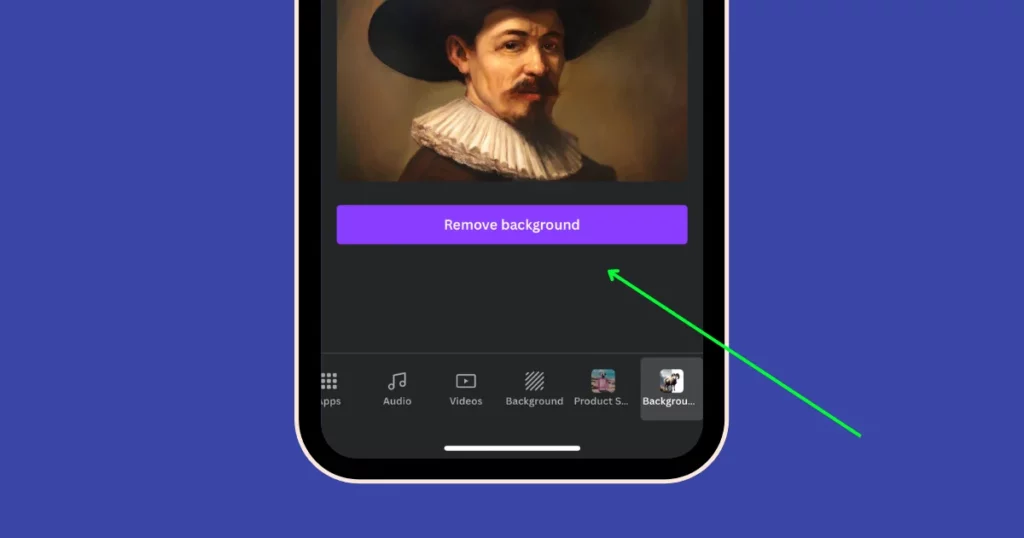
- After it’s uploaded, tap “Remove Background” to begin.
- Resize your image as needed, then tap “Download” to save it.
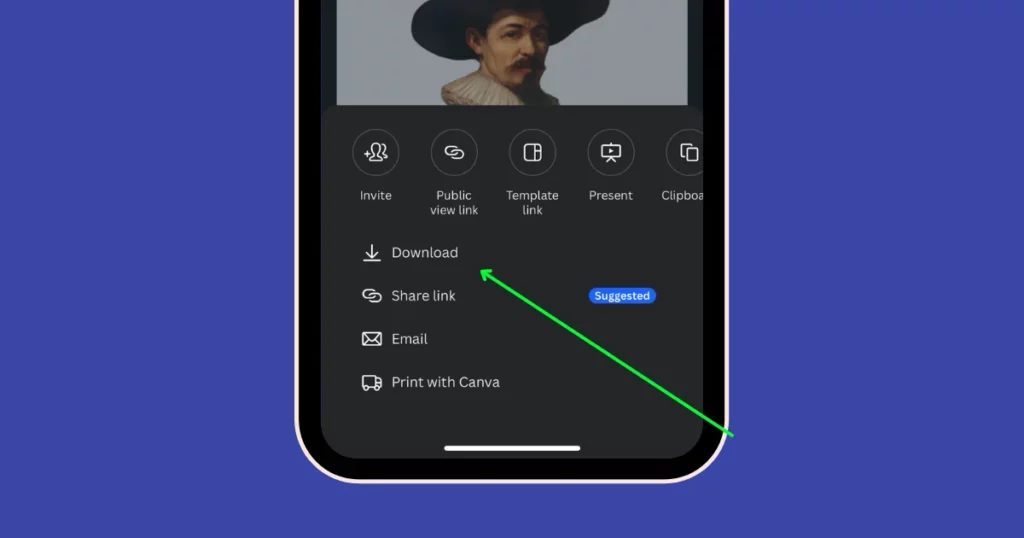
However, when using this method to download the image in Canva, a white background appears.
Now, the question is how to remove a white background in Canva. To remove a white background from your image, you need Canva PRO. After upgrading, head to Background Remover in the edit photo section and remove the white background easily.
There is another method for removing backgrounds that is considered to be better than Canva.
Remove Background with Mockey
Mockey has a feature which is considered one of the best AI background removers as it is very easy to use.
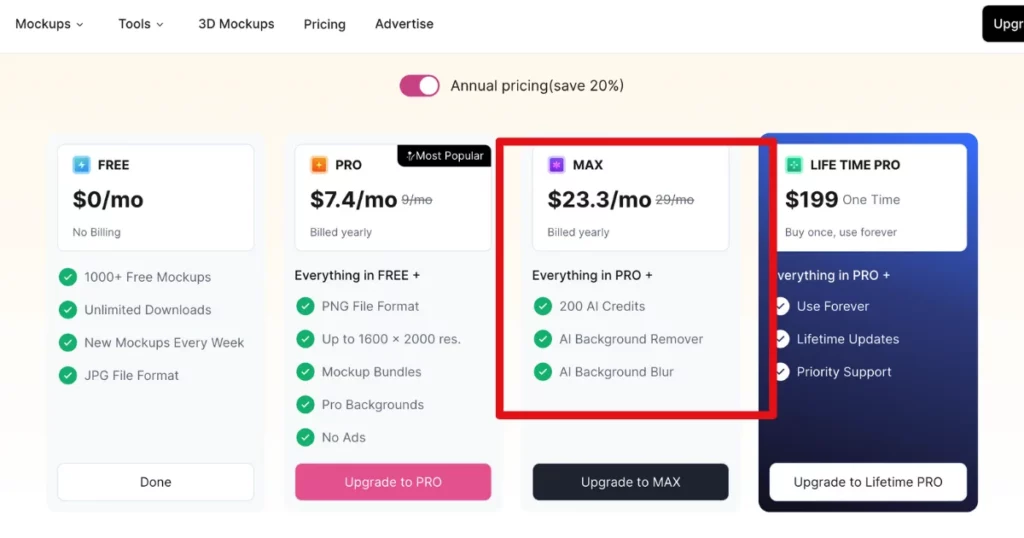
- Head to Mockey AI Background Remover. Make sure you sign up there and upgrade to the MAX plan.
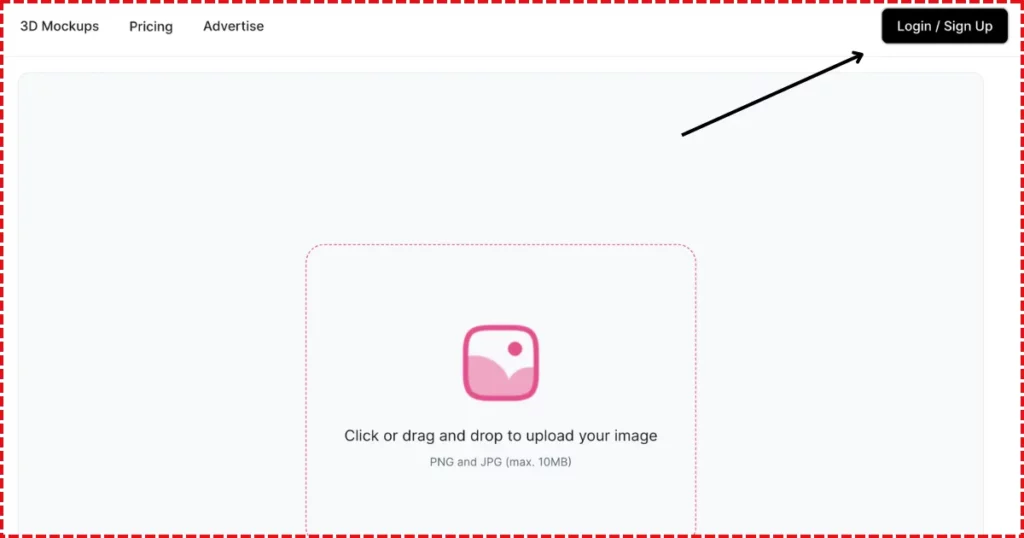
- Upload the photo and click “Remove Background” to start the process. Select “Transparent” for the type.
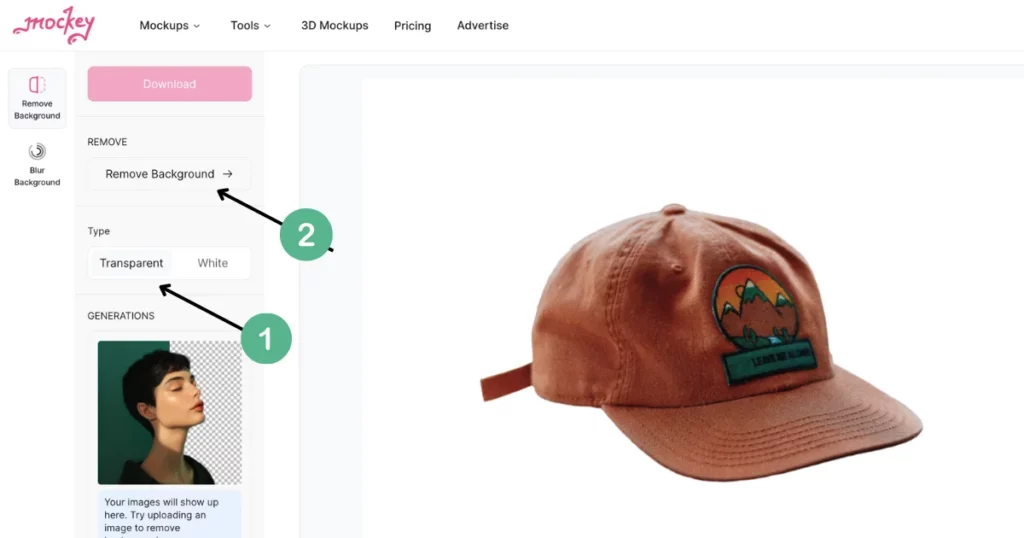
- Save your transparent background by tapping “Download“.
Not only do you get AI background remover in the MAX plan, but you also can get a lot of features. Look at the image below:
You can also get the Blur Background feature in Mockey where you can customize your blur background on an iPhone or any device.
How to Remove Background From Picture in Canva for PRO Users
For Canva PRO users, here is a guide on how to remove background in Canva from a picture.
1. On PC
To remove background in Canva Editor on your desktop:
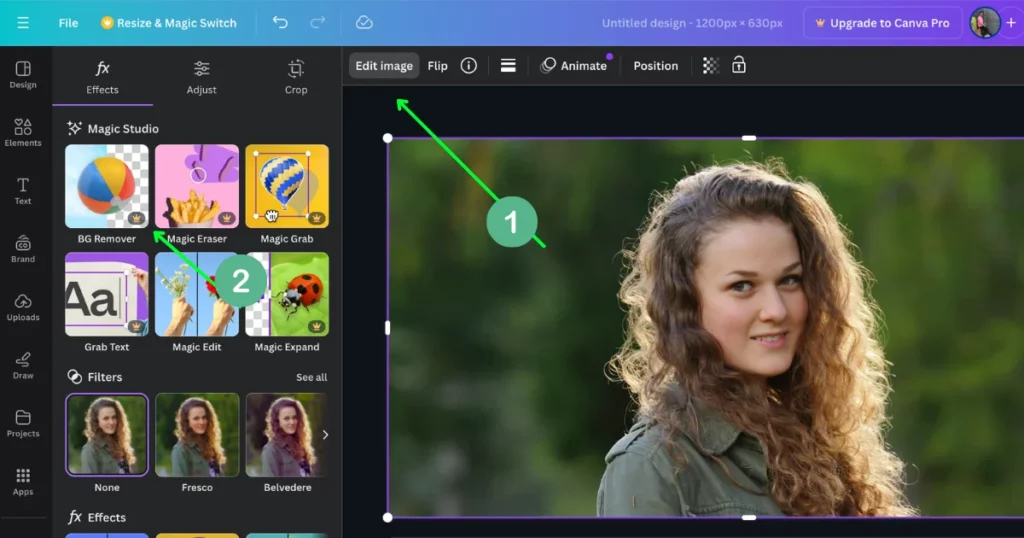
- Upload your own or pick from the library.
- Click “Edit Image” at the top.
- Choose “Background Remover” from the left panel.
- Use “Erase” to delete the background.
- Watch the background vanish!
- You can save the result by clicking “Apply“. If you need to undo, select “Restore“.
- Place your edited image where you want it.
2. On Mobile
To remove a background on your phone using the Canva Editor, just follow these steps:
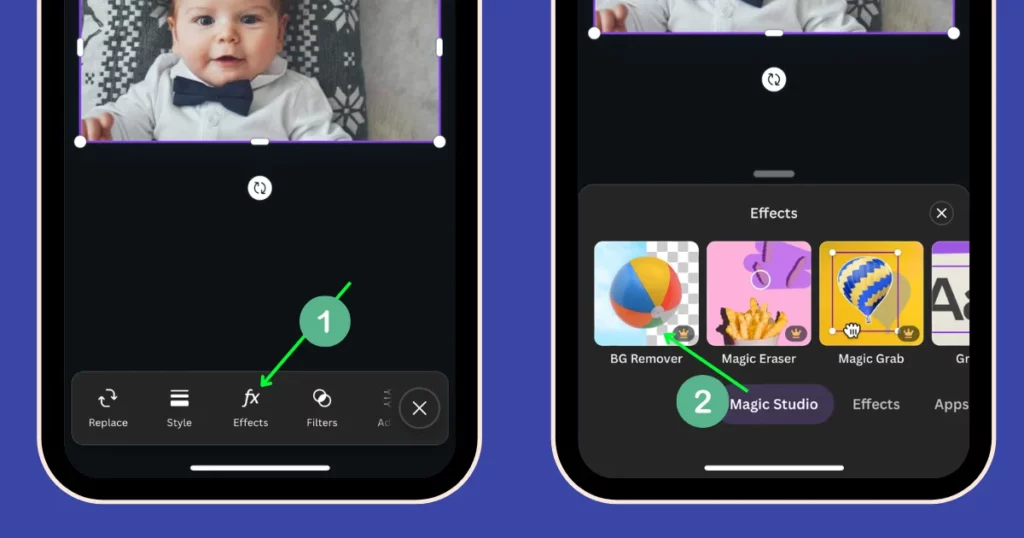
- Tap “Upload“.
- On the bottom toolbar, tap “Effects“.
- Choose “Background Remover“.
- Wait while the background is removed.
How to Remove Background in Canva Video
Currently, you can erase backgrounds from videos that are shorter than at least 90 seconds. If you edit a video by cutting it shorter, you must download and upload it again to use this excellent feature. When using a mobile device, you must upload videos through the Uploads option, not directly from your Gallery or Camera Roll.
1. On PC
Here is a tutorial on how to remove the background in a Canva video on PC:
- Open the video you wish to change.
- Tap “Edit video” on the toolbar.
- Choose “Background Remover” from the side menu.
- Wait for the background to be removed.
2. On Mobile
Remove the background from a video in Canva using phone:
- Select the video.
- Tap “Effects” on the toolbar.
- Choose “Background Remover“.
- Wait for it to finish processing.
Background Remover Erase and Restore Brushes in Canva
The Erase and Restore brushes are available only on Canva.
- Click “Background Remover.”
- Choose the “Erase” or “Restore” brush.
- You can erase or restore images by dragging the brush.
- The “Brush size” slider controls brush size.
- To view the original image while editing, click “Show original image.”
- In the editor’s toolbar, click “Done.”
- Click “Apply“.
After you’ve learned how to remove background in Canva tool, you can try out different backgrounds to match your brand’s style. Removing the background from a picture isn’t just for editing someone from a photo—it’s about tailoring your images and designs to suit your audience and project.
Why Do We Need to Remove Background
Images can quickly convey information, but the ones you choose affect how people understand that information. To grab your reader’s attention, use a focal point in your image and avoid cluttered backgrounds. This makes your image more impactful.
Secondly, you may want to change the background to convey a specific message that the actual background doesn’t.
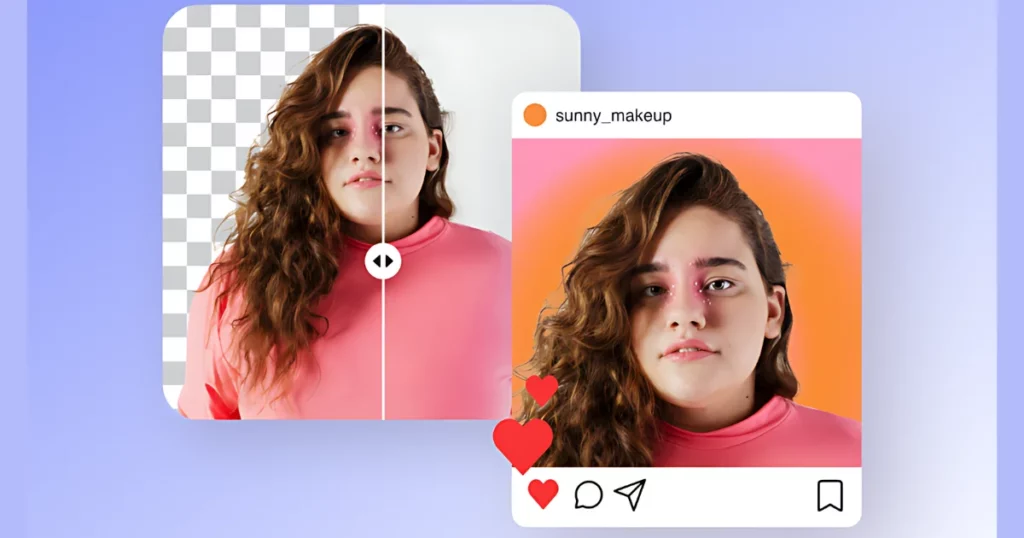
Removing backgrounds is now as easy as some clicks, without needing layers or complex design skills.
You can remove background in Canva from approximately 500 images every day. Background Remover feature only works on images smaller than 9MB. If an image is over 10MP, it will be resized to 10MP after the background is removed.
You can also remove backgrounds from images in your “Project” folders. But, you won’t be able to use the brushes and Erase in those folders.
The Right Time to Use a Background Remover
Without the background eraser software, you can only use photos that match your design’s colors and style. For instance, if your design is mostly beige, you can’t include a **product photography **image with a shining red background. The red will not be a problem if you remove the background. This allows you to use more photos and be more creative with your designs.

You have a nice photo, but it’s in a park with people and plants in the background—not very business-like. Instead of booking a new photo session, just remove the park background and replace it with a neutral one. It’s quick and almost free!
Conclusion
Background Remover of Canva is a handy tool that can change your images, GIFs, logos and videos. It’s easy to use on both PCs and phones.
We have covered how to remove background in Canva from a picture, GIFs, logos, and videos.
With this tool, you can make professional designs without needing complicated software.
However, if you’re new to designing or experienced, Mockey’s background remover is a great feature to try.
FAQs
How to remove background from logo in Canva?
To remove a background from a logo in Canva, upload your logo or select one from Canva’s library. Click the Edit Image button on the top toolbar, choose Background Remover from the left panel, and then click Erase to remove the background.
How to remove background from GIF in Canva?
You can find GIFs with transparent backgrounds directly in Canva by going to the GIF section and searching for your desired GIF. To find transparent ones, include the word sticker in your search, like Schitt’s Creek sticker. This will bring up GIFs that already have transparent backgrounds, which you can then add to your Canva design.
What is the best background remover?
Mockey has a feature called background remover is considered the best AI background remover as it is simple to use with easy customization and generates high-quality images.
How to make a background transparent in Canva?
To make an image transparent, start by uploading your image using the Upload your image button or drag-and-drop your files. Next, use the BG Remover tool from the Tools menu to remove the background of your image in just seconds. Finally, download your edited design.
How do I cut out the background of an image?
To cut out the background from an image, you can use different tools and methods. Use Mockey’s background remover tool. Access the AI tools > background remover. Upload your picture. Click on Remove Background to let the tool automatically remove the background. After it’s done, download it.
How to erase an image in Canva?
To erase an image in Canva, go to the Projects section in the homepage side panel. In the Uploads folder or the Images tab, click on the photo you want to edit. This will open the photo editor. In the Tools section, go to the Effects tab and click on Magic Eraser.
How to erase part of an image in Canva without removing background?
To erase part of an image in Canva without removing the background, you can quickly remove or edit them using our Magic Eraser tool. However, you cannot use this feature alongside Background Remover, Magic Edit, or Autofocus on the same image.
Related reading:

Sangram Sahoo
I’m a content writer with 4 years of experience. I specialize in creating practical content around mockups, print-on-demand, apparel, and e-commerce design.