
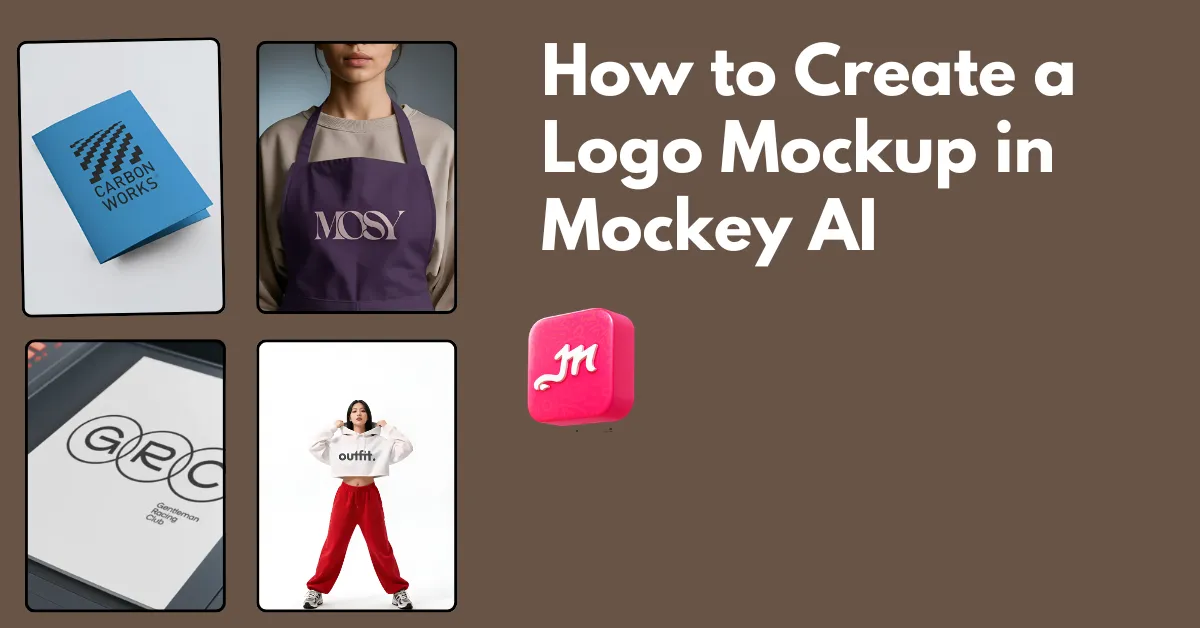
How to create a logo mockup? Use Mockey AI to choose from 100 templates, such as on a wall or apparel. Upload your logo and download the logo mockup as PNG.
People don’t struggle with logo design as much as they struggle with presenting it properly. That’s where logo mockups come in.
Let’s break down how to create a logo mockup step-by-step using an online mockup generator like Mockey AI.
Table of Contents
What is a Logo Mockup?
A logo mockup is your logo placed in a real-life situation, like on a shop sign, t-shirt, packaging, or on a business card. Mockups give clients a realistic view of the logo. With the help of a mockup generator’s templates, you can create logo mockups without a watermark.
How to Create a Logo Mockup (Step-by-step)
A step-by-step guide for creating a logo mockup you can follow.
Step 1: Create Your Logo
First, create your logo in Illustrator, Figma, or Photoshop. Only after that, move it to a mockup. Because mockups can hide bad design, and good logos should work even on a plain white background.
Step 2: Use a Mockup Generator
Beginners and brands look for an online mockup generator, and as of now, there isn’t anything better than Mockey AI.
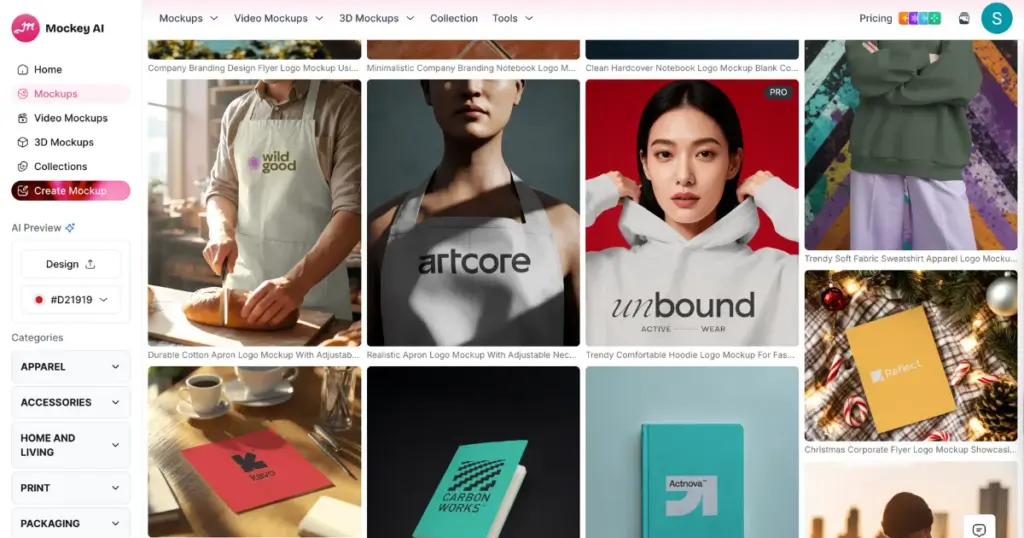
Here are the reasons:
- 100+ ready-made mockup templates
- Different types like wall logo, apparel logo, embossed logo, 3D logo, and more
- Online built-in editor
- A free plan
- AI preview
Visit Mockey, create an account, and go to the Mockups section to explore the Logo category. There, you’ll find templates based on your brand needs.
For example, if you have a clothing brand, you can choose apparel logo mockups, or if you want to show your logo on an office wall, you’ll find wall logo mockups.
Step 3: Pick the Right Mockup
Your mockup should match your business type.
A café logo looks right on a coffee cup. A clothing brand works best on a hoodie or a t-shirt. A corporate brand fits better on a business card or an office wall.
But when the match is wrong, it feels off. A gym logo on a coffee cup looks strange. A kids’ brand on a gold foil design just feels confusing.
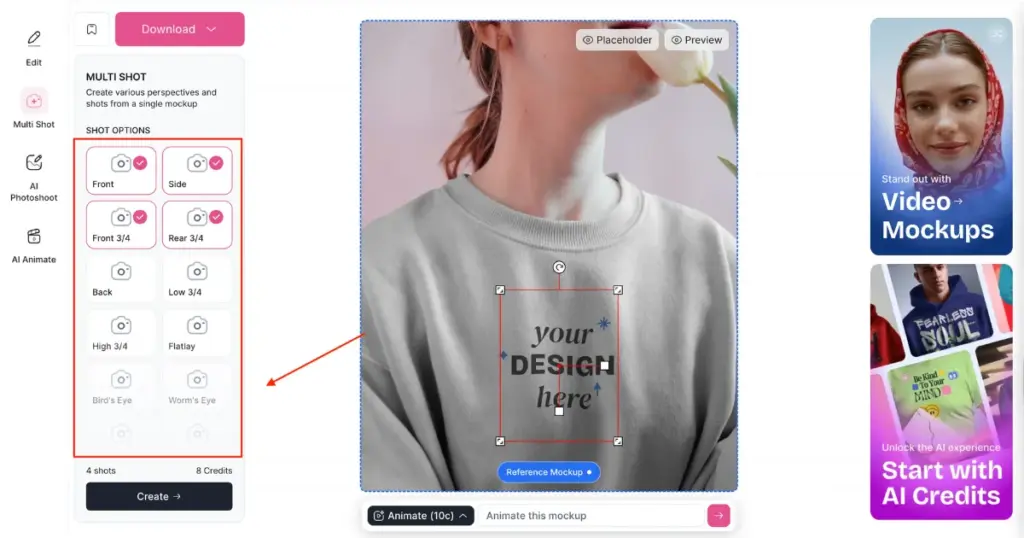
Pick one template, upload your logo design, and adjust it as needed. In customization, you can change colors, apply design warping, and use the Multi Shot feature.
With Multi Shot, you can download this logo mockup’s multiple angles, like front view, close-up, or back view.
Step 4: Export it as an Image or Animation
After customization, you can download the logo mockup by choosing a format using the Download button.
Or you can convert it into an animation using the Animate feature. You can also use prompts to change mockup scenes. Just type in the prompt box, and within 30 seconds, the logo animation is generated in MP4 format.
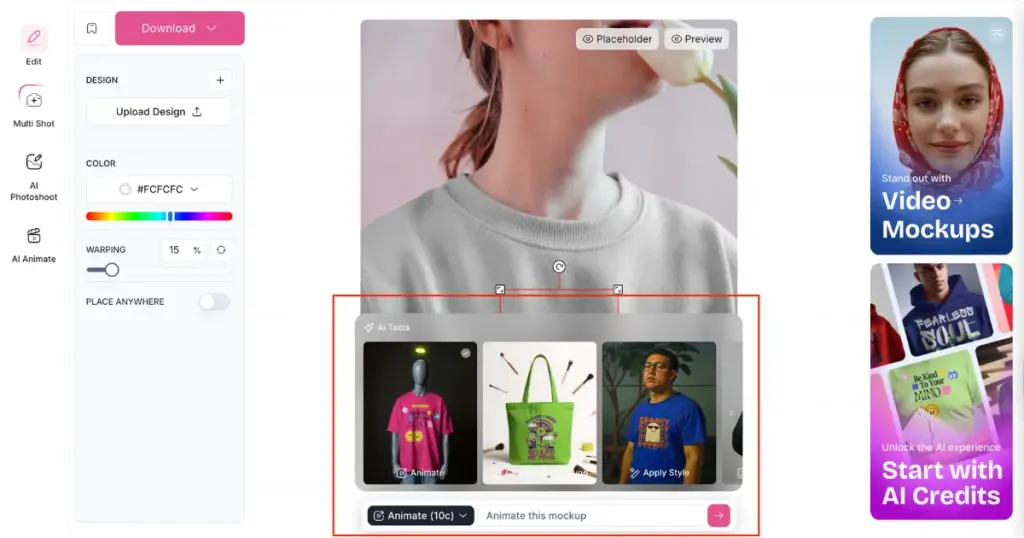
In order to use the animation or Multi Shot feature, you need credits, which come with the CREATOR plan.
That’s it. Now you’ve learned how to create a logo mockup. Let’s preview some logo mockup templates from Mockey so you can see the styles they offer.
Some of the Logo Mockup Templates from Mockey
These are some of the Logo Mockup Templates that Mockey has to offer.
1. A front-facing hoodie with fabric folds and centered chest placement makes the logo look wearable. Similar to how Nike presents bold wordmarks on apparel for instant brand recall.

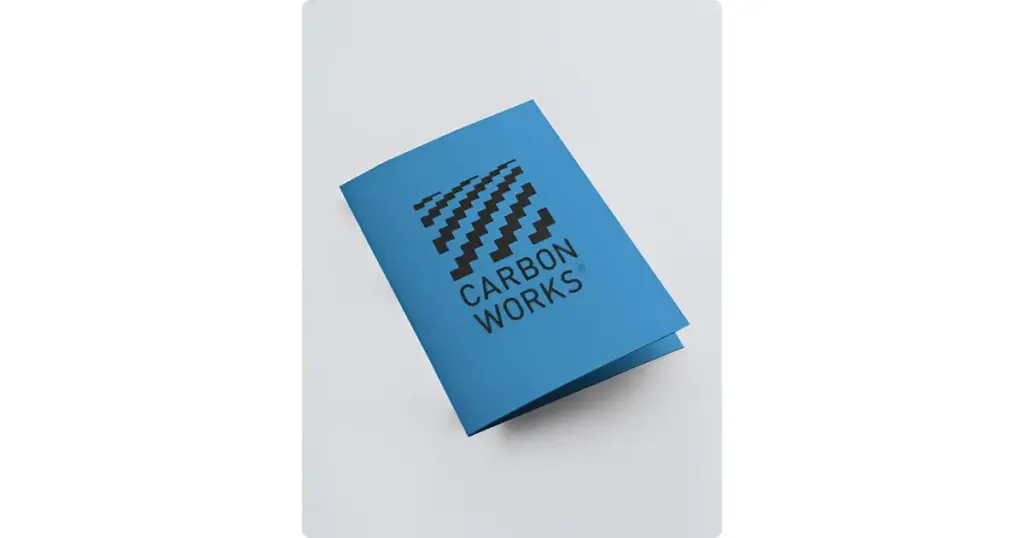
2. With its angled shape and thick paper, this brochure gives the logo an editorial look.
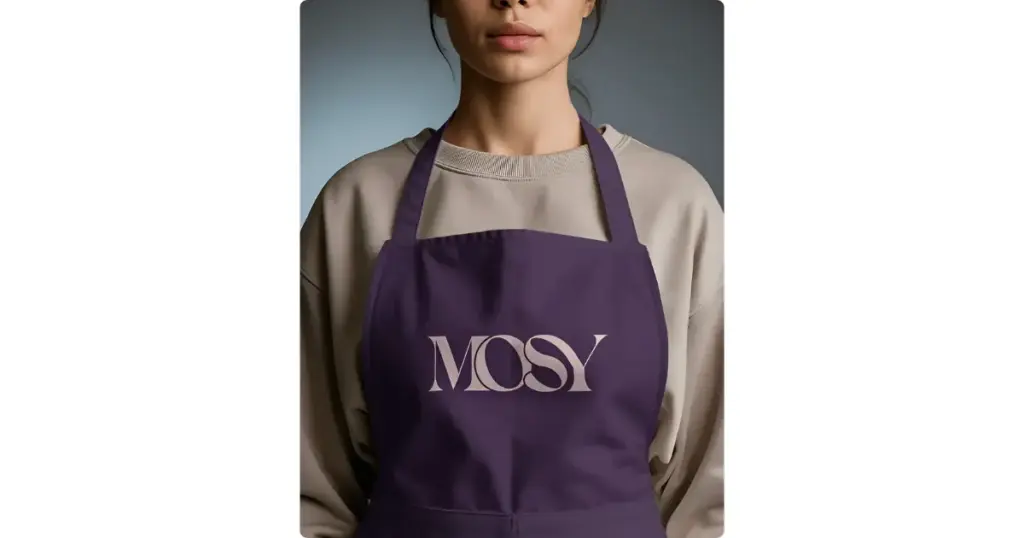
3. The logo looks professional when photographed close up on an apron like Starbucks.
Tips to Make Your Logo Realistic
Many people repeat the same mistakes as follows:
- Logo floating with no shadow
- Too sharp / too fake
- Ignoring texture
A better way is to match the lighting of the scene and add shadows. Make sure the design blends with the surface, whether it’s fabric, paper, or glass. You can also reduce opacity slightly for realism.
Conclusion
Follow step by step on how to create a logo mockup using Mockey. After adding your logo to Mockey’s templates, it looks extremely real.
You can create wall, embossed, apparel, or company logo mockups with easy adjustments. Obviously, Mockey offers AI mockups, and people rarely get a chance to complain because they focus on making them as realistic as possible. Try it now.
FAQs
Why should I use a logo mockup?
You should use a logo mockup because clients don’t think like designers. They understand better when they see the logo in use, like on a hoodie or business card. It makes your design feel real and sellable.
Can I create logo mockups for free?
Create logo mockups for free by using the Mockey mockup generator. Log in, upload your logo to a template, adjust it, and download the final image.
What are common mistakes in logo mockups?
Using random mockups that don’t match the brand, no shadows or lighting, logo looks pasted (not blended), and too many mockups in one presentation are common mistakes in logo mockups.