

Rating on Trustpilot
with 40+ reviews and counting
Online mockup generator
Create product mockups online with premium and unique templates
USED BY PROFESSIONALS FROM
















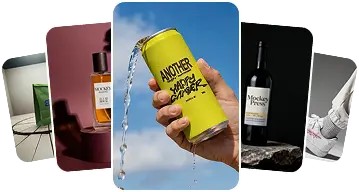
The internet's largest library, packed with
across apparel, packaging, device, print, and more
See your design in motion with ready-made video templates
Over 50K+ professionals are designing mockups
with Mockey's easy to use online editor
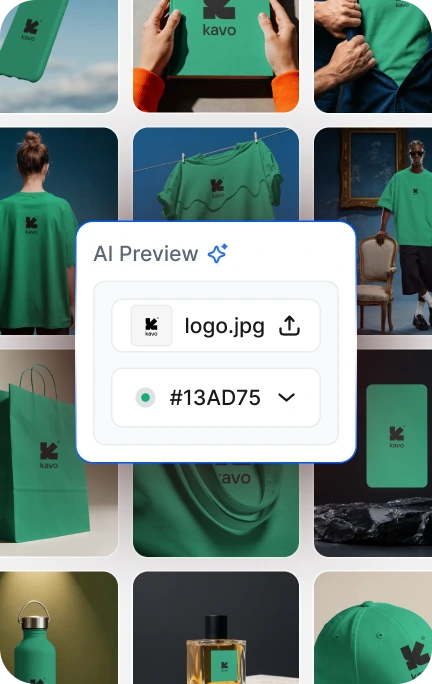
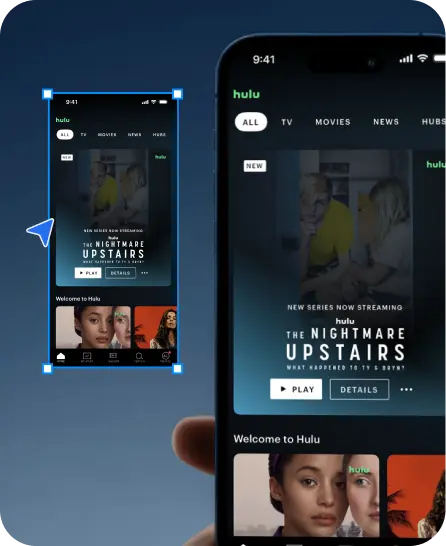
Drop your design into AI Preview and instantly see the results
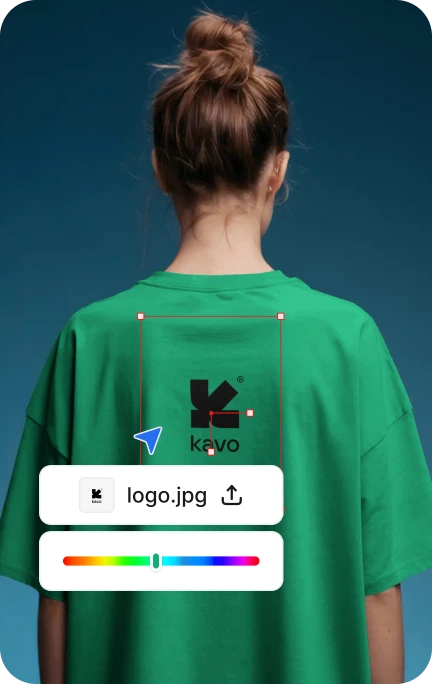
Tweak color, design placement and warping with just a click
Export your finished mockup, watermark-free
Mockey's state of the art features handles the hard part
so that you can focus on creating accurate mockups
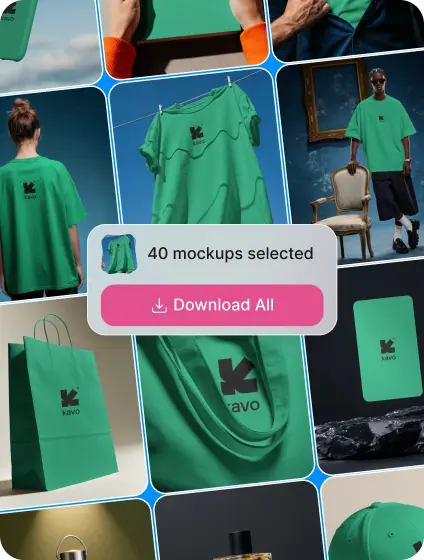
Download dozens of mockups at once directly from your dashboard
Mockup library gets updated every week based on real time user demands
Create and publish mockups directly in Shopify, Figma or Etsy with integrated plugin
SHOPIFY APP
Create mockups without leaving Shopify with Mockey AI App
FIGMA PLUGIN
Create stunning mockups inside your figma file seamlessly
ETSY APP
Publish mockups directly in your Etsy Shop with one click
Not just that.
Create stunning ads from your product photos. Choose from a huge collection of stunning ad templates crafted for every use case and create dozens of publish ready ads in an instant.
Level up your product visuals with quality results, ditch average AI Slop.
Everything from photoshoot to videos.
Create multiple shots from single product photo
Turn any product visual into cinematic video
Studio-grade product photos from a single shot
All-in-one creative studio for product visuals
with highest rated mockup generator

Rating on Trustpilot
with 40+ reviews and counting
I am blown away by the level of personal customer service. I don't remember when I last encountered it. So refreshing. They listen to feedback of what works and what doesn't, and within minutes courteously thanked me for it and let me know they'd be working on adding the specific mockups I was looking for
I have recently purchased the forever package. I initially tried the starter plan and decided this app is great for me, easy to use for a newbie.
Very good ai for creating mock-ups. And good service also. Recommending to who is planning to start print on demand. 100% worth
Book Mockups are a great tool for experiencing the final look of the product.
I had an excellent experience with Mockey AI's customer support team. I accidentally forgot to cancel my subscription's auto-renewal and was charged for the next billing cycle. After contacting support, I received a prompt, professional, and courteous response from Shahid.
The great thing is that , need not to learn PS for mockups , mockey is way simple. And the customer service is good too.
Customer service is excellent! Outstanding swiftness and efficiency of their work. For the sake of it, 5 stars!
Very good customer service. I was new to Mockey and decided to sign up for the monthly plan rather than the yearly plan to test out their product. Definitely five stars for their excellent communication and fairness.
Create mockups for free, or unlock premium features for commercial use with a flexible subscription — cancel anytime
A mockup generator is a tool that allows you to easily add any design to a product and generate a mockup. It mainly has ready-made templates that you can instantly preview with your design and download.
Mockey AI is more than a mockup generator. Start with 30,000+ templates or upload your product image and build from scratch. Mockups, animations, product photoshoots, multi-shot visuals — everything you need to present your product, in one tool. Try free mockups online or take it further with the Mockey AI App.
To create a free mockup, select a template from Categories and upload your design to Mockey AI (PNG or JPEG) after signing up. Adjust the design, customise the color, use different editing features, and download the free mockup.
Mockey AI is a free mockup generator with no watermark. Many free online mockup generators exist, but platforms like Placeit, Mediamodifier, and Renderforest add a watermark to your downloads. Mockey lets you download mockups without one.
You can generate mockups for all products like apparel, accessories, home & living, prints, packaging, tech, and jewelry for free by adding your design. Altogether, there are over 30,000 templates and more than 60 mockup categories that you can edit with a free plan.
Mockey AI offers a free plan. You can design 30k+ mockups, upload designs, and download them for free. You can download mockups with no watermark.
Mockey AI offers tools like mockup bundles, an AI background remover, background blur, AI photoshoot, MultiShot, Text-to-image and AI anime.
Most AI mockup generators stop at templates. Mockey AI goes further. Upload your product image and generate mockups, animations, photoshoots, and multi-shot visuals from scratch. Get 30,000+ templates, 60+ categories, and a free plan with no watermark, and the choice becomes obvious.
All the AI mockups provided by Mockey AI are made for print-on-demand platforms. It has a huge library with templates for various products like apparel, packaging, and more. Because of its necessary design tools and high-quality output, it is considered one of the best platforms for POD.
AI mockup generators make work faster for designers and marketers. They help you test ideas quickly and try different versions with ease. You also get realistic visuals of your products without spending hours on manual design or paying for costly photoshoots.
You can upload your design in PNG, JPG, or WebP format. On the free plan, downloads are available in JPG only. PNG downloads require a paid plan.
Yes, Mockey AI offers video mockups. It comes with video templates for over 50 different products, where you can upload your custom design and download the video without any watermark in MP4 format. The video clip shows 720p and 1080p results.
Yes. You'll find Bulk Mode right on the mockup catalog page. Turn it on, upload your design, and make any color or size changes you need. Mockey can generate bulk mockups up to 50 in one batch, which you can download together.
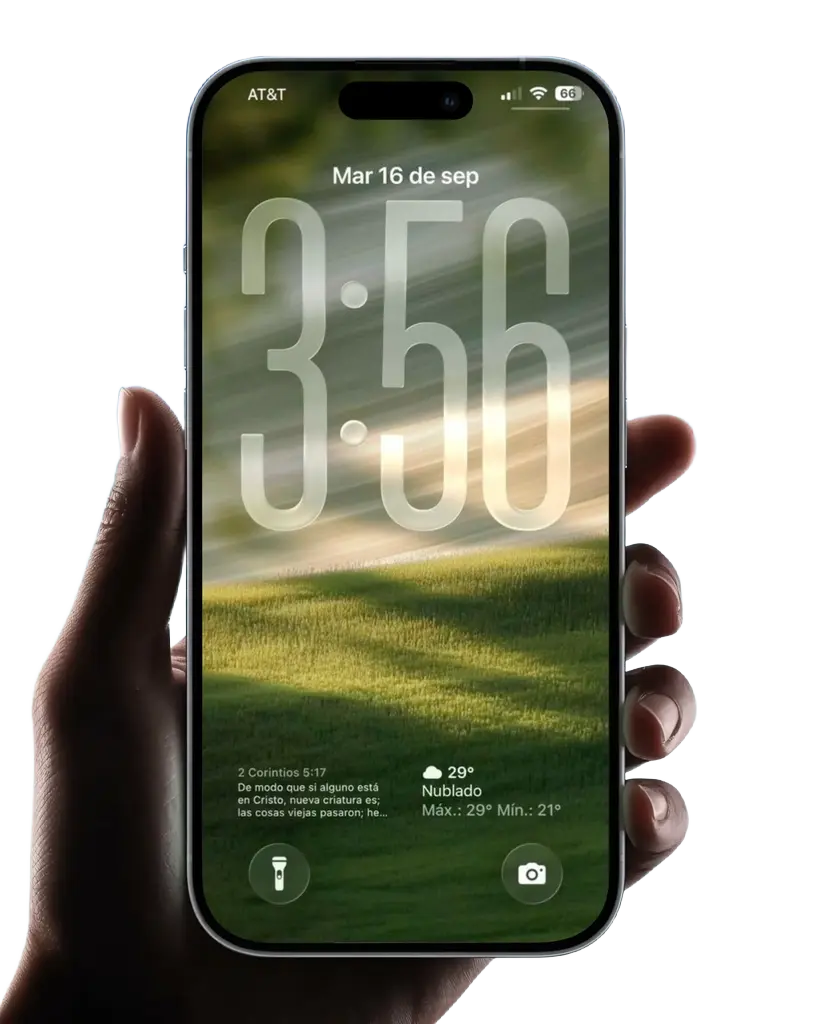
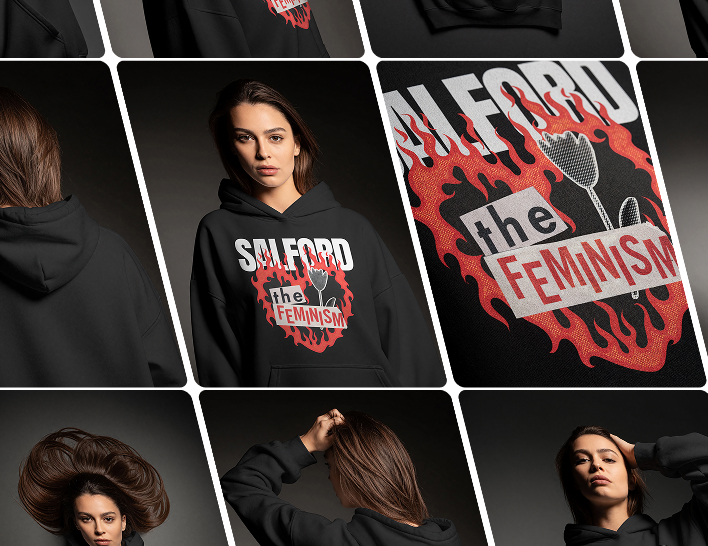
You can use these mockups for Etsy or your own store. You'll find branded T-shirt mockups and hoodie mockups with lifestyle scenes. Poster Mockups and professional book mockups allow you to market physical print inventory. Also, get iPhone Mockup templates to cross-promote your mobile experience.
Join 50K+ professionals