
Learn how to create images from text using prompts, styles, and aspect ratios in Mockey AI’s text-to-image tool. Get the result in 10 seconds.
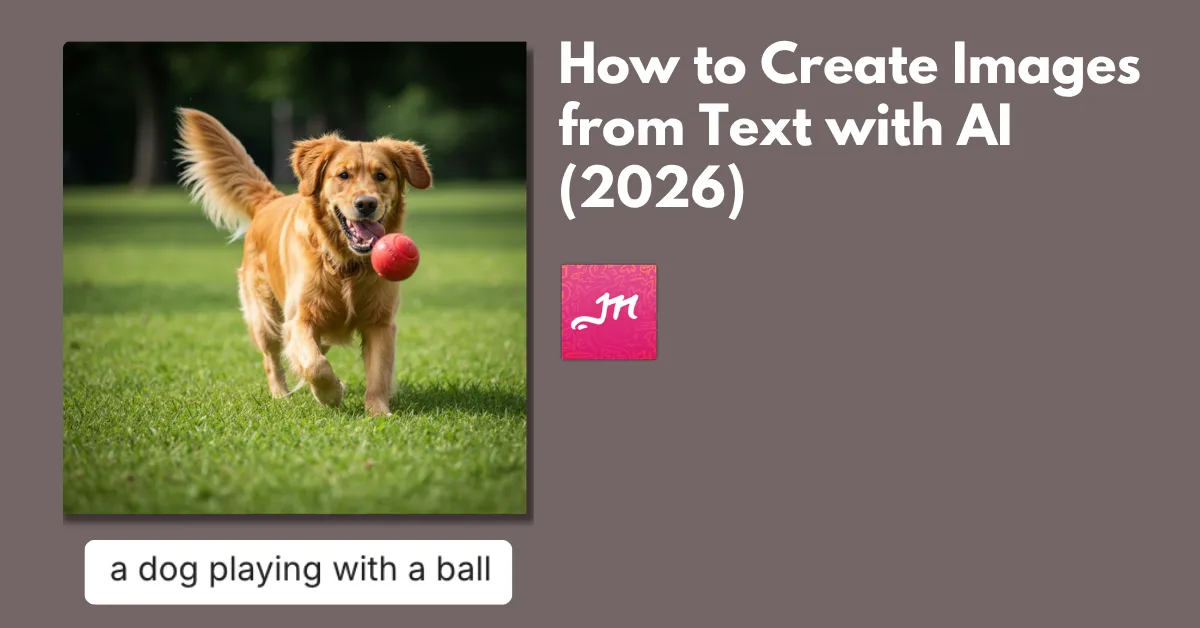
Look at the AI-generated image example:
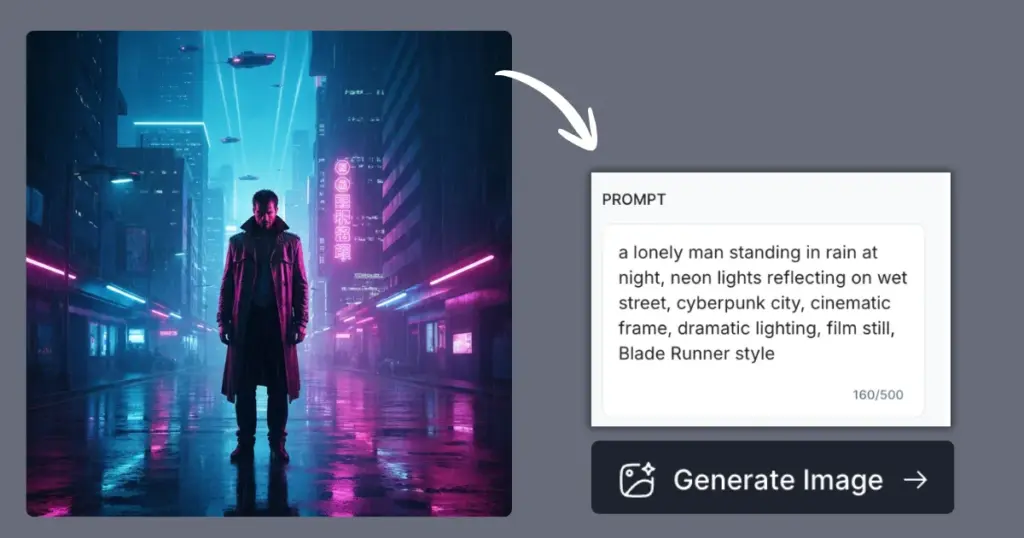
According to EveryPixel, AI generates around 34 million images every day, which is about 1.4 million images every hour. Approximately 12.59 billion — around 80% of all images were generated using different models and platforms. And platforms like Mockey’s text-to-image are part of this rapid growth.
It takes just 10 seconds to generate an image, no matter what kind of prompt you give. Also, you get many styles, like Ghibli, Pixar, caricature, manga, or comic book.
But the real question is: how to create images from text step by step? Let’s talk about that.
Table of Contents
What is Text-to-image?
You can create high-quality AI images using a text-to-image tool by typing prompts. These tools use advanced models that convert words into images, such as artwork, paintings, or cinematic-style visuals.
To create AI-generated images, you need to purchase credits. Platforms like Midjourney, DALL·E, and Mockey offer affordable plans for this.
How to Create Images from Text (Step-by-step)
Check out the step-by-step process on how to create images from text using Mockey.
1. Buy the Creator Plan
Go to the Pricing section and purchase either the Creator plan or the Forever plan, where you get 150 and 1000 AI credits, respectively.
2. Select the Text-to-image Tool
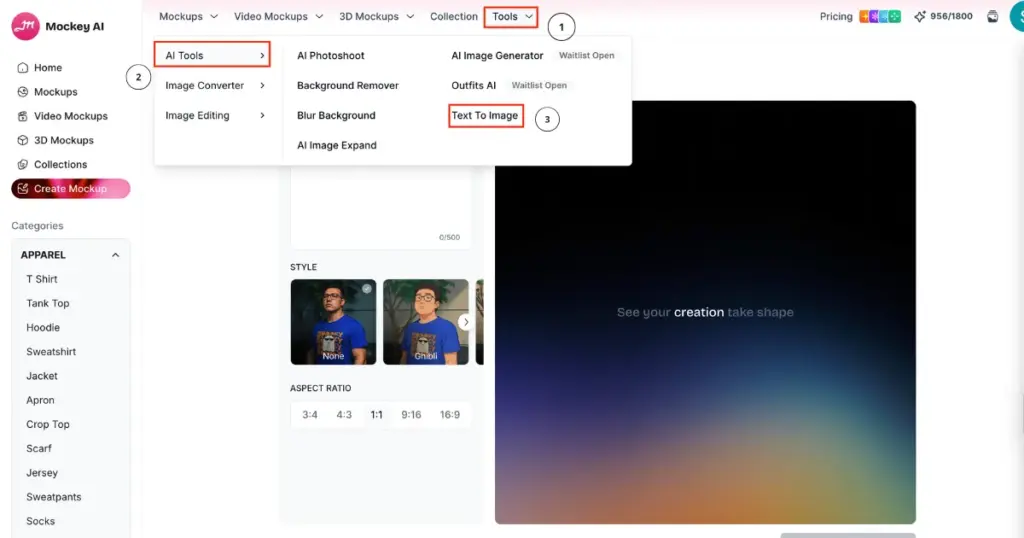
After purchasing the plan, you will land on a page where you need to go to the Tools section in the navigation bar.
Under “AI Tools”, click on “Text to Image” to explore the generator page. On the left side, you’ll see a Prompt box, a wide number of Styles, and Aspect ratio options.
3. Enter Prompt, Choose Style & Set Aspect Ratio
Start by writing a prompt describing what you want to generate.
To generate images, it is very important that the prompt is detailed, specific, and well-structured. Small adjustments like lighting, mood, and texture can significantly improve the clarity of the result.
Then, scroll through the available styles such as Ghibli, Pixar, Comic Book, or Picasso and pick the one that matches your idea.
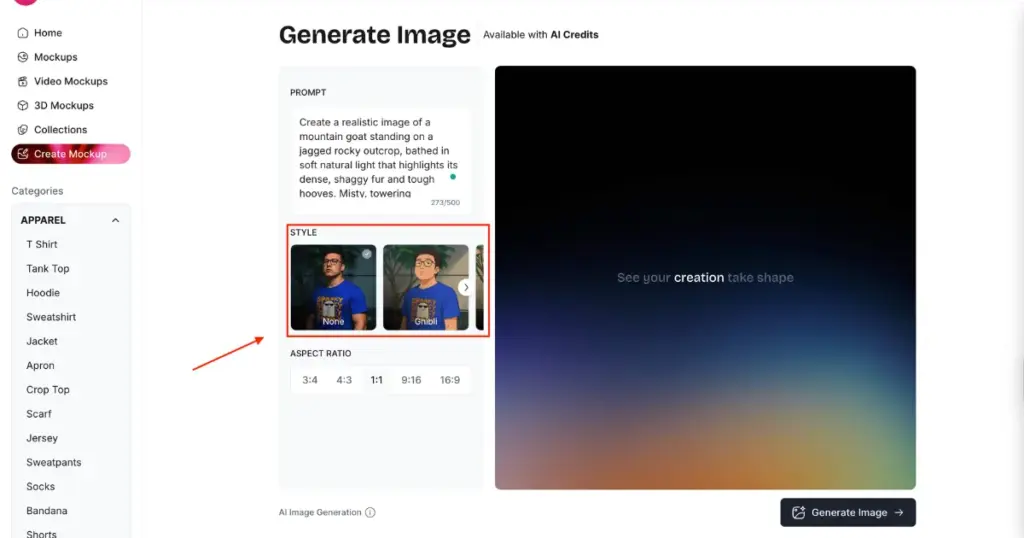
Finally, choose the aspect ratio based on where you’ll use the image — square for posts, vertical for reels, or landscape for thumbnails.
4. Click Generate Image for a PNG File
Next, tap the Generate Image button.
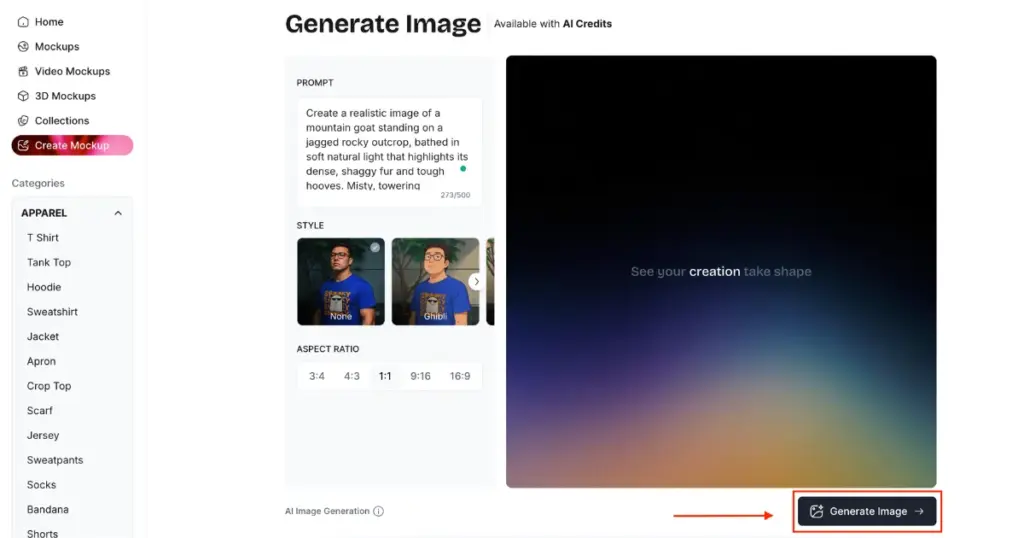
It will take less than 10 seconds to create. You can take a preview. If you’re not satisfied, you can regenerate it as well.
Once all is done, you can see the download icon and the expand icon.
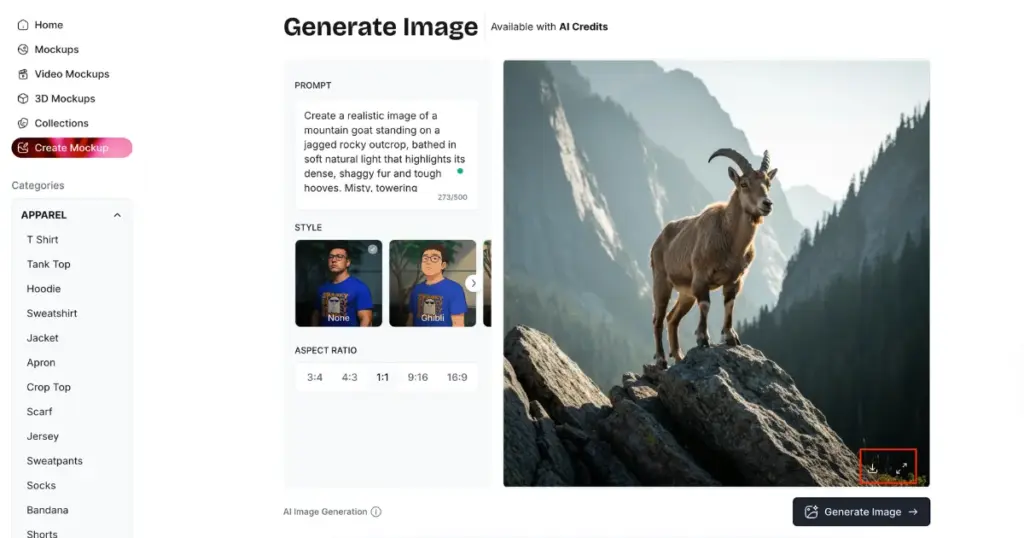
Your image will be saved immediately if you choose the download icon. The Generations panel can be viewed by clicking the expand icon. It’s your working history while using the text-to-image.
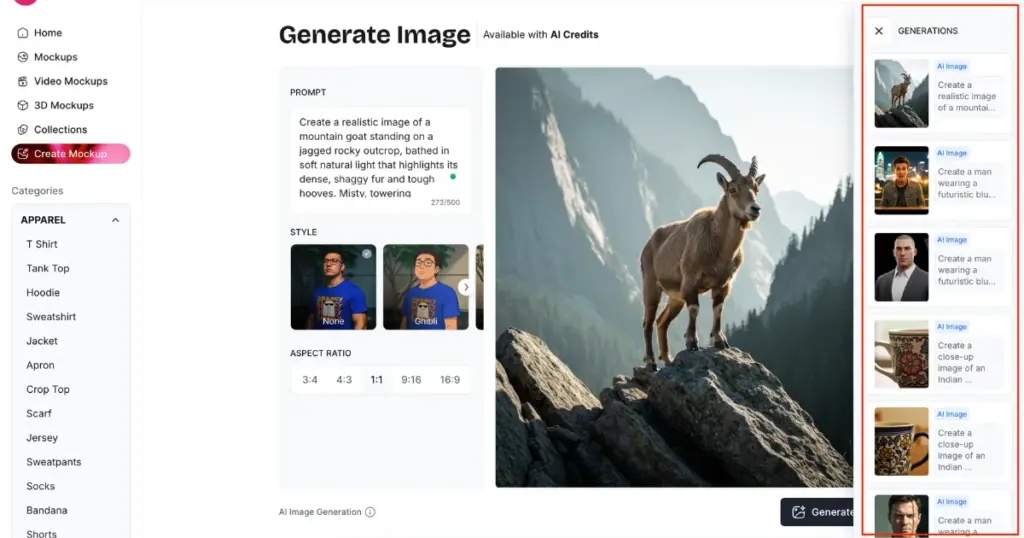
Every time you create an image, it gets saved here automatically. You can see a small preview of the image along with a short version of the prompt you used.
If you look closely, each item shows a different image style and subject. For example, there’s the mountain goat image you just generated, then some portraits, and even product-style images like mugs.
Some Prompt Examples Using Text-to-image
Look at some prompt examples to understand how much impact specific language can have on AI image generation.
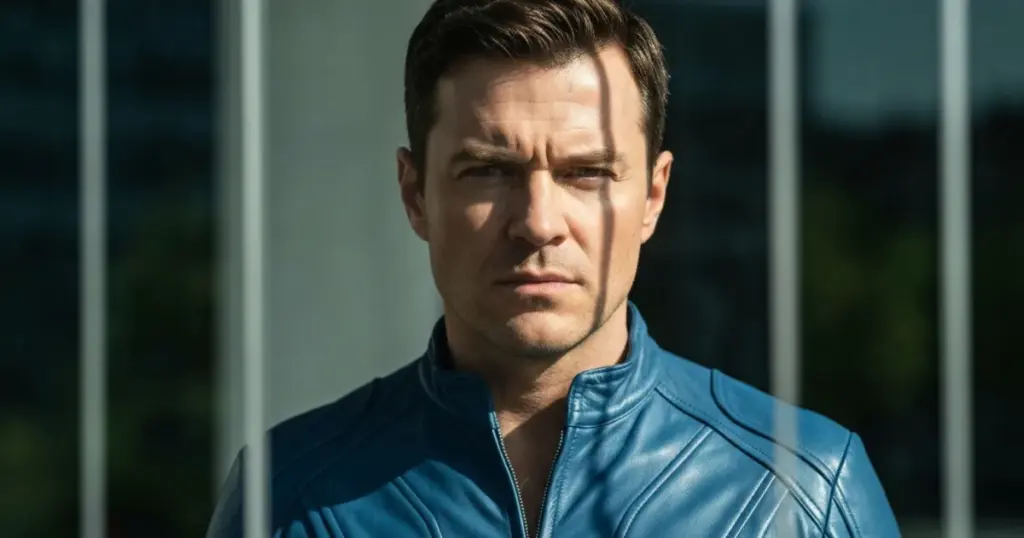
Prompt Example 1:
Create a man wearing a futuristic blue leather jumpsuit in a cinematic style. He looks straight at the camera, standing behind a slightly see-through window with vertical lines. Soft light coming from one side creates gentle shadows and brings out the glass texture.
Result 1:
Prompt Example 2:
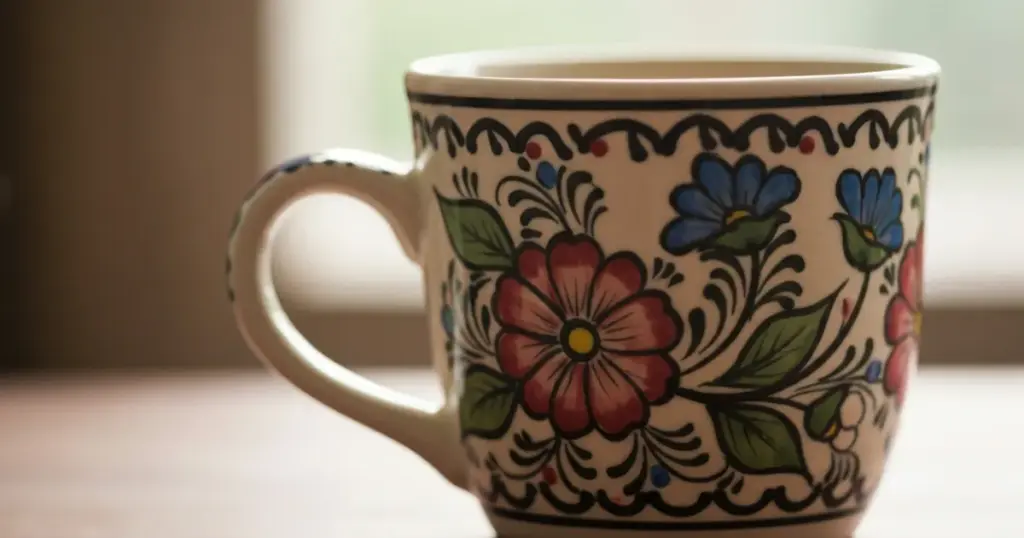
Create a close-up image of an Indian ceramic tea mug, using a 60mm lens, with a blurred background to highlight its detailed design and texture.
Result 2:
Prompt Example 3:
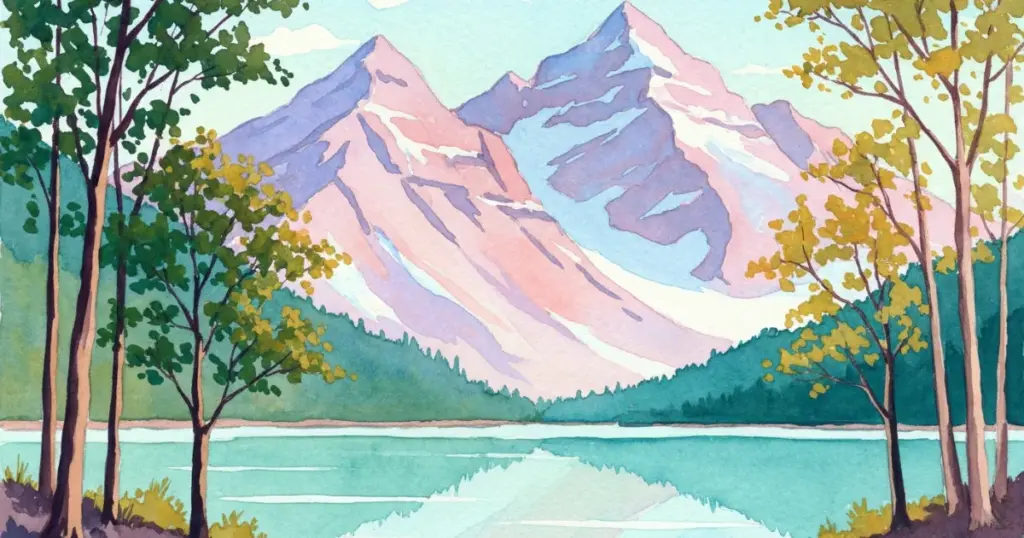
Create a colorful watercolor painting of mountains, a calm lake, and tall trees using pastels and bold strokes to show a peaceful nature.
Result 3:
Tips for Using the Text-to-Image Online Tool
Good images start with a clear prompt, add style keywords, and generate multiple variations. Use these to guide the AI and get better results.
Write Clear Prompts
Don’t keep it vague.
Instead of “a girl”, write: “a girl sitting in a cafe, warm lighting, cinematic style.”
Add Style Keywords
Small words change the output a lot.
Try adding: realistic, 3D, anime, cinematic, studio lighting.
Choose the Right Aspect Ratio
Pick based on where you’ll use it:
- Square (1:1) (Instagram)
- Portrait (Reels / Shorts)
- Landscape (YouTube thumbnails)
Generate Multiple Variations
Don’t stop at one result.
Run the same prompt 2–3 times to get better options.
Conclusion
From this blog, you now understand how to create images from text using Mockey AI’s text-to-image tool.
The biggest USP of this tool is its very fast output generation. Along with that, it offers affordable plans and delivers highly accurate results.
Whether you want a cinematic style or you enter a drawing prompt, the image results here will be excellent.
Want to further customize your design? You can use your image in the AI Photoshoot tool, which helps you generate product photos for eCommerce.
FAQs
How do I improve the AI image result?
Improve your AI images by writing clear prompts with details like lighting and style. Use tools like Adobe Express to sharpen and improve quality, and try multiple versions to get the best result.
What copyright regulations apply to images created by AI?
In places like the US and EU, images made only by AI from text prompts usually can’t be copyrighted because they don’t involve human creativity.
Can I generate images of famous brands or characters?
Generating images of well-known characters or brands can break trademark or copyright rules. If you want to use those kinds of images, you need permission from the owner first.
What is the resolution of Mockey’s text-to-image output?
Any AI images you create using Mockey’s text-to-image will all be in 4K resolution with extremely high quality.