macbook
Macbook Pro M1 Mockup Free to Download
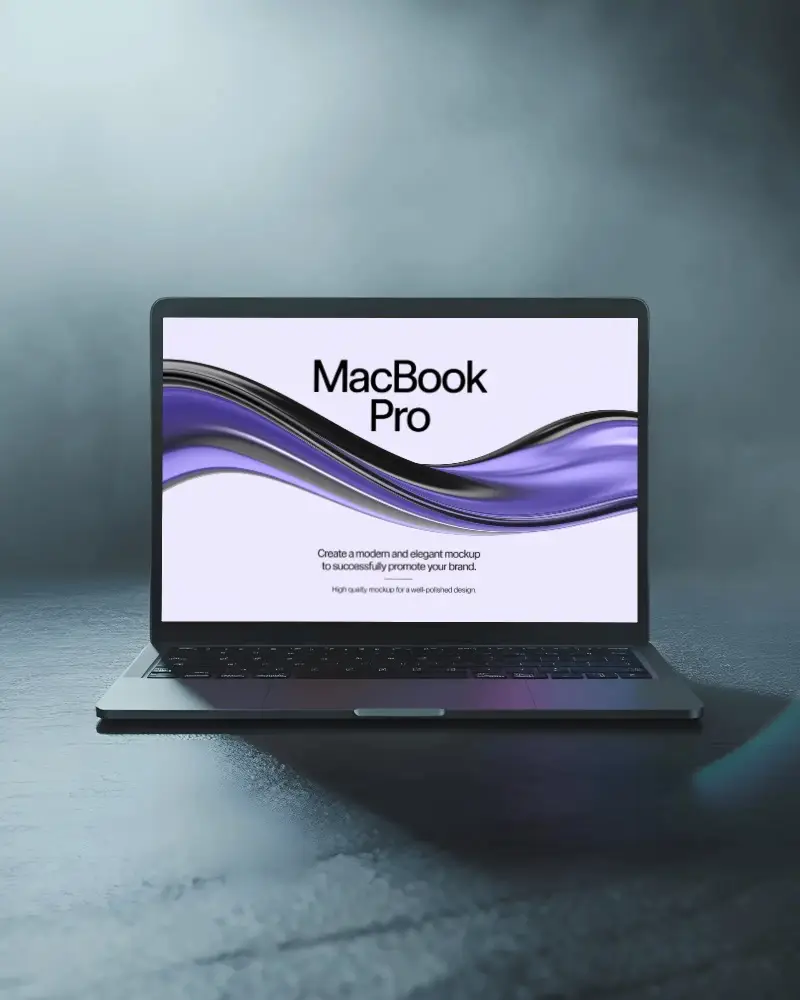
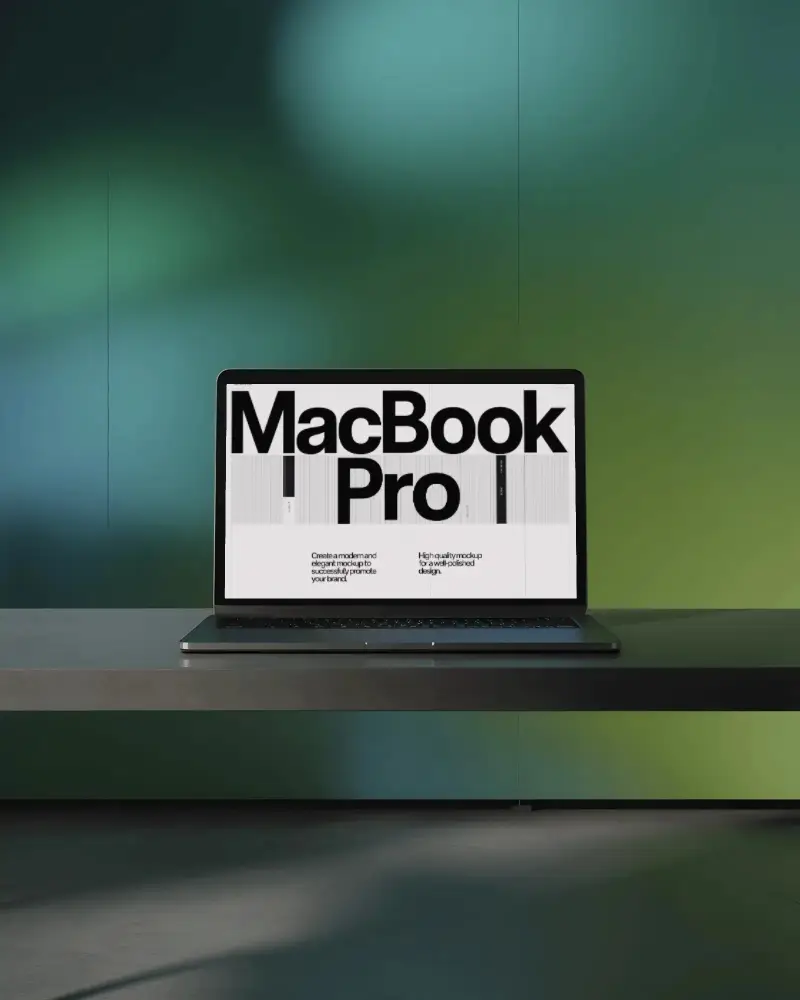
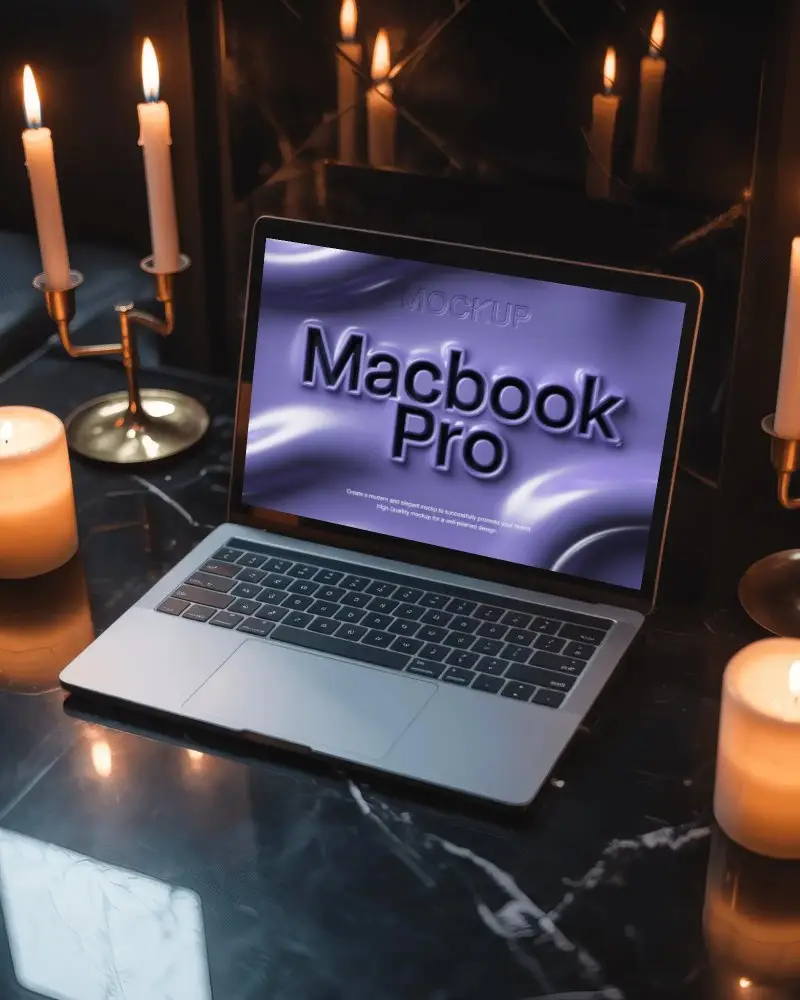
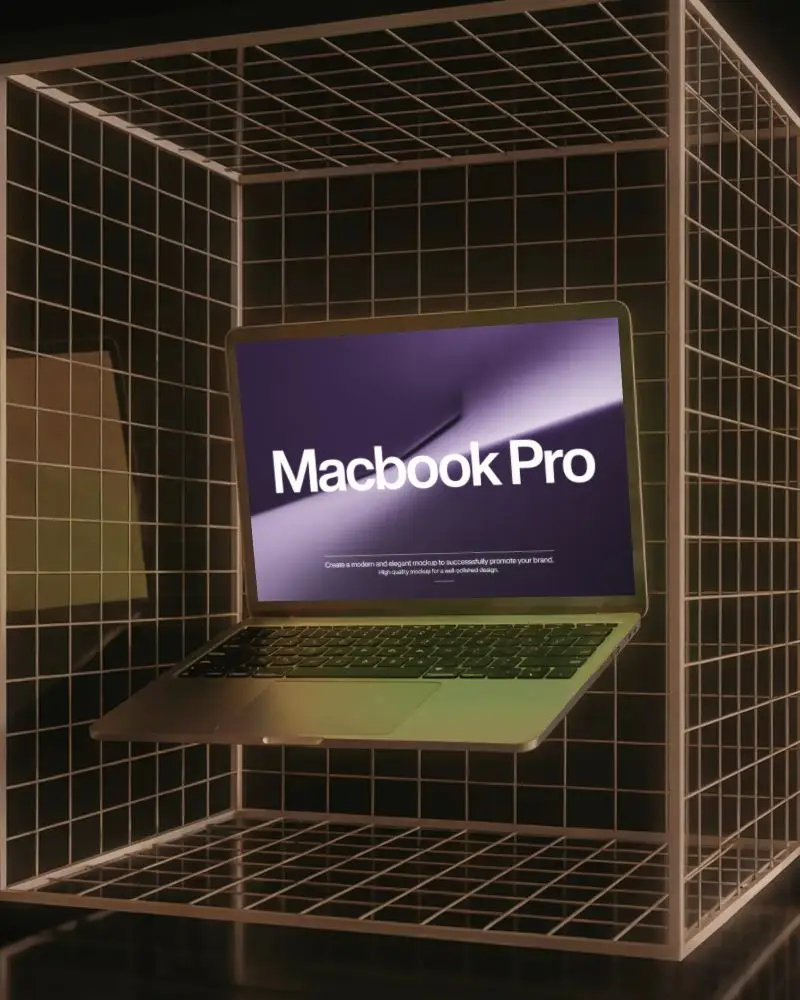
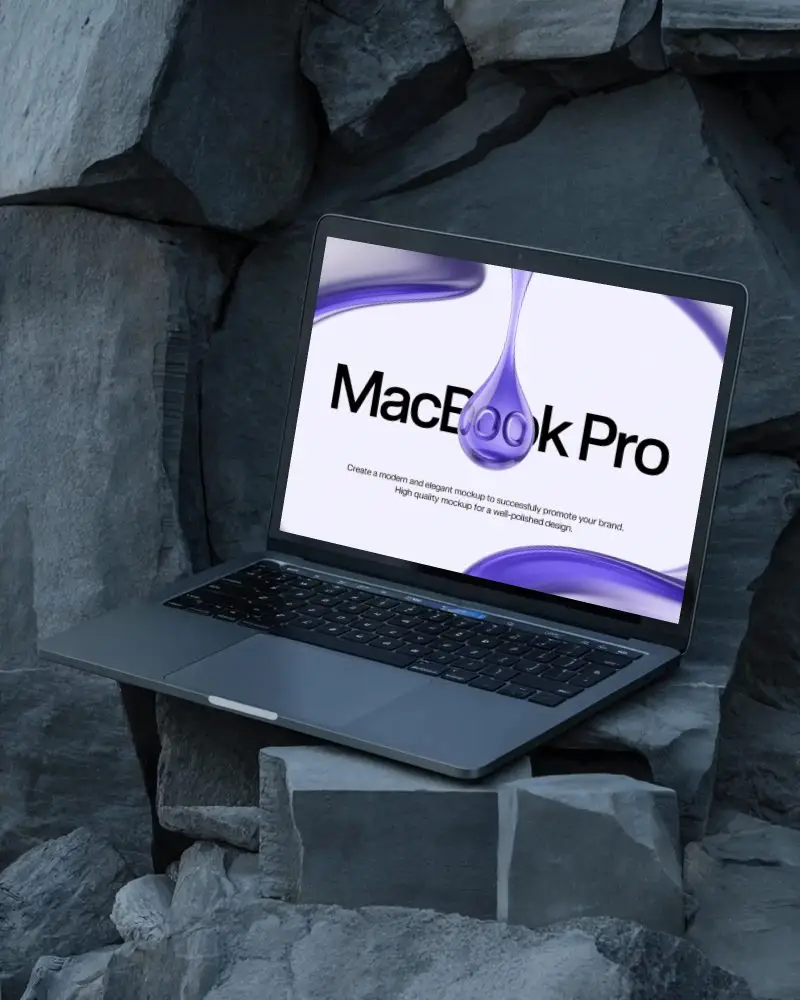
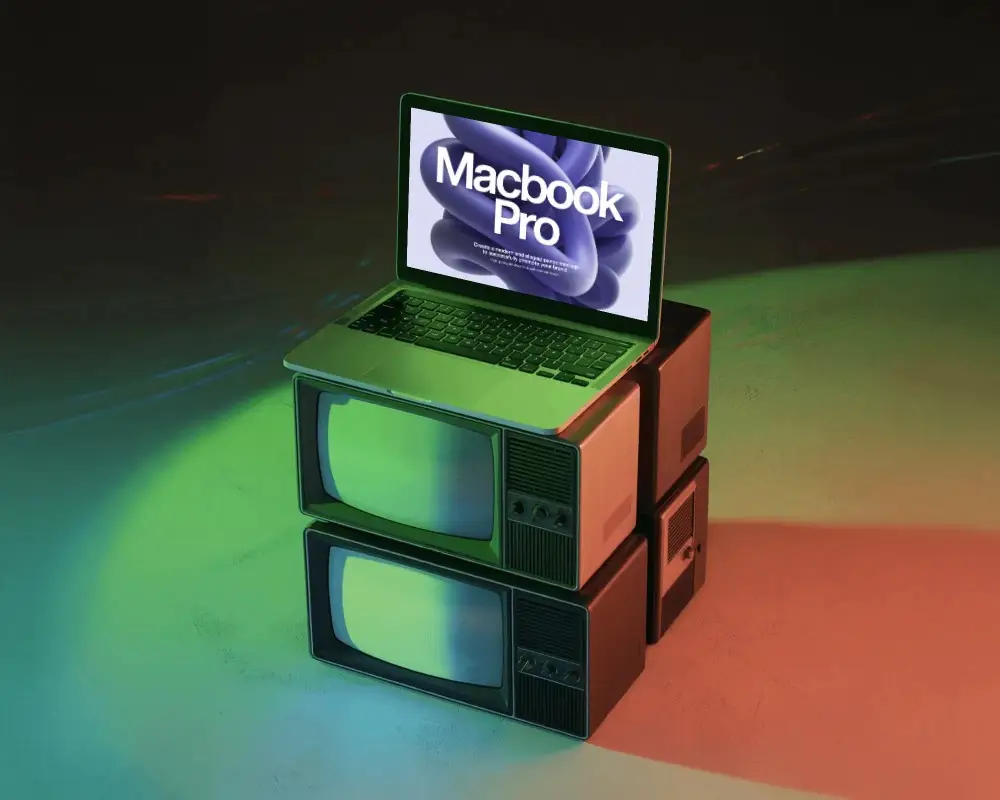
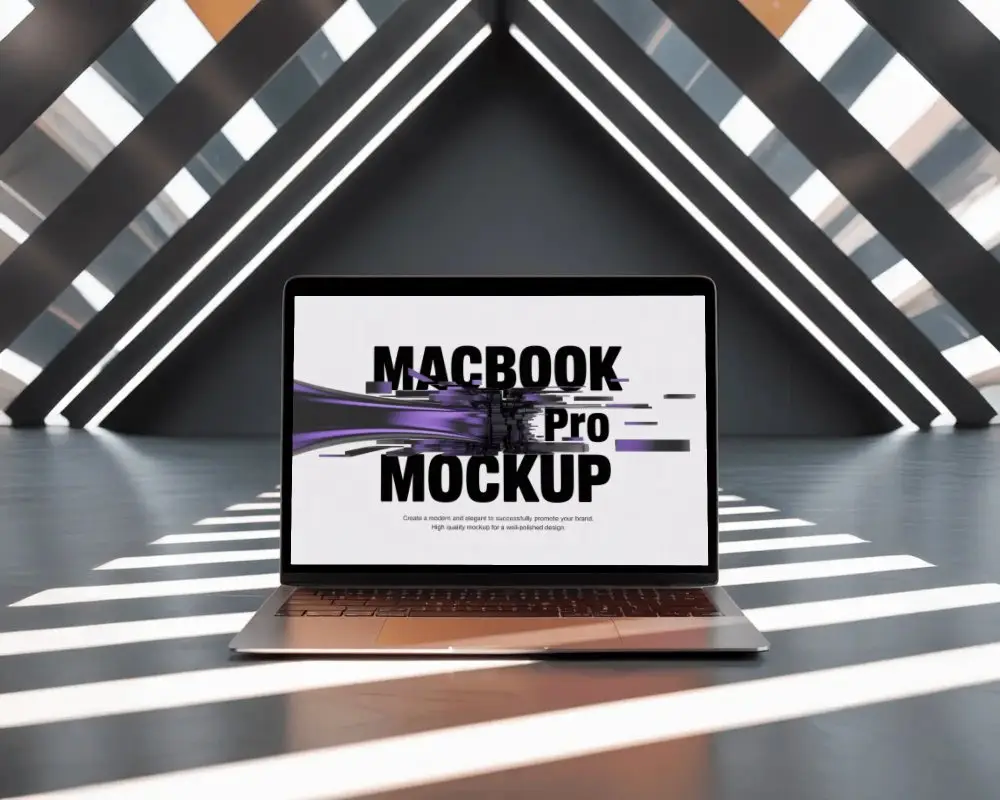
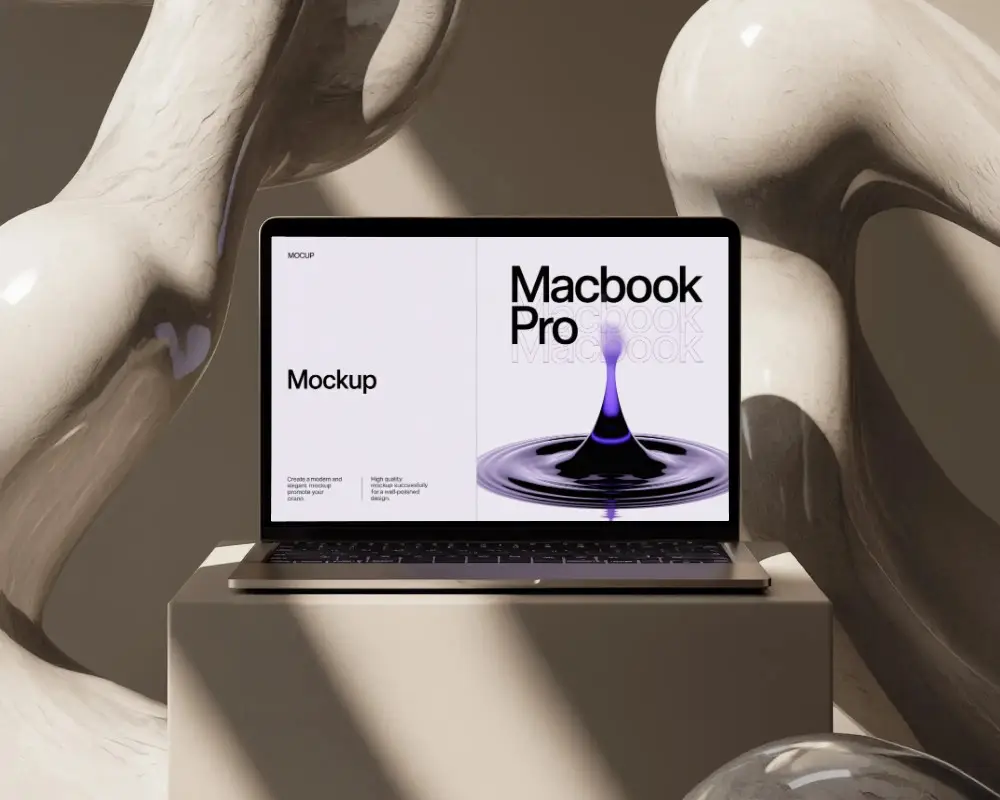
Create your MacBook Pro M1 mockup with Mockey.ai. Simply upload your design, customize it, and get a realistic MacBook Pro M1 mockup ready in seconds!
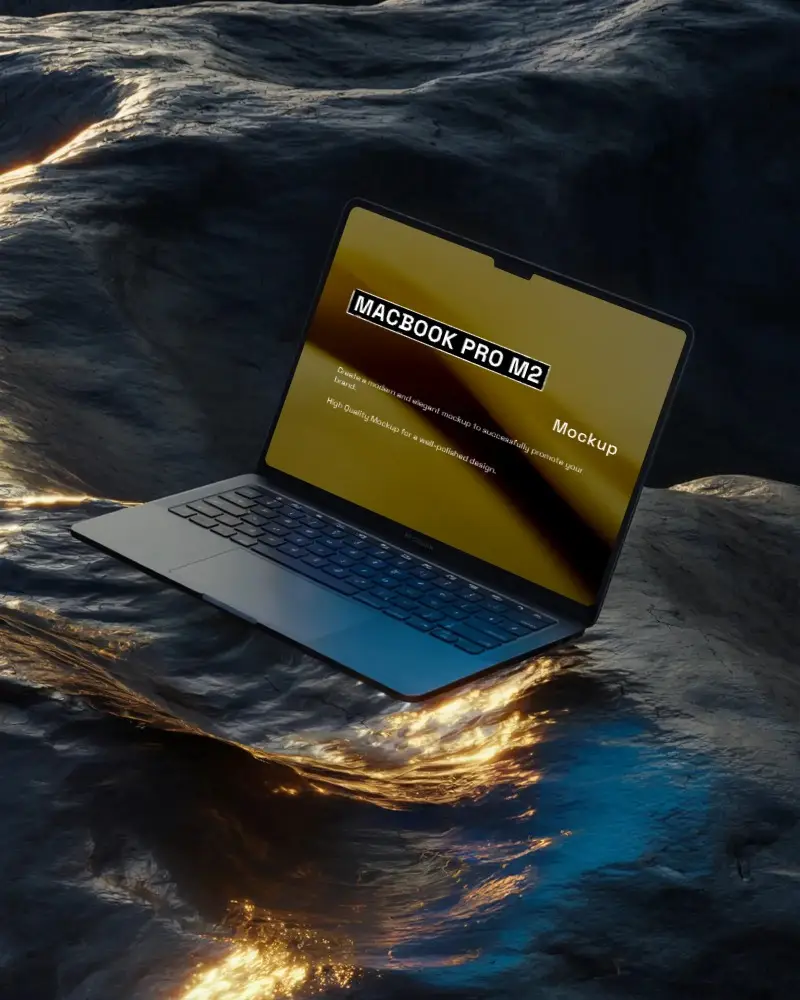
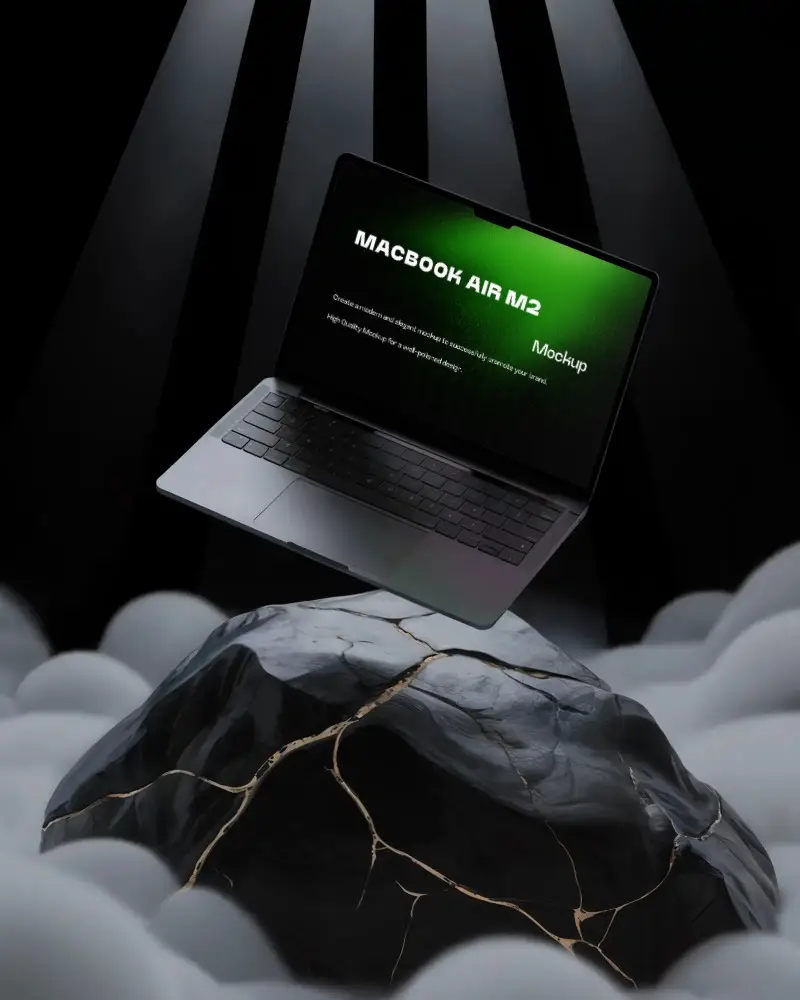
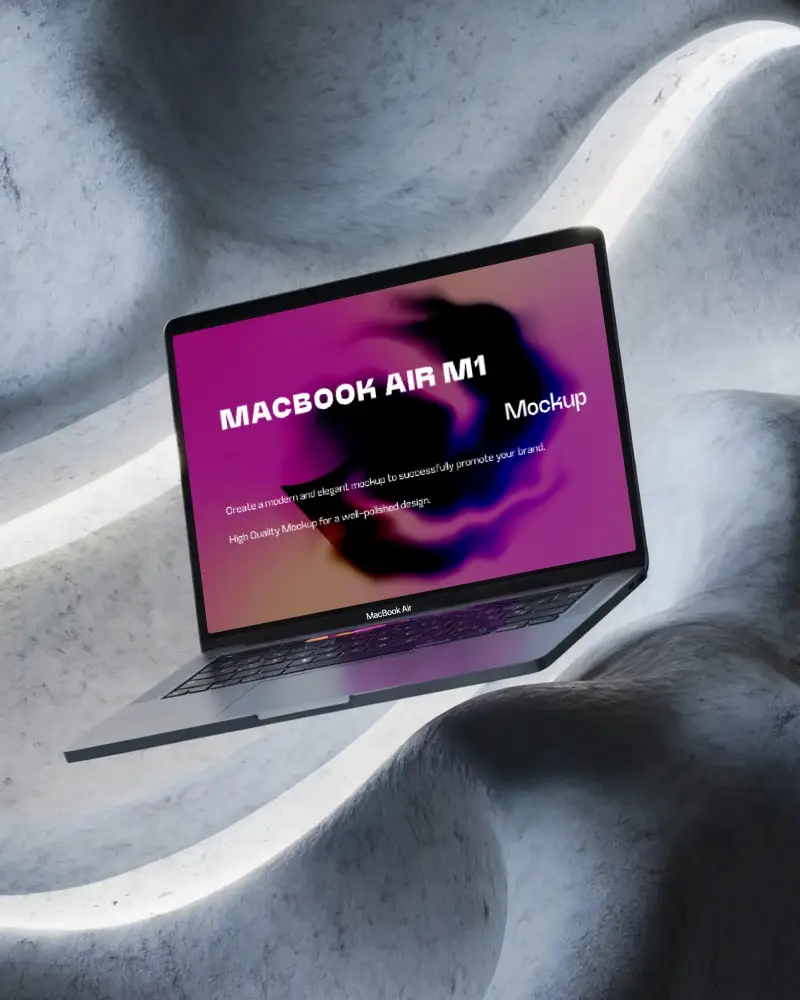
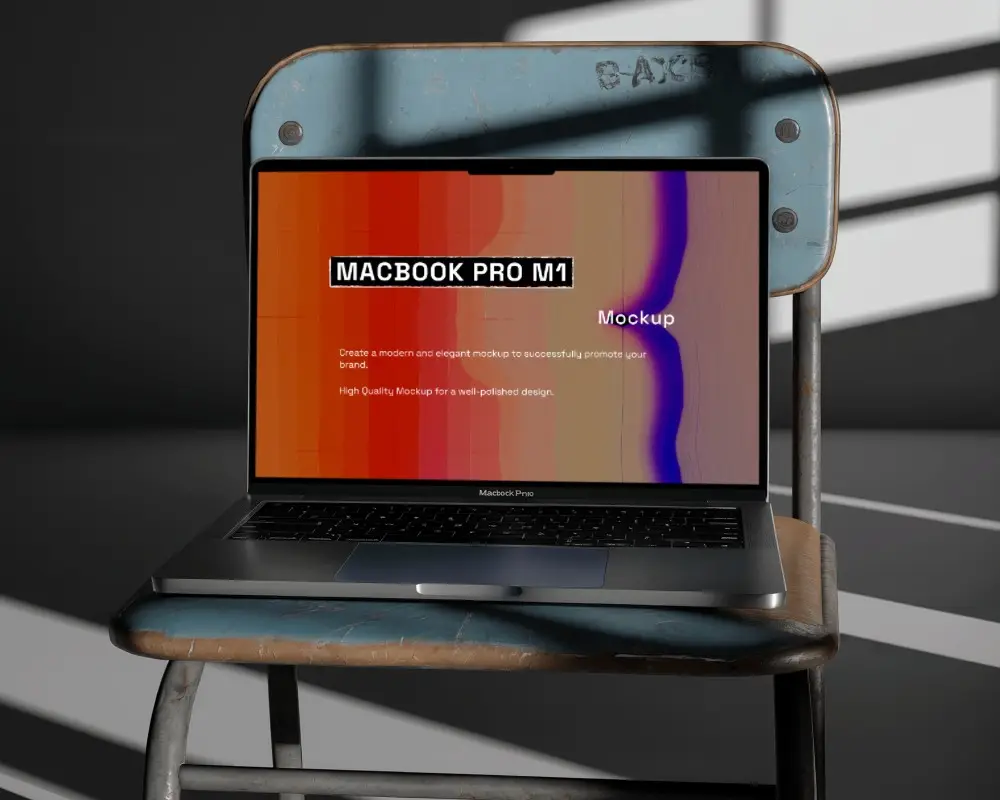
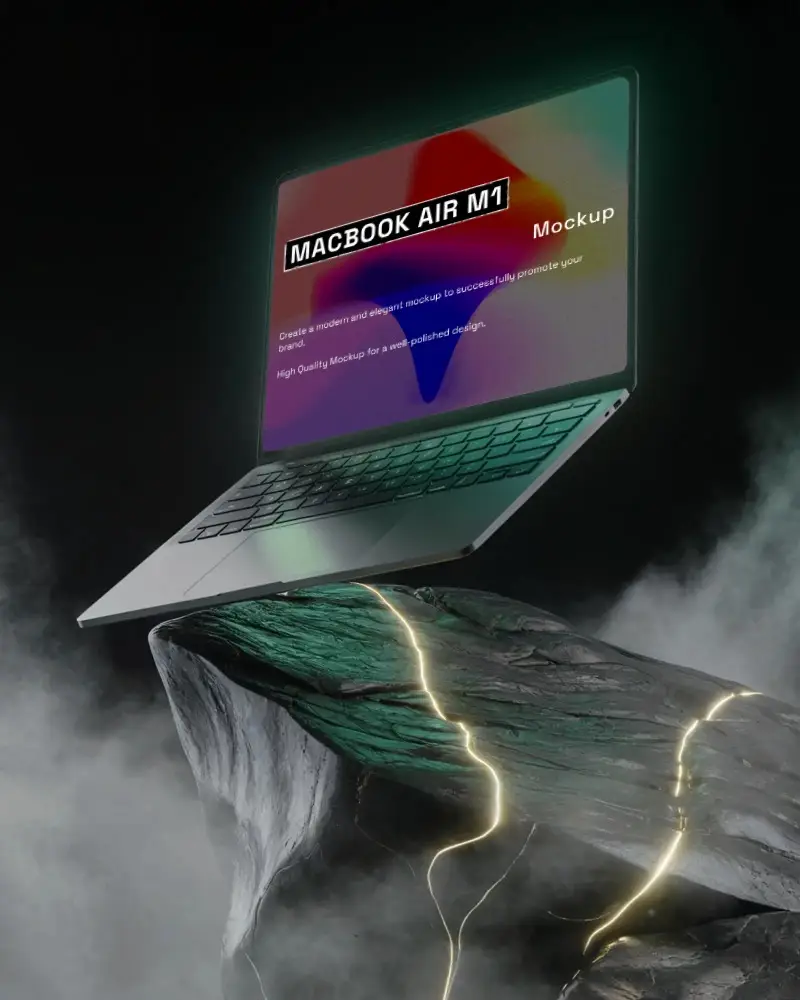
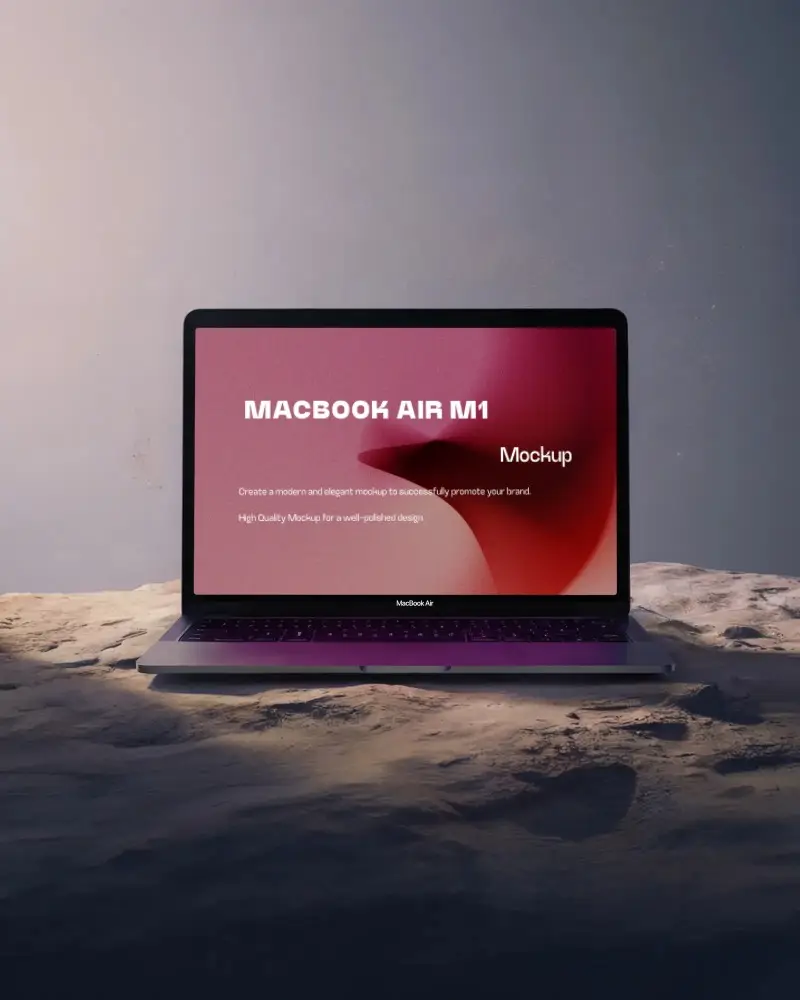
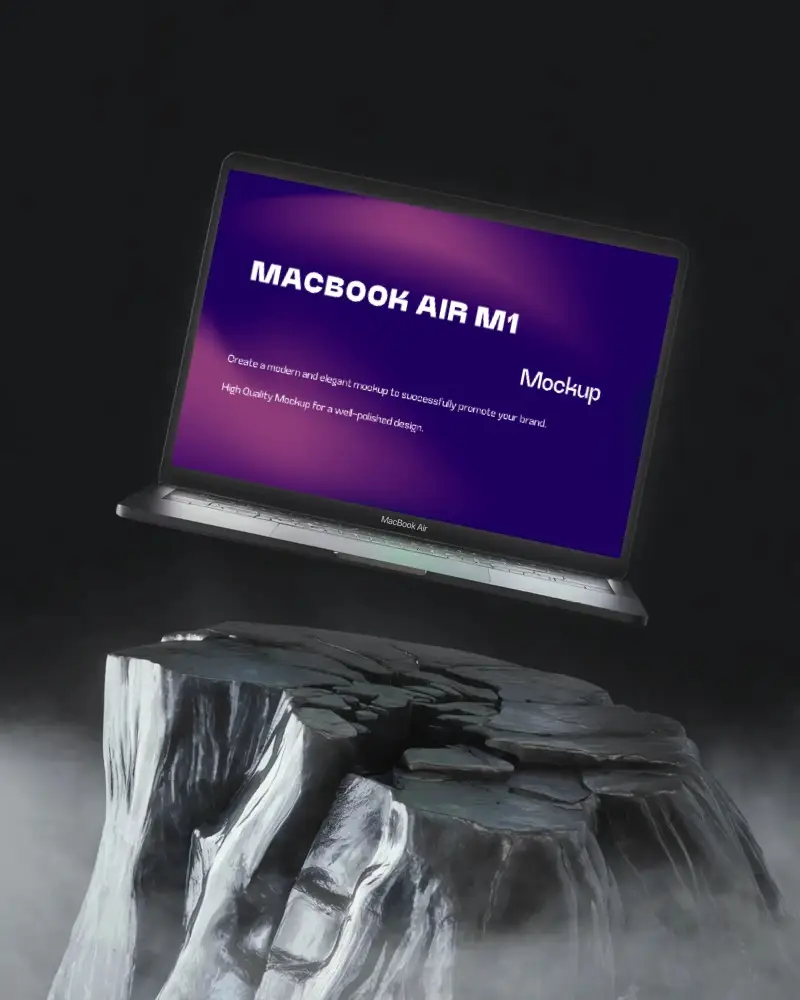
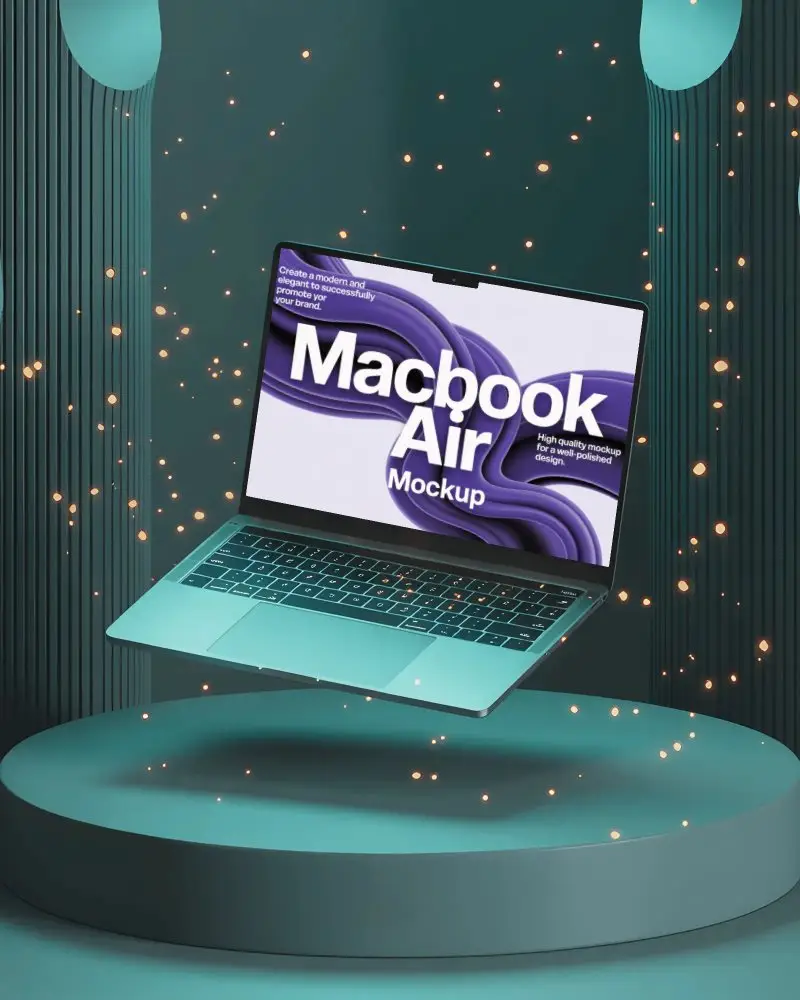
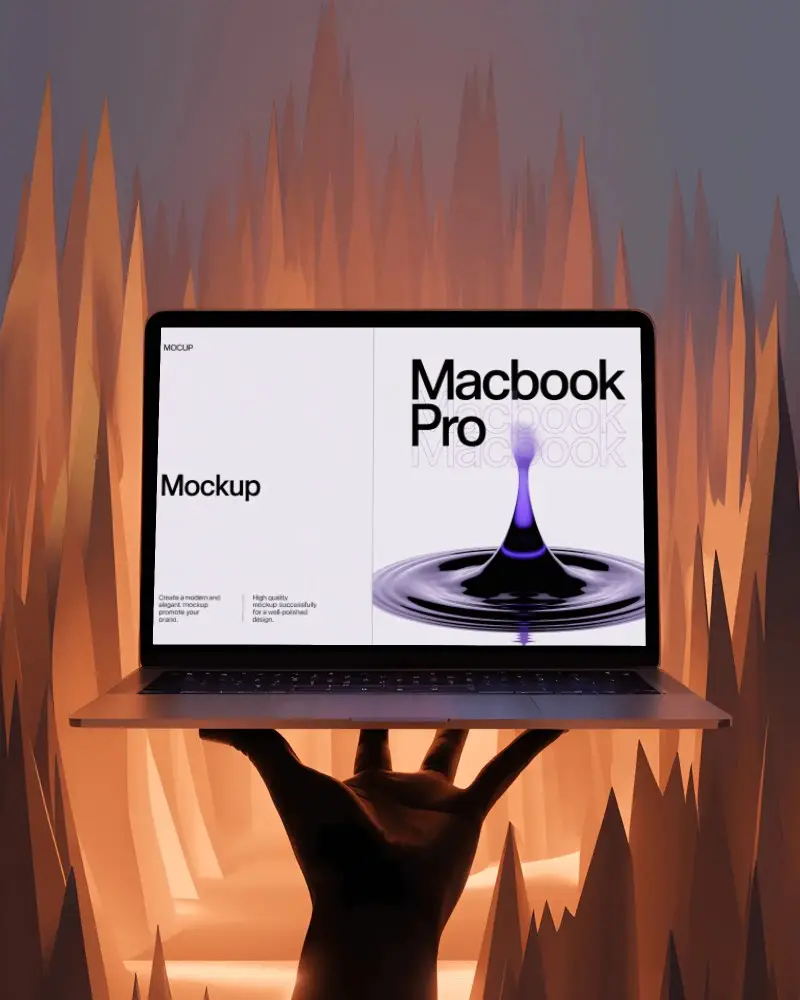
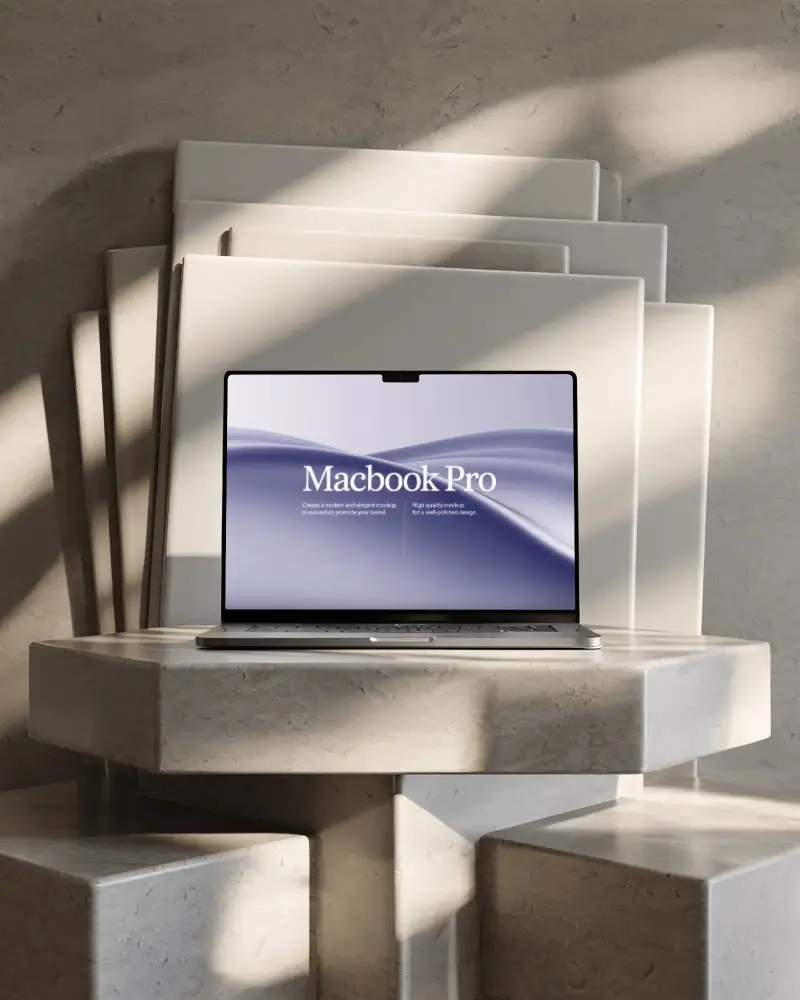
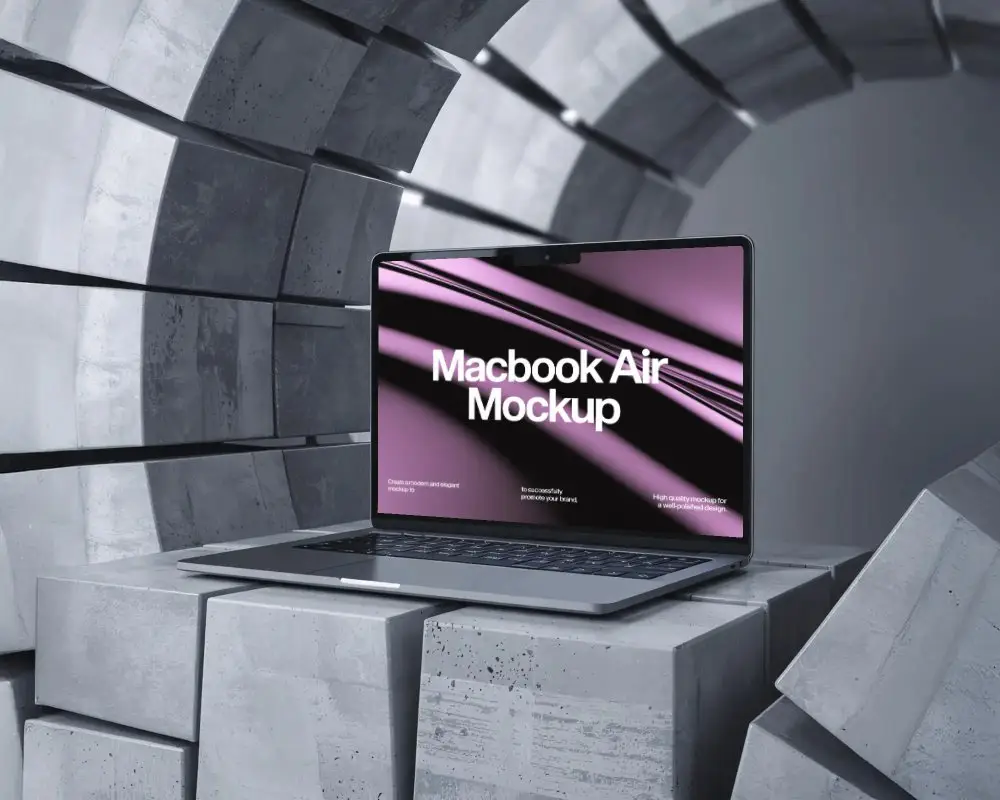
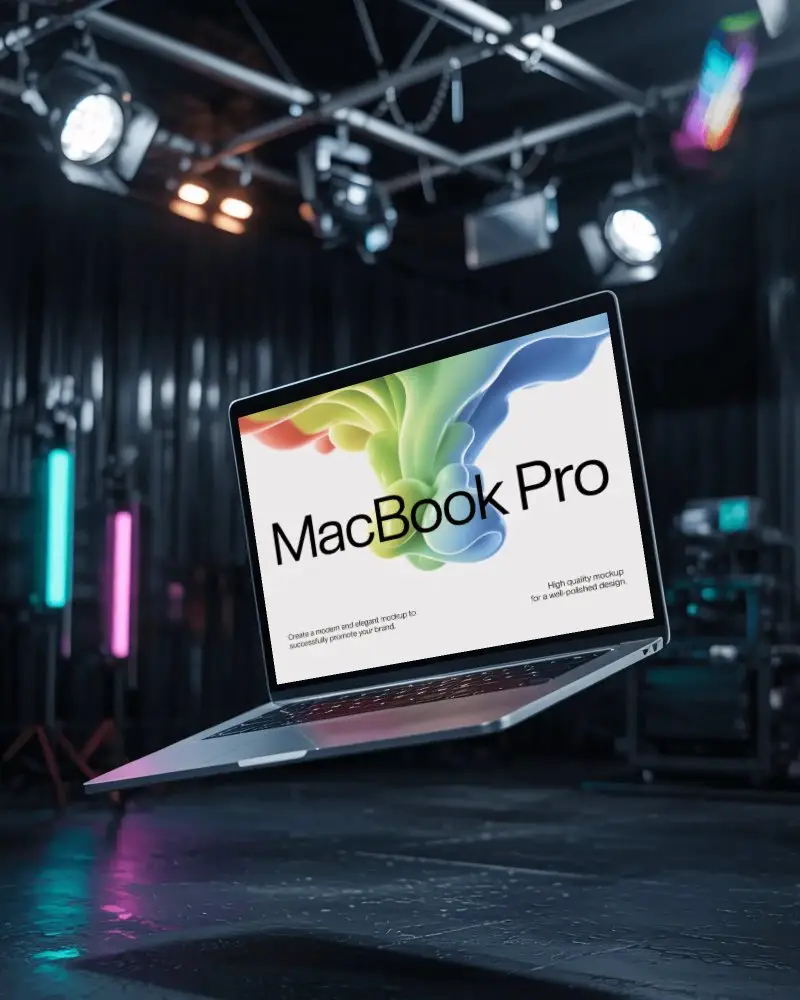
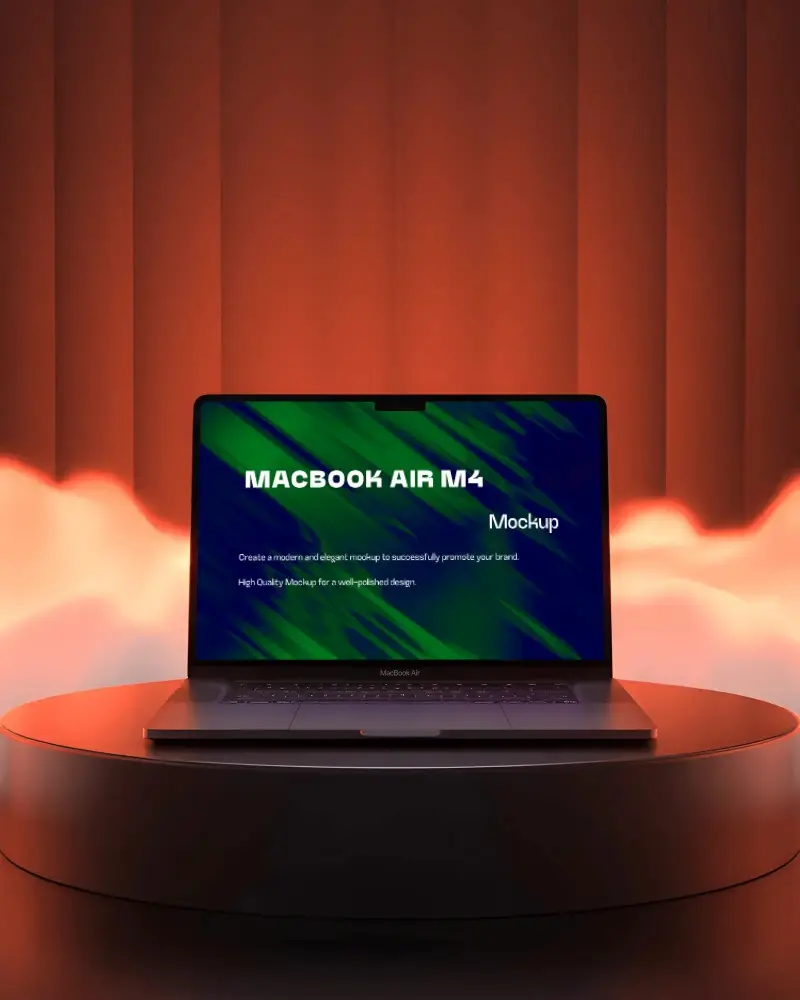
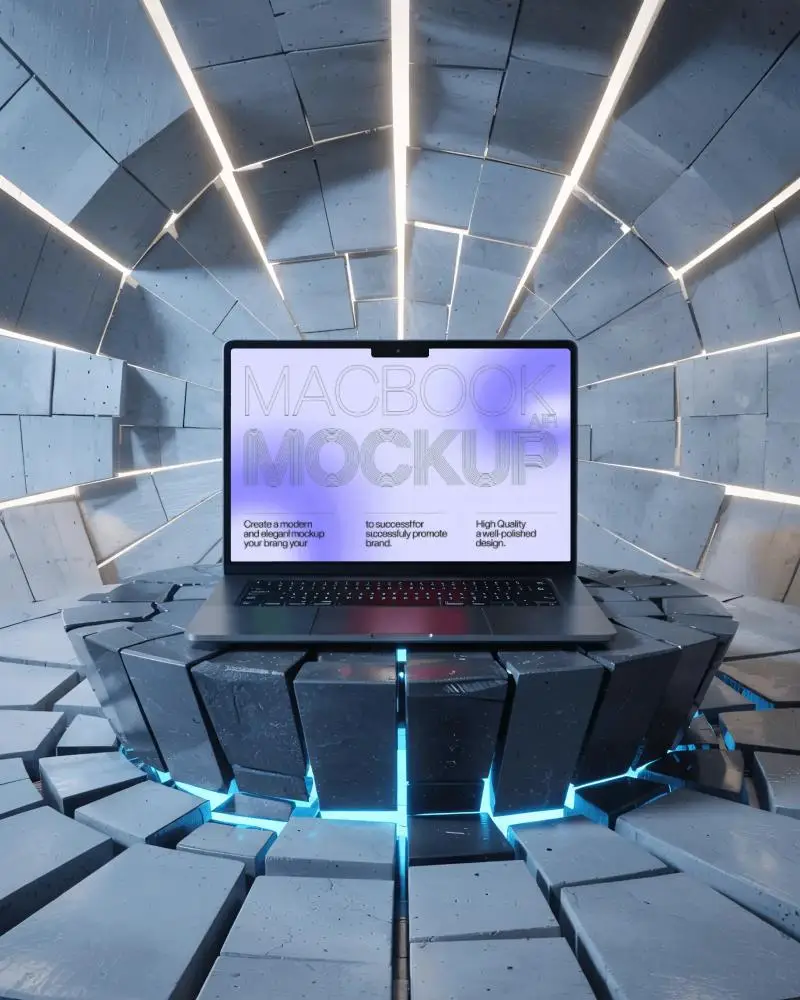
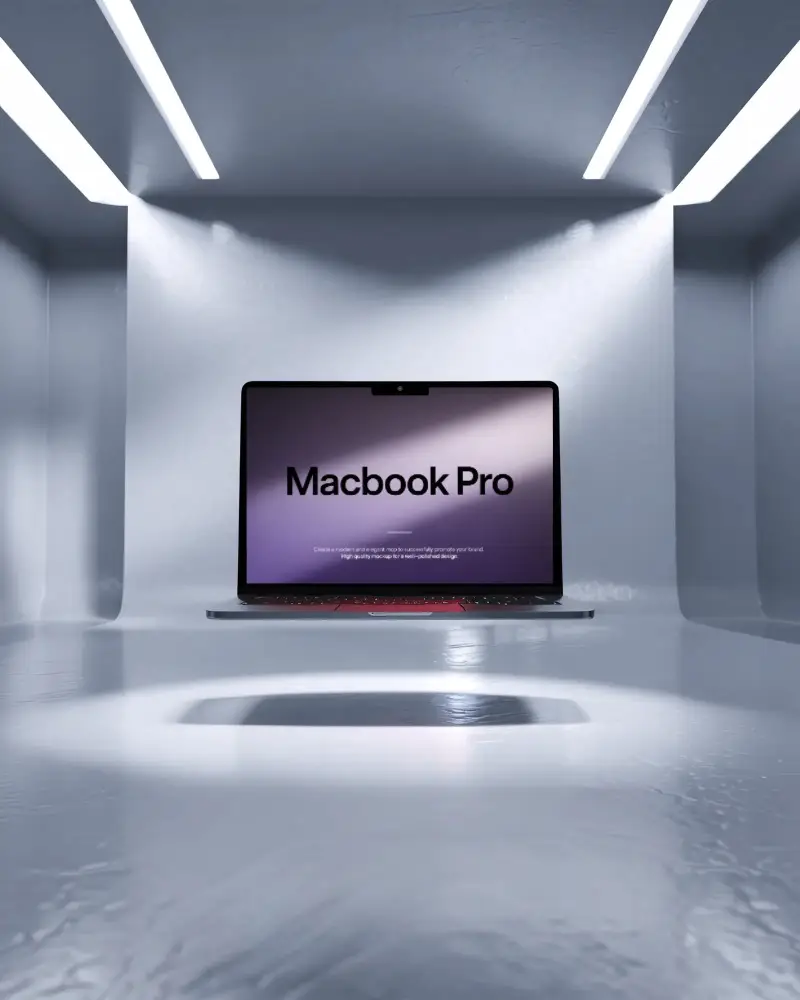
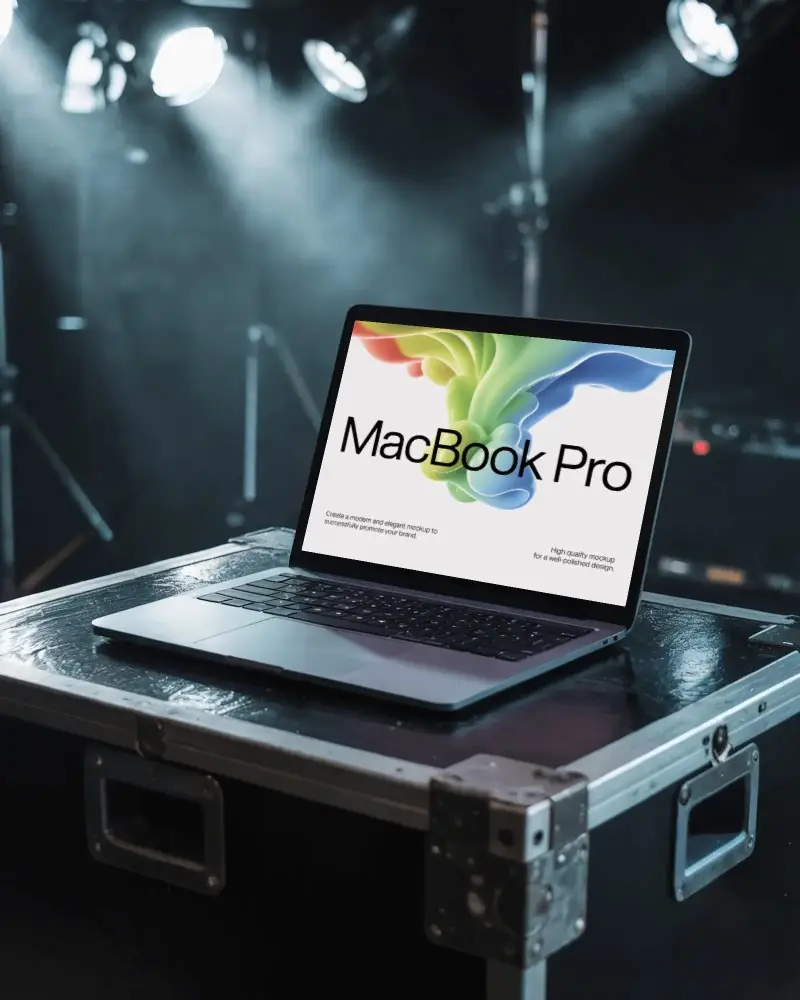
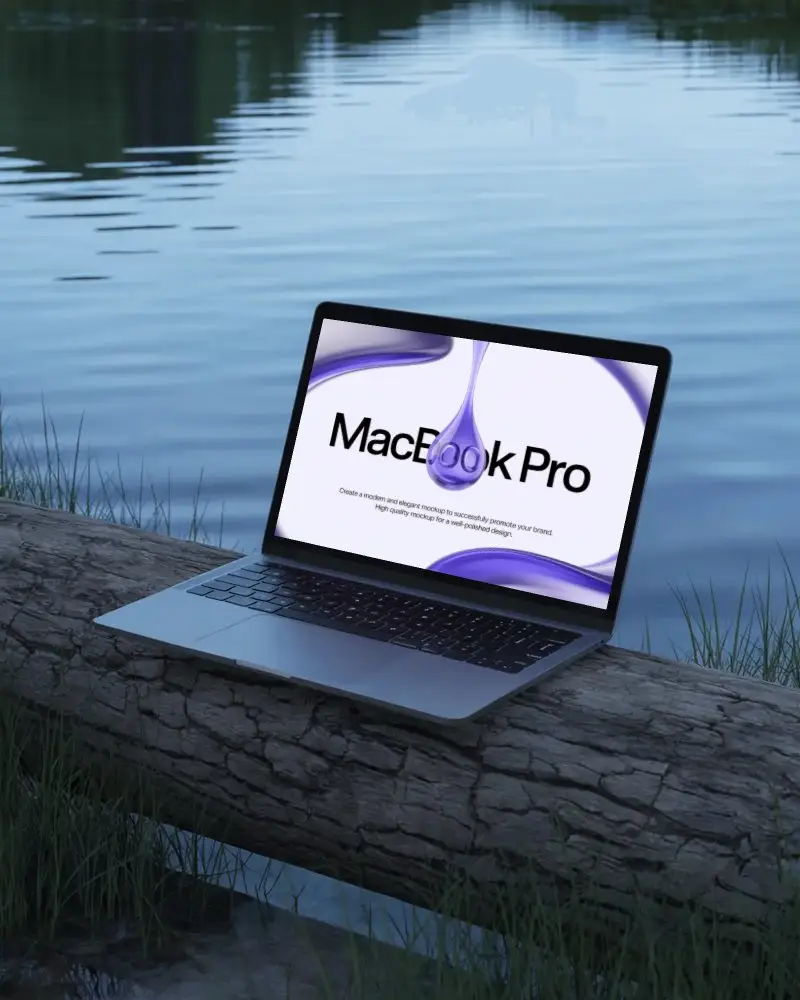
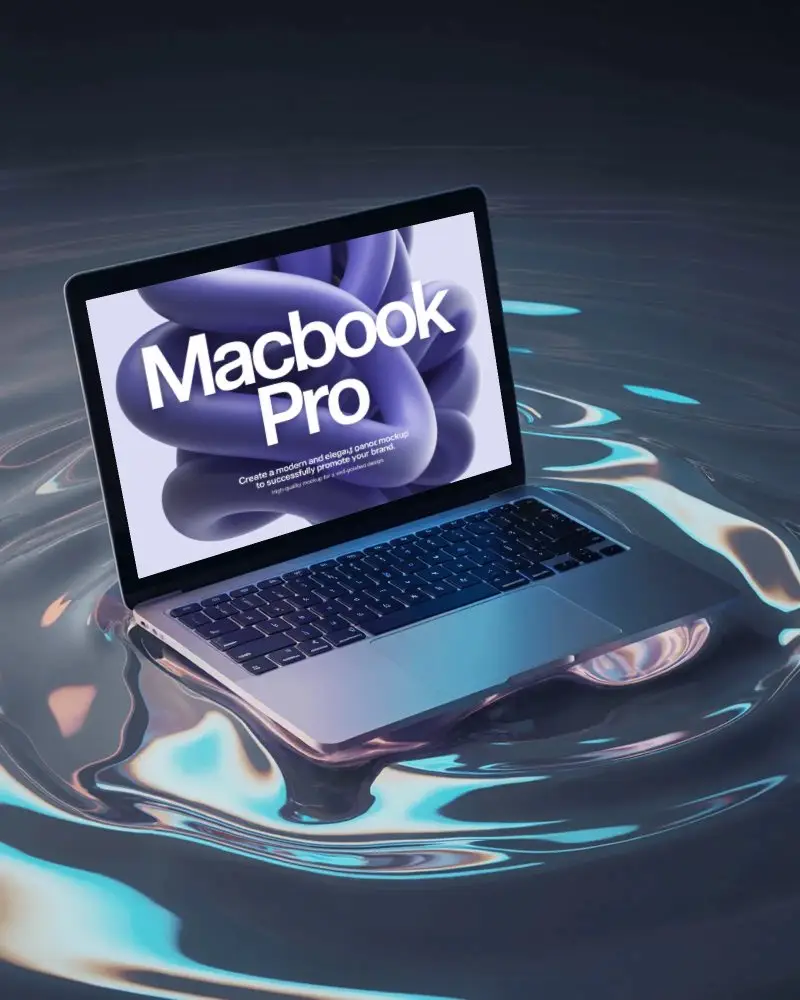
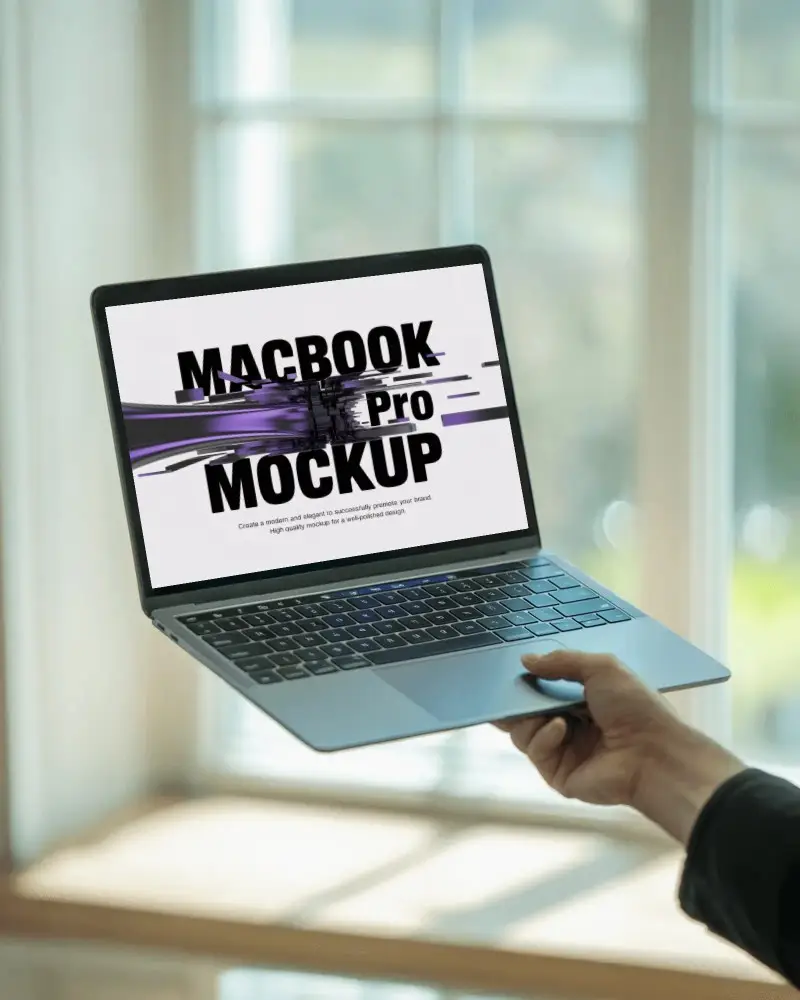
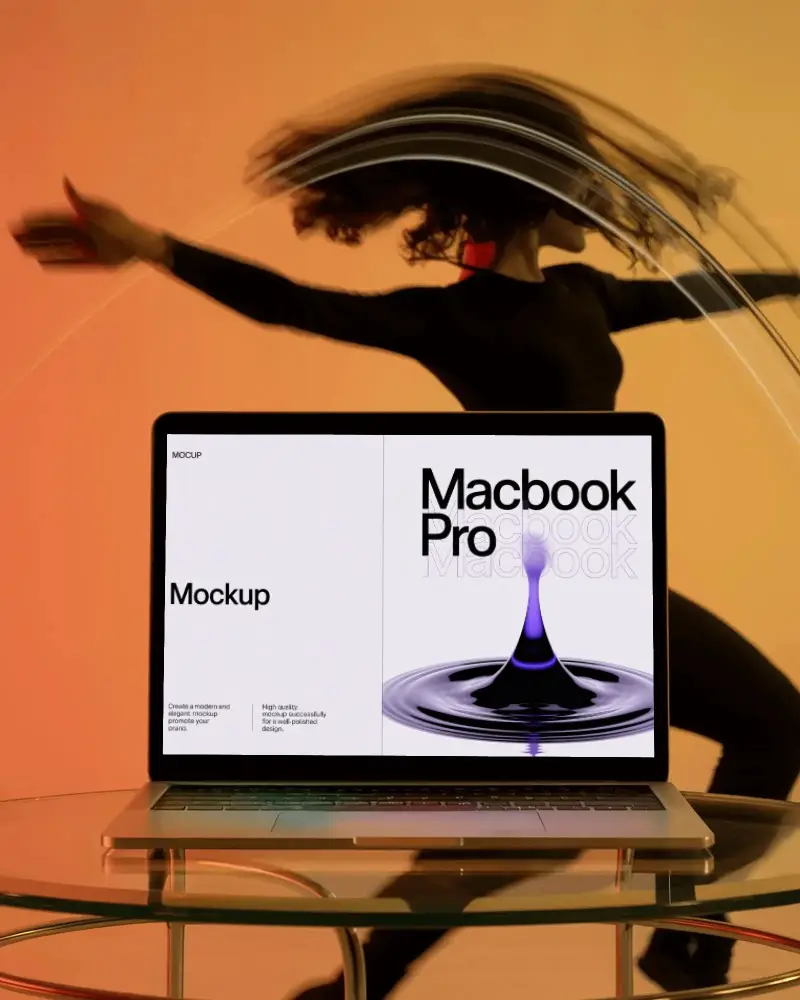
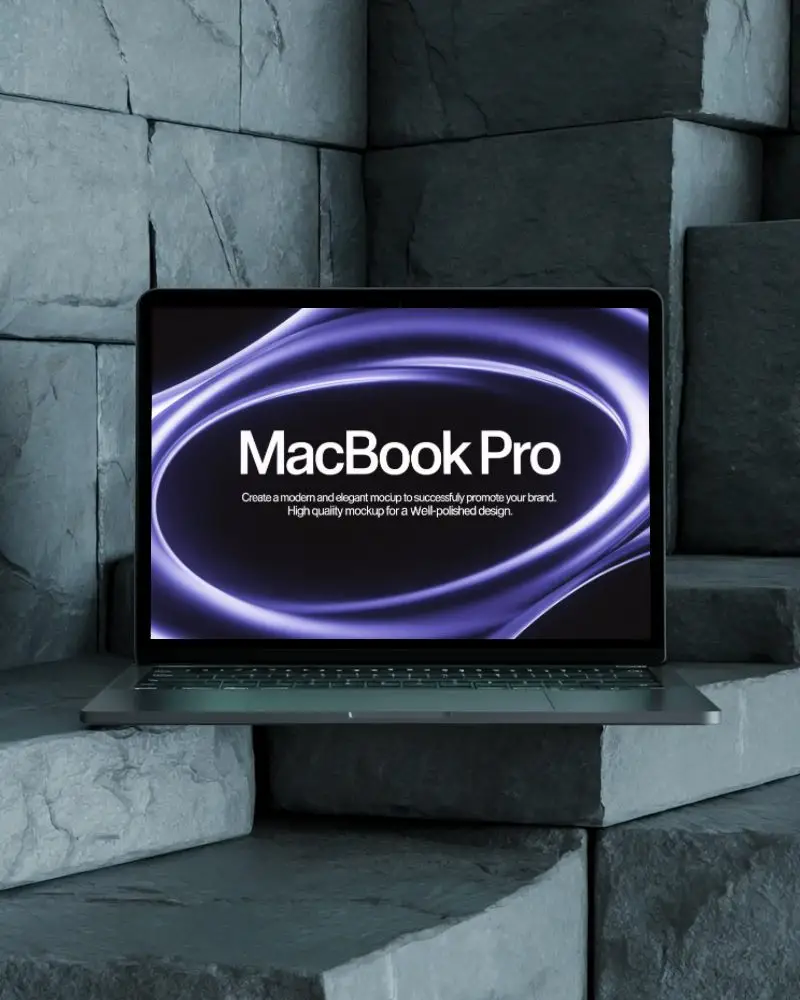
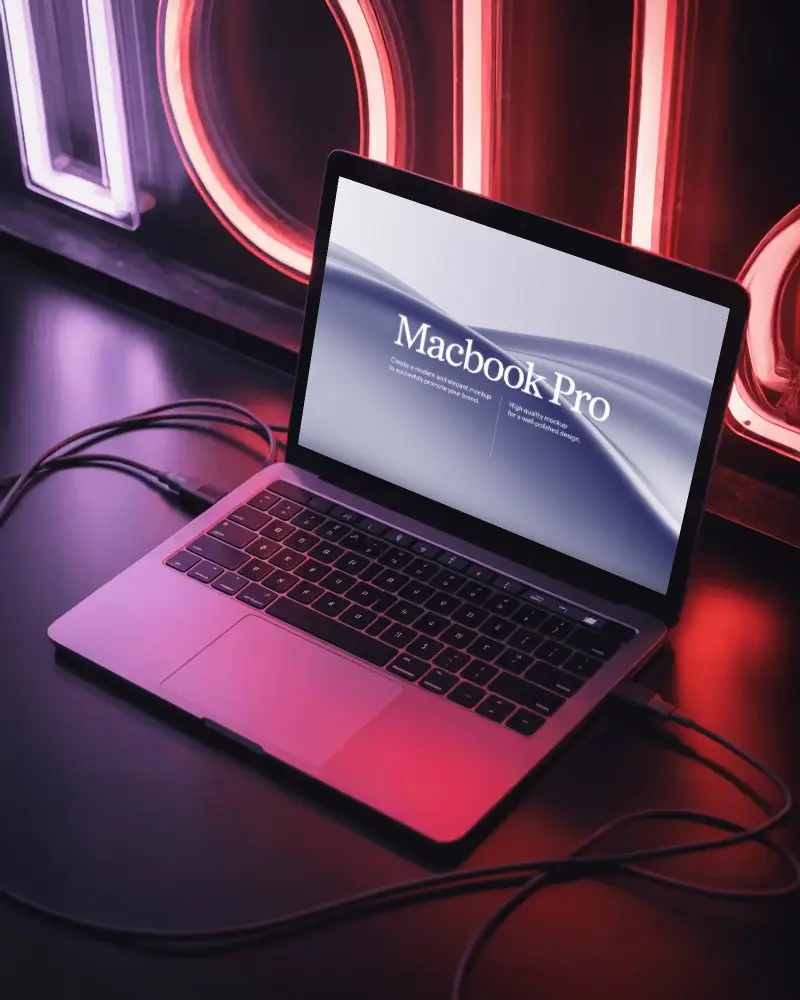
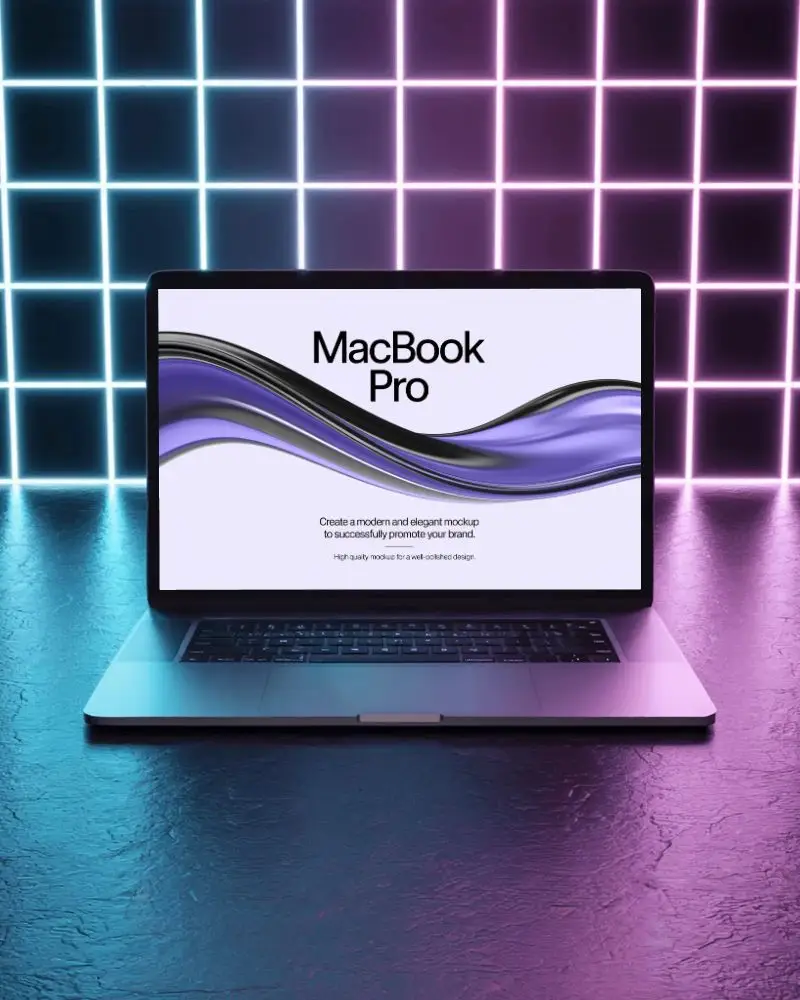
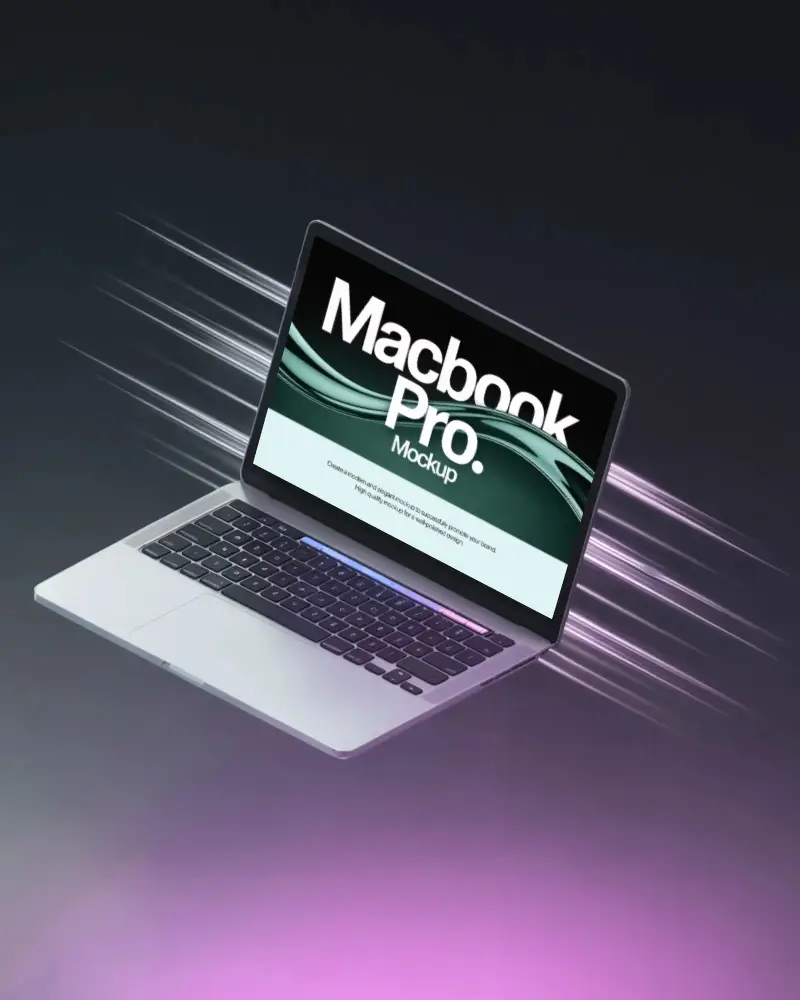
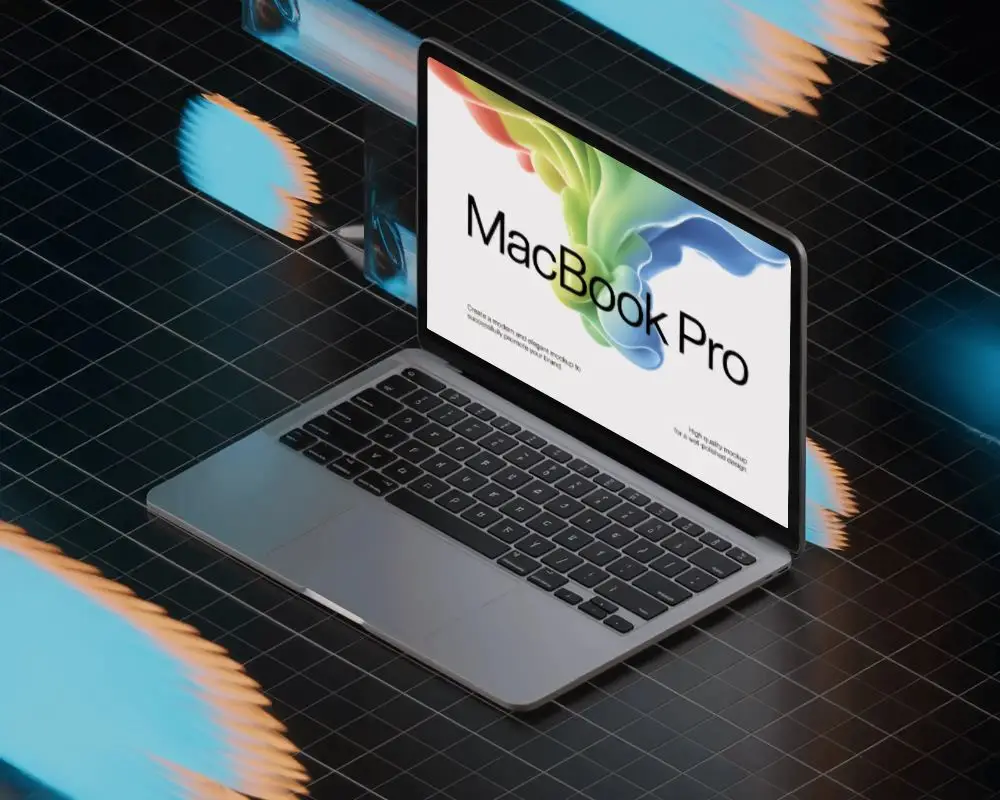
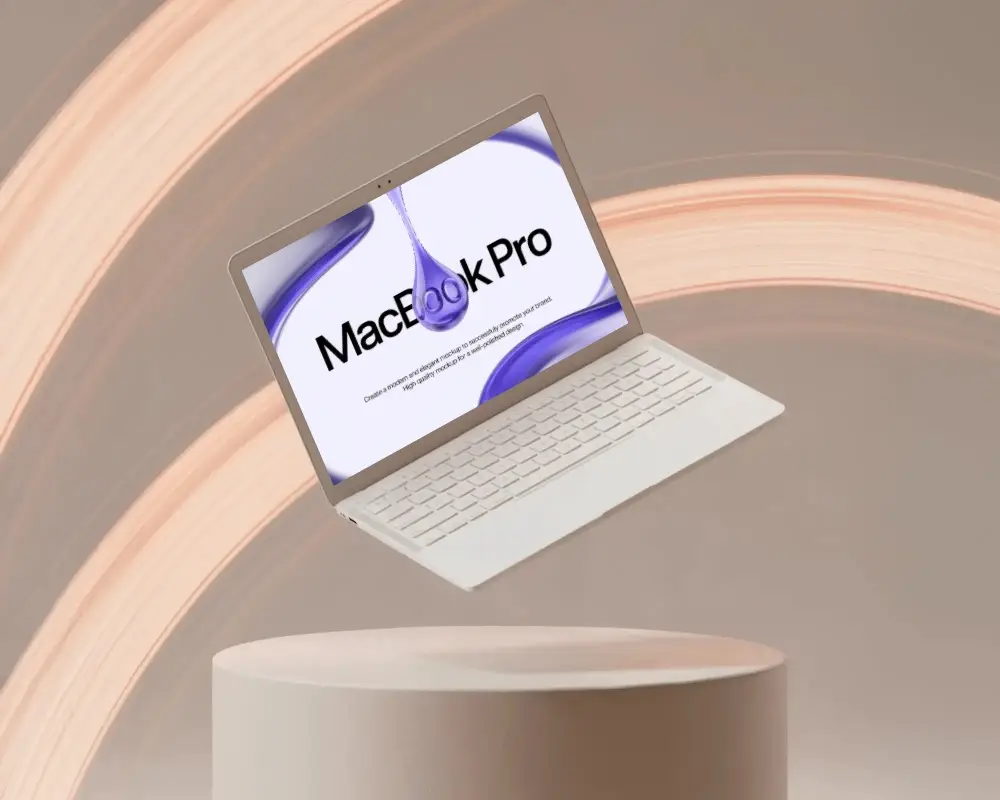
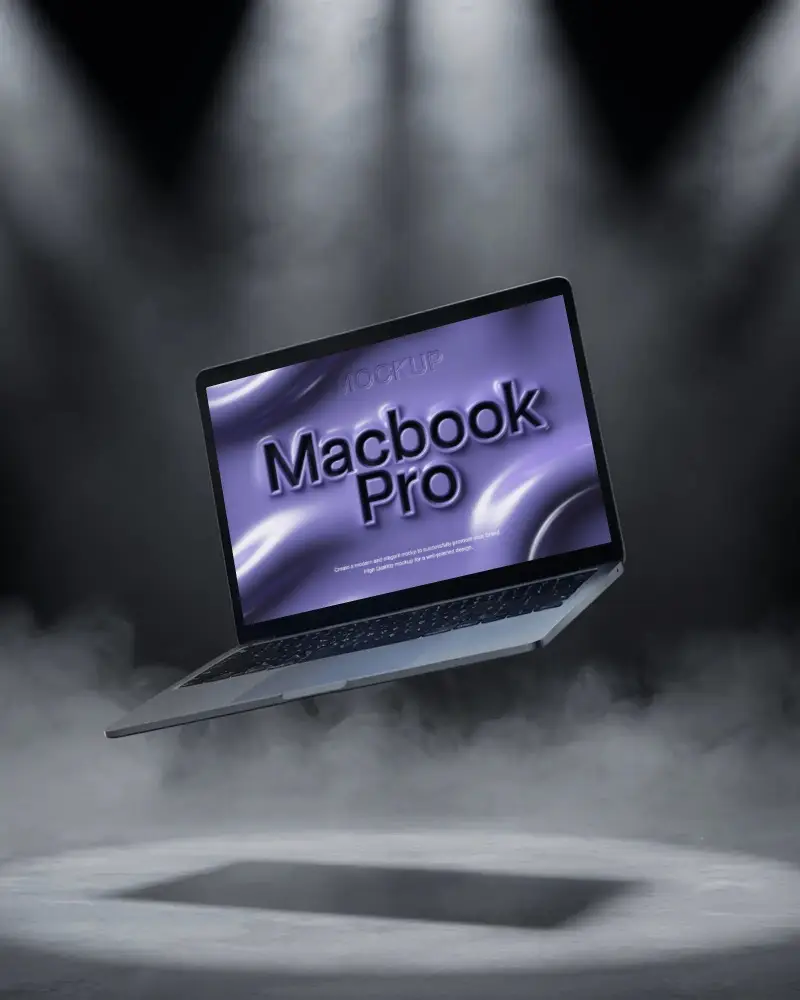
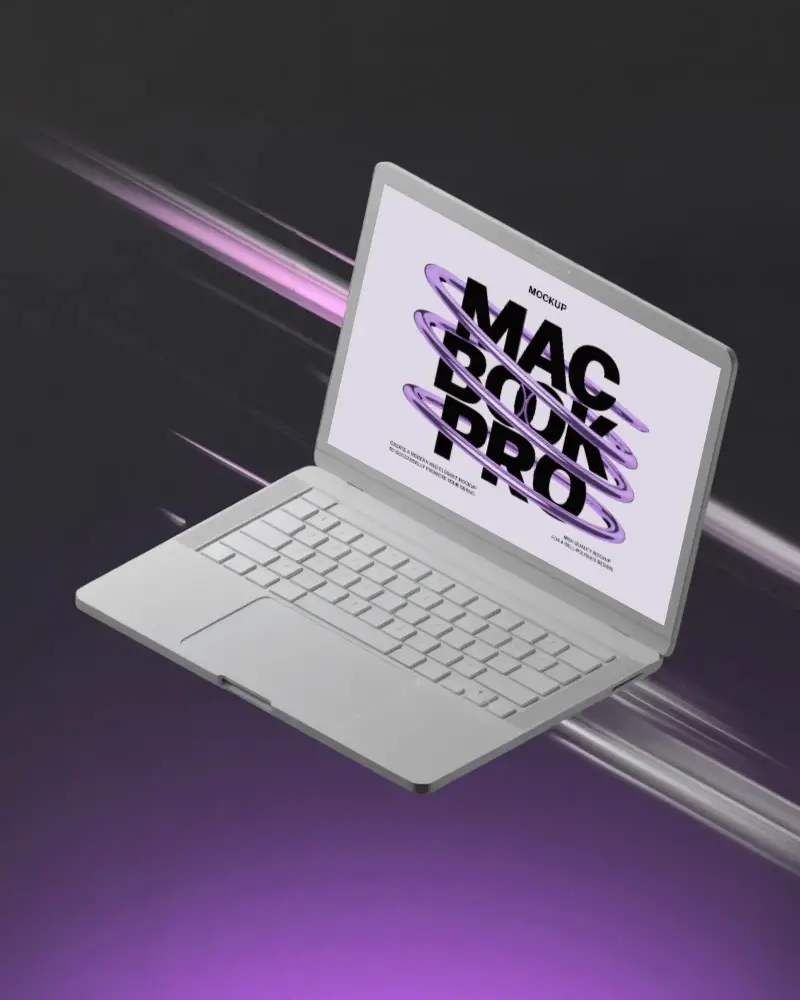
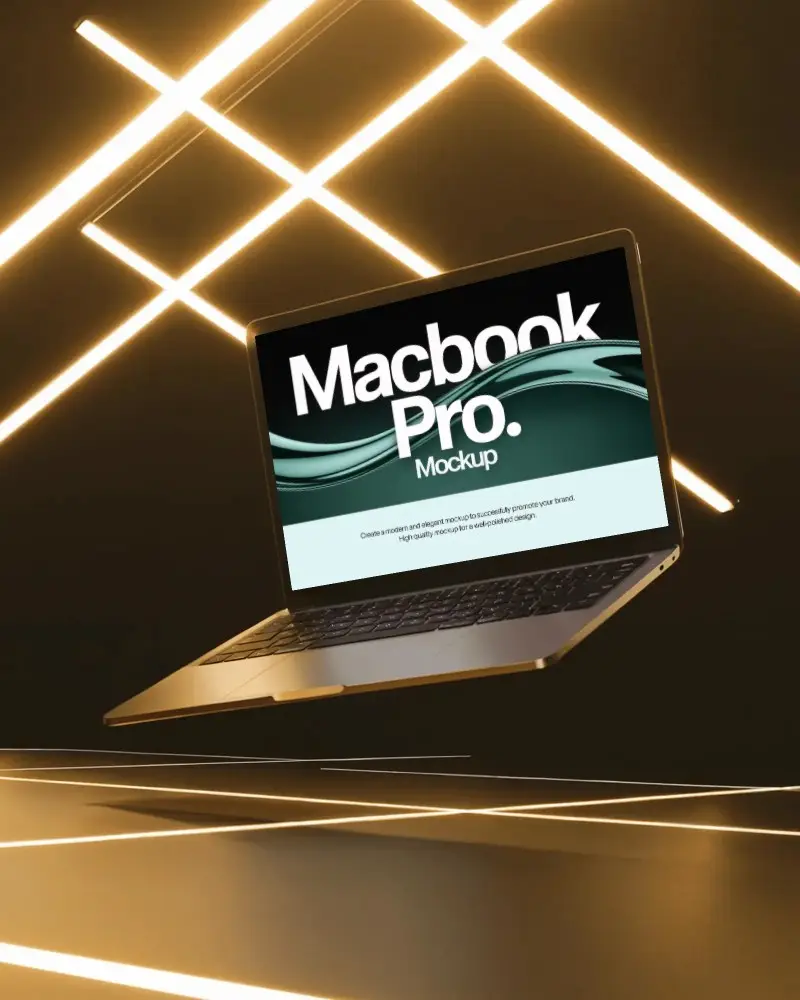
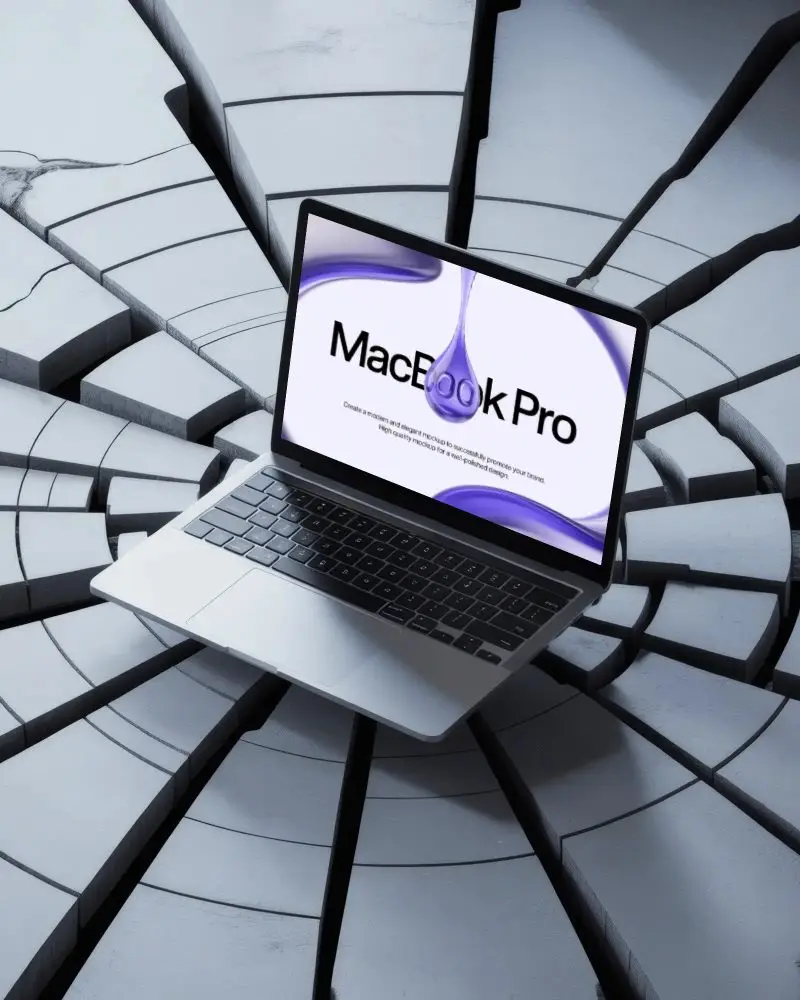
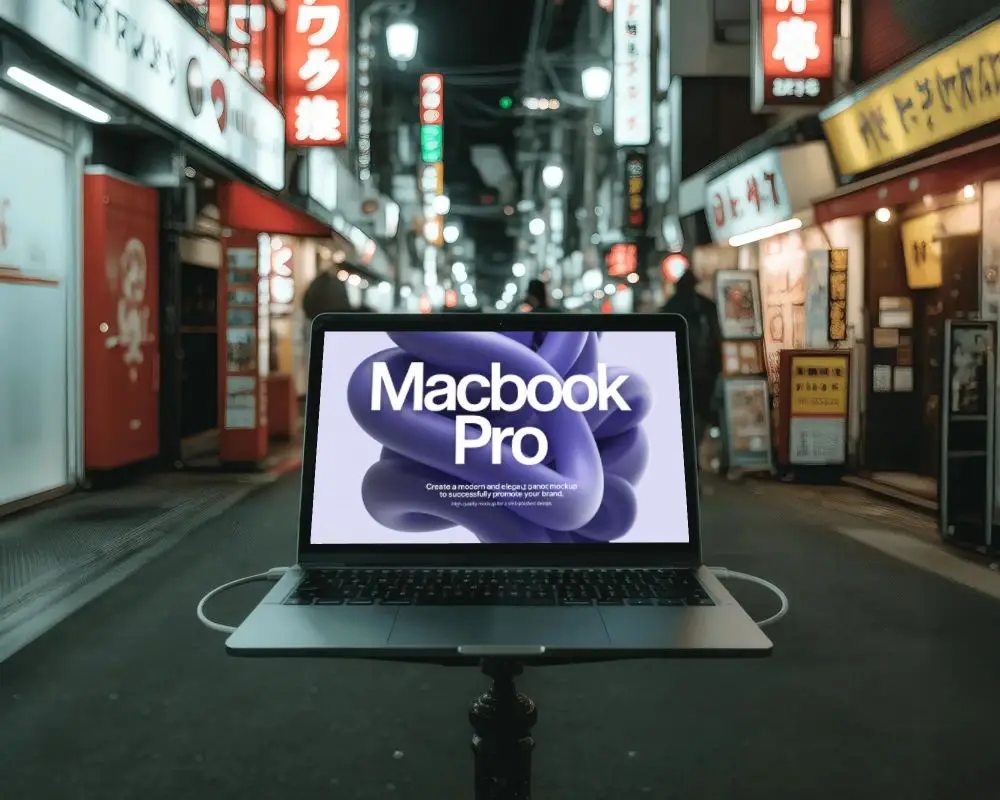
How to Create a Macbook Pro M1 Mockup with Mockey
Follow these steps to create your MacBook Pro M1 mockup using Mockey.ai:
- Step 1: Navigate to Mockups > Tech > MacBook > MacBook Pro M1 tag on Mockey.ai.
- Step 2: Select your preferred MacBook Pro M1 template.
- Step 3: Upload your design or screenshot and adjust placement.
- Step 4: Customize colors, backgrounds, and shadows for realism.
- Step 5: Download your high-quality MacBook Pro M1 mockup in JPEG or PNG format.

FAQs on Macbook Pro M1 Mockups
What is a MacBook Pro M1 Mockup?
A MacBook Pro M1 mockup shows off your app or website like it's sitting on a real MacBook Pro M1. Use a mockup generator to personalize it.
Why Use Mockey’s MacBook Pro M1 Mockup?
The best part about using Mockey AI is that you get free MacBook Pro M1 mockup templates. No watermarks. And the templates are way better than most mockup generators.
Are MacBook Pro M1 Mockups free on Mockey.ai?
If you're okay with lower-quality mockups and limited download sizes, the free plan on Mockey AI will do the job. But honestly, upgrading to the Starter is a smarter move.