Free MacBook Air M1 Mockups
Showcase your MacBook Air M1 designs with Mockey.ai. Quickly create realistic mockups and display your work professionally using a simple and free online tool.
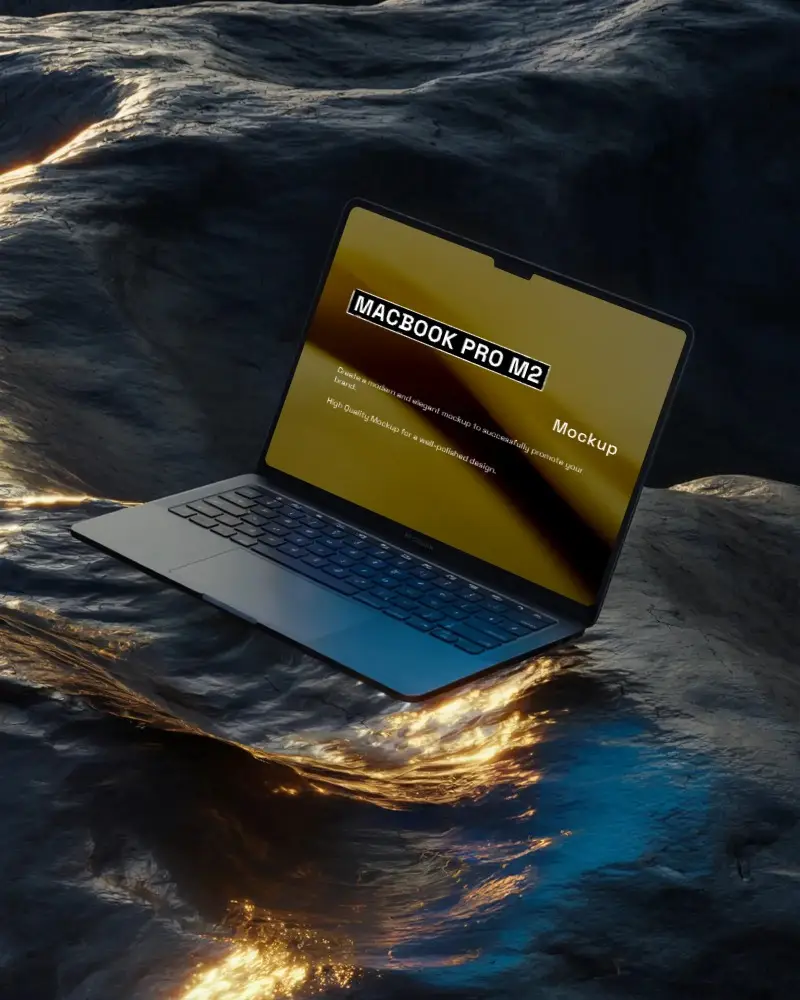
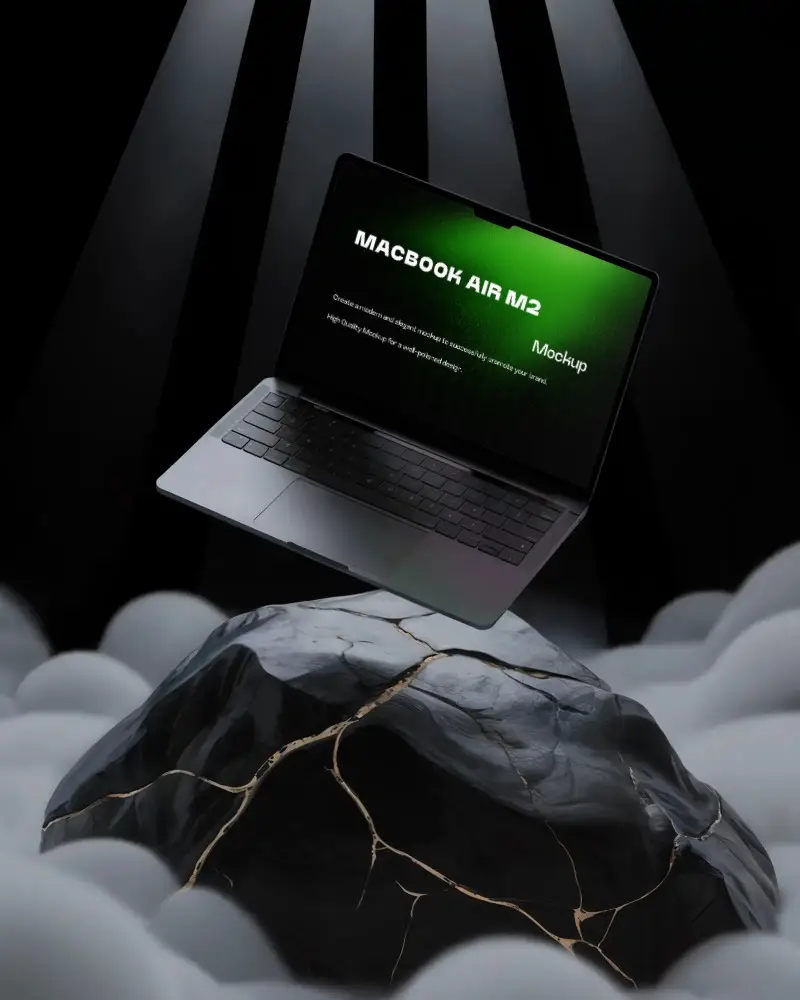
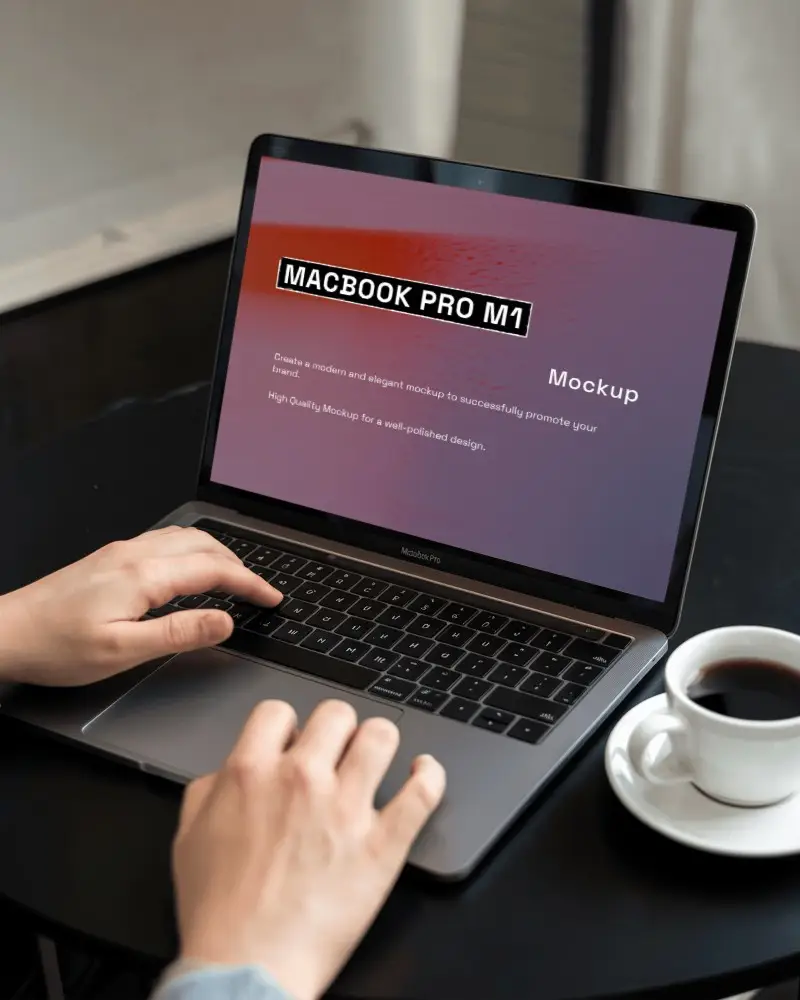
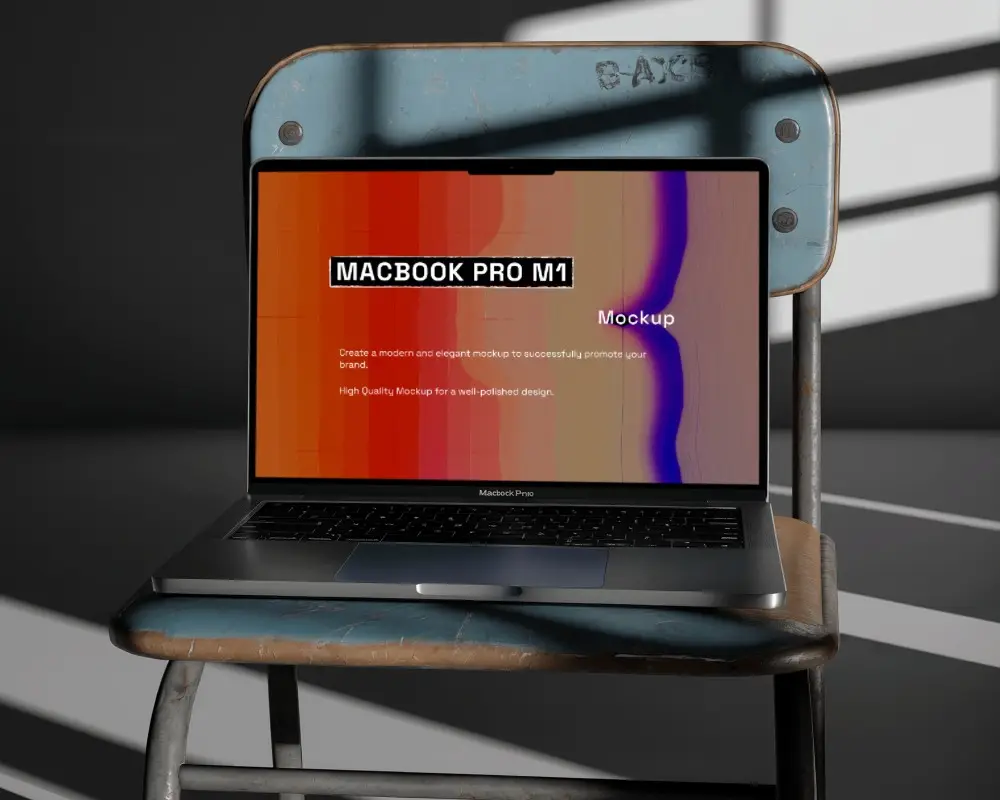
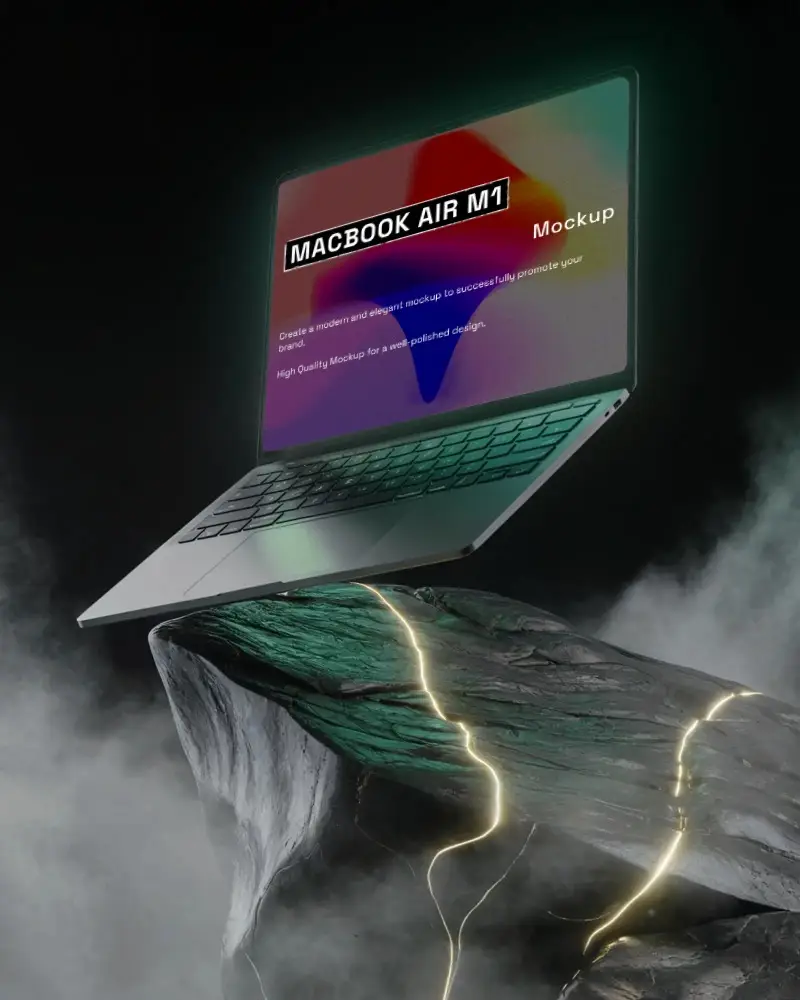
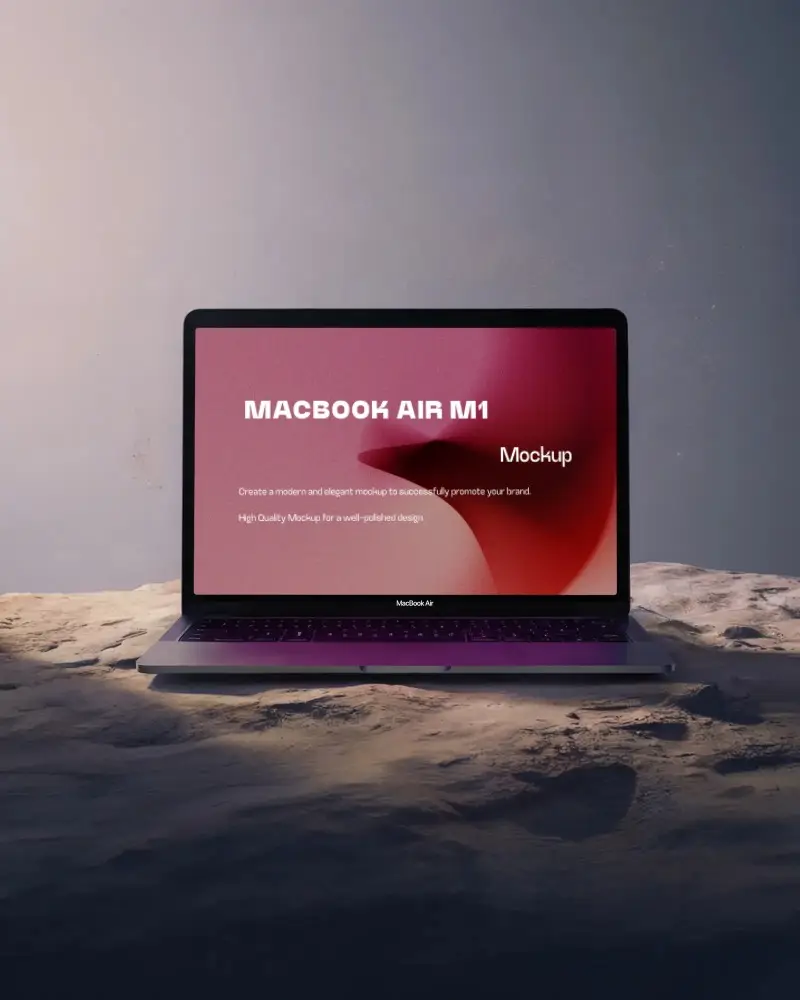
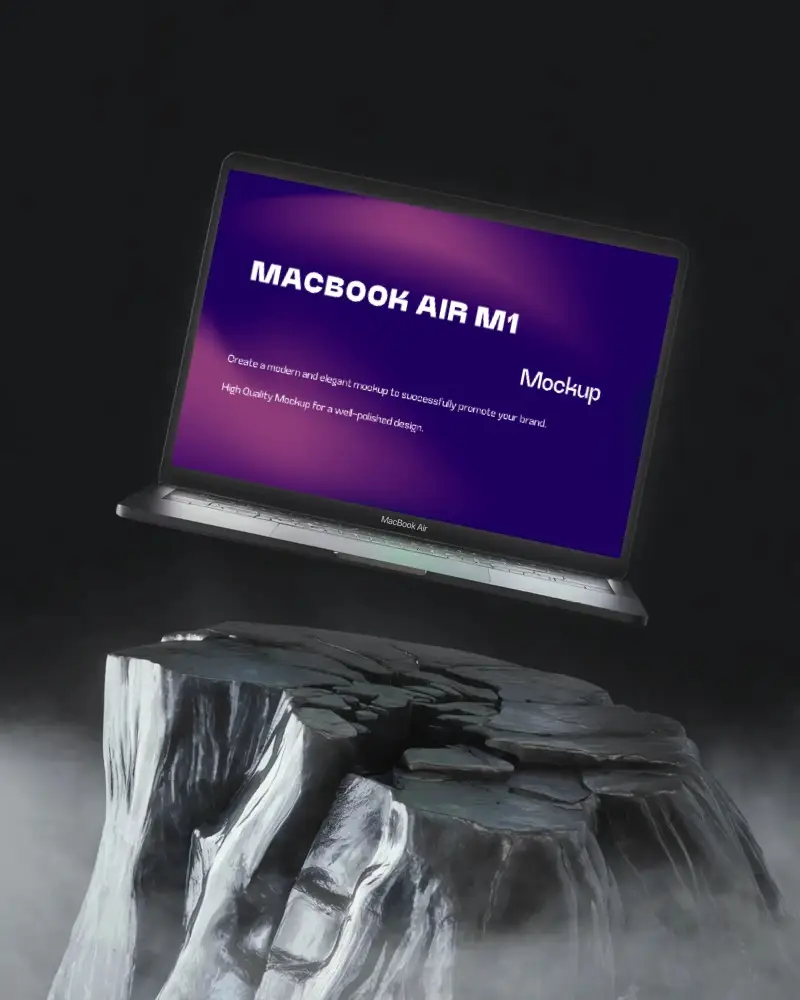
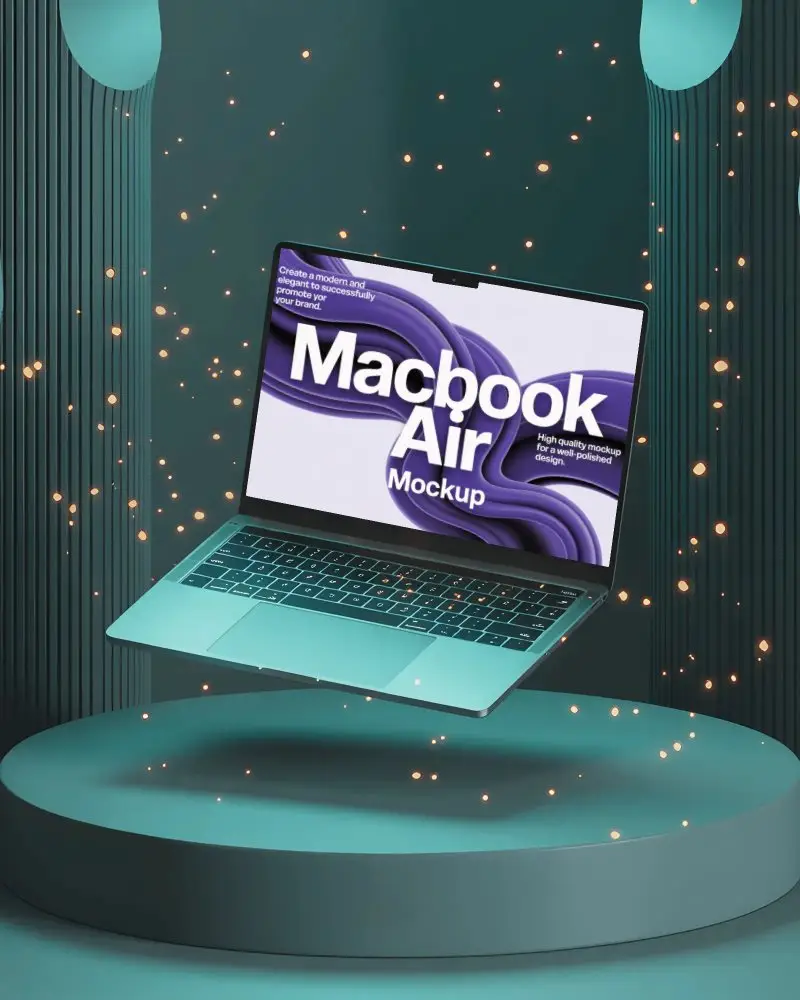
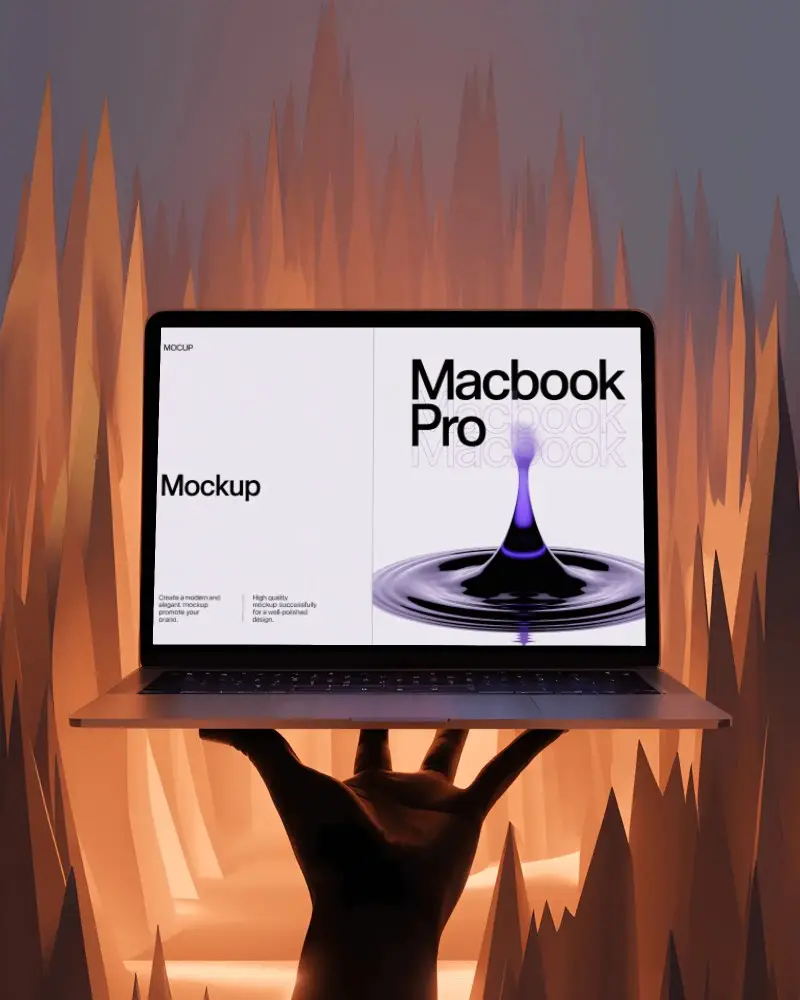
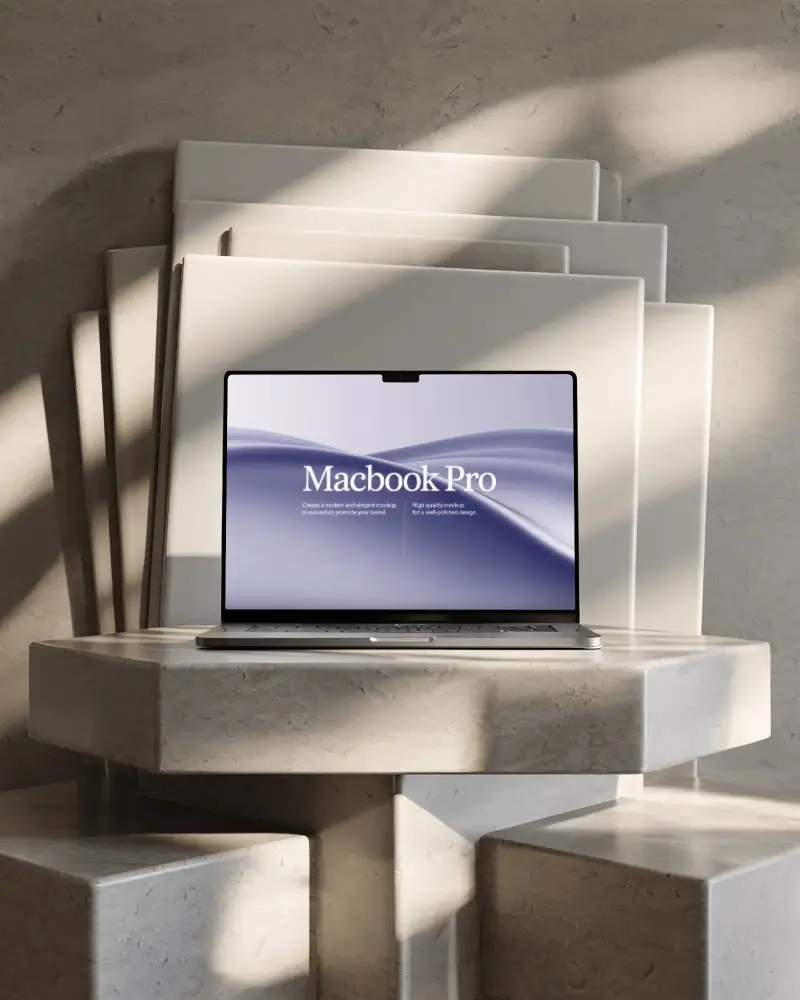
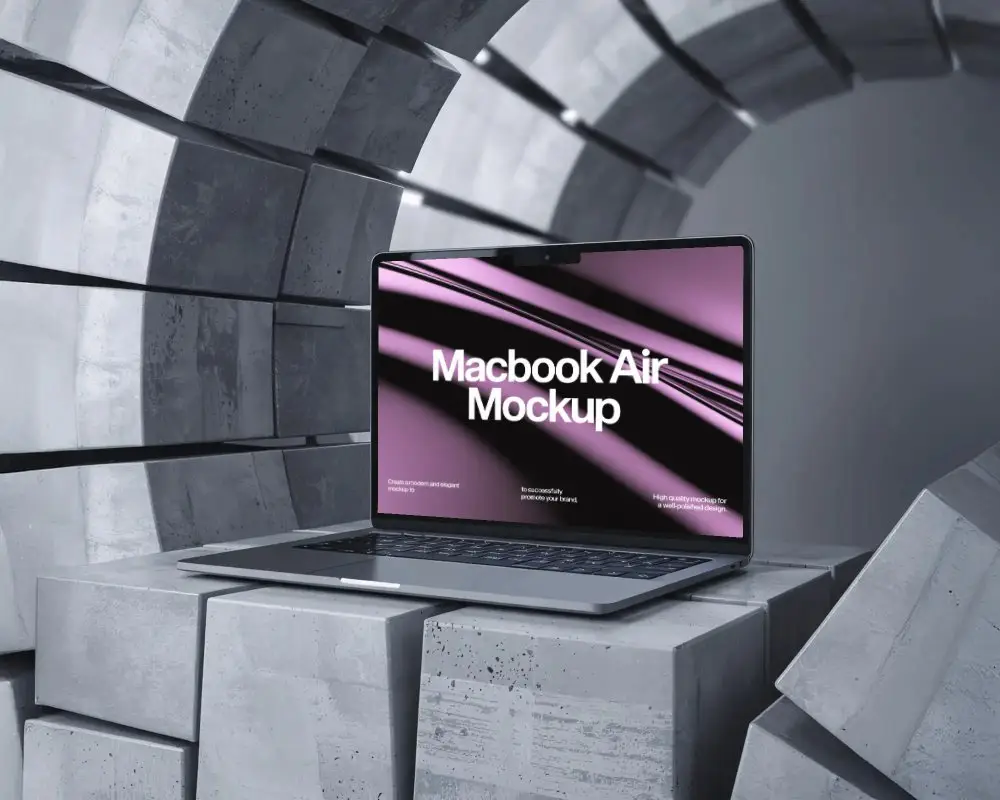
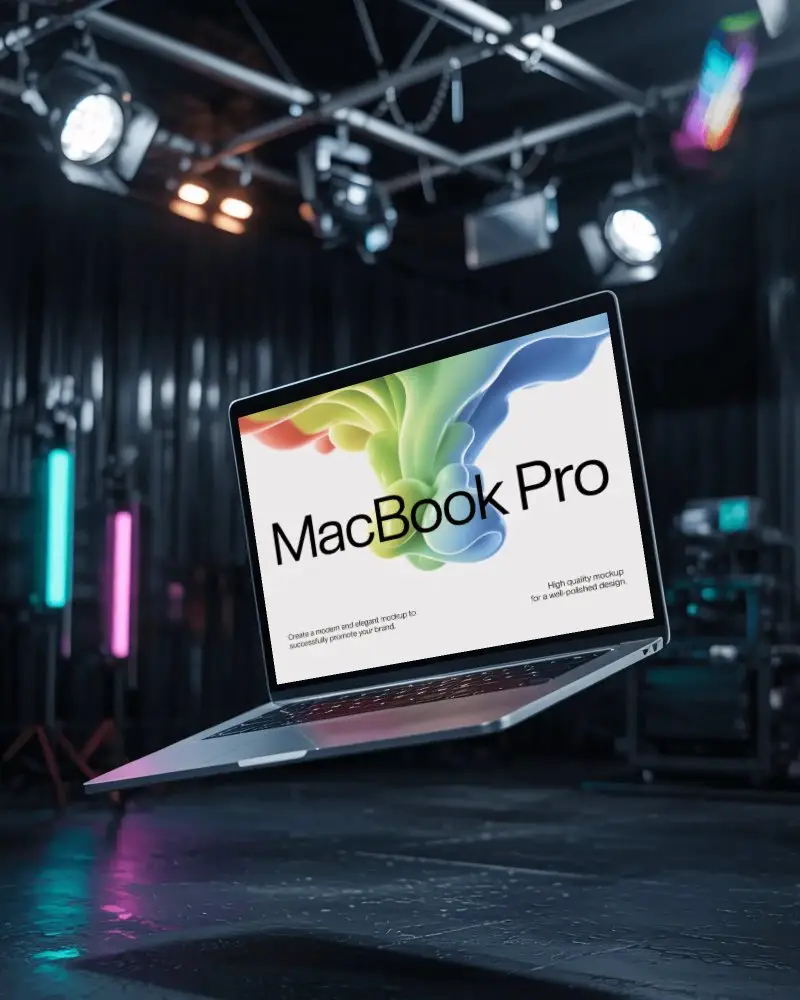
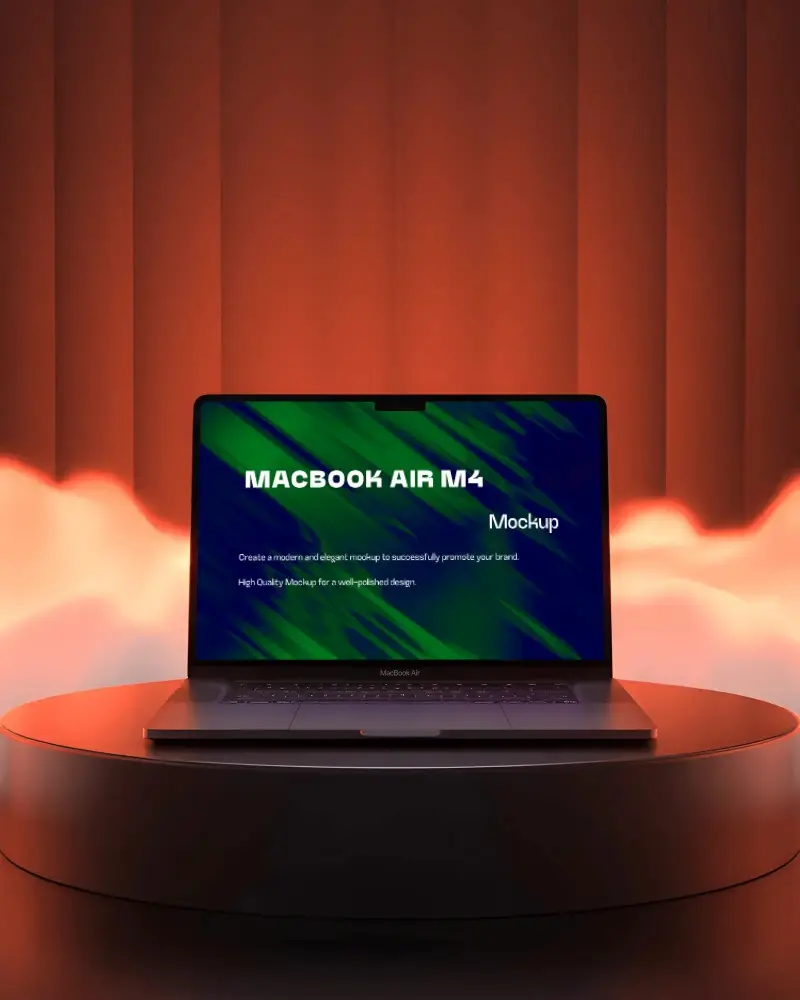
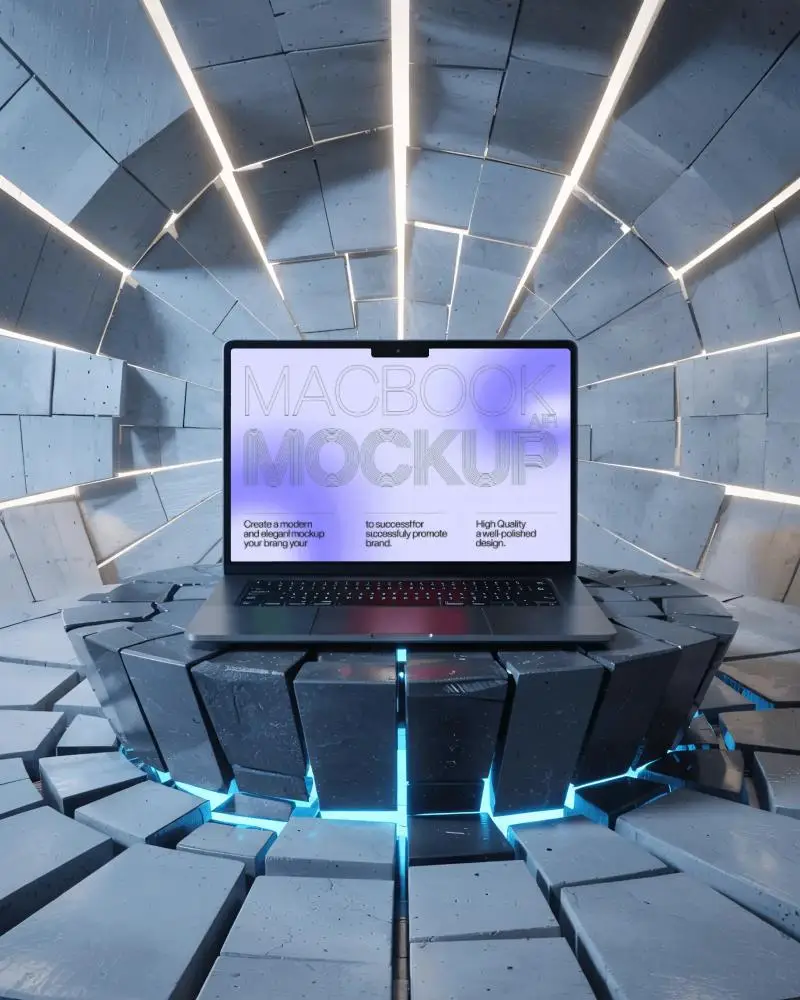
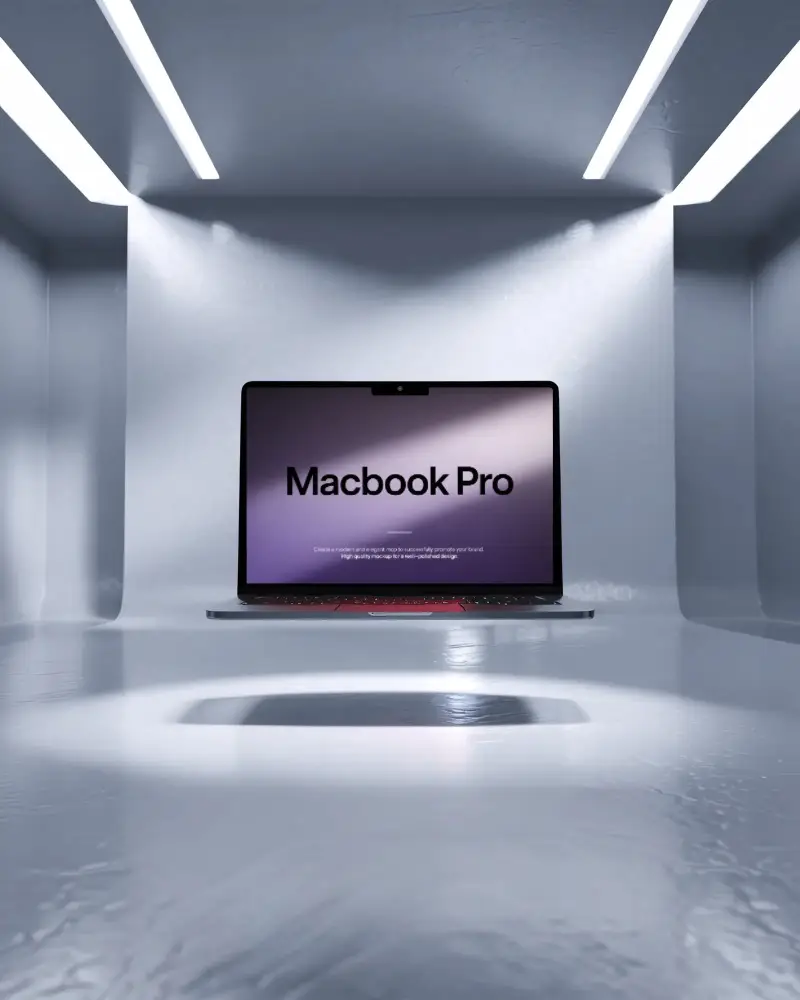
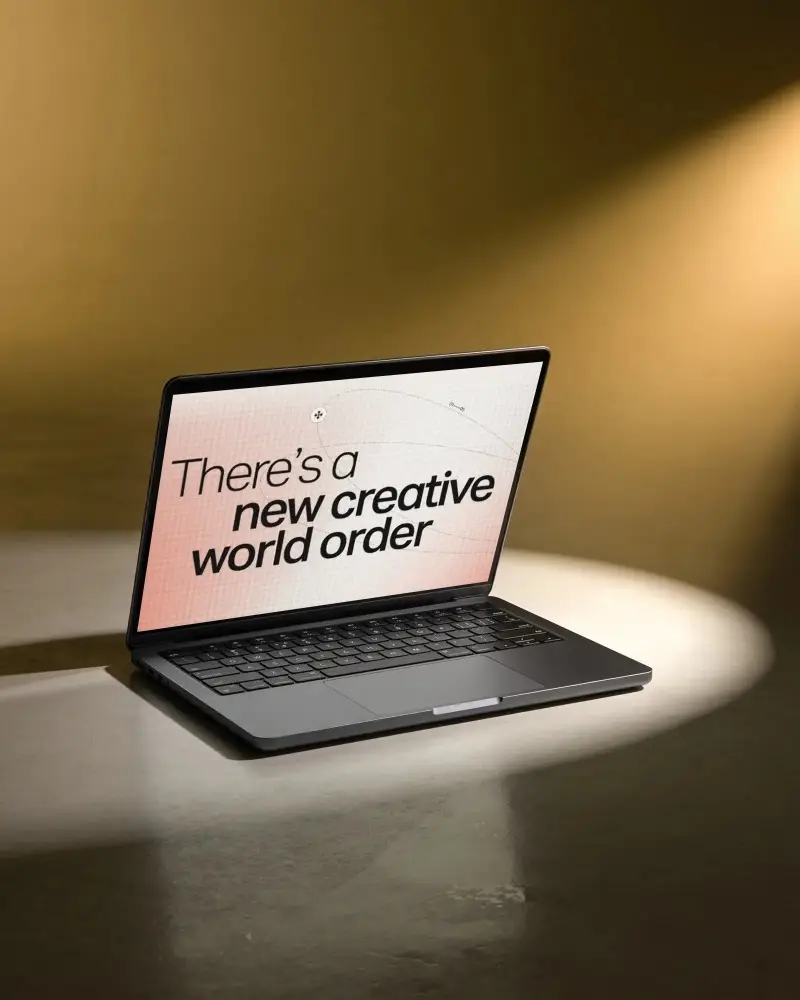
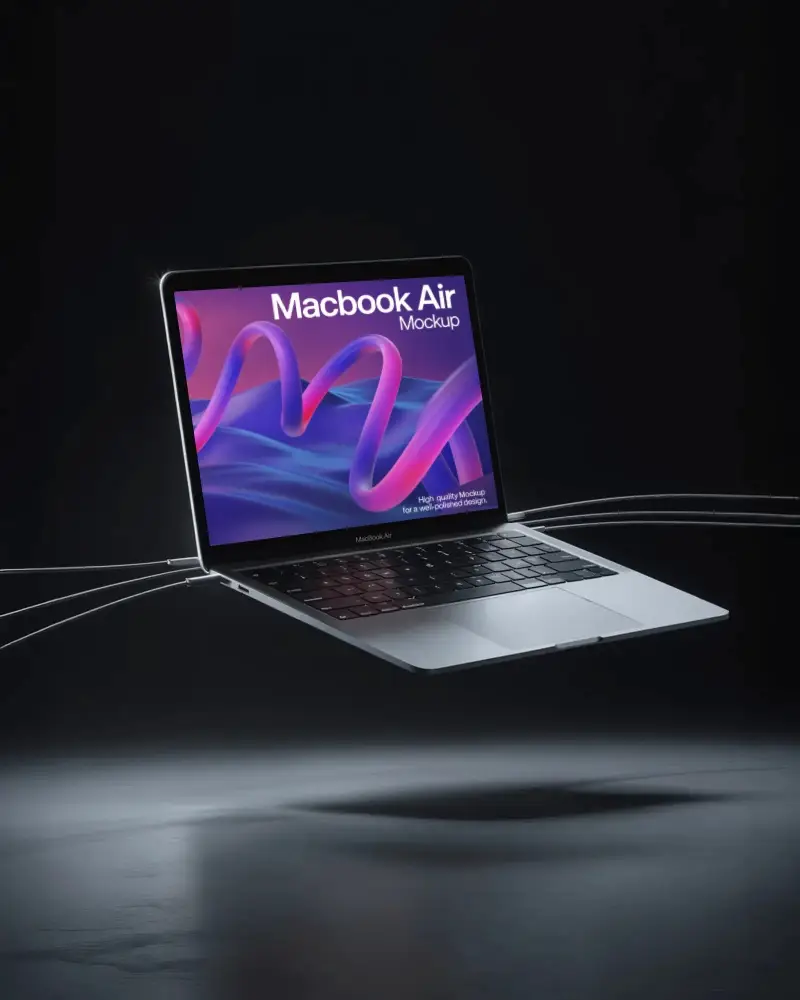
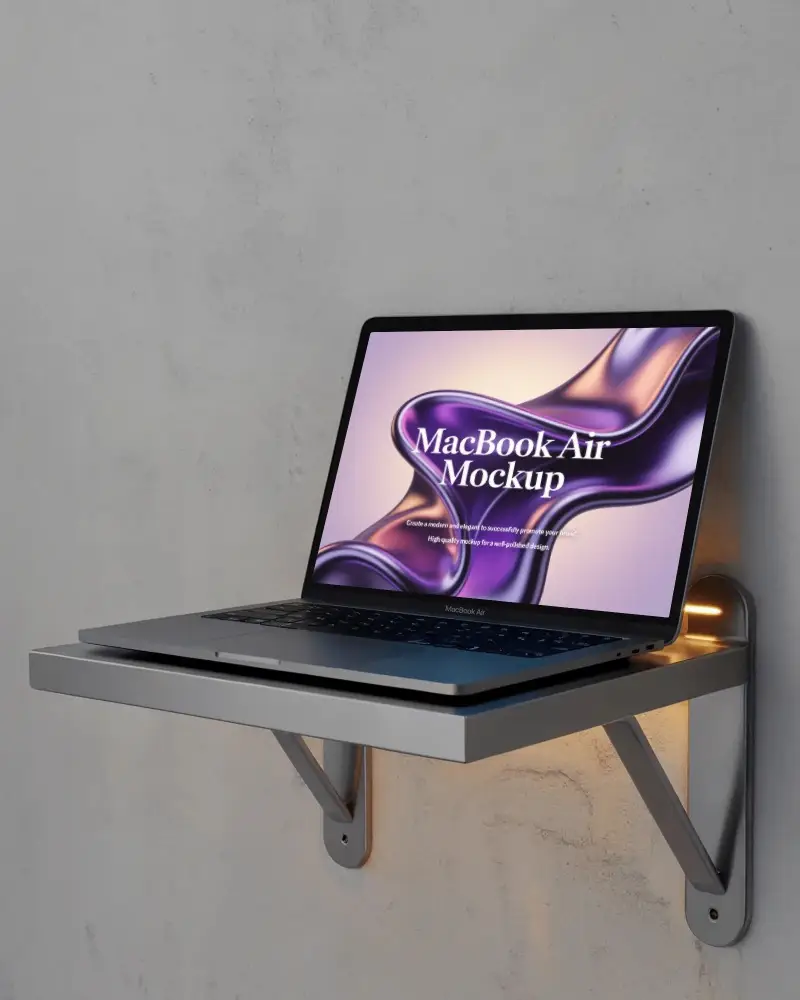
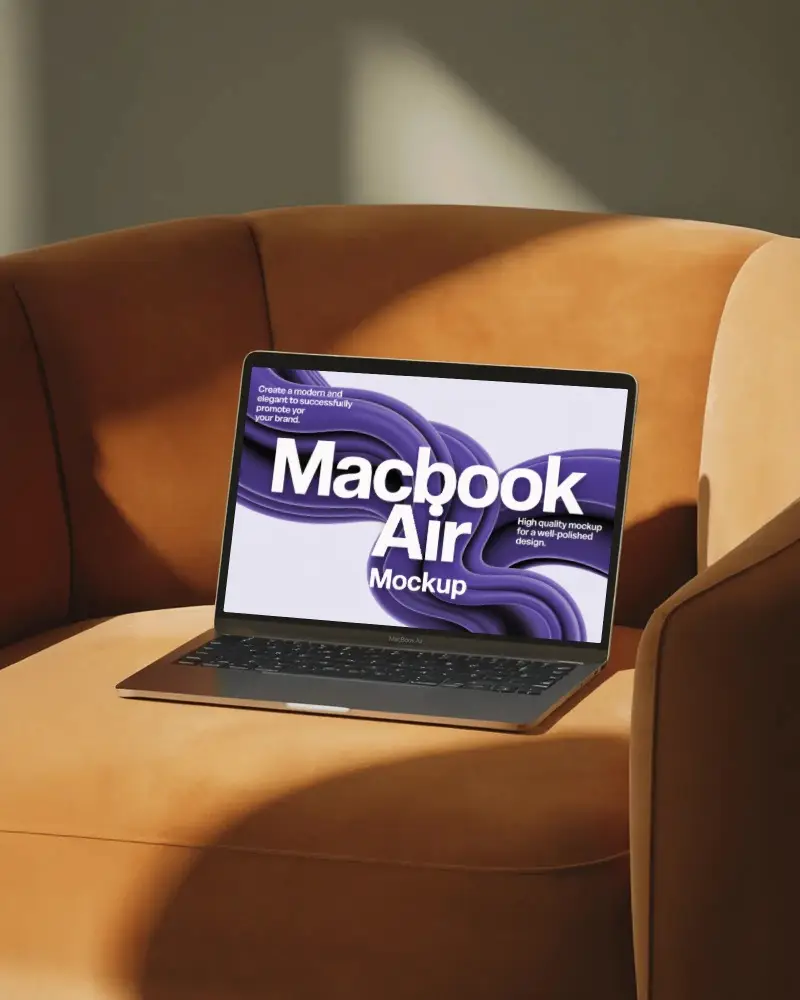
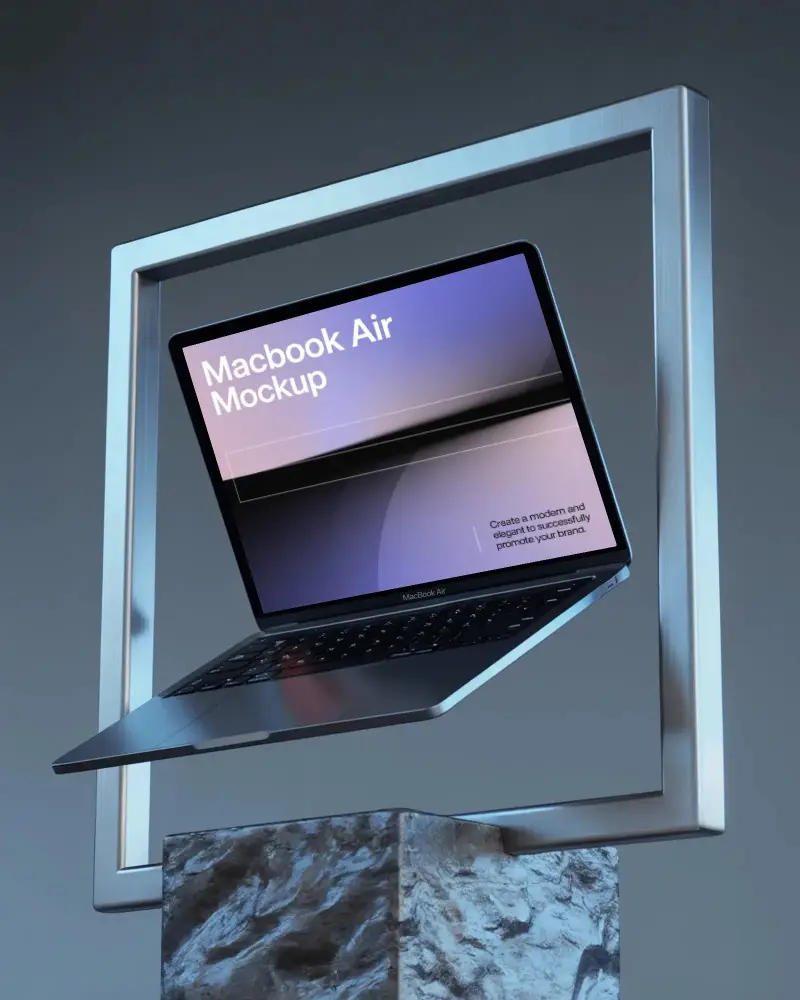
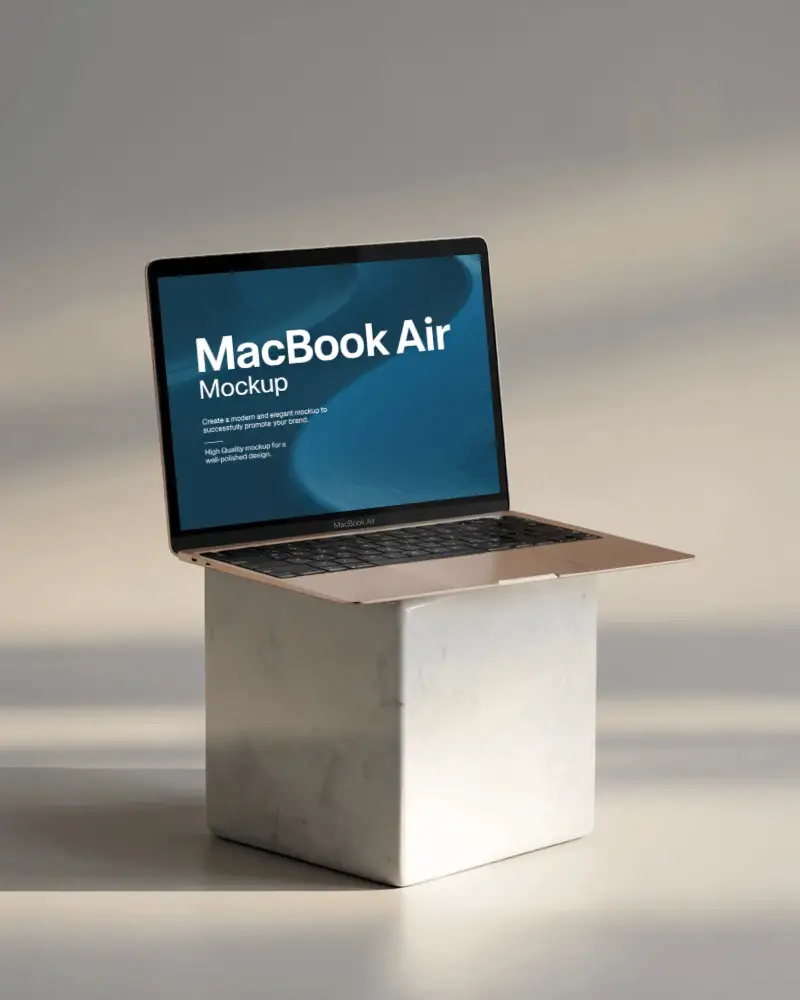
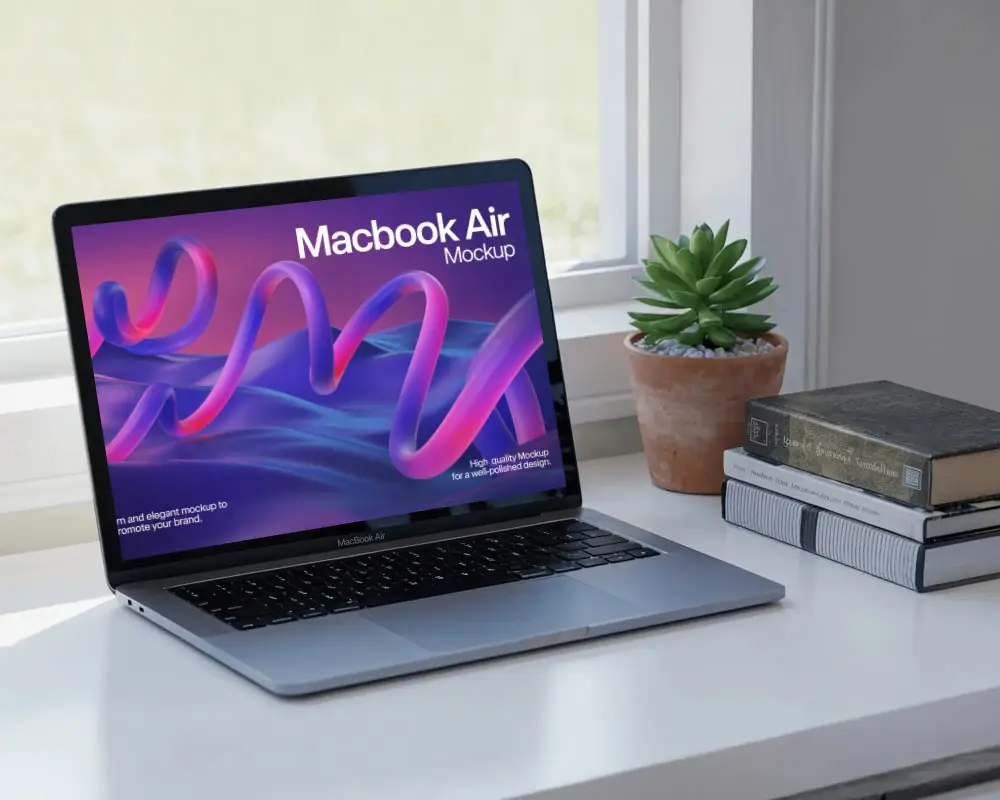
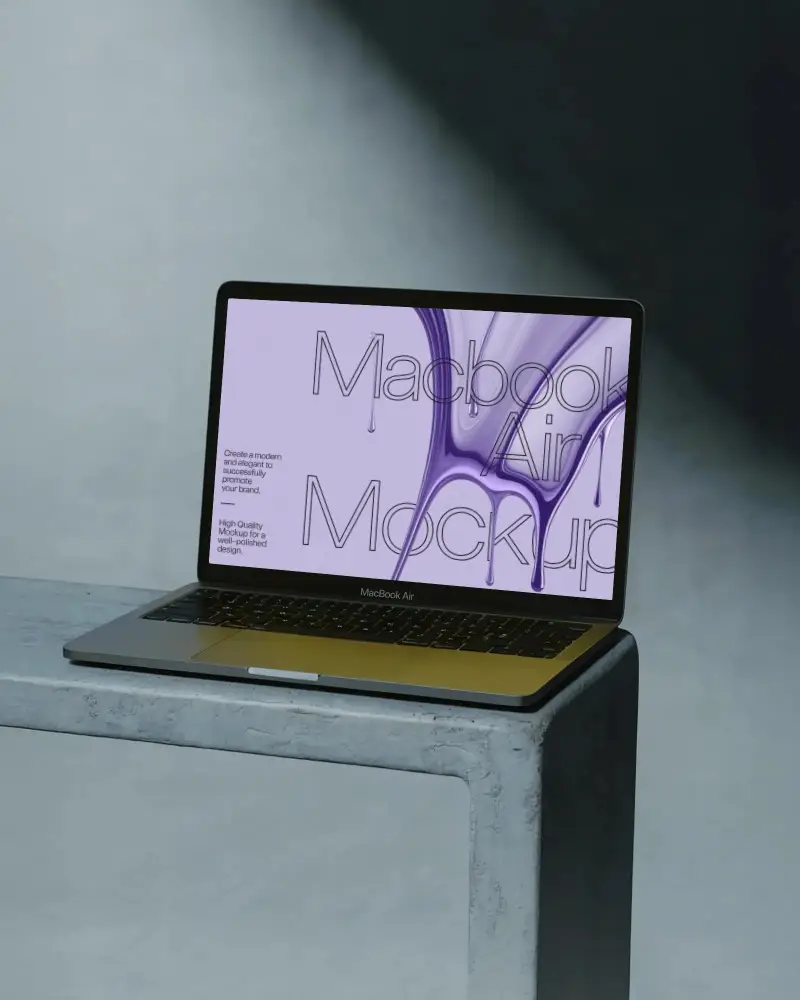
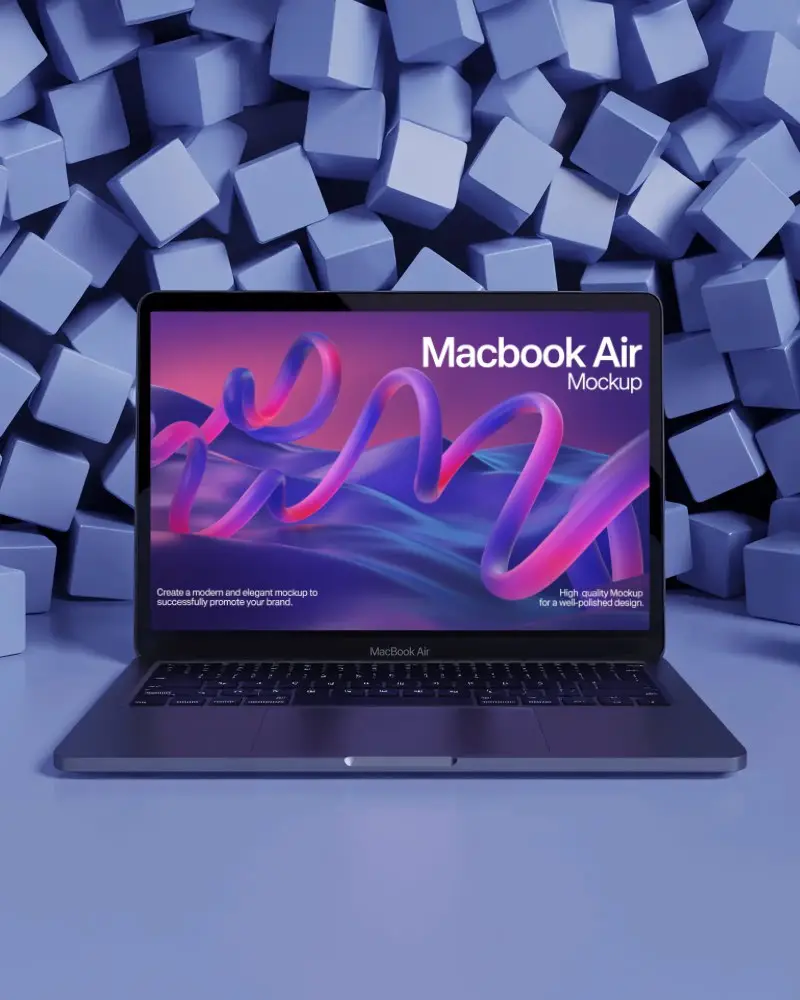
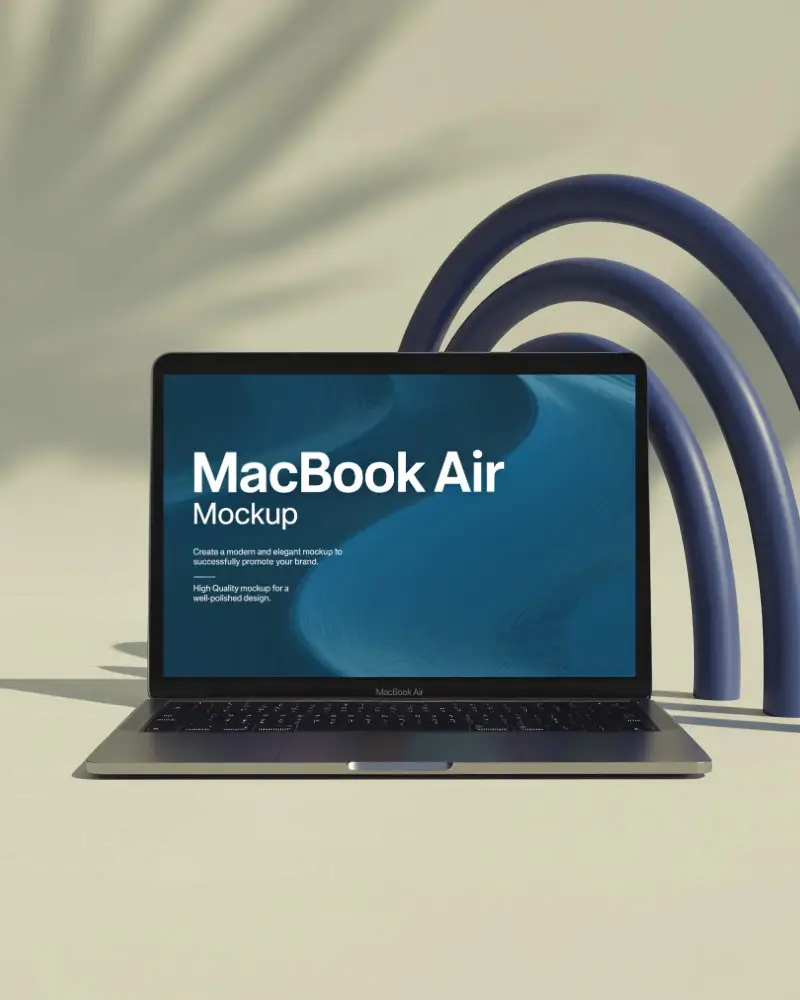
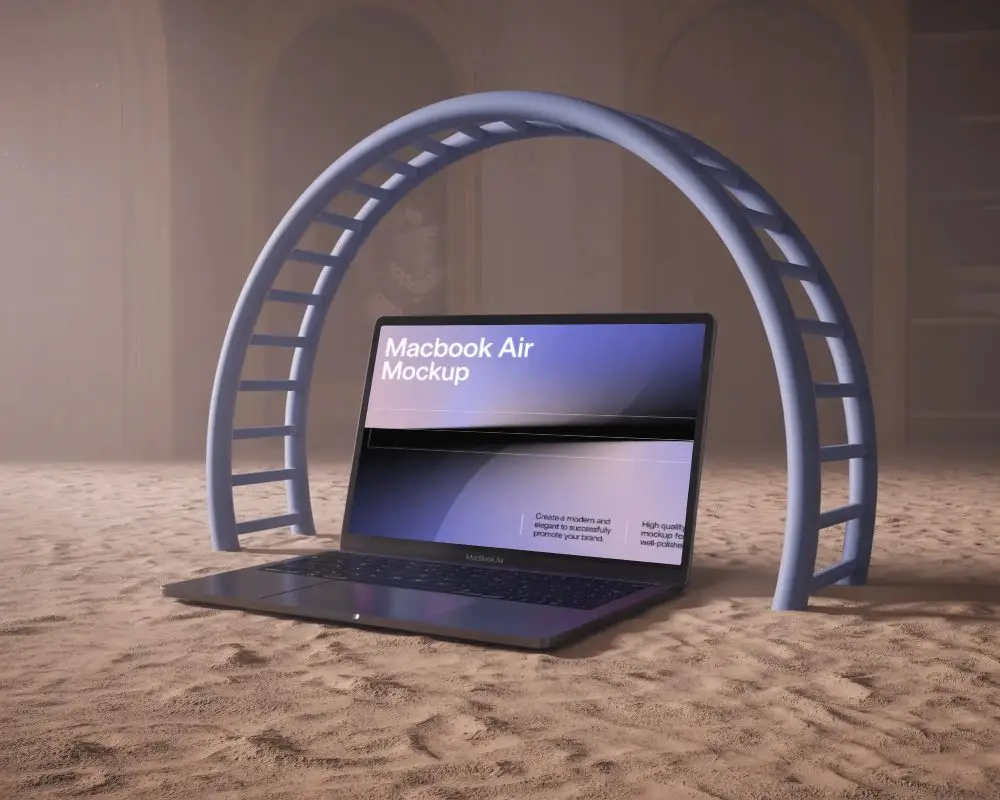
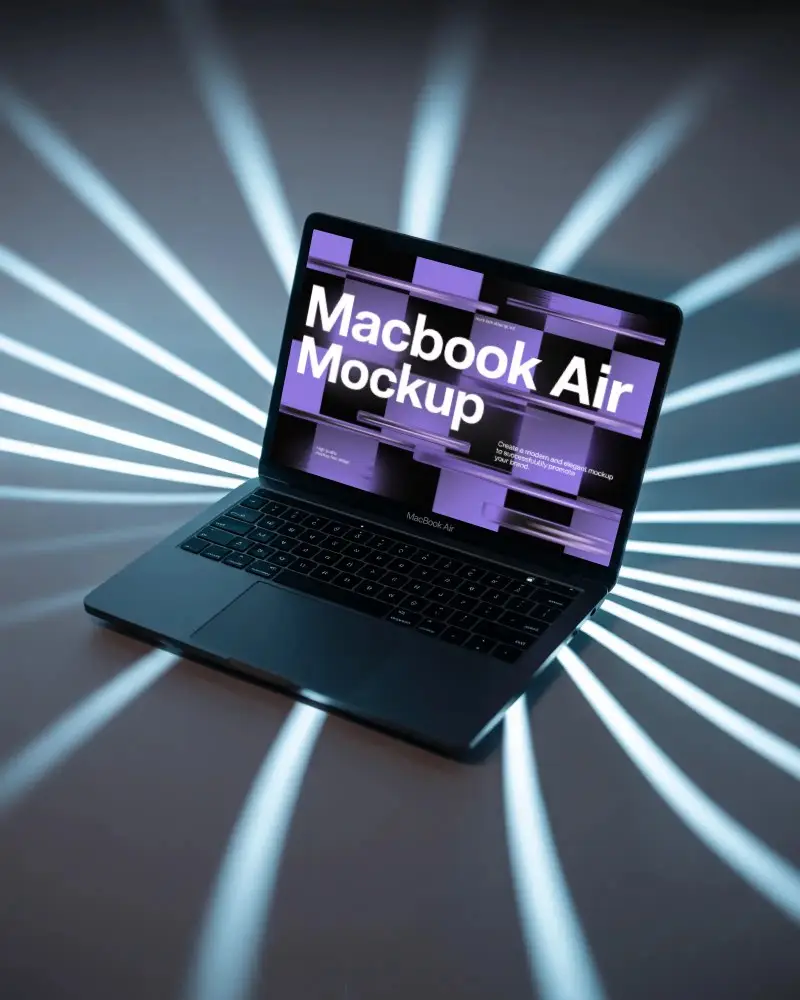
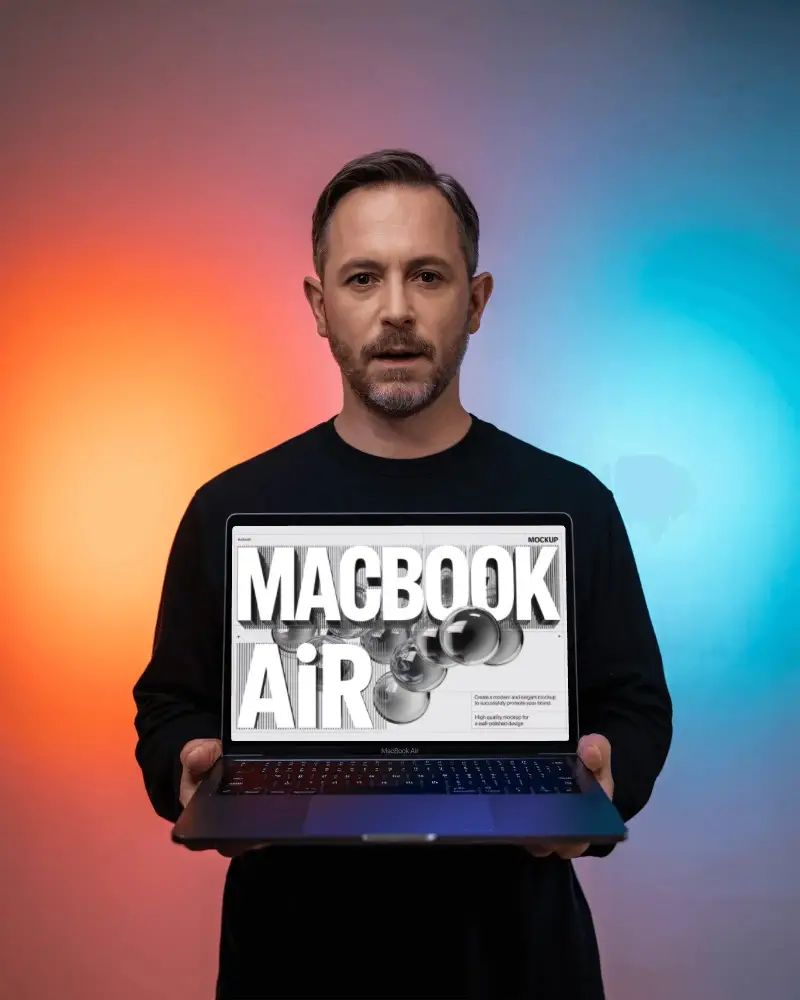
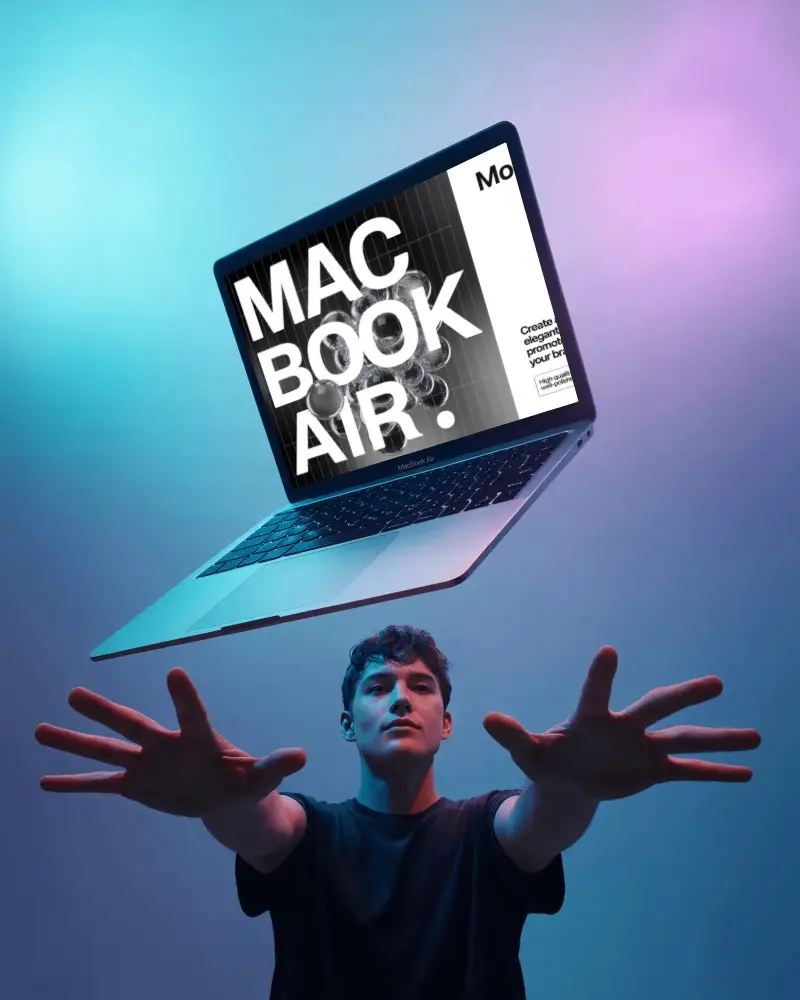
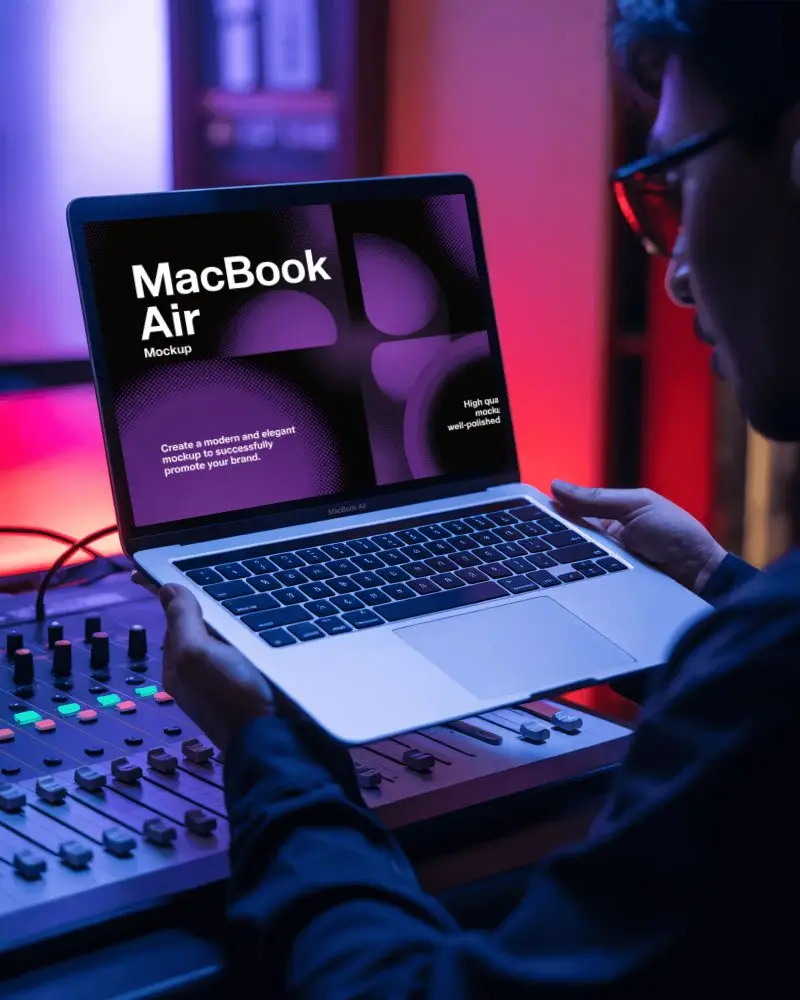
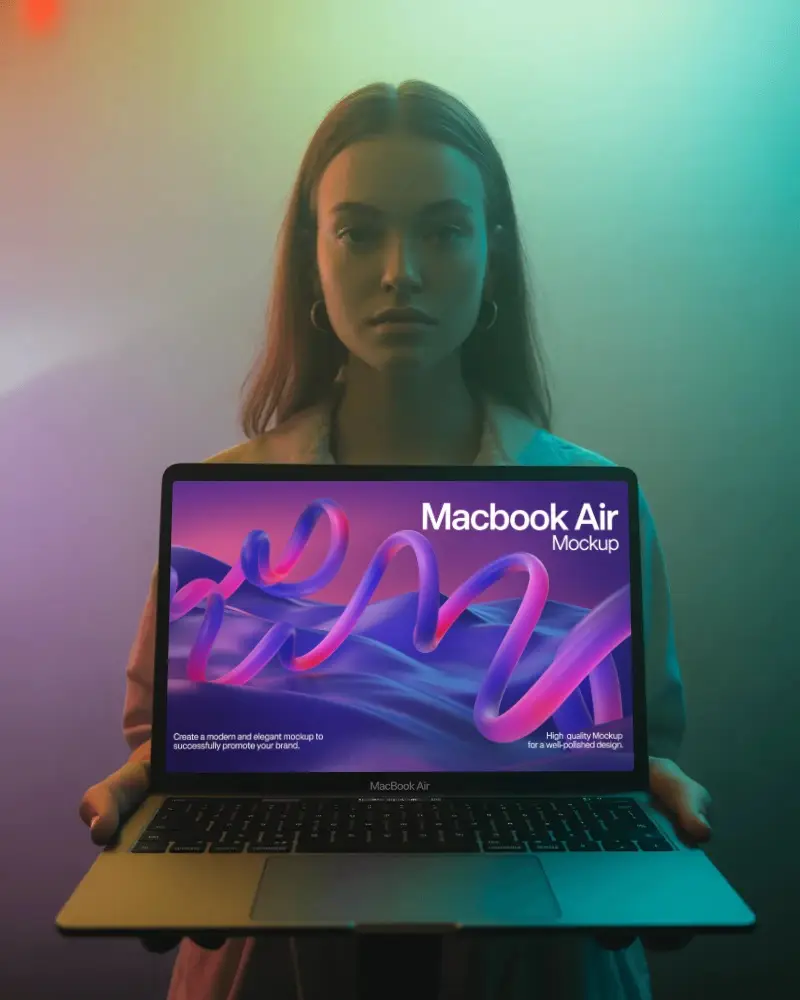
How to Create a MacBook Air M1 Mockup with Mockey
Follow these steps to make your own MacBook Air M1 mockup using Mockey AI.
- Step 1: Sign up and go to "Mockups" then choose the "Tech" category.
- Step 2: Select the "MacBook" section and choose the tag "MacBook Air M1."
- Step 3: Pick your desired template, upload your design, make adjustments, and download the final mockup.

FAQs on Macbook Air M1 Mockups
What is a MacBook Air M1 mockup?
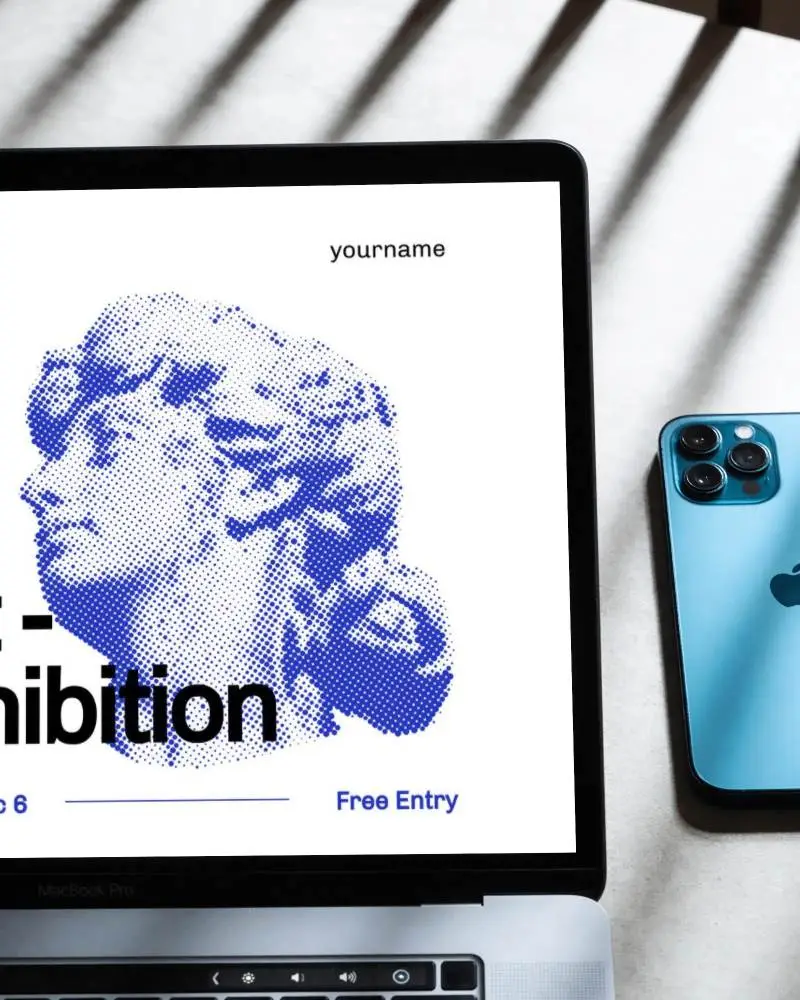
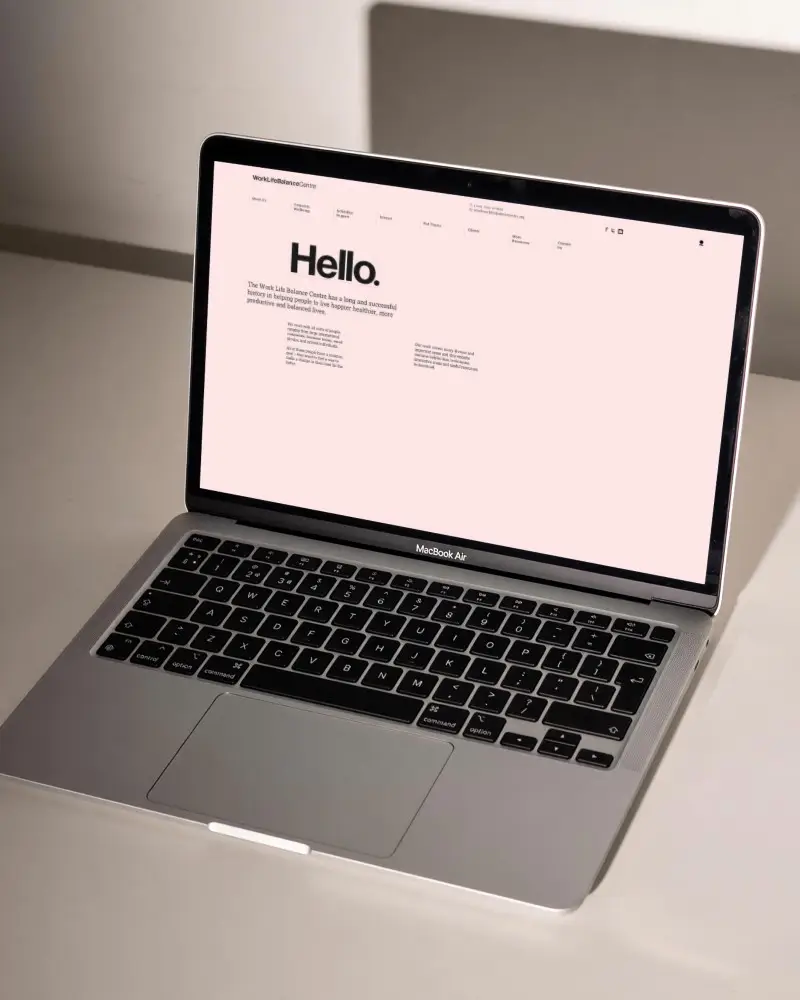
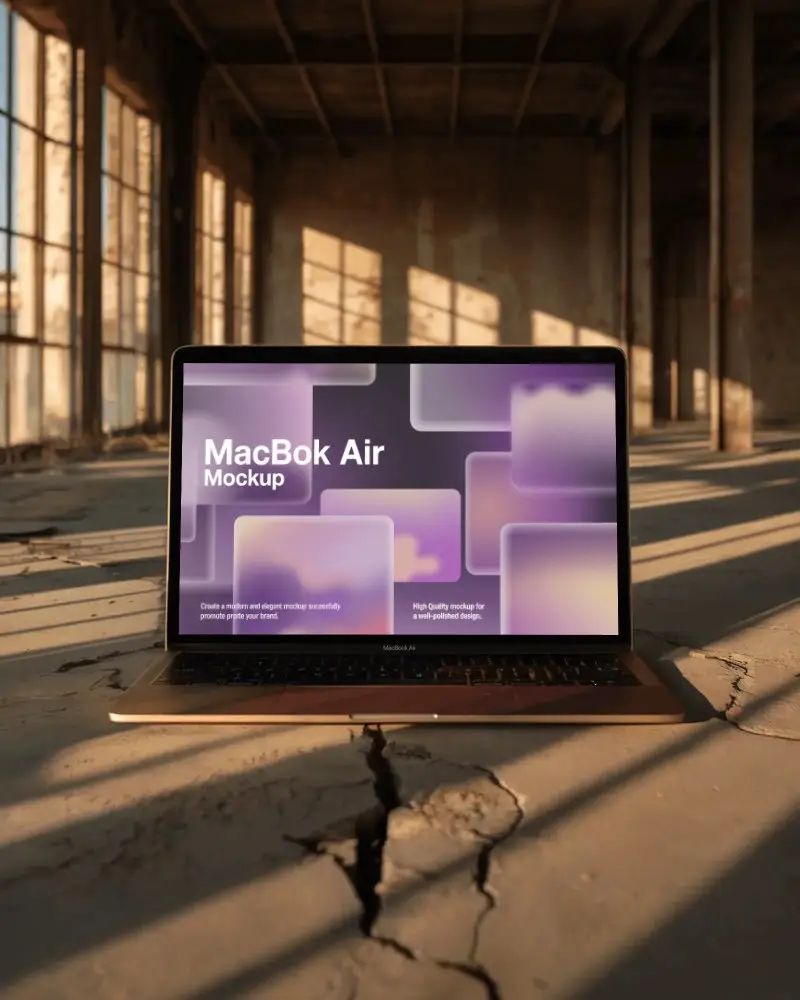
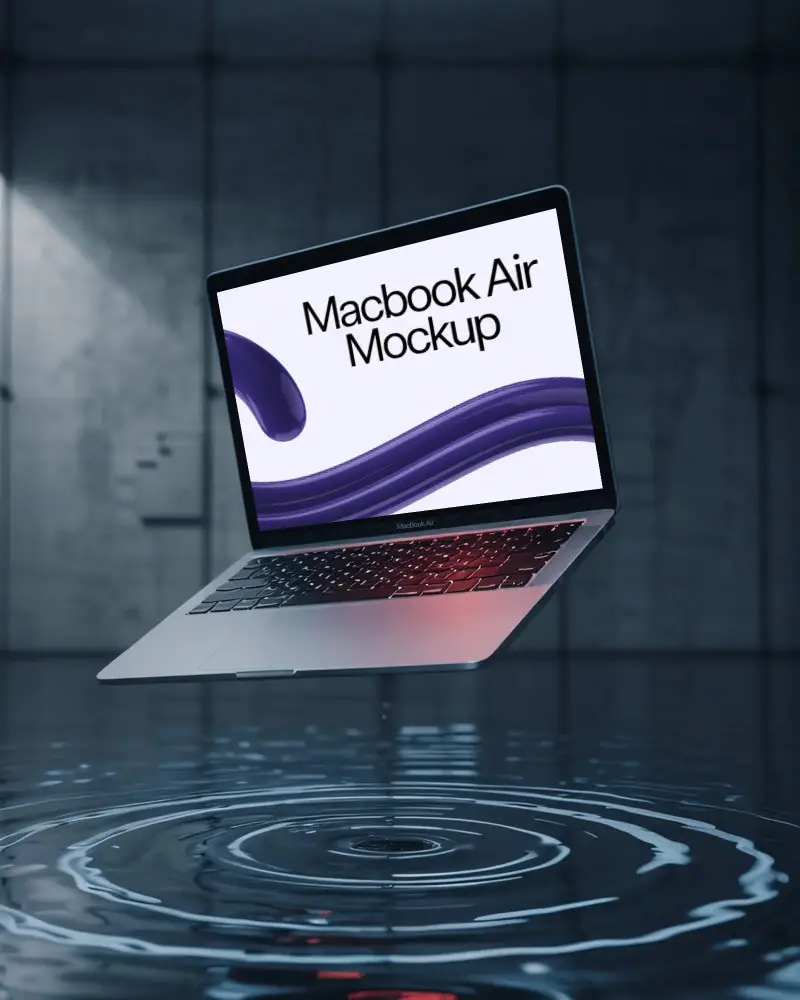
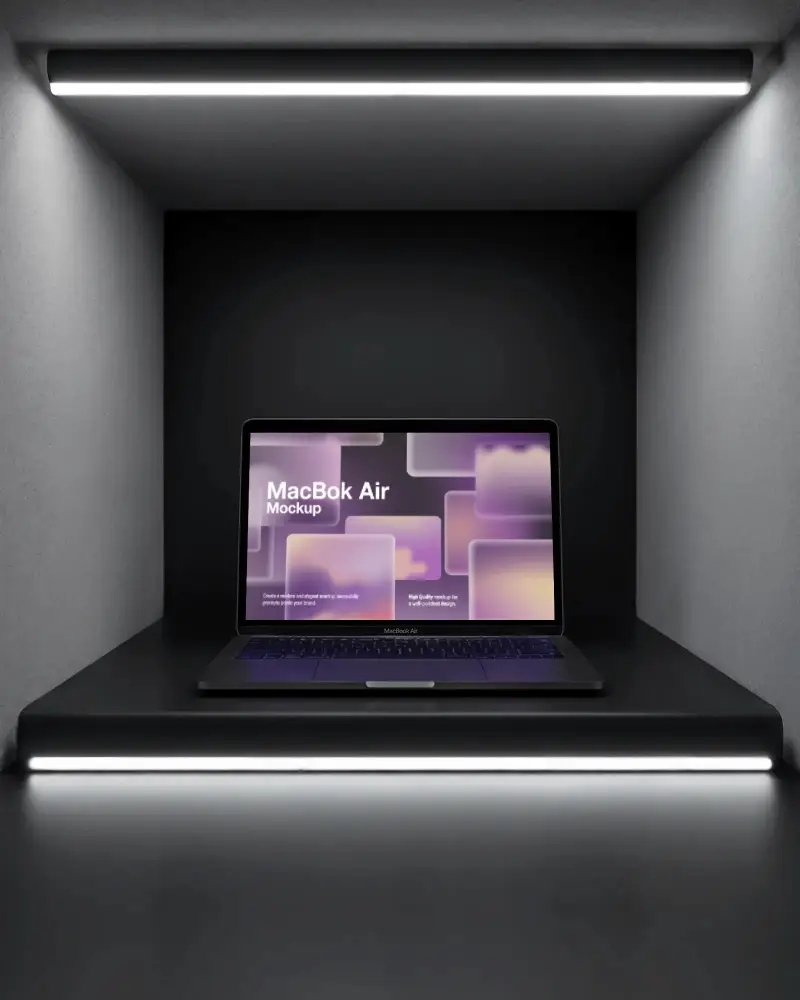
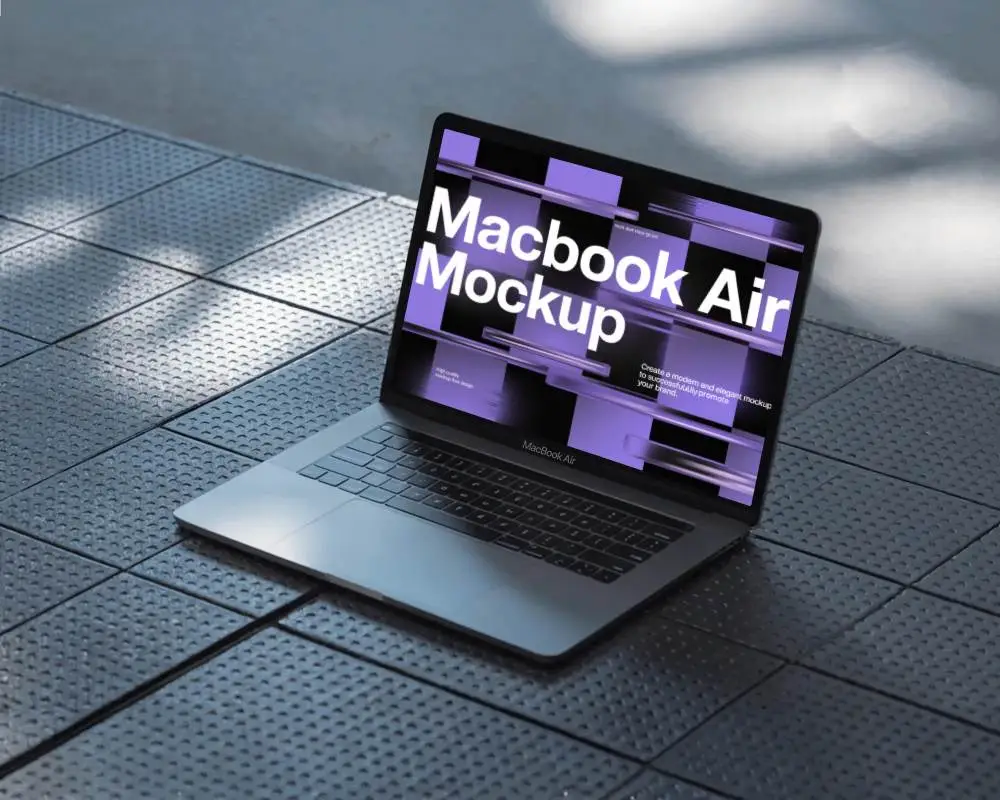
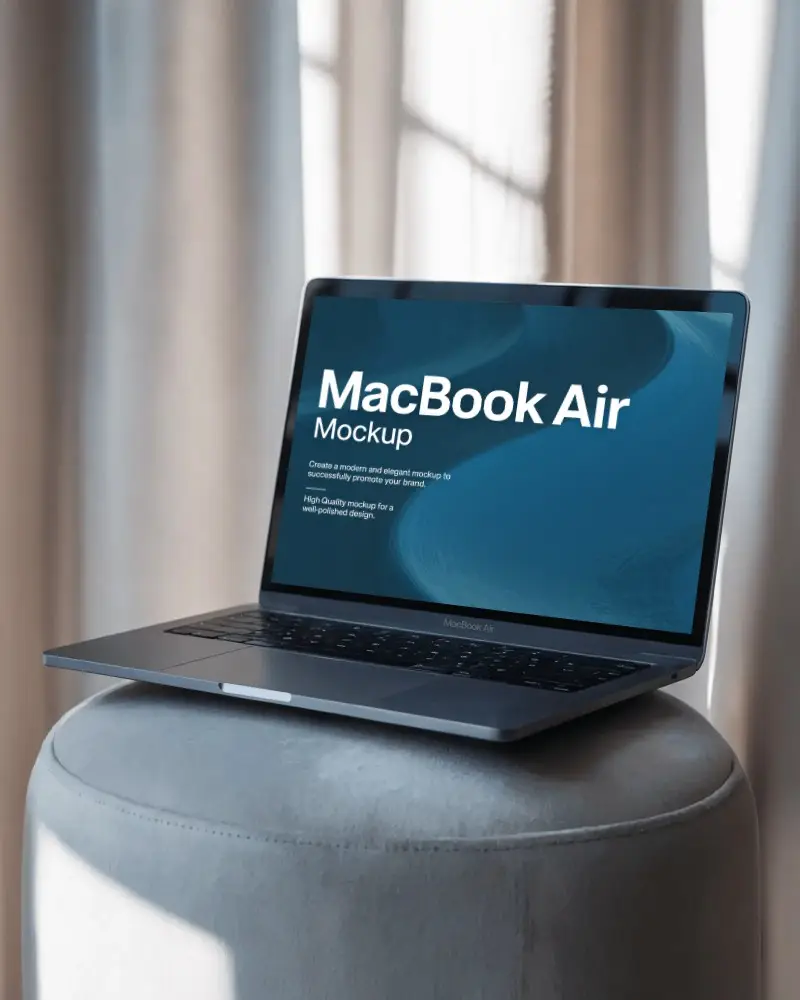
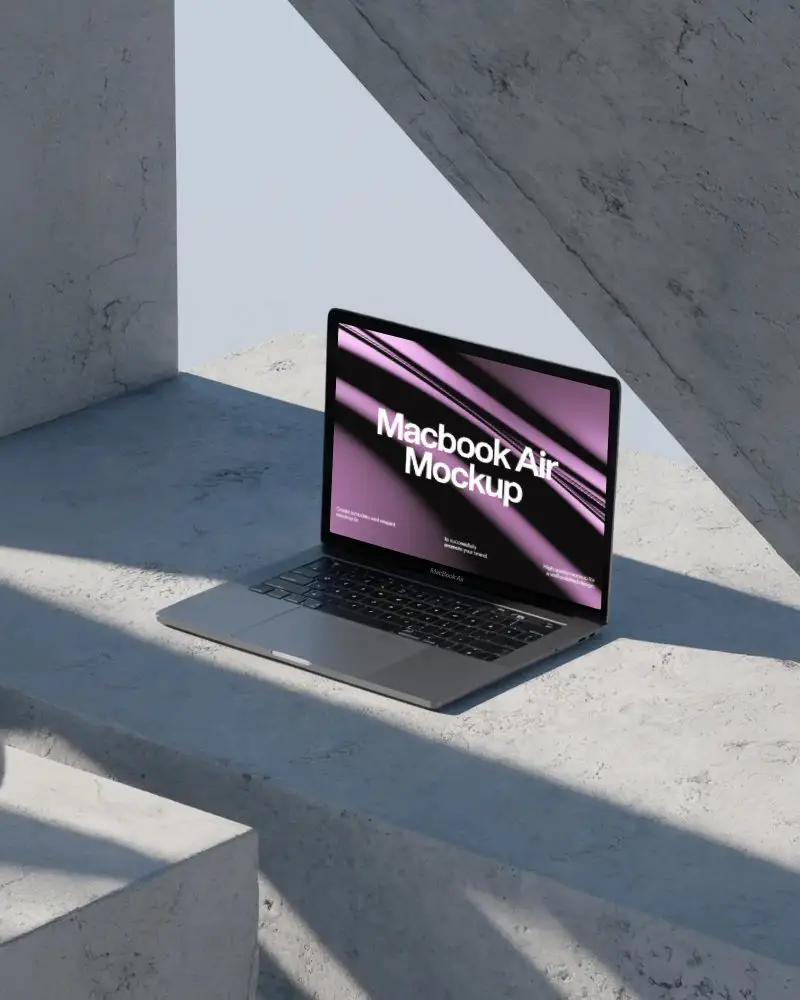
A MacBook Air M1 mockup shows what the M1 MacBook Air looks like with your design on it. These mockups are usually ready-made templates or scenes. You can tweak the screen, adjust the light, and change angles to make your presentation look good.
Who should use a MacBook Air M1 mockup?
Designers and developers can use a MacBook Air M1 mockup to show off their apps, software, or digital products. You don’t need the actual device. It’s easy to customize and ideal for graphic design, app demos, or marketing visuals.
Is the MacBook Air M1 mockup suitable for responsive design previews?
A MacBook Air M1 mockup is best for showing how a design looks on a desktop or laptop, especially for Apple users. But it can’t give you a responsive design preview. To truly test a responsive design, you need to see it across many devices and screen sizes.
Why choose a MacBook Air M1 mockup over other laptop mockups?
Pick a MacBook Air M1 mockup for its attractive and modern look. It’s slim, stylish, and powerful as compared to other laptop mockups. Designers, tech lovers, and startups will relate to its excellent design.