Free Sticker Mockups for Product Labels and Branding
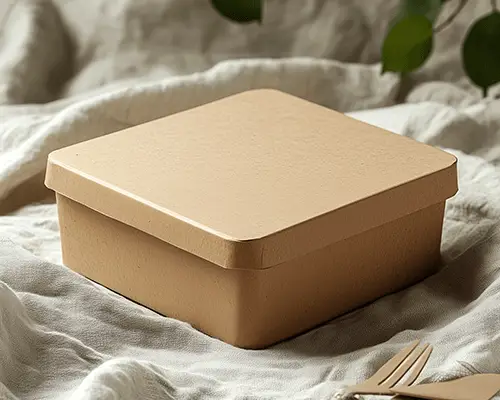
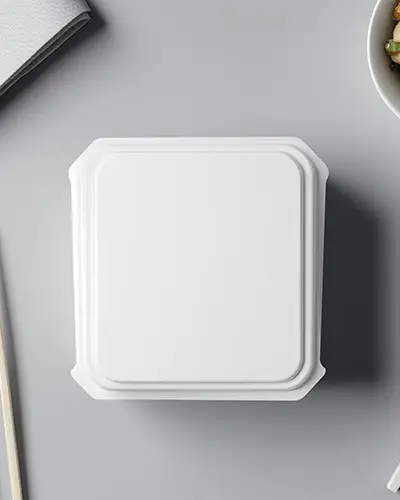
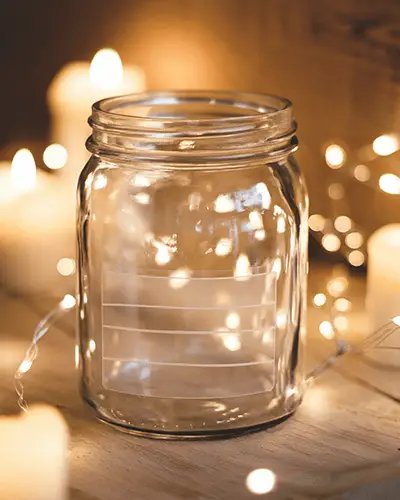
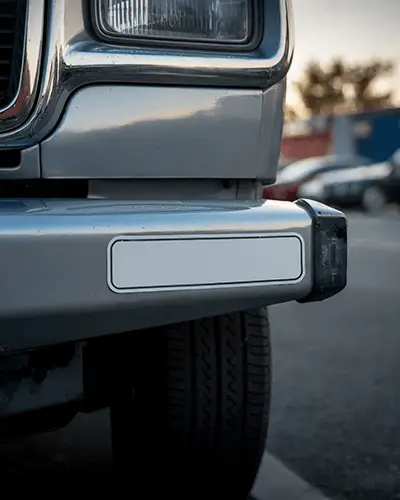
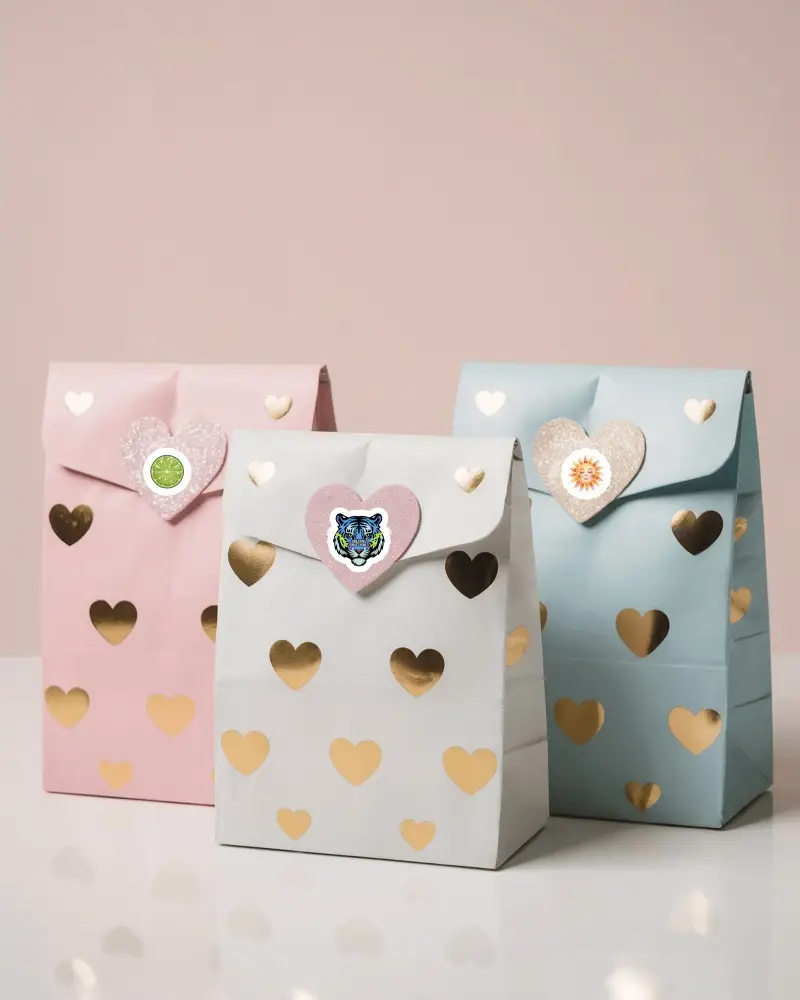
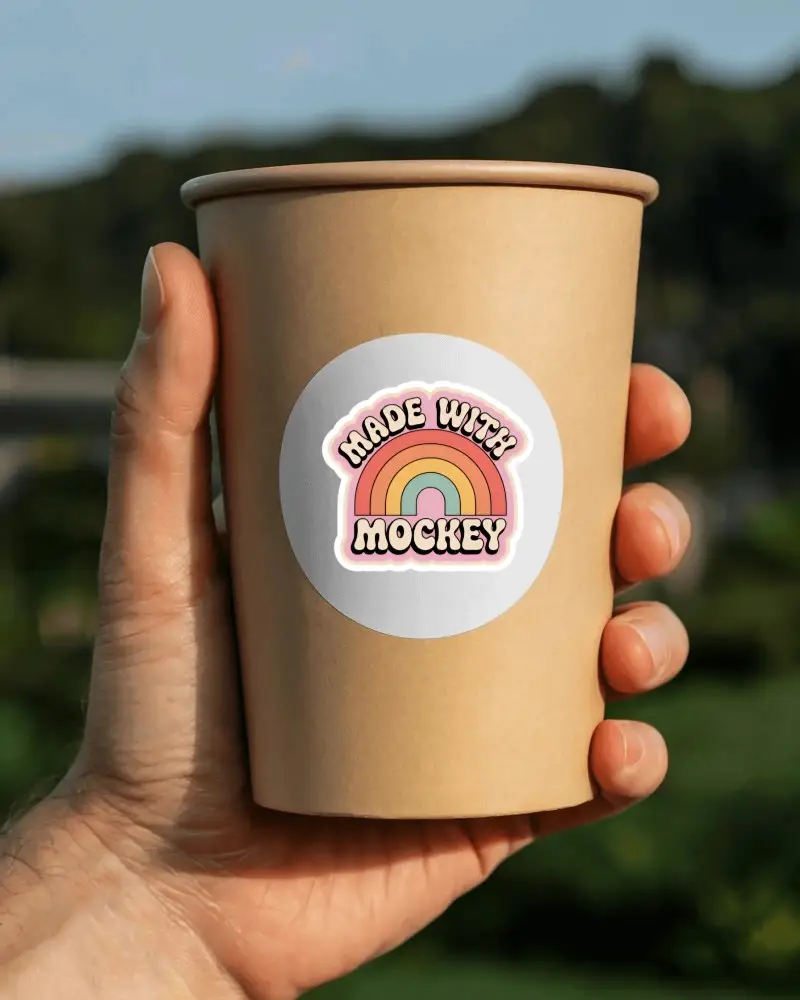
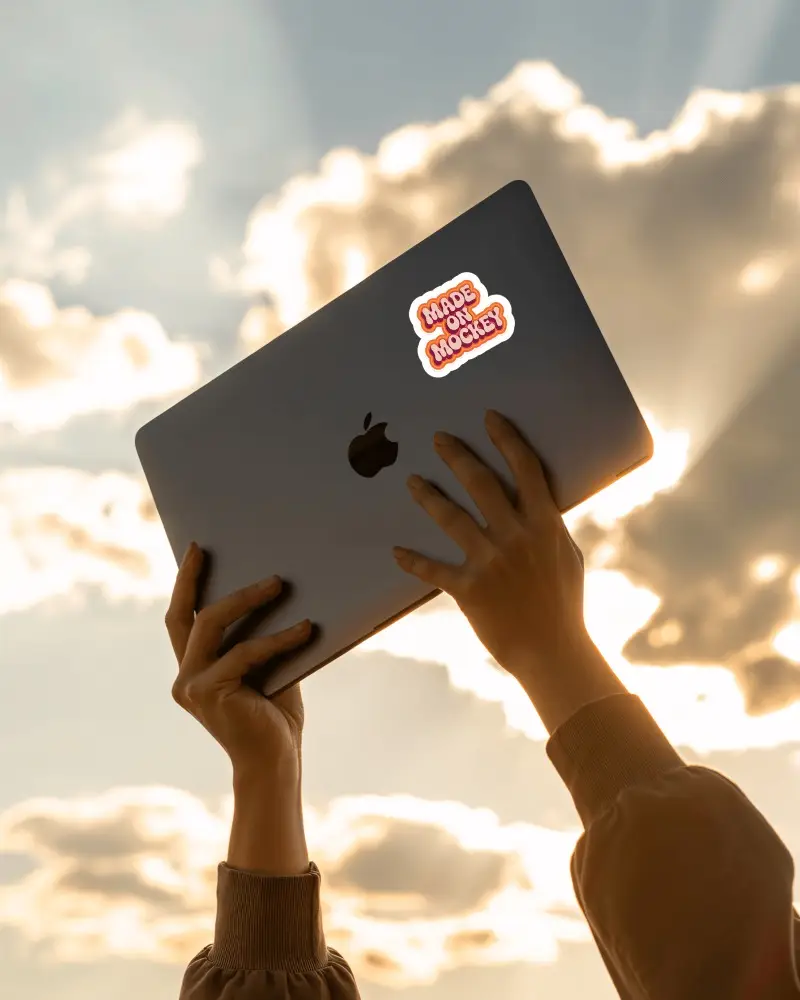
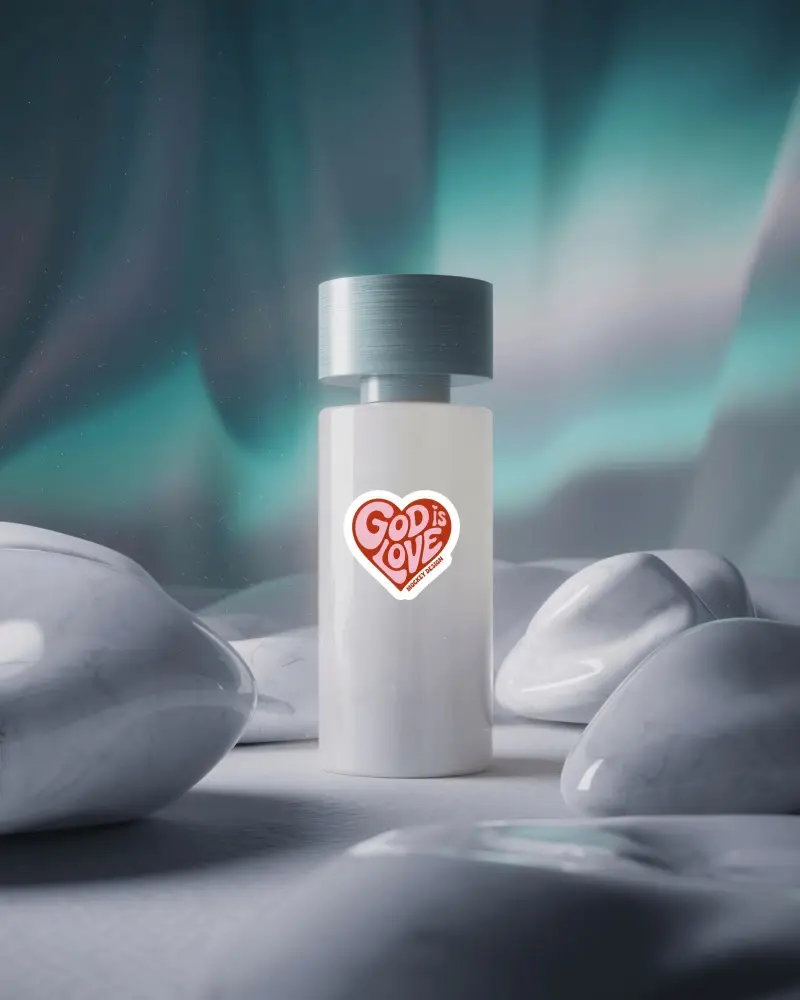
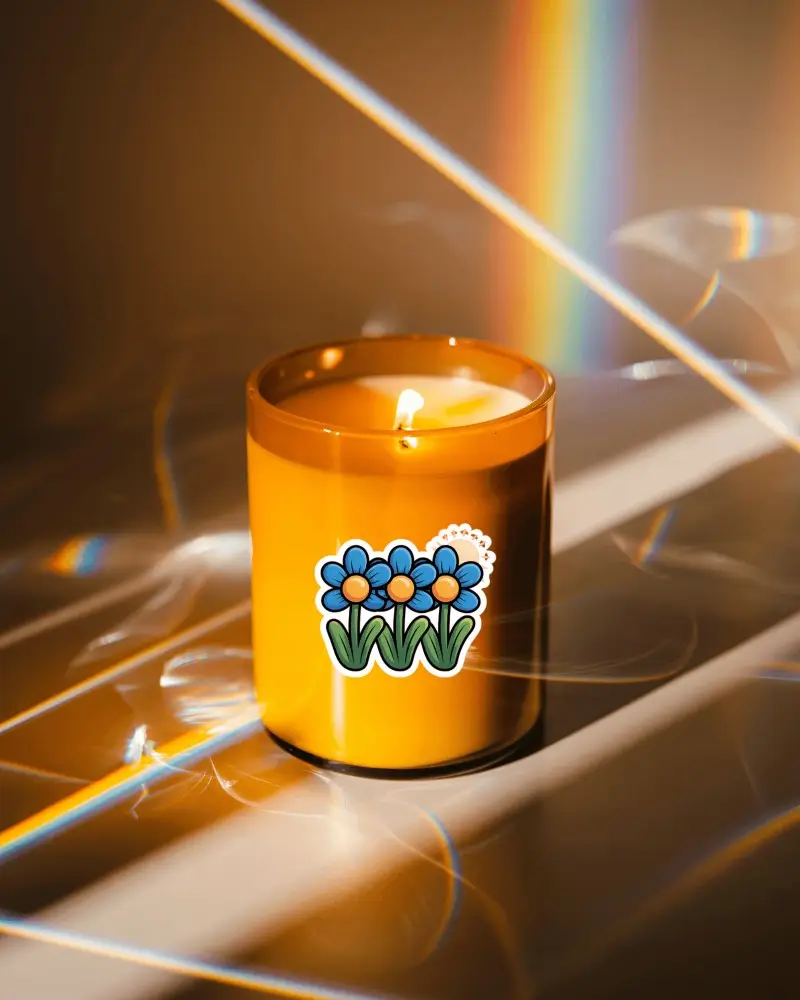
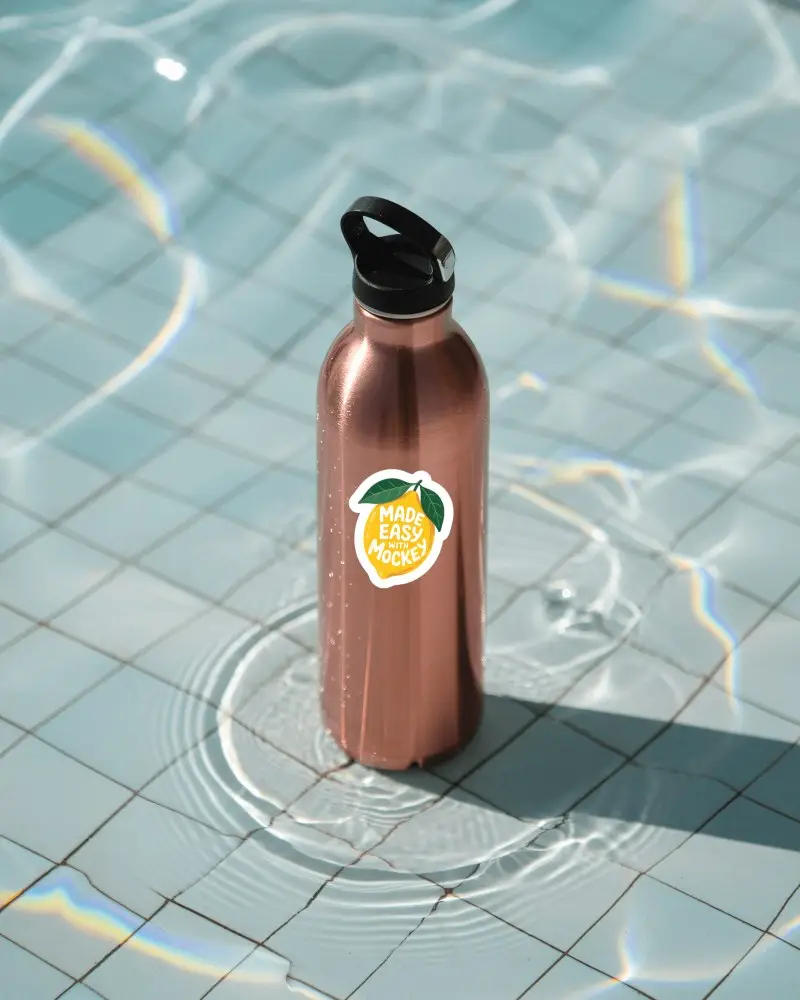
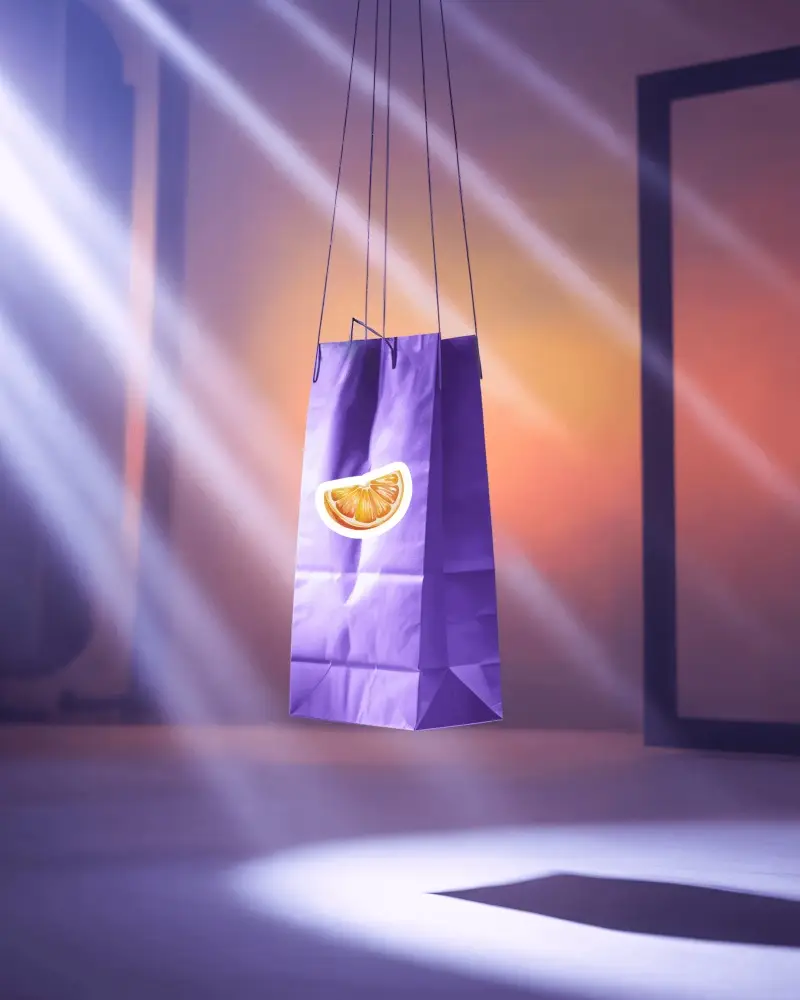
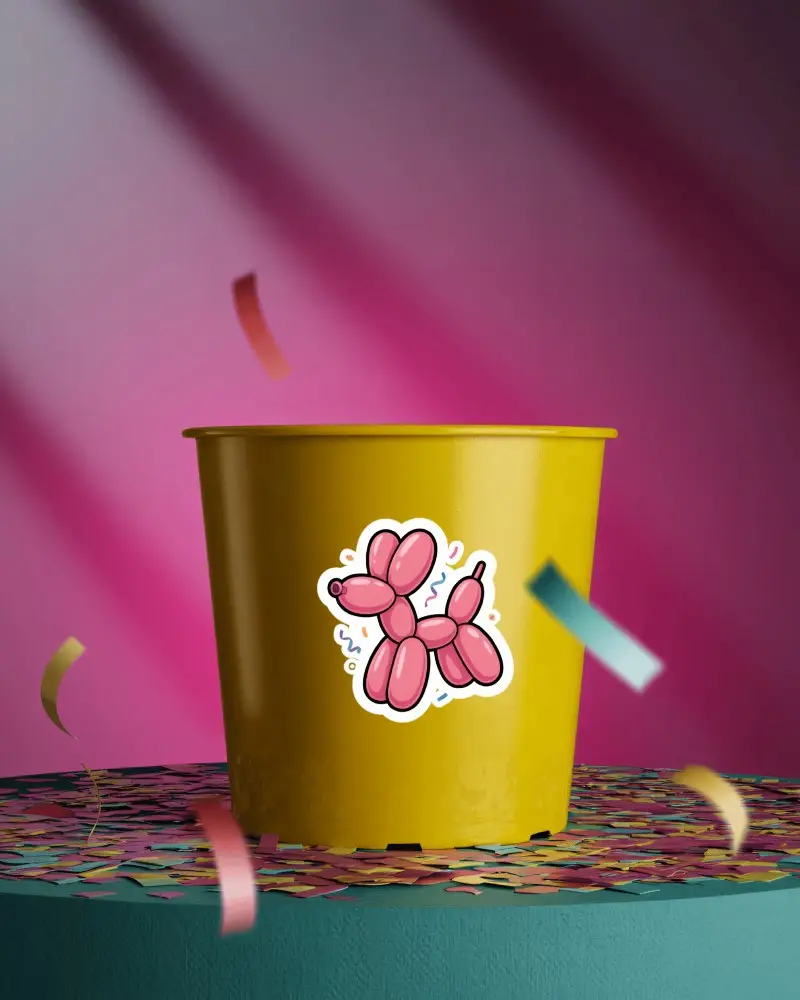
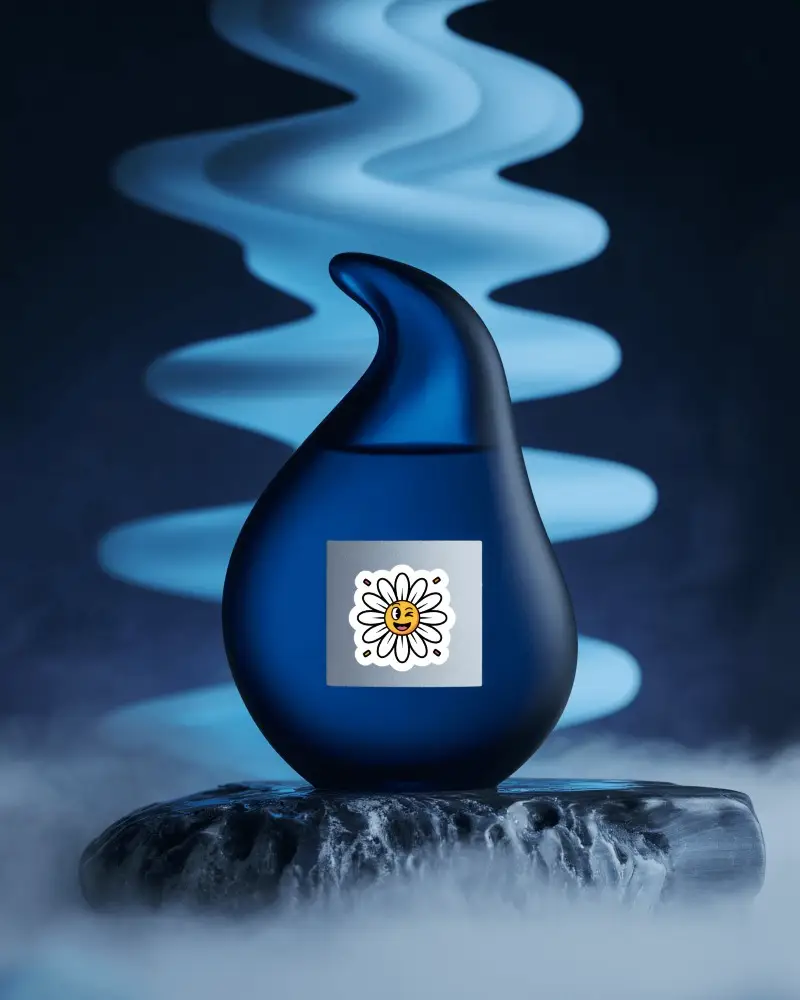
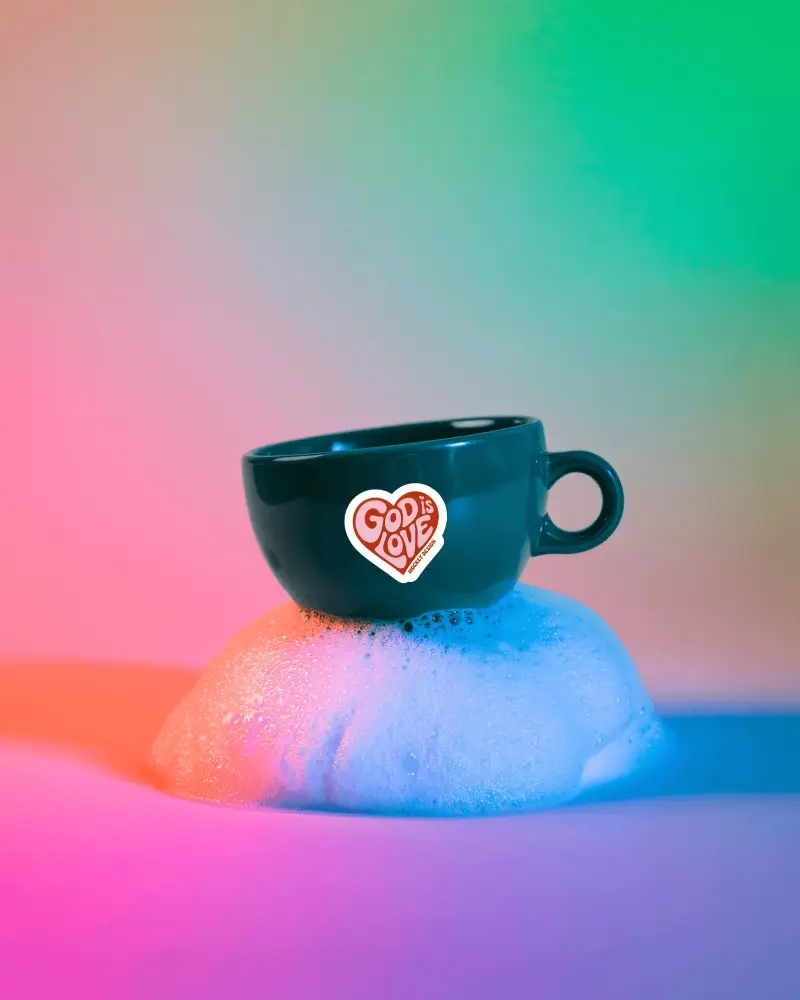
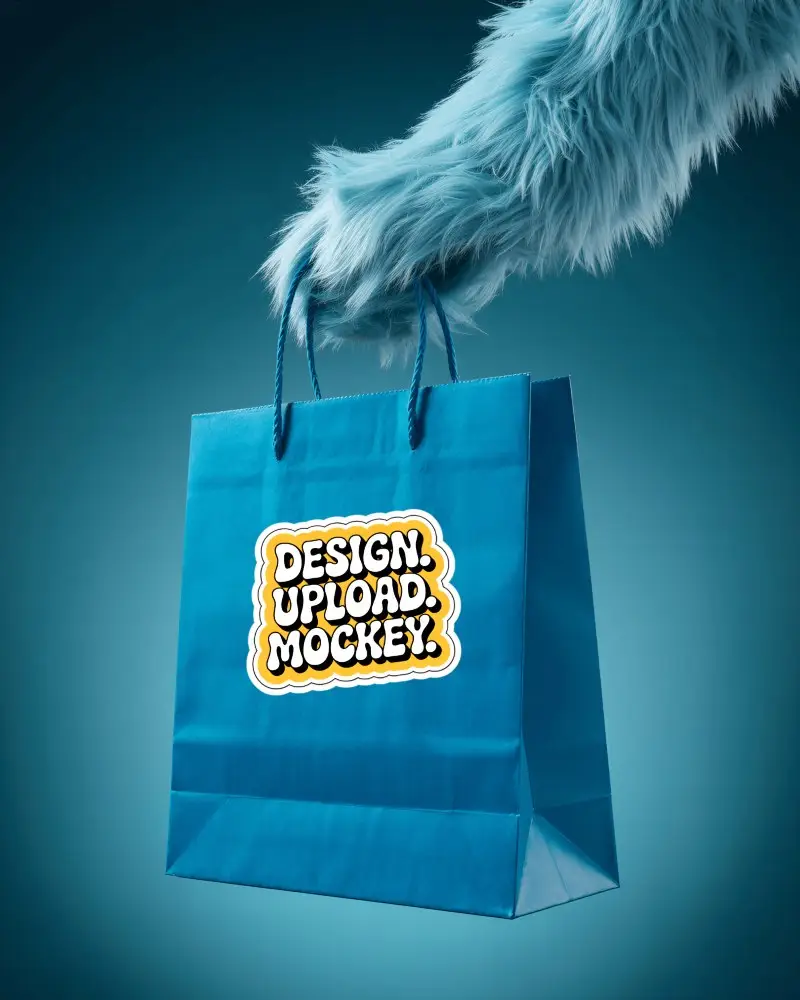
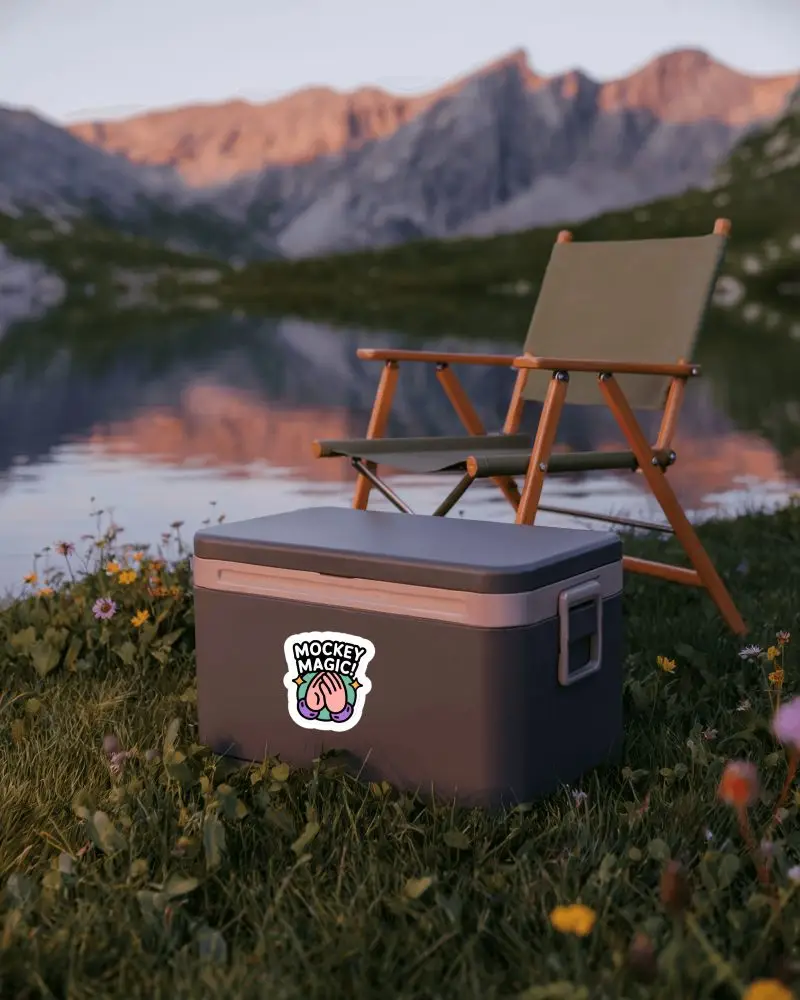
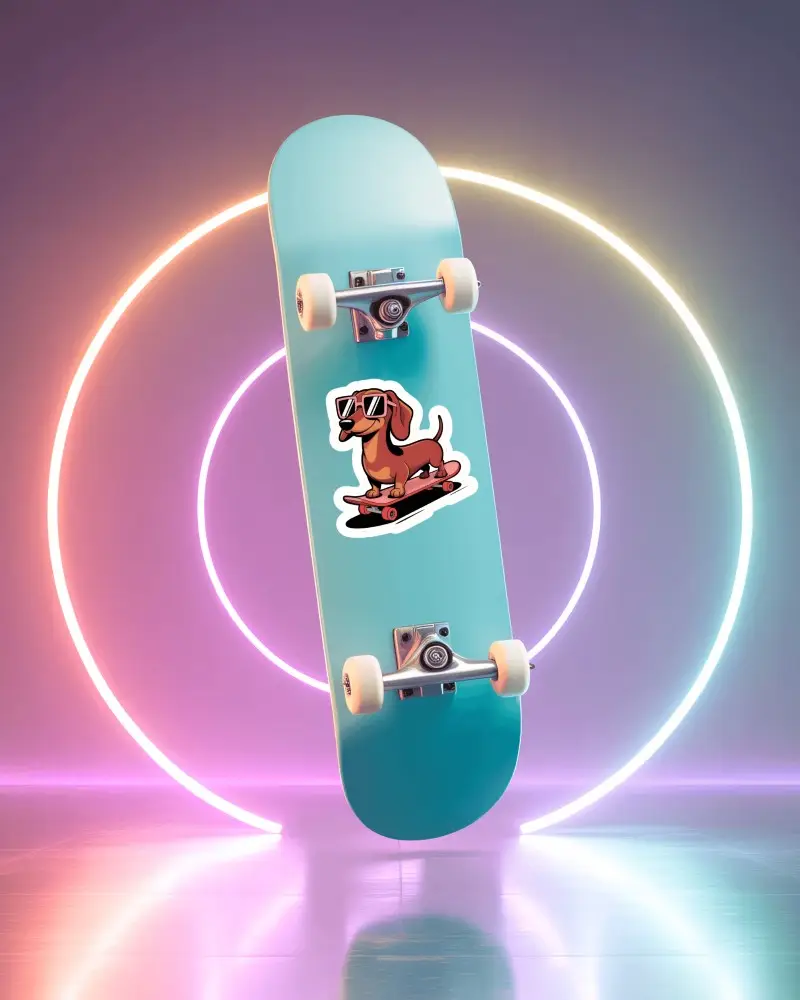
Create a sticker mockup on Mockey AI using templates from our library. Upload your design, change thickness, adjust on the template, and preview the sticker on a bumper, box, bag, or envelope before printing. Choose from different sizes and formats while downloading.
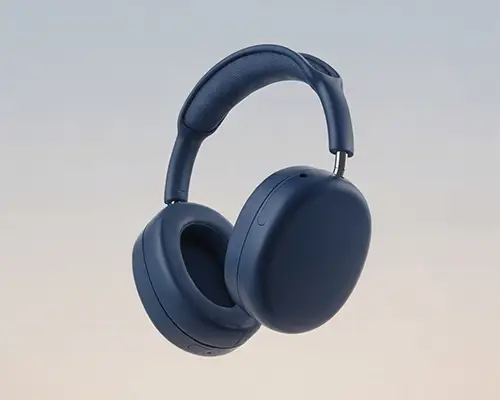
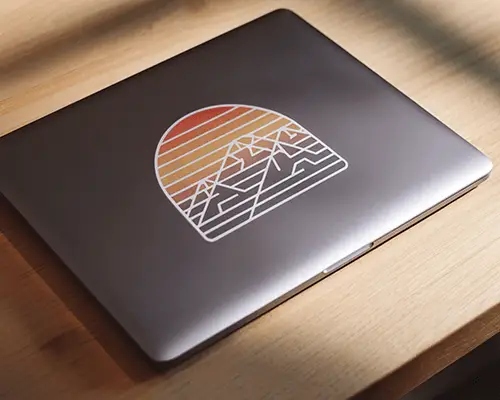
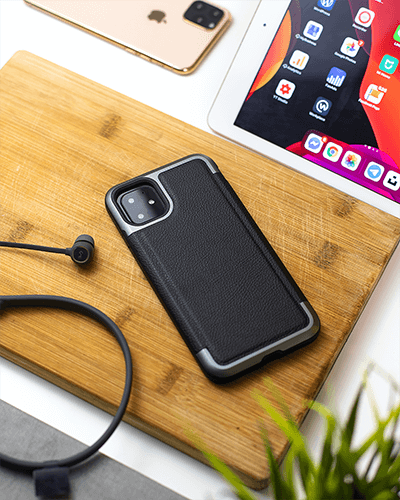

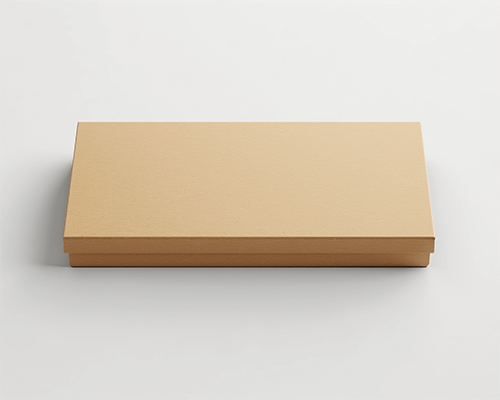

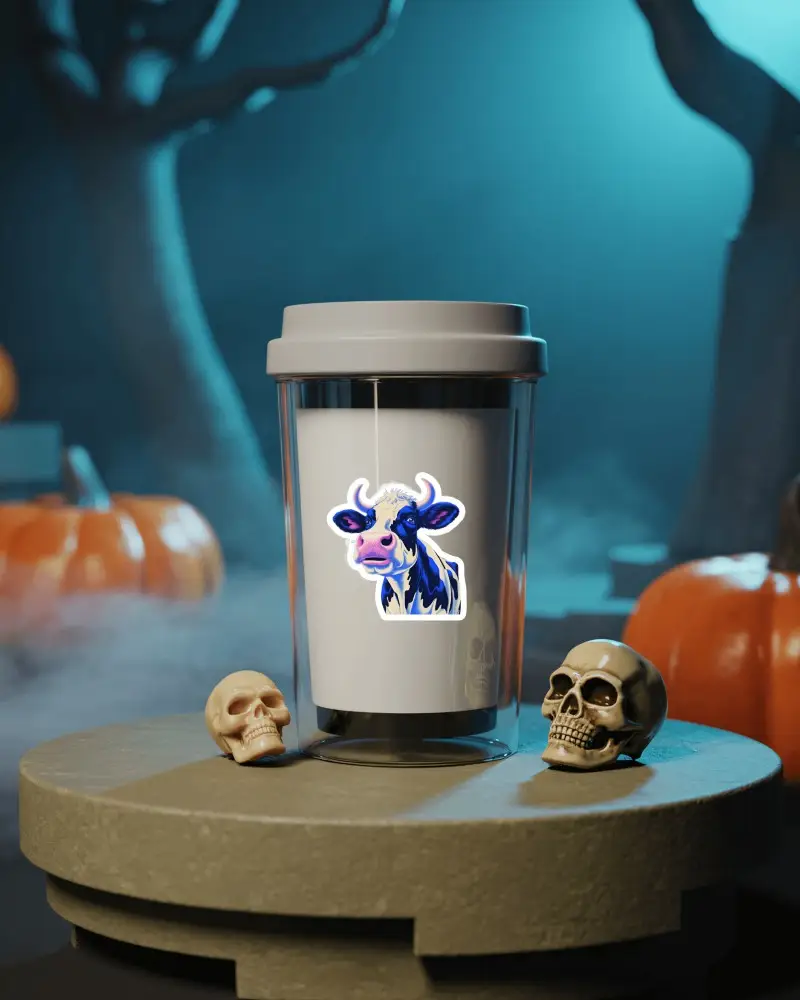

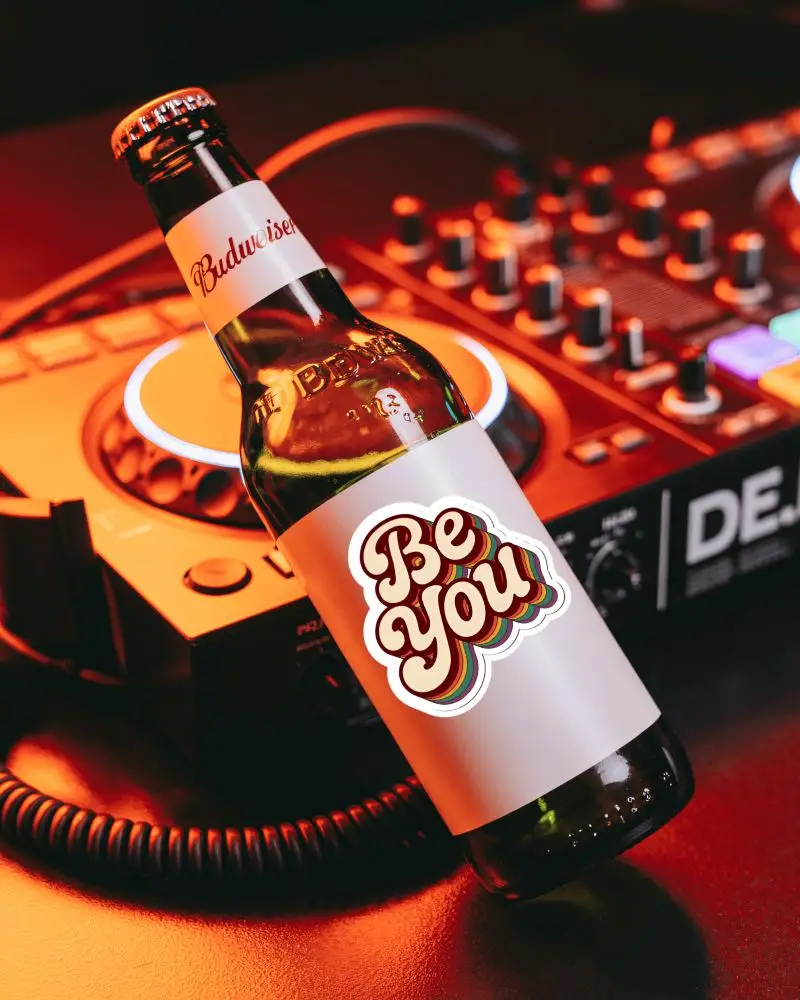
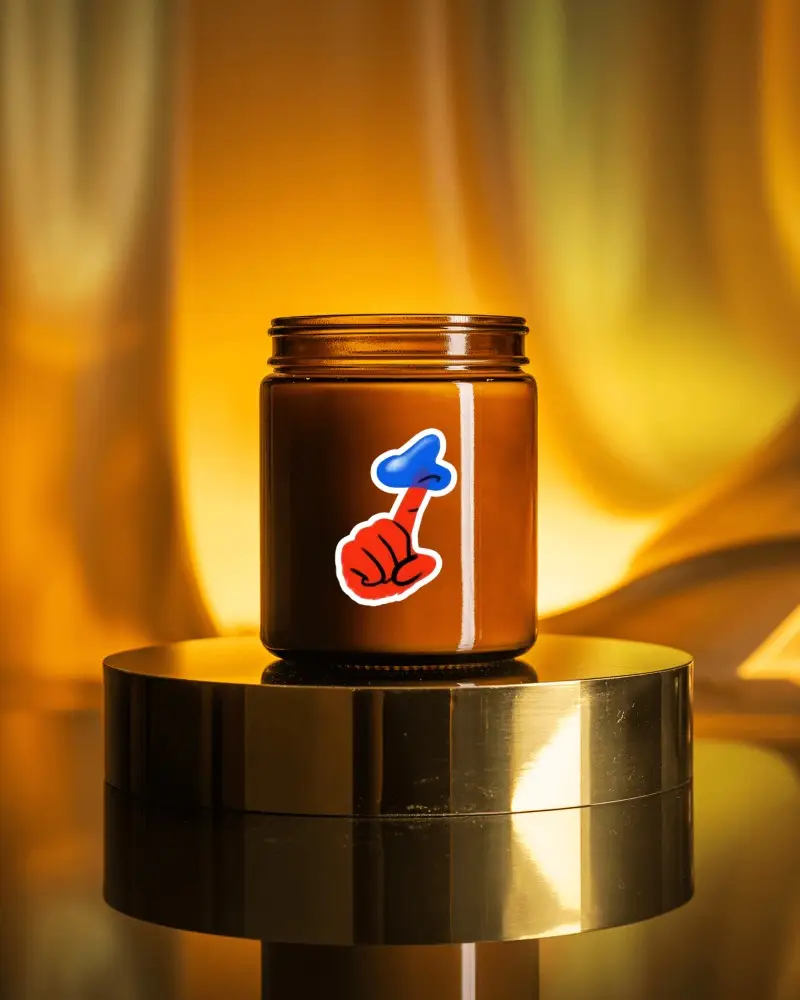

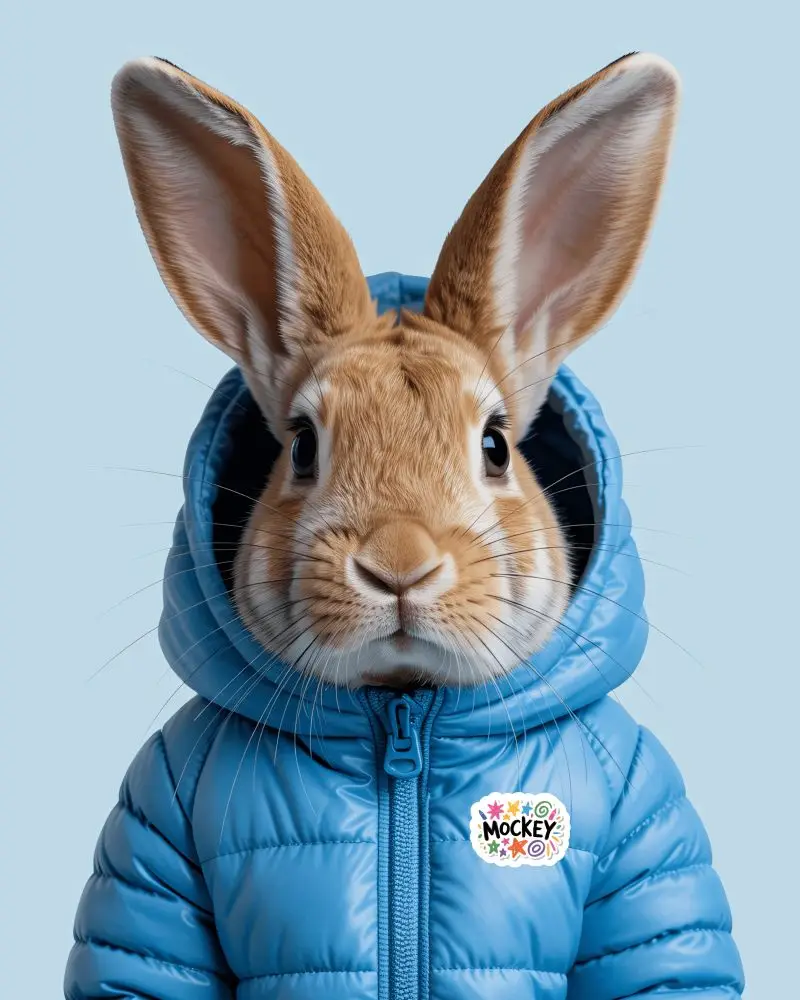
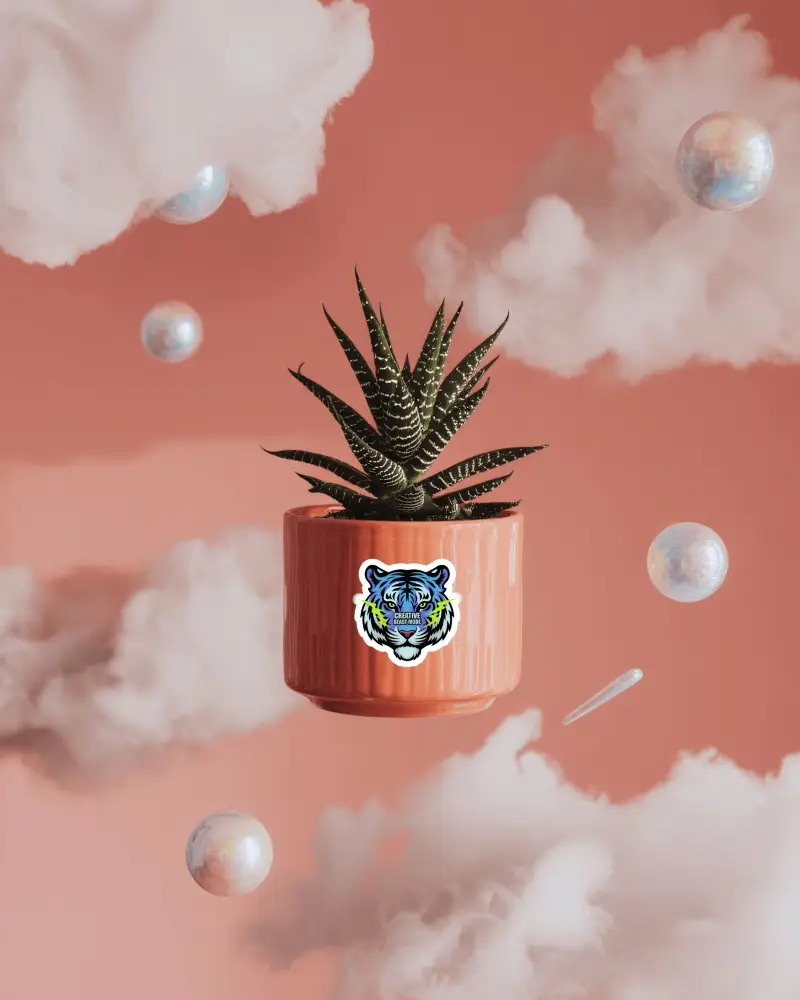

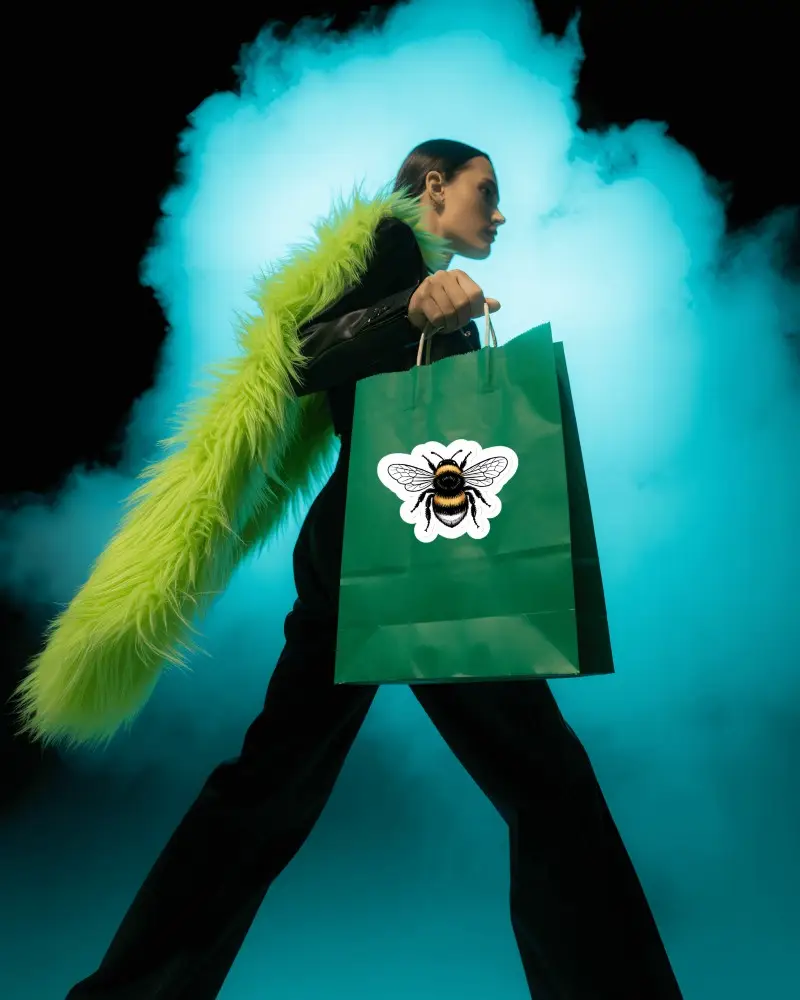
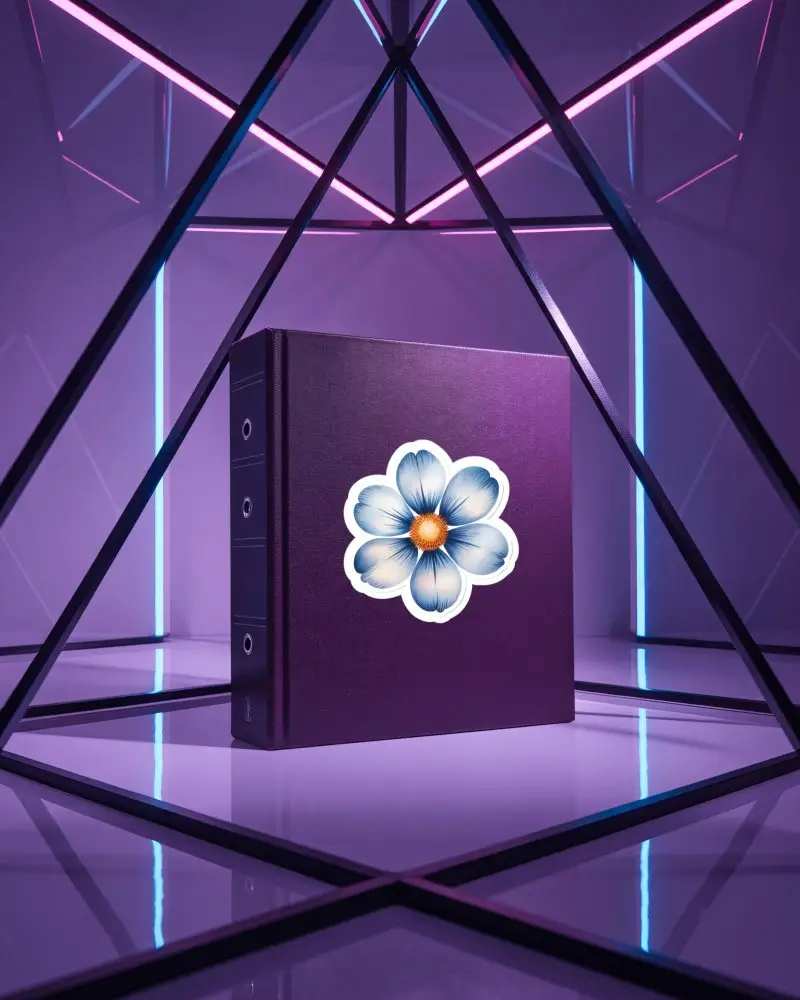
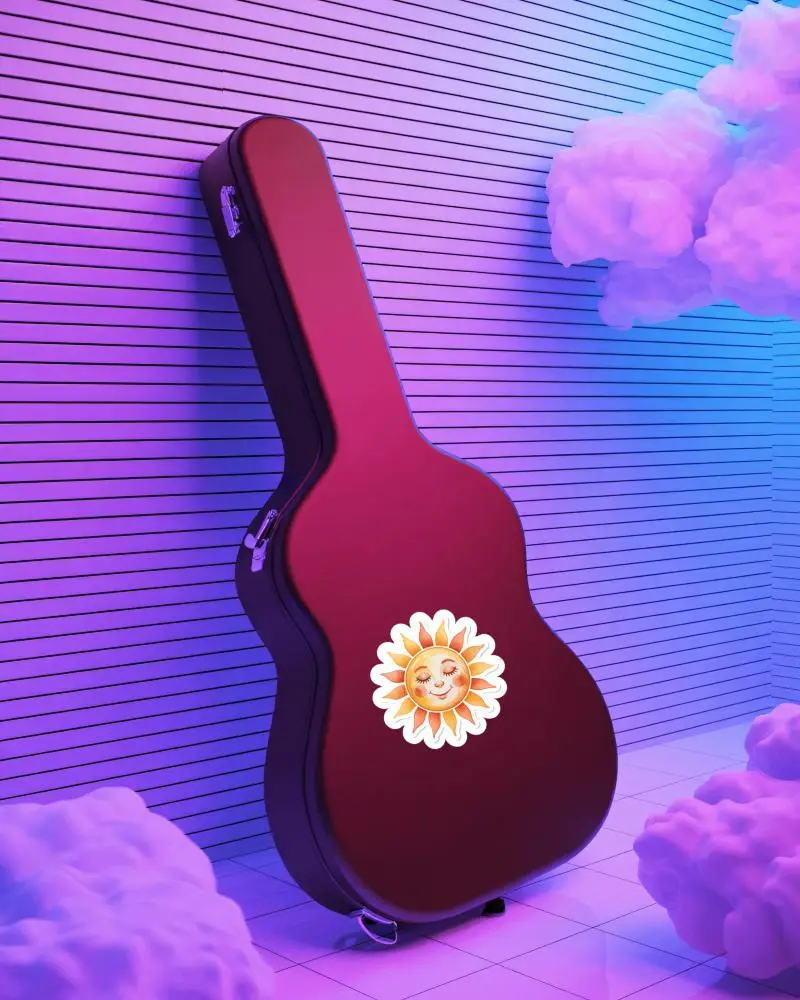
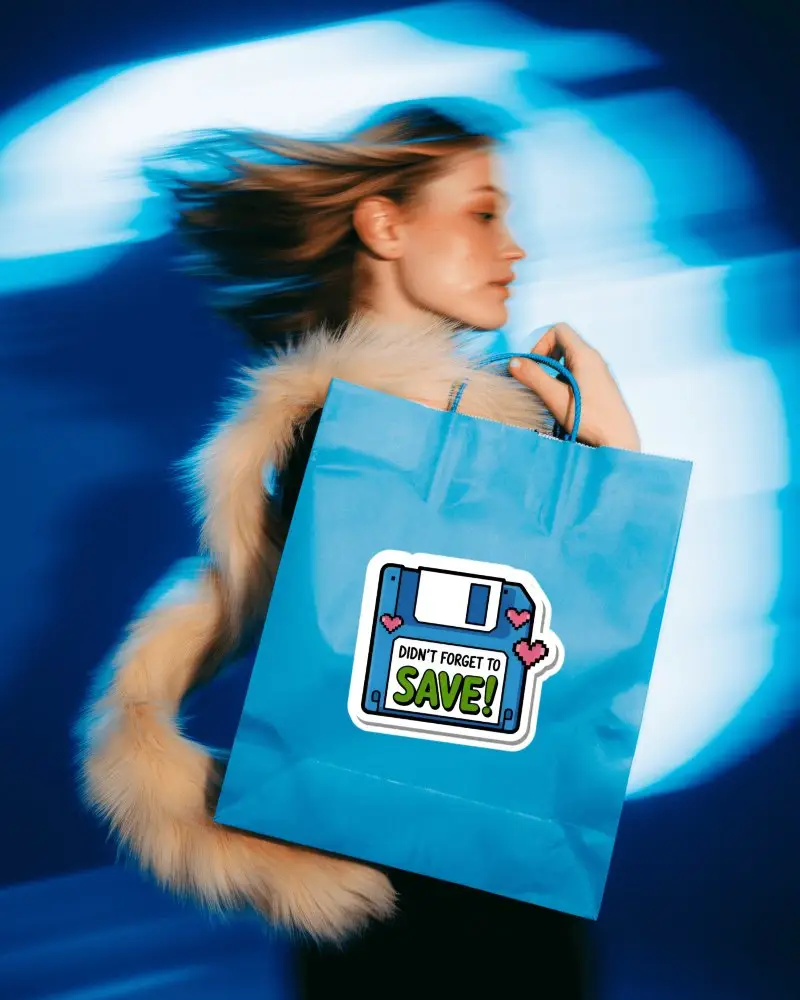
How to Create Sticker Mockup with Mockey
Follow the steps to create Sticker mockups in Mockey AI
- Step 1: Open Mockups, click on Print, and then pick Sticker from the home page.
- Step 2: Choose a template and add your design.
- Step 3: Customize your Sticker mockup to make it unique and download it in high quality.
FAQs on sticker Mockups
What types of sticker mockups are available?
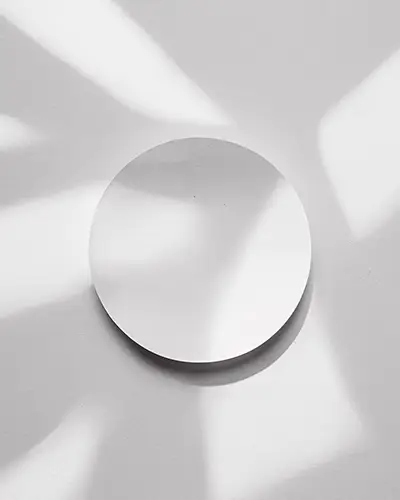
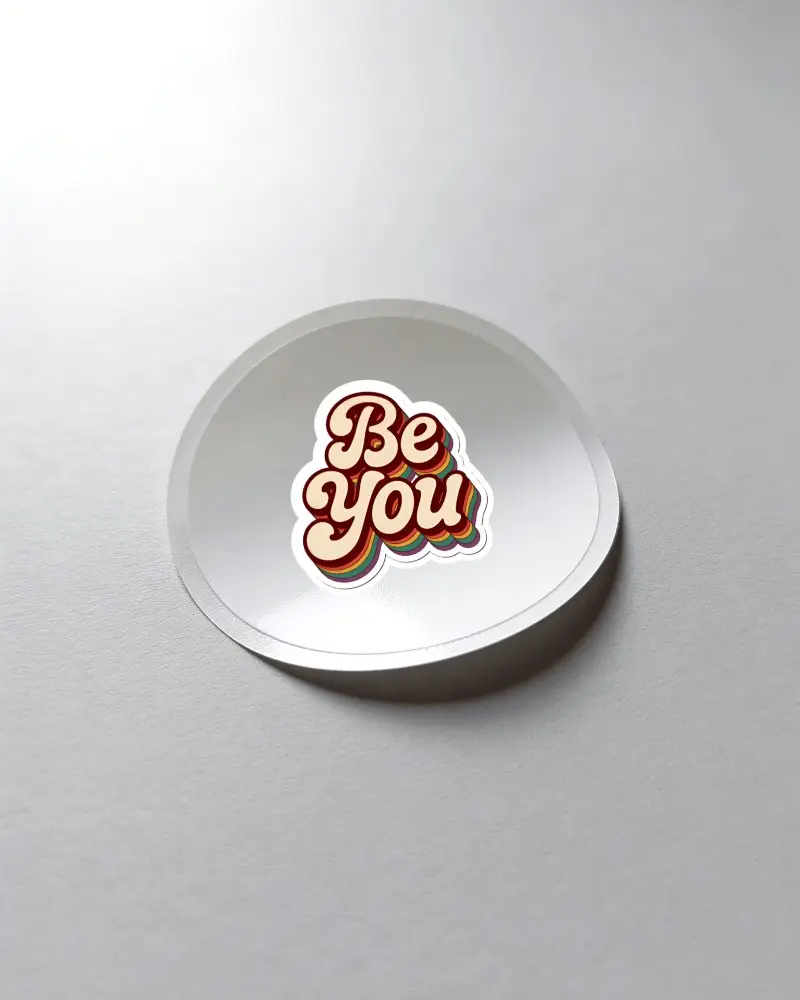
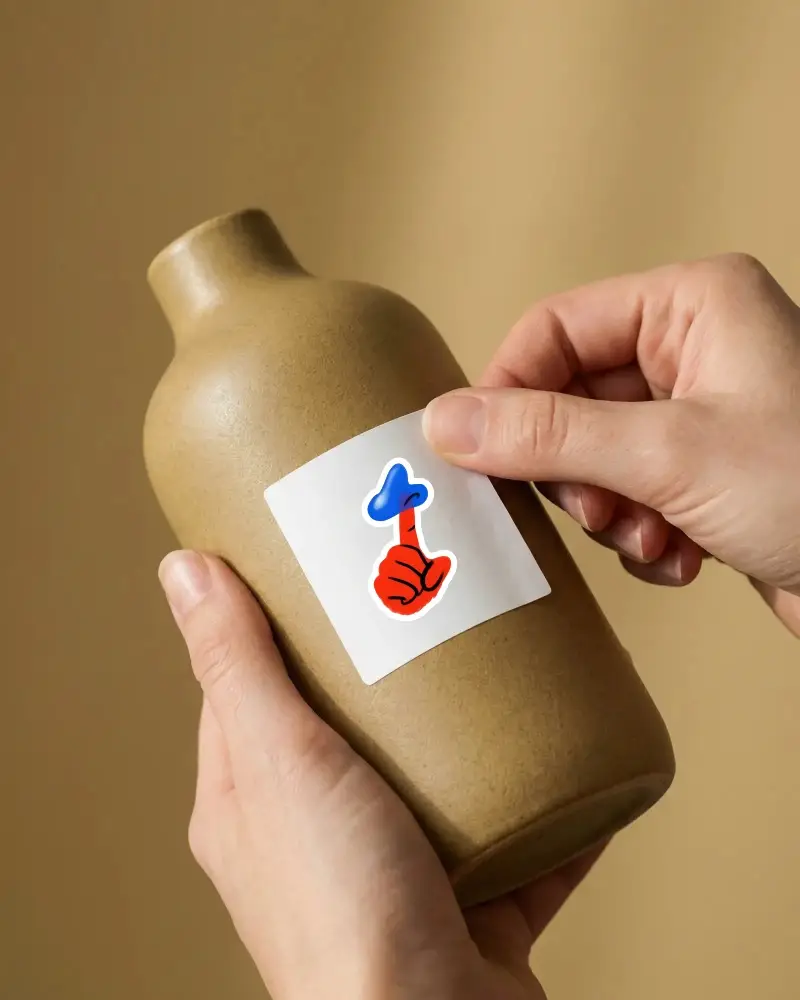
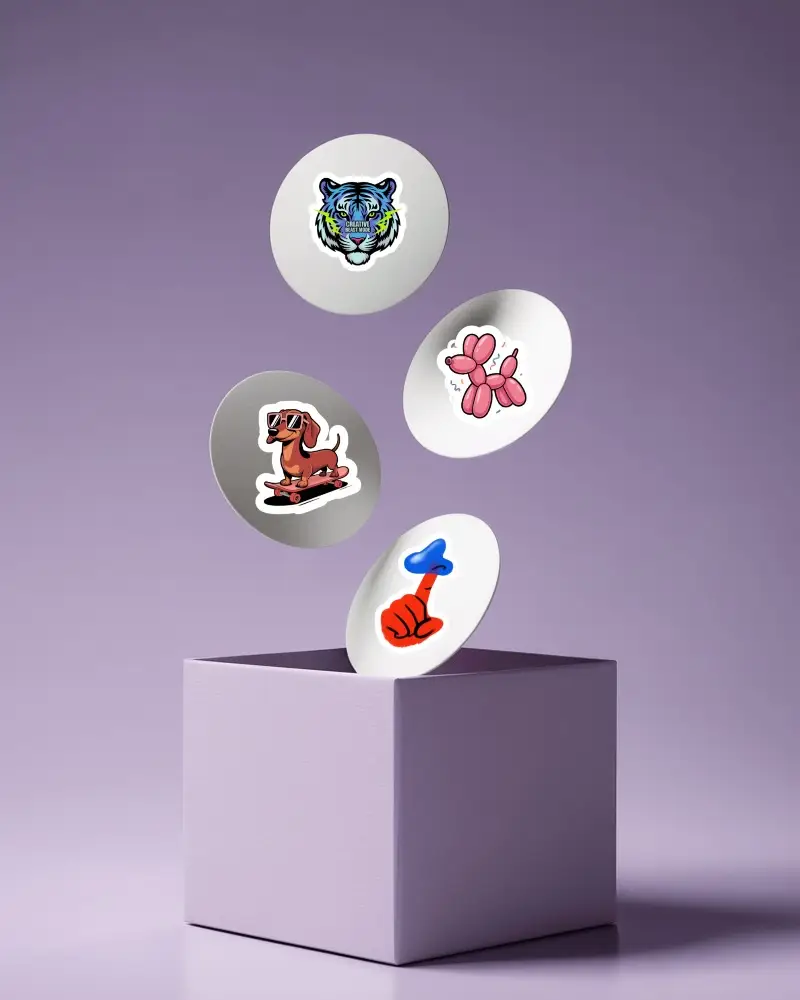
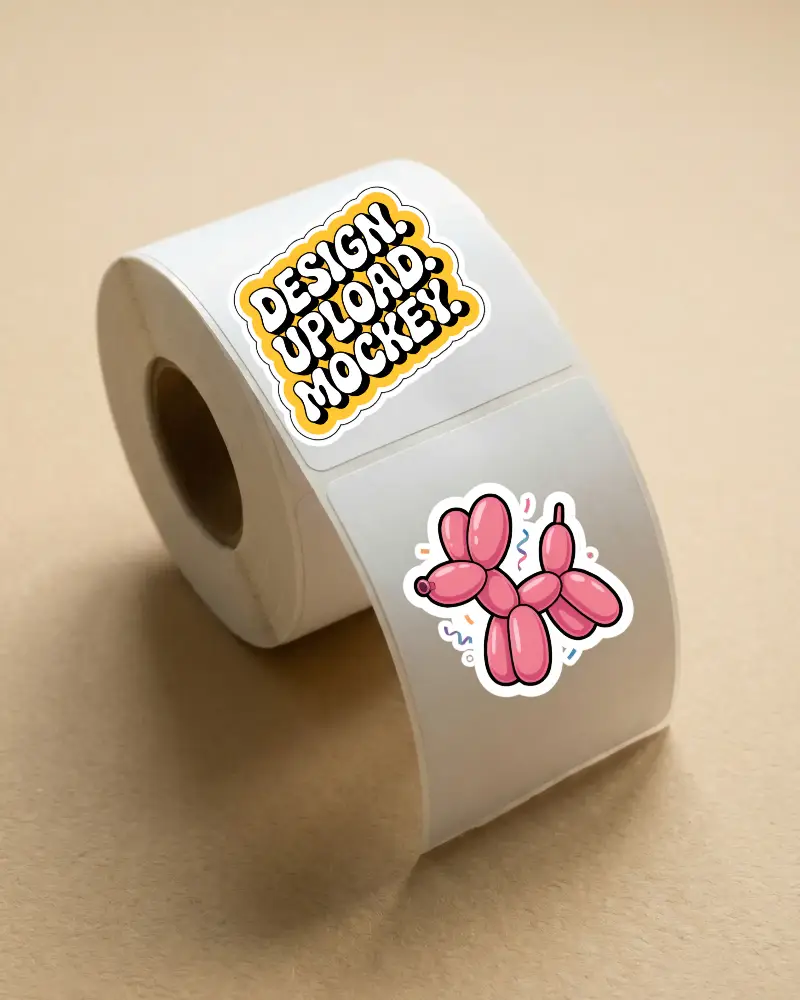
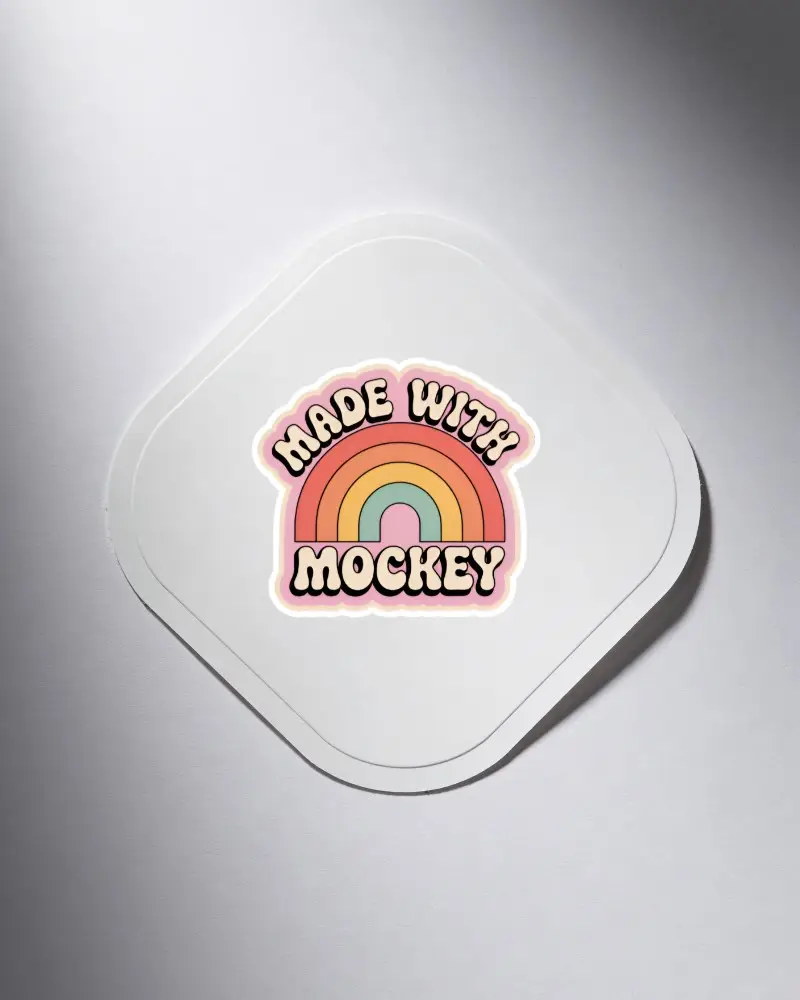
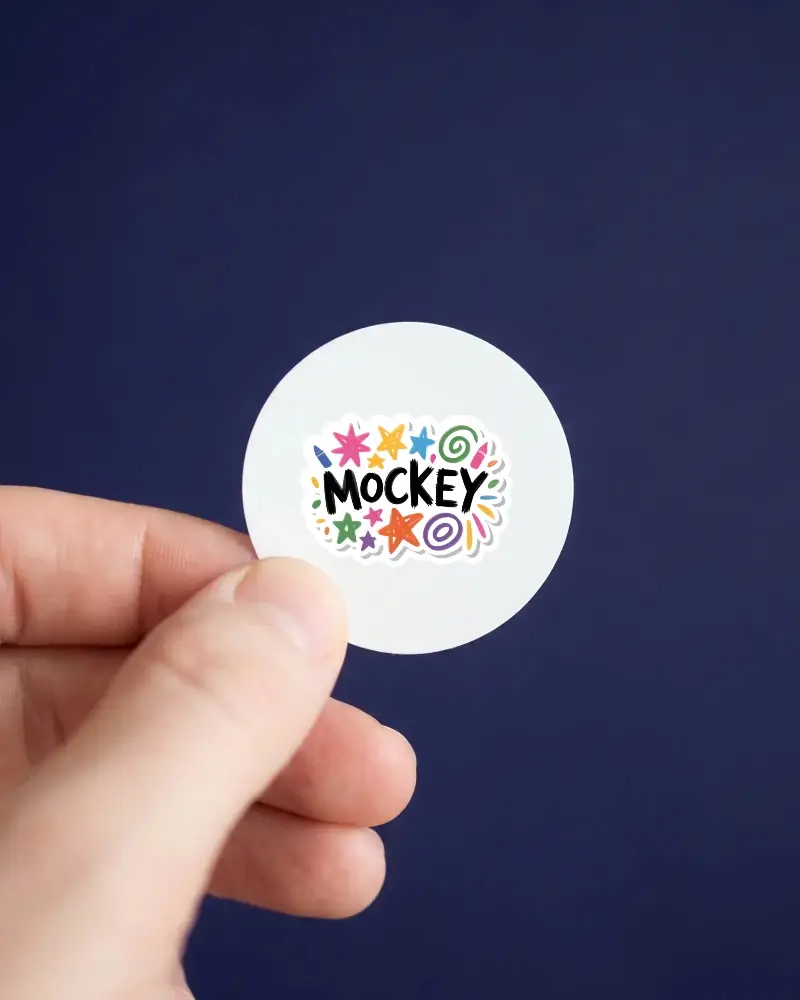
Choose from round, square, die-cut, rectangular, sticker packs, and other styles of sticker mockups from Mockey. Use rectangular sticker mockups for branding stickers and product labels.
What file formats are Mockey’s free sticker mockups available in?
Mockey’s free sticker mockups are available in high-quality PNG file formats, offered in three resolutions: 1600x2000 px, 800x1000 px, and 400x500 px.
Does Mockey offer sticker mockups for different shapes and sizes?
Mockey has lots of sticker mockups in different shapes and sizes. You can choose from many templates and customize them easily to match your design. The best part? It’s free, and there are no watermarks!
Can sticker mockups show peeled or curved effects?
Yes, Mockey AI offers peeled sticker mockups. Click on the peeled tag on the catalog page to explore those templates. You can also find layouts that display multiple peeled stickers in a single design.
Can I create a custom sticker online?
Yes, you can use Mockey AI’s Sticker Maker to create custom stickers online. Simply upload your design, adjust the outline thickness, and download it as a PNG with a transparent background.
Can I preview my design on different types of sticker mockups on Mockey AI?
You can use Mockey to see how your sticker designs will look on different templates for free. It has over 1,000 sticker mockup templates that you can customize, download as many times as you want, and preview instantly.