How to Make a Mockup with Mockey AI
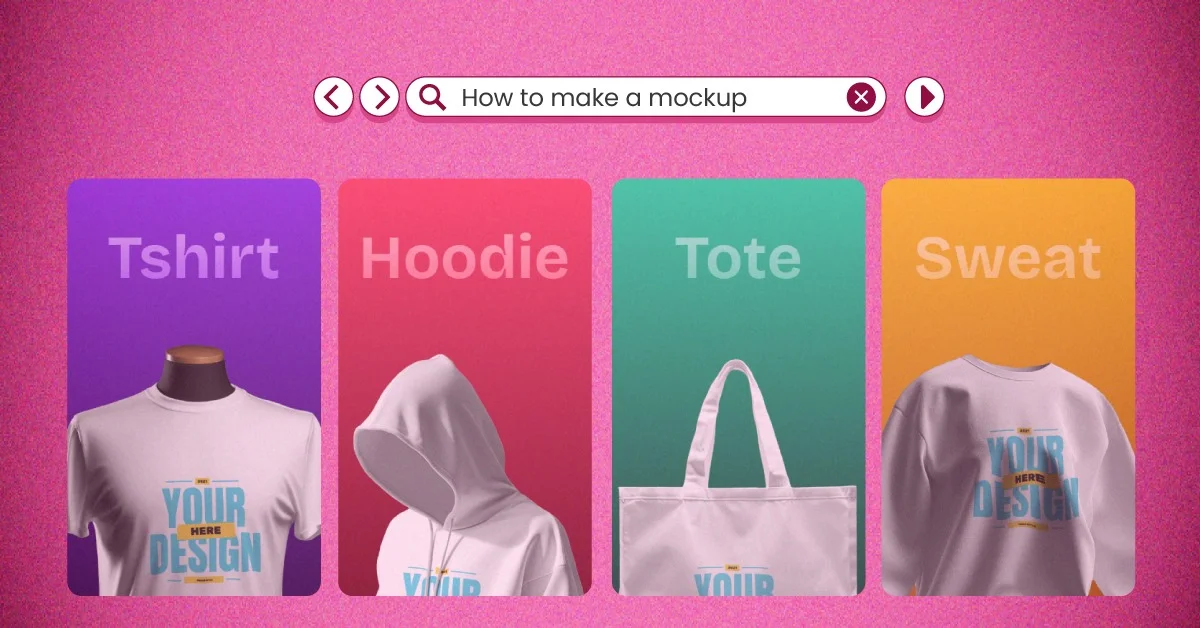
How to make a mockup? Use Mockey.ai to select from 30,000 templates, upload a photo, edit the color, and download the mockup as PNG.
You have an incredible design that you want to create a product mockup with, but there is a challenge. It is impossible for you to learn how to make a mockup with Adobe Photoshop, let alone use complex image editing.
Fortunately, Mockey is a solution for people who are looking for easy-to-use mockup tools. Mockey is a free mockup generator that is user-friendly and simple to operate.
This tutorial on mockups covers the following:
- Various popular mockup types, such as T-shirts, Hoodies, Tank tops, and more.
- From scratch, how to make a mockup
- The use of incredible mockup templates
Let’s dive straight in because, by the time we’re done, you’ll have all the essential abilities needed to produce a professional and realistic mockup with ease and speed.
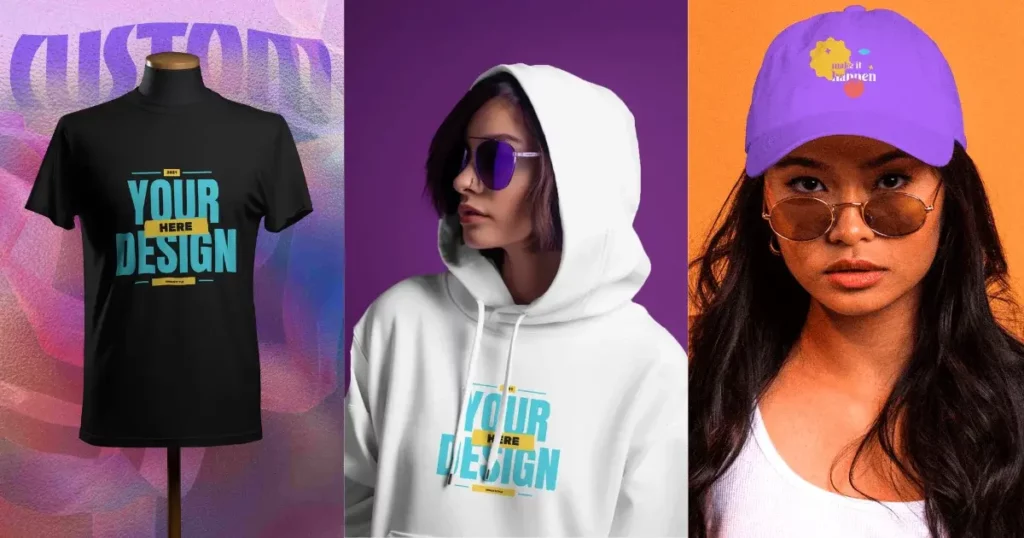
Table of Contents
What Is a Mockup?
Mockups are representations of the final product. Often, product mockups are used to mimic the real-world experience of a final product. You can use product mockups to gain feedback on a product concept before mass production or in a presentation to administrators, stakeholders, or investors. You should understand what are mockups before creating one.
A Quick Guide
A quick guide on how to make mockups for free.
- Open Mockey.ai and sign up there.
- Click “Mockups“.
- Pick a product from Categories.
- Select a template and upload your design or logo in PNG or JPEG.
- Customize your design using AI tools or change the color and background.
- Download your mockups for free without a watermark.
How to Make a Mockup with Mockey AI (Step-by-Step Guide)
Here are five steps on how to make a mockup with Mockey AI.
Step 1: Open Mockey.ai
How to make a product mockup for free is a common query. Don’t worry. The answer is Mockey.ai.
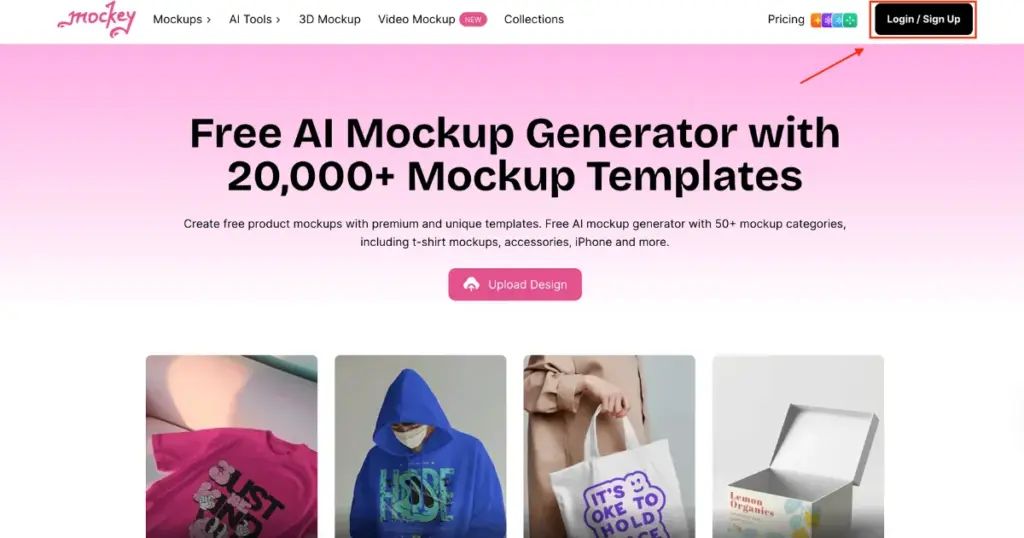
If you want to make your own mockups, Mockey.ai is one of the best that you can check out. Or, if you’d like, you can use it for free on your tablet or phone from the Play Store!
With Mockey, you can create your own mockups and see what your product design might look like before you actually make it.
Also, note that you have to Sign Up there. You can’t customize without creating an account.
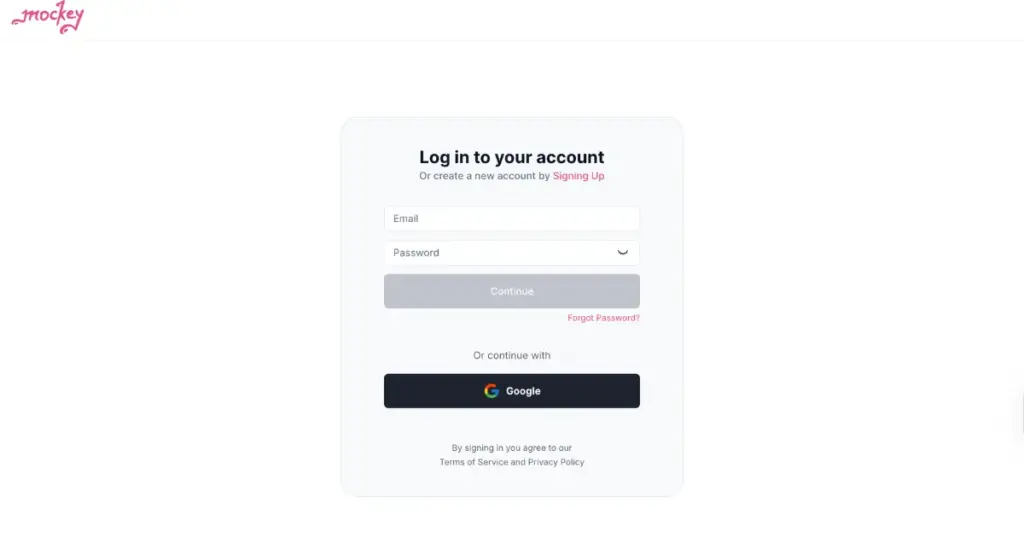
Next, we will cover mockup types and objectives, which can help you make a mockup.
Step 2: Consider Mockup Types
Making a prototype is a fast and effortless approach to displaying your creation to investors.
Consider another example where you might be a small business that has restricted resources to invest in fresh merchandise and designers to produce those product designs.
To avoid the risk of printing a concept on numerous custom t-shirts, hoodies, and other products without knowing how it will look, consider producing a product mockup before submitting it to a merchandising company.
By utilizing a mockup generator that offers product mockup templates, you can easily add your design to various mockup templates, such as tote bag mockups, t-shirts, hoodies, lanyard mockups, and more. This allows for a swift process of creating mockups.
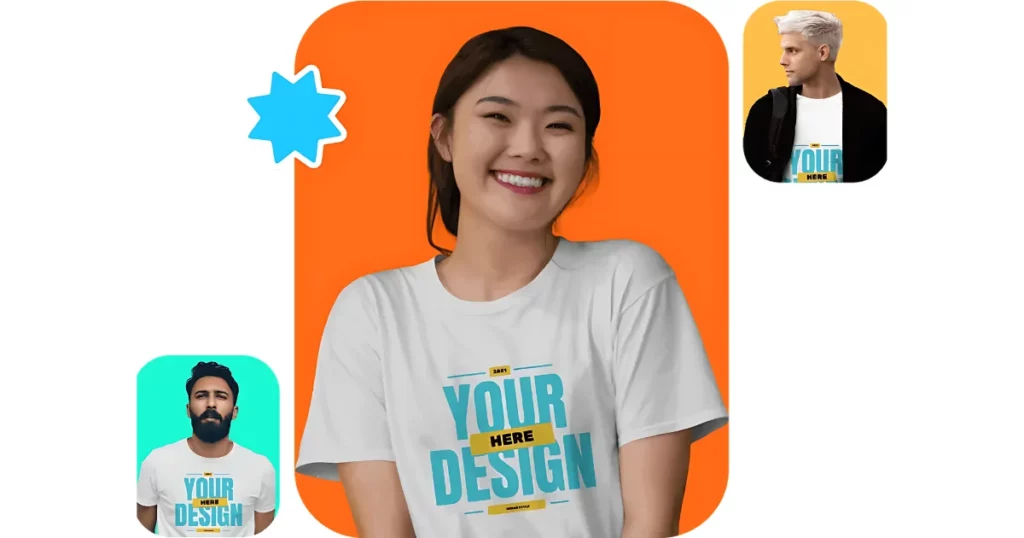
Afterwards, you can evaluate whether your design is too large or too small and whether it fulfills your product expectations.
By doing so, small business owners can make intelligent investment choices for upcoming products, and printers can accurately determine the location of their logo on each item.
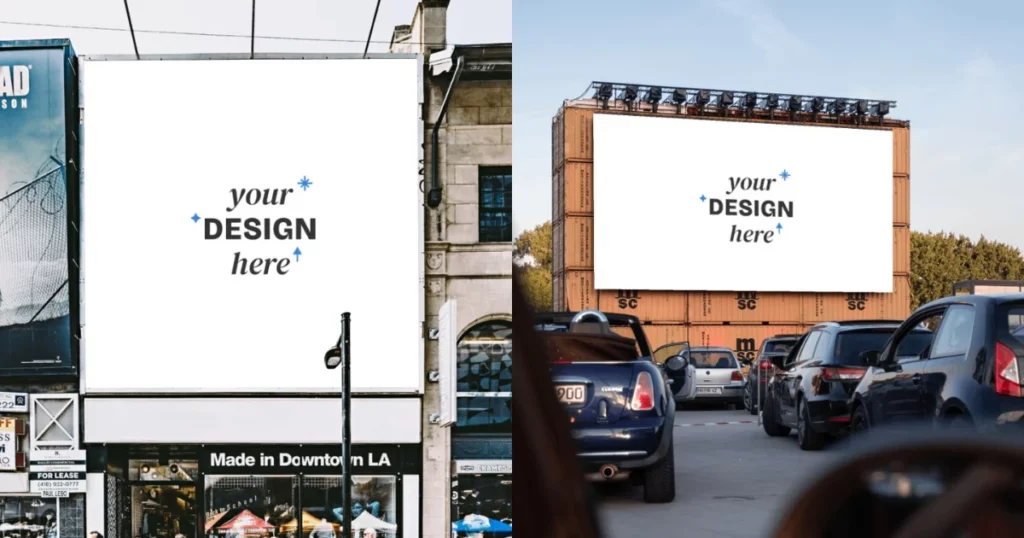
Mockups can also be advantageous to advertisers, especially when it comes to renting billboard spaces, which can be a costly investment.
With the aid of billboard mockups, one can preview their design and visualize how it will appear in reality.
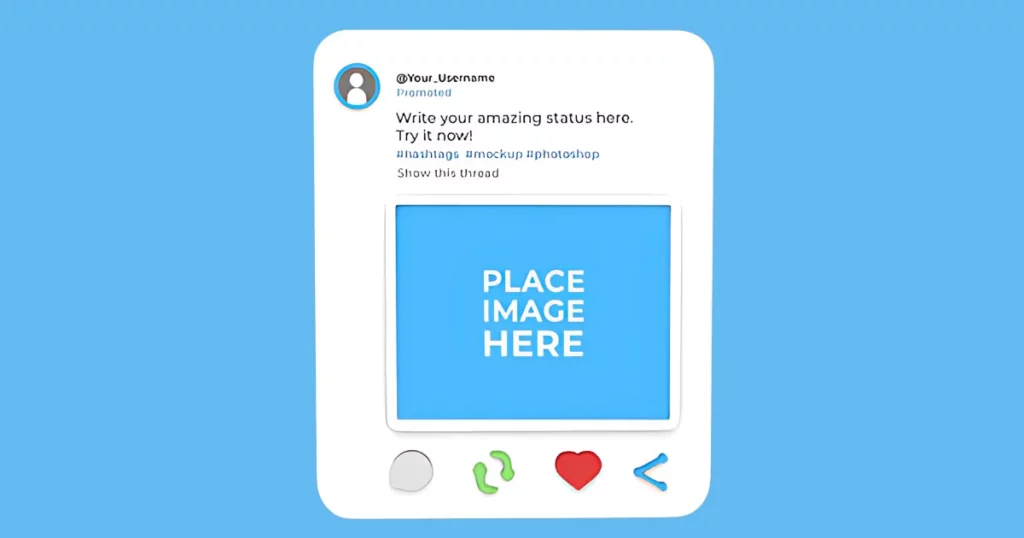
Social media marketers also need to plan their upcoming posts to ensure they align with their branding style if they desire a unified social media feed.
Social site mockups, like Twitter and Facebook mockups, can be used to visualize how your feed will appear after your next posts to avoid ruining the aesthetic that you have worked hard to make.
Your task at present is to establish the purpose of your mockup. This may involve creating a device mockup to impress investors, using product mockups to generate excitement among customers for upcoming merchandise, or selecting the appropriate advertisement for your next campaign.
After determining the objective of your mockup, you can choose a suitable mockup style and embark on the thrilling task of making your product mockup.
The initial stage involves utilizing a mockup creator that is of the same high standard to produce an exceptional mockup.
We suggest using Mockey.ai for this purpose, as it is an excellent option for obvious reasons.
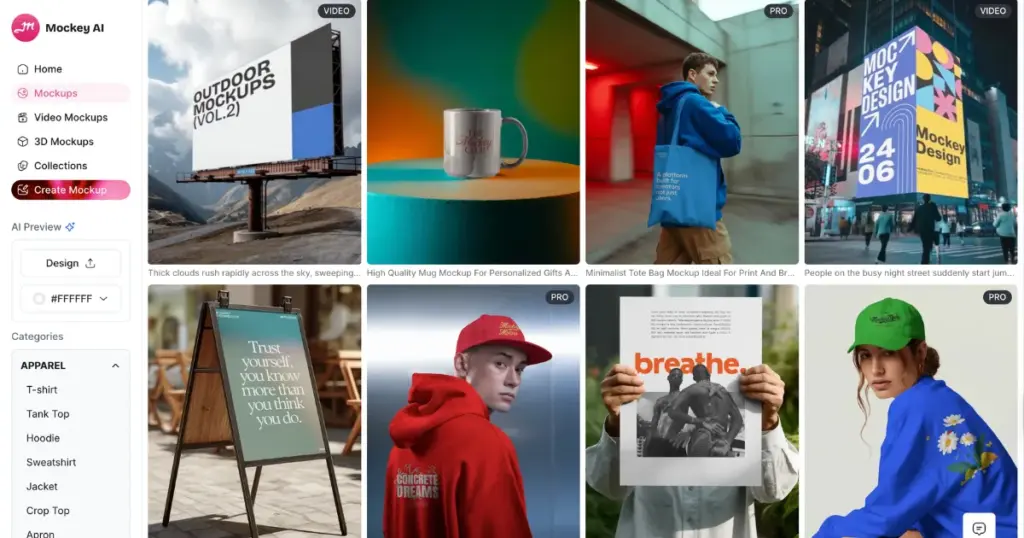
Mockey enables you to produce professional-looking, high-resolution custom mockups within minutes, eliminating the need for complicated editing software.
We suggest utilizing a mockup template if you’re a young designer yet wish to produce a mockup with a professional appearance.
As previously mentioned, you have the option to select a mockup template that aligns with your mockup goal.
However, if you’re interested in visualizing how your new design will appear on clothing such as t-shirts or hoodies, we recommend you use t-shirt and hoodie mockup templates.
If you want to create a mockup from the beginning, select a suitable template that matches your situation. For instance, if you’re planning to design a coffee mug, you could opt for a stock photo featuring a coffee shop or coffee table.
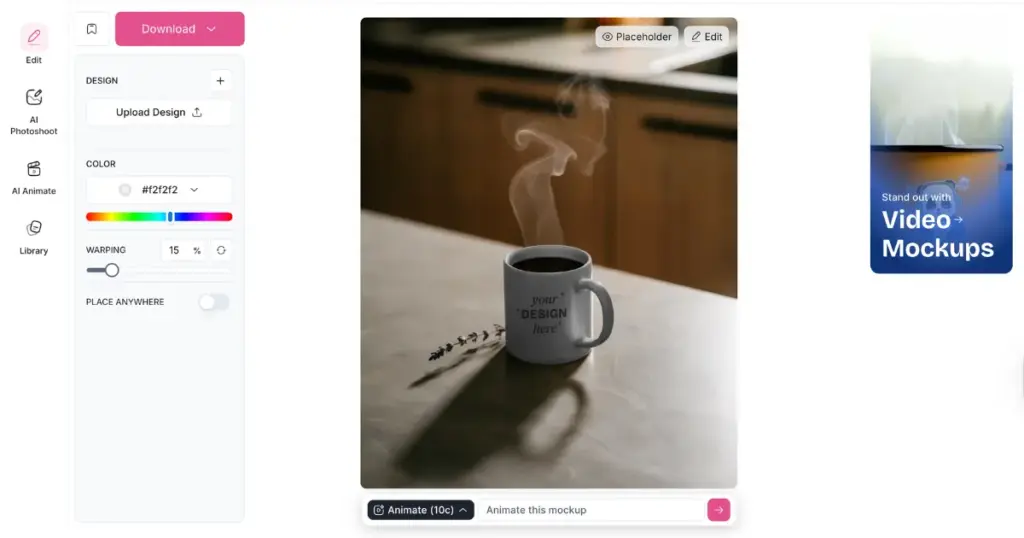
In the upcoming section, we will delve deeper into the process of adding your design or logo, which can help you make a mockup.
Step 3: Add Your Design or Logo
The most thrilling aspect of the mockup tutorial is here! It’s time to add the design concept to the mockup template, and this is where your ideas will truly come alive!
For instance, when you want to upload an image or design to Mockey. All you can do is select the “Upload Design” option to upload your preferred design or logo. Following that, you will receive a prompt to transfer files from your computer to our mockup generator.
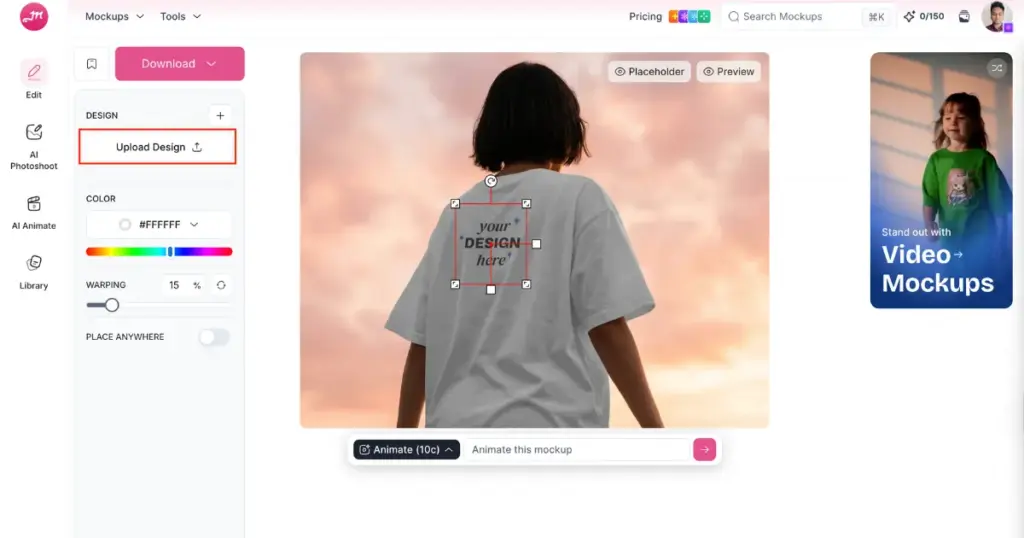
Once you upload the design from your device, you will be able to see your logo in the templates.
Alternatively, you can make the process easier by clicking the “Upload Design” option on the homepage area and choosing the category you want to customize on the next page.
Step 4: Customize Your Design
In order to visualize the appearance of your product mockup in reality, it is necessary to personalize your design and add distinctive elements that reflect your own style.
Easily customize your mockup by utilizing the various customization features to swap out the product color, insert your branding elements and logo, and many other design elements.
If you don’t have the means to use a professional camera or hire a photographer, your alternative solution would be to utilize the vast collection of background images available to you.
Customize Product Color
Mockey gives users the flexibility to change the product color of the item they choose to customize.
Whether it’s a t-shirt, hoodie, tank top, or phone cover, users can select the product they want to customize and then choose from a wide range of colors to apply to that product.
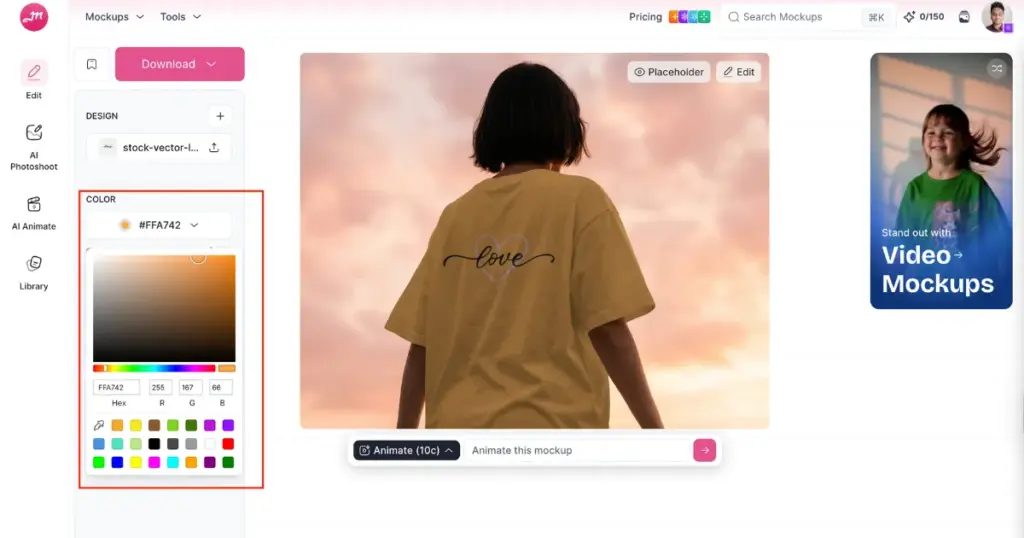
With the ability to change product color, users can create a personalized and unique look for their products that reflects their style and personality.
Adjustment Your Design
One of the essential aspects of customizing any product is the ability to adjust the design. And when it comes to creating personalized designs in Mockey, users have the flexibility to adjust their design in multiple ways.
One of the ways users can adjust their design in Mockey is by manually adjusting the size of the image.
Another way to adjust the design is by changing the angle of the image. This feature allows users to rotate the image in any direction, making it possible to change the orientation of the image.
Users can move the image up or down, left or right, to get the perfect placement for their design.
Step 5: Download Your Mockup Design for Free
After creating your graphic design masterpiece, the next step is to download it. It is advisable to save your mockup in the form of a high-resolution PNG file to ensure that the quality and number of pixels are at their maximum level.
To get your mockup, select the “Download” option located at the top left of the screen.
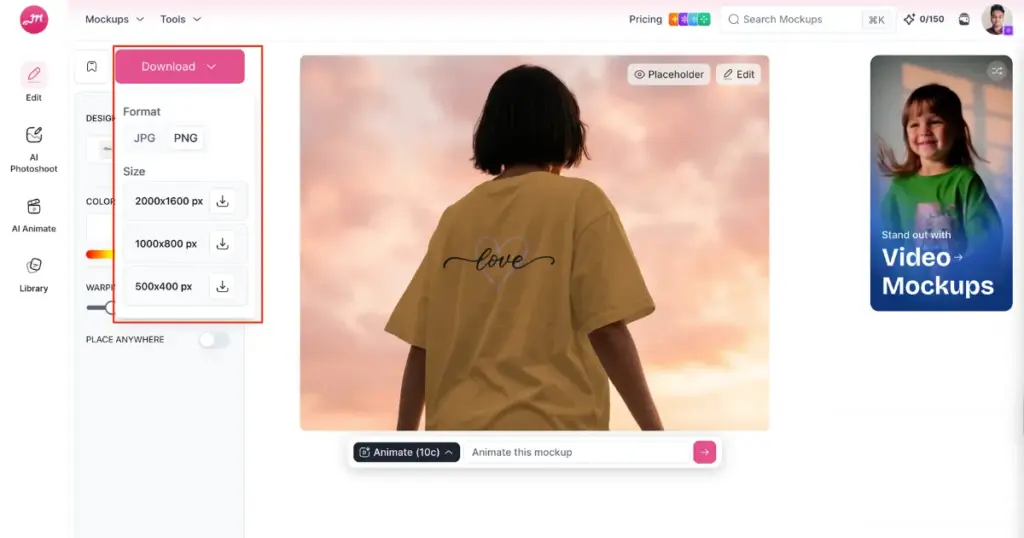
Once you reach this point, you will be able to get your new mockup design in the form of a PNG file by downloading it.
No Watermark With Mockey Mockup Generator
Mockey’s biggest advantage is that it offers a free plan. This feature is particularly useful for small businesses or individuals who do not have a large budget for design work.
However, Mockey is known for a free online mockup generator no watermark tool.
This means that users can use the mockups without any restrictions or limitations, allowing them to showcase their designs in the best possible way.
That’s it. You have now learned how to make a mockup using Mockey.ai. Right now, we will talk about the new and best templates on Mockey, which are quite attractive in appearance.
Which Mockup Types Are Popular?
Plenty of creative ideas can lead to a limitless variety of mockups. Almost any concept that one can conceive can be transformed into a realistic mockup.
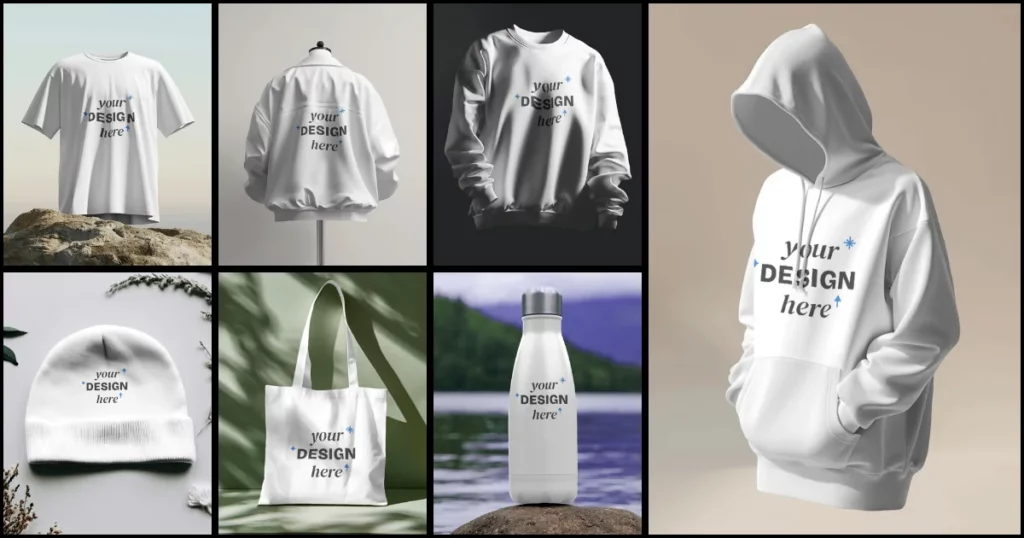
There are several types of mockups, which include:
Sure! Here’s the list organized into a table:
| Category | Items |
|---|---|
| Apparel | T-shirt, Tank Top, Hoodie, Sweatshirt, Jacket, Crop Top, Apron, Scarf, Jersey, Sweatpants, Socks, Bandana |
| Baby | Baby tee, Onesie, Bib |
| Accessories | Tote Bag, Phone Cover, Cap, Beanie, Gaming Pad |
| Home & Living | Can, Mug, Cushion, Frame, Coaster |
| Business Card, Book, ID Card, Sticker, Poster, Flyer, Greeting Card, Billboard, Magazine, Brochure, Lanyard, Banner, Canvas, Notebook | |
| Packaging | Box, Tube, Dropper Bottle, Pouch, Cosmetic, Bottle, Perfume, Paper bag |
| Tech | iPhone, Laptop, iPad, Macbook, Phone |
| Jewelry | Ring, Necklace, Earring, Bracelet |
| Seasonal | Halloween, Christmas, New Year, Valentine’s Day |
After familiarizing yourself with the commonly used mockup styles and selecting the one that aligns with your requirements, it’s time to discuss the process of making your mockup quickly.
Mockup Templates Ready for Editing
Let’s talk about the new templates on Mockey, which have been released recently.
Template 1: Phone Cover Template
Now, a new template is available that lets you generate phone cover mockups of up to 4 different designs together!
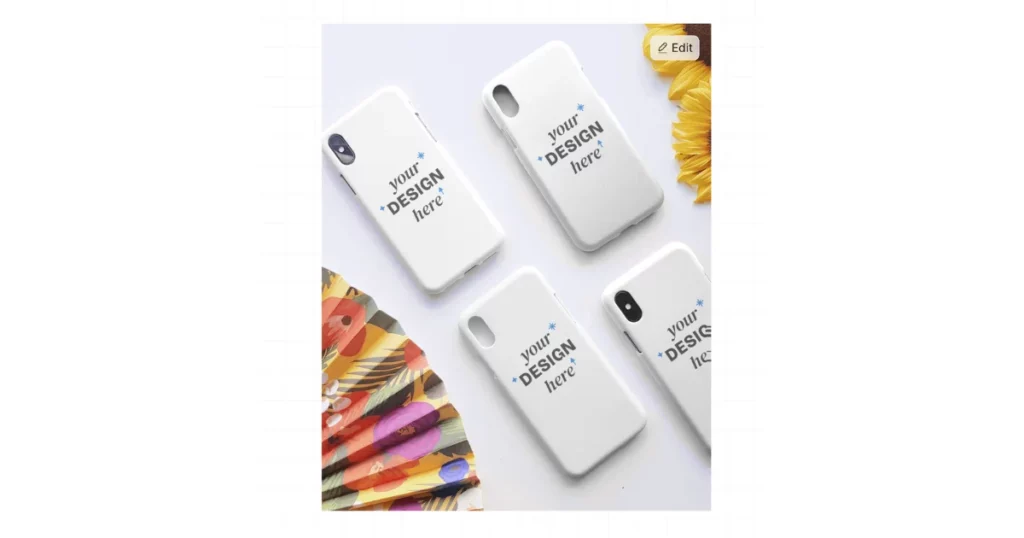
So, what exactly are phone cover templates? Well, they’re basically outlines of phone covers that you can fill in with your own designs.
And the great part is that the new template has spaces for not just one but four different designs! That means you can add your four different designs to 4 different phone covers all at once!
You can change the colors, and even upload your own images to make your phone cover templates totally unique.
Template 2: Box Template
Mockey is a tool that lets you make pictures of things that look like they’re real, even though they’re not.
They’ve just released a new box template that features a cute little dog peeking out from inside the box!
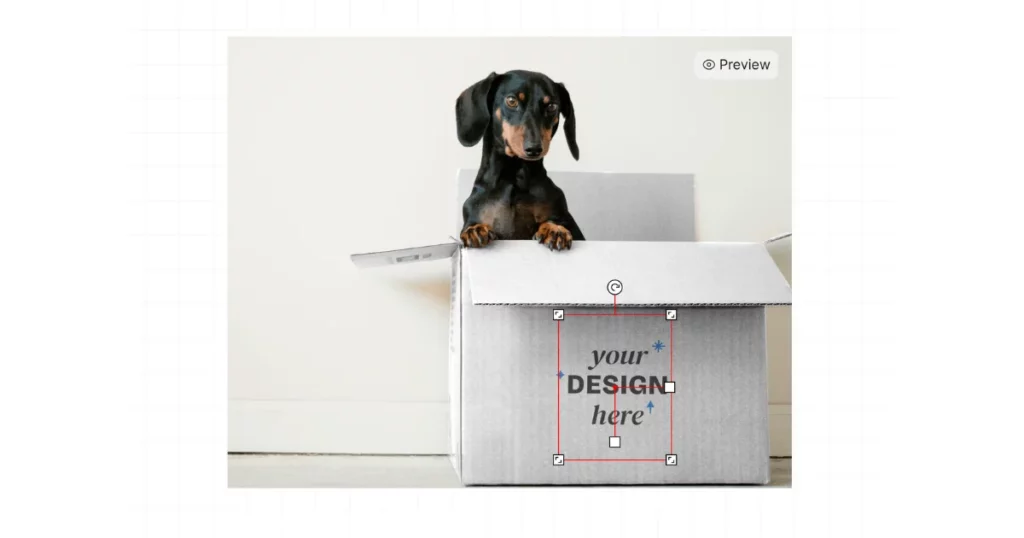
So, imagine you want to make a picture of a box with something inside it.
Maybe you want to pretend you’re sending a present to someone, or maybe you just want to show off some cool new toy you got. Well, Mockey’s box mockup can help you make that picture!
Template 3: Can Template
So imagine you’re creating a design for a can like a soda can or a soup can. The new template is perfect for that!
They’re already set up for you with all the right dimensions and everything. And the best part is, it is located near the ocean.
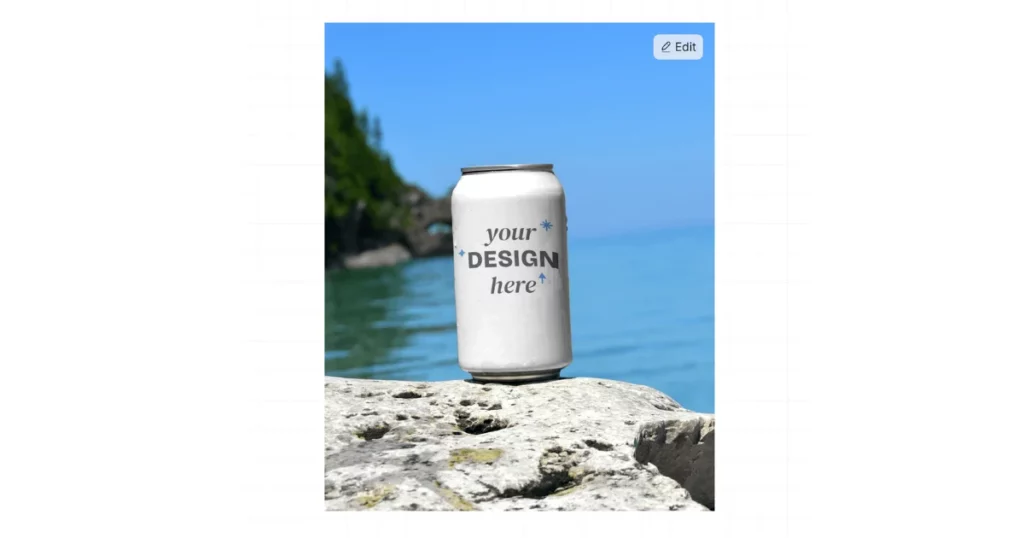
Now, you might be wondering why that is a big deal. Well, think about it.
The ocean is a really cool and beautiful place. It’s full of life and color, and being near it can make you feel calm and relaxed.
So if you’re designing a can that you want people to feel good about, having it situated near the ocean is definitely a bonus.
Plus, it’s just really neat to be able to say that your design was inspired by the ocean. It gives it a unique and interesting story that people will want to hear.
And who knows, maybe it will even inspire other designers to create ocean-themed designs too.
So there you have it, the new can template situated near the ocean. Pretty cool, huh?
Template 4: Cushion Template
So, let’s talk about the new cushion template in the living room. It’s actually a really fun and creative way to add some color and style to the room.
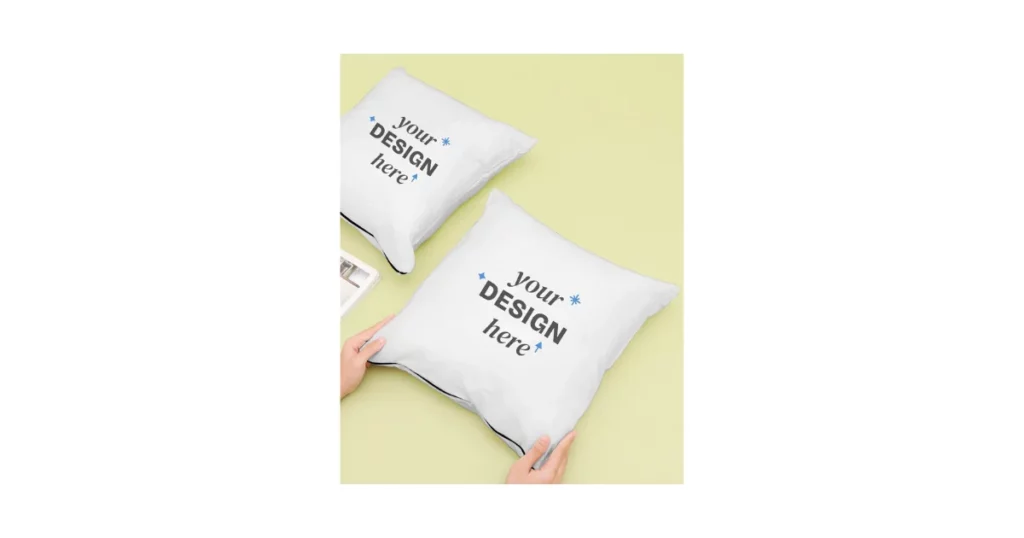
You can use bright colors, and even add some customization features. The possibilities are endless!
Plus, it’s a great way to express your own personal style and make the living room feel more like your own.
So, if you’re feeling creative and want to add some flair to your living room cushions, try out the new cushion template and see what you can come up with.
And remember, with Mockey, you can experiment with different designs before you actually make them.
Template 5: Car Sticker Template
A car sticker template is like a blueprint or a plan for creating a sticker that will fit perfectly on a car.
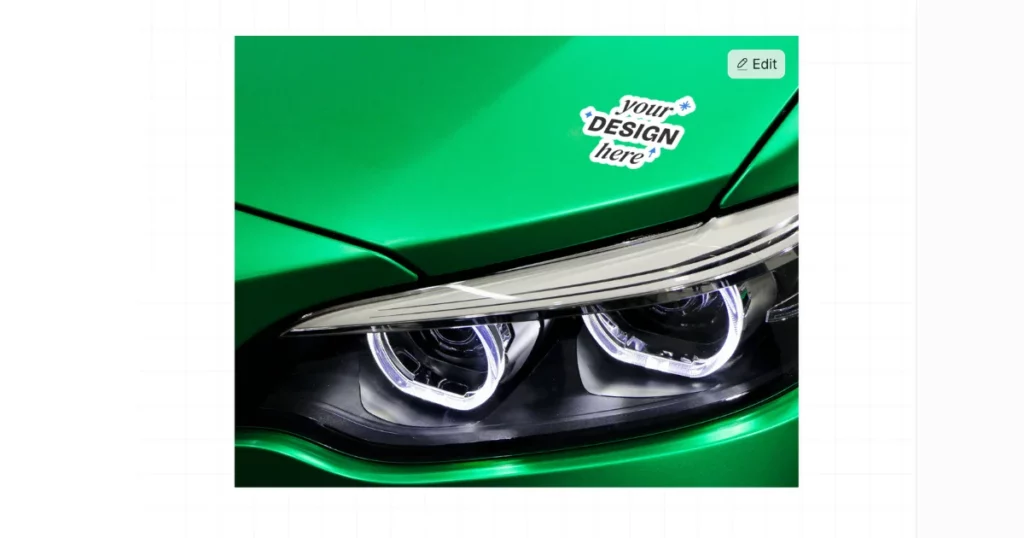
Think of it like a coloring book page but for stickers! The template will show you where to put your design and what size it should be.
So, with Mockey, you can use a car sticker template to create your own custom design and then see what it will look like on a car.
It’s a really fun way to be creative and make something that you can show off to all your friends.
Template 6: Floating Oversized Tshirt
In a calm field with gently swaying tall grass, a large blue t-shirt floats as if by magic.
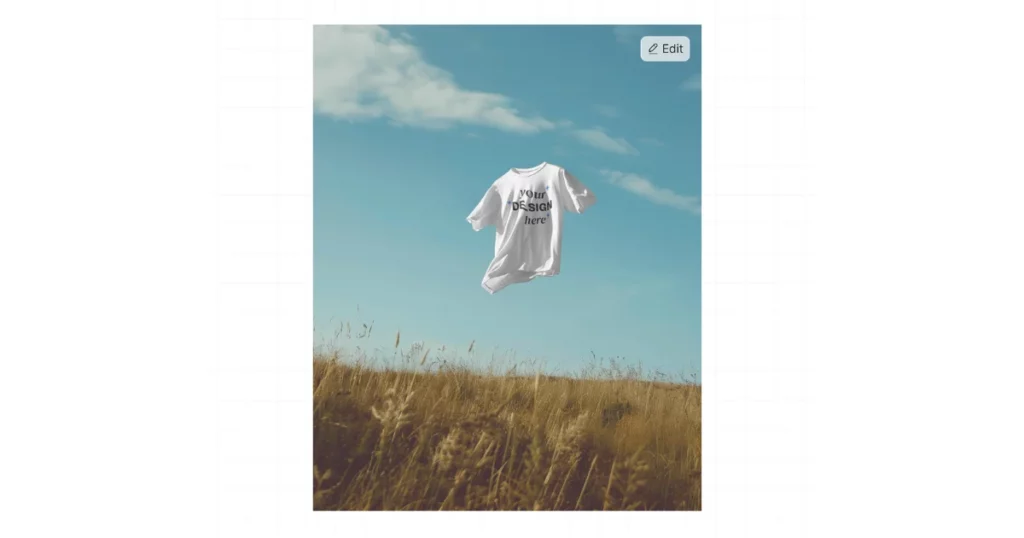
The shirt moves gracefully, its fabric billowing and twisting as if an unseen hand is guiding it.
Template 7: Book Mockup Template
In branding and marketing, visuals are key to grabbing attention and communicating ideas.
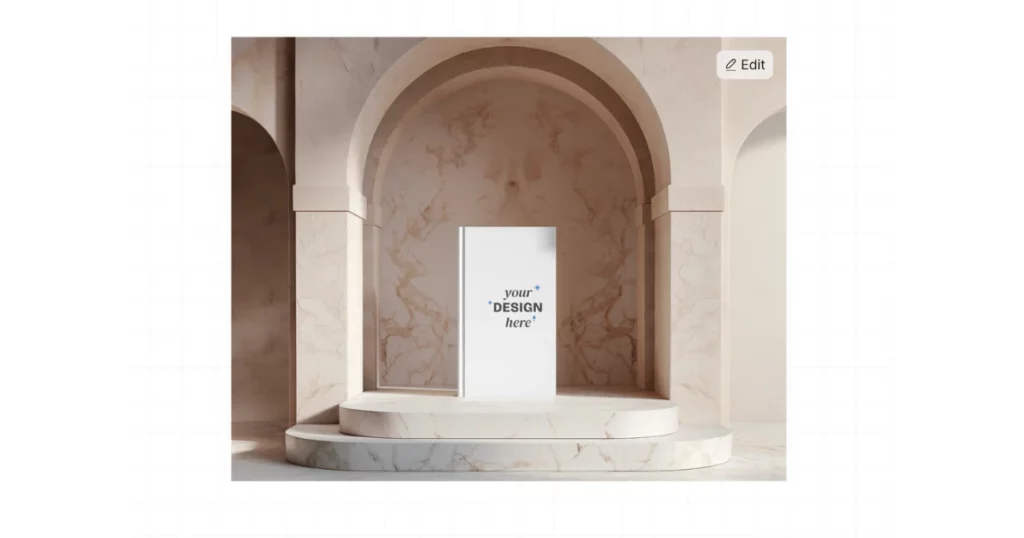
A book mockup on a marble floor can make a brand photoshoot look elegant and sophisticated.
This setup not only looks great but also fits themes of knowledge, luxury, and creativity.
When to Create Product Mockups
Here are some common situations when you may want to create product mockups:
-
Initial design concept: Mockups can be created at the ideation phase when developing initial concepts for a product. These mockups can help you visualize and iterate on different design directions before committing to a final design.
-
Prototype development: Once you have settled on a design direction, mockups can be used to create a product prototype. This can help you test and refine the design before moving to full-scale production.
-
Marketing and advertising: Mockups can also be used to create marketing and advertising materials for the product. This includes product images for your website or social media, packaging, and promotional materials.
Tips on How to Make Product Mockups Better
The following are tips on how to make product mockups better.
-
Use high-quality images: When creating a mockup, it’s important to use high-quality images. This will make your product look more professional and realistic. You can either take your photos or use stock images.
-
Choose the right background: The background of your mockup can make a big difference in how your product looks. Make sure the background is clean and simple so your product stands out.
-
Use realistic lighting: Lighting is another important aspect of a good mockup. Use realistic lighting that matches the product’s intended environment so it looks like it belongs there.
-
Be consistent: If you’re creating a series of mockups, ensure they are consistent in lighting, background, and angle. This will make your brand look more cohesive.
-
Include the right details: When creating a product mockup, include all the important details for your customers to see. This includes the color, background, and size of the product. If you’re making a digital product, include screenshots of the interface.
Conclusion
In conclusion, creating a mockup doesn’t require expensive software like Photoshop. Anyone can learn how to make a mockup using free templates with Mockey AI.
By following these simple steps on how to create mockup, you can bring your ideas to life and present them professionally to clients and stakeholders.
Visit: Mockey | Mockey Android App
FAQs
How to create a mockup without Photoshop?
Use Mockey AI to create a mockup without Photoshop. You get ready-made templates for clothing mockups, packaging, jewelry, and digital devices. Simply upload your design, place it on the product, and make quick adjustments to create a professional-looking mockup.
How to do mockups in Canva?
To create mockups in Canva, look for Mockups in the Apps and choose a template from product categories. Drag the image onto the mockup template, add text or adjust the colors and download.
Which is the best mockup software?
These five software are best for your mockup design.
1. Mockey
2. Placeit
3. Smartmockups
4. Canva
5. MockupBro
What are mockups used for?
Product mockups are visual samples that show what a final product will look like in real life. They help get feedback on designs before making the actual product, assist in presentations to stakeholders, and boost marketing. Mockups let designers try out different looks and features, saving time and money in the development process.
What is a product mockup?
A product mockup is an overview of what your product will look like. It’s like a preview of the final product. This is why ensuring your mockup looks as close to the final product as possible is important.
Why are mockups important?
Mockups are important because they help people see what something will look like before it’s actually made. It’s like a preview of what the real thing will be like. It is helpful because it can save time and money. If someone doesn’t like how something looks in the mockup, they can change it before making the real thing.
How to use mockups?
Product mockups are pictures of your product that show what it will look like before it’s made. They help get feedback, visualize ideas, and improve marketing. You can use design software or online templates to create them easily, making sure colors and fonts are shown correctly.
How to use mockup templates?
Go to Mockey AI. Tap on Mockups. Choose a category. Look for a template you like. Use the Tag option to use the best mockup templates.
Is it possible to create 3D mockups on Mockey.ai?
Mockey AI’s 3D mockup generator helps you create 3D mockups where the output includes animation along with the image. A variety of product templates will be available in 3D, allowing you to add designs with fine detail.
Related reading:
- 10 Best Mockup Tools to Create Product Mockups
- 10 Best T Shirt Mockup Sites
- 10 Best Mockup Websites for Stunning Design Templates
- 15 Best T-Shirt Mockup Generators (Free & Paid)
- How to Make iPhone Mockups for Free – Quick Steps
- How to Make Sticker Mockups
- How to Make Mug Mockups Online – Quick Guide
- How To Make Hoodie Mockup (3 Easy Steps)
- 15 Poster Mockup Free Ideas
- How to Make Book Mockups for Free

Sangram Sahoo
I’m a content writer with 4 years of experience. I specialize in creating practical content around mockups, print-on-demand, apparel, and e-commerce design.