Free iPhone Mockup Templates for iPhone 12 to 17
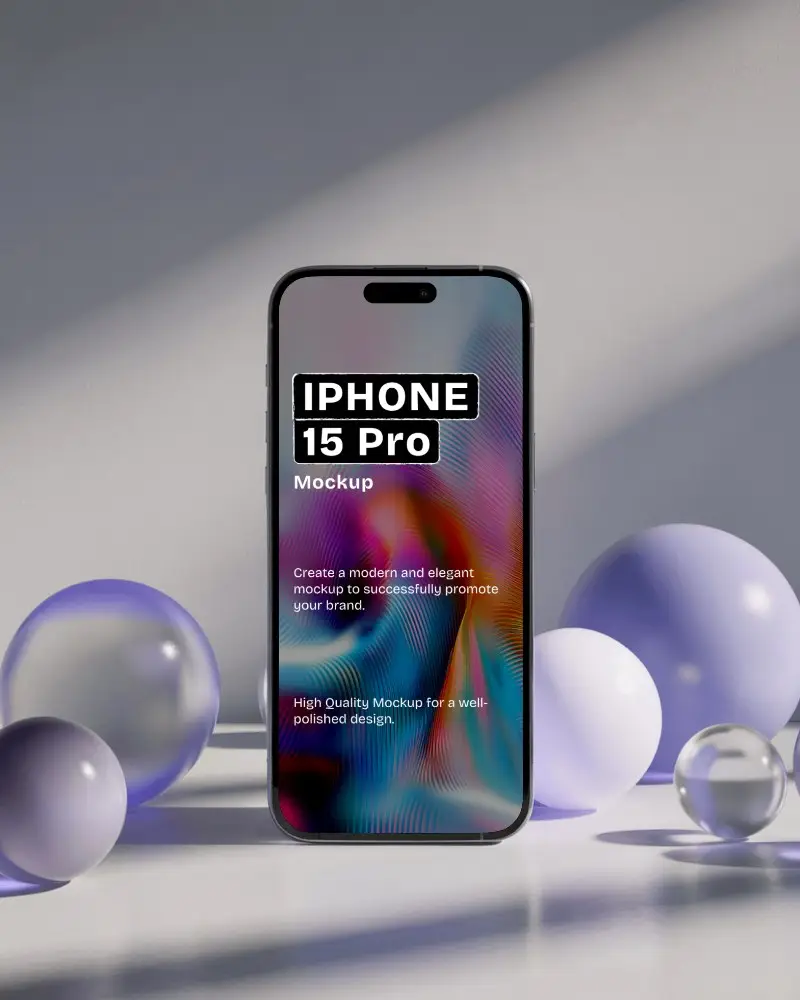
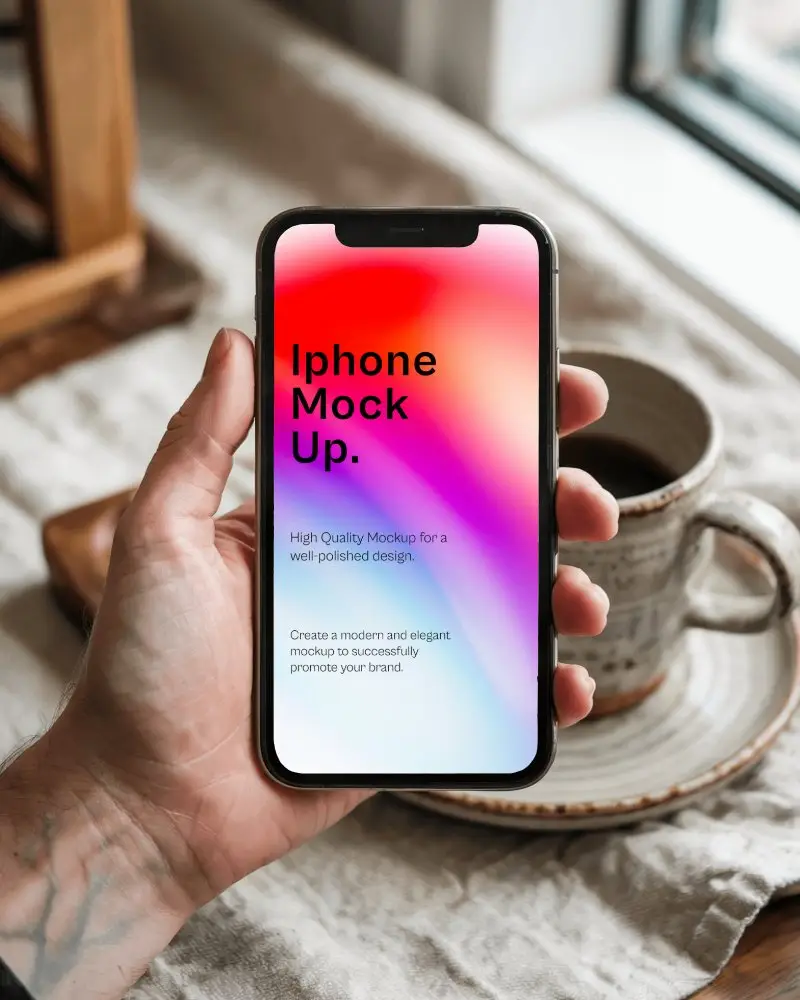
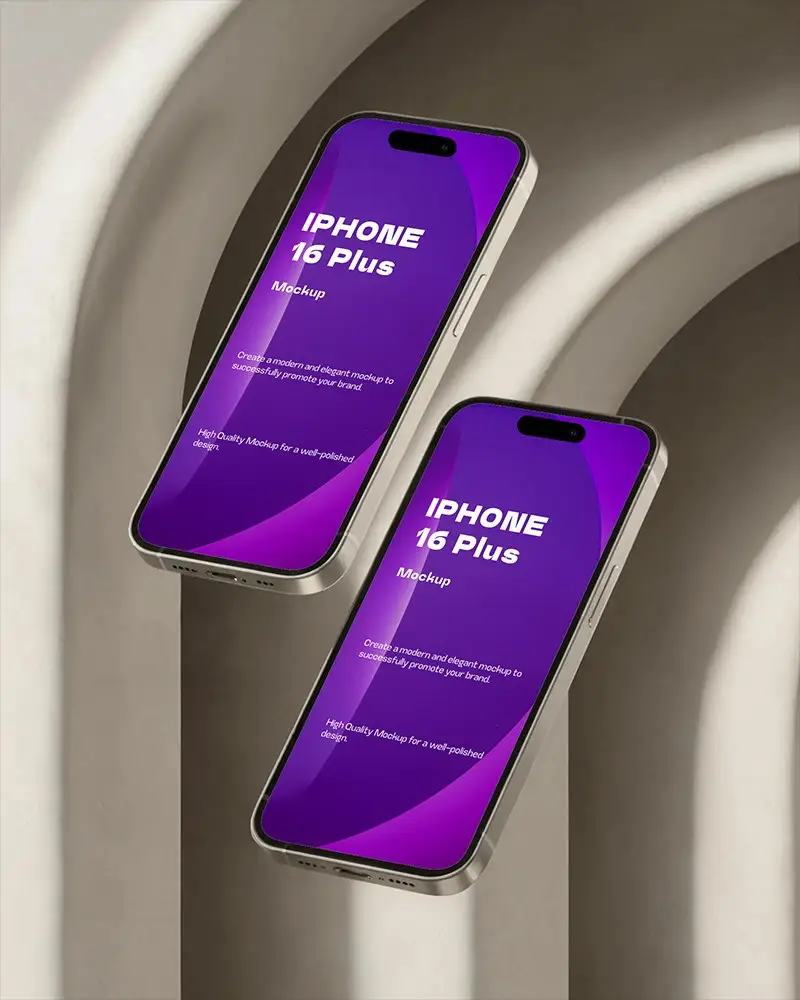
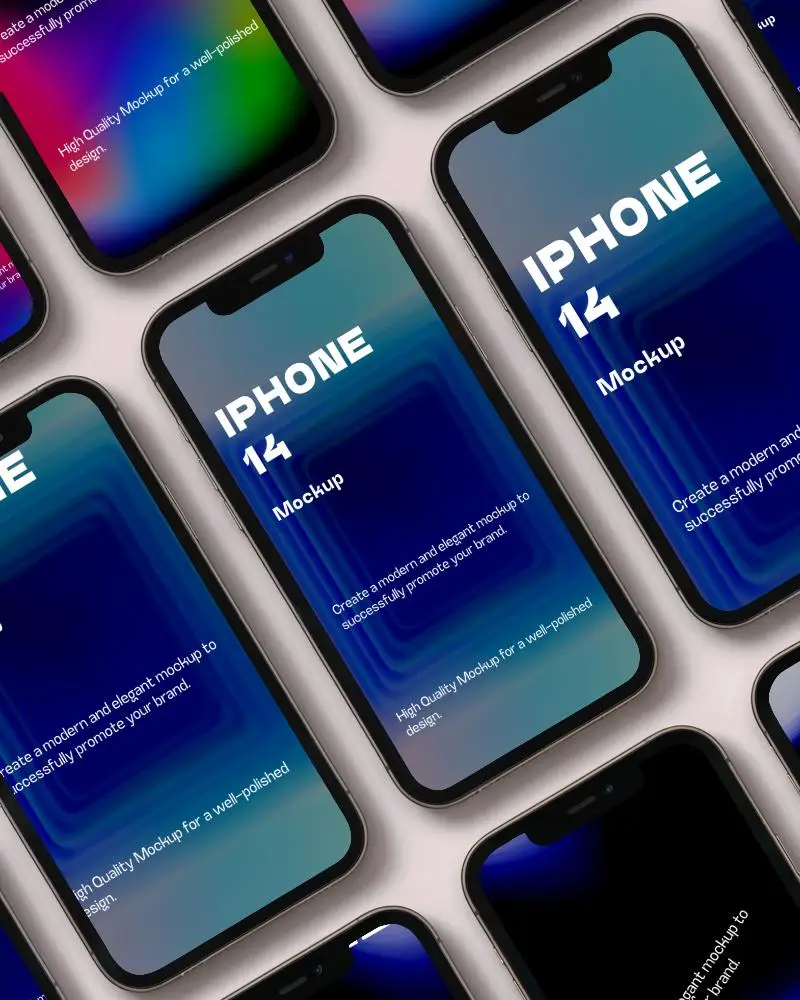
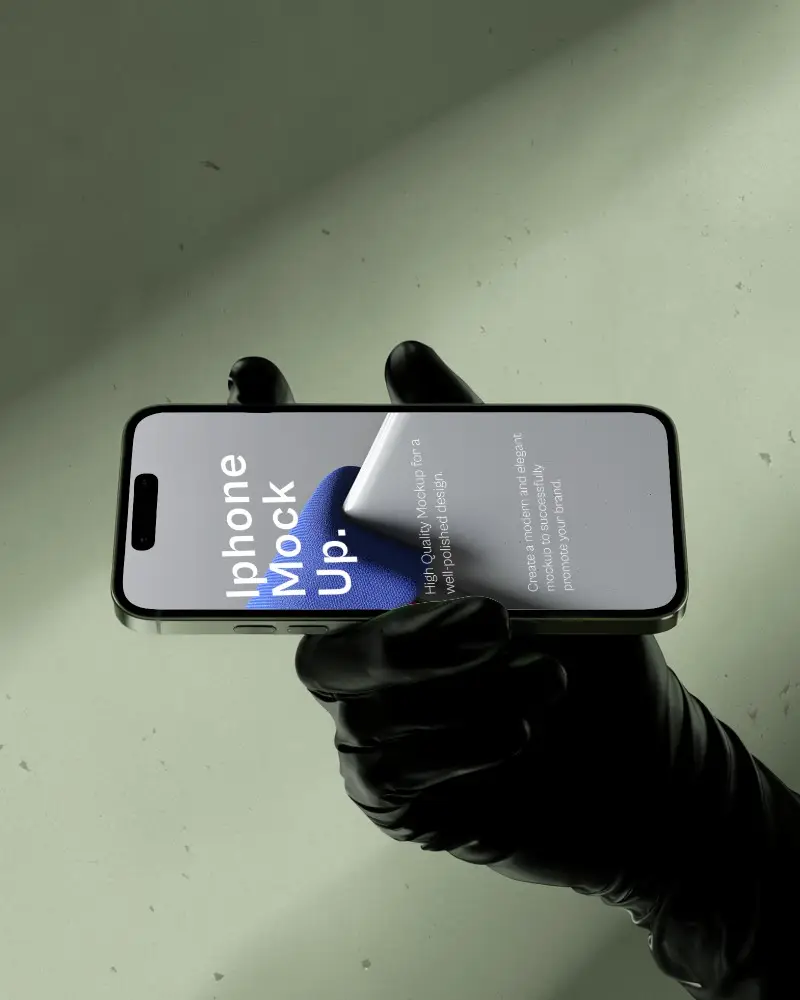
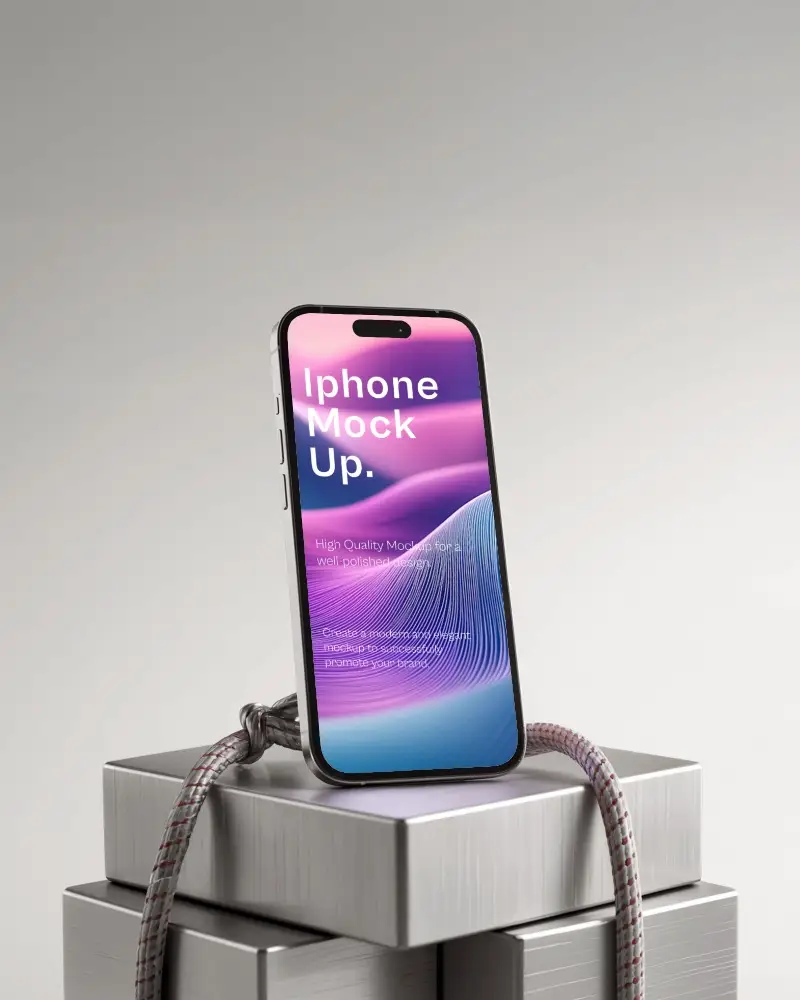
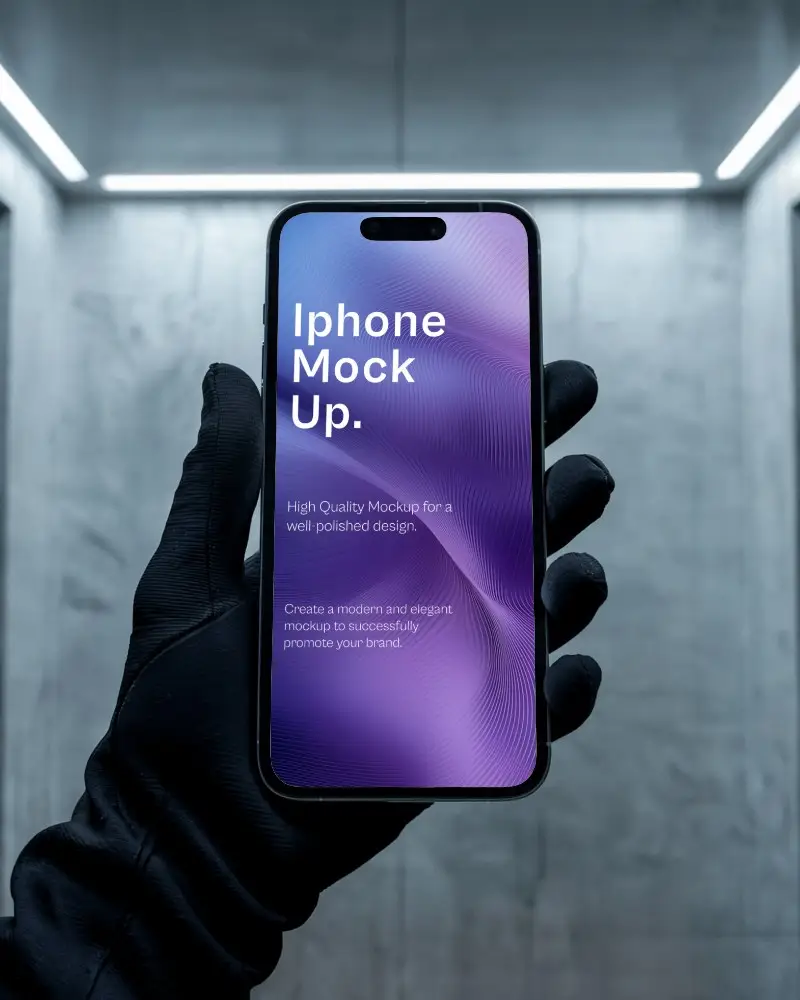
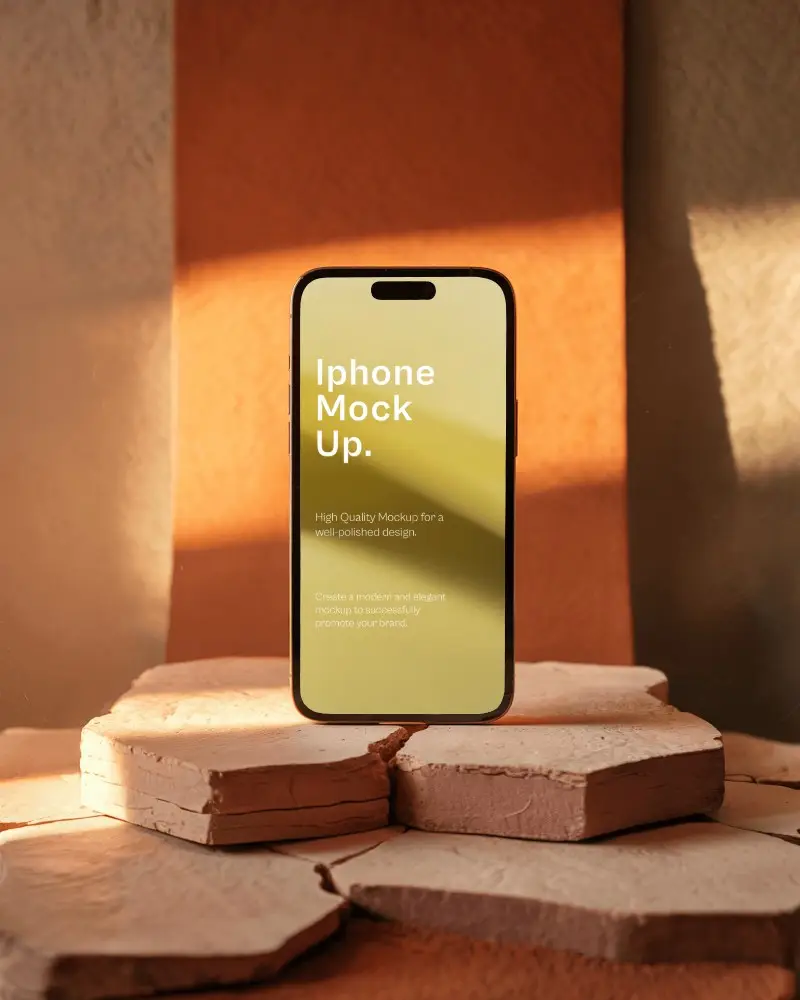
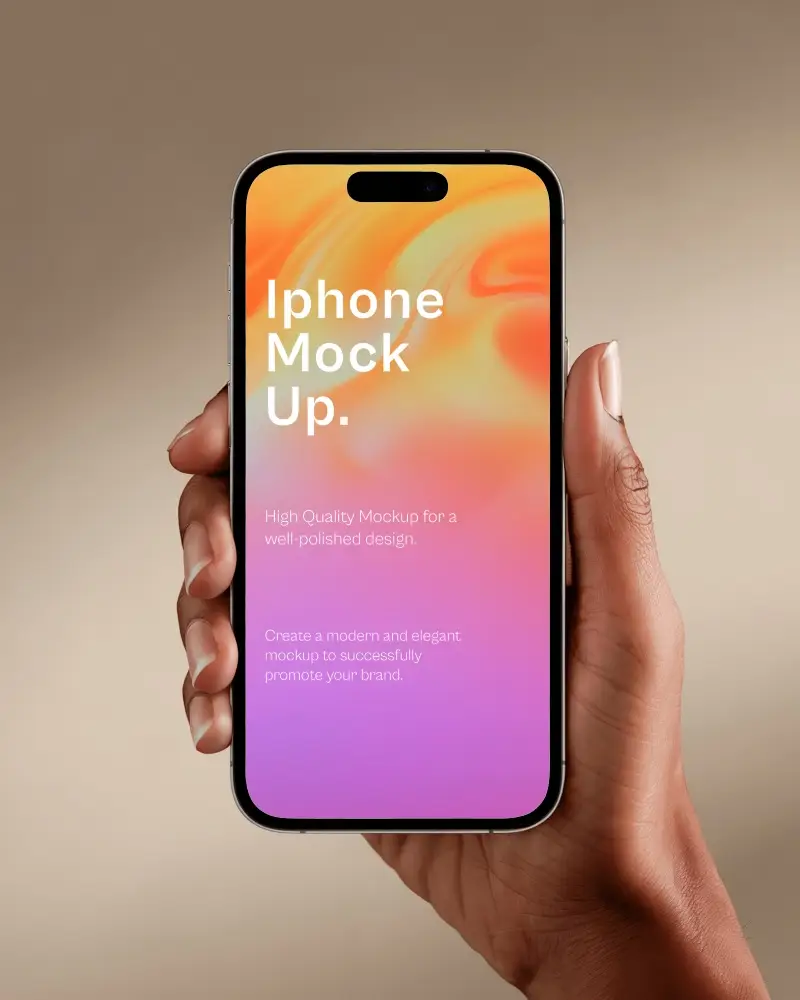
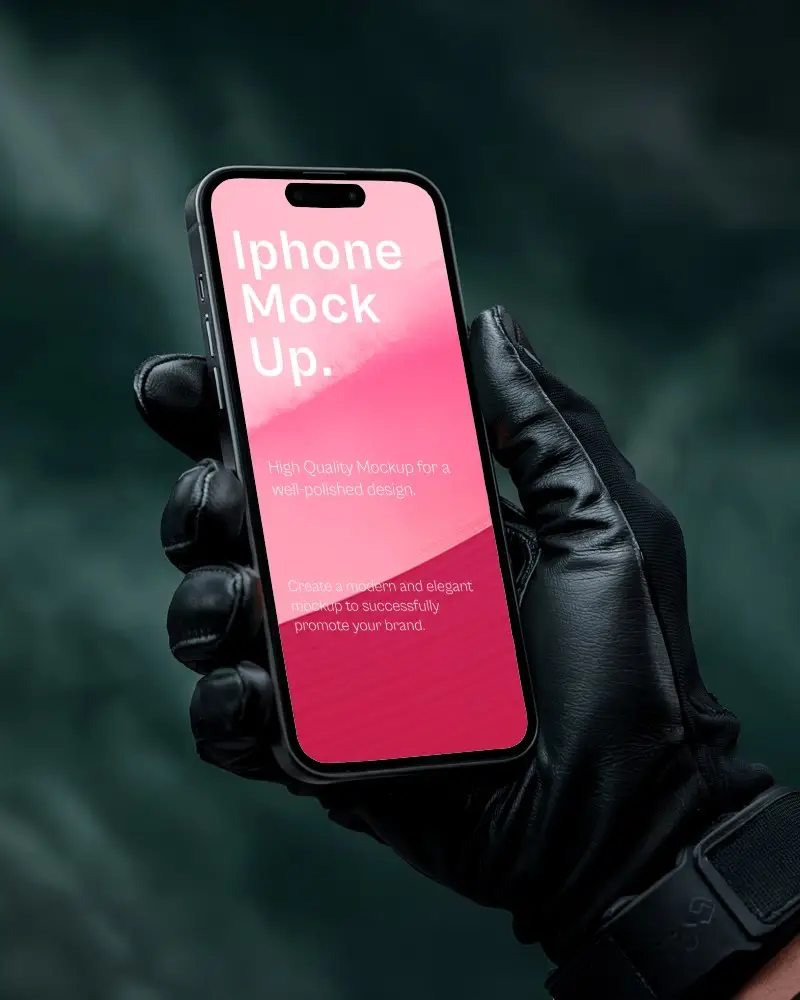
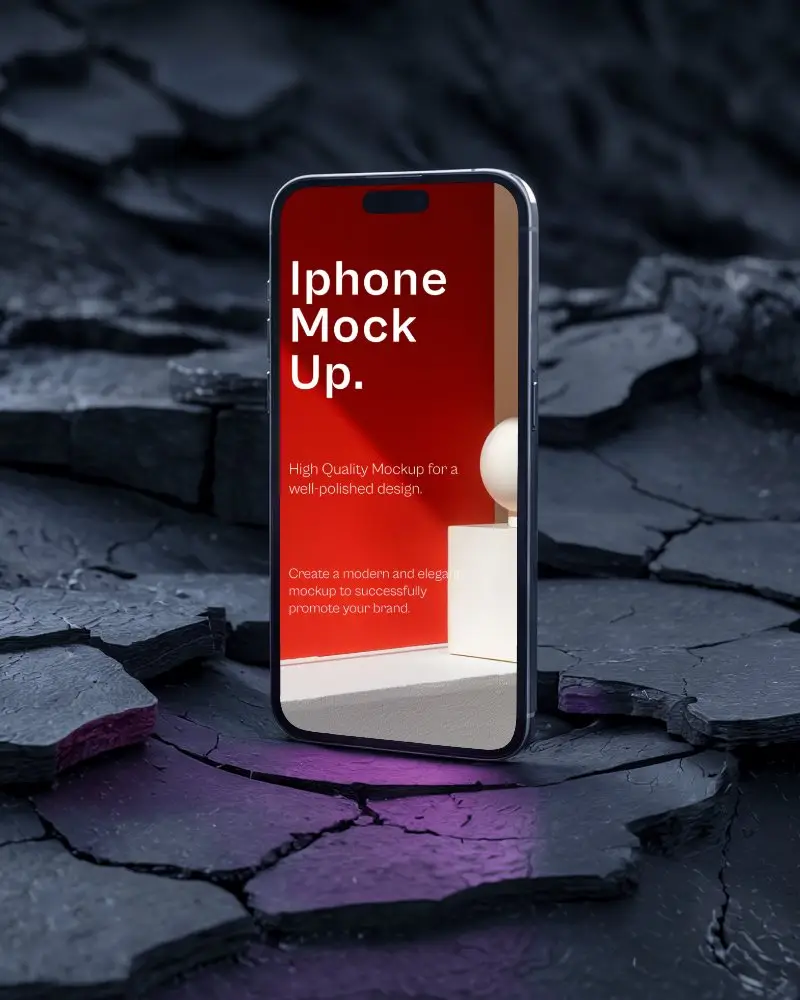
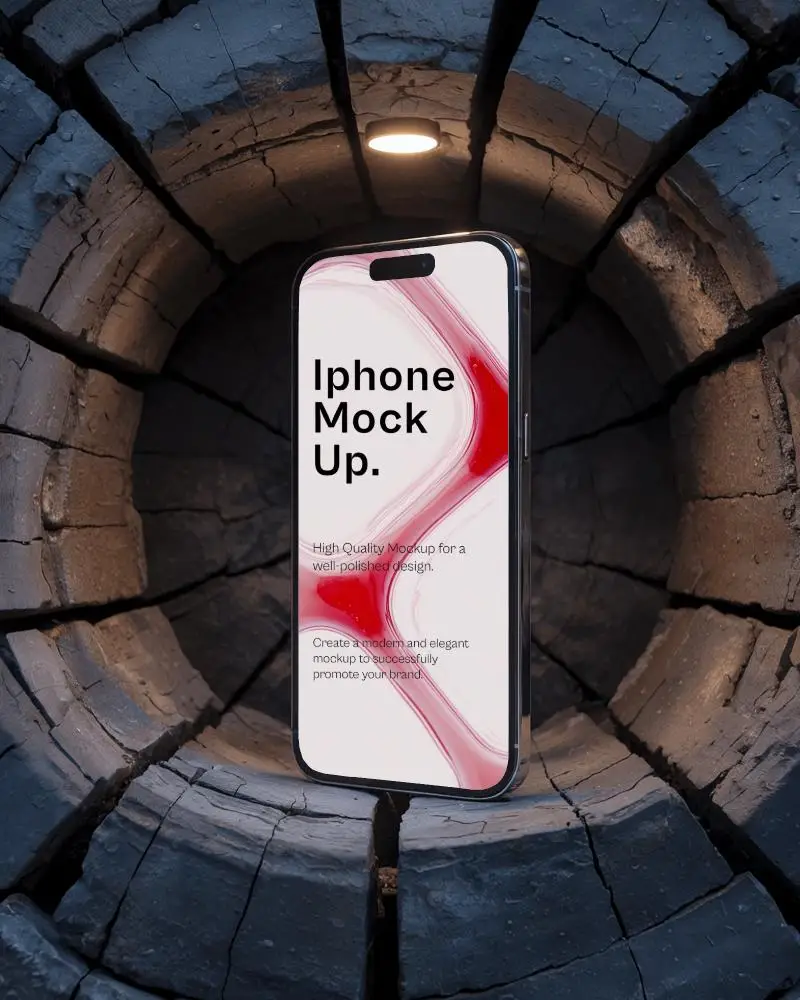
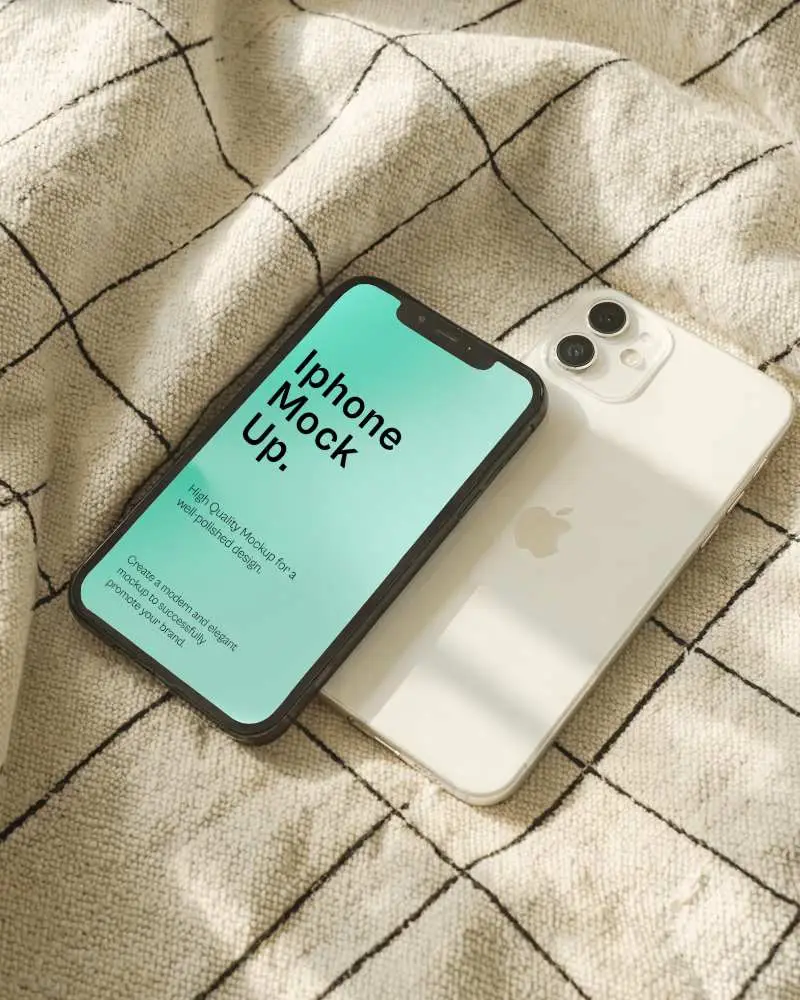
Put your app, website or screenshot on a realistic iPhone mockup in seconds, right in your browser. Choose from 700+ iPhone mockup templates, 400+ of them free, for iPhone 12 to 17, including Plus, Pro and Pro Max models. Pick a handheld shot, a floating or angled device, a flat lay or a multi-device scene. Upload your screenshot and the crop locks to the screen's shape, so it fits. Download a JPG for free, or a high-quality PNG up to 1600 × 2000 px on any paid plan.
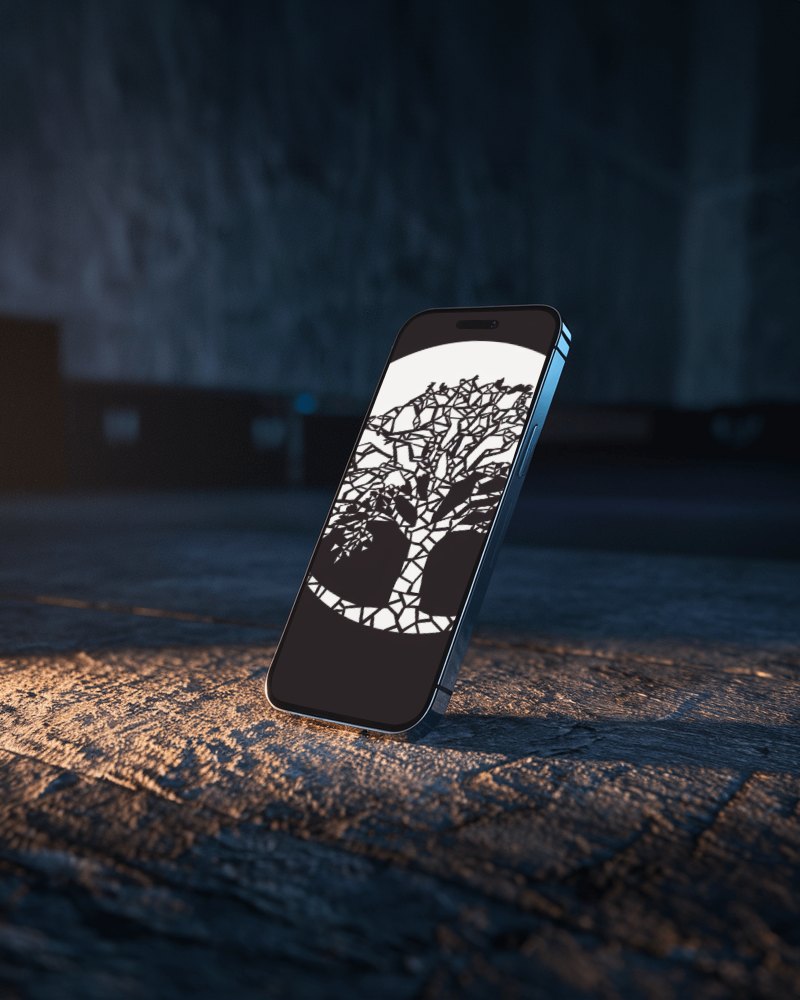
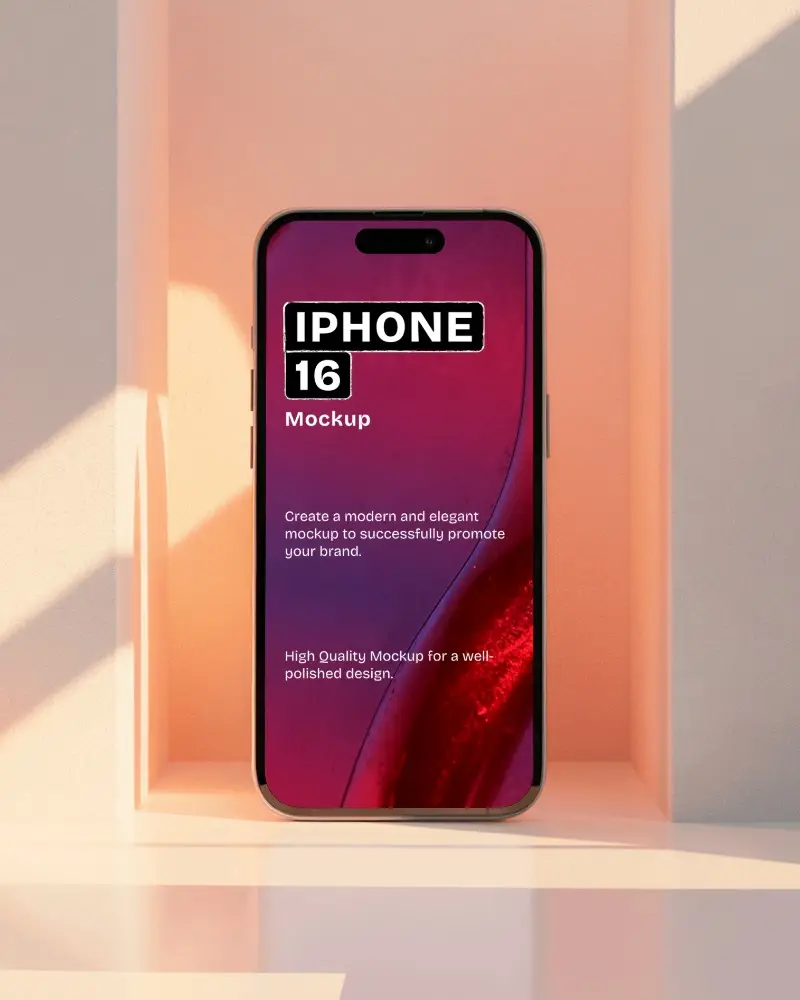
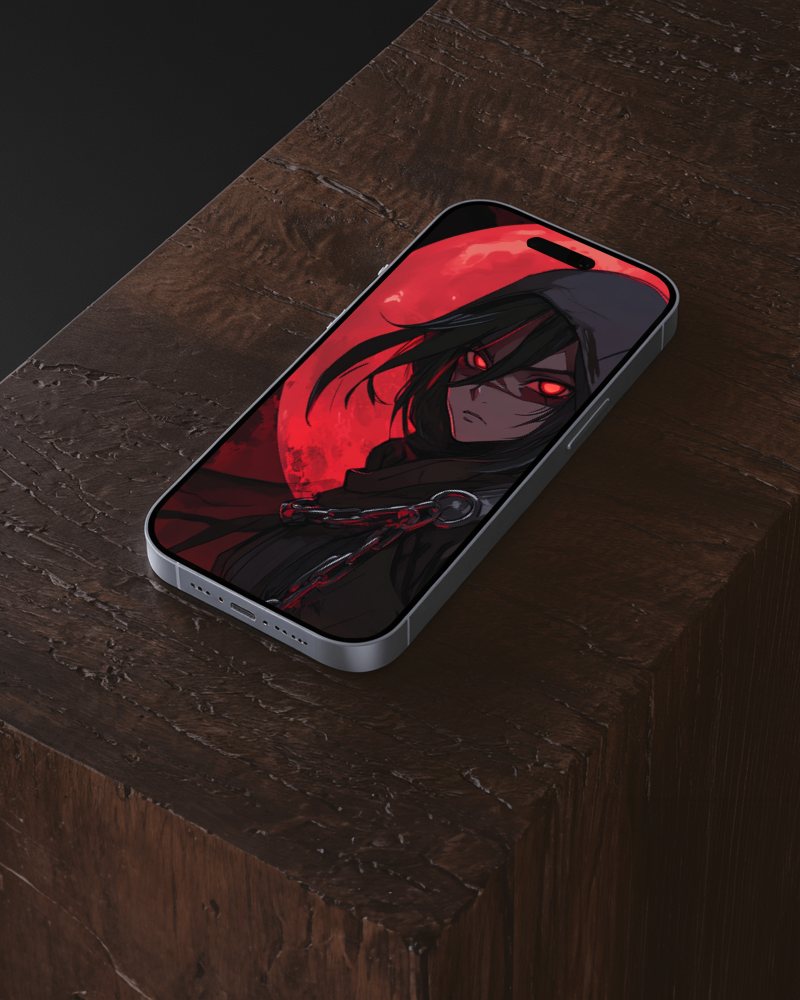
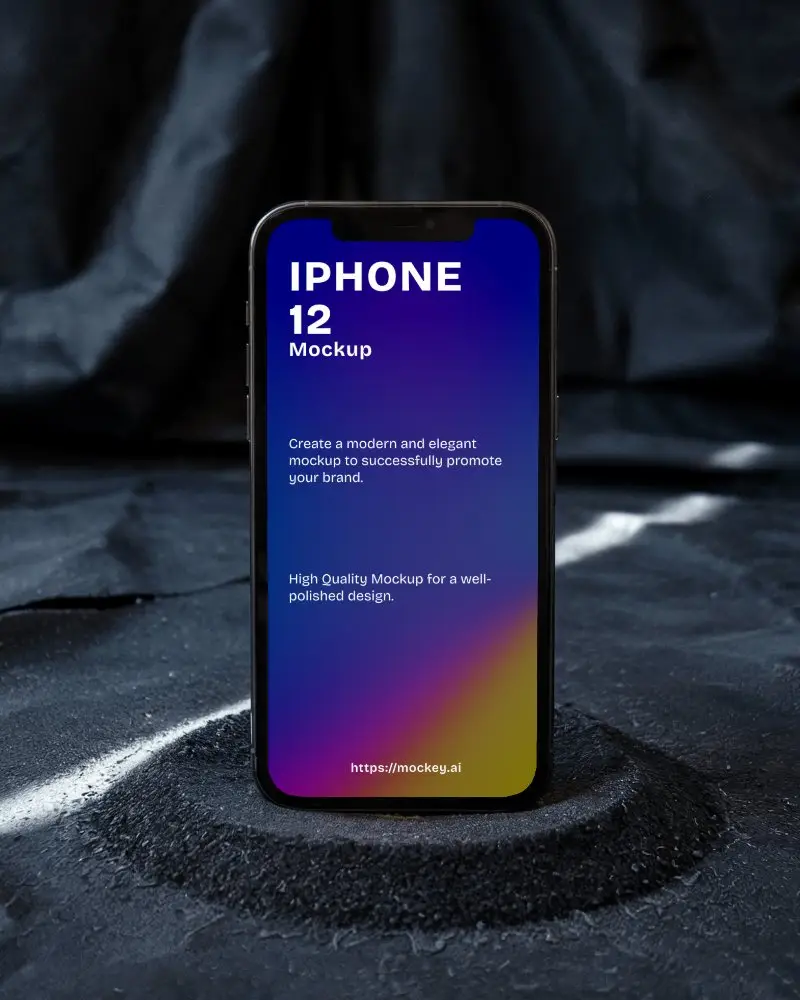
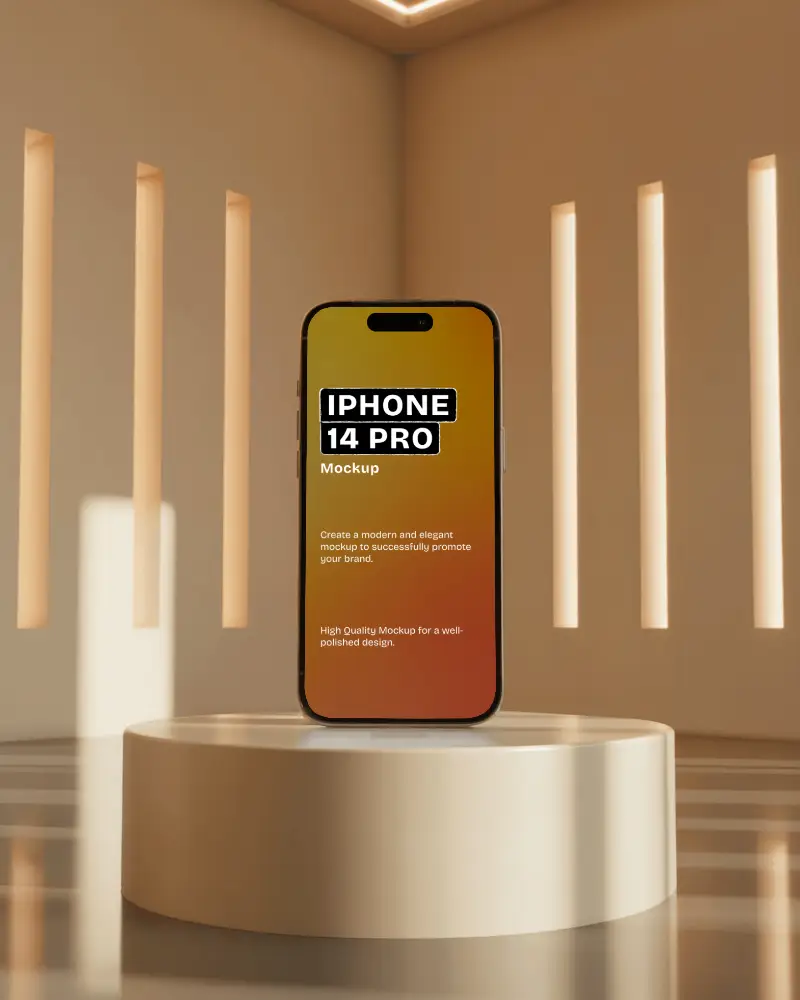
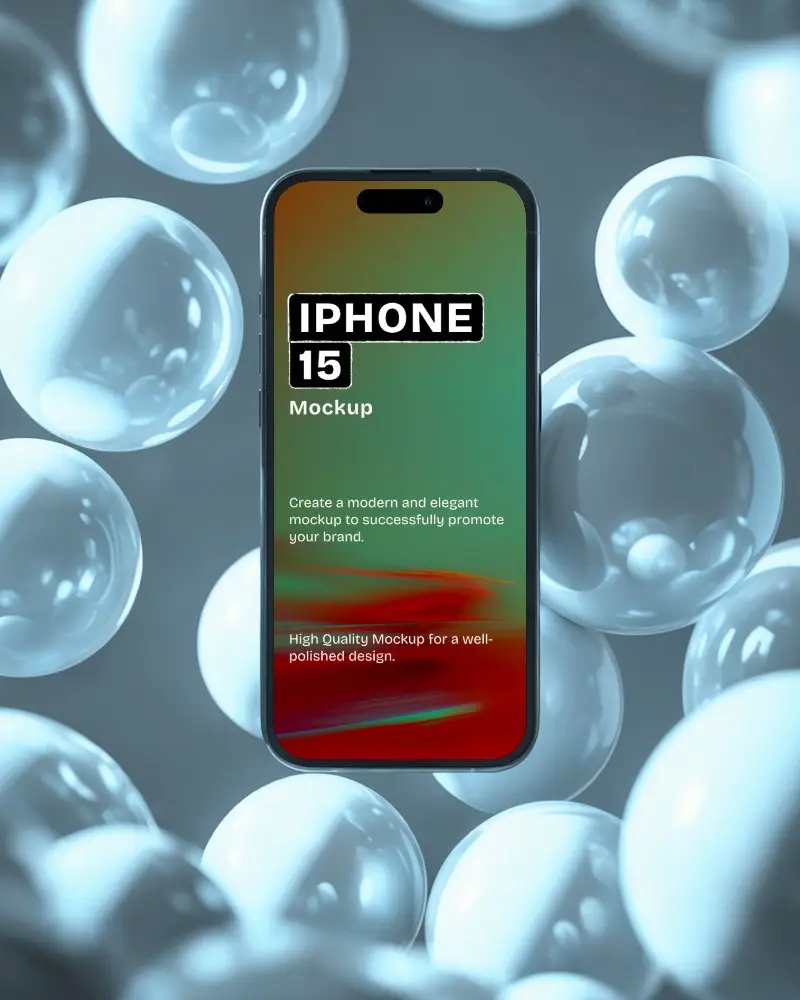
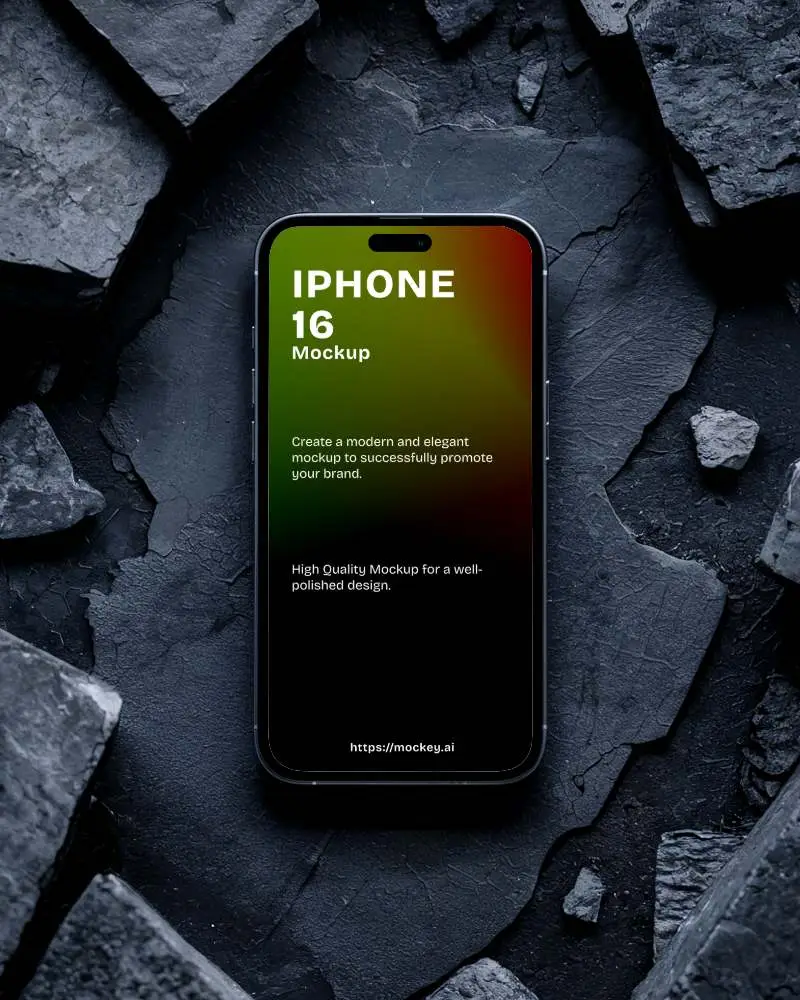
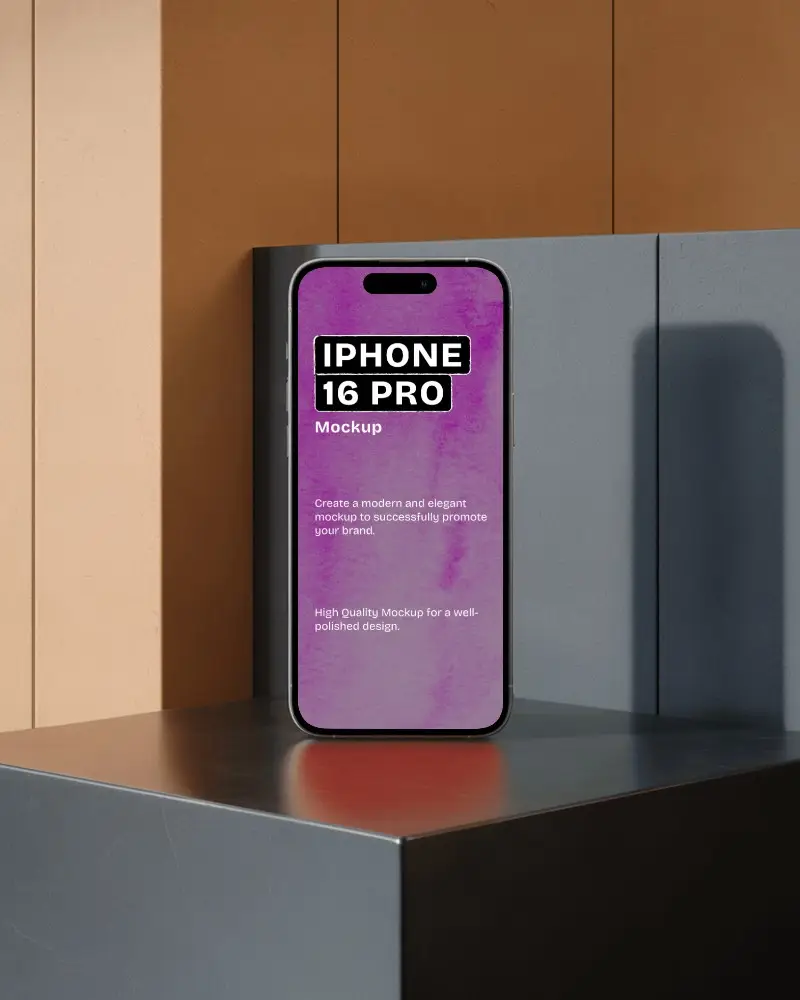
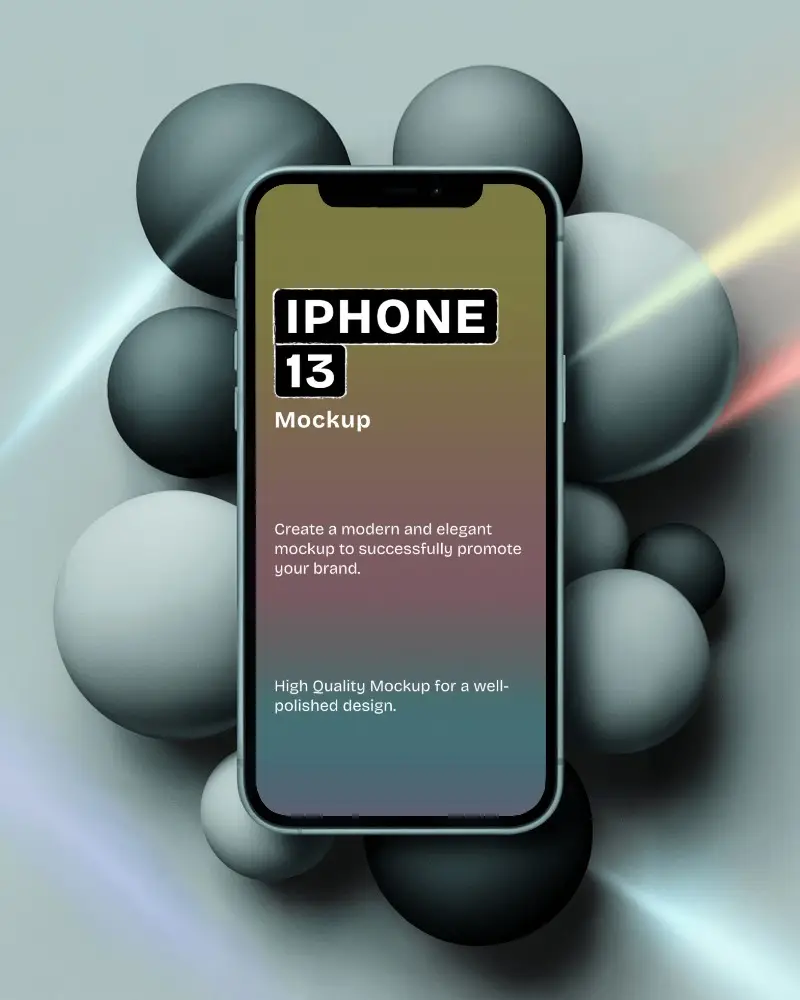
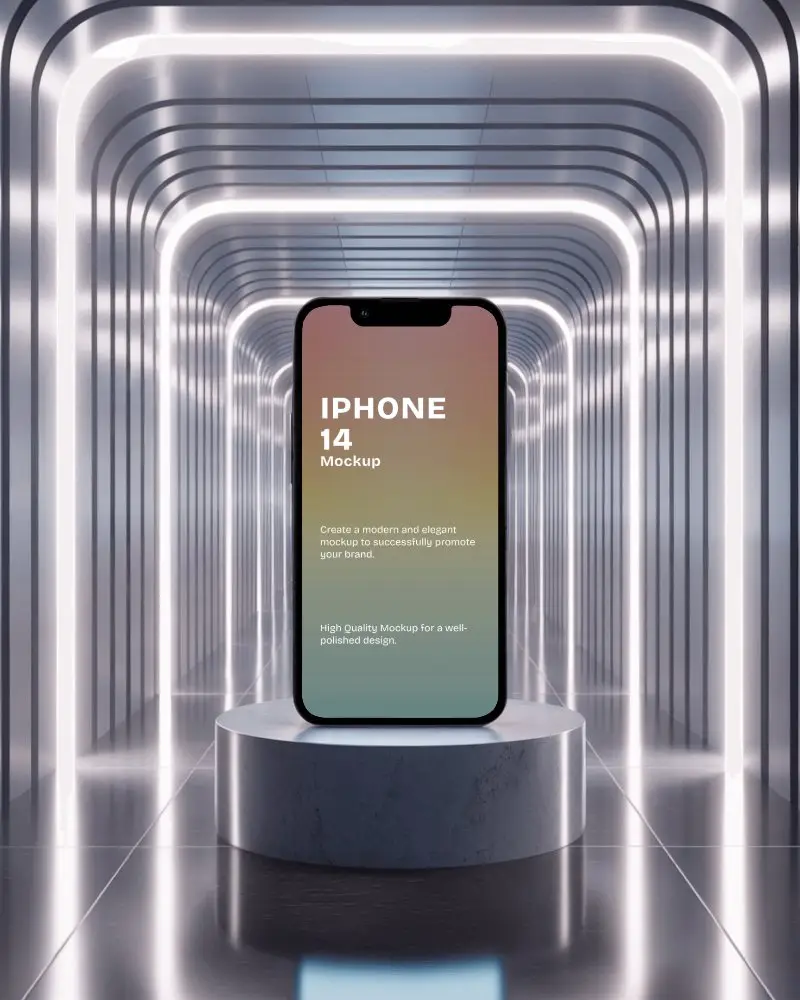
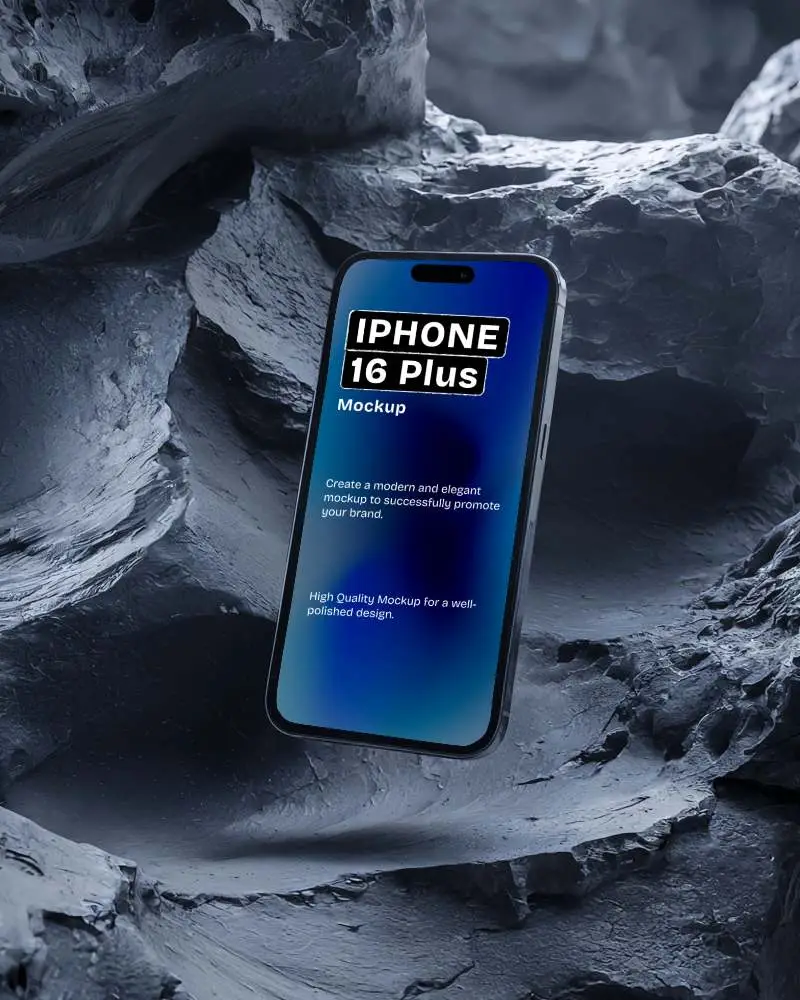
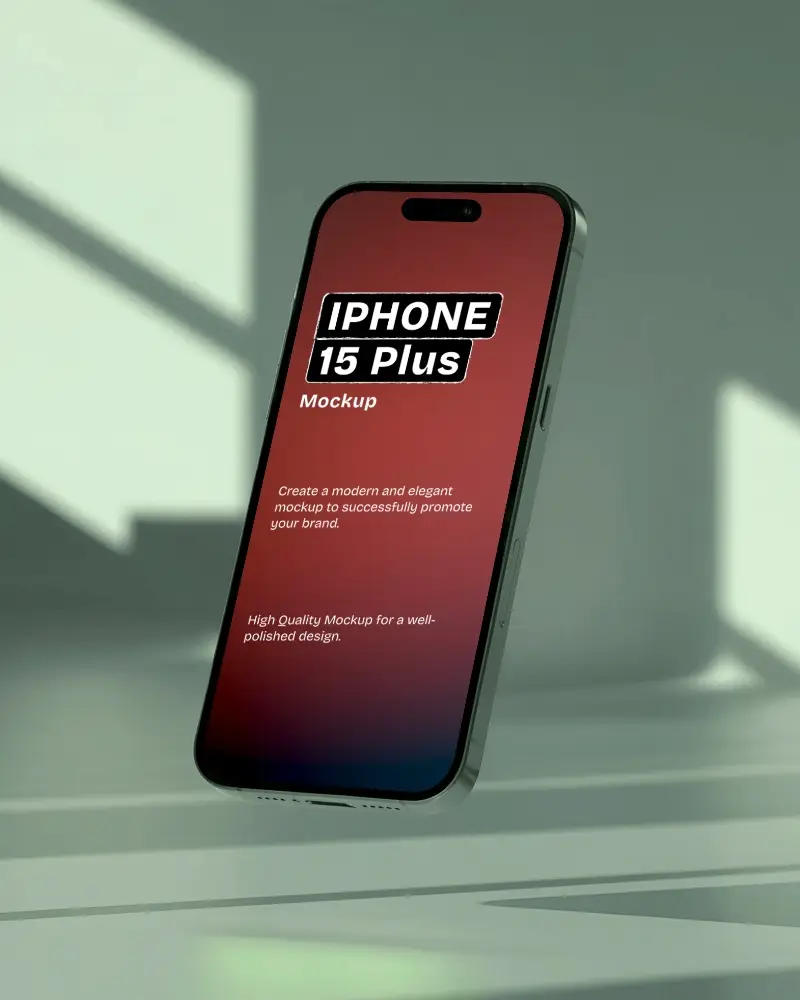
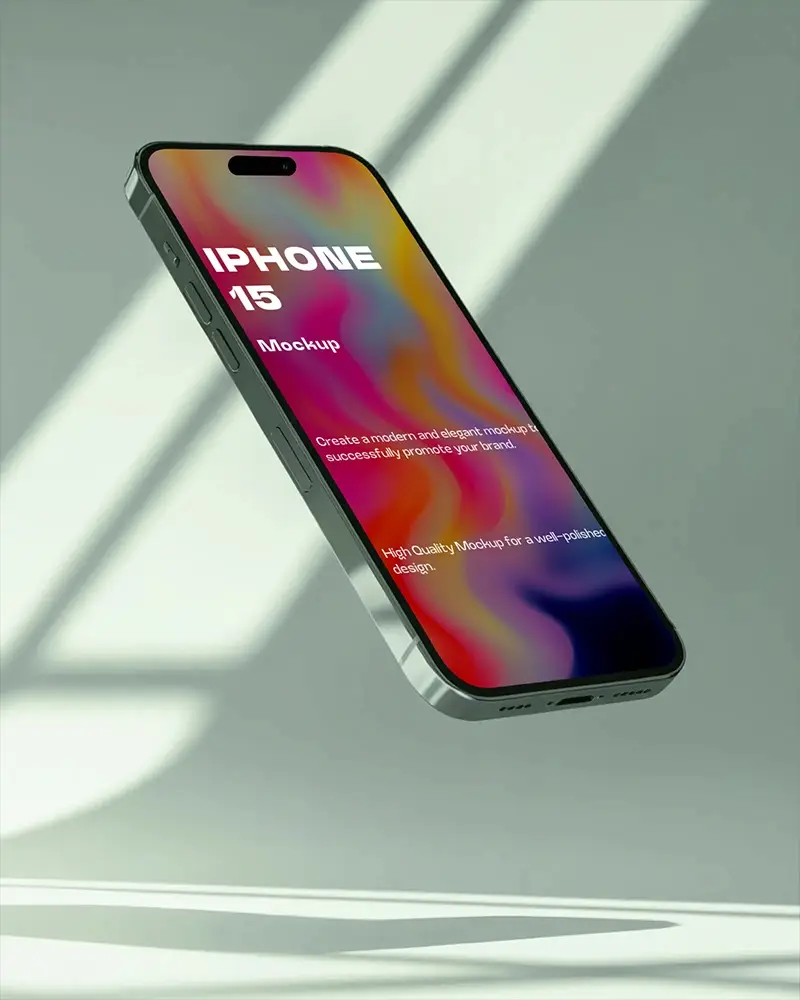
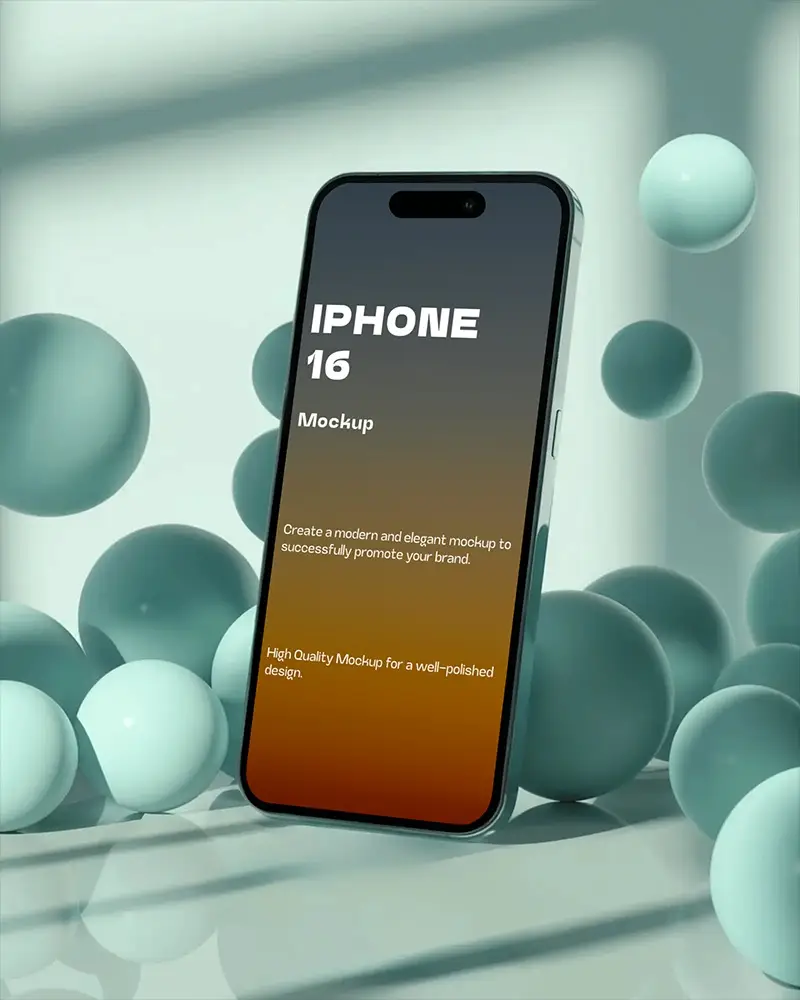
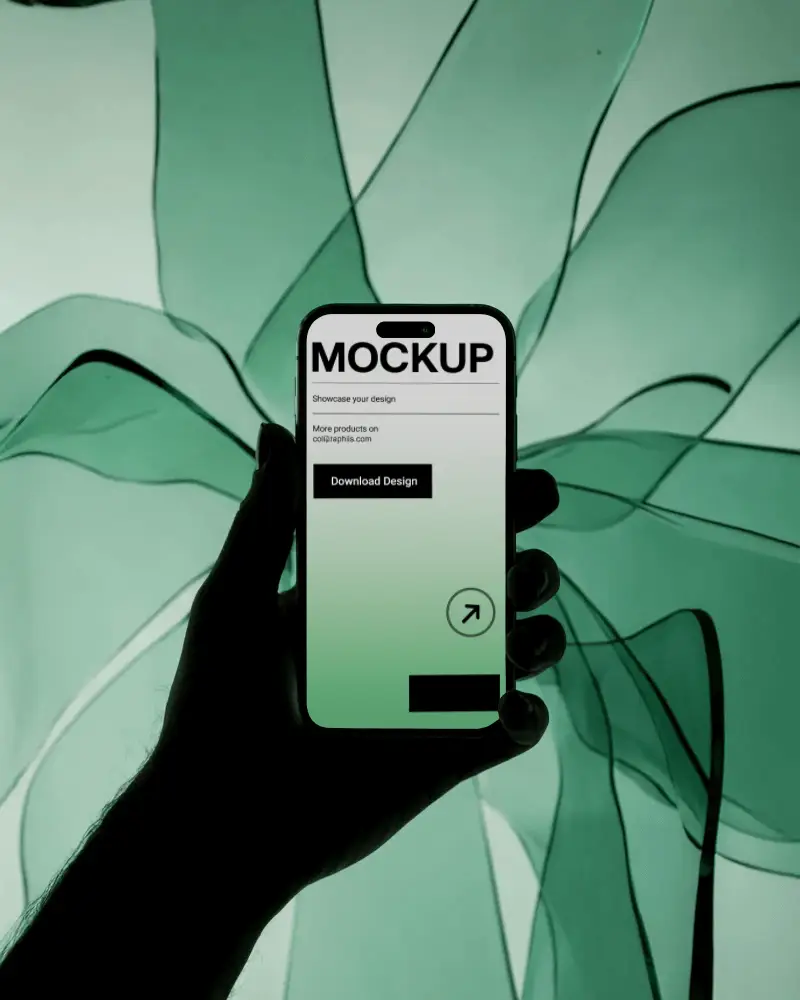
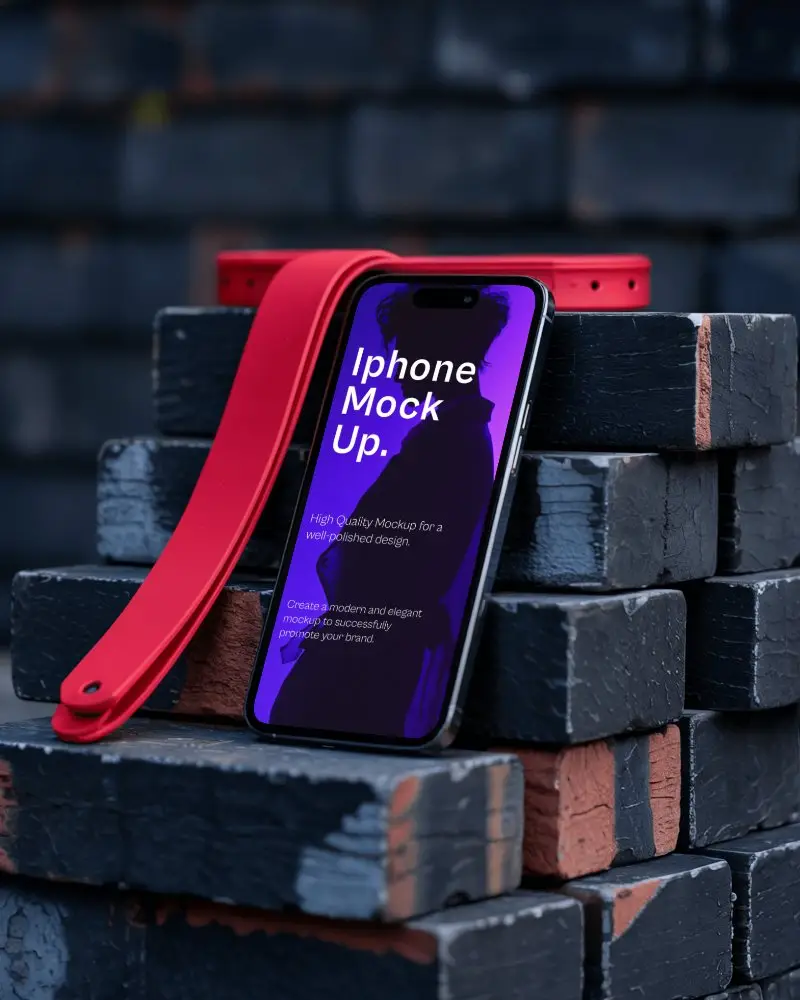
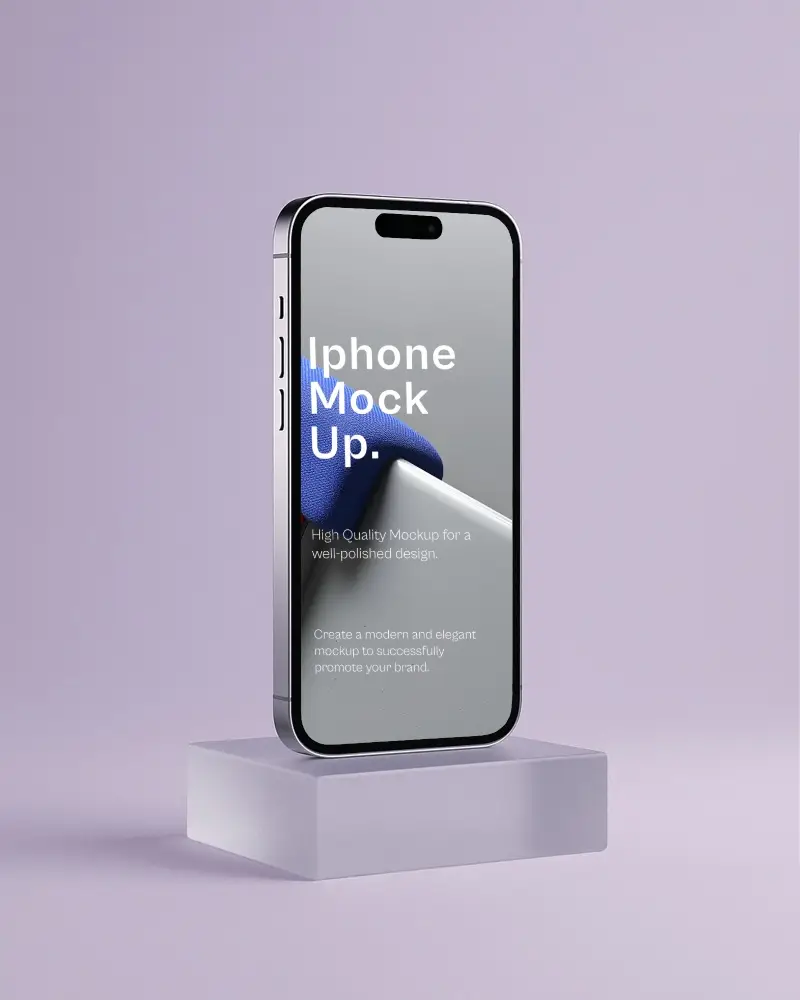
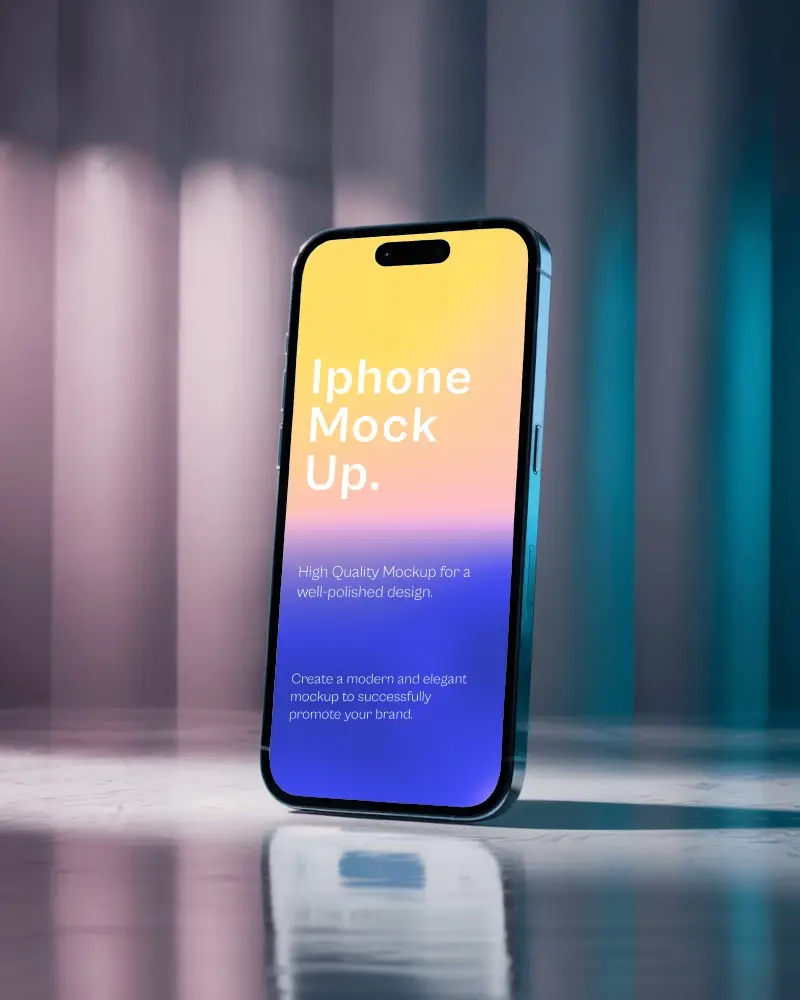
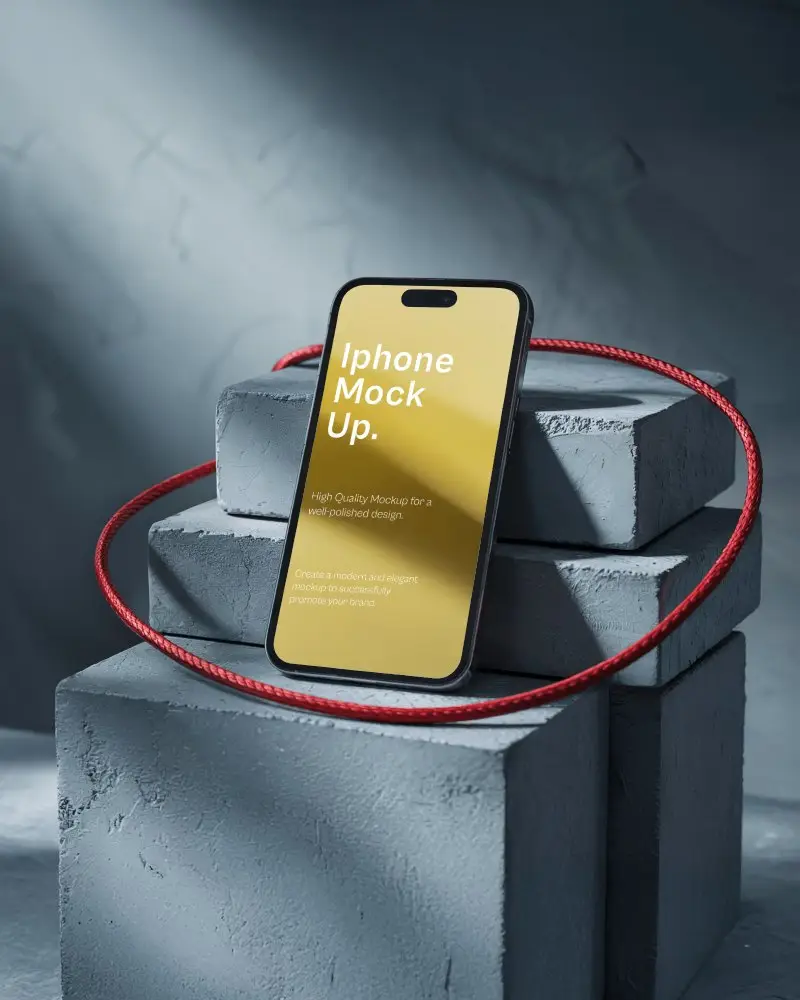
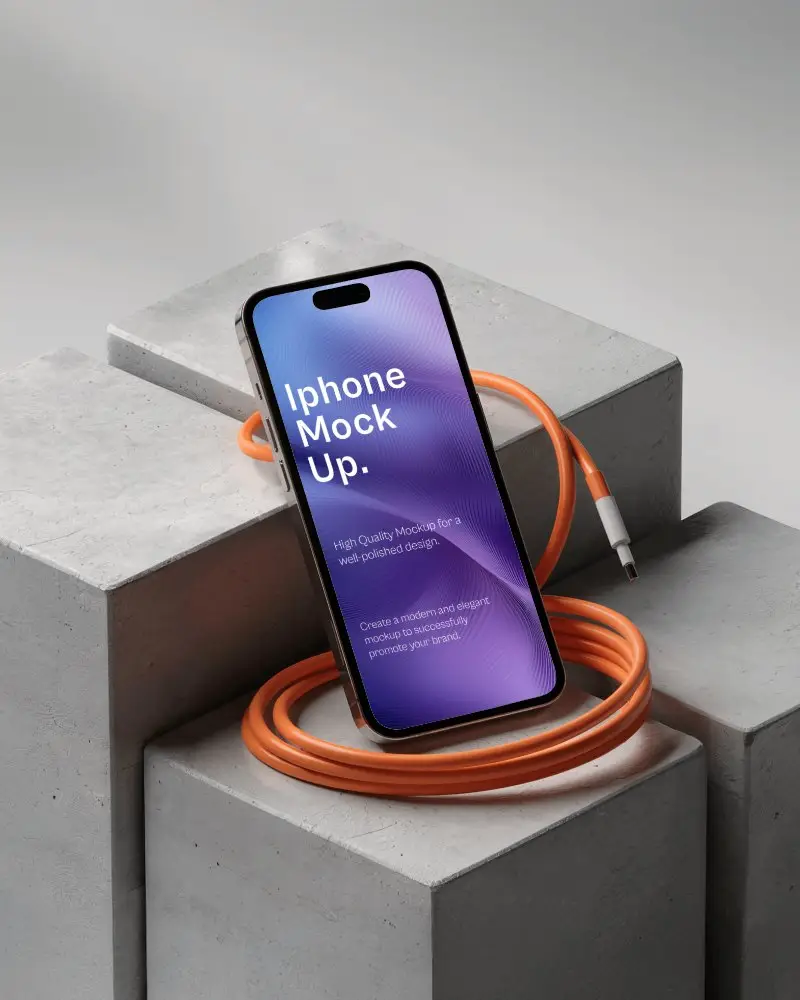
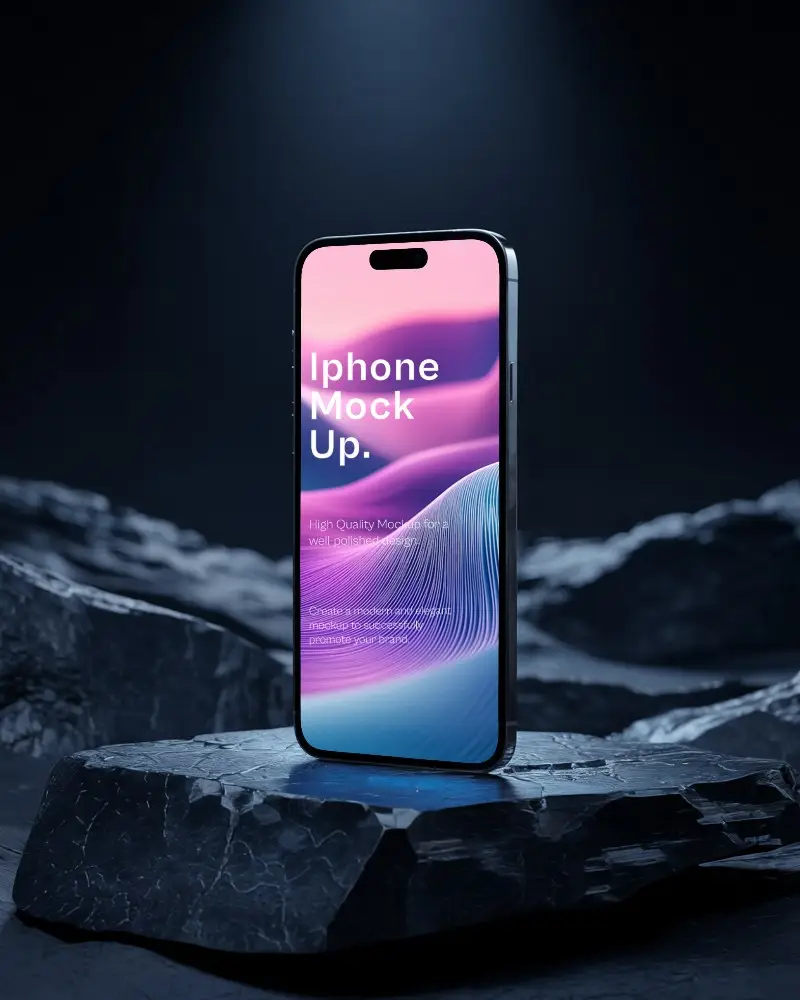
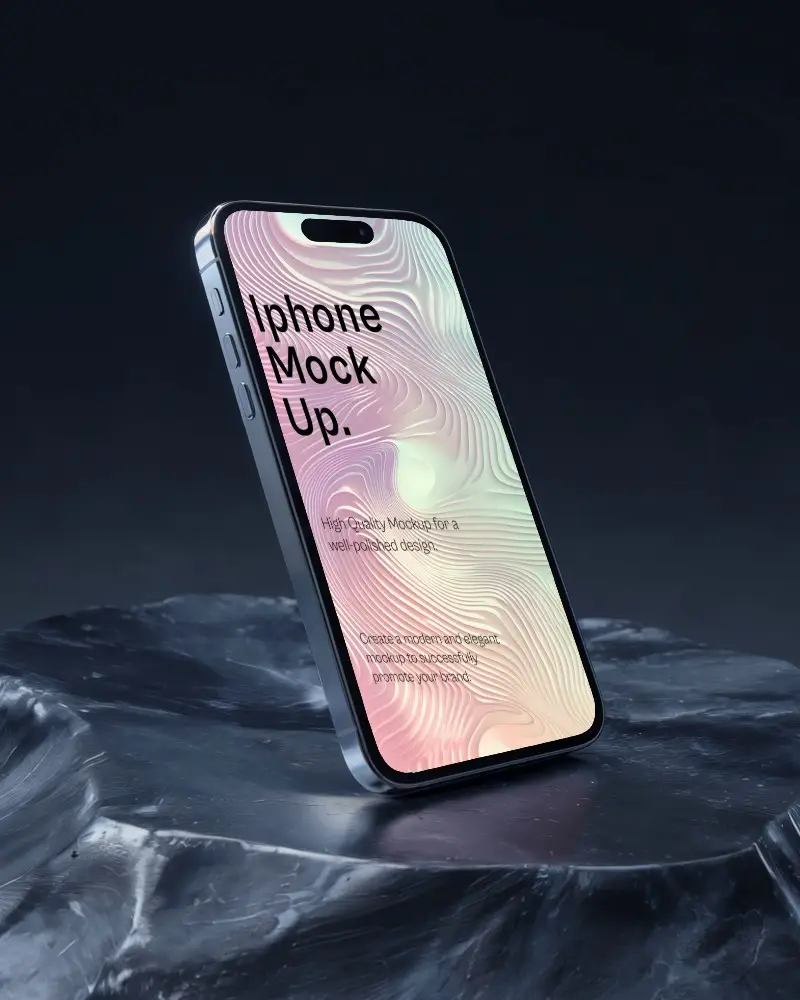
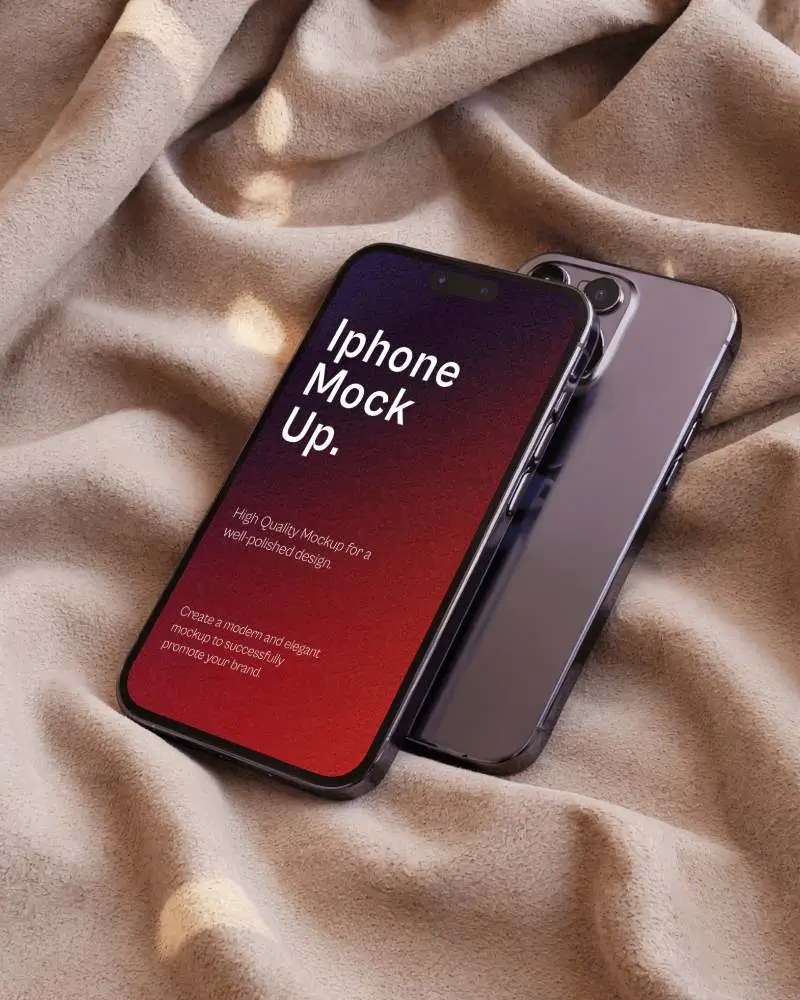


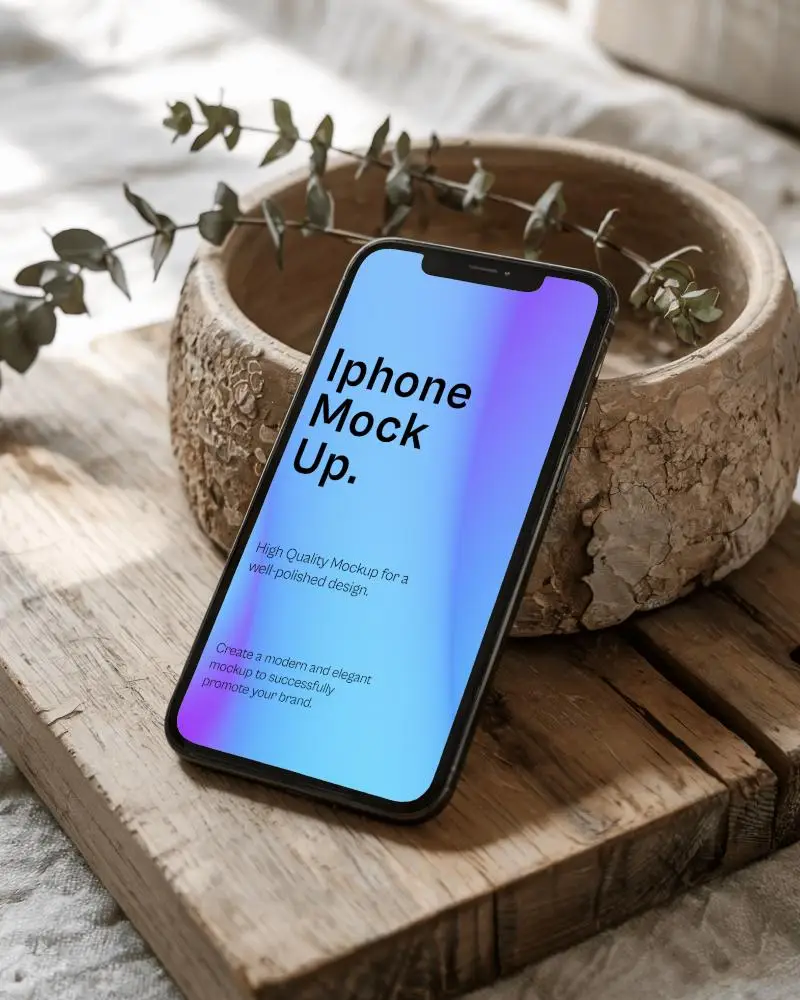

How to Create an iPhone Mockup with Mockey
Follow these 5 steps to create an iPhone mockup in Mockey AI.
- Step 1: Pick a template for the iPhone model you want, from iPhone 12 to iPhone 17, including Plus, Pro and Pro Max.
- Step 2: Click Upload Design and add your screenshot or app design. The crop box locks to the screen's shape, so a native screenshot fits.
- Step 3: Adjust it with Fit, Fill, Rotate or Align until it sits right on the screen.
- Step 4: Want more? On Creator and Forever plans, Multi Shot adds new angles, Photoshoot creates a styled scene and Animate adds motion.
- Step 5: Click Export, then pick JPG or PNG and a size. JPG is free; PNG and high-quality downloads up to 1600 × 2000 px come with paid plans from Starter up.
FAQs on iphone Mockups
What is an iPhone Mockup?
An iPhone mockup is a realistic image of an iPhone with your design on the screen, such as an app, a website or a social post. Designers and marketers use them in client presentations, landing pages and ads to show how a design looks on a real device.
Why make an iPhone mockup?
Creating iPhone mockups is valuable for showcasing your app or product realistically, improving marketing, gathering feedback, and boosting professionalism. Online tools like Mockey.ai make it easy to create high-quality mockups quickly, even without advanced design skills.
Why Use Mockey’s iPhone Mockup?
You get 700+ templates for iPhone 12 to 17, a crop that locks to each screen's shape, and an editor that runs in your browser, so there's no Photoshop or PSD file. JPG downloads are free; paid plans add PNG and high-quality downloads, and the Creator plan adds AI tools like Multi Shot.
Is this iPhone Mockup Free?
Yes. 400+ of the 700+ iPhone templates are free. The free plan gives you JPG downloads for personal use, up to 3 a day. Paid plans, starting with Starter, add PNG files, high-quality downloads up to 1600 × 2000 px, unlimited downloads, PRO templates and commercial use.
How do I add an icon to an iPhone mockup?
Pick a template, click Upload Design and add your icon or screenshot. Adjust its size and position with Fit, Fill, Rotate or Align, then export the finished mockup.
How do I get my screen to fit on an iPhone mockup?
Use a screenshot from the same iPhone model as the template. When you upload it, the crop box locks to that screen's shape (6:13 on the iPhone 17 Pro template), so a native screenshot fits. Then use Fit or Fill to finish.
Can I download the iPhone mockup in PNG format?
Yes, on any paid plan from Starter up, in sizes up to 1600 × 2000 px. The free plan downloads JPG files.
Do I need Photoshop or PSD files to create an iPhone mockup?
No. Mockey runs in your browser: pick one of 700+ iPhone templates, upload your screenshot, fit it to the screen and download it. There are no PSD files or smart objects to deal with.
Do you offer mockups for different iPhone models and angles?
Yes. There are templates for iPhone 12, 13, 14, 15, 16 and 17 models, including Plus, Pro and Pro Max, in front-facing, angled, floating, handheld and multi-device shots.