Free White Box Mockup Templates
Create stunning white box mockups effortlessly with Mockey.ai. Perfect for showcasing products with a clean, minimal look. Try it now!
.png)
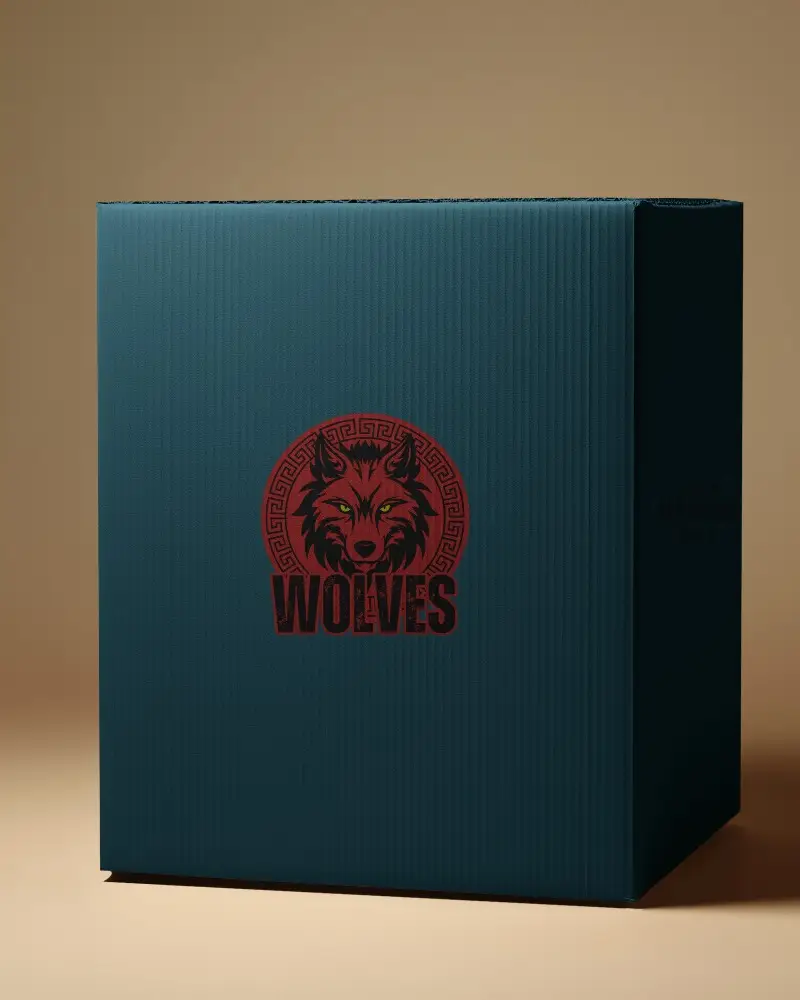
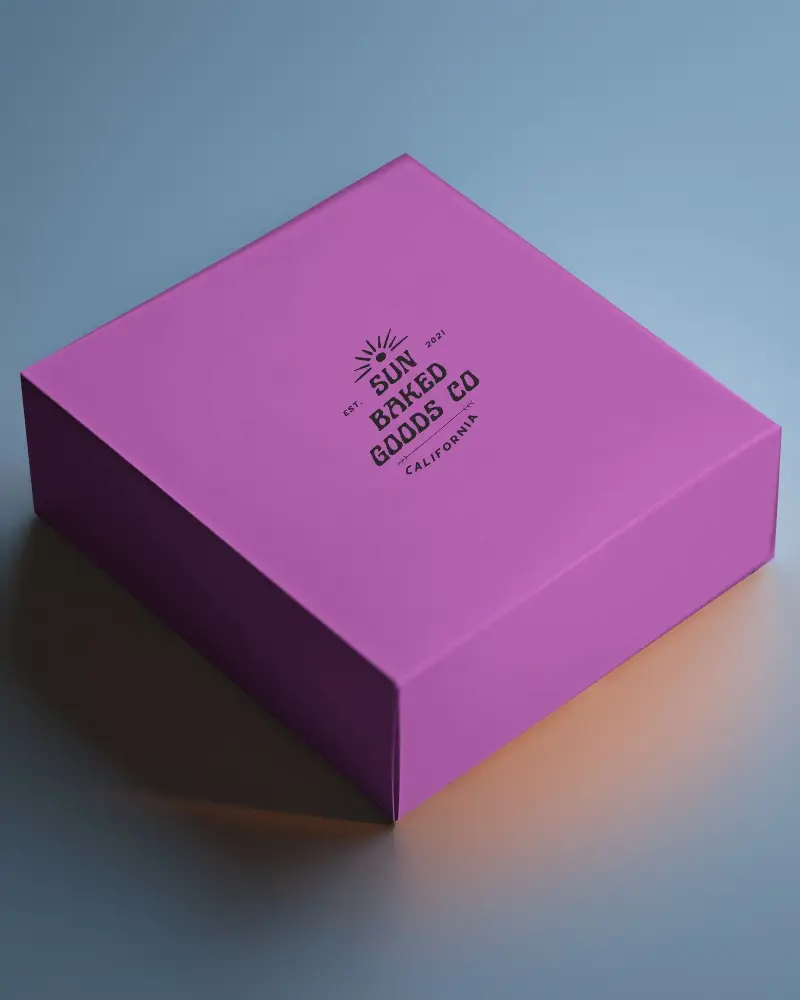
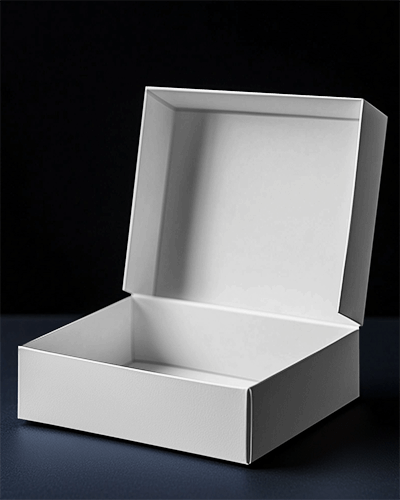
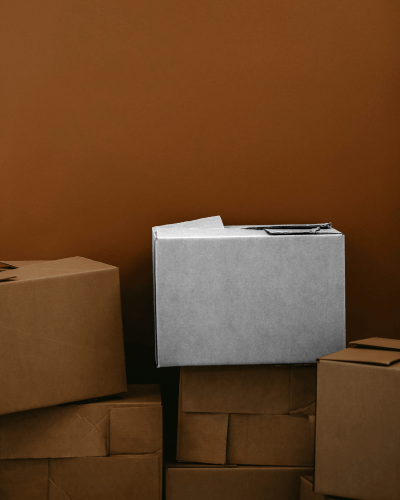
.png)
.png)
(1).png)
.png)
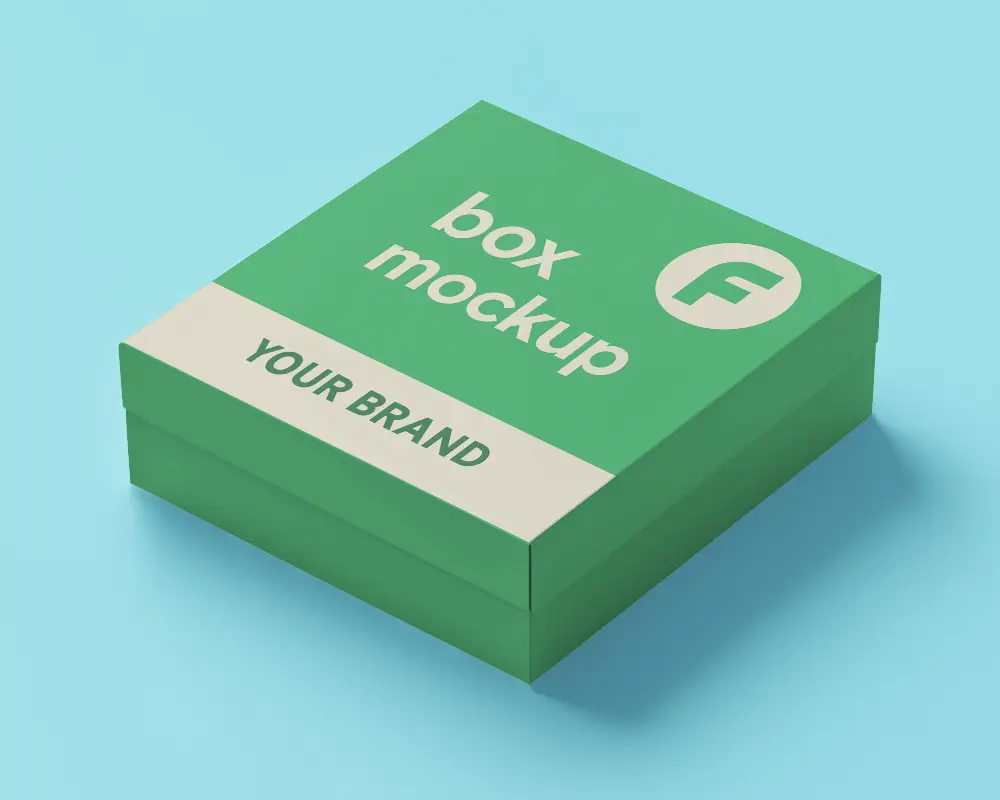
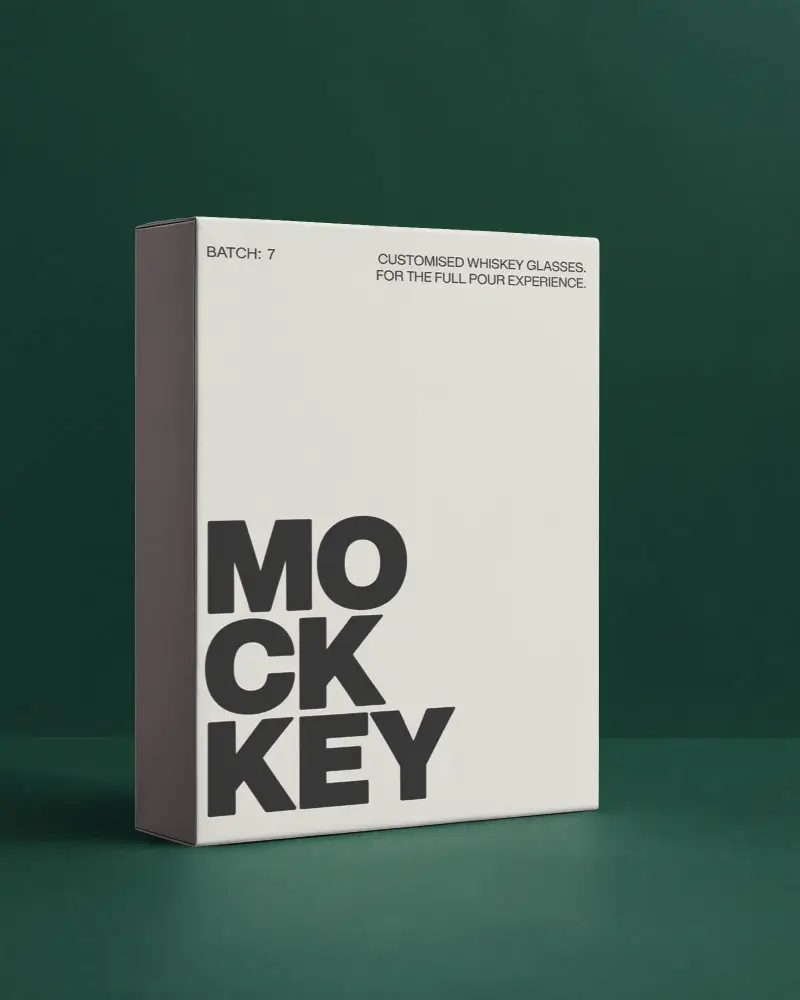
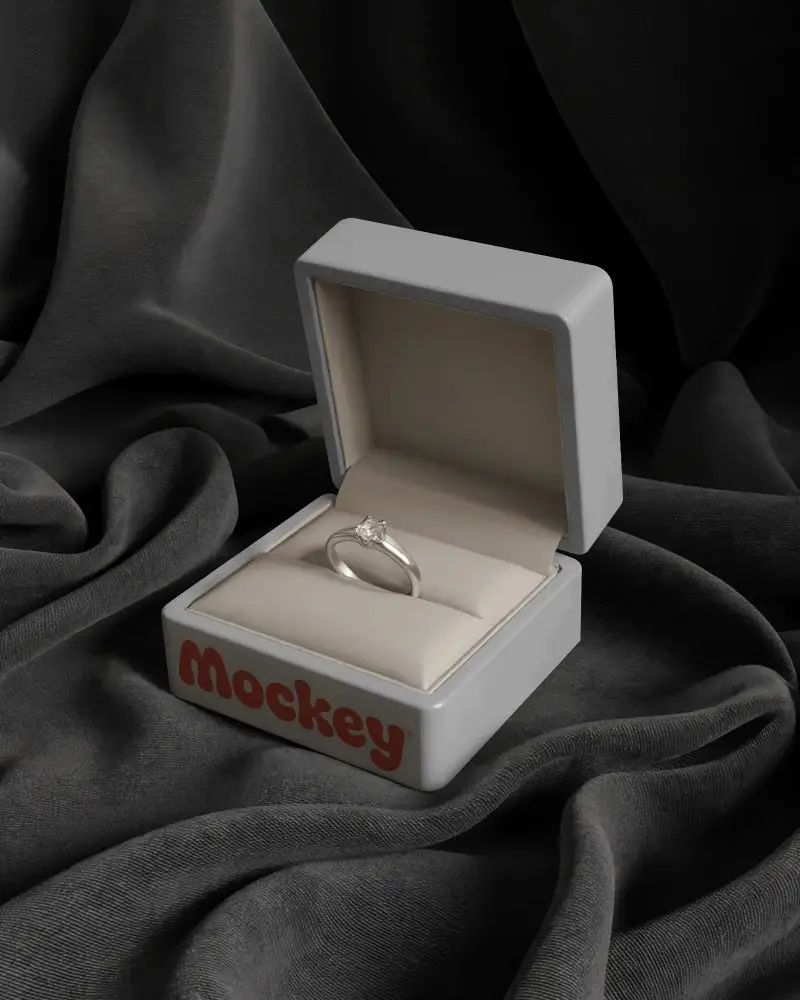
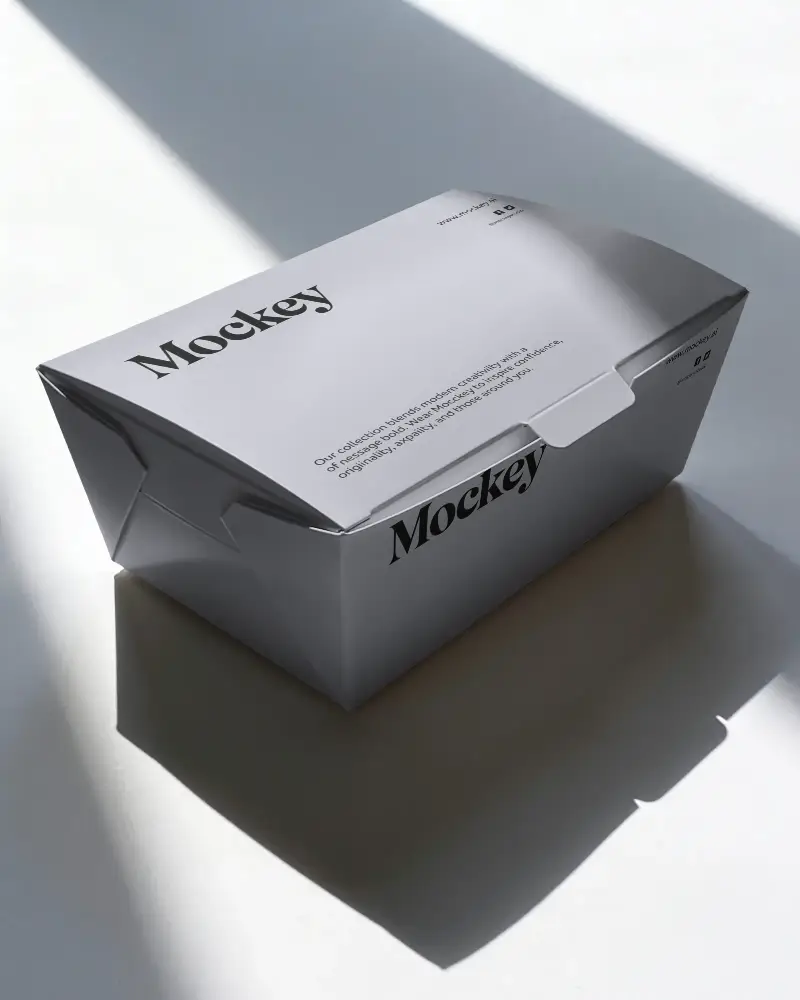
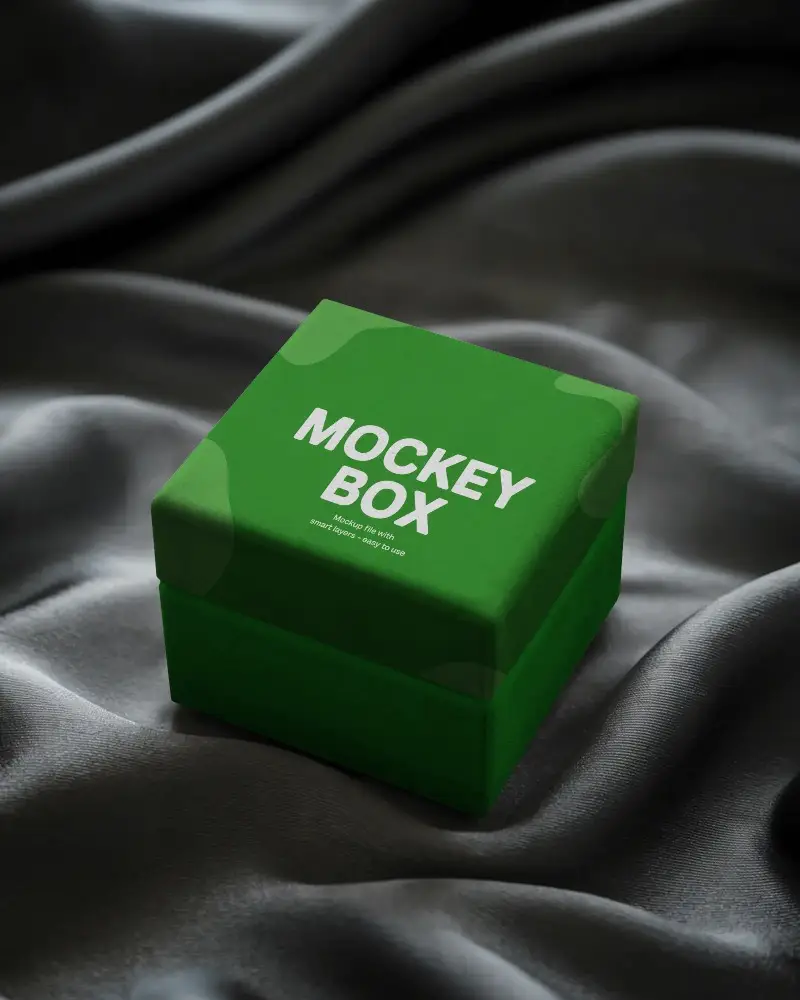
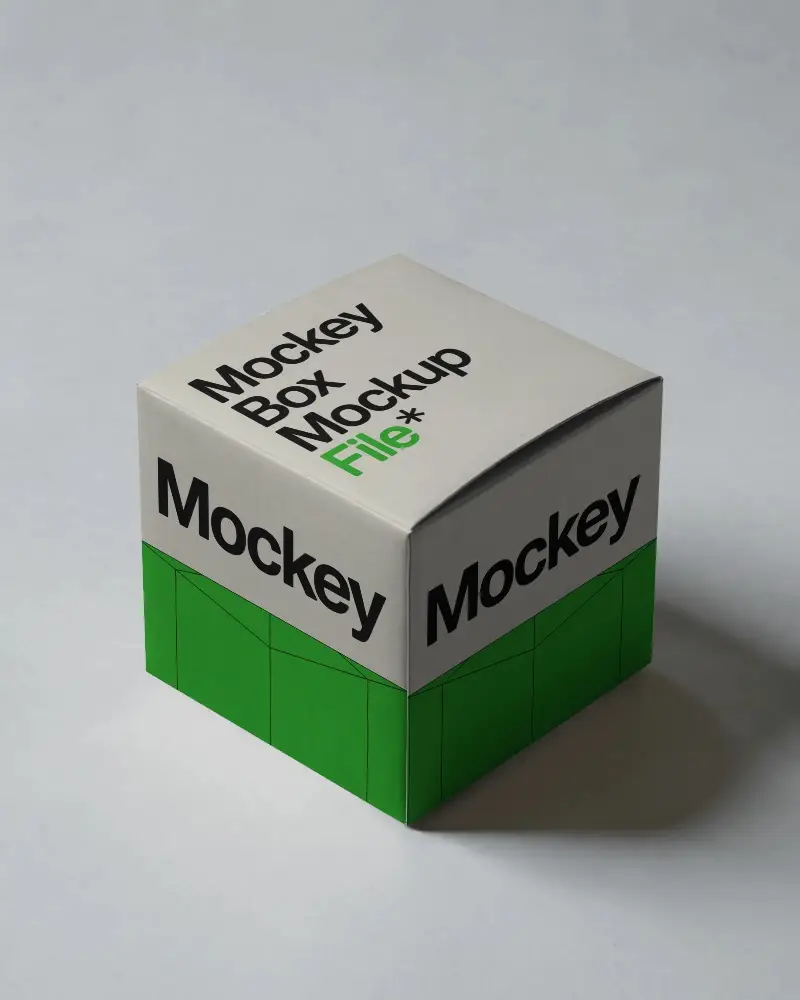
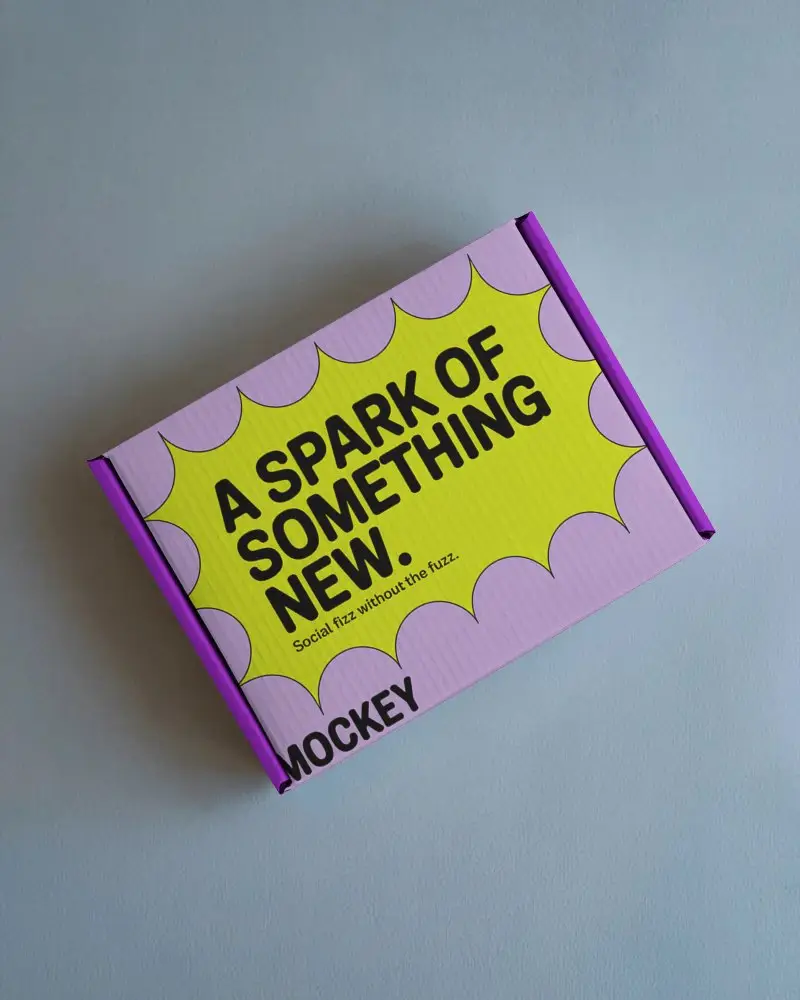
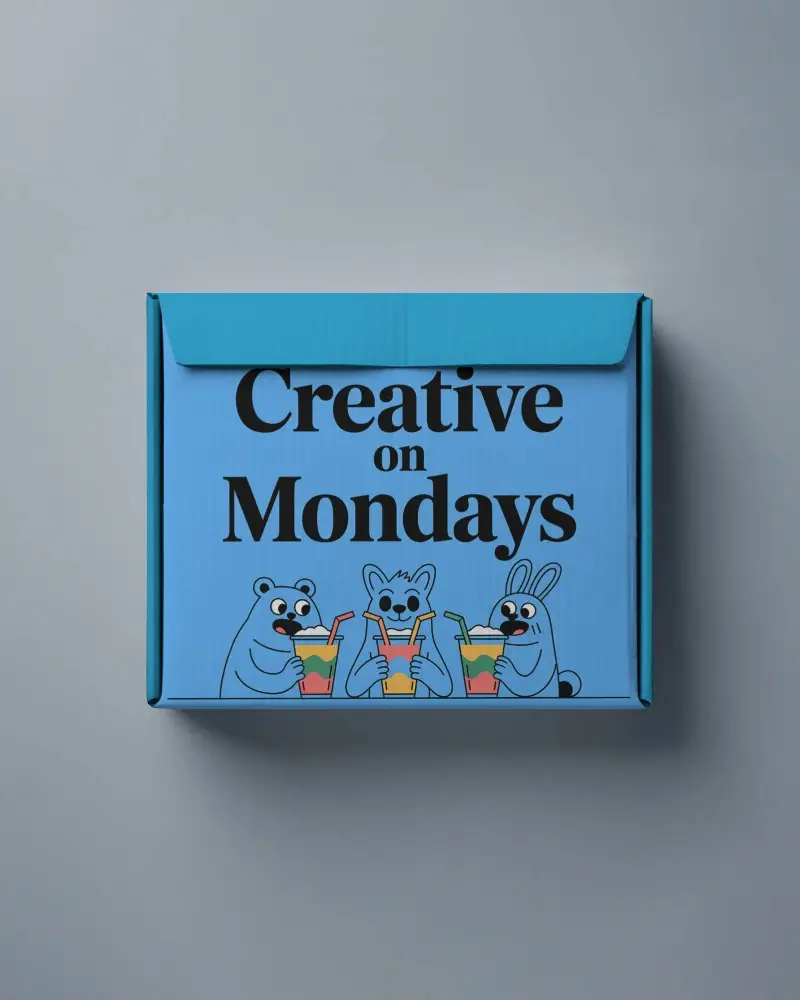
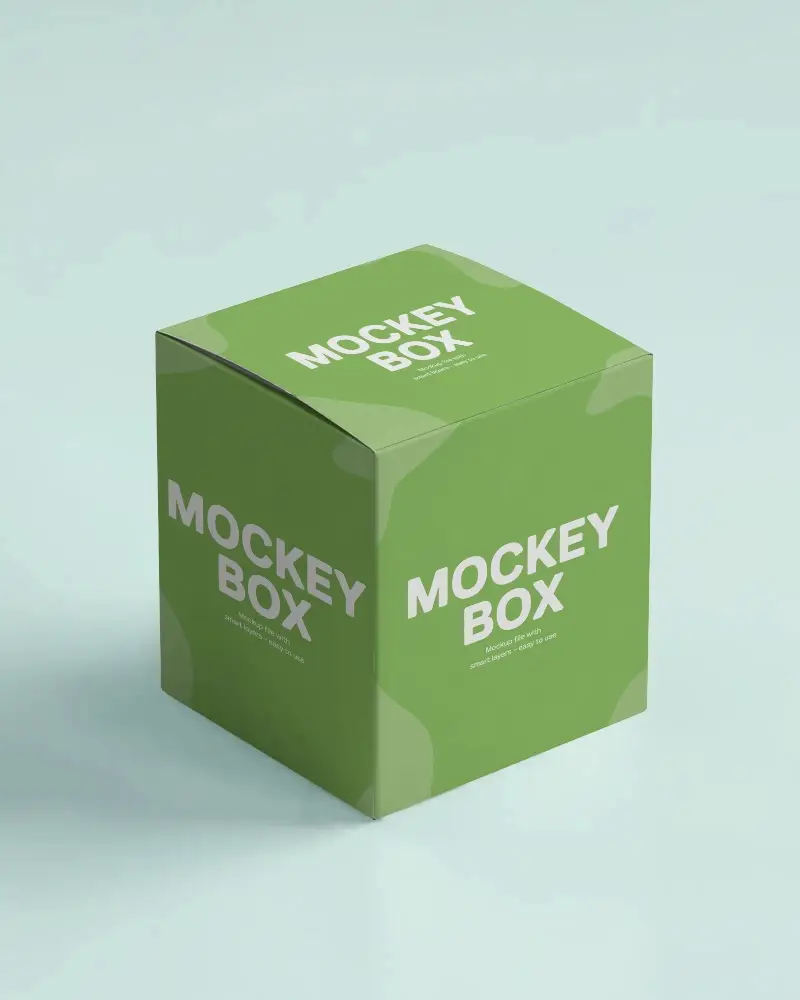
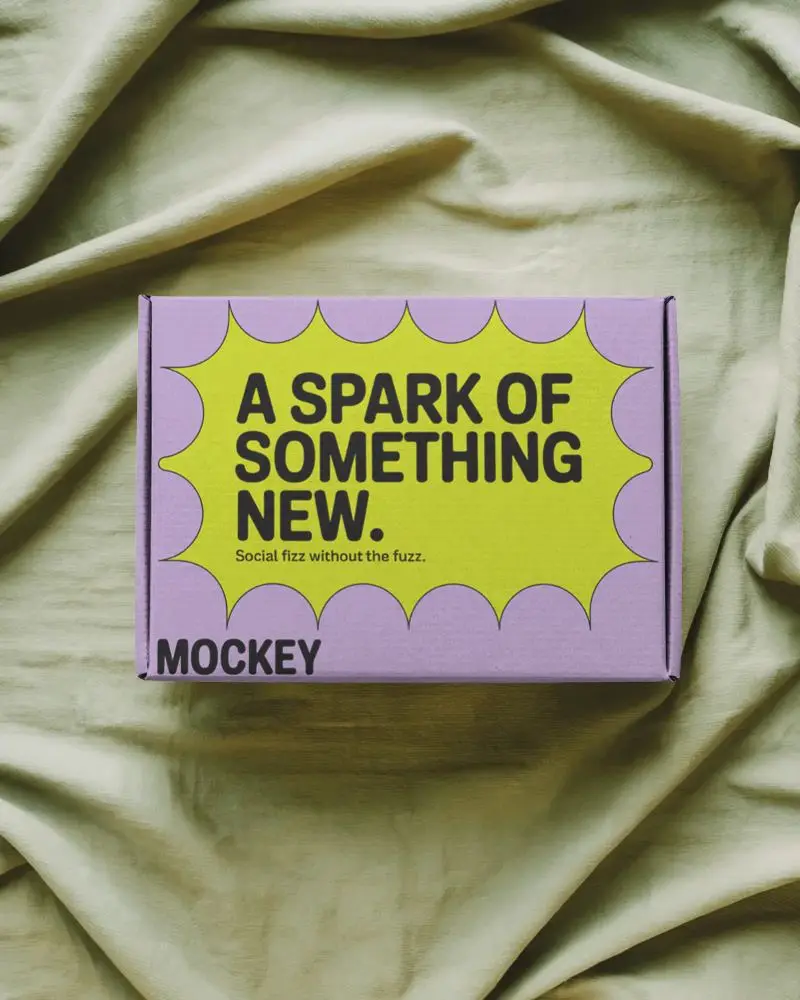
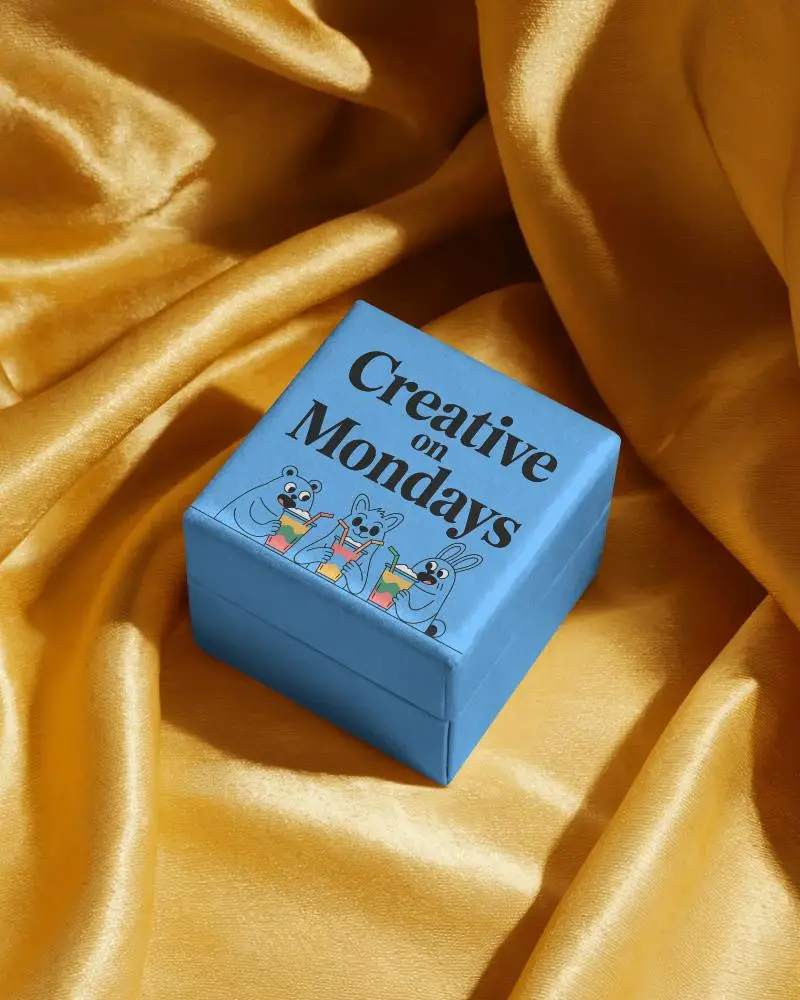
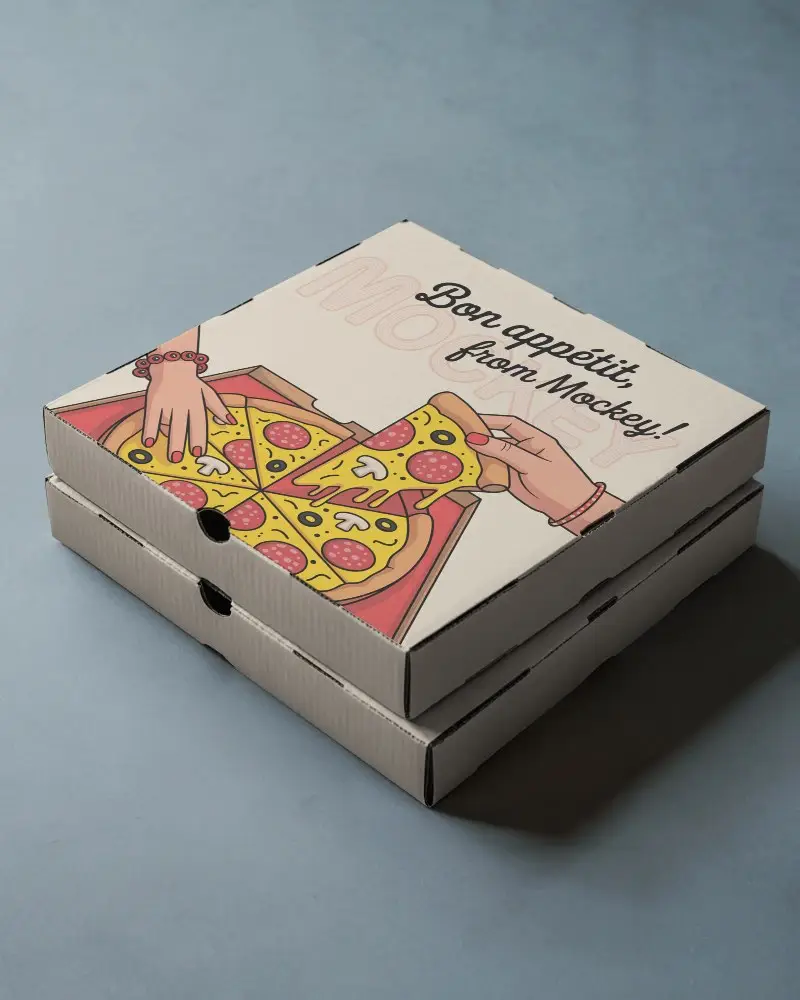
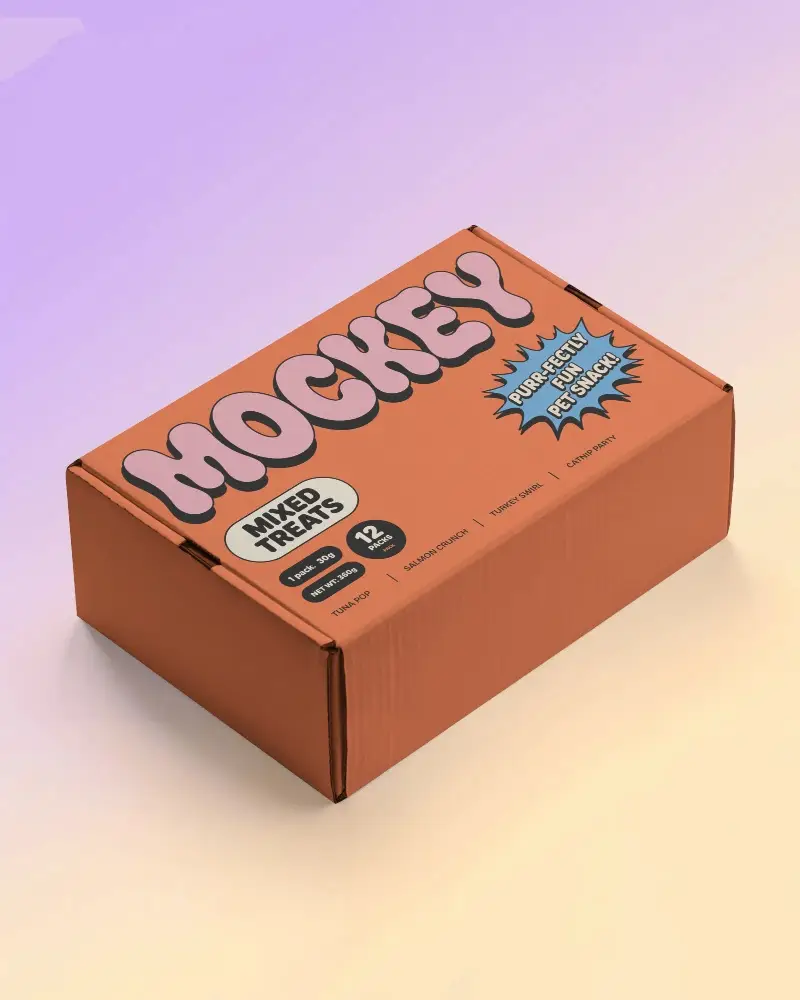
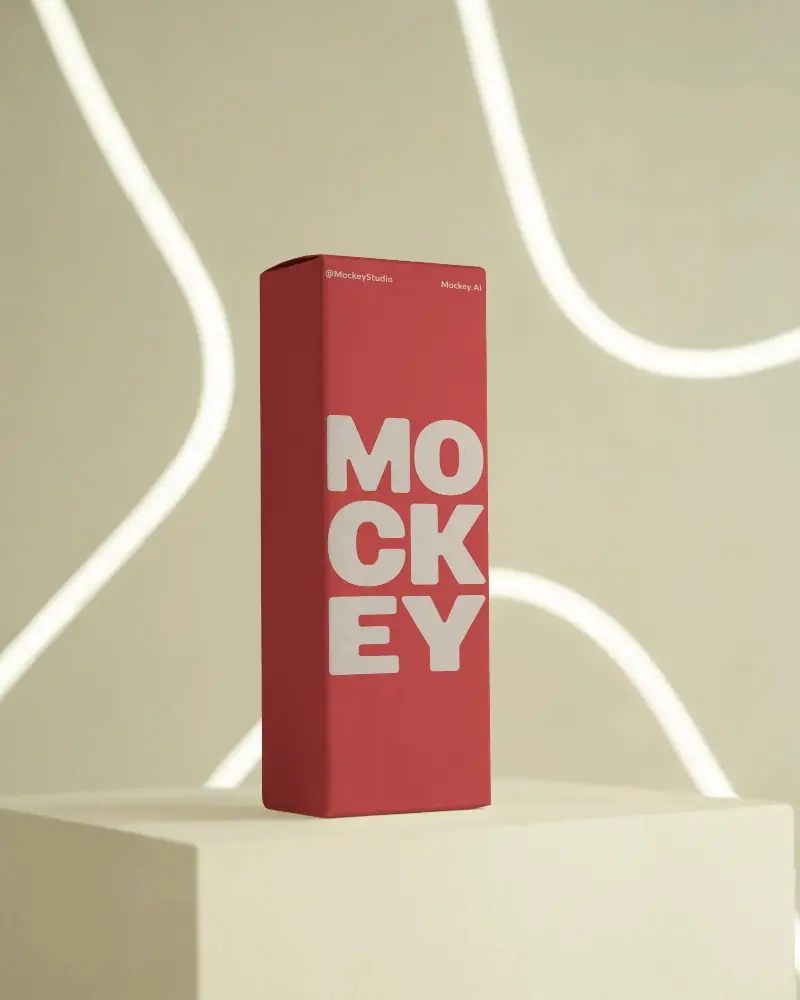
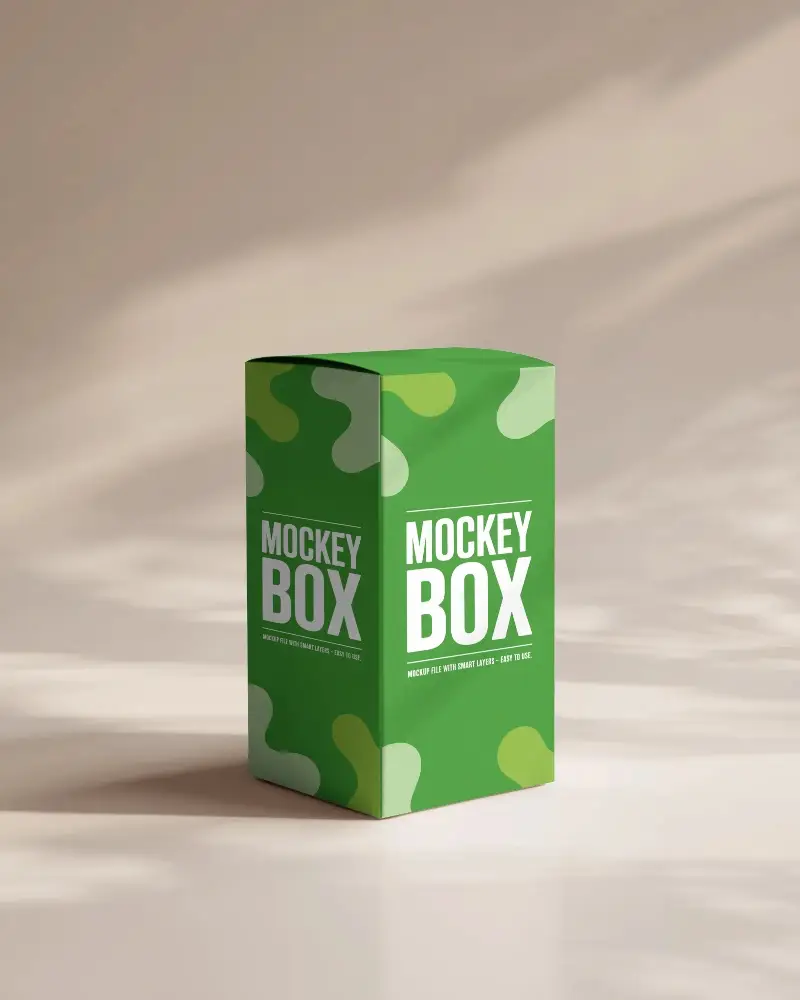
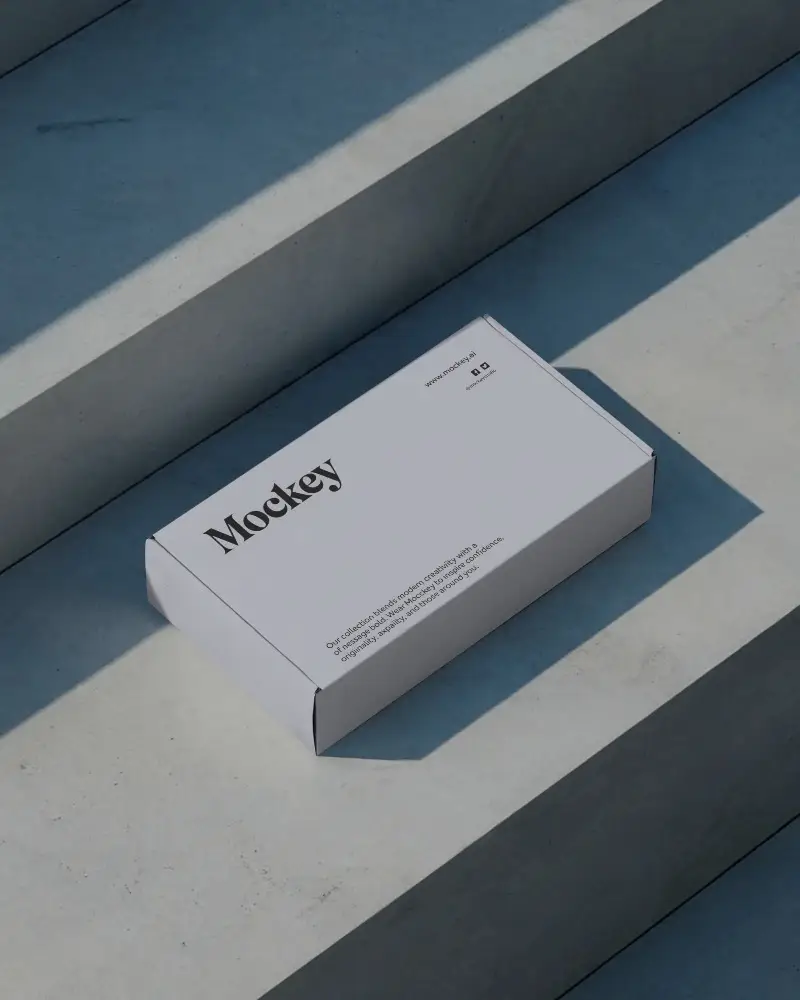
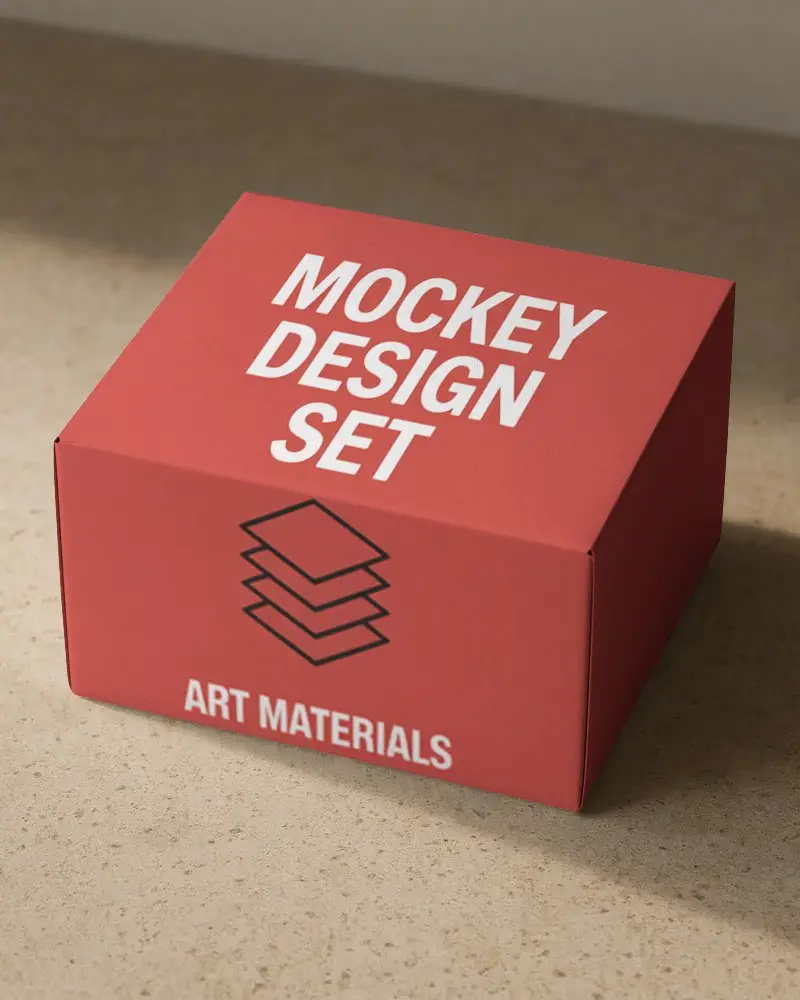
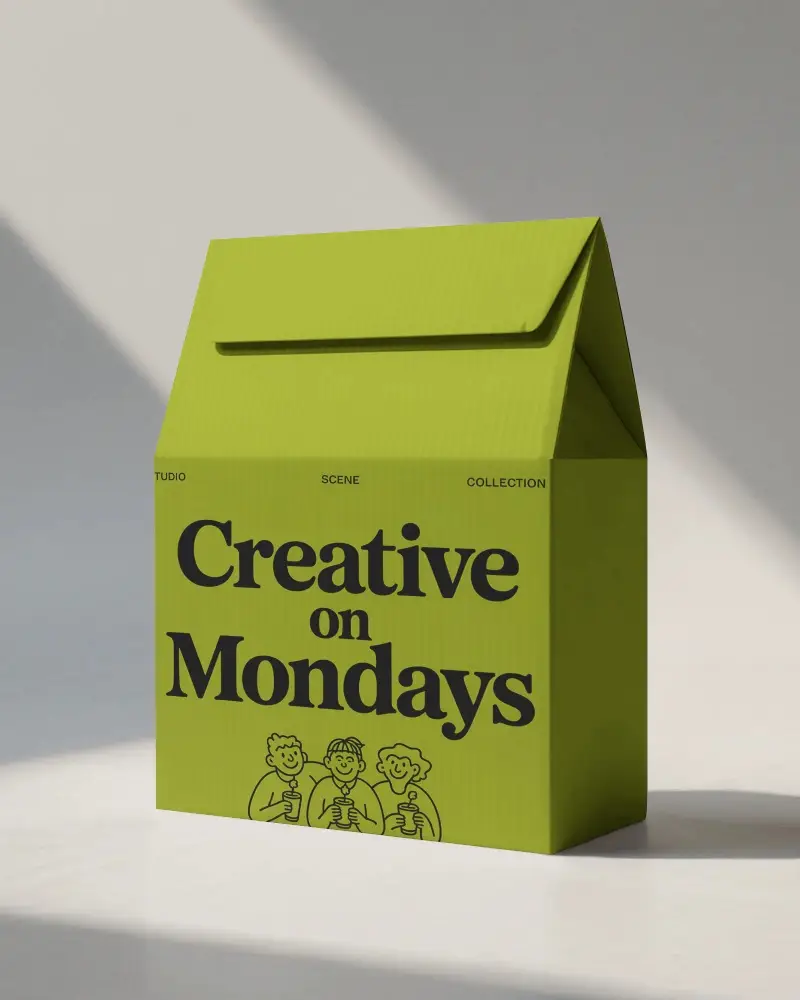
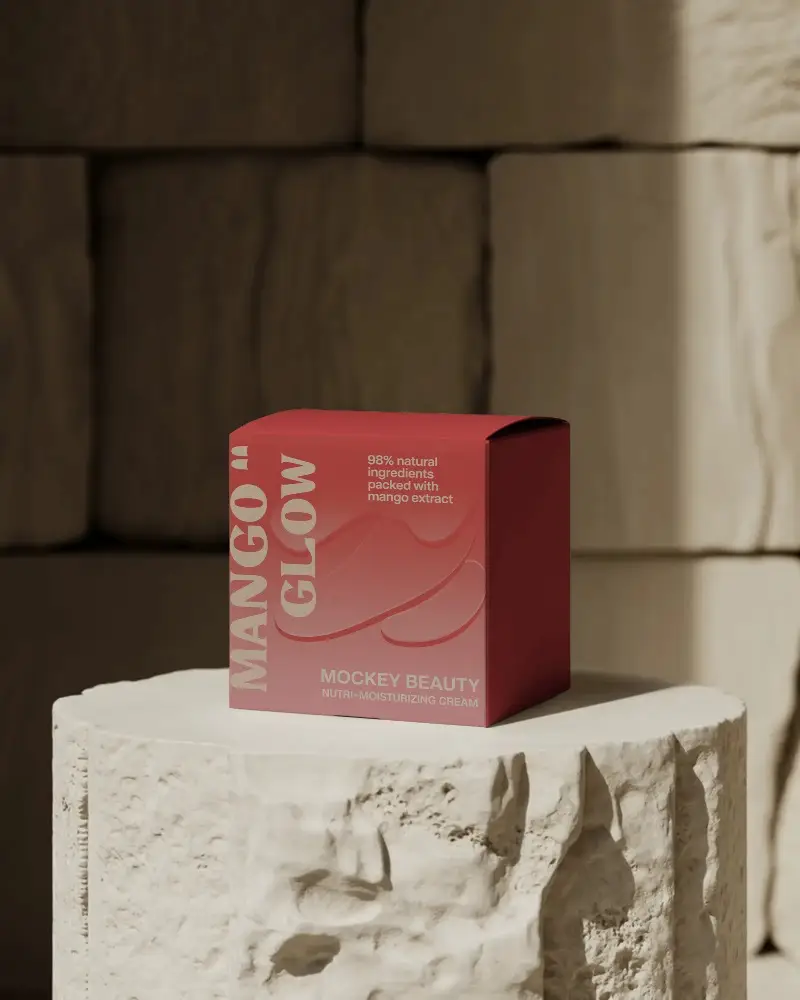
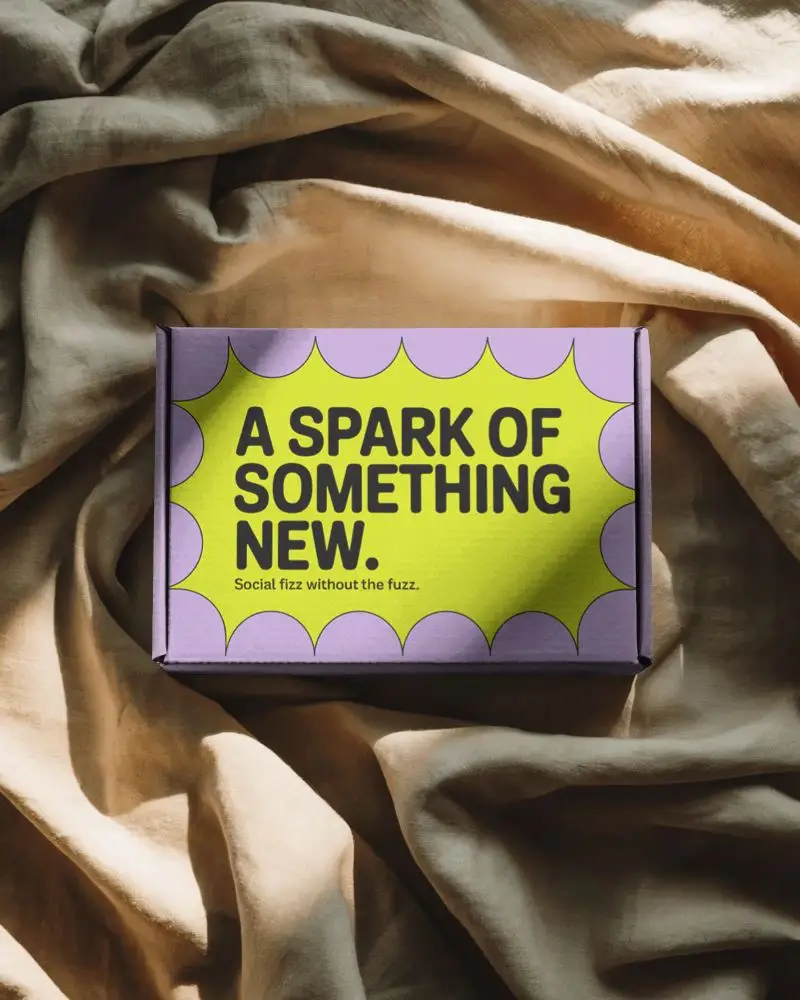
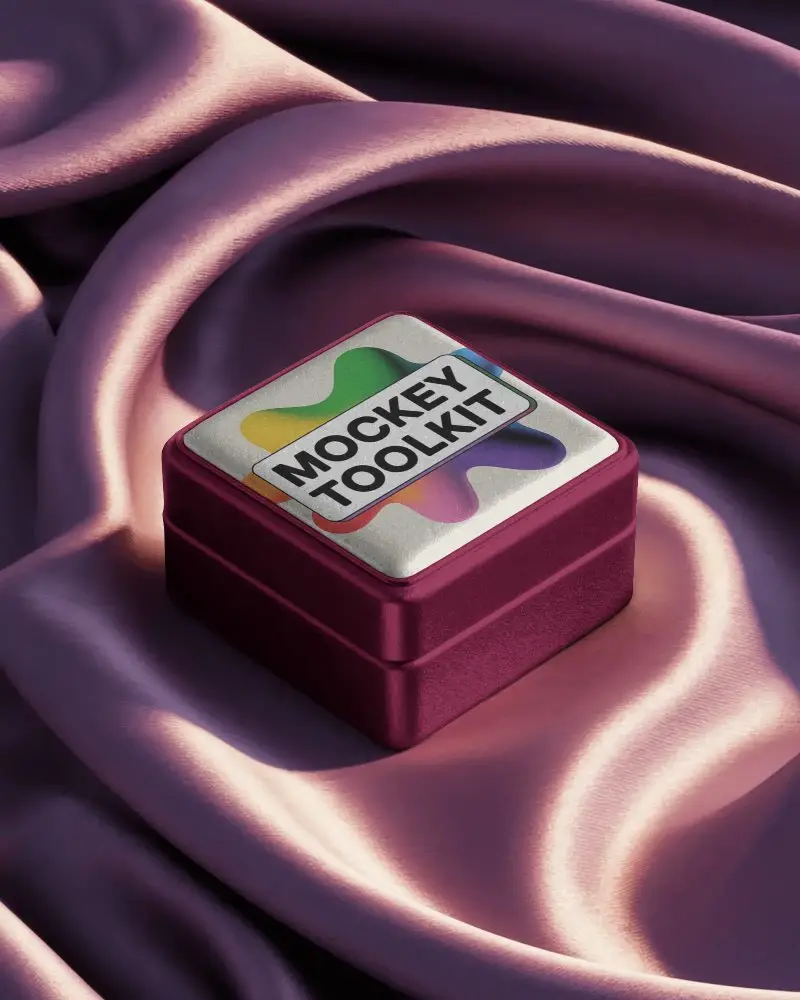
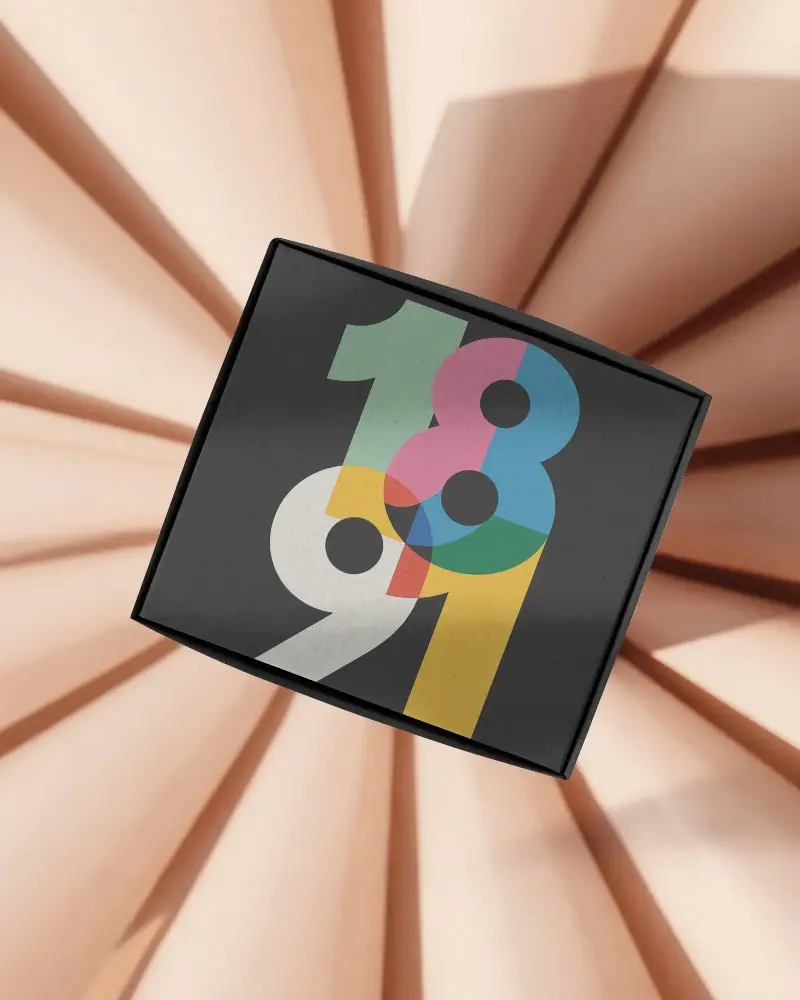
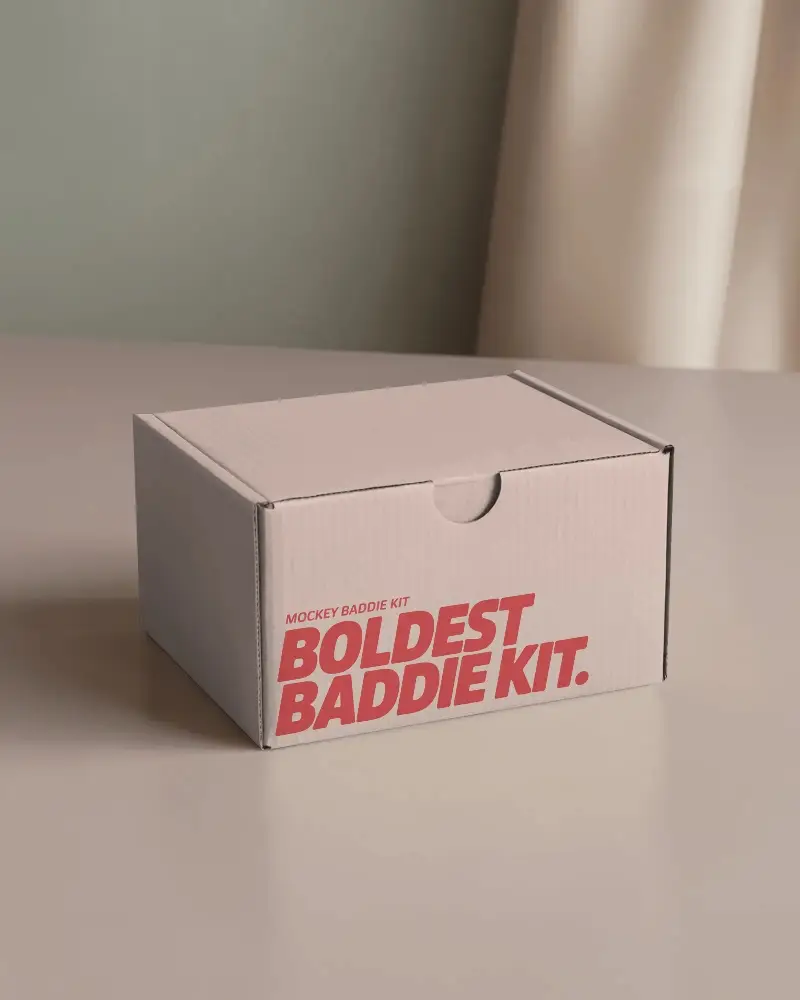
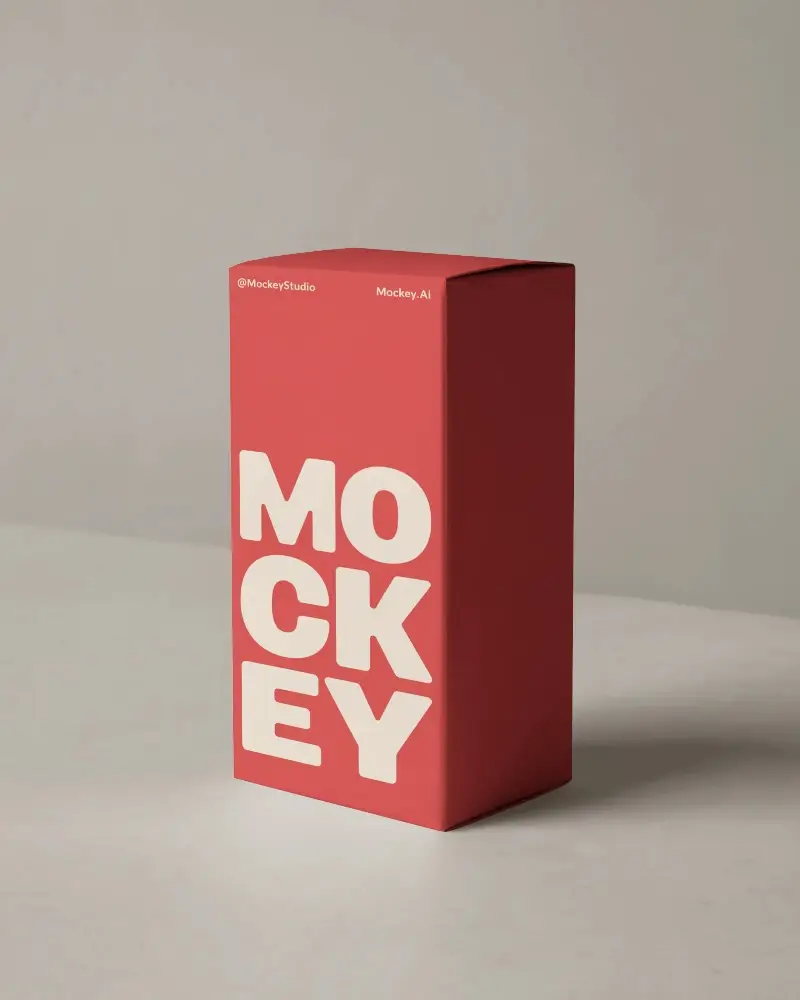
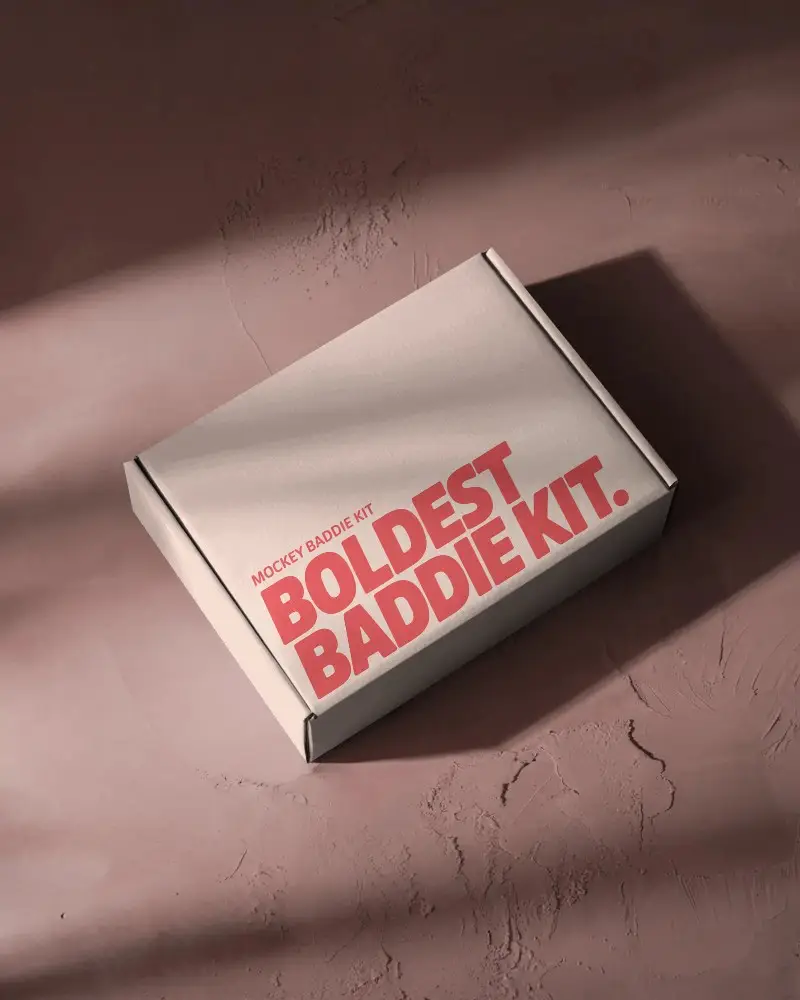
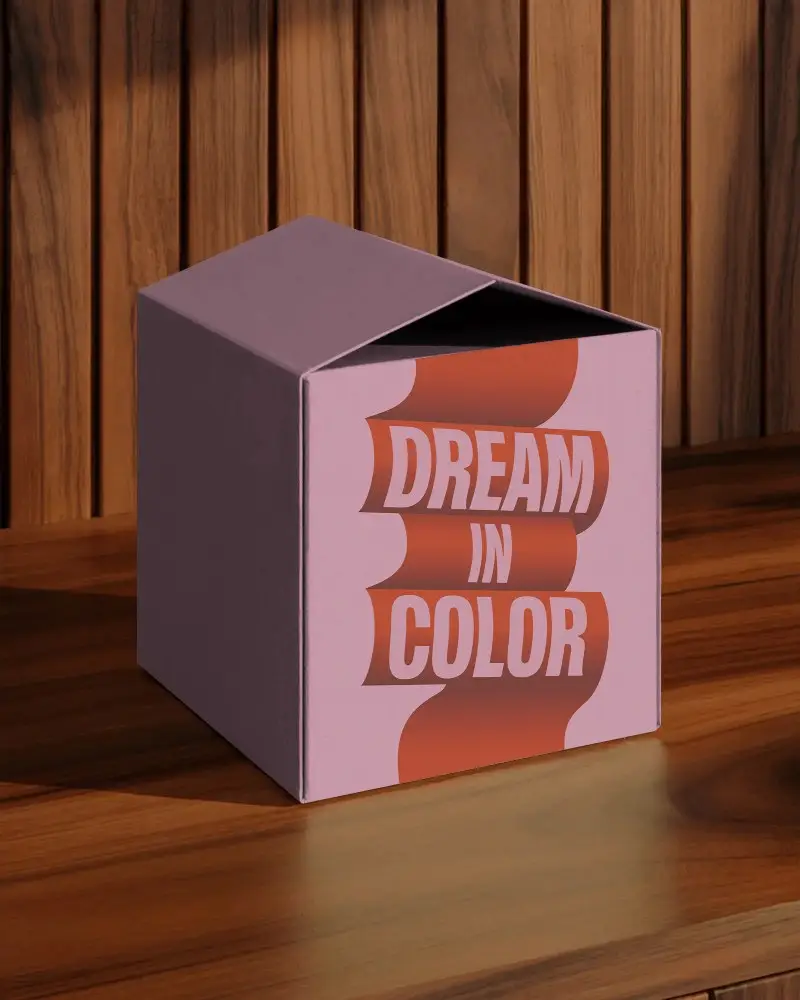
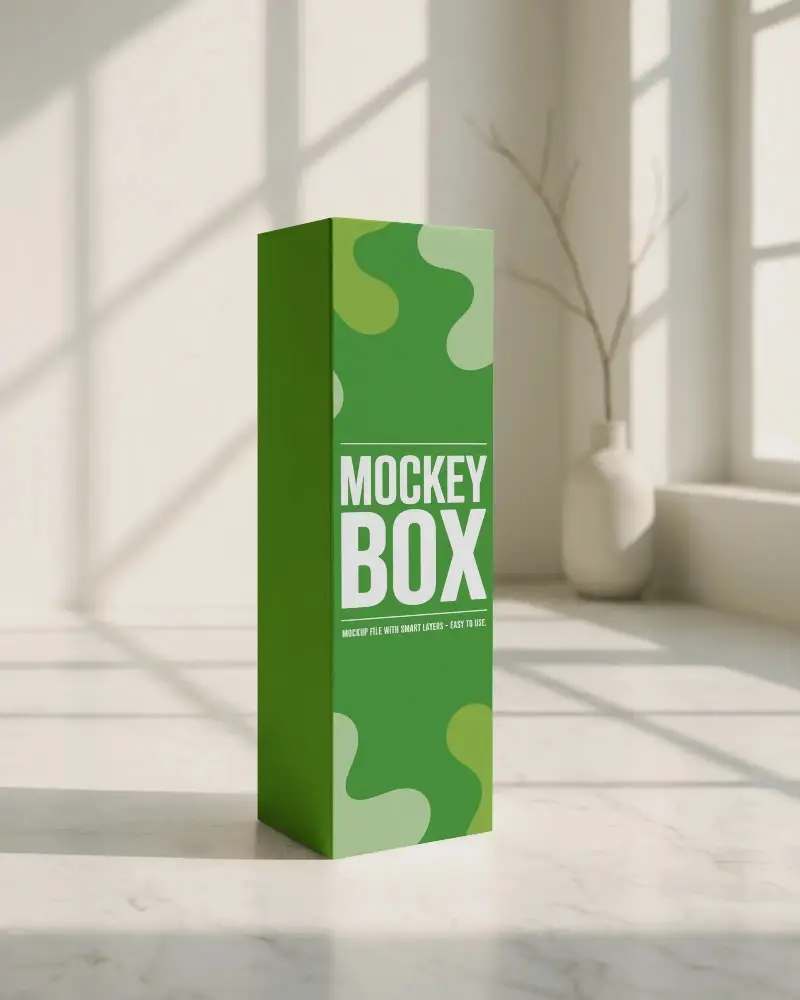
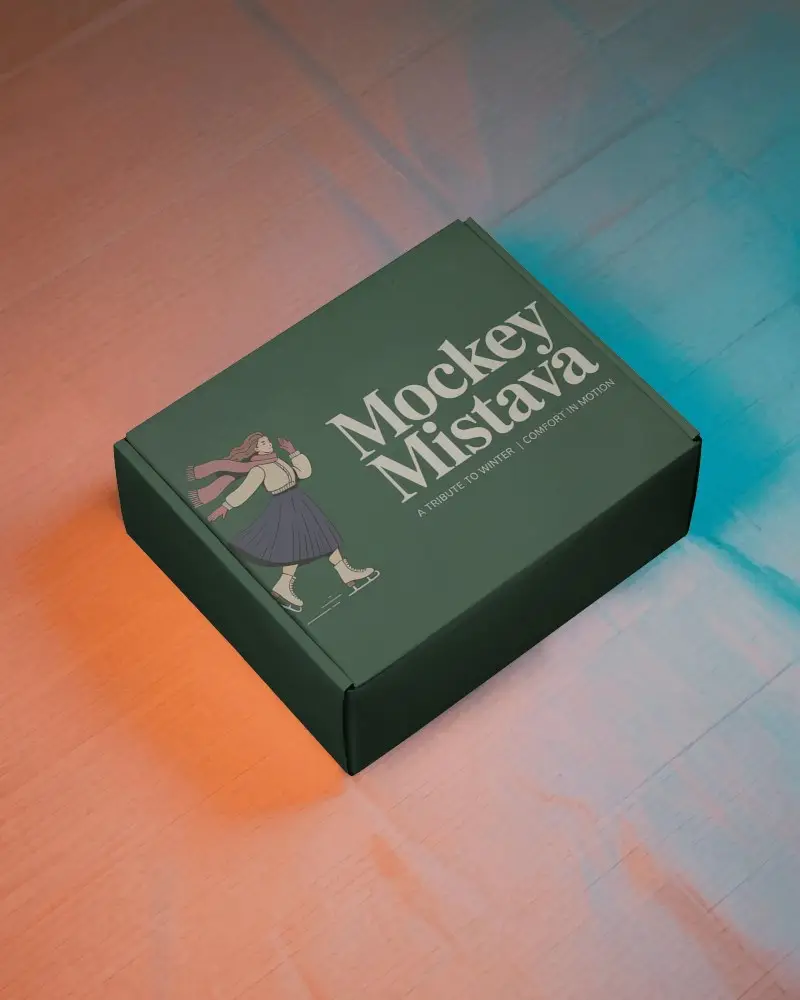
How to Create White Box Mockup with Mockey
To create a white box mockup in Mockey AI:
- Step 1: Navigate to Mockups > Packaging > Box > White and choose a template from the library.
- Step 2: On the following page, you'll find the option to upload your design and adjust the template's colors in the Edit section. If you upgrade to the Creator Plan, you can also access AI tools.
- Step 3: Finally, click the Download button to save your White Box mockup in either PNG or JPEG format, available in various sizes.

FAQs on White Box Mockups
What is a White Box Mockup?
A white box mockup is a customizable digital template that displays packaging designs on a plain, unbranded box. It provides editable layers to preview logos, colors, and branding elements realistically.
Why create a White Box Mockup?
Design a white box mockup to preview product structure, test functionality, and display concepts with a clean, distraction-free look, free from colors or branding.
Why Use Mockey’s White Box Mockup?
Mockey's white box mockup simplifies customization, delivers natural product previews, and enables budget-friendly design testing.
Is this White Box Mockup Free?
At Mockey AI, certain white box mockups are available at no cost, while some require payment or a subscription.
How can I create a White Box Mockup?
To make a white box mockup on Mockey.ai, start by choosing a box template from the Packaging section. Upload your design, adjust the colors and background, and enhance the look with AI Anime and Photoshoots. Lastly, download your white box mockup without a watermark. For a clean and professional appearance, use a white background.