Free Flap Box Mockup Online
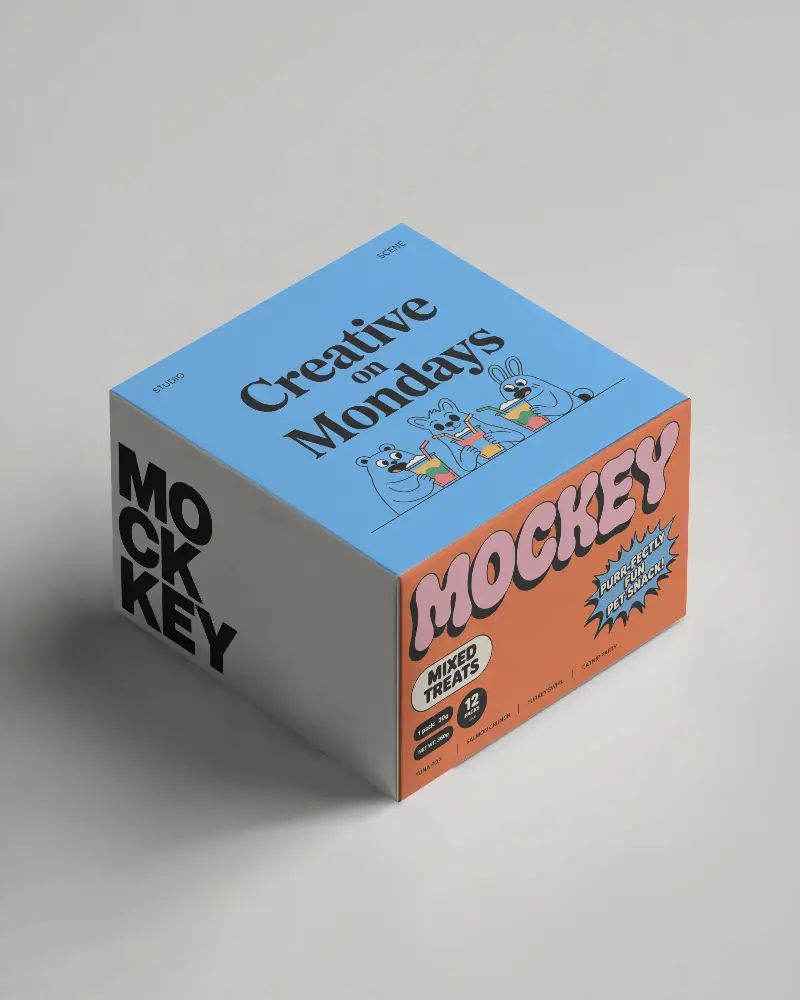
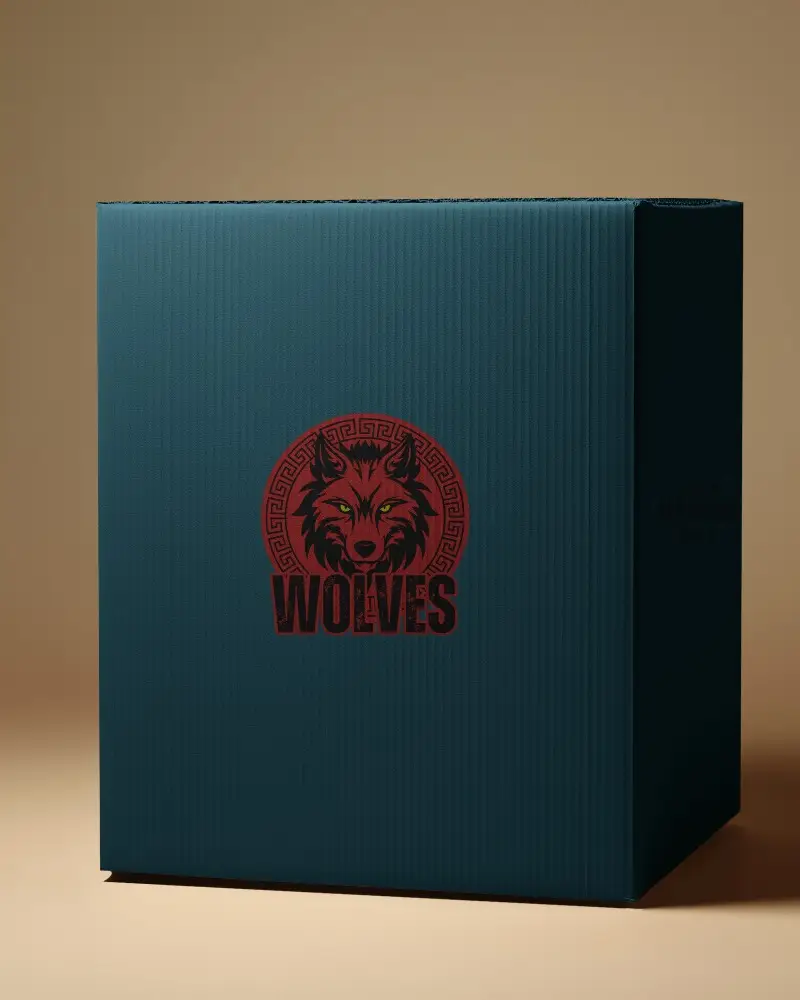
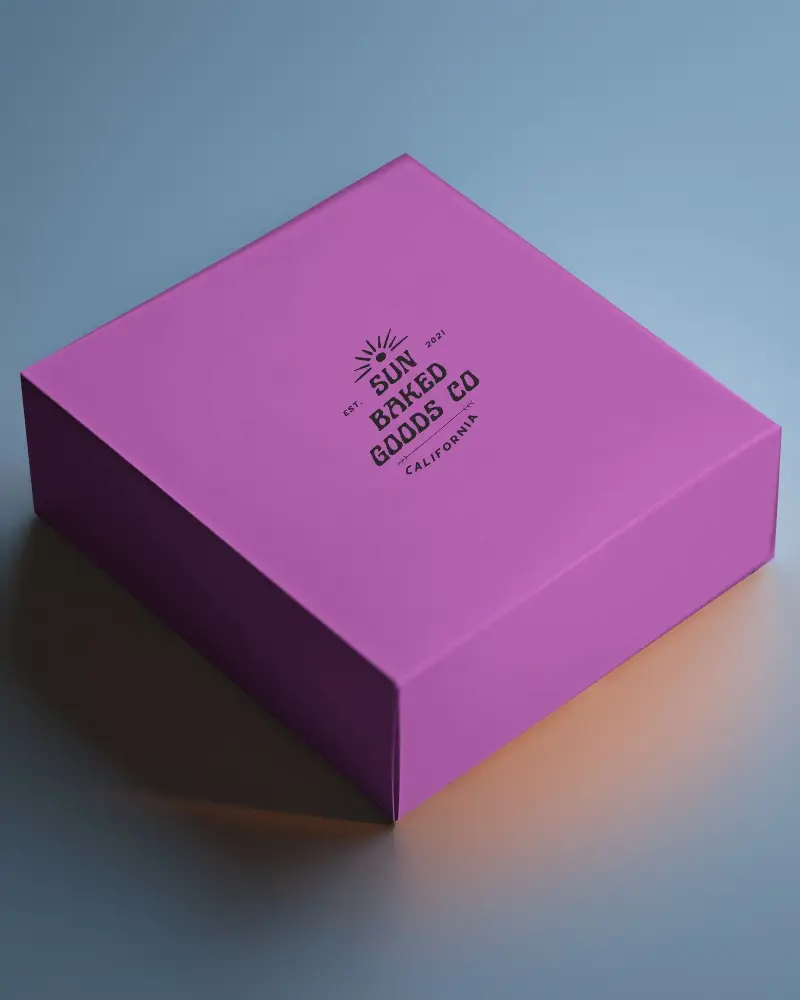
Create stunning flap box mockups with Mockey.ai! Customize designs, textures, and lighting for realistic packaging previews in seconds.
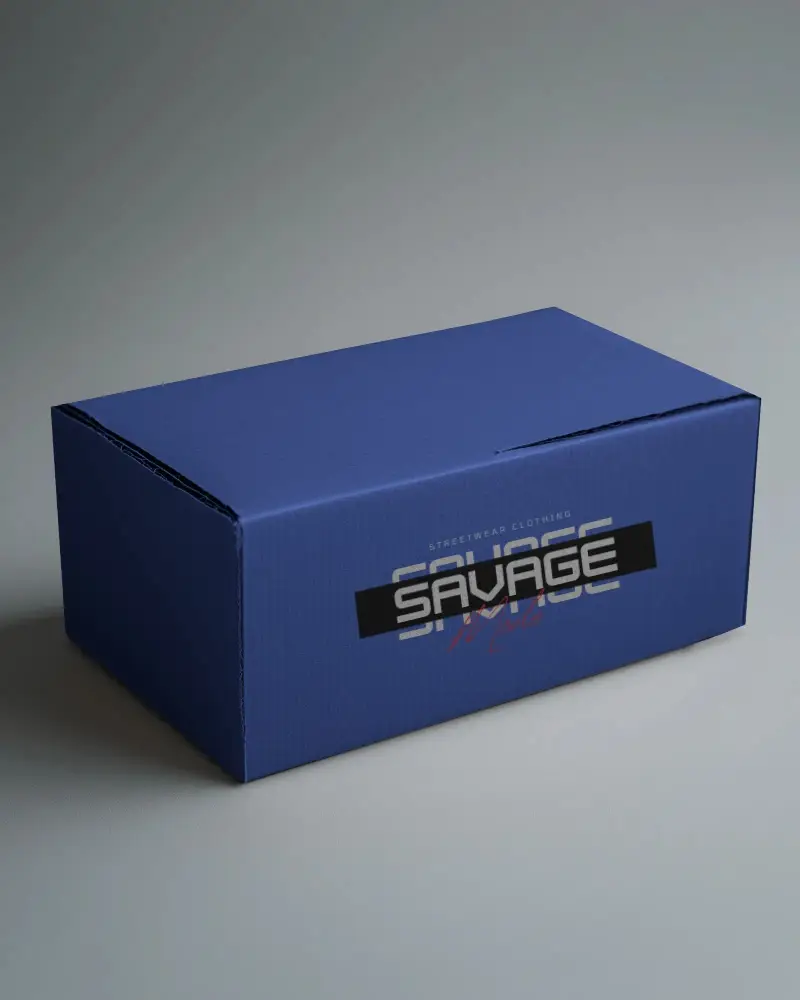
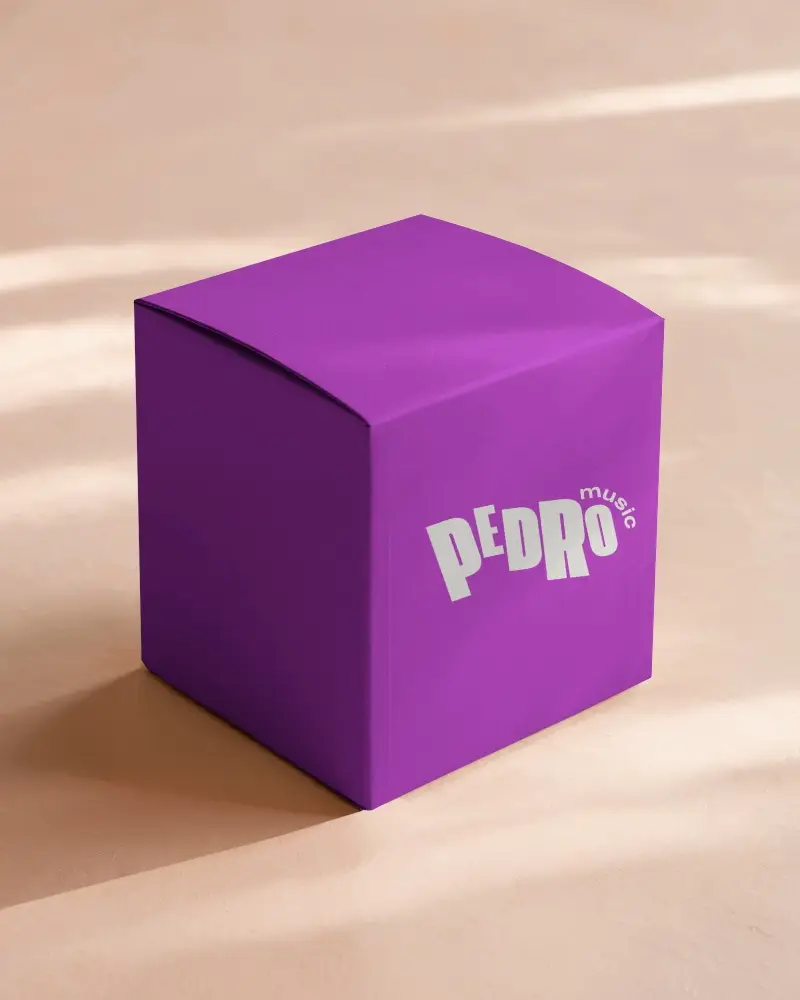
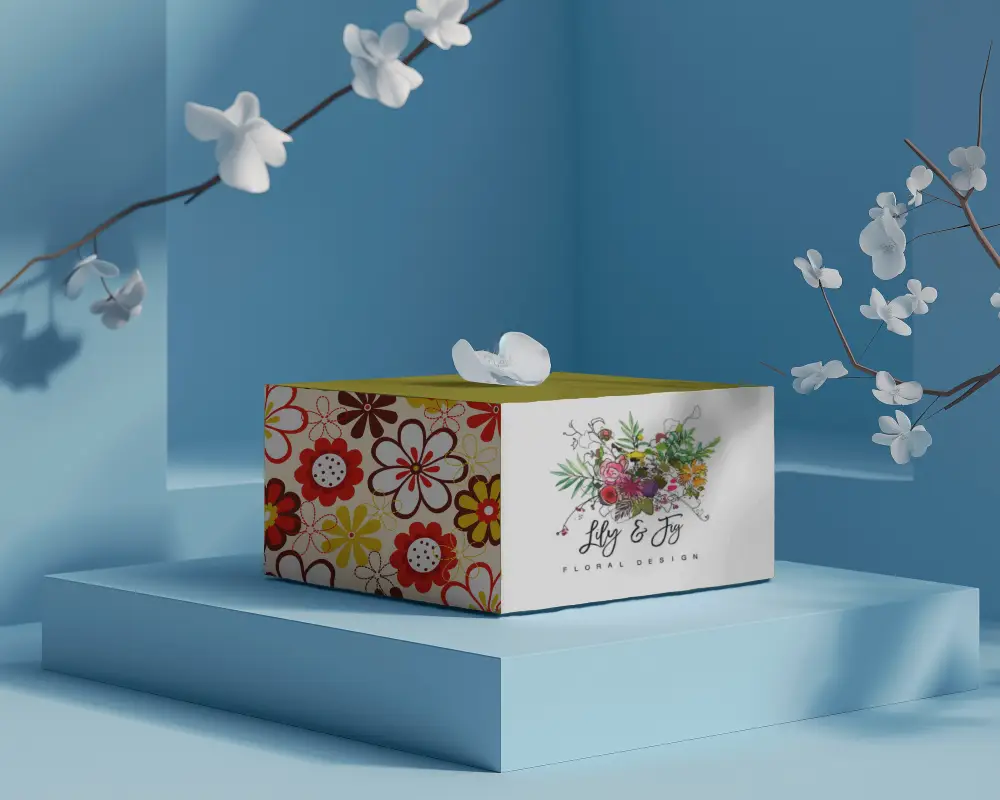
.png)
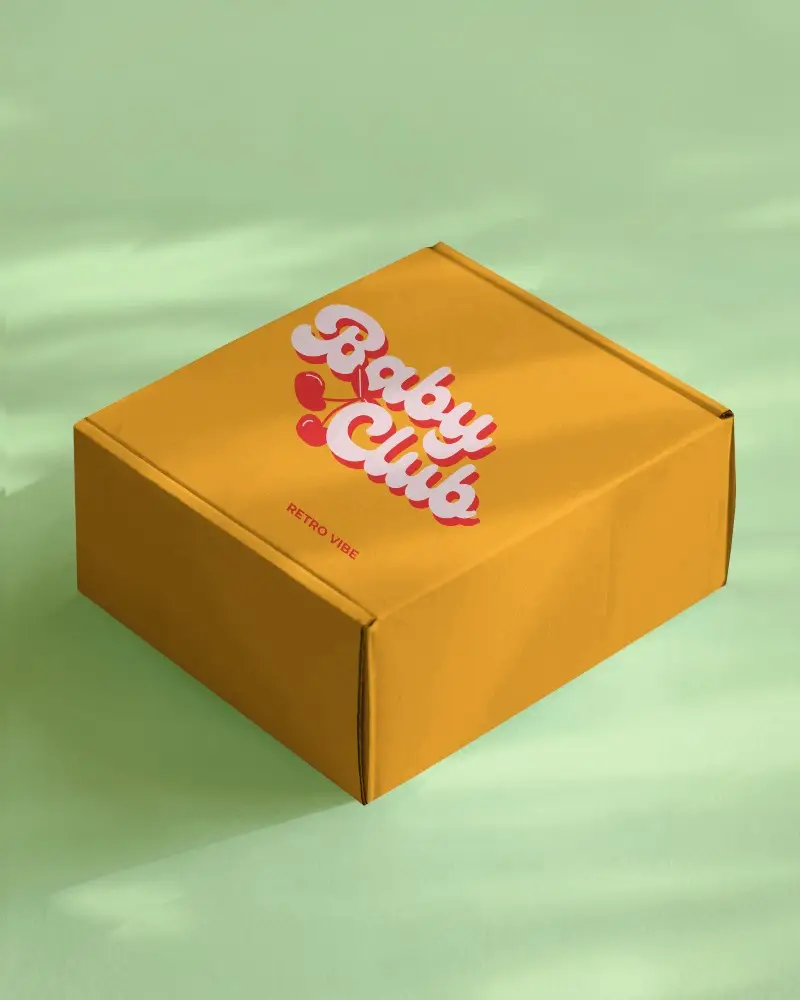
.png)
.png)
(1).png)
.png)
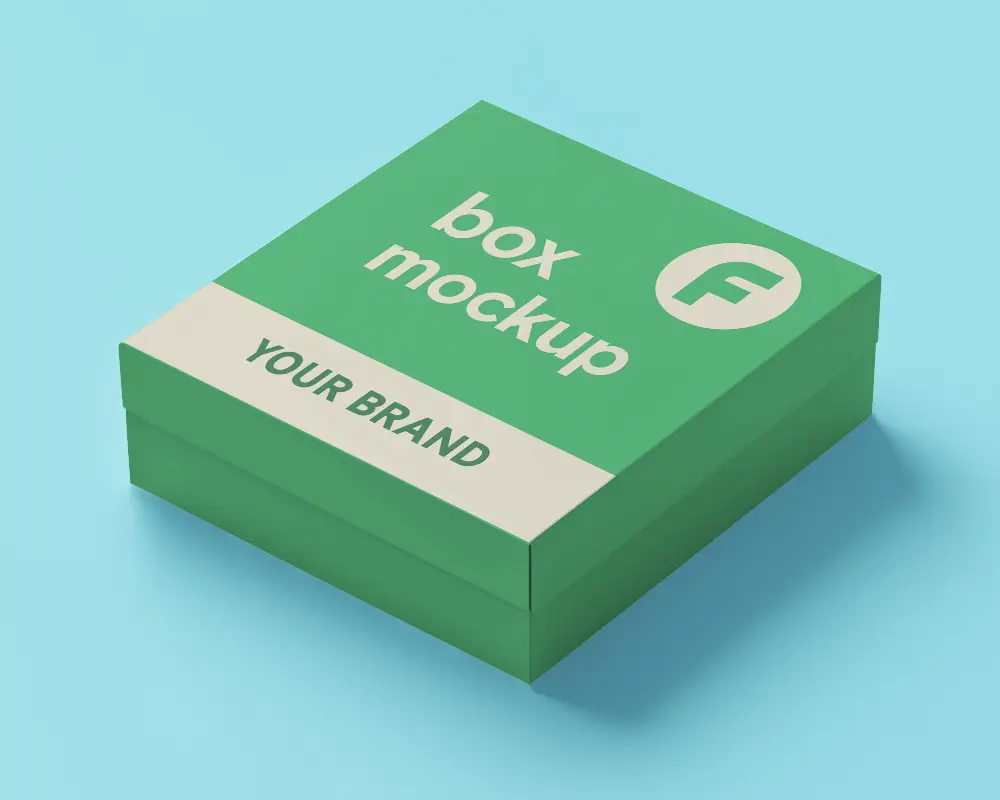
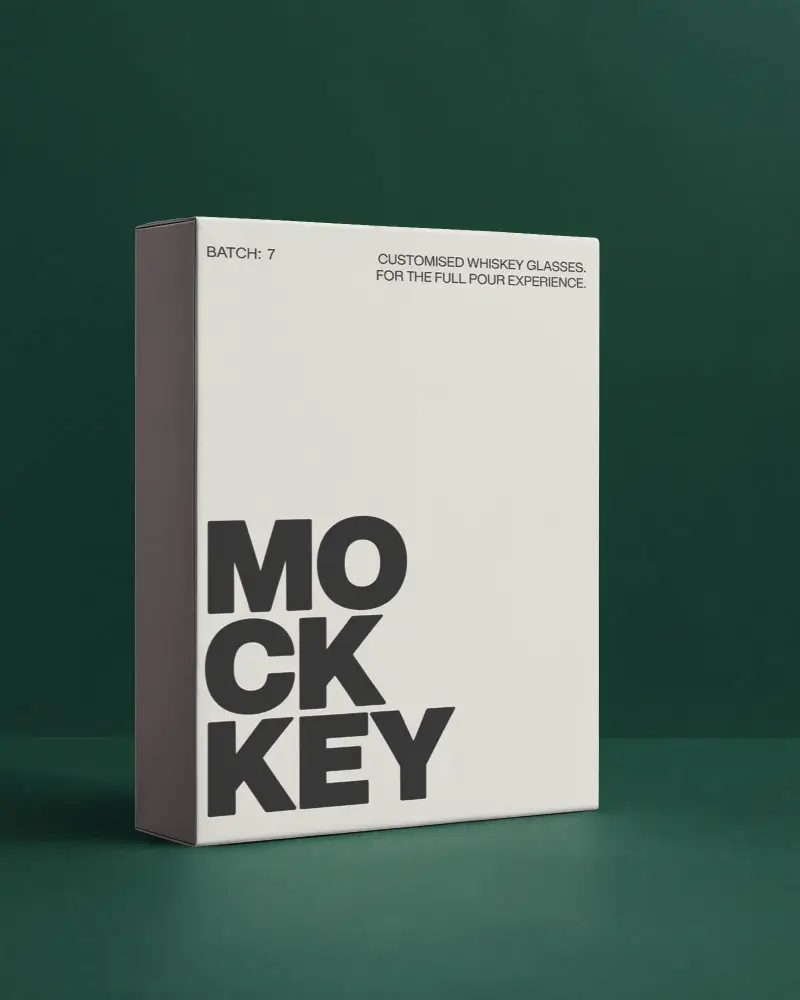
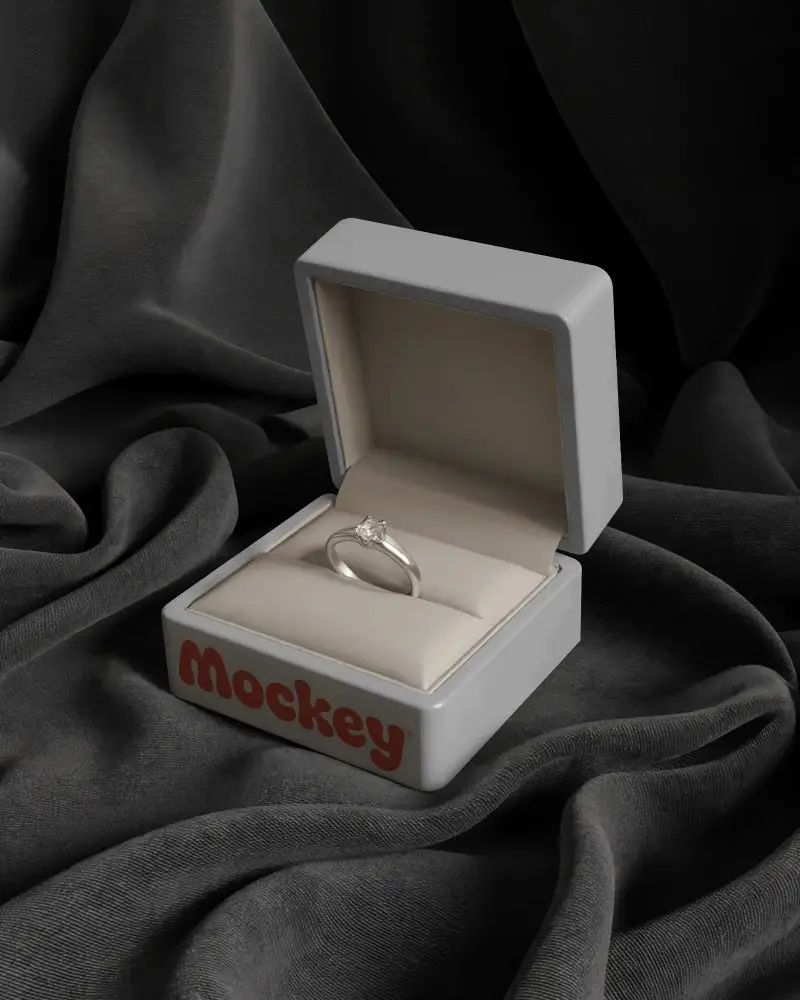
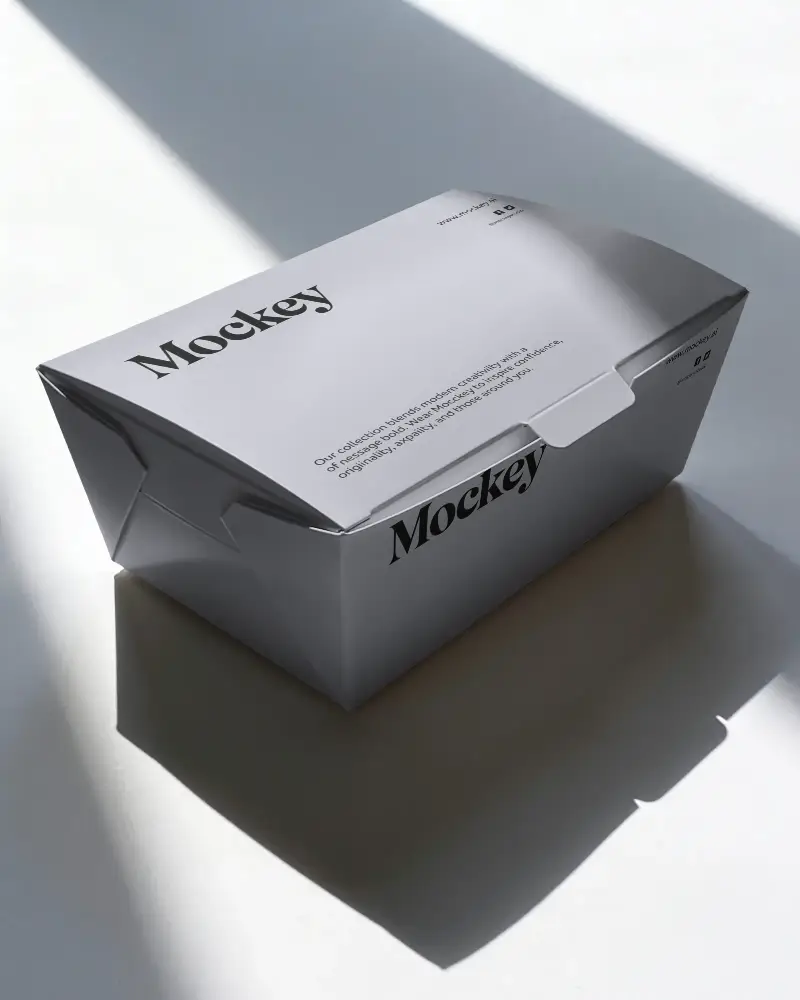
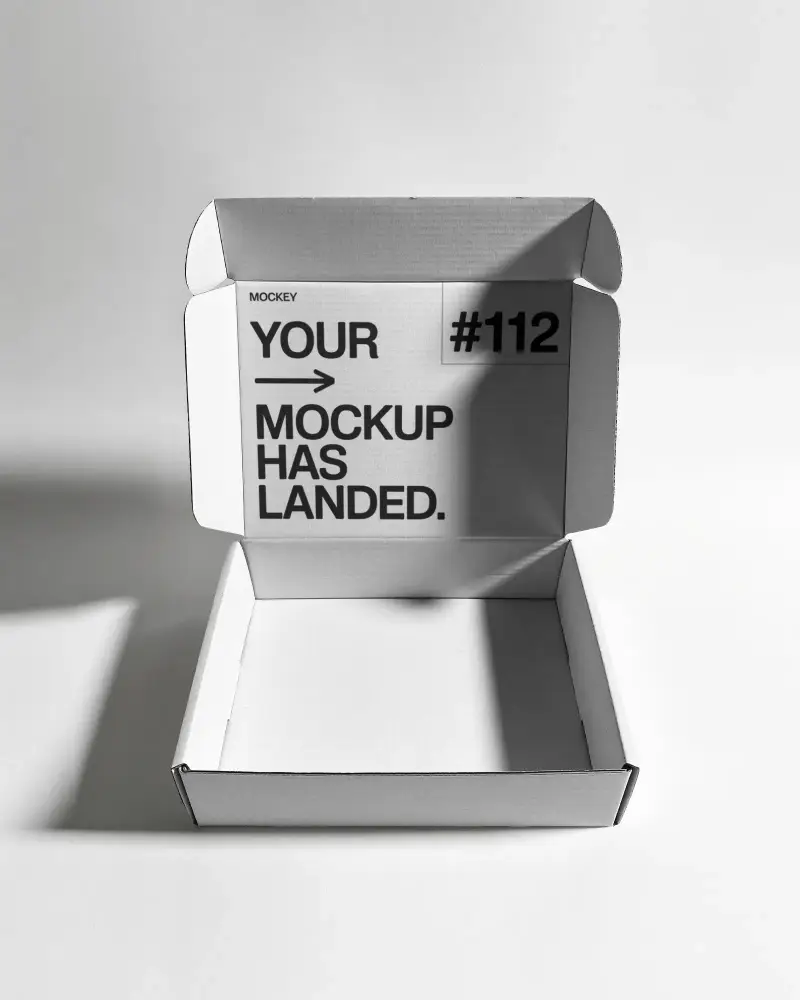
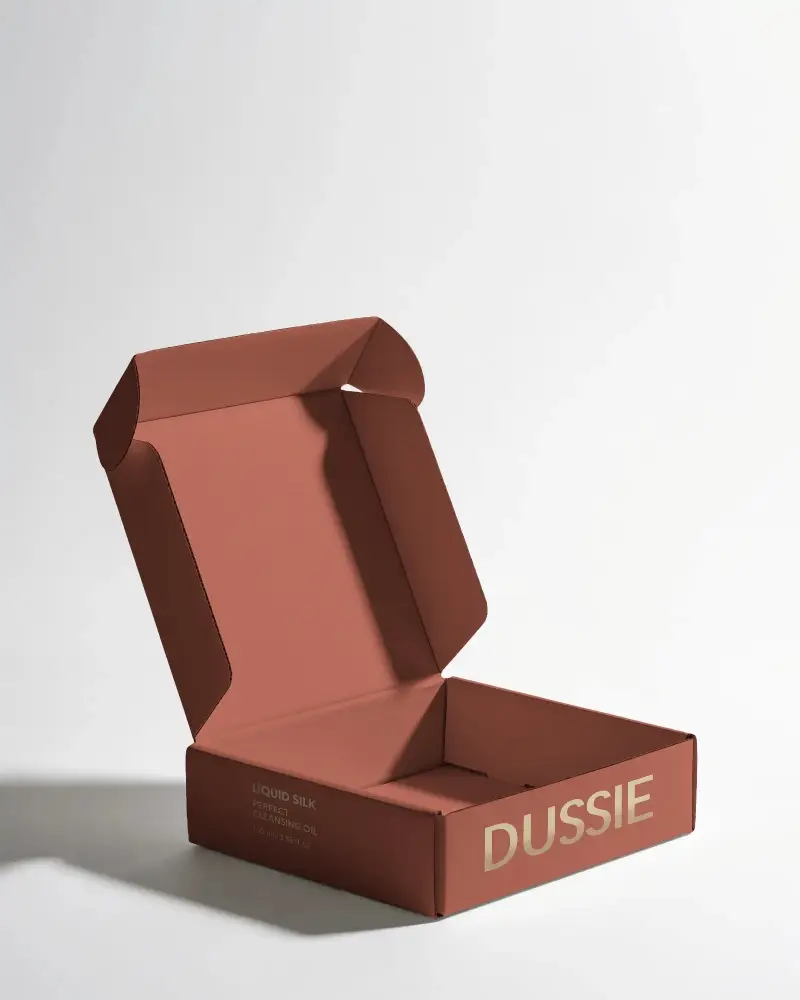
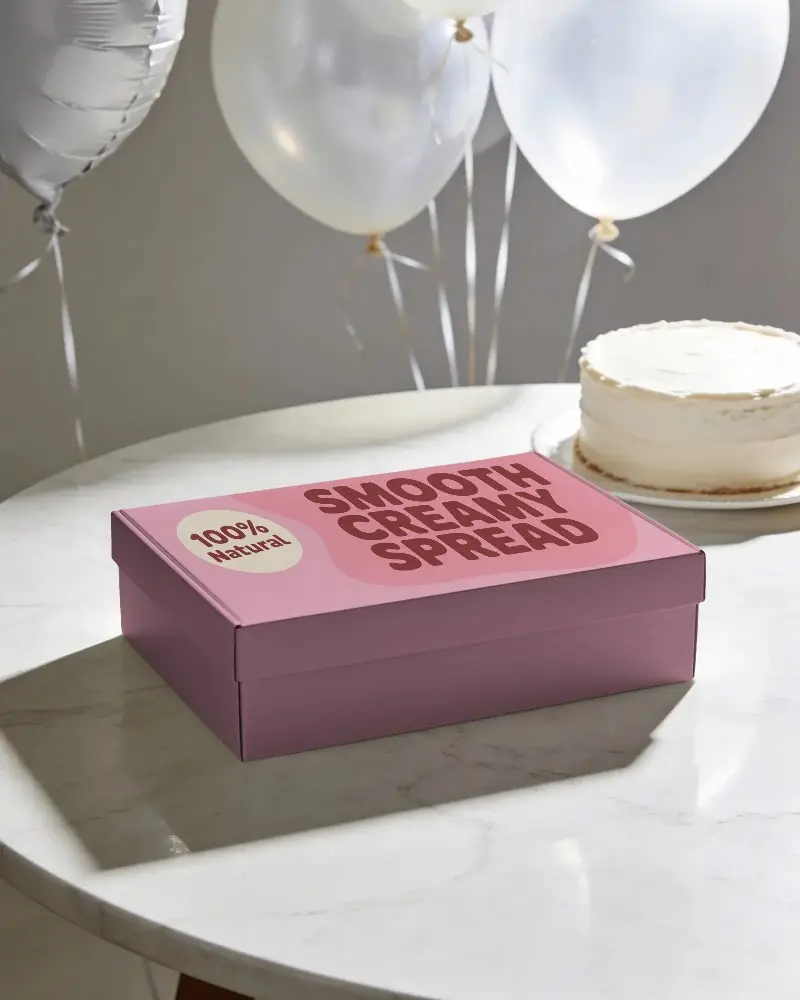
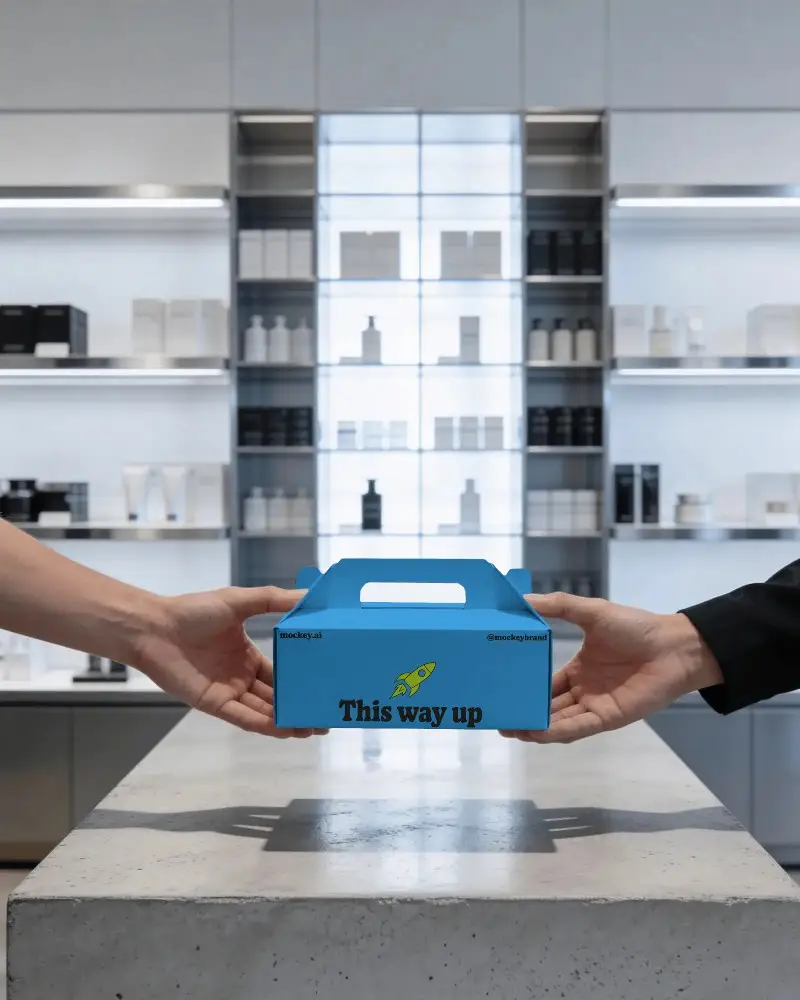
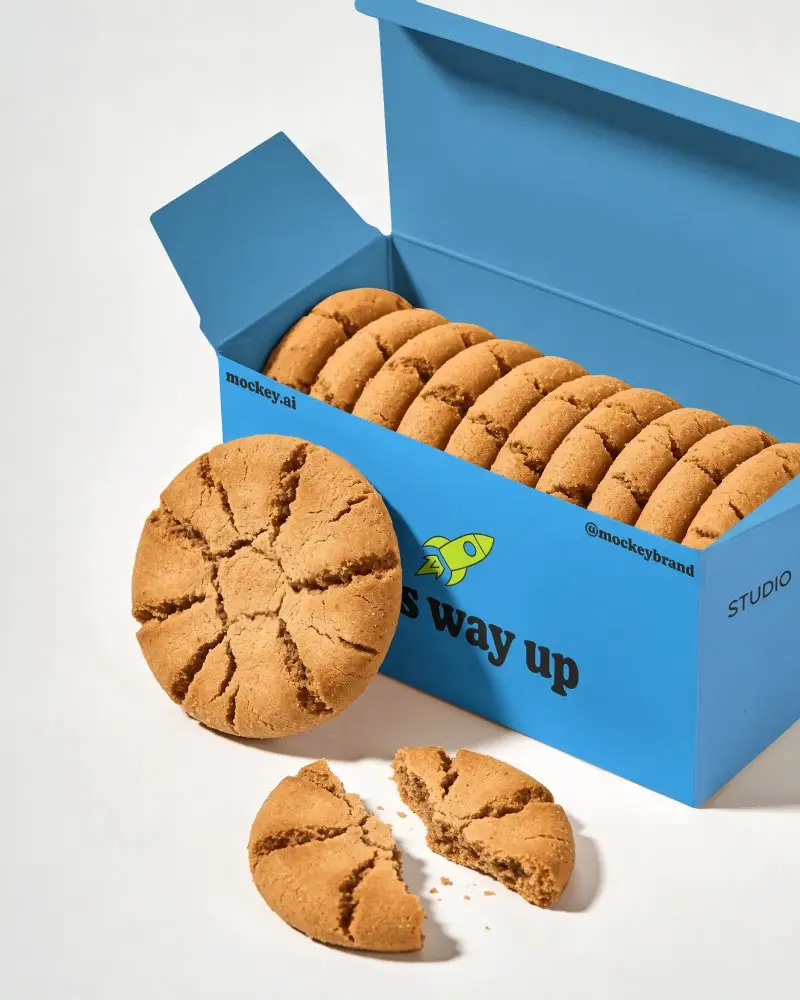
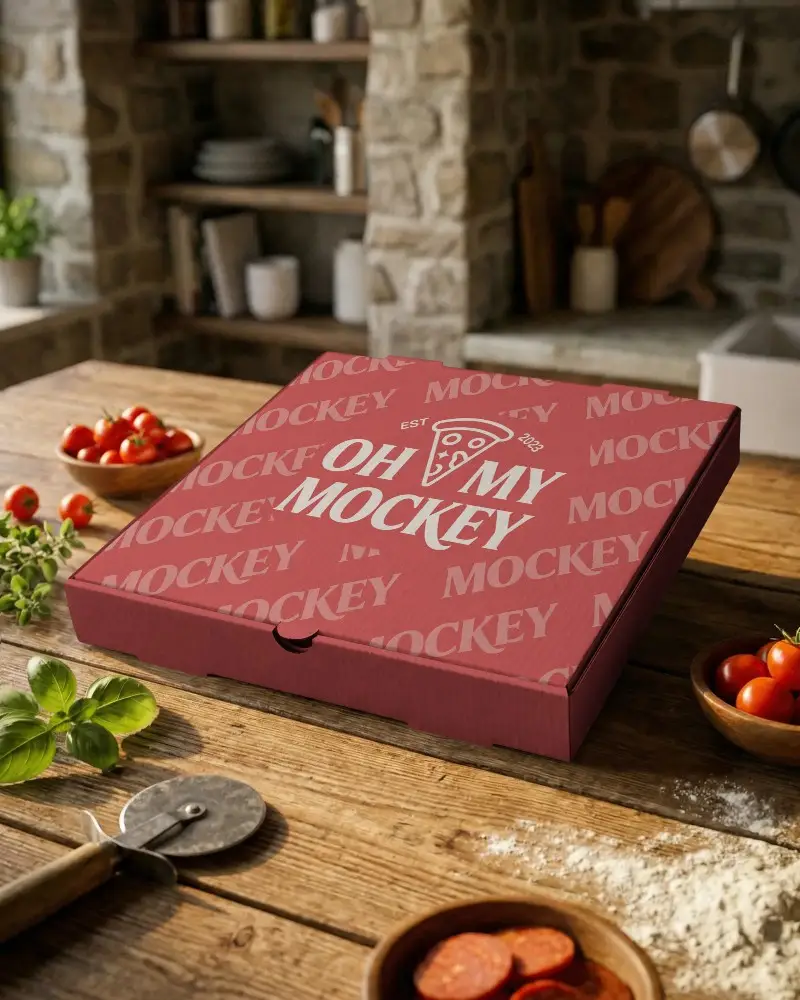
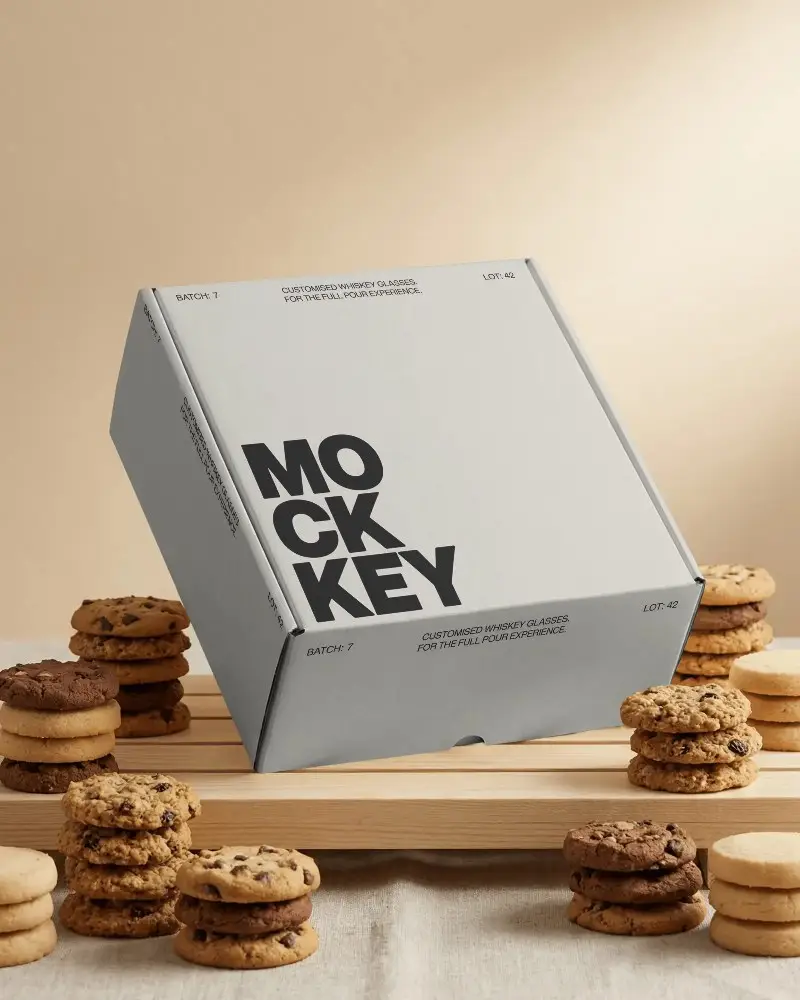
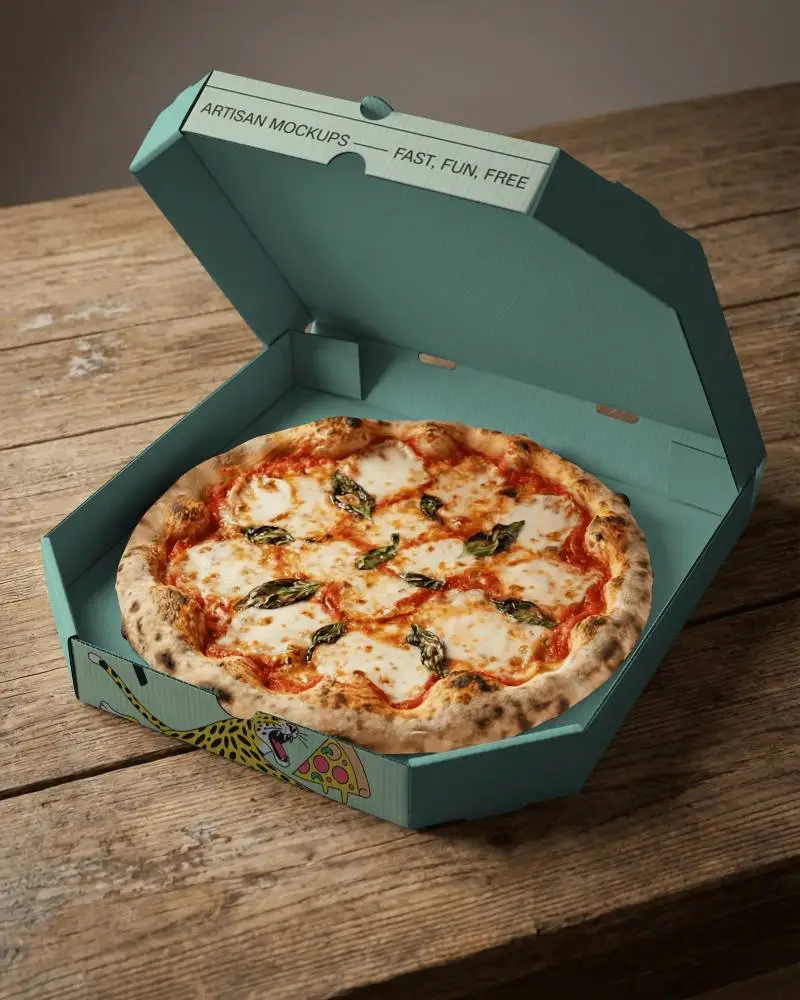
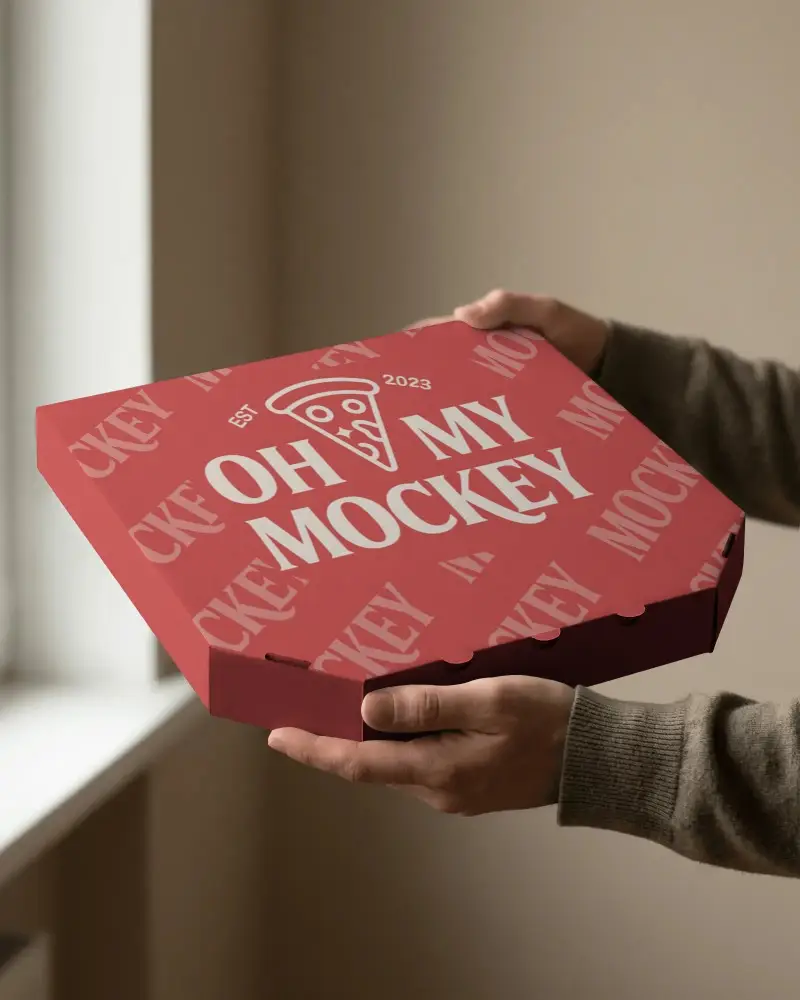
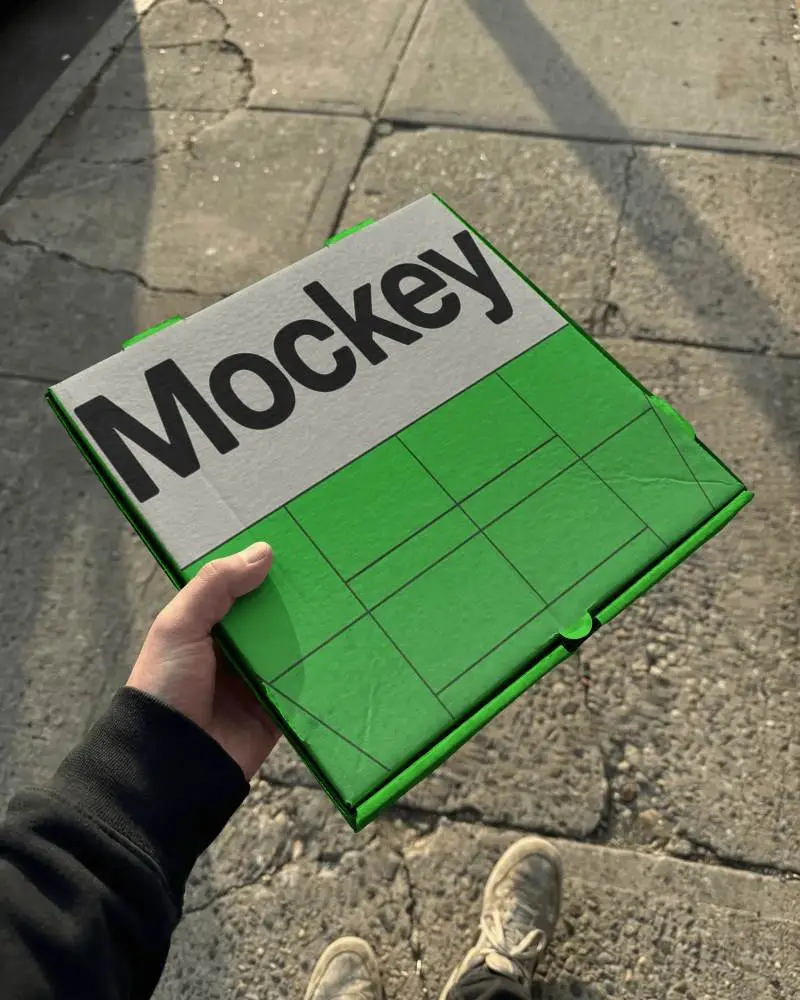
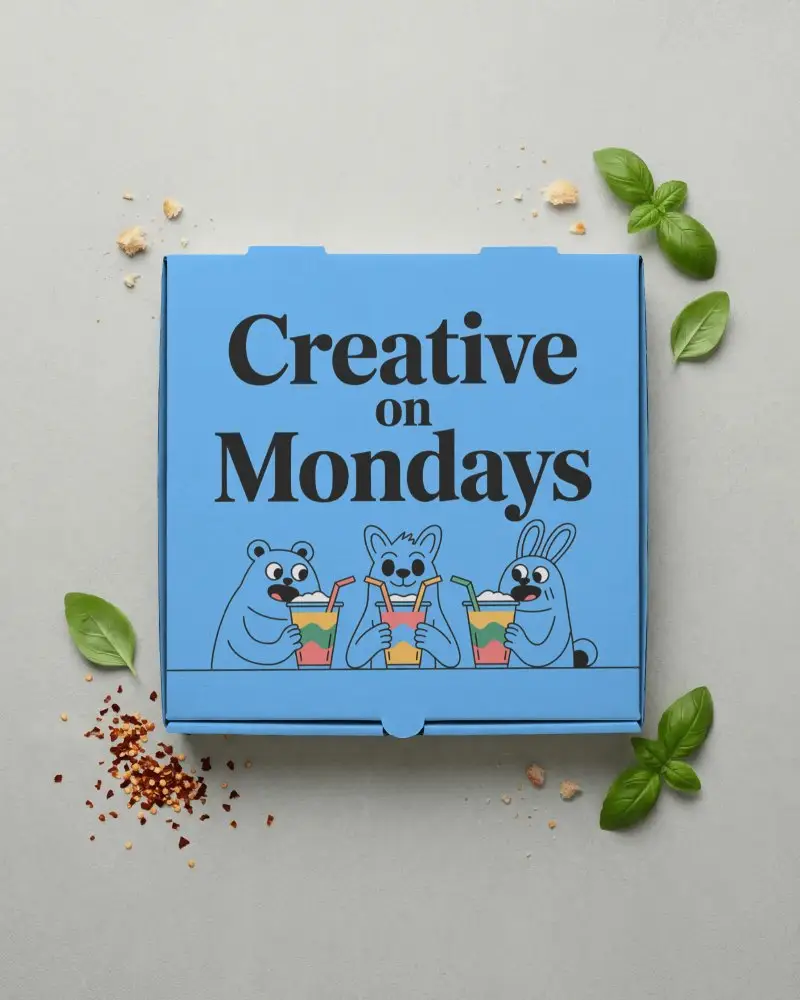
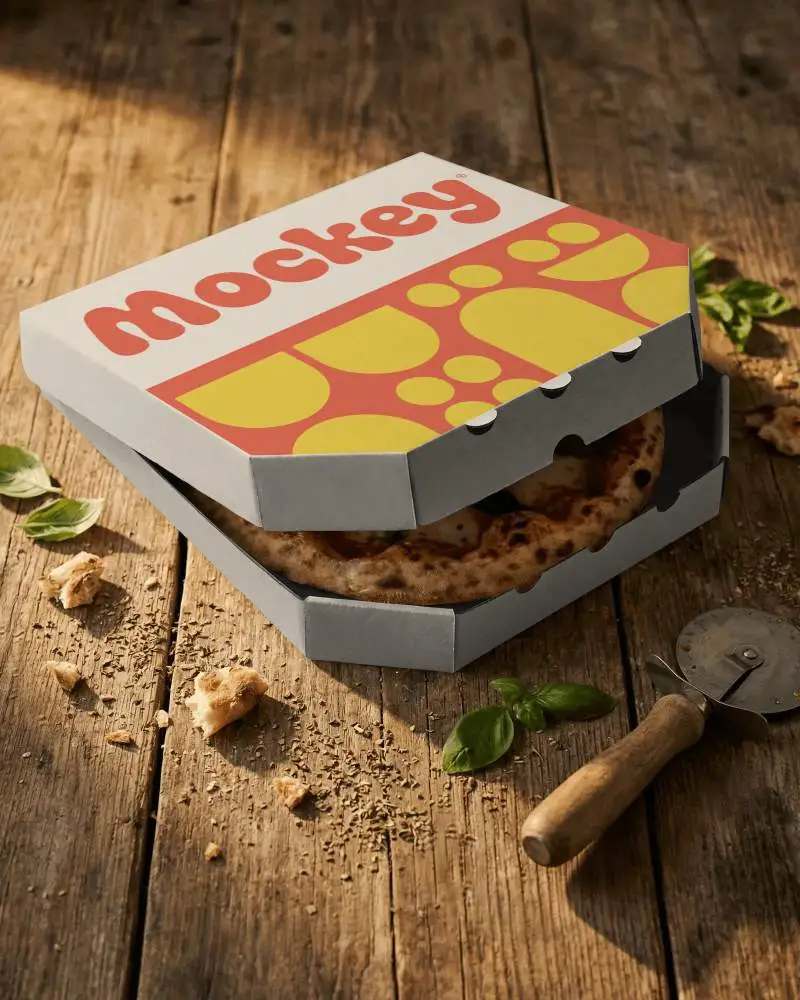
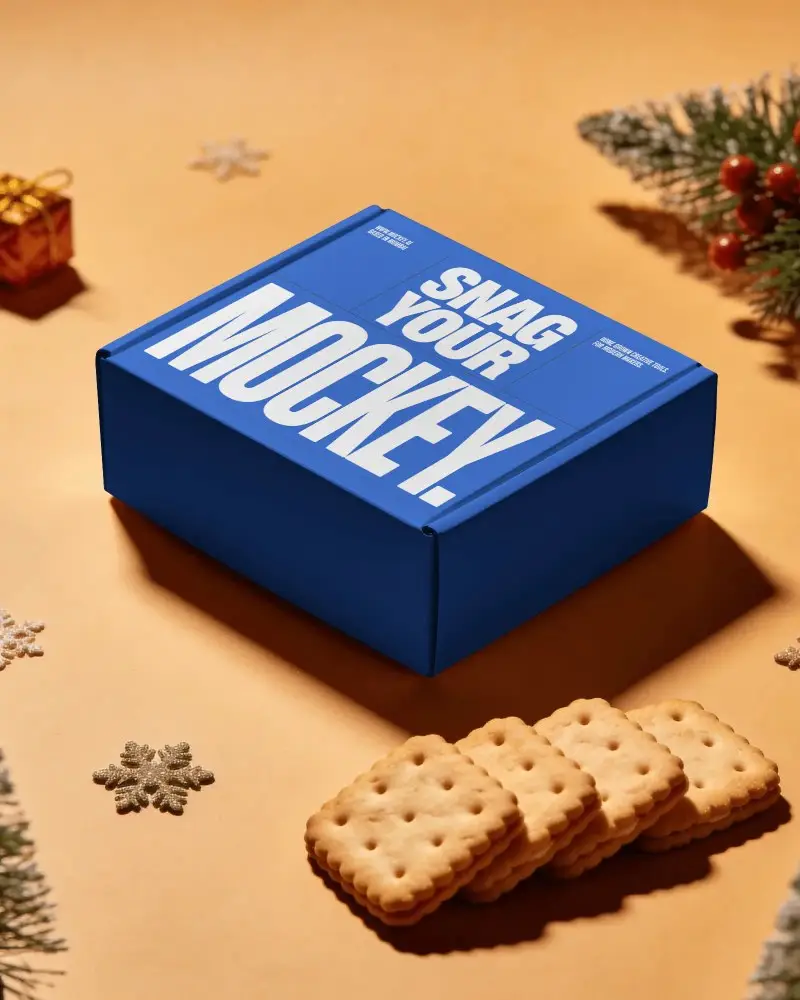
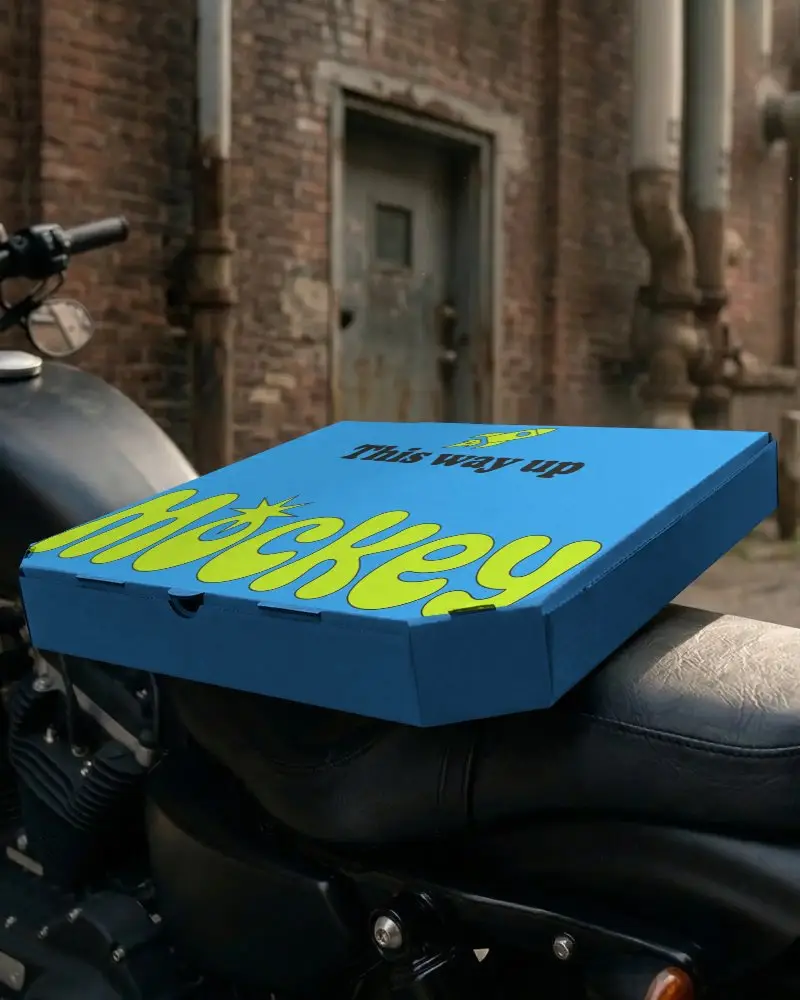
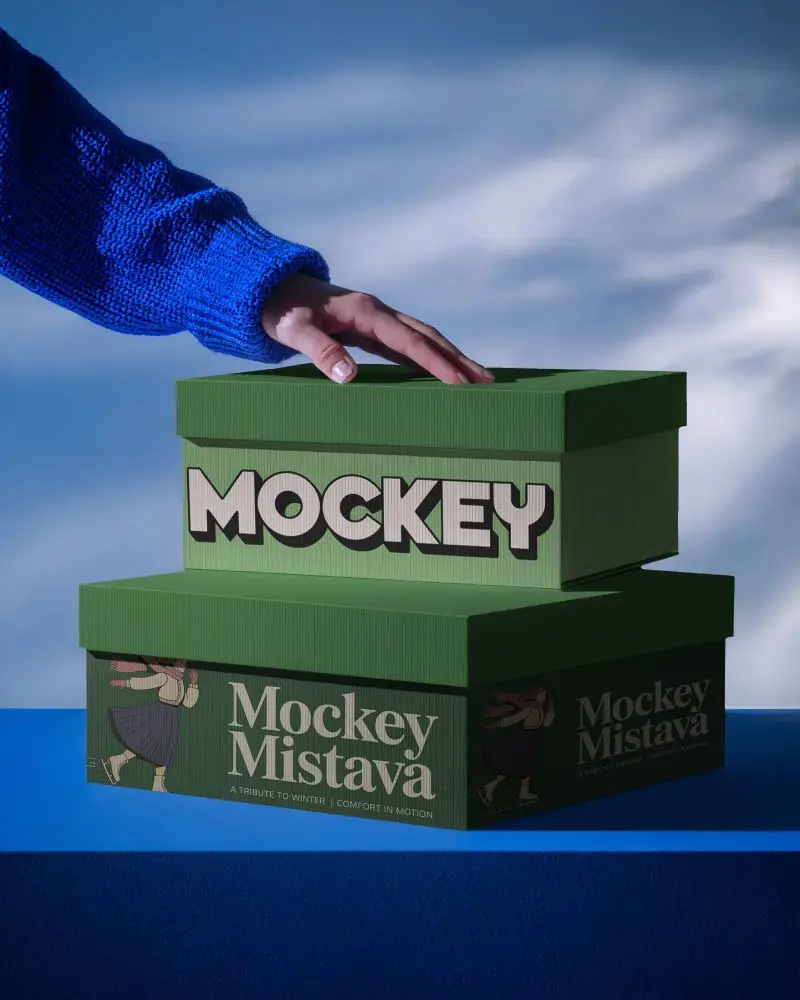
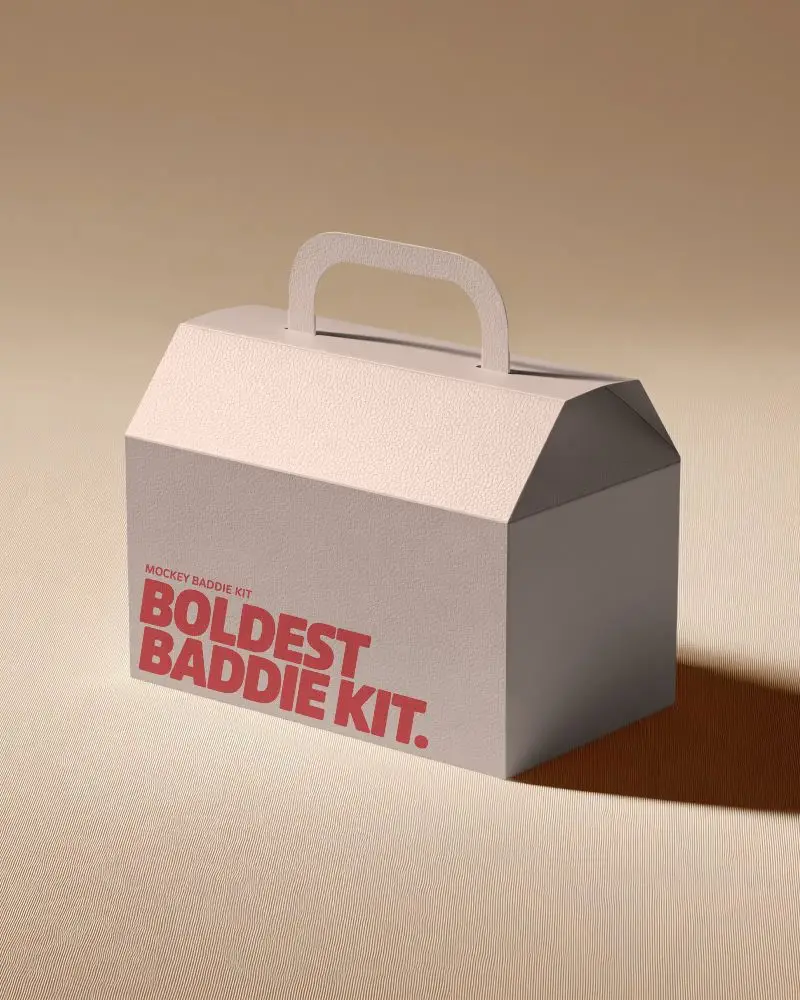
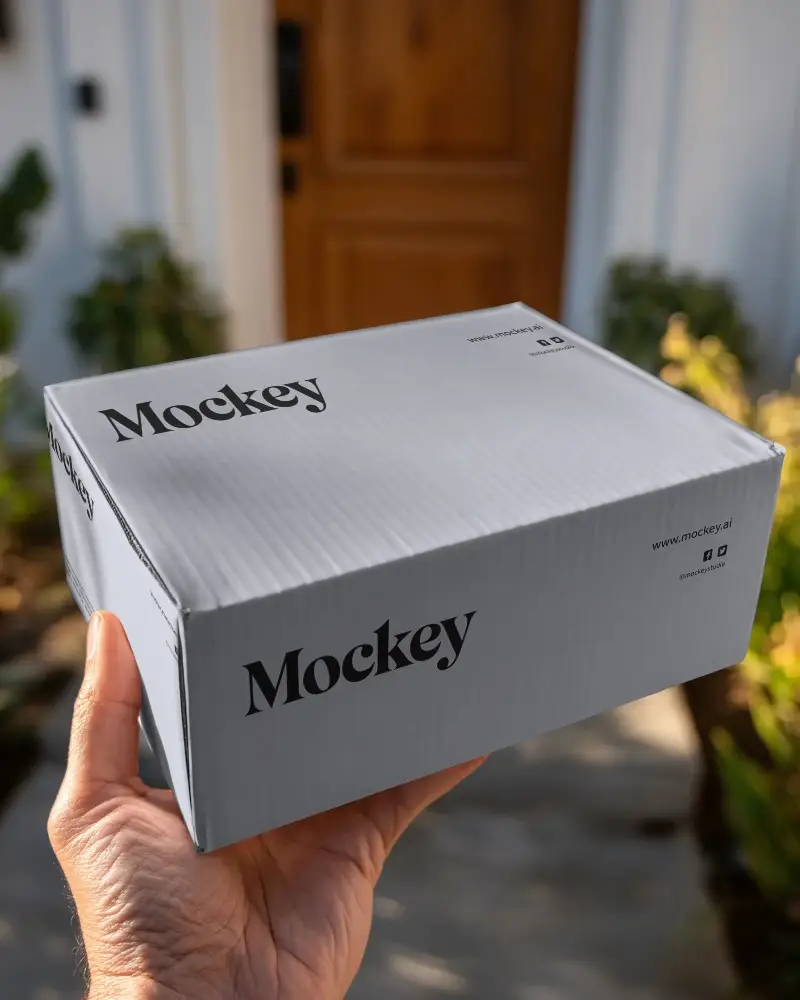
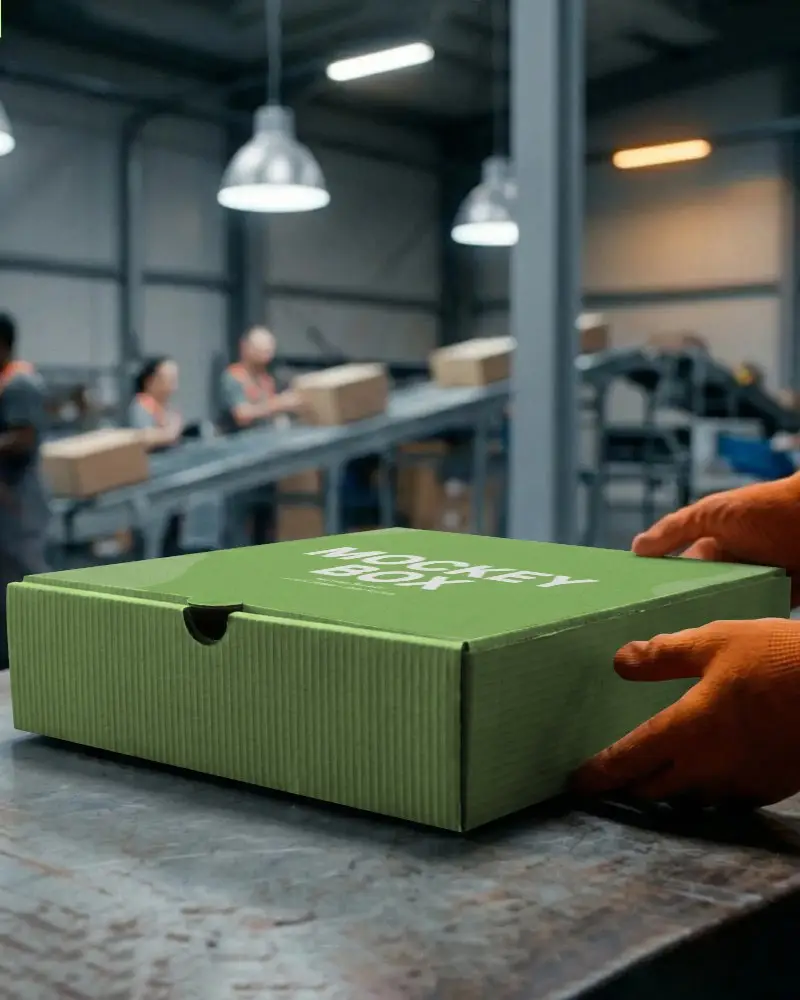
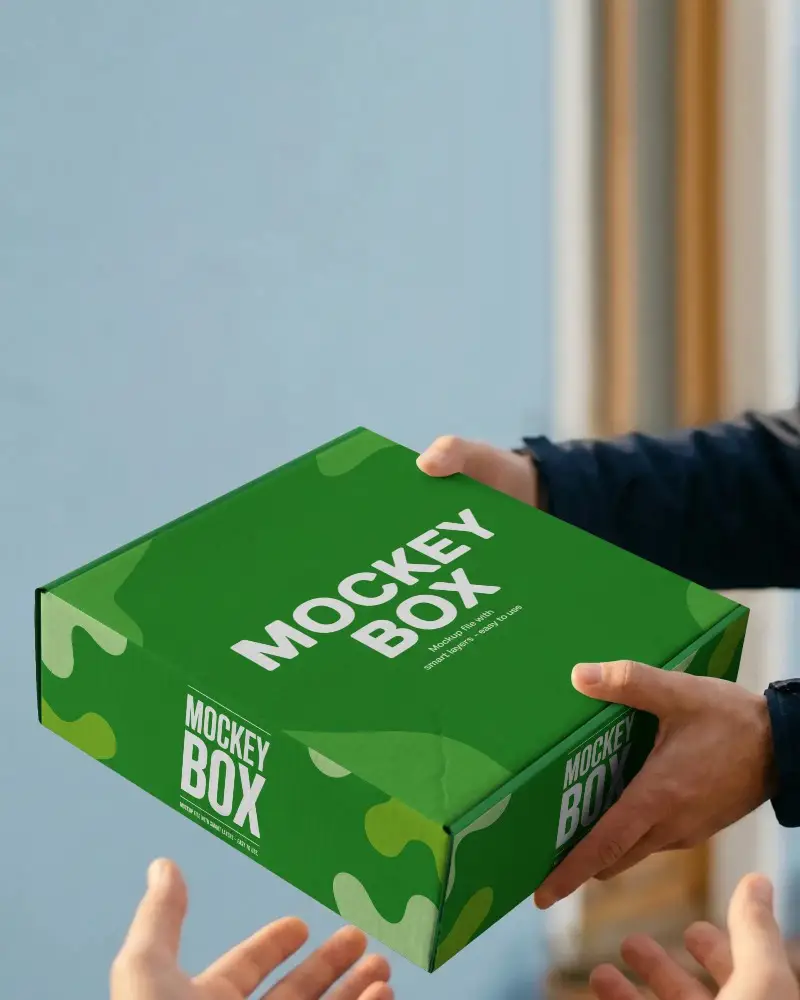
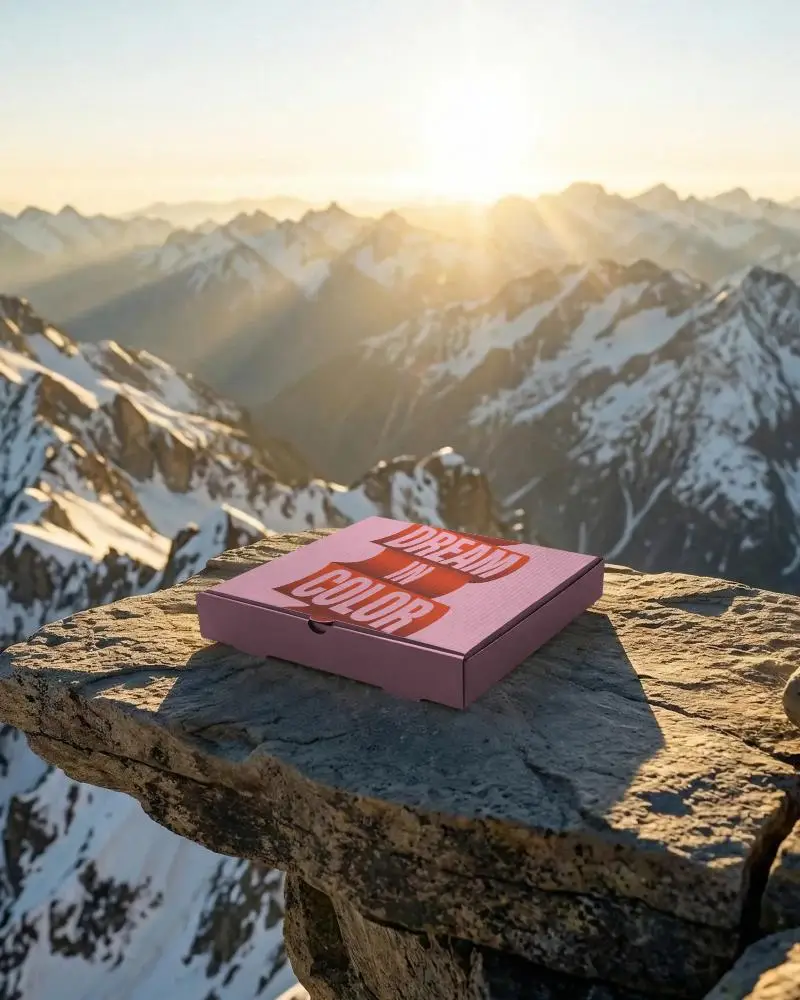
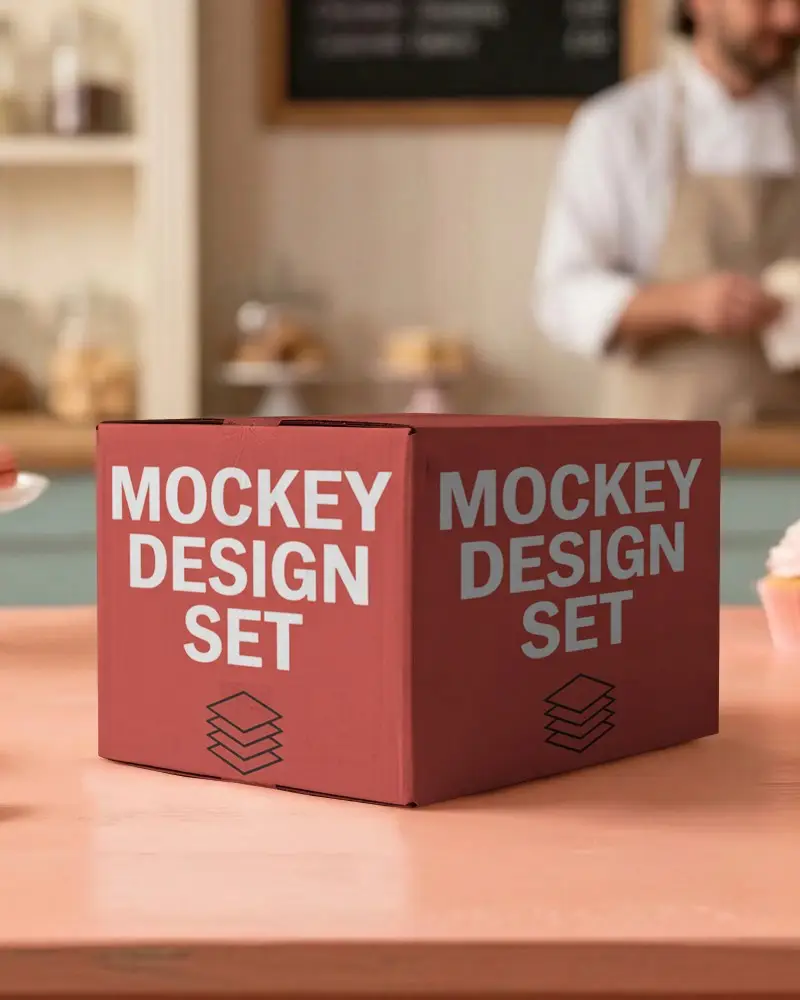
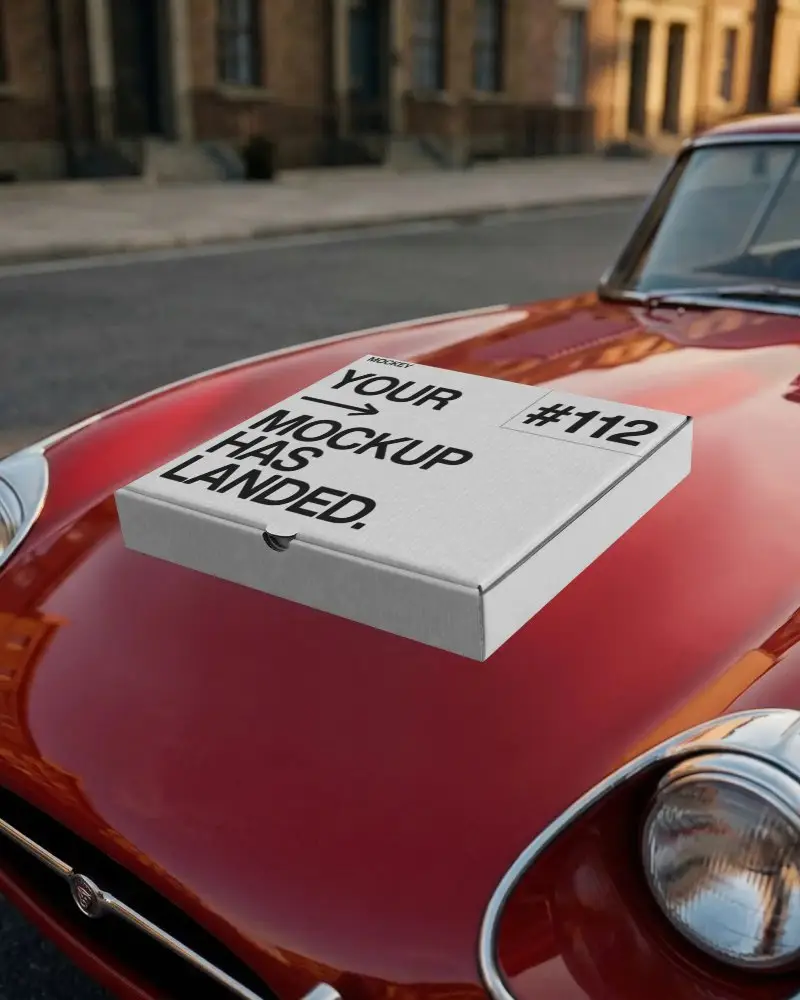
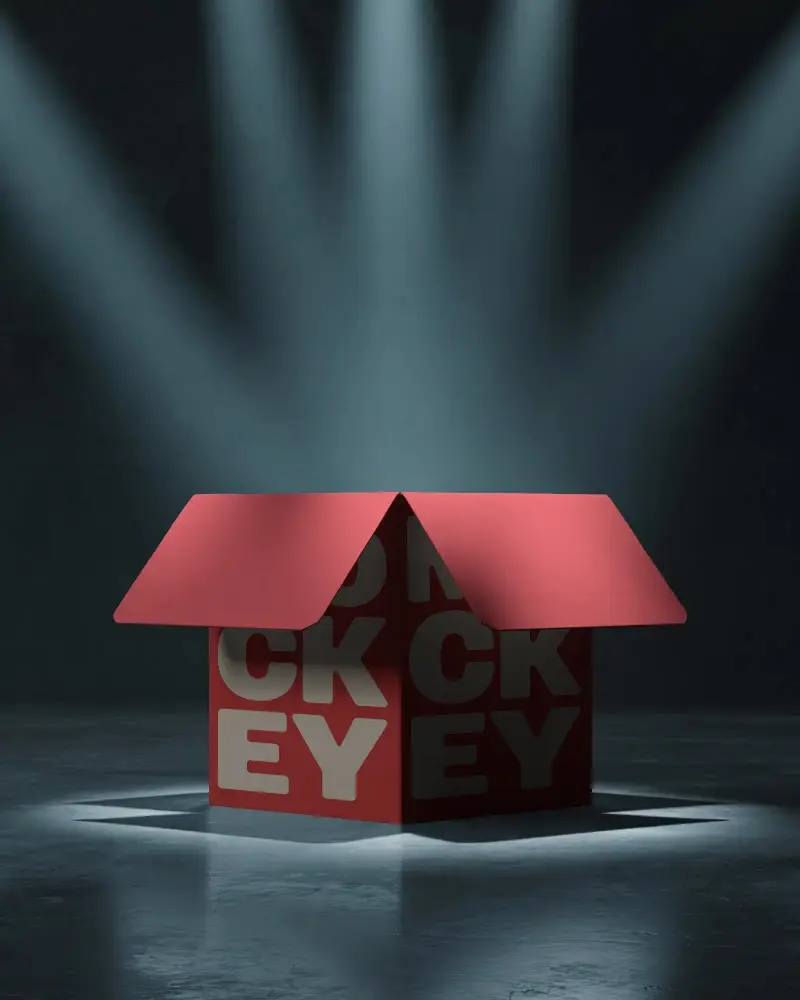
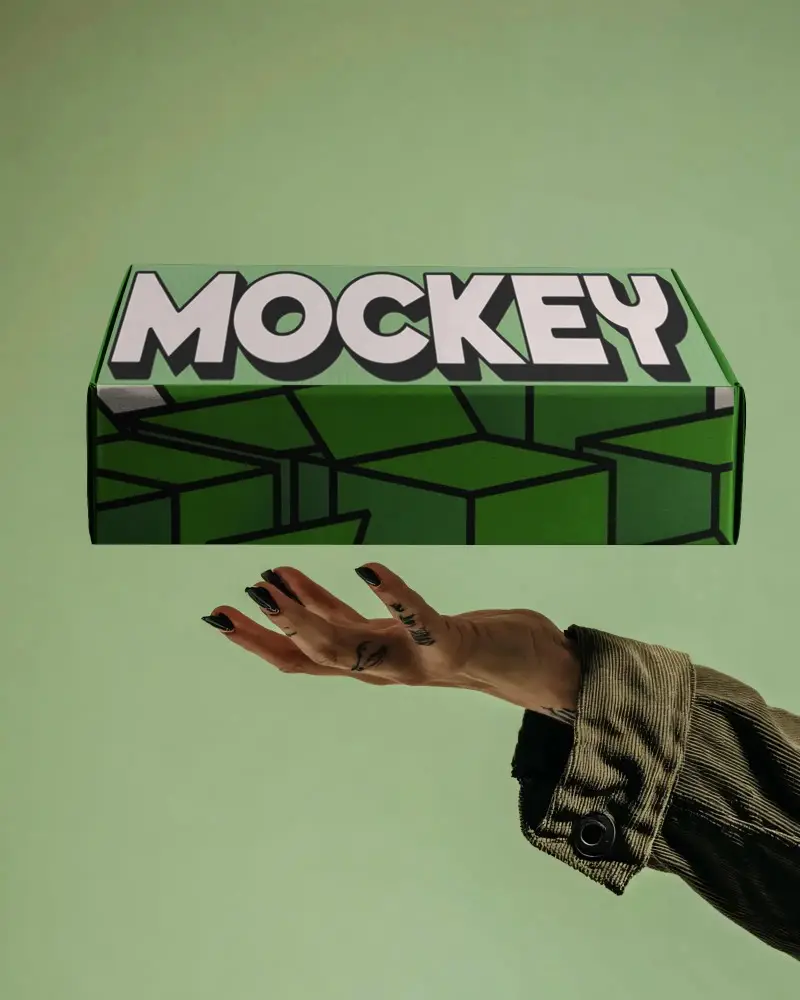
How to Create Flap Box Mockup with Mockey
To create a flap box mockup in Mockey AI:
- Step 1: Navigate to Mockups > Packaging > Box > Flap and choose a template from the library.
- Step 2: On the following page, you'll find the option to upload your design and adjust the template's colors in the Edit section. If you upgrade to the Creator Plan, you can also access AI tools.
- Step 3: Finally, click the Download button to save your Flap Box mockup in either PNG or JPEG format, available in various sizes.
FAQs on Flap Box Mockups
What is a Flap Box Mockup?
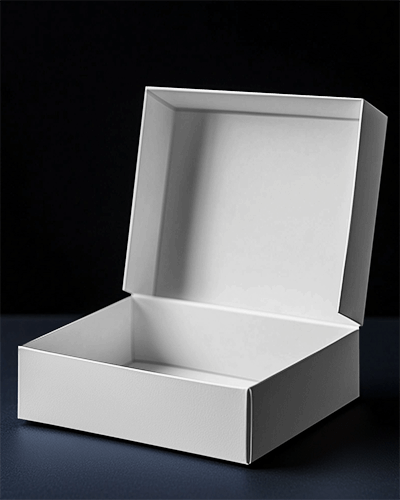
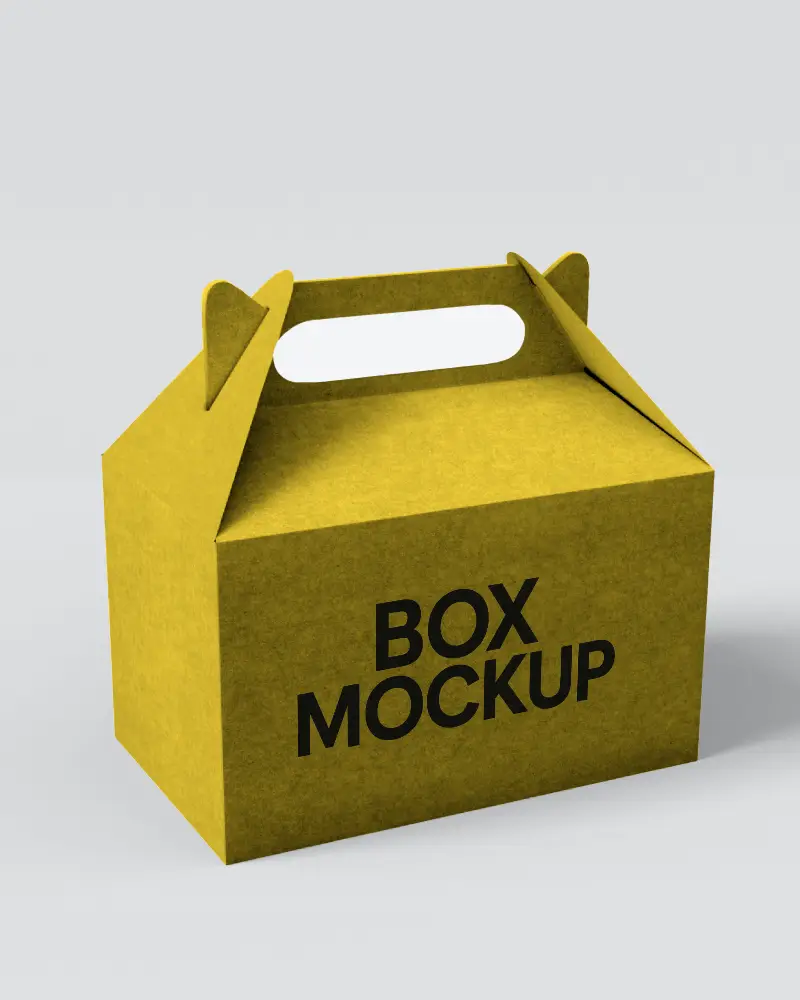
A flap box mockup is a digital preview of a packaging box with foldable flaps, designed to display packaging concepts.
How can I customize a Flap Box Mockup on Mockey?
Navigate to Mockups > Packaging > Box > Flap and select a template. Customize it on the next screen by adjusting the background, using AI Photoshoots, applying AI Anime effects, and modifying colors. Finally, download your flap box mockup in your preferred format.
What file formats are available for Flap Box Mockups?
Mockey.ai offers flap box mockups in JPG format, available in three resolutions: 400 × 500 px, 800 × 1000 px, and 1600 × 2000 px, ready for download.
Can I use Flap Box Mockups for commercial projects?
Yes, Mockey AI allows the use of flap box mockups for commercial projects, provided you comply with the licensing terms specified by the mockup provider.
Do I need design skills to create a Flap Box Mockup?
Basic design skills are helpful but not always necessary; tools like Mockey AI offer easy-to-use templates for creating flap box mockups.
Are Flap Box Mockups on Mockey free to use?
Flap box mockups on Mockey are available for free, allowing users to download them without watermarks.
How do I download my customized Flap Box Mockup?
Click the Download button, choose between PNG or JPEG format, and select your preferred size to save the flap box mockup file.