Black Box Mockup Free to Download
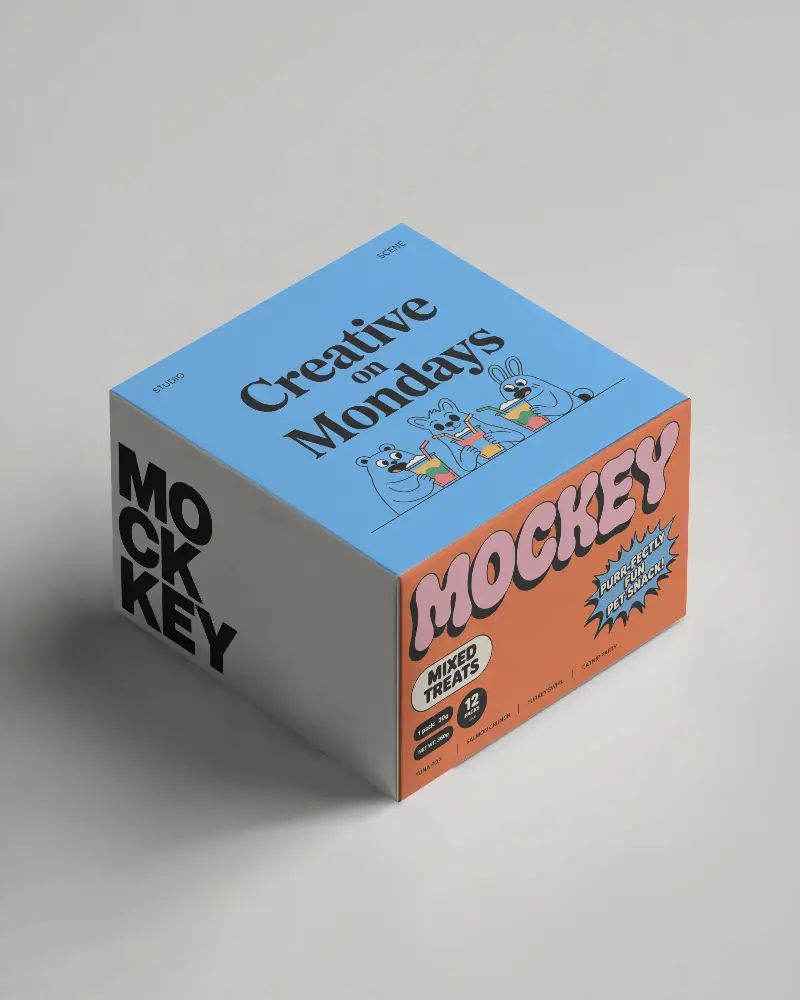
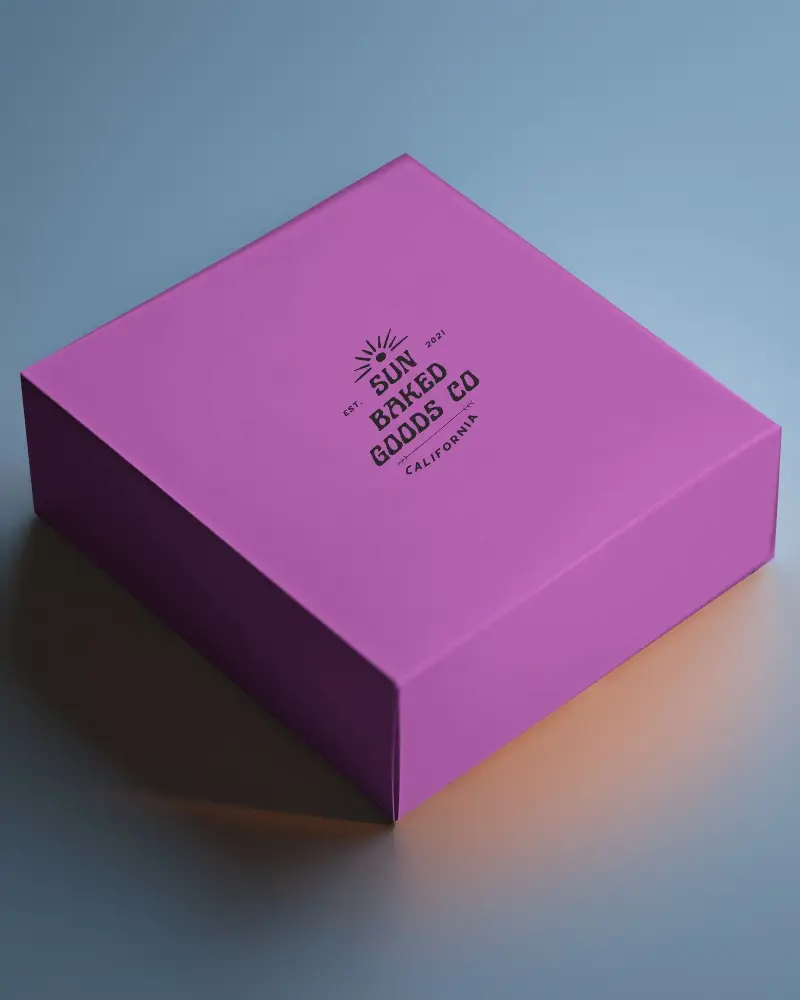
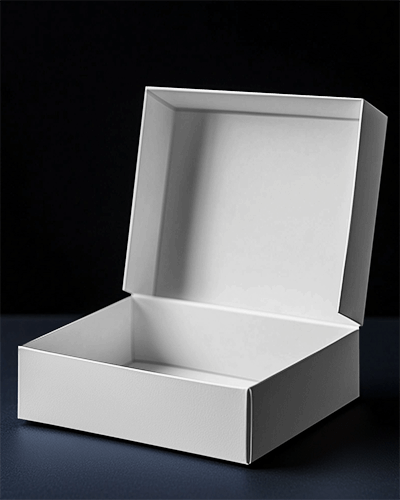
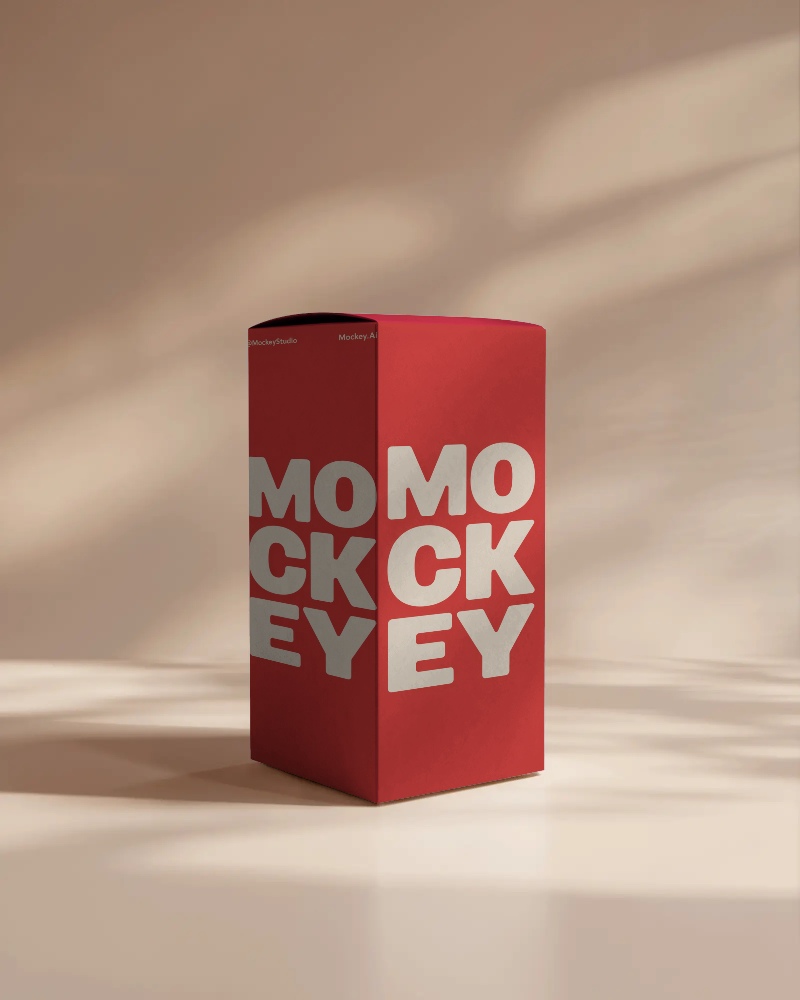
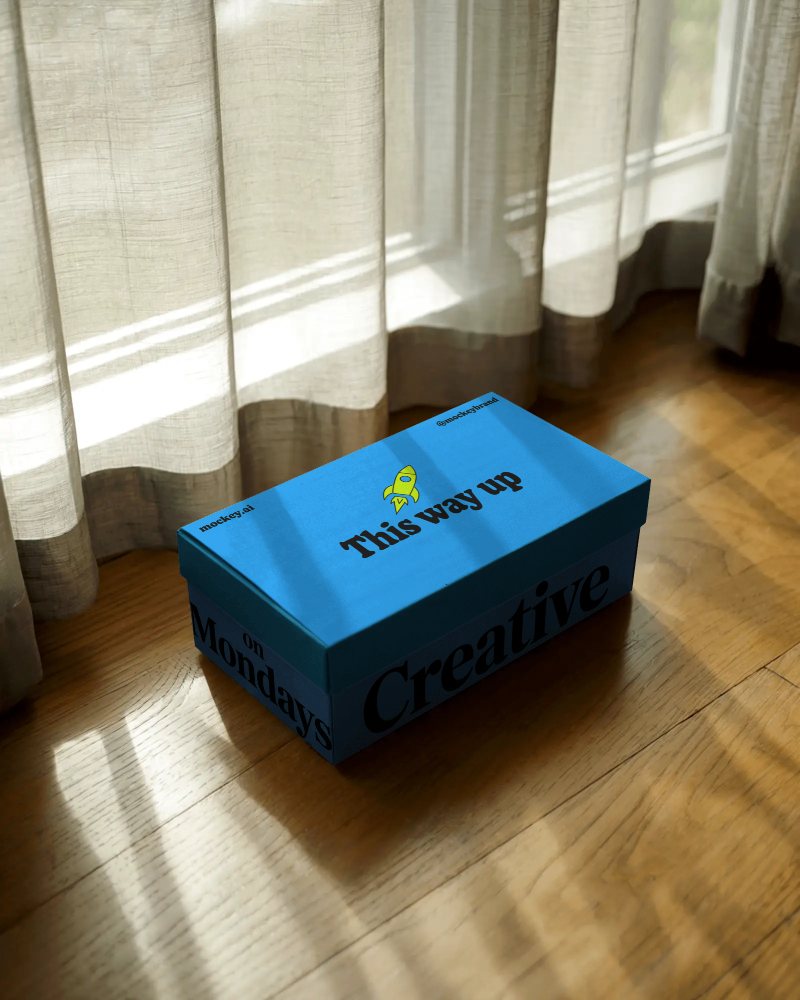
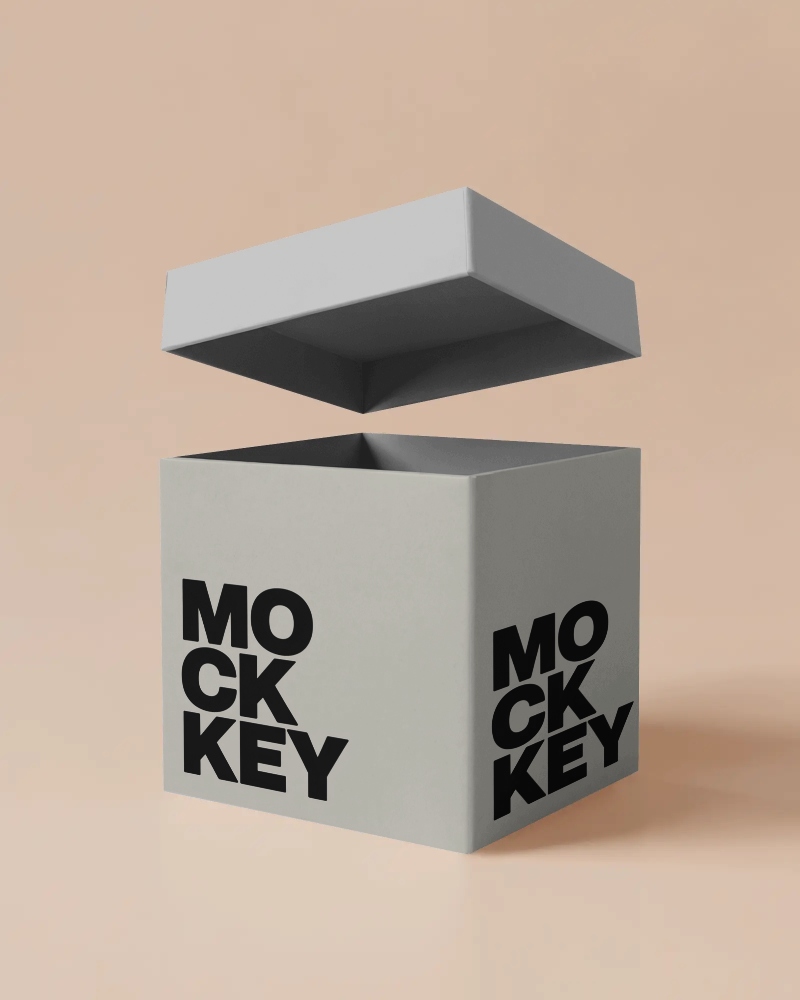
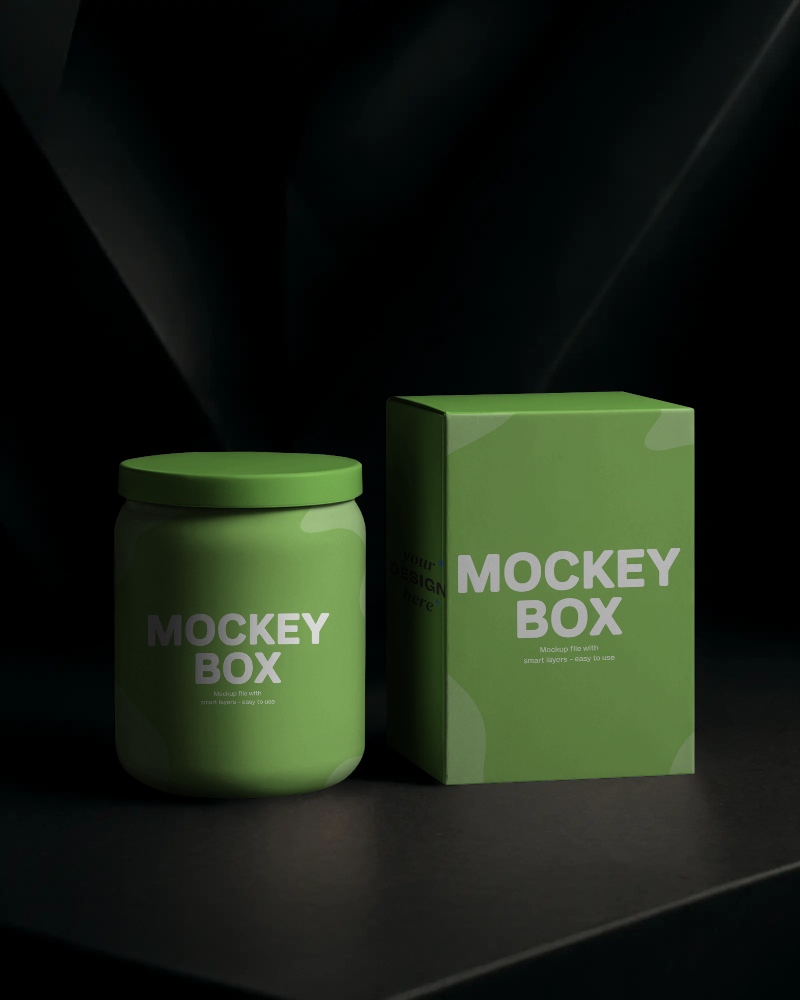
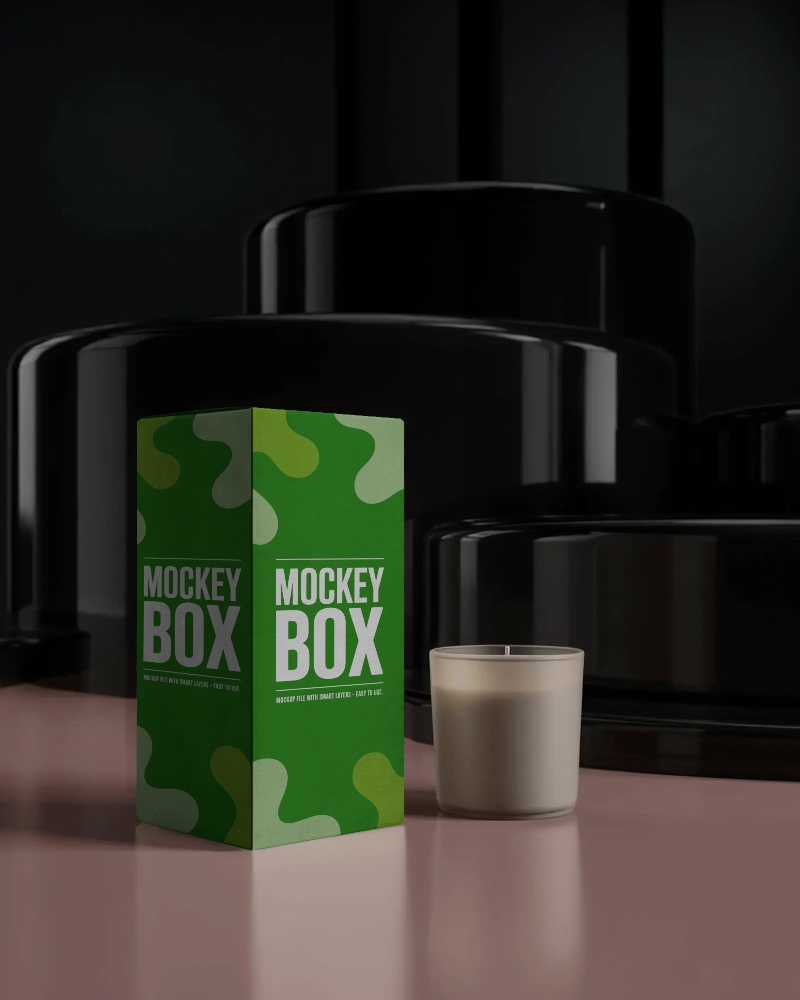
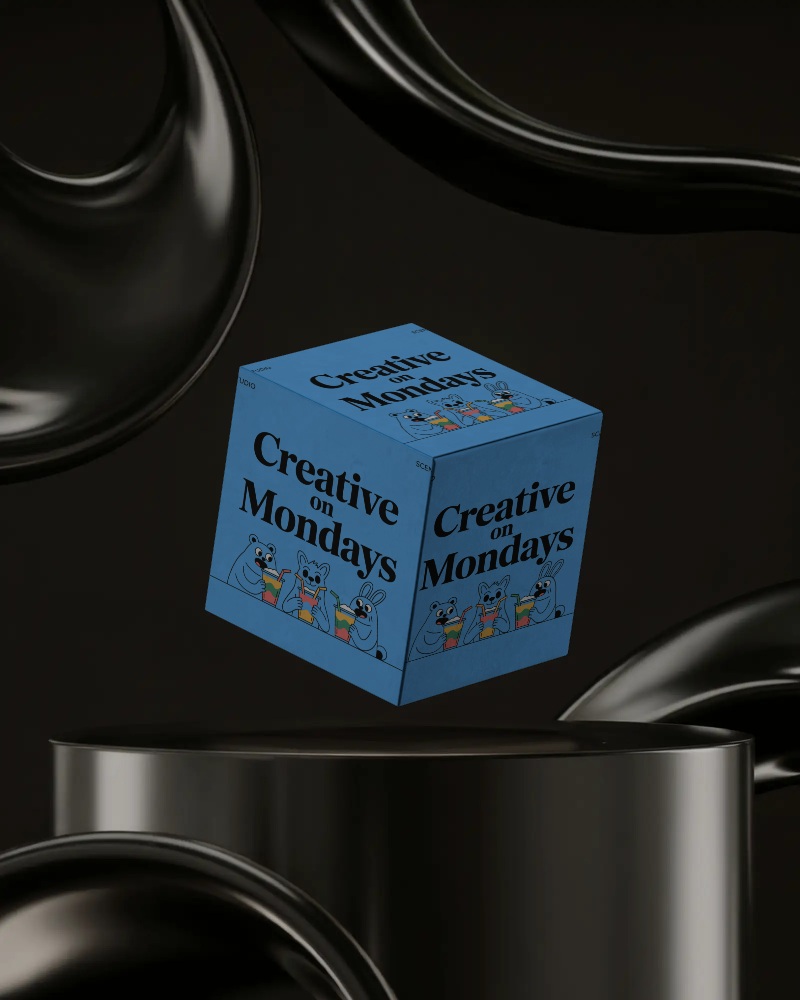
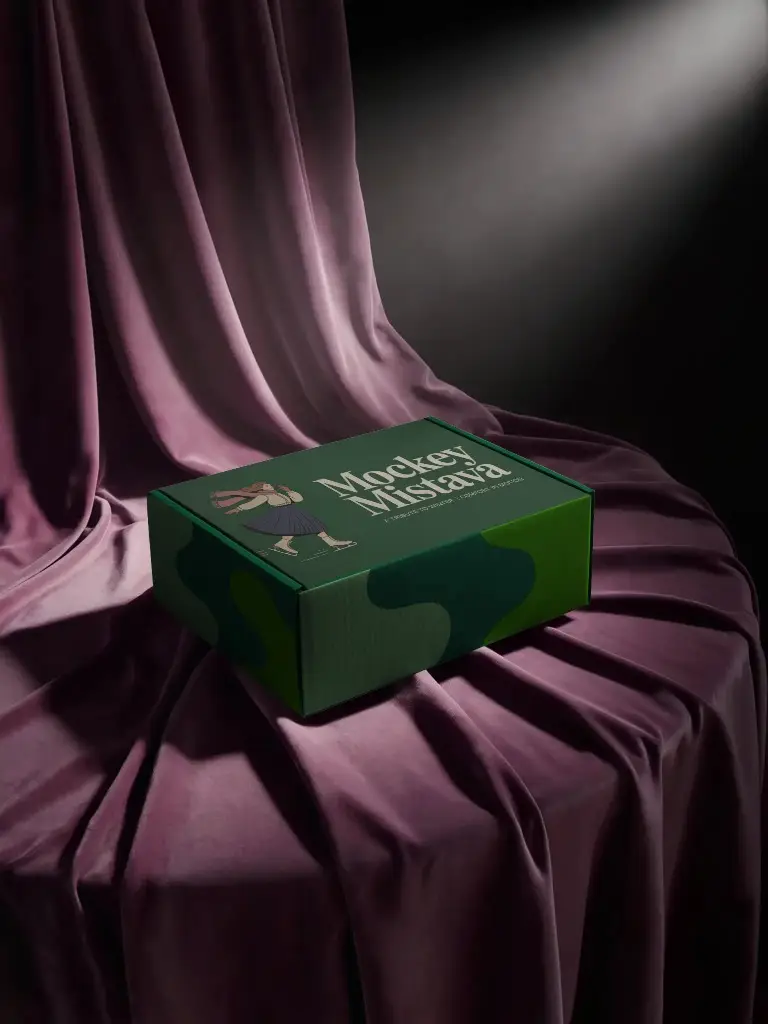
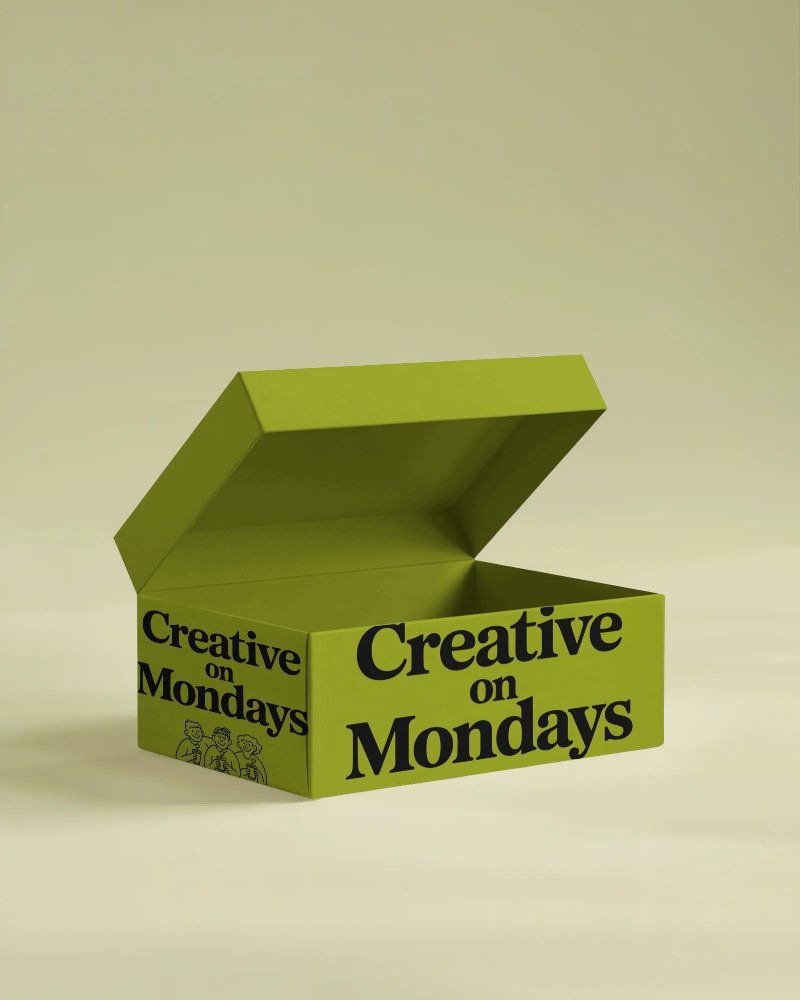
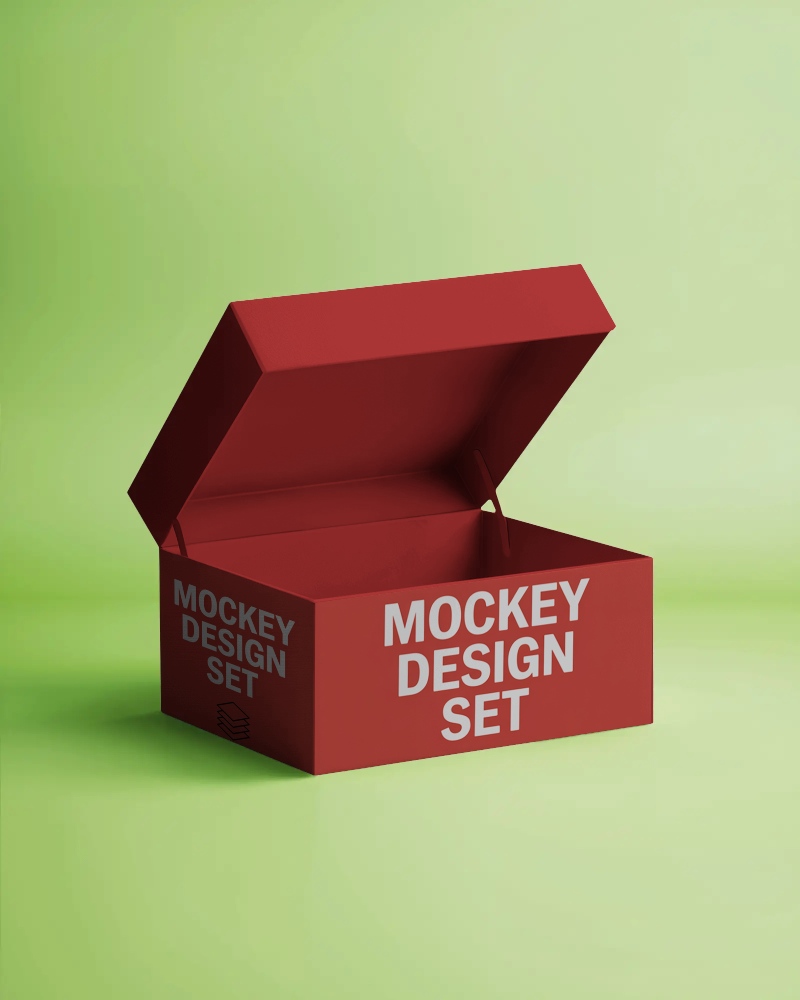
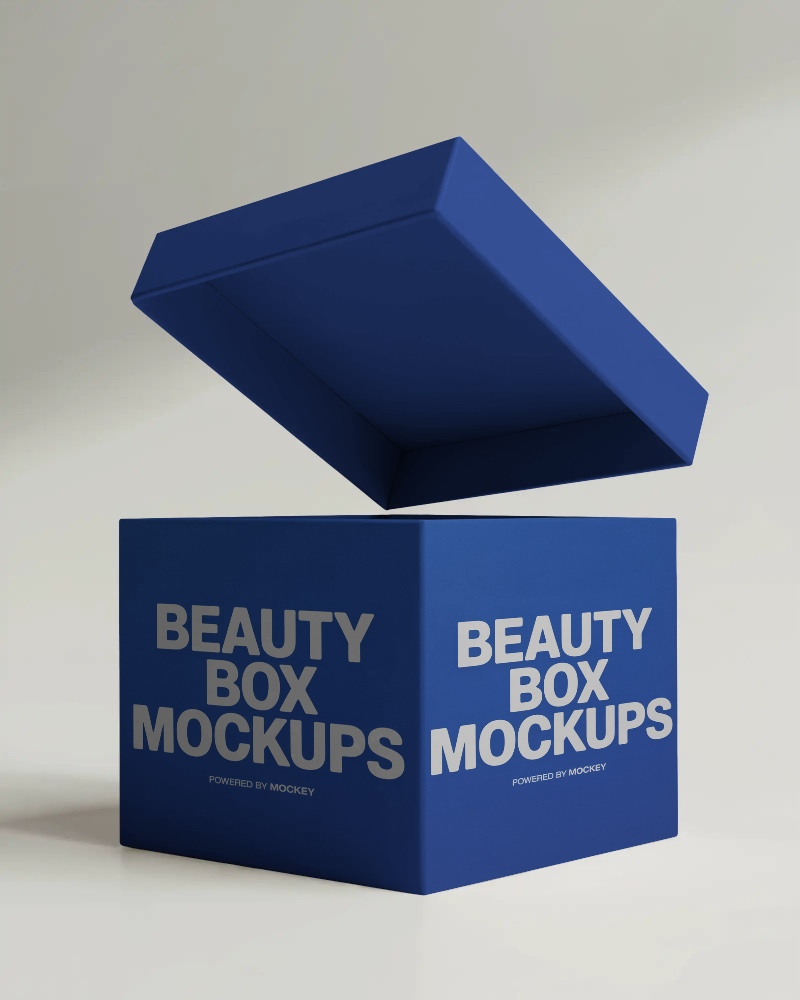
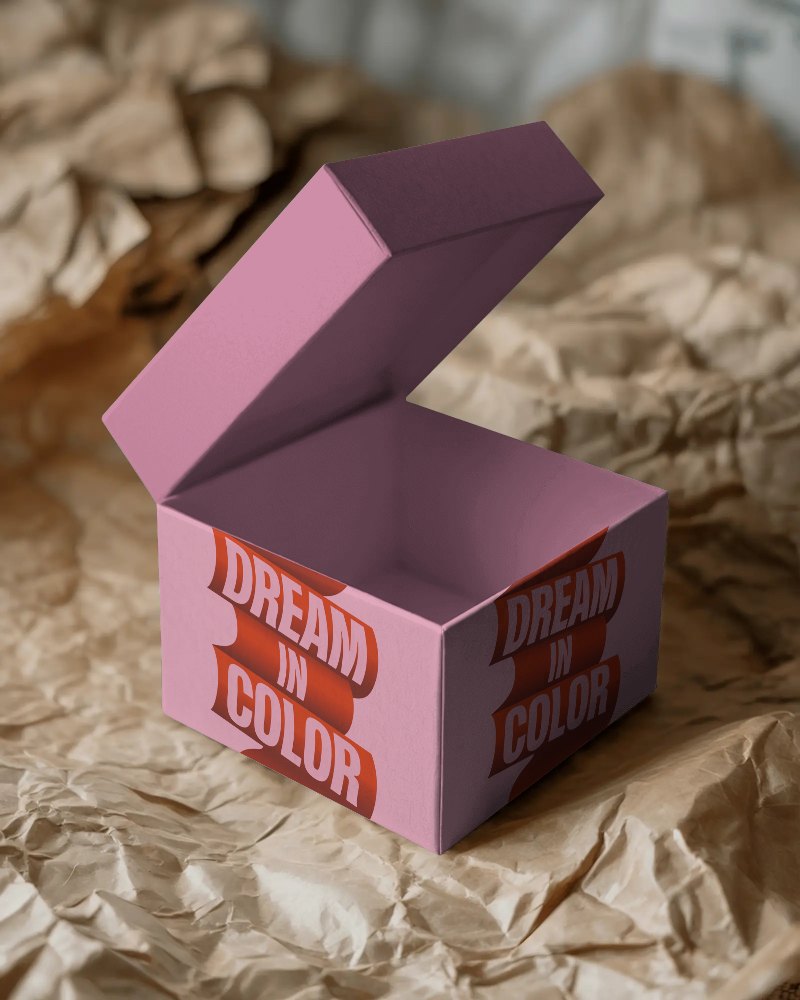
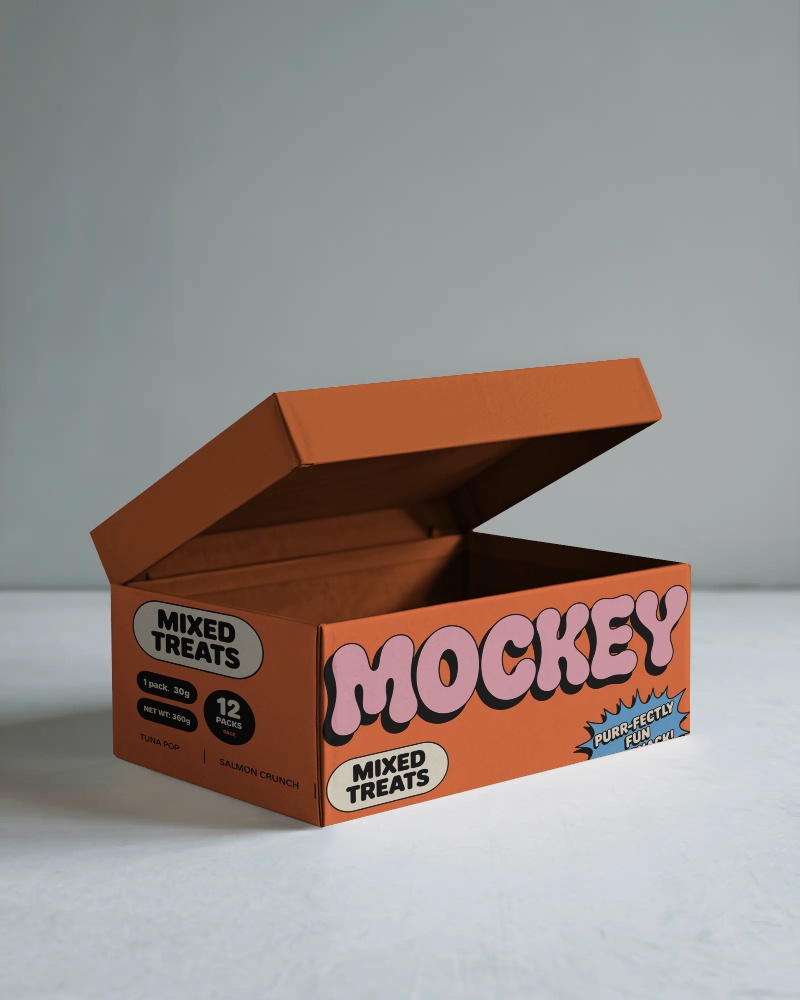
Get a high-quality black box mockup for stunning product presentation. Customize with ease on Mockey.AI, try it now and bring your design to life!
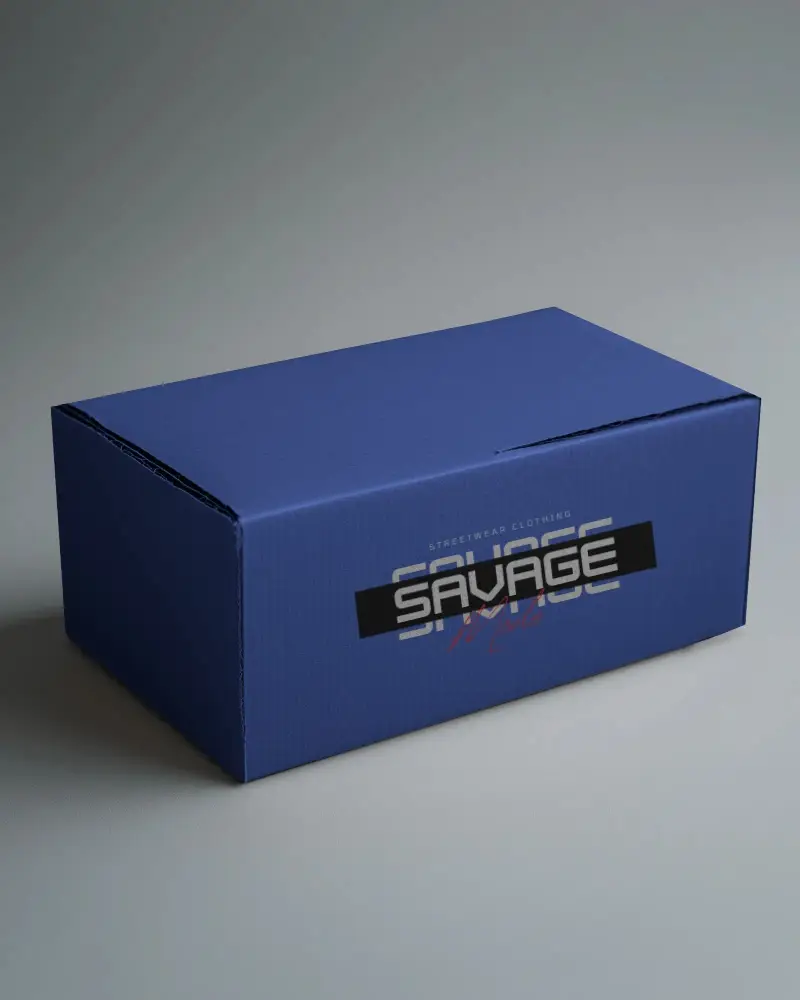
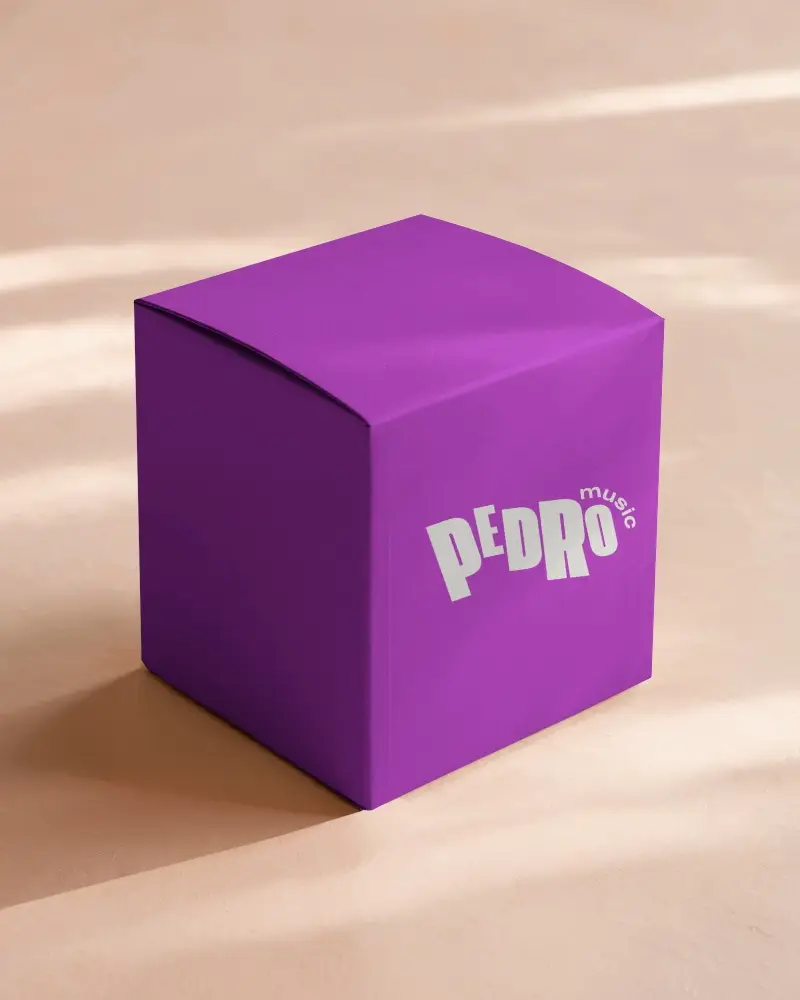
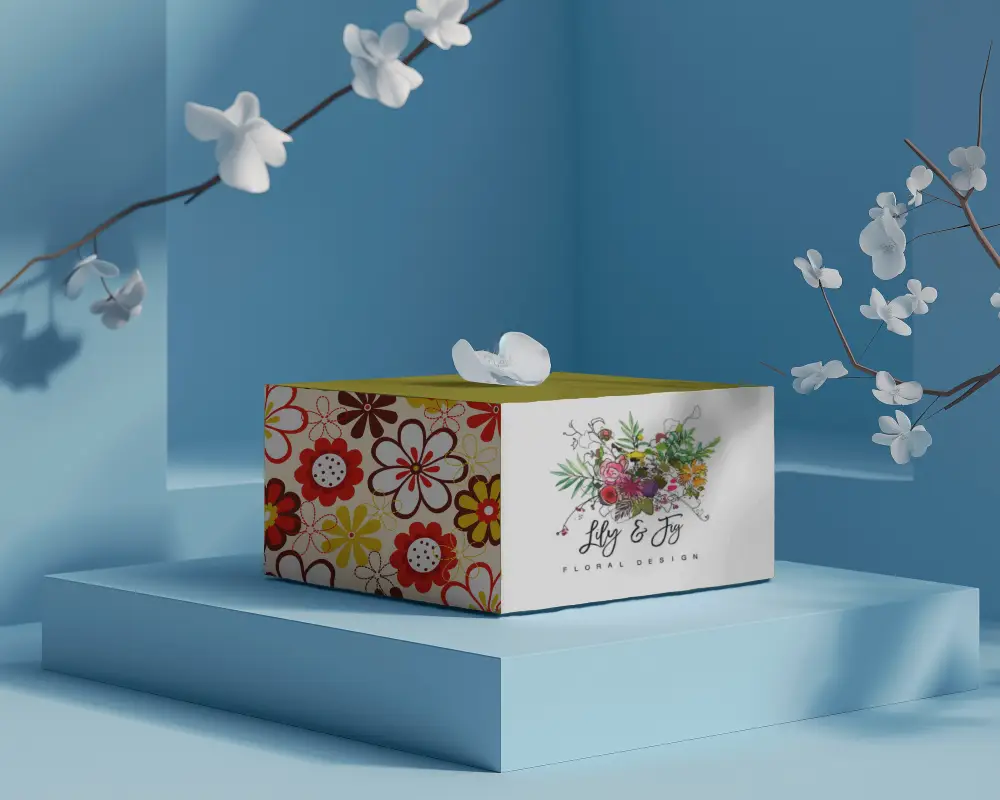
.png)
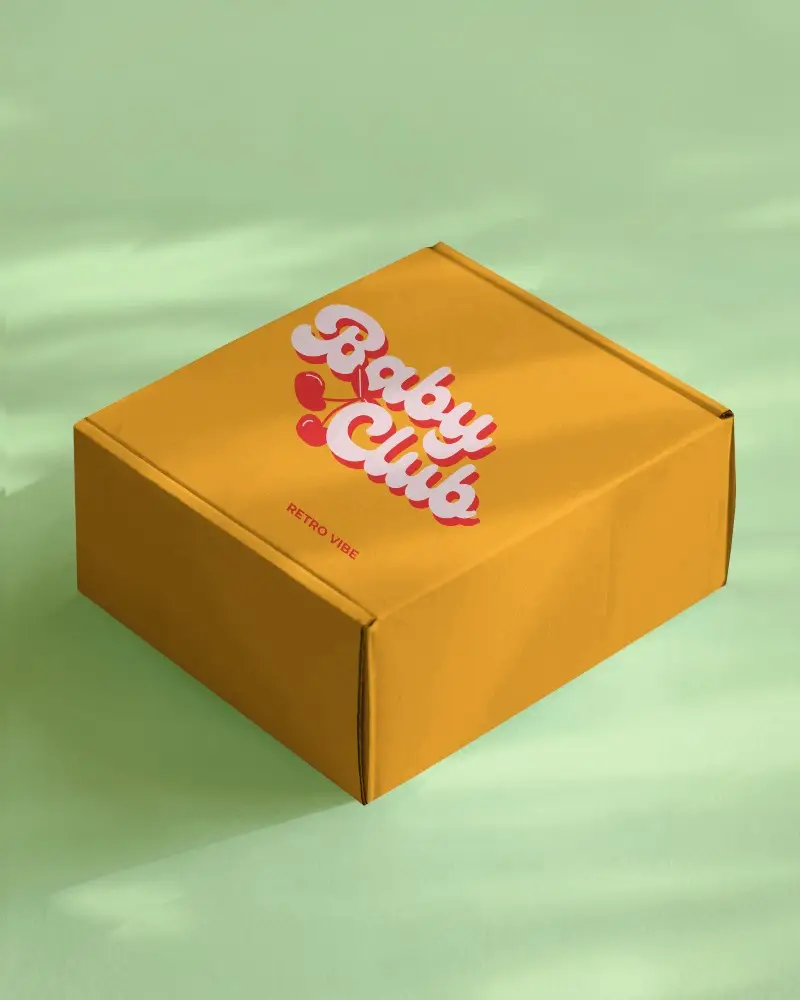
.png)
.png)
(1).png)
.png)
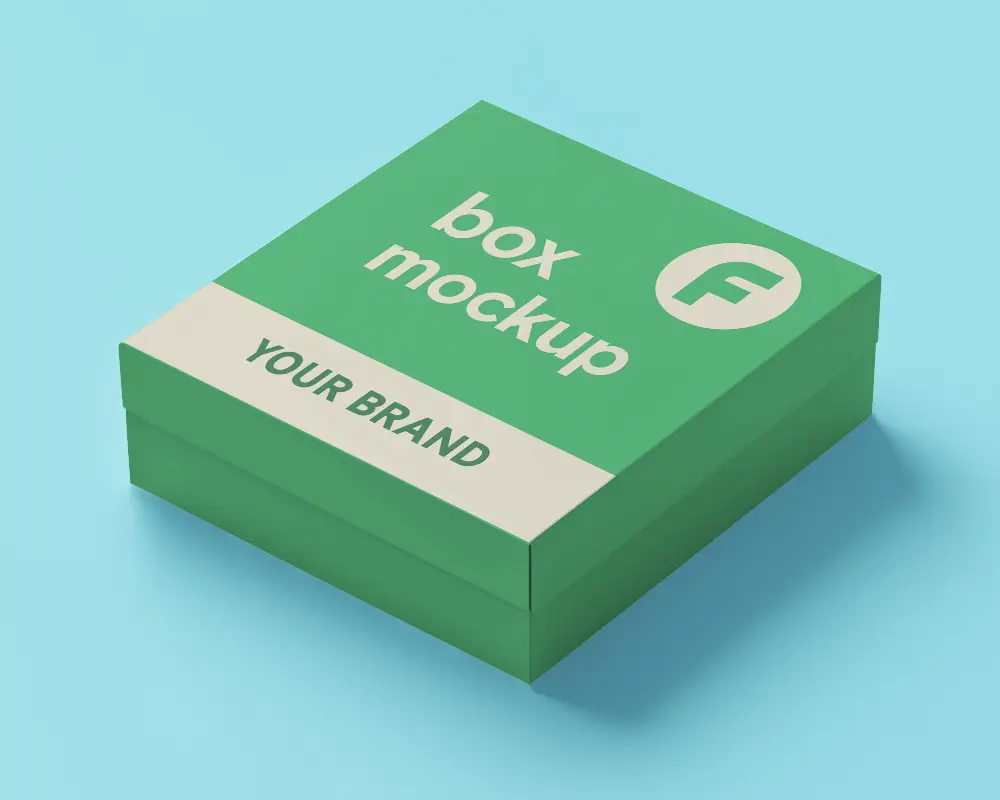
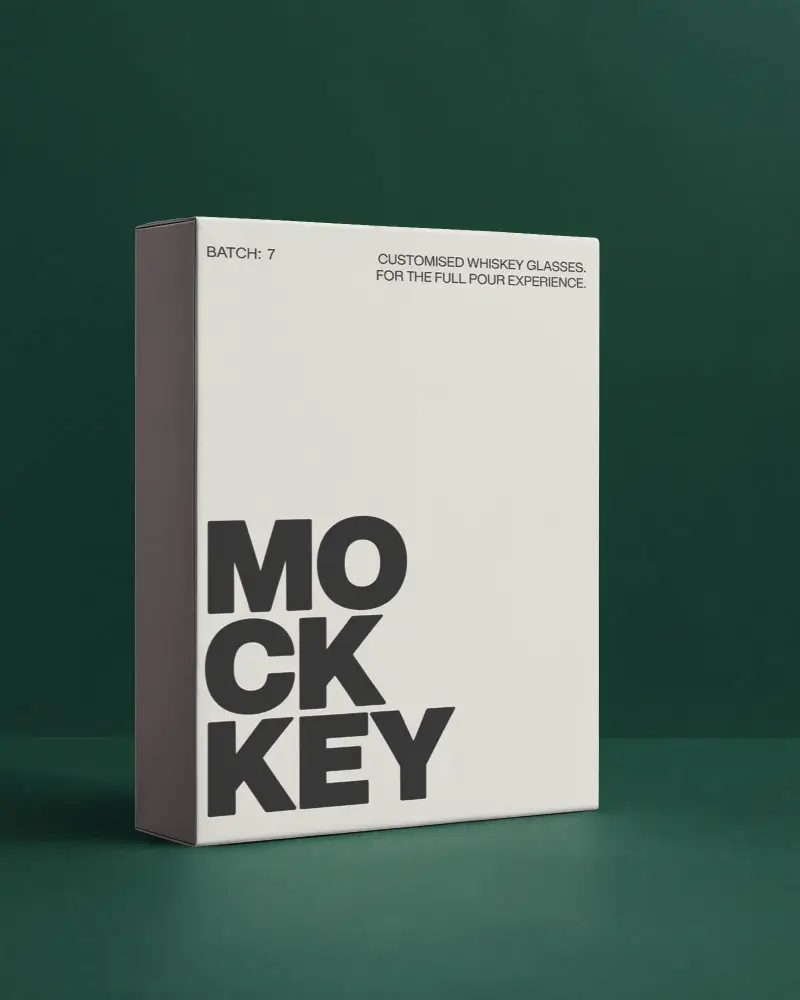
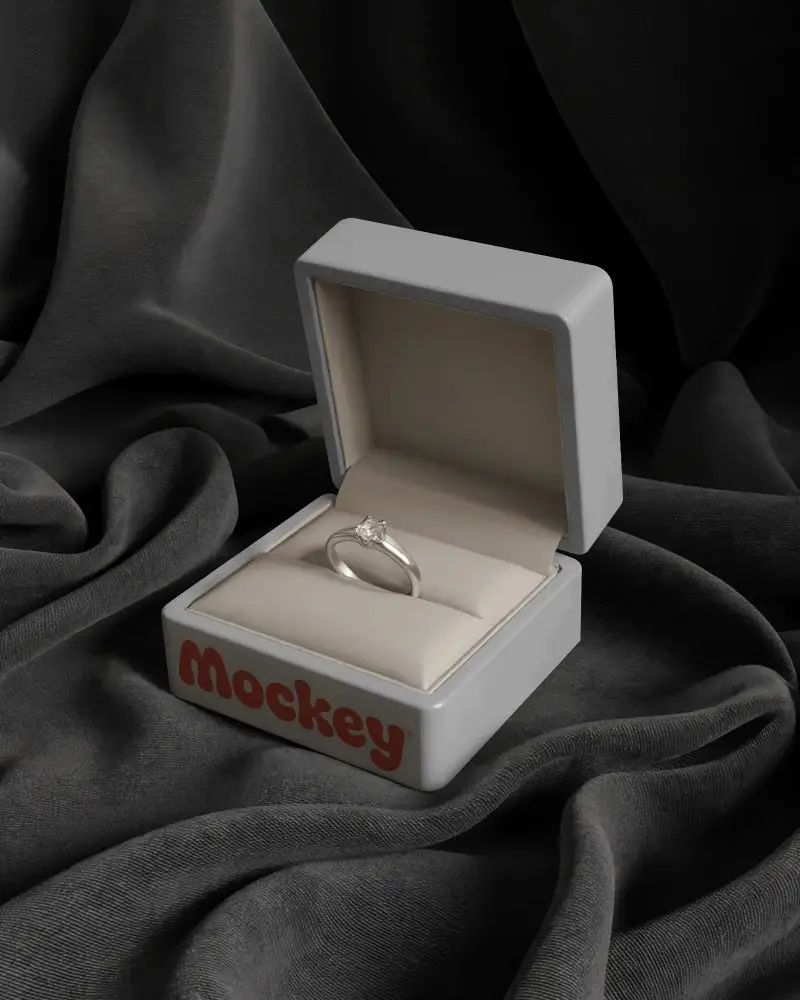
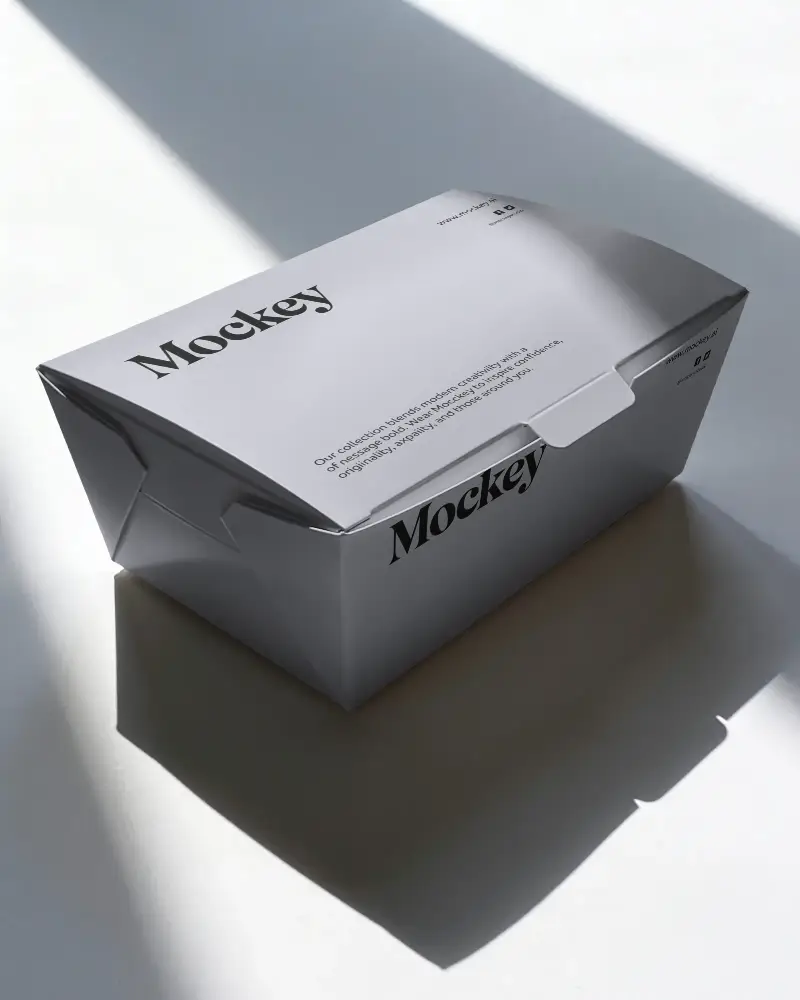
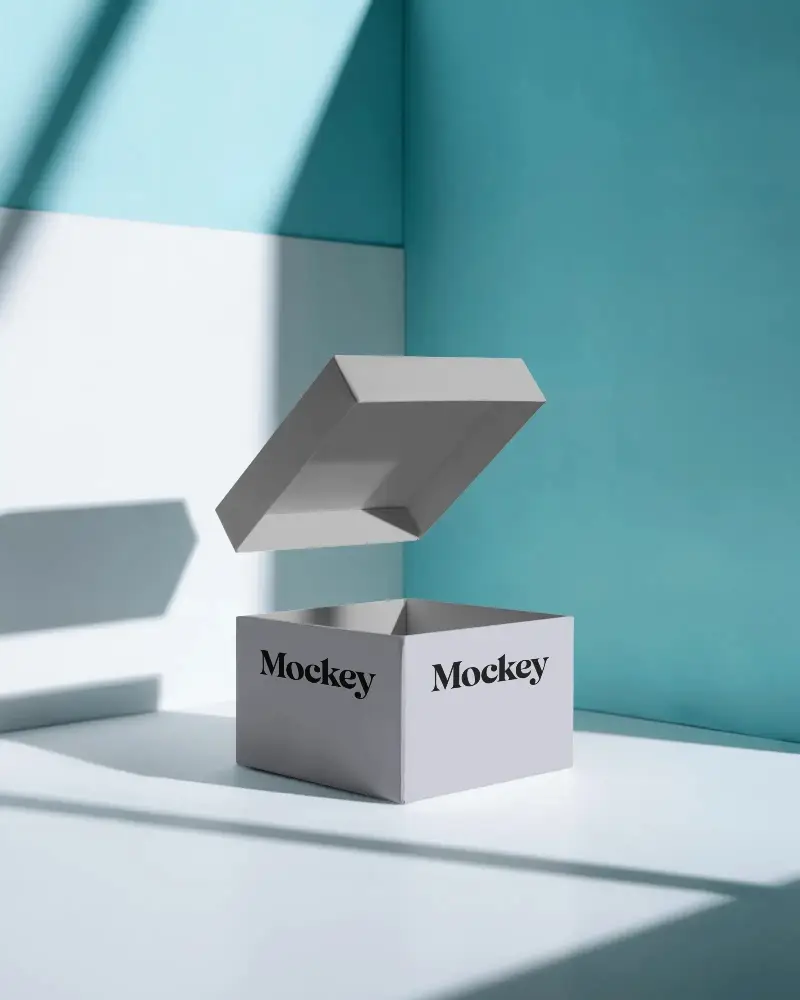
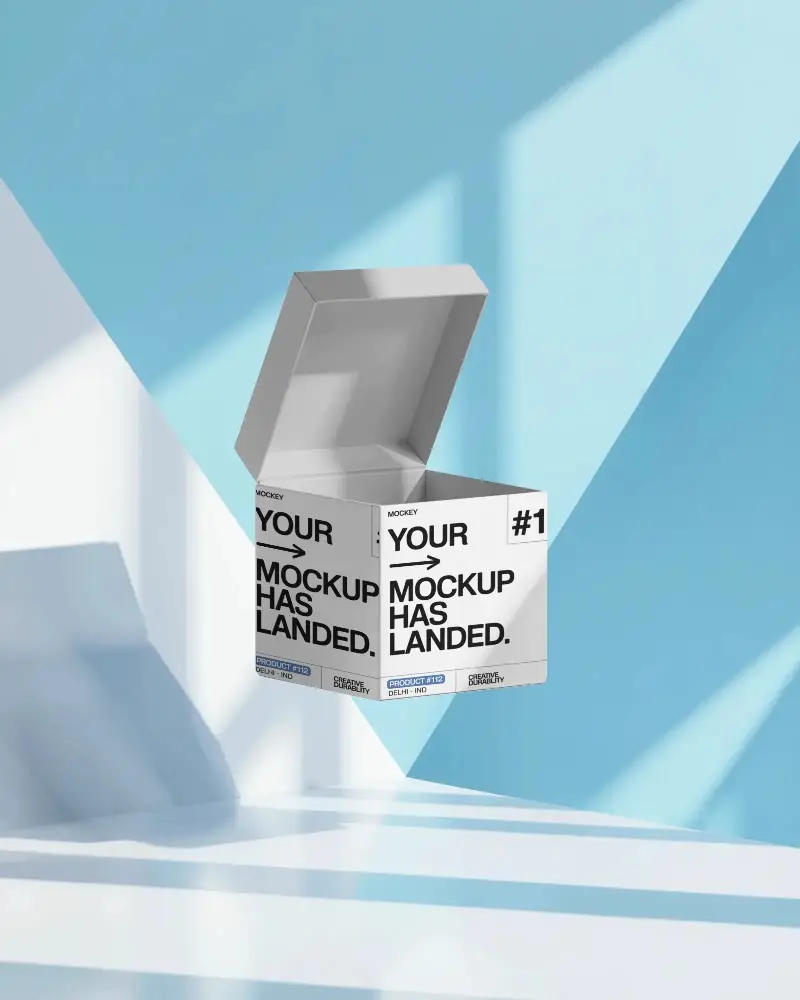
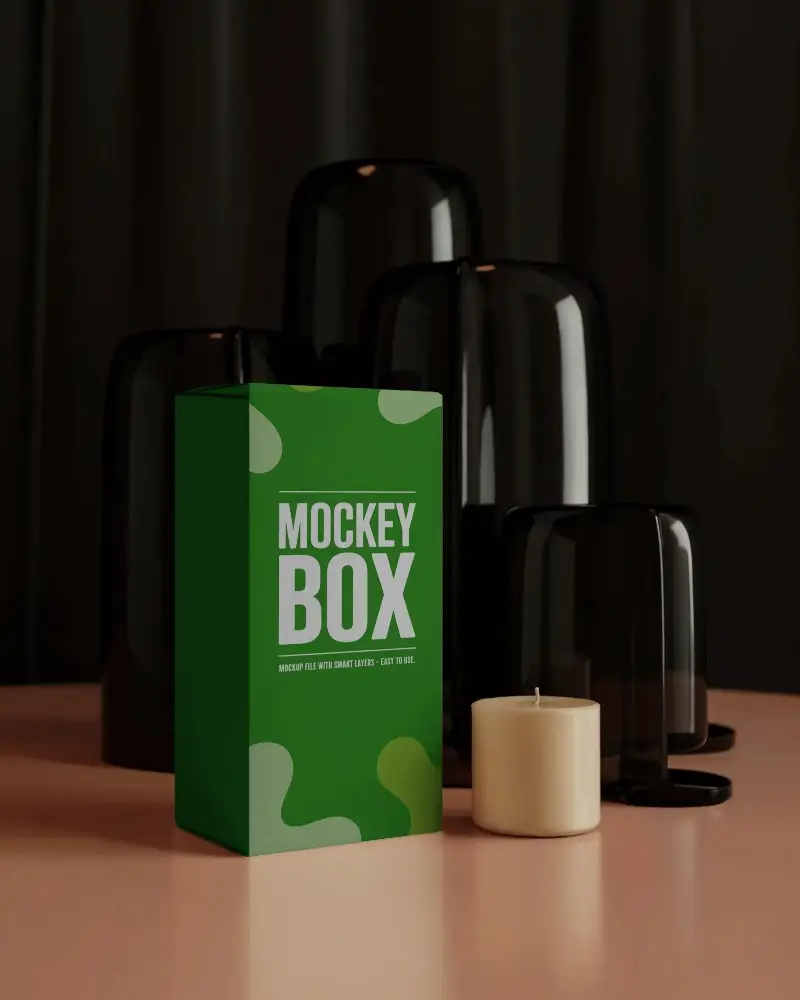
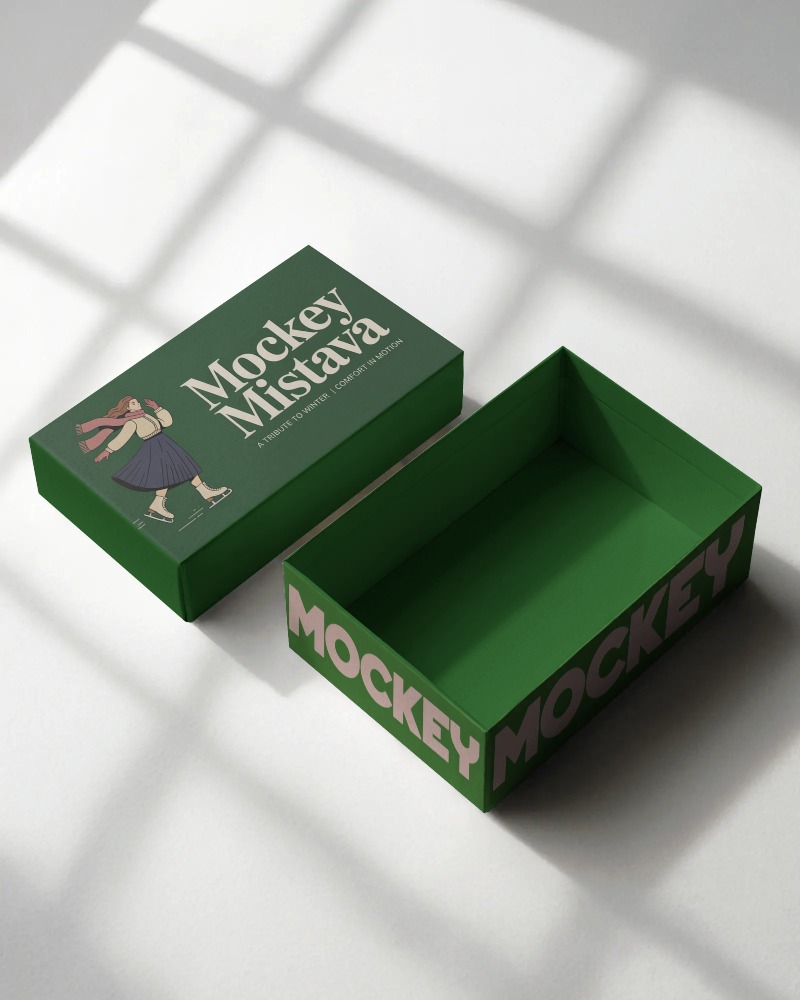
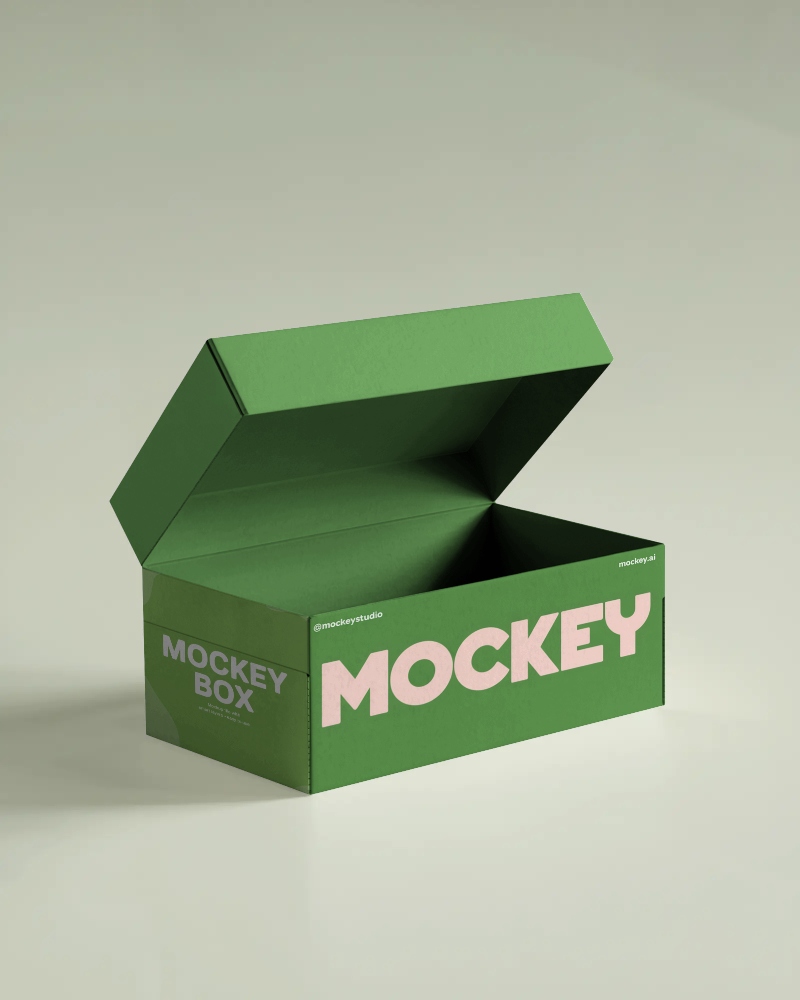
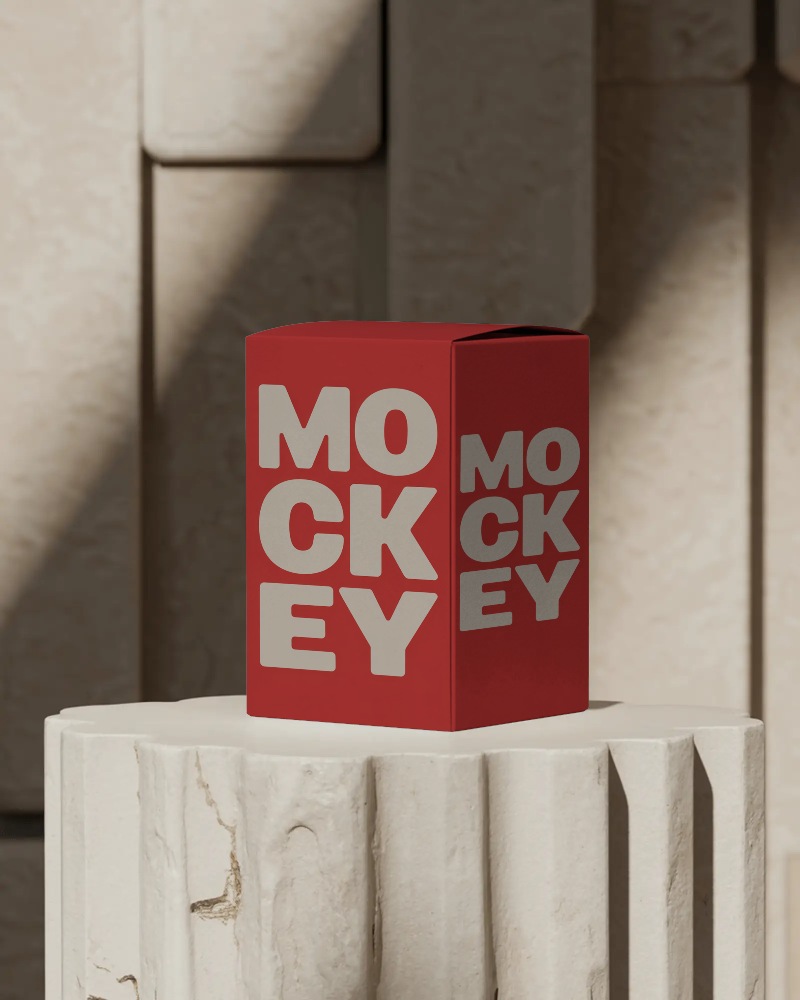
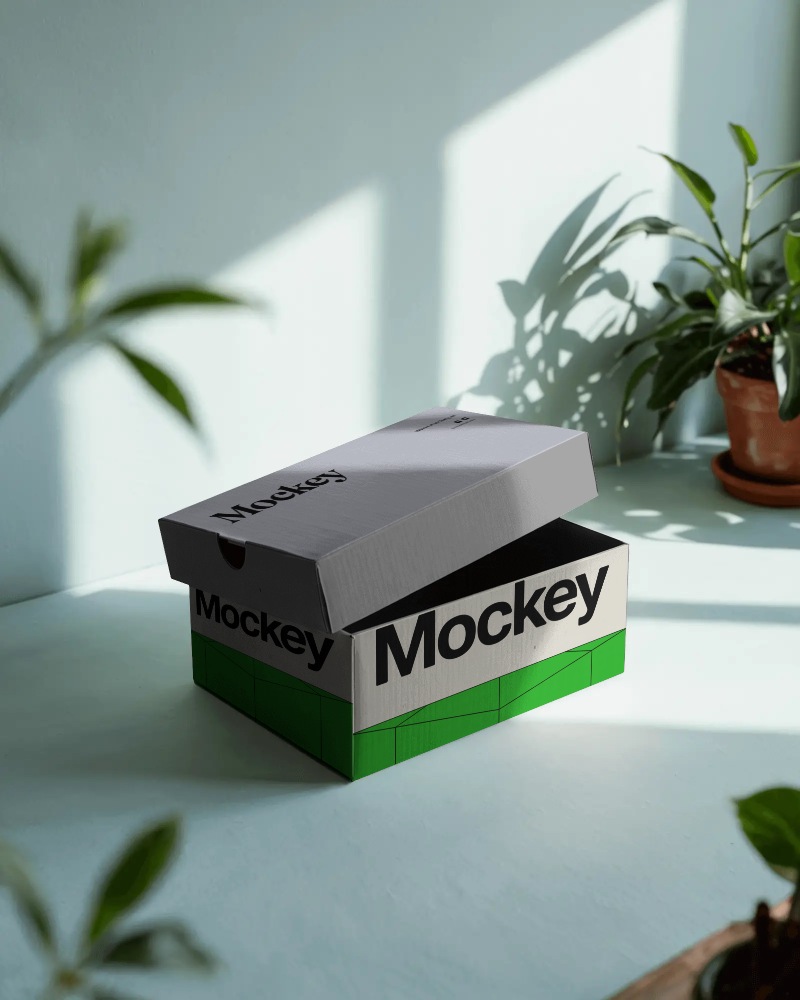
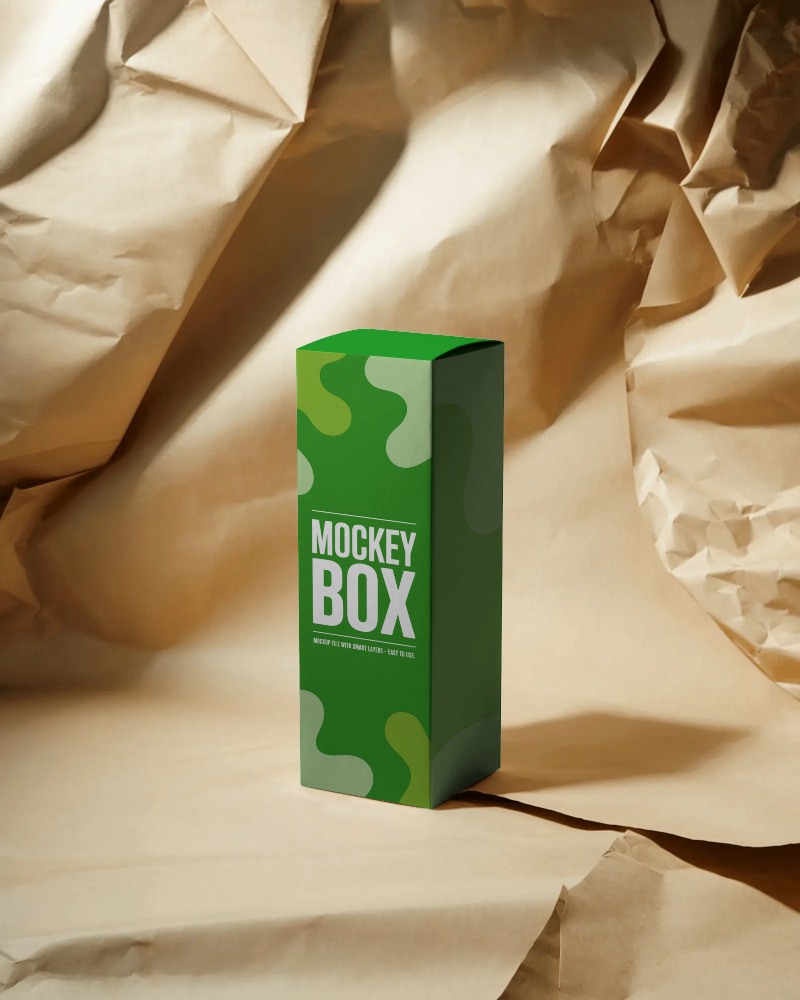
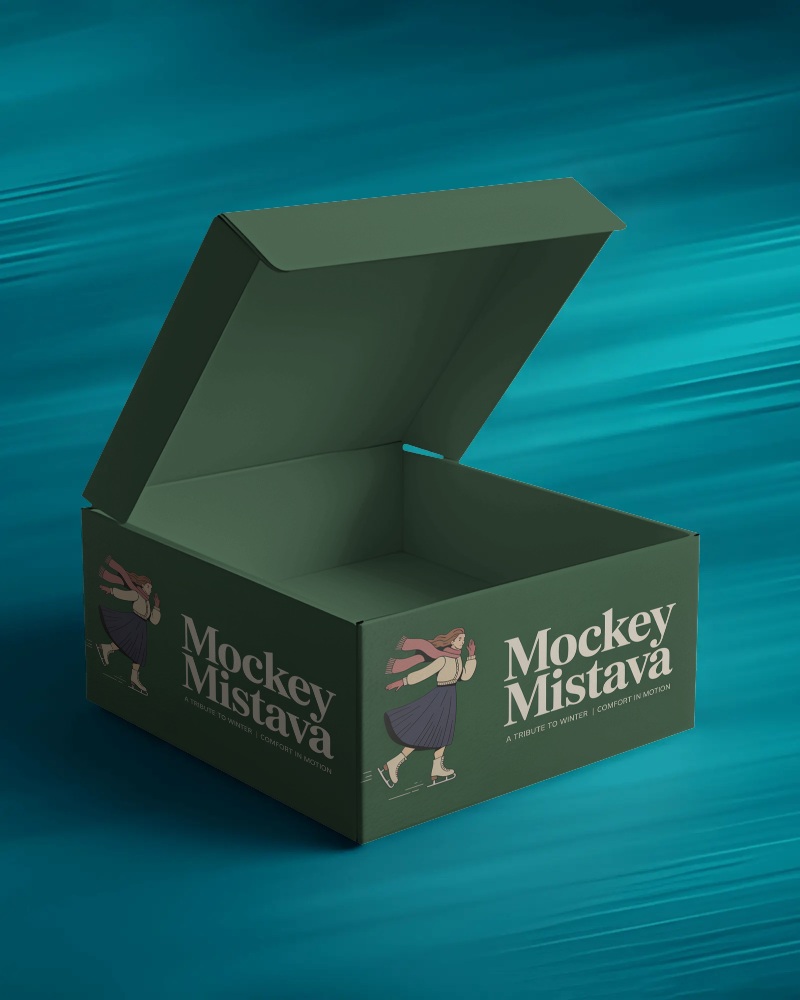
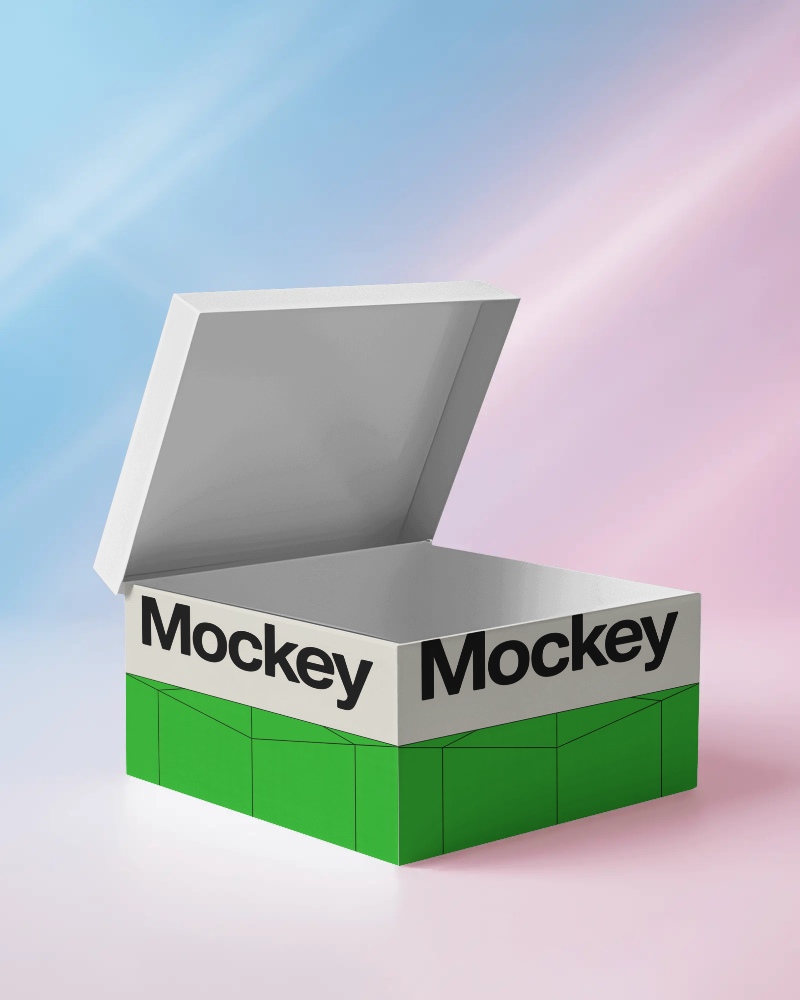
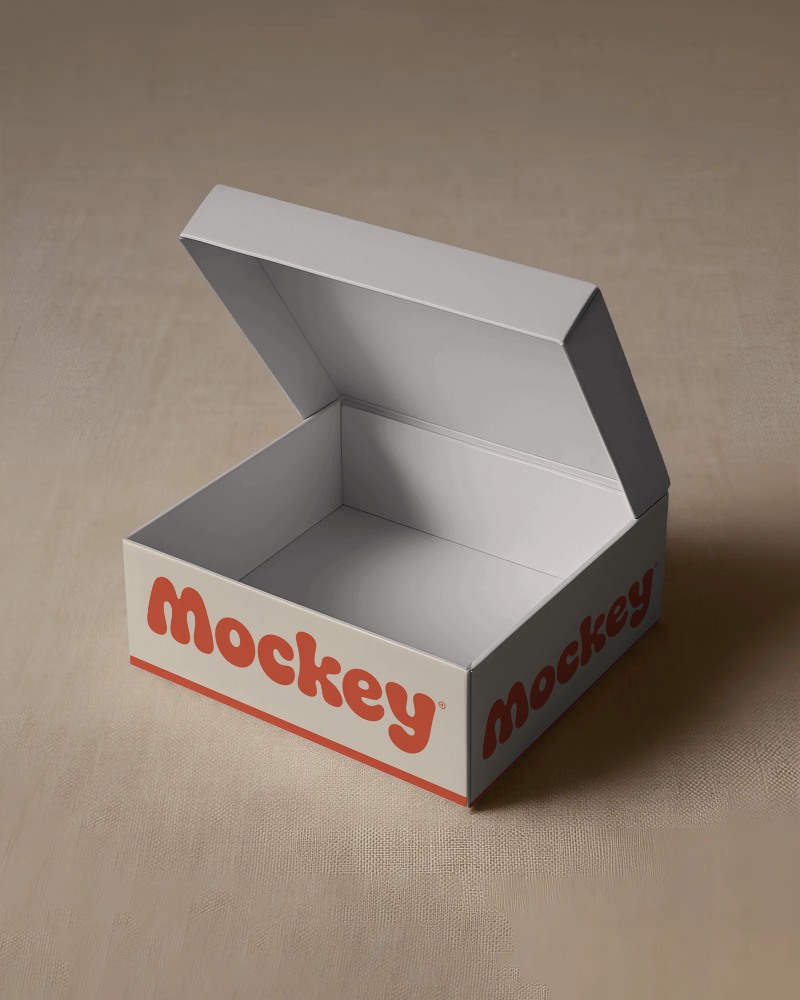
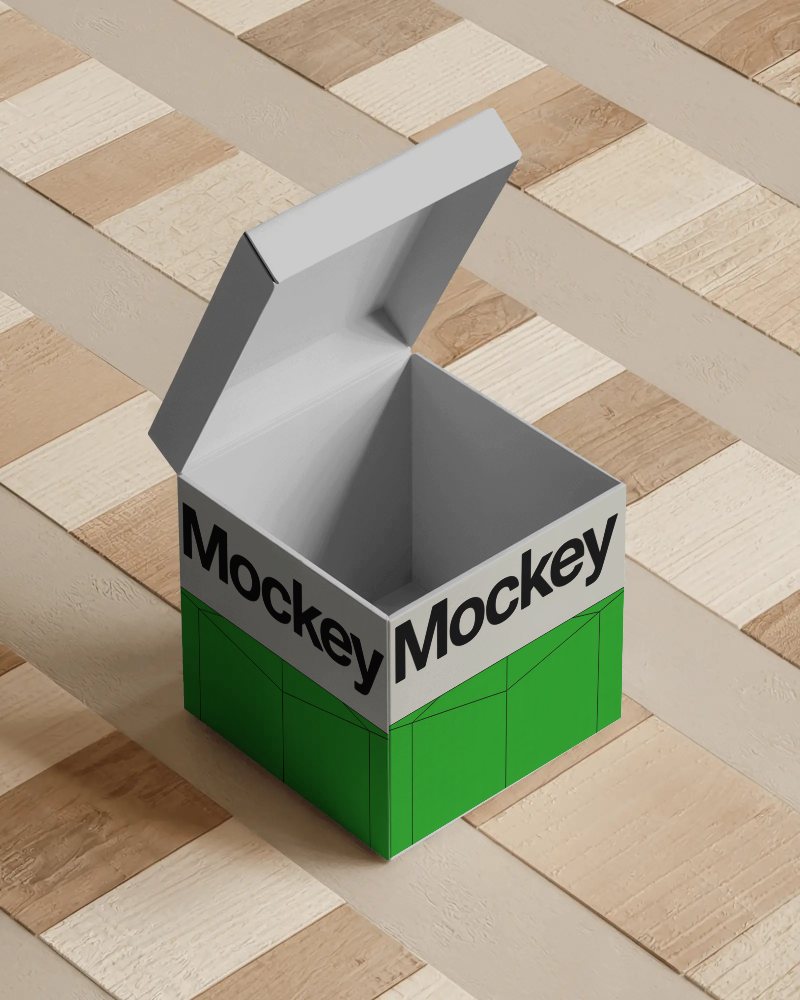
How to Create Black Box Mockup with Mockey
To create a black box mockup in Mockey AI:
- Step 1: Navigate to Mockups > Packaging > Box > Black and choose a template from the library.
- Step 2: On the following page, you'll find the option to upload your design and adjust the template's colors in the Edit section. If you upgrade to the Creator Plan, you can also access AI tools.
- Step 3: Finally, click the Download button to save your Black Box mockup in either PNG or JPEG format, available in various sizes.
FAQs on Black Box Mockups
What is a Black Box Mockup?
A black box mockup is a digital template that displays packaging or product designs, typically allowing easy customization through AI tools in Mockey AI.
How can I customize a Black Box Mockup?
Easily modify a black box mockup by uploading a PNG file to online editors like Mockey AI. Customize the black box template and your design with color and background and with AI tools.
What file formats are available for Black Box Mockups?
Mockey provides black box mockups available for download in both JPG and PNG formats.
Can I use Black Box Mockups for commercial projects?
Yes, several black box mockups, including those on Mockey AI, can be used commercially with the right licensing.
Do Black Box Mockups support smart objects in Photoshop?
Yes, Black Box Mockups work with smart objects in Photoshop. This means designers can easily swap designs, make adjustments, and keep everything in place while updating their work.
Where can I download high-quality Black Box Mockups?
Get high-quality Black Box mockups featuring realistic visuals with Mockey AI.