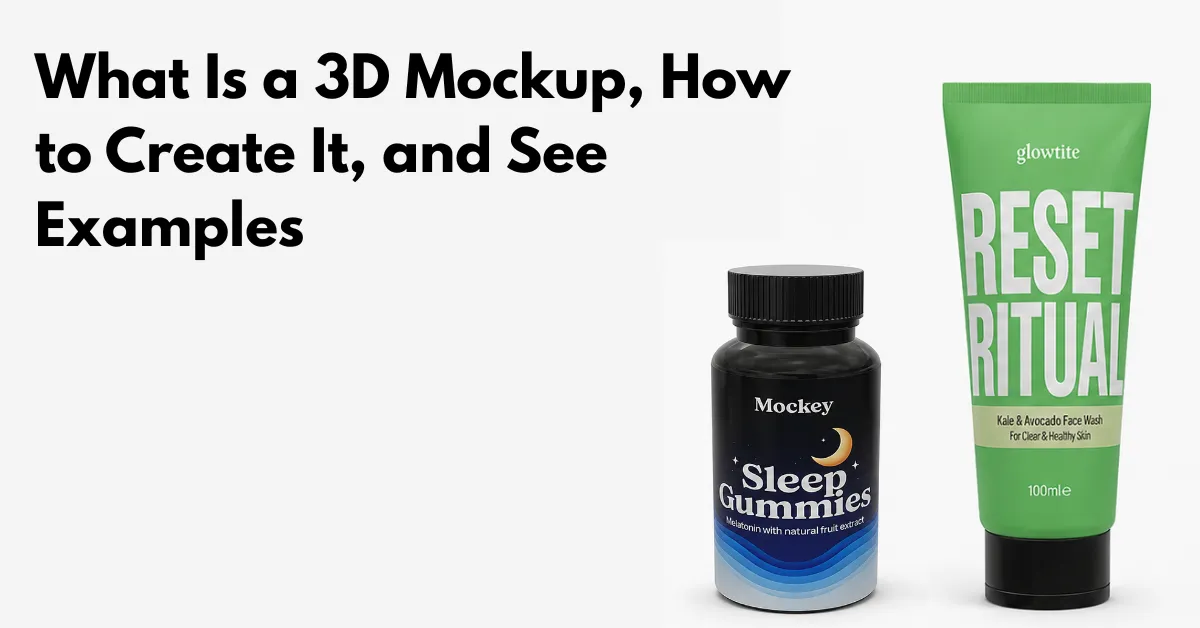
What is a 3D mockup?
A 3D mockup means your design is shown on a realistic, rotatable three-dimensional version of the product. You can check the lighting and texture, and see how it fits before printing or production.
3D Mockup Uses
Use 3D mockups for:
1. Clothing & Merchandise
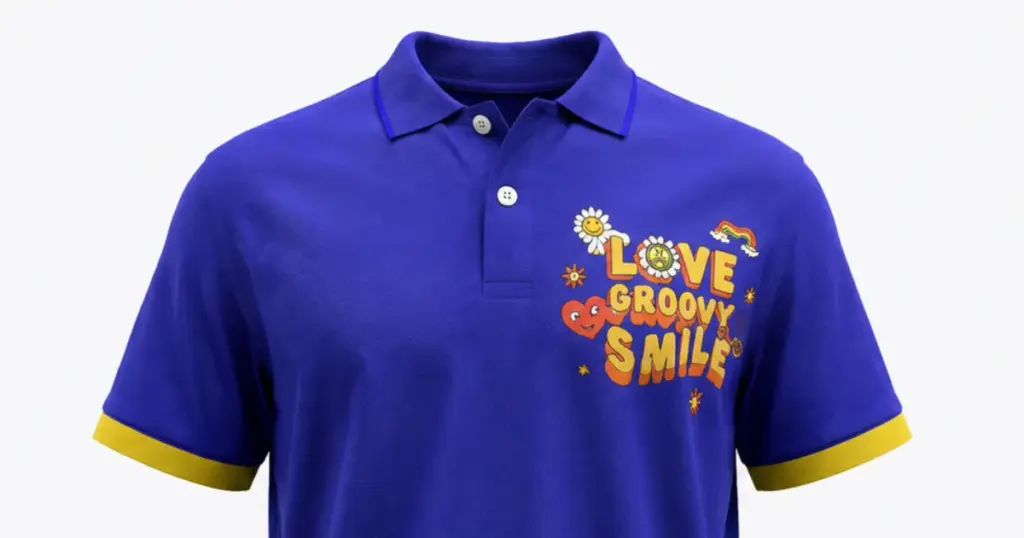
Logo designs look a lot more convincing on 3D shirts or hoodies when the fabric has realistic folds.
2. Web & App Design
Place your design onto a 3D laptop or 3D iPhone mockup to see how it looks on a real device.
3. Boxes & Packaging
3D mockups matter for boxes or bottles, to show you how the design wraps around edges.
4. Logo Display
Shows a corporate 3D logo placed on glass, wall, or wood slats.
A 3D mockup is a three-dimensional product model, such as apparel, an iPhone, or packaging, where you can add your design and view it from different angles.
3D Mockup Example:
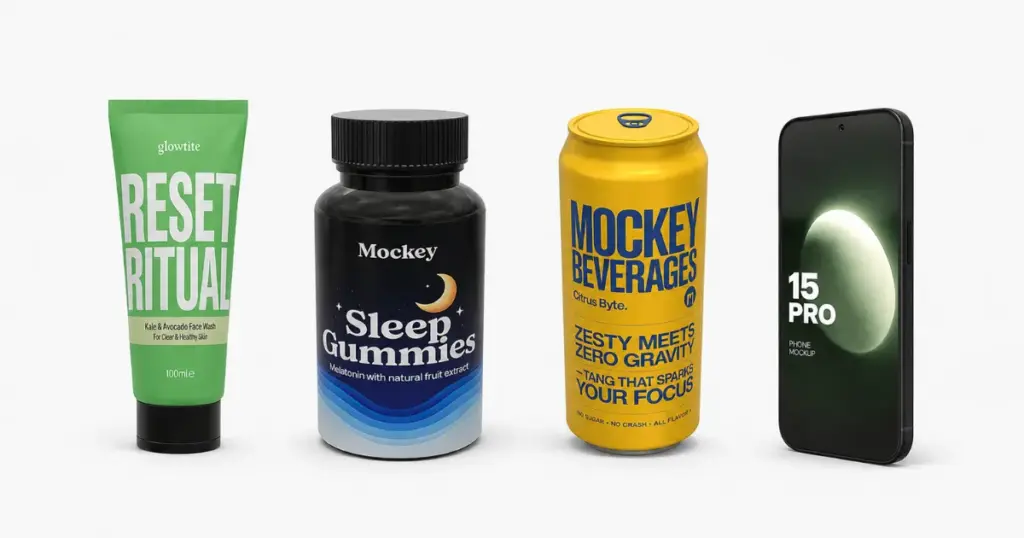
The difference between a 2D mockup and a 3D mockup.
2D Mockup
2D means two-dimensional. A 2D object looks flat because it only shows length and height. It doesn’t show any depth or width.
3D Mockup
3D means three-dimensional. Objects in 3D look more real than 2D objects because they have three main features: length, width, and depth.
3D mockups reduce manufacturing costs and help close sales sooner by showing how a design will look in real life, instead of relying on 2D designs.
1. Save on Product Samples
Catch design mistakes early. Make changes digitally instead of paying for multiple physical prototypes.
2. Grow Your Online Sales
360° views of your product help shoppers see the product from every angle. That extra detail can lead to more purchases and fewer returns.
3. Ready-to-Use Marketing
Create marketing content before your product is even made.
4. Test Different Versions
Change the colors, logos, and textures quickly. See what looks best and connects with your customers.
Mockey AI’s 3D mockup generator is best for creating 3D mockups. For many users, it can be a simpler option than Adobe Photoshop.
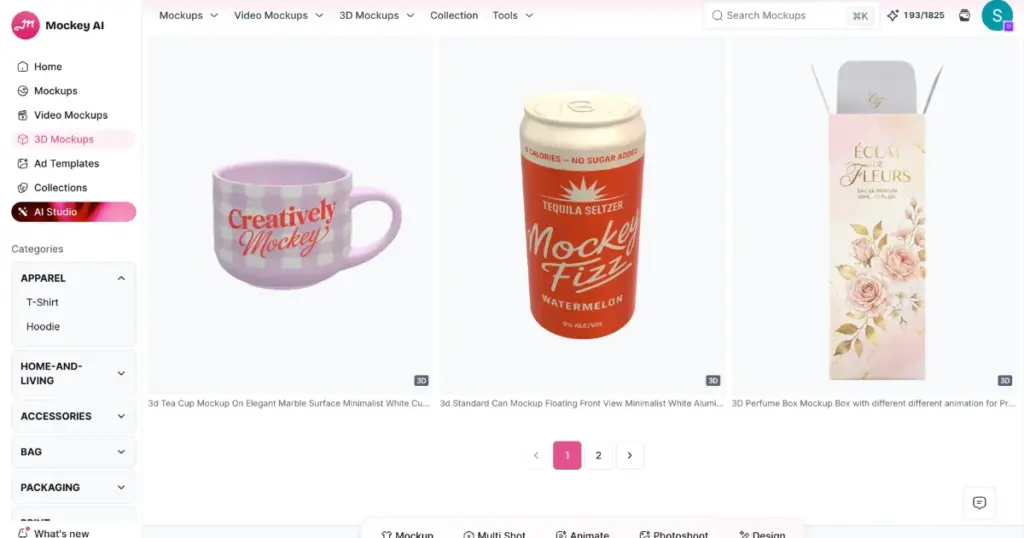
Photoshop is powerful but tricky and takes time to learn. Most people want ready-made 3D mockup templates, quick design upload, and customization using easy editing tools! That’s why Mockey AI is awesome.
For a detailed guide on how to create 3D mockups, explore our separate blog. Here, we’ve covered it briefly.
1. Create an account on Mockey AI. Click on “3D Mockup”.
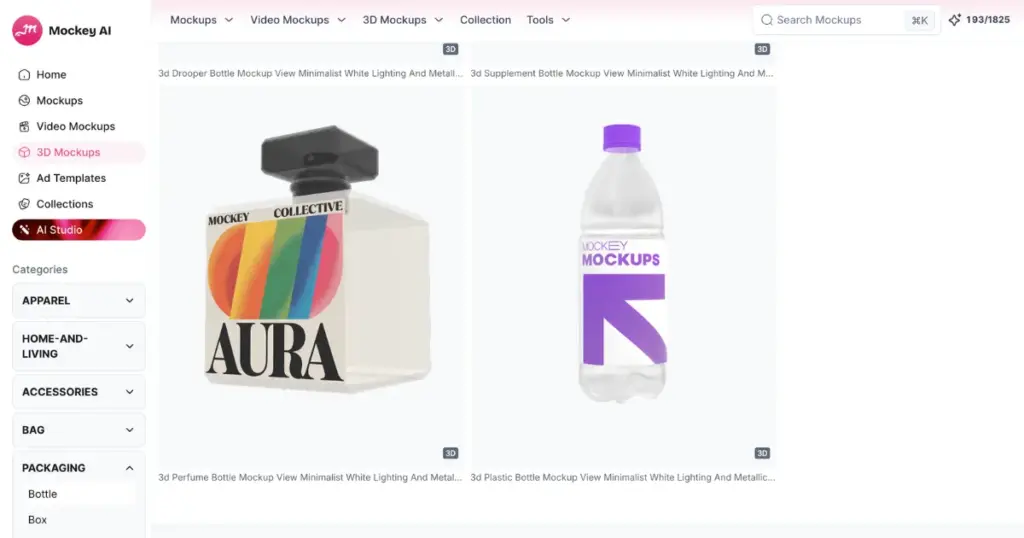
2. Select a product. Here we picked the 3D Water Bottle Mockup template.
3. Upload a design and position it accurately using real-time preview.
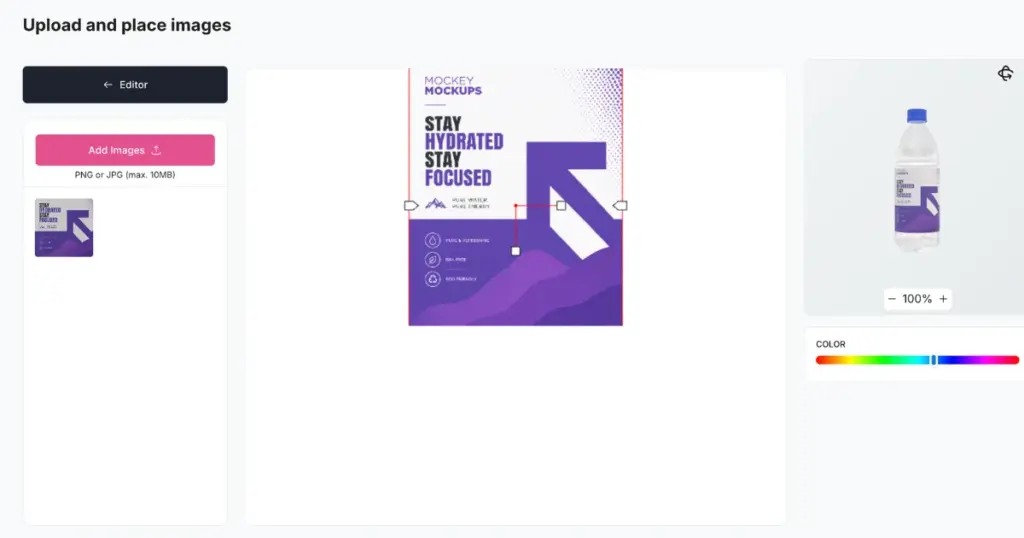
4. Change product color.
5. Alter the background. Use your own background, make it transparent, choose from the library, or pick a solid or gradient color.
6. Use the Motion feature for animation. You get more than 10 preset animations.
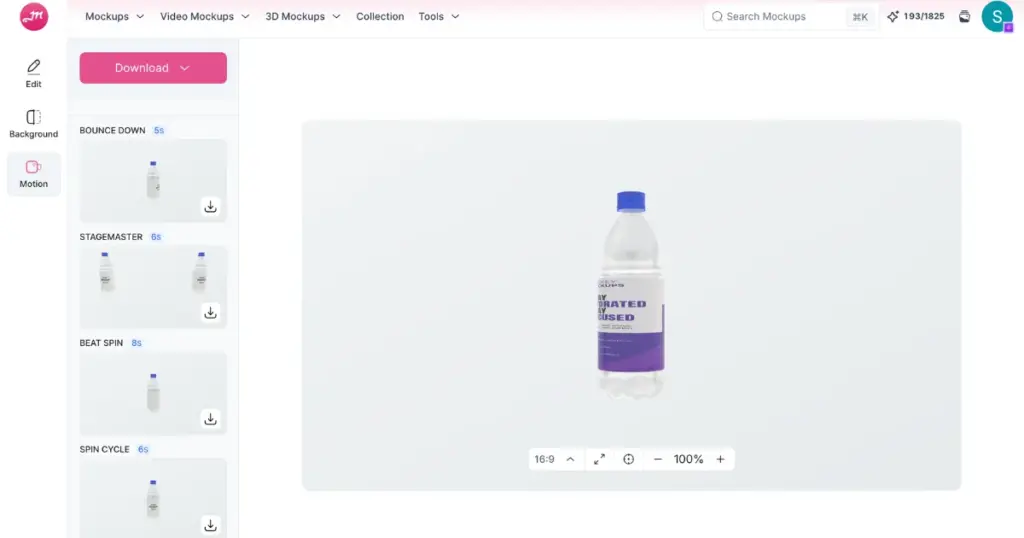
7. For image files, download the 3D mockup as PNG or JPG.
Here are different types of 3D mockups:
A 3D book mockup takes your flat cover design and wraps it around a realistic-looking physical book.

A 3D logo mockup looks more detailed and has more depth than a 2D logo mockup. As the name suggests, it creates the illusion of being three-dimensional, making it look more interesting and real.
A 3D T-shirt mockup shows what a design will look like on a T-shirt, including details like wrinkles, shadows, and fabric texture.
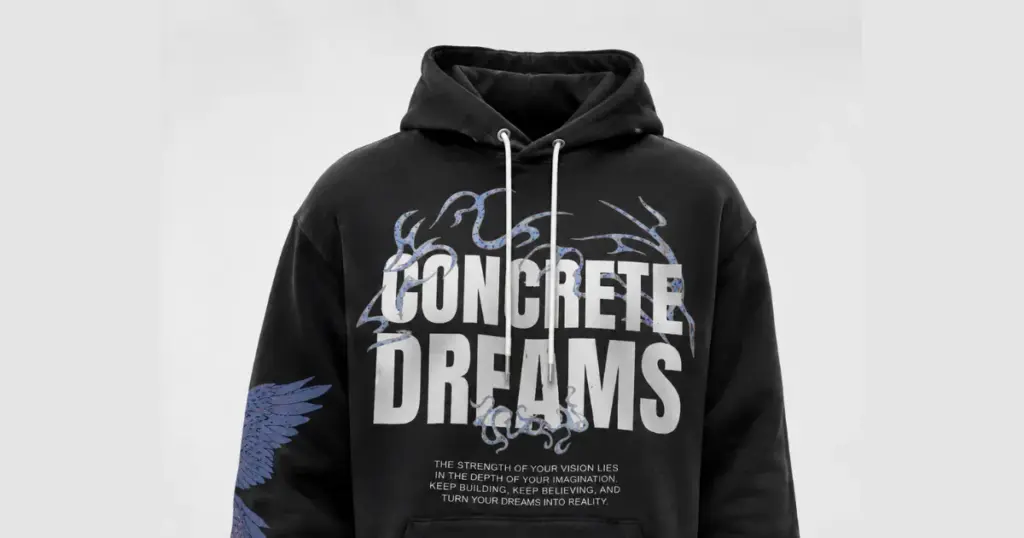
A 3D hoodie mockup shows what the design looks like on a three-dimensional hoodie, including the hood draping, pocket curves, and strings.
In summary, we’ve explained what is a 3D mockup and how to create one. We used a 3D bottle template as an example to customize.
We also went over the difference between static mockups and 3D mockups, why 3D mockups are useful, and the different types.
Now, sign up today and try Mockey AI.
Yes, no design experience needed. You drop your logo or flat design onto a 3D ready-made template, and it wraps itself onto the 3D shape automatically, whether that’s a bottle, box, or apparel.
Select a 3D mockup template from categories like apparel, packaging, or devices. Open the editor, upload your design, and it automatically maps onto the product. Customize colors, background, and texture as needed. Rotate the model to preview all angles, then click Download to export your finished, watermark-free AI mockup.
To create a 3D mockup in Photoshop, place your design on a new layer and convert it to a Smart Object. Then use Free Transform with Warp or Perspective to match the product’s curves. Reset opacity, set blend mode to Multiply, and add a Layer Mask to clean up edges.
Related Readings

Sangram Sahoo
I’m a content writer with 4 years of experience. I specialize in creating practical content around mockups, print-on-demand, apparel, and e-commerce design.
