How To Create 3D Mockups in Mockey.ai

How to create 3D mockups? Use Mockey AI to customize 3D product templates with color and texture. Download in PNG or MP4 files.
Some designers still use Photoshop or Blender to create 3D mockups. But a mockup generator offers ready-made templates and simple editing tools, letting you generate mockups much faster.
This article will walk you through how to create 3D mockups in Mockey.ai with step-by-step instructions and a few points to remember to maximize this platform’s potential.
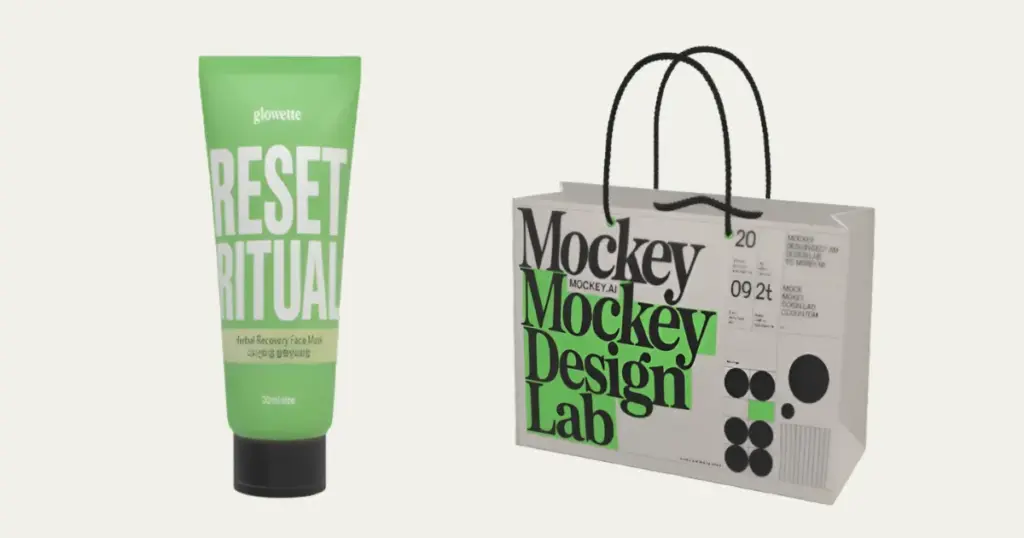
Table of Contents
Why Choose 3D Mockups?
An attractive-looking product mockup can make all the difference. Traditional 2D designs are great for initial concepts, but 3D mockups add depth and look more real, which allows the audience to visualize the product in a more real-life-like setting. This will also highlight the benefits of 3D mockups, such as better engagement, better product realism, and an improved design process.
How To Create 3D Mockups With Mockey.ai
Mockey.ai is the best platform, popularly known for its high-resolution mockups. It provides easy customization options. Let’s learn how to make 3D mockups with Mockey.ai:
Step 1: Login or Sign Up
To know how to make 3D mockups, tap the “Login/Sign Up” button in Mockey.ai.
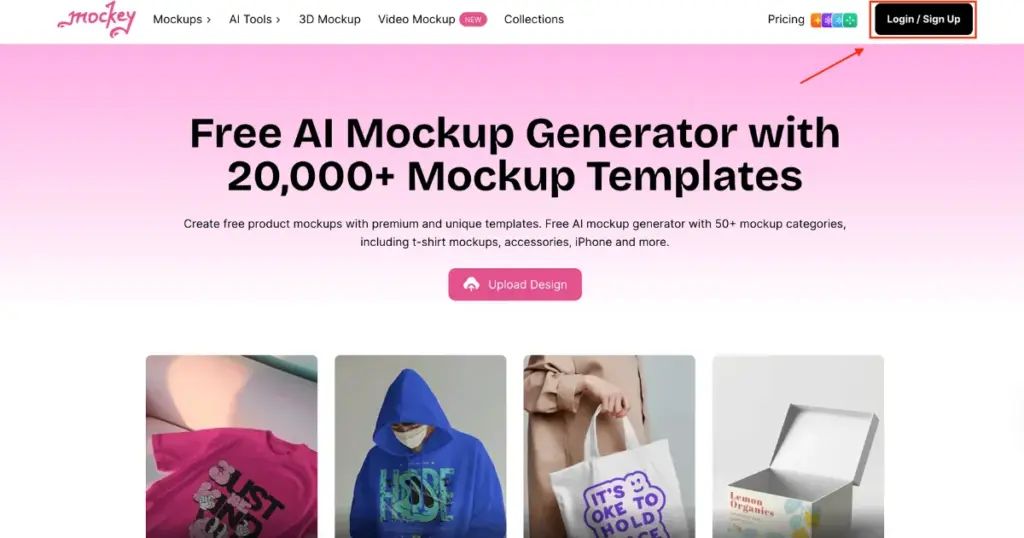
It is the best 3D mockup generator, providing 100+ free AI mockup designs with a variety of customization options. Once registered, you’ll get access to a free plan or can also choose from a variety of subscription plans.
Step 2: Navigate To 3D Mockups
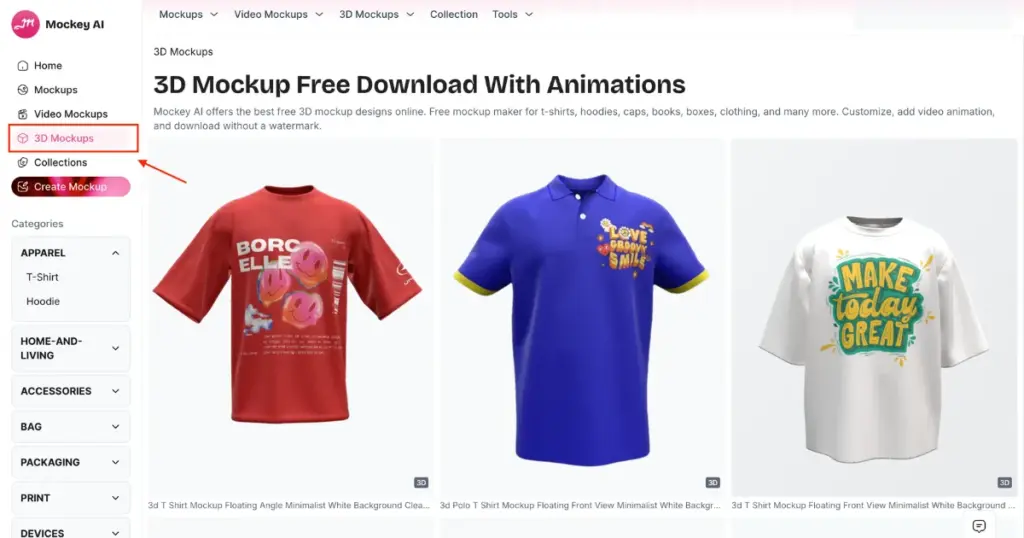
In the next step of how to create 3D mockups, click on the “3D Mockup” page. You’ll get a wide variety of templates in 3D.
Step 3: Choose Your Template
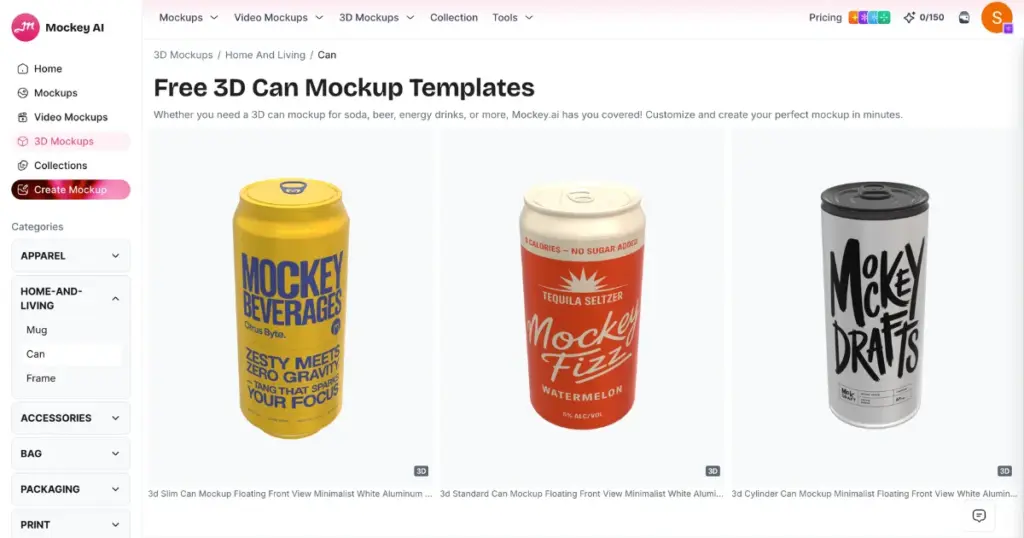
Mockey.ai provides a variety of templates from 3D mugs to photo frames. Choose a template among the options provided and proceed to the customization process. We’ll go with a 3D Can mockup.
Step 4: Customize It
To customize the template, you can select the aspect ratio if needed.
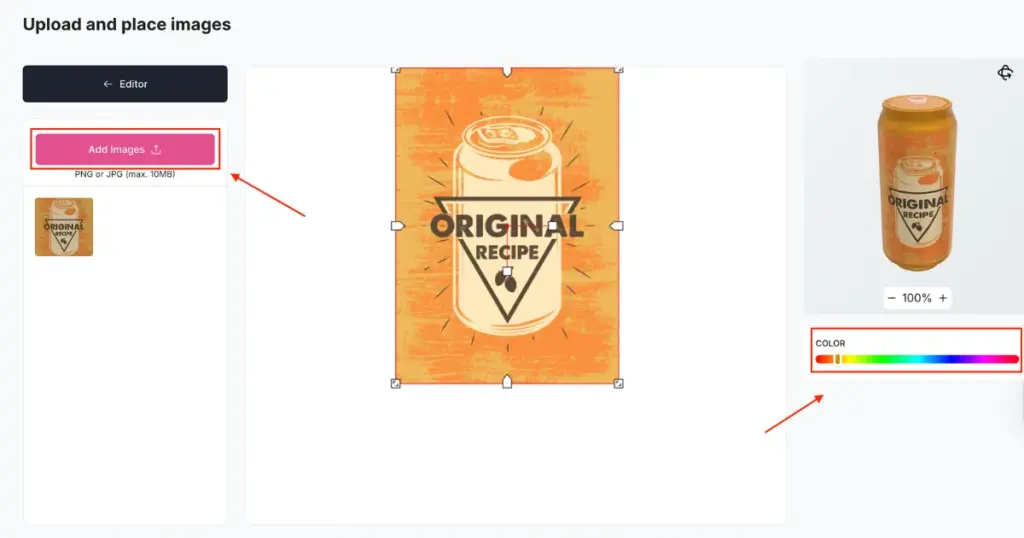
Then, click on “Upload Image” to add your chosen design to the template. You can adjust the size and shape of the logo according to your design. Change the color of the Can if needed.
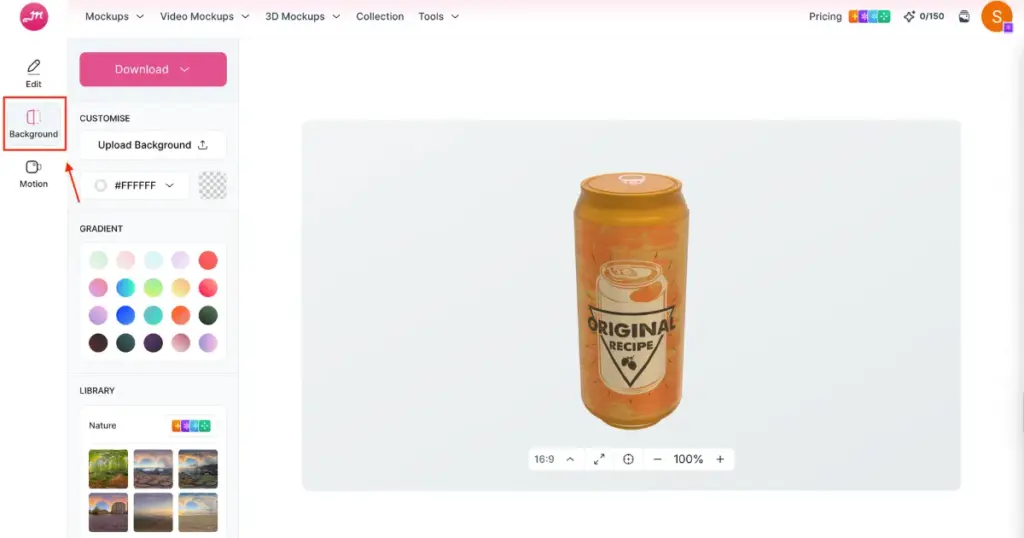
To alter the product’s background, press the “Background” button on the left.
Finally, preview your template to assure if you have brought your exact idea to life.
Step 5: Download 3D Mockup
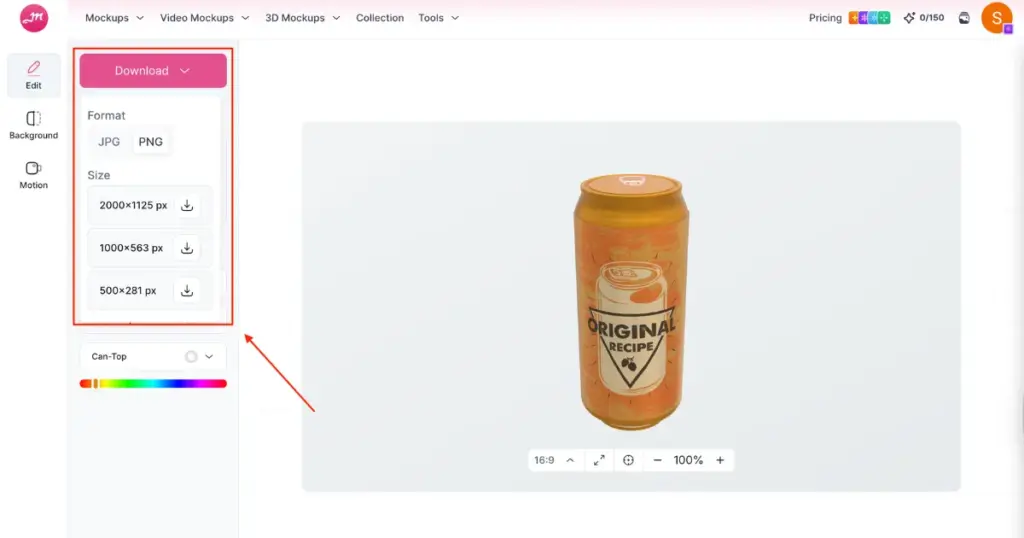
Once you are satisfied with the customization, hit the “Download” button on the top left to export your 3D mockup as PNG or JPG without any watermark.
If you want, you can also preview 3D mockups in animation and download them. Click on “Motion”, choose one animation from the different options available, then tap the download arrow to save it.
Common Mistakes to Avoid In Making 3D Mockups
There are several mistakes to avoid when creating 3D mockups to get the best results.
1. Overcrowd with Text or Logos
Adding too many design elements, such as logos, texts, or patterns, can make your 3D mockup feel cluttered and unattractive. When viewers see too many things on a single product mockup, they might lose focus on the main product.
2. Ignore Lighting and Shadows
Lighting and shadows play an important role in creating 3D mockups. If you ignore these details, it can make your mockup look flat and lifeless, while inconsistent lighting can make it look unnatural.
3. Use Low-Resolution Textures
If you apply low-resolution textures, it can lead to a blurred appearance, especially when the mockup is viewed in close-up. This detracts from the overall quality and professionalism of the mockup.
4. Misalign Design Elements
Misalignment of logos, text, or other design elements can make your mockup look unprofessional. Small misalignments often go unnoticed during creation but get attention in high-resolution images or print.
Final Words
To conclude, we have learned the steps of how to create 3D mockups using Mockey.ai in detail. Mockey.ai is the best mockup website that provides a wide library of unique 3D mockups with unlimited downloads. We have also seen what are the common mistakes that can be avoided while creating 3D mockups. Follow the steps provided in the guide to create a unique and perfect mockup for your brand today.
FAQs
How to create your own 3D mockup?
To create your own 3D mockup, use Mockey.ai, a mockup generator. Start by choosing a template, uploading your design, customizing elements like color and texture, previewing it, and downloading your final mockup.
What is a 3D mockup?
A 3D mockup is a realistic, three-dimensional representation of a product, allowing designers and brands to showcase how a product will look in real life, adding depth and visual appeal.
Which software is best for mockup design?
Mockey.ai is one of the best platforms for 3D mockup design, offering high-resolution mockups, customization options, and an easy interface ideal for professionals and beginners alike.
Can I use Canva to create a 3D mockup?
Canva has some mockup features, but it primarily supports 2D mockups. For full 3D mockups, specialized tools like Mockey.ai are more effective.
Related Readings

Palak Roy