Z Fold Brochure Mockups free Download
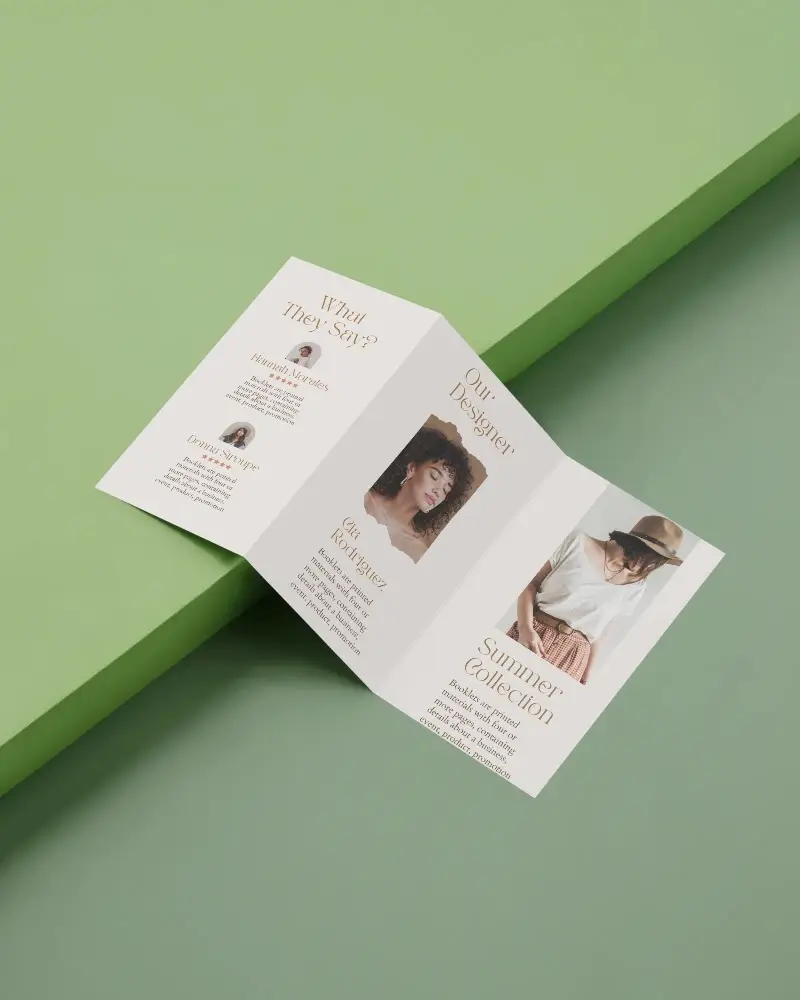
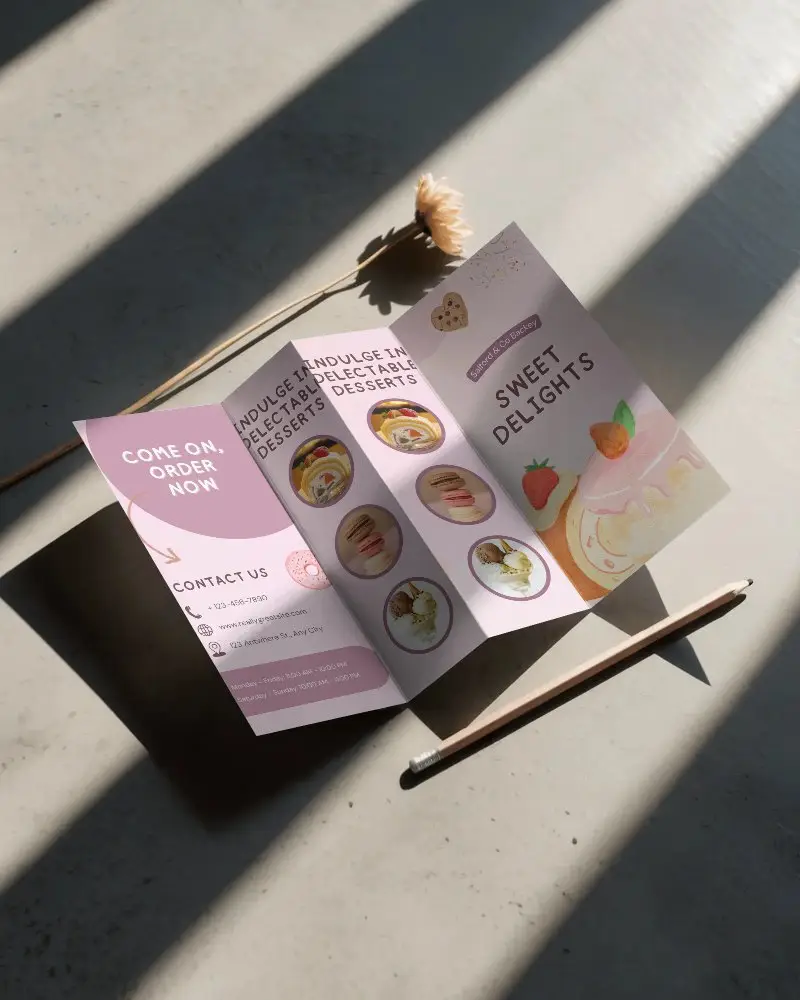
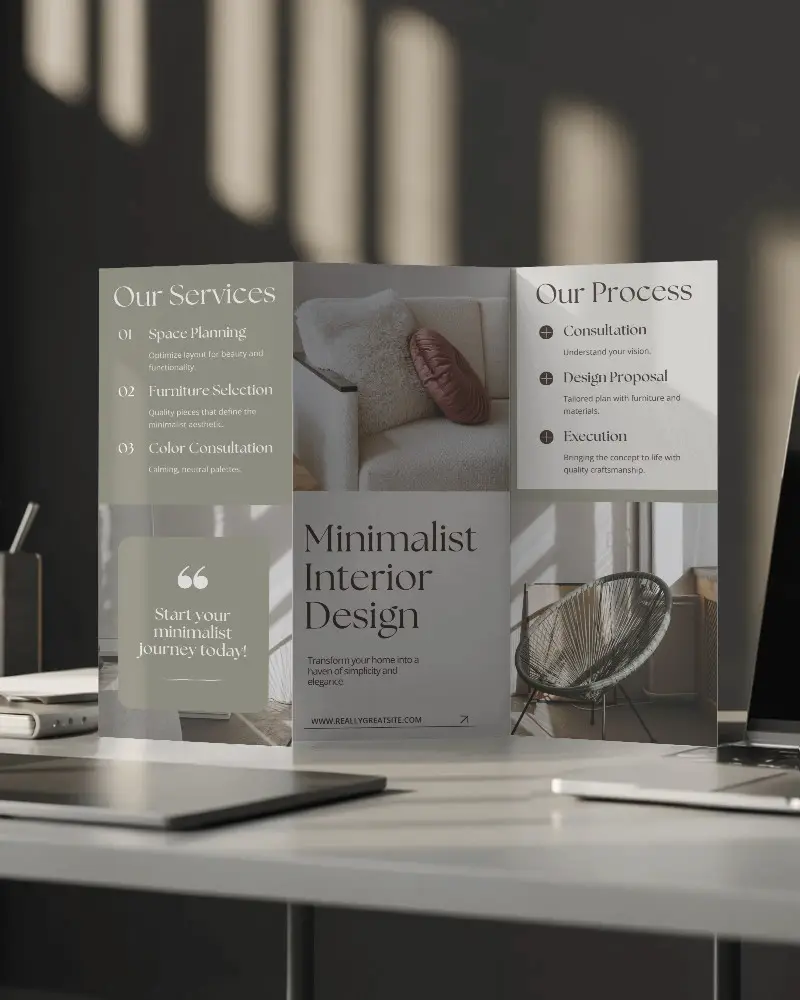
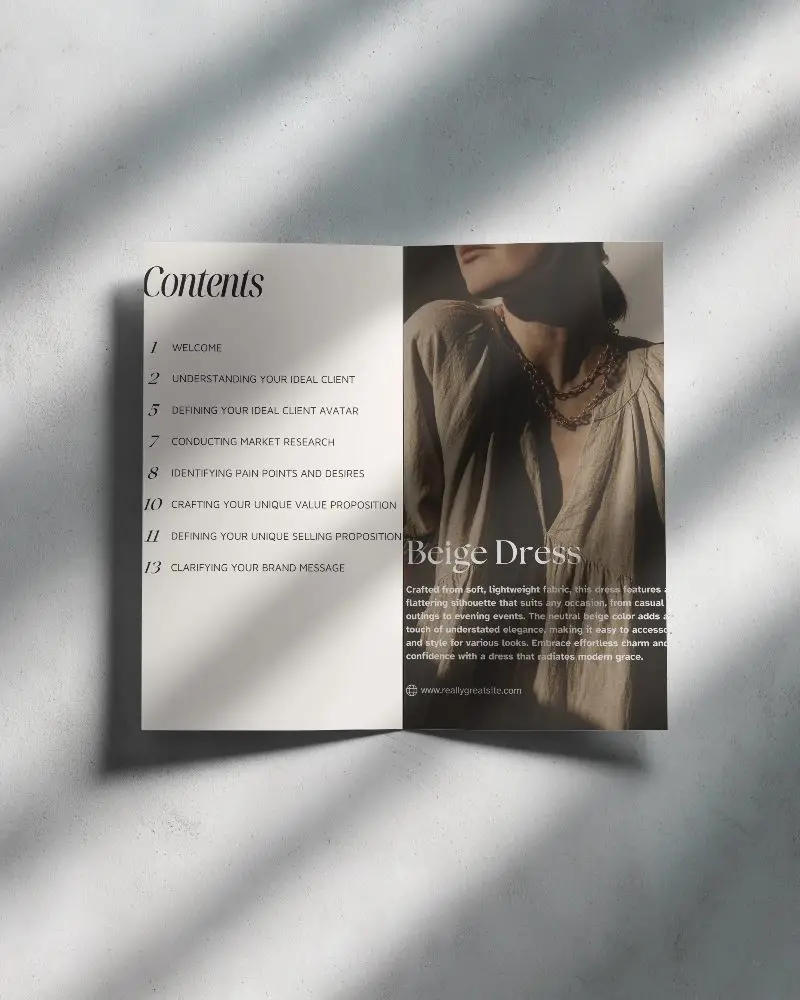
Showcase your designs with premium Z Fold Brochure Mockups. Download free brochure templates for realistic, customizable presentations in minutes
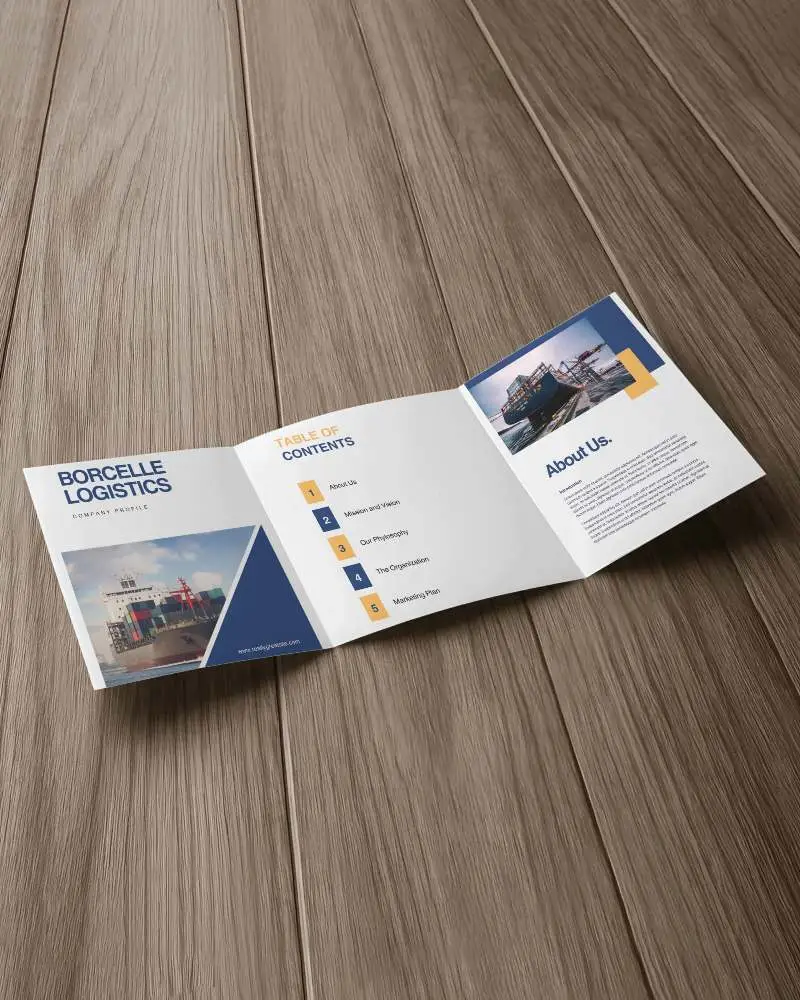
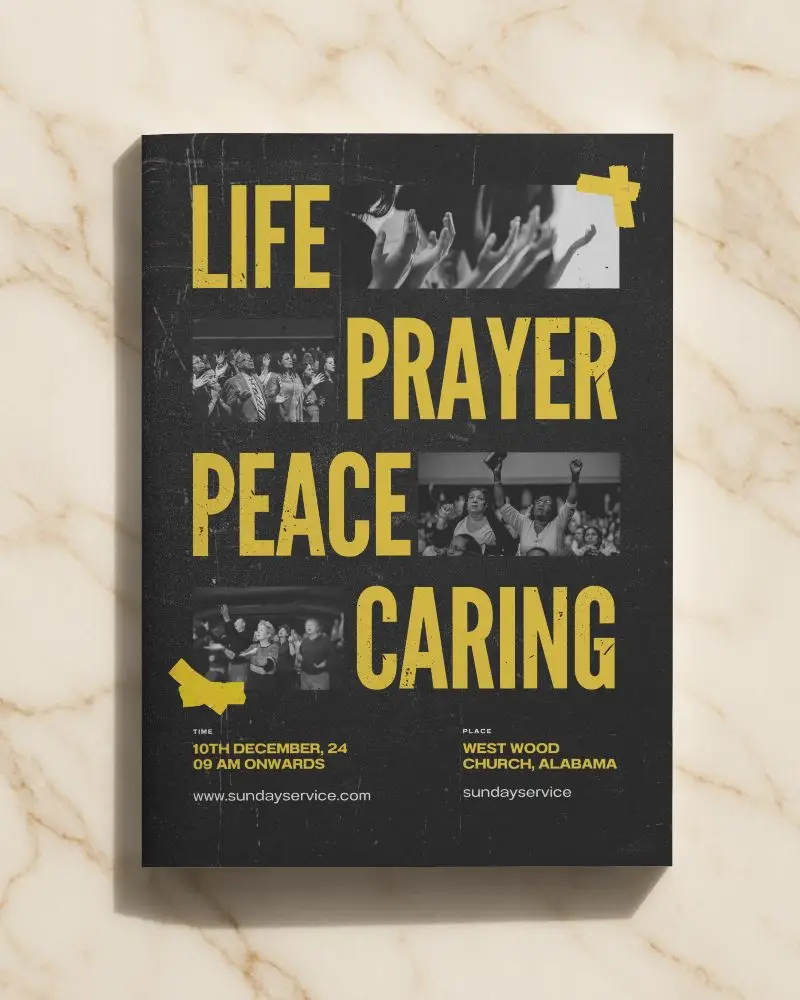
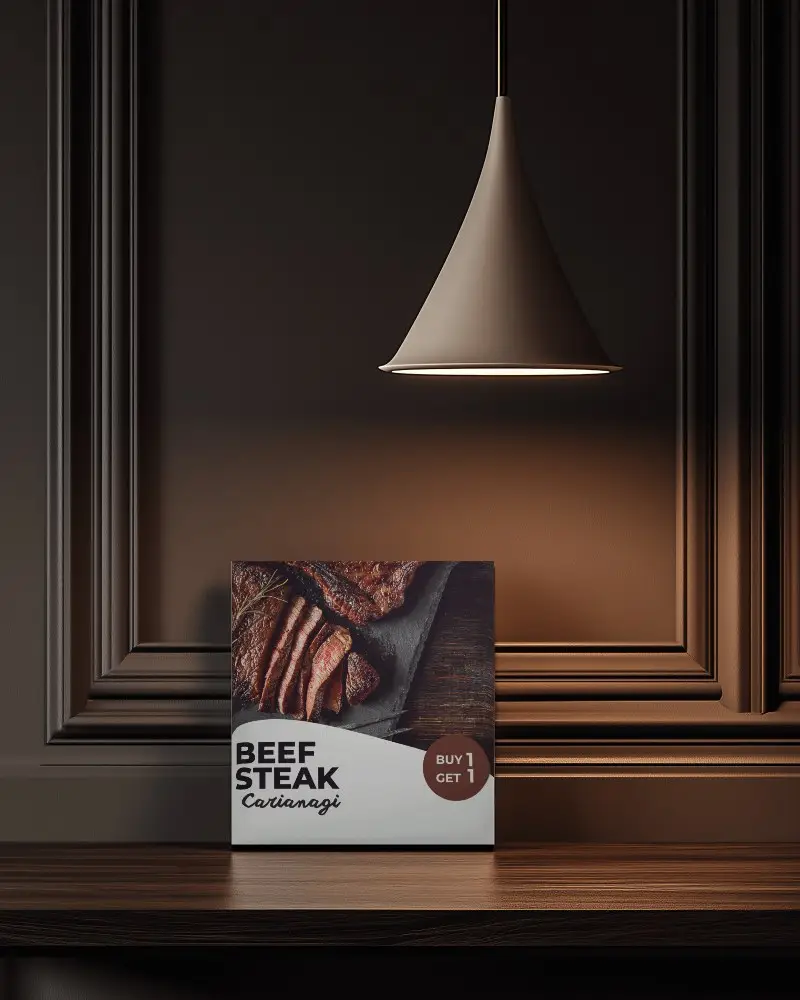
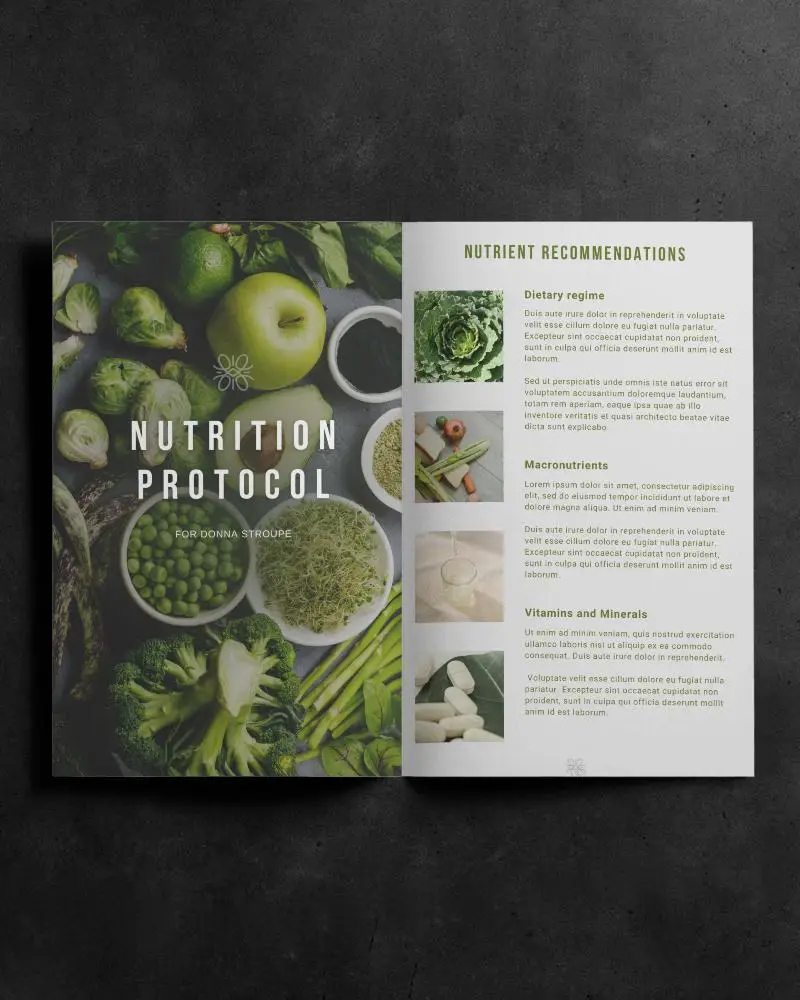
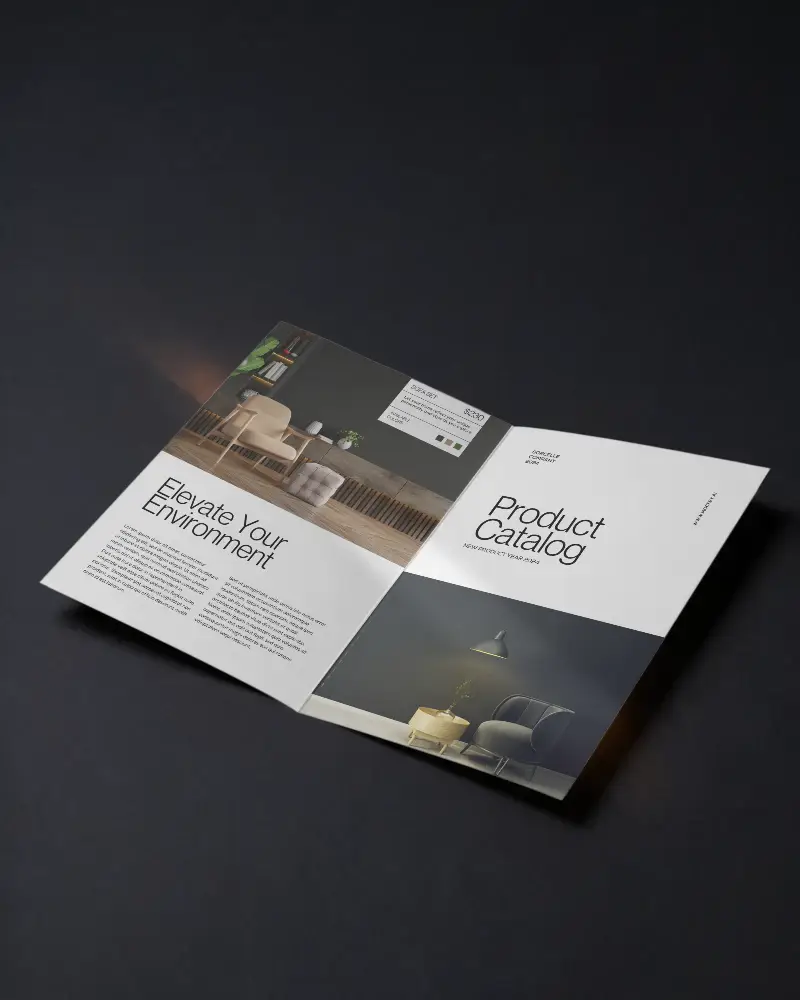
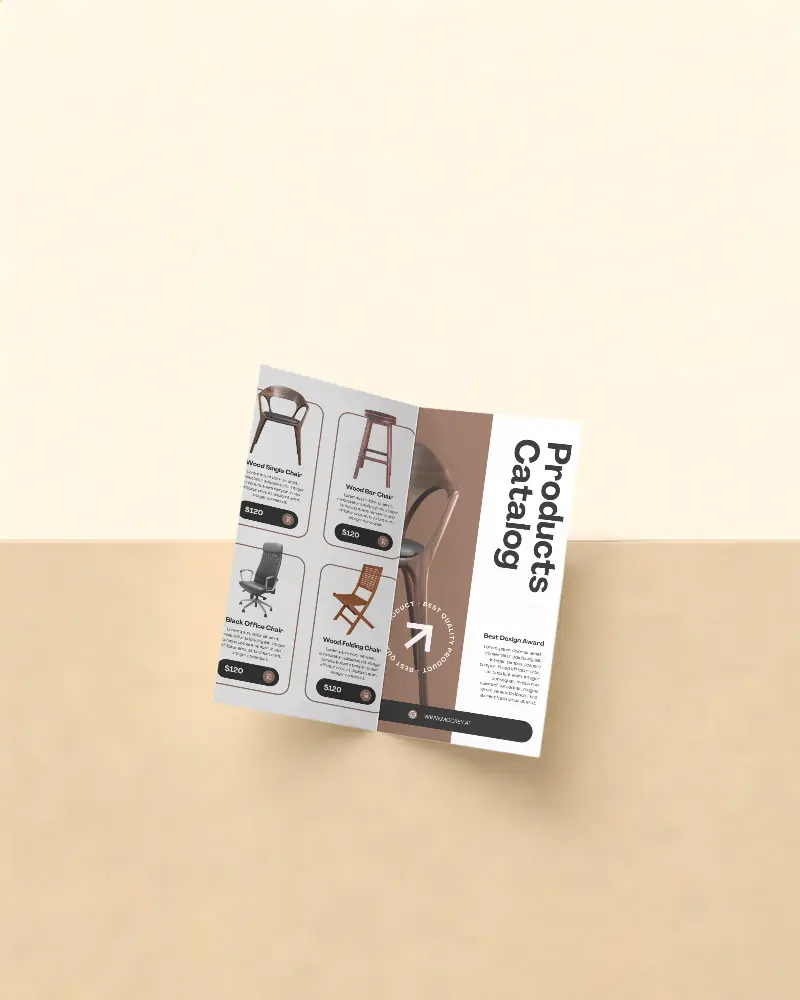
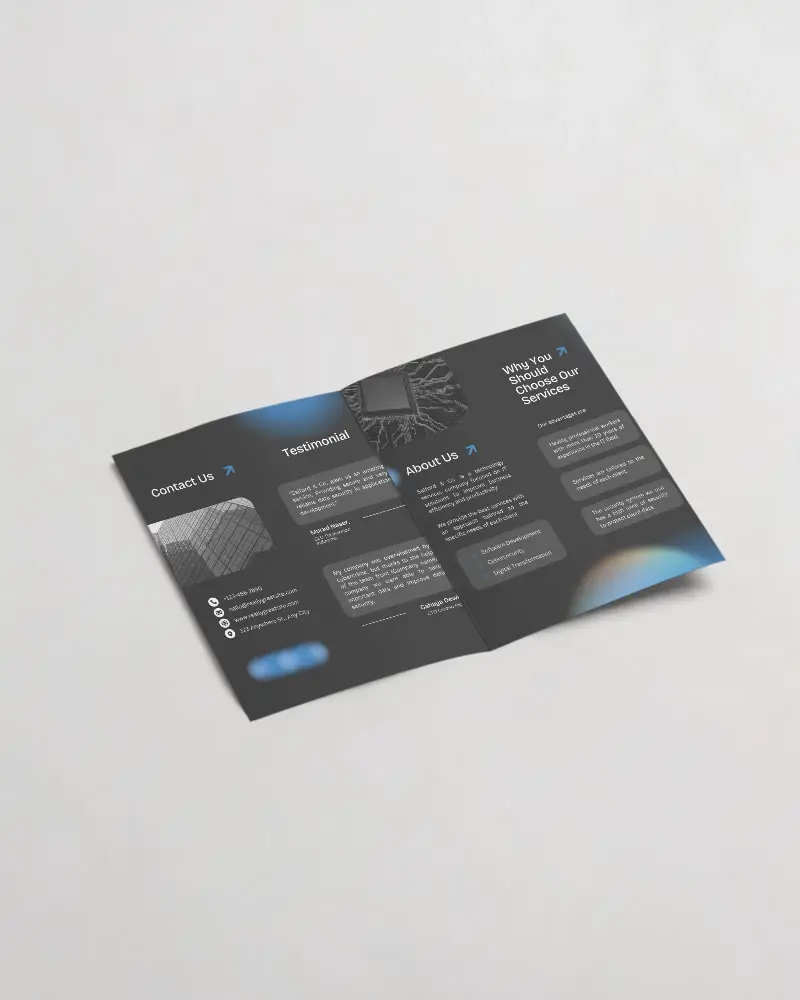
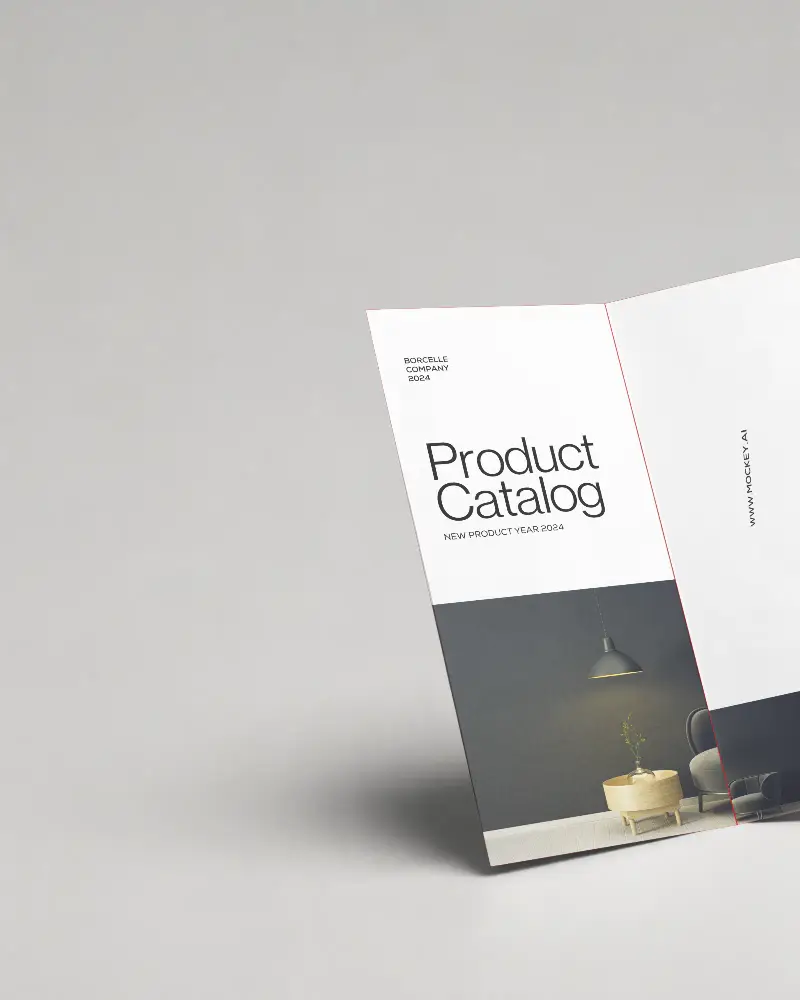


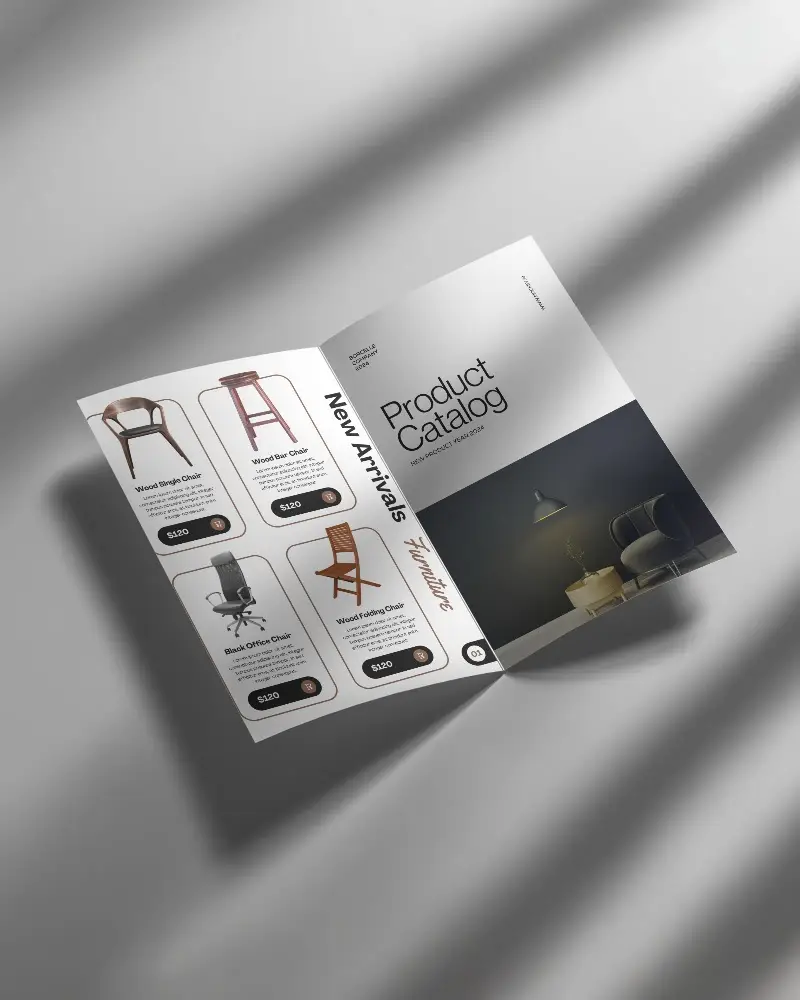
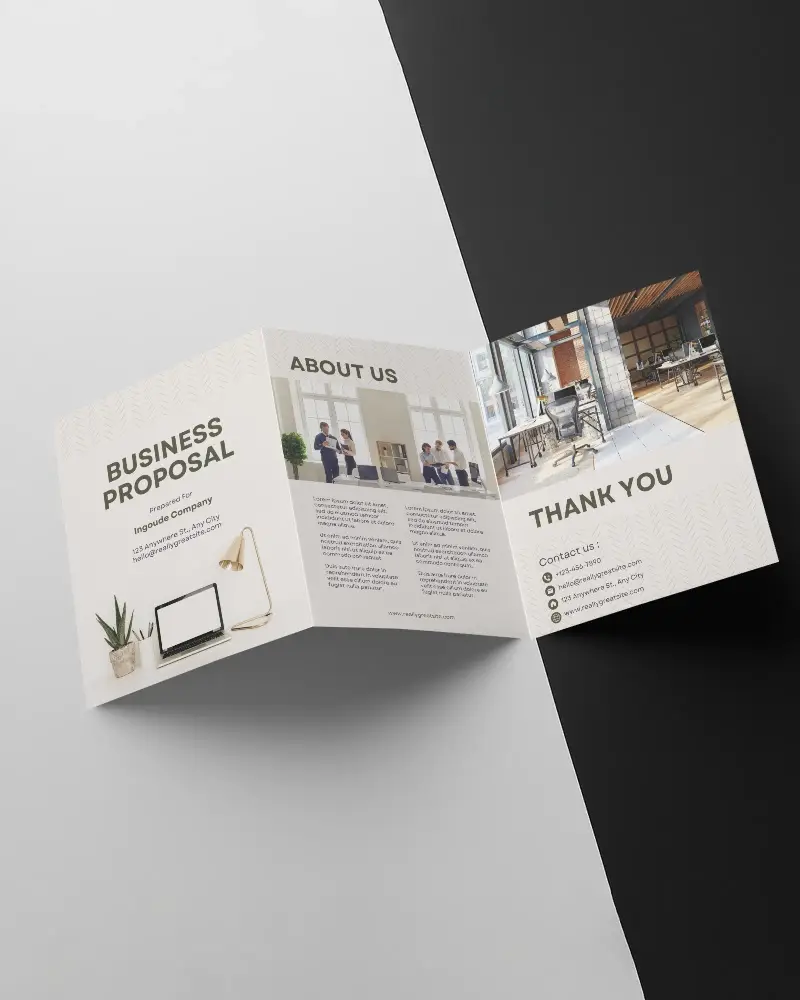
How to Make Z Fold Brochure Mockup with Mockey
Follow the steps to create Z Fold Brochure Mockups in Mockey AI
- Step 1: Click Mockups, then look for the Z Fold Brochure category in the print section
- Step 2: Then click Upload Design and pick your Z Fold Brochure template
- Step 3: Customize and export it by hitting the Download button for free without any watermark.
FAQs on Z Fold Brochure Mockups
How to create a Z Fold Brochure mockup?
To create a Z Fold Brochure mockup first, go to the “Mockups” section, find “Print,” and select “Brochure.” Then, pick a brochure style from the options and click “Add Design” to upload your image and start customizing it. When you’re finished, just click “Download” to save your brochure mockup without a watermark.
What is a Z Fold Brochure mockup?
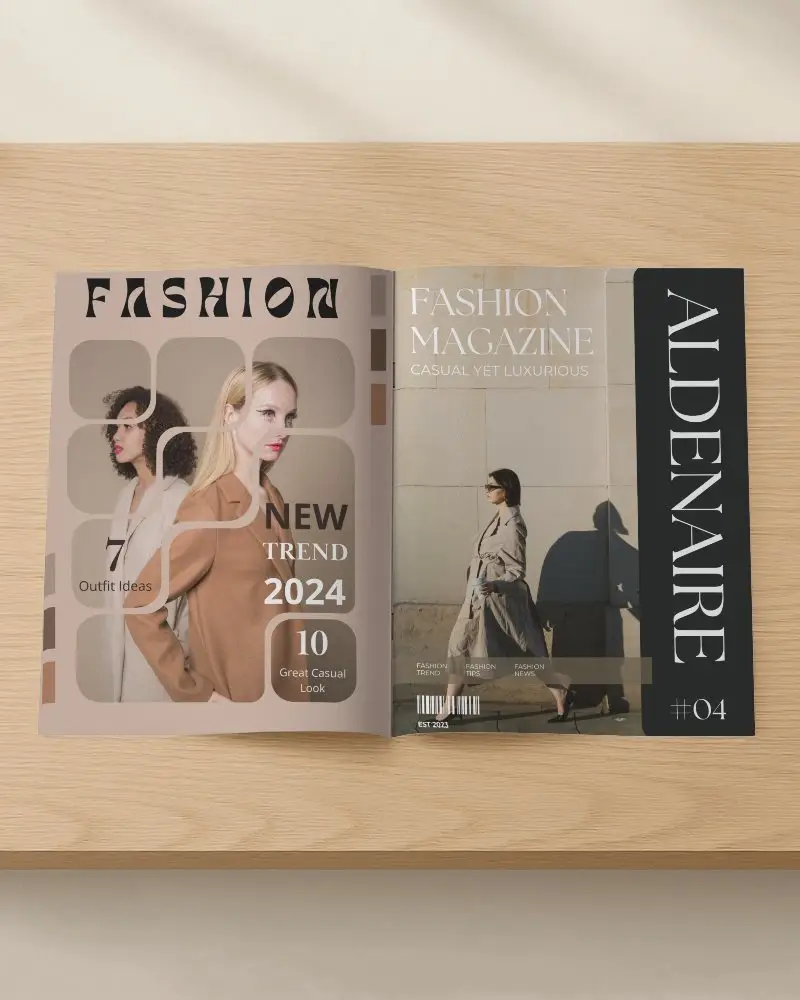
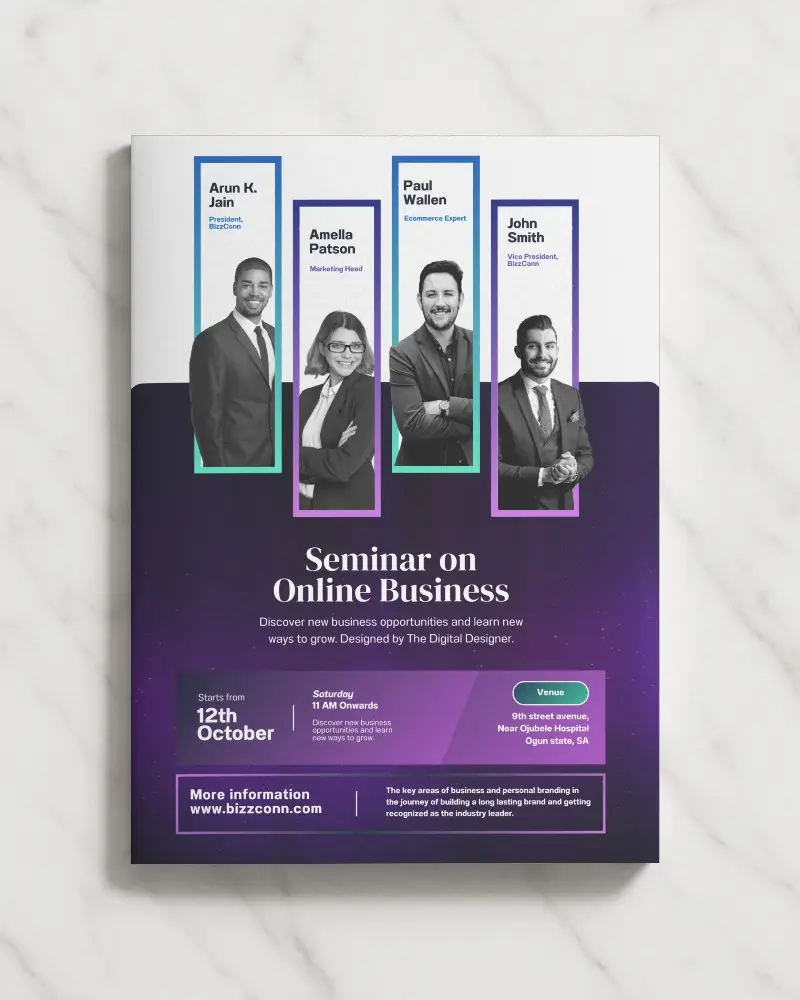
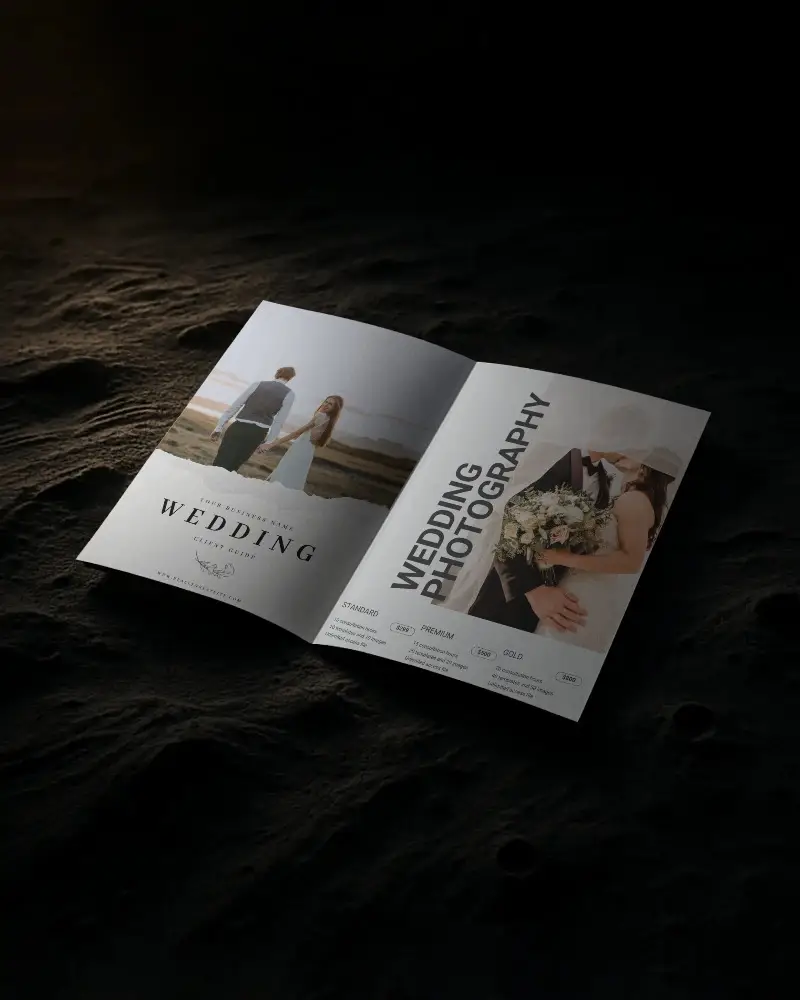
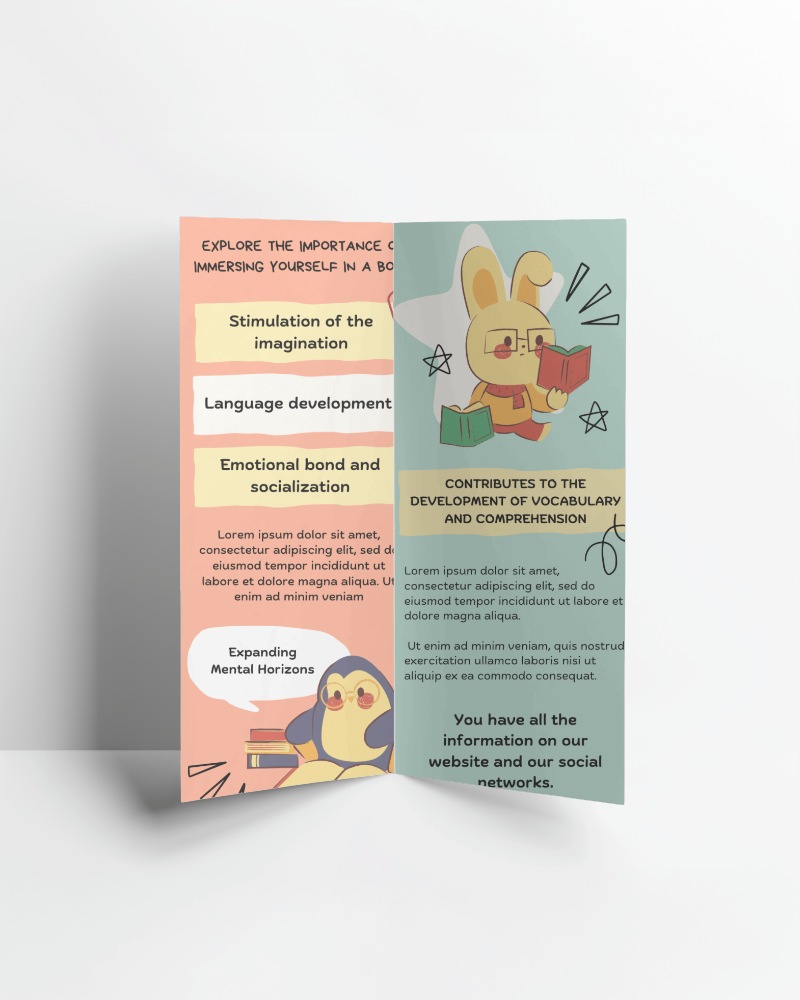
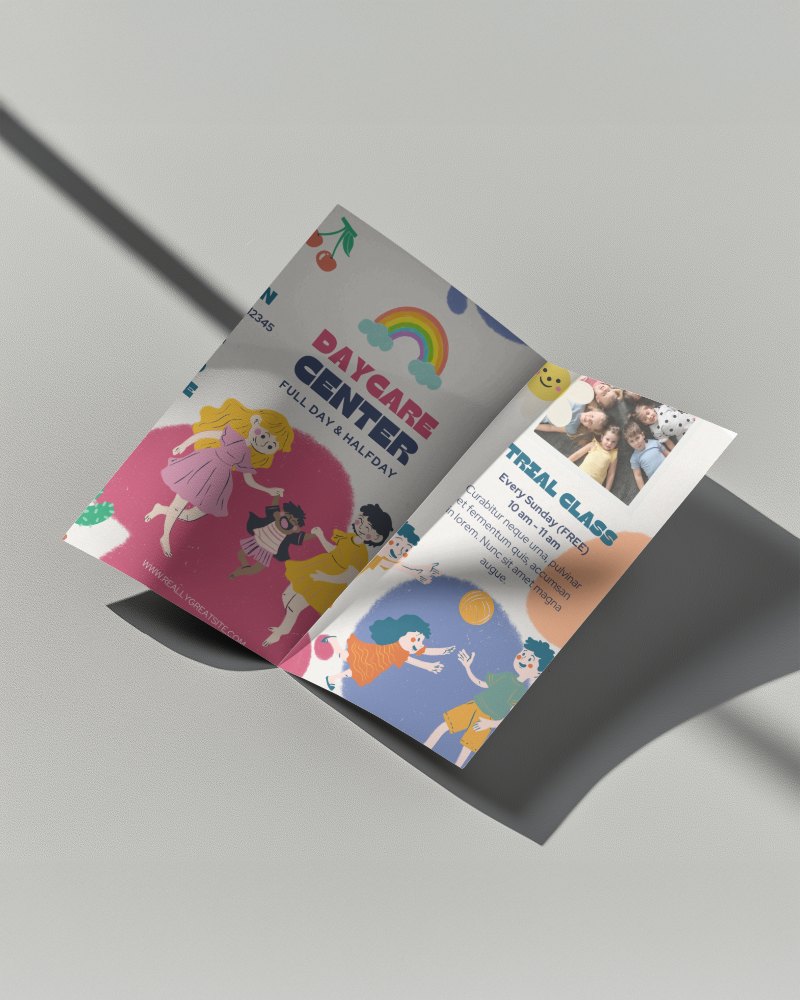
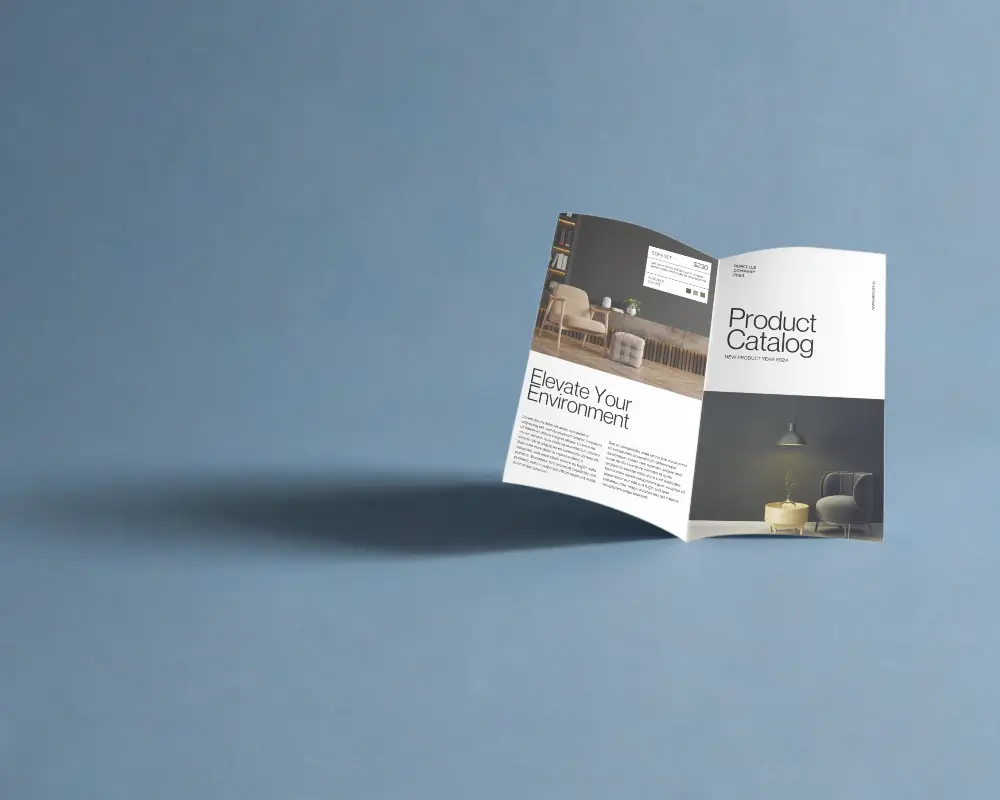
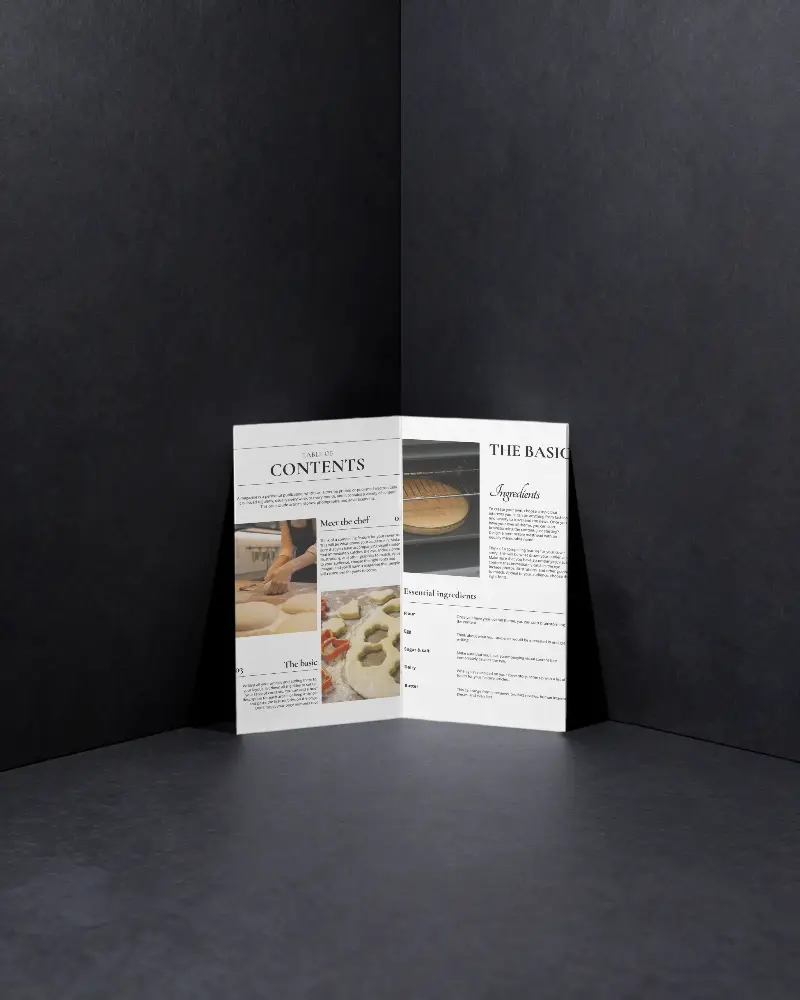
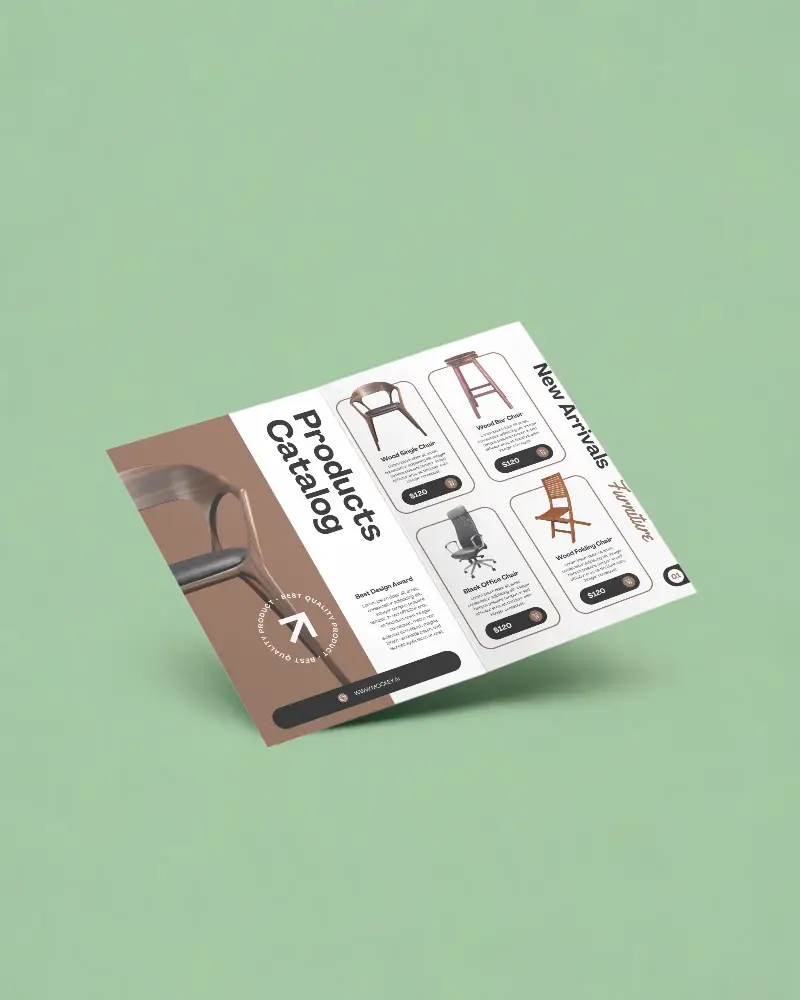
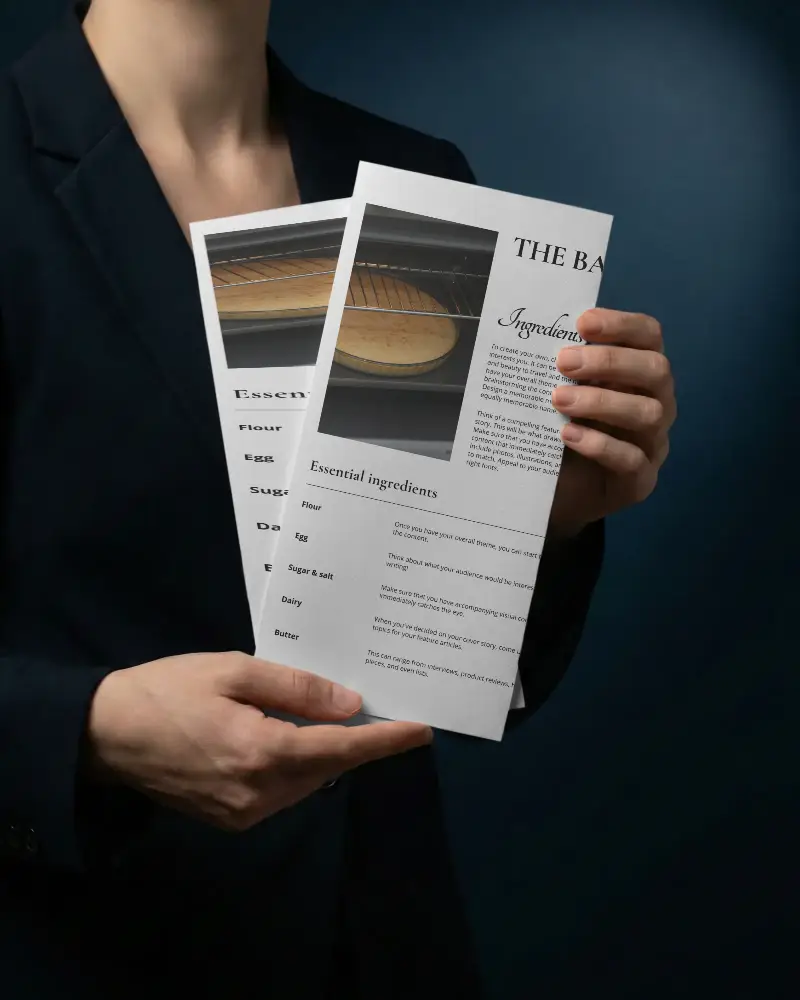
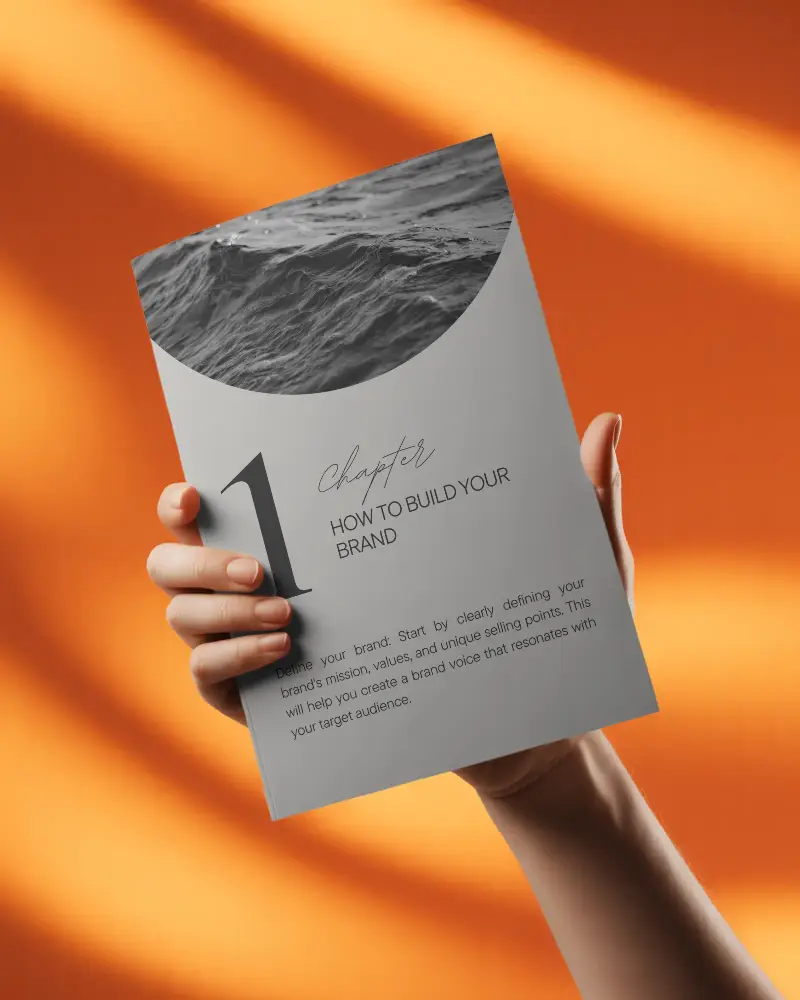
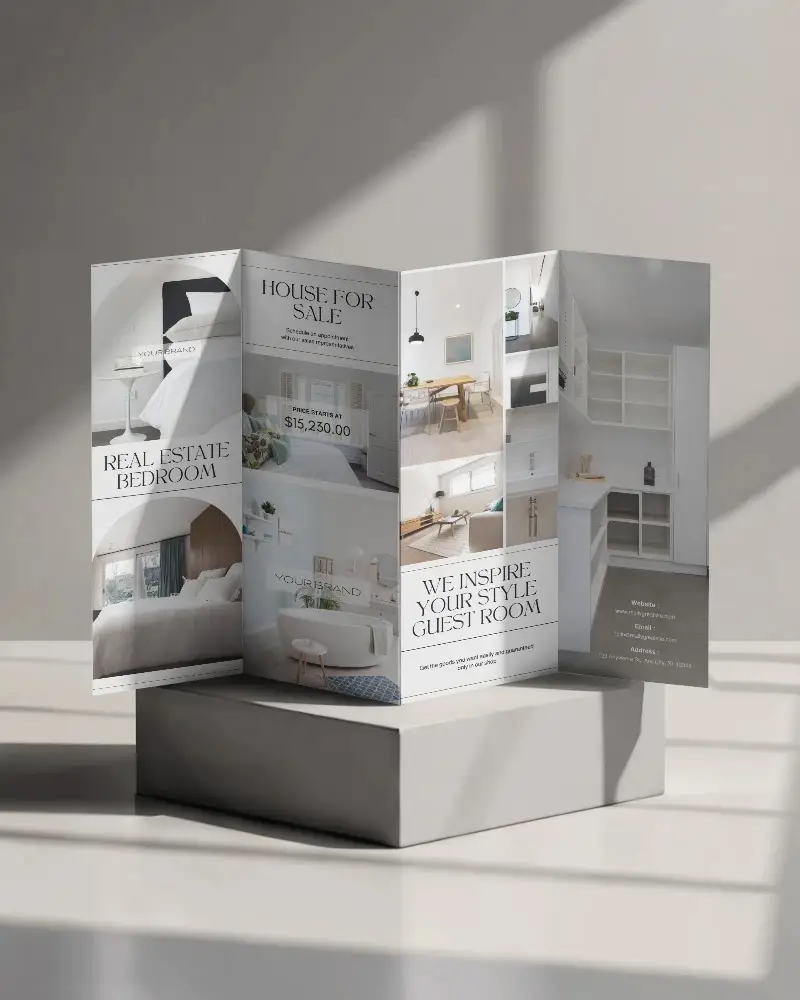
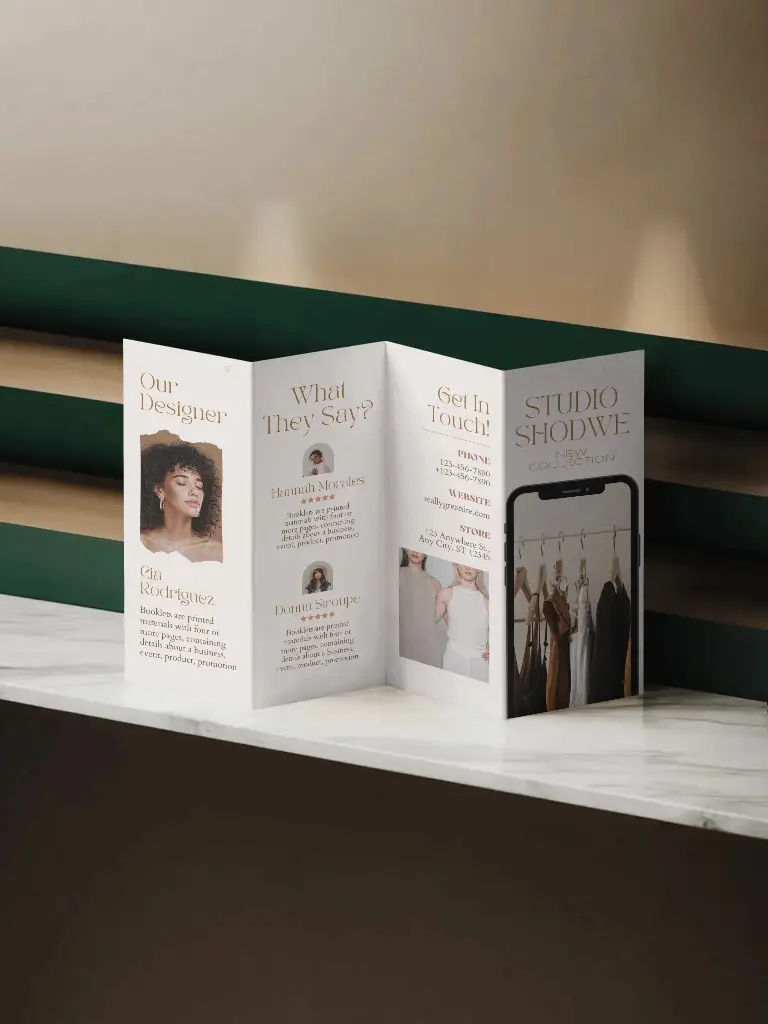
Z Fold Brochure mockups are ready-made images that help you show off your brochure designs in a realistic way like they’re already printed. We’ve got a great collection of templates for brochures, including bi-folds, tri-folds, and more.
Why Use Mockey’s Z Fold Brochure mockup?
Mocky AI is awesome for creating Z Fold Brochures because it has over 500 templates ready to use, a simple interface, and customization features to help you easily make each design your own.
How to make A4 Brochure Mockup?
Mockups > Print > Brochure. Look for A4 in the category bar of the Brochure. After that, pick a template and add your design. Once your A4 Brochure is looking the way you want, just download it in high quality.