Free Square Magazine Mockup for Clean, Modern Designs
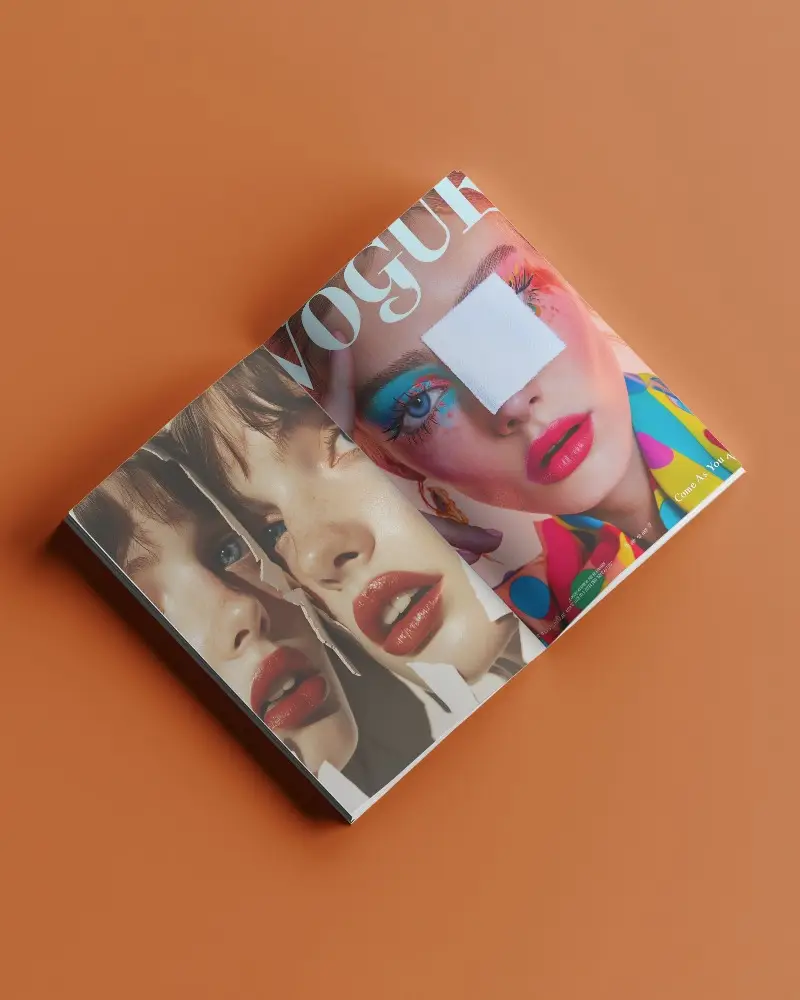
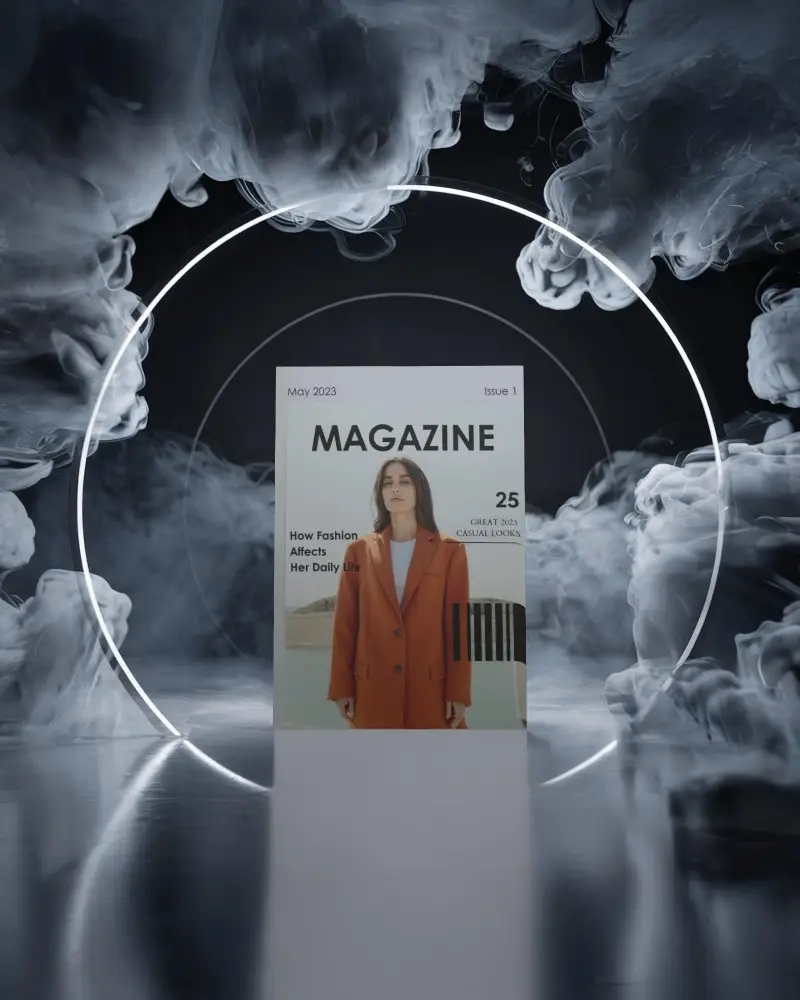
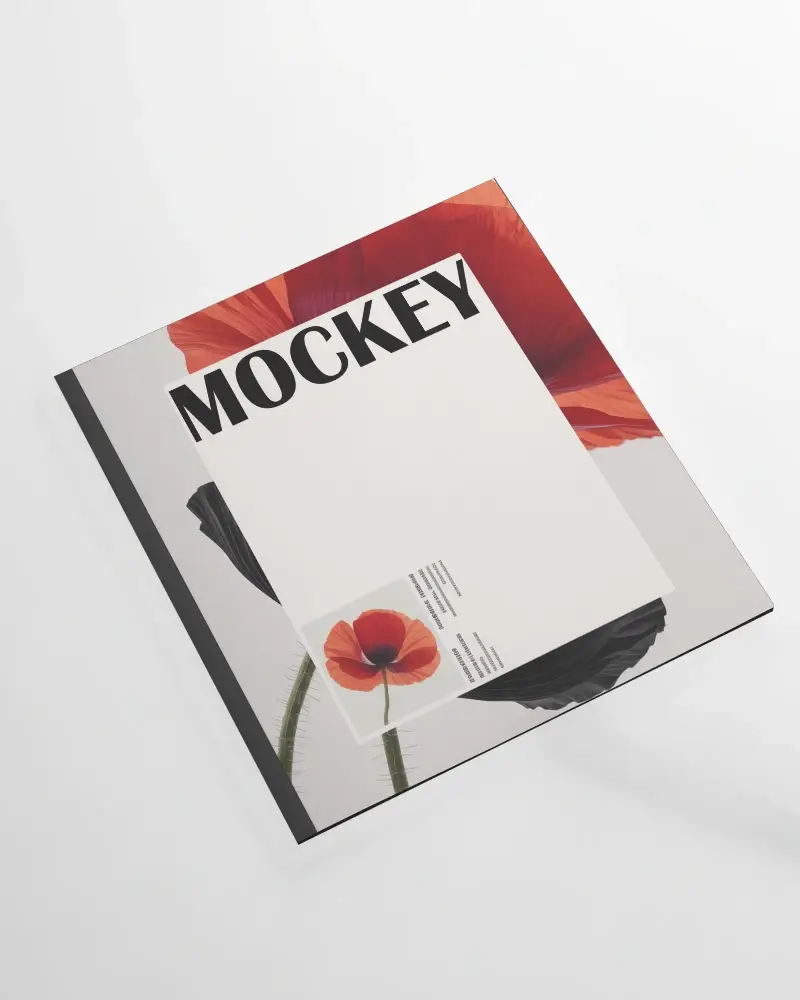
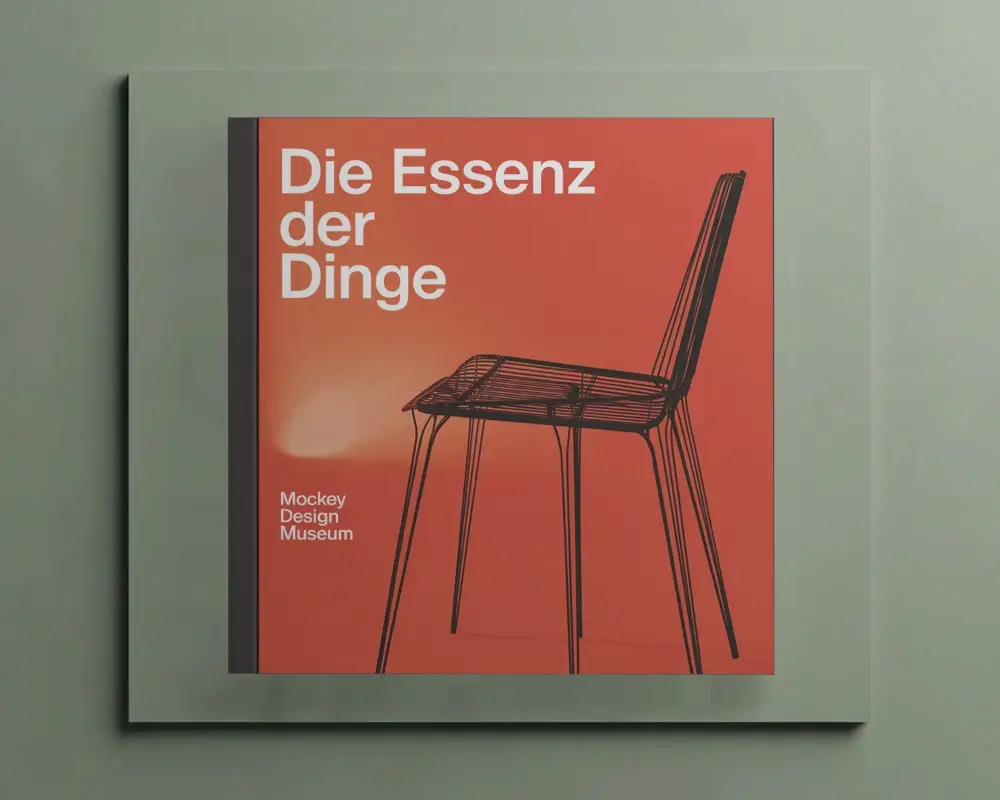
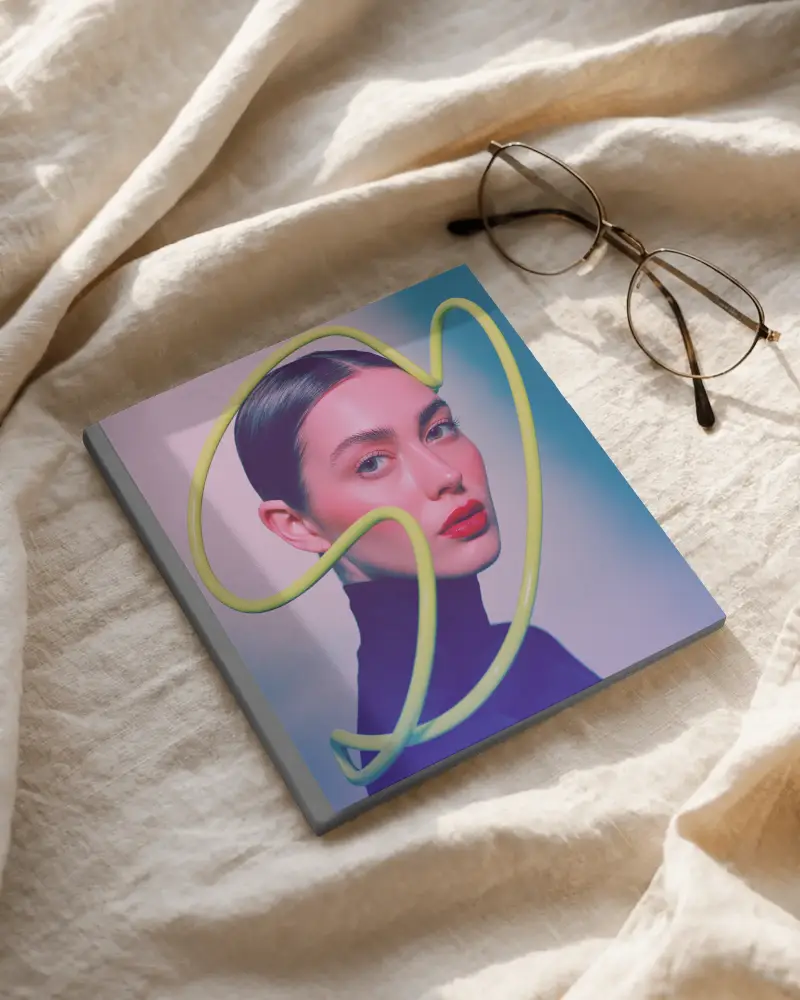
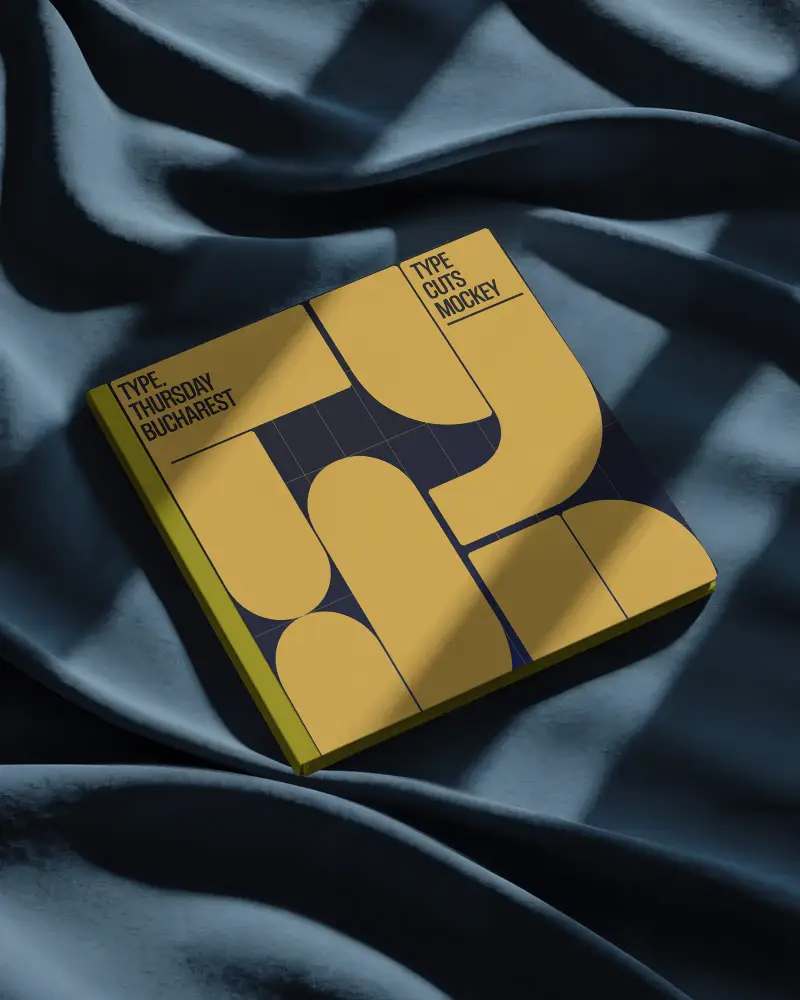
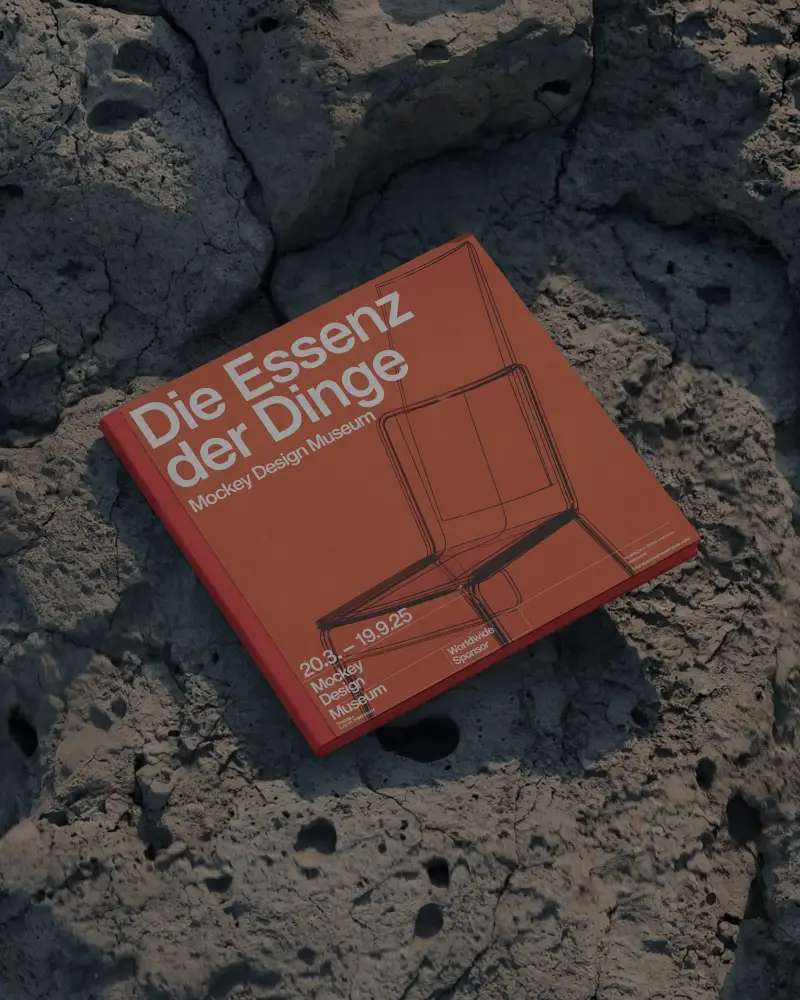
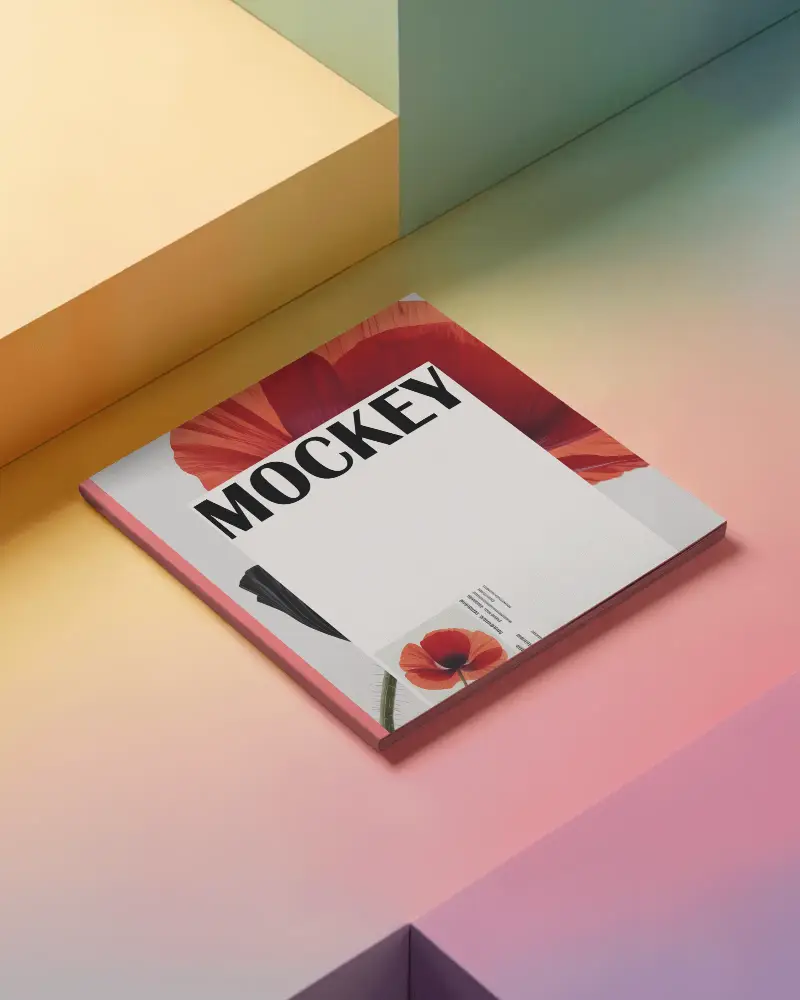
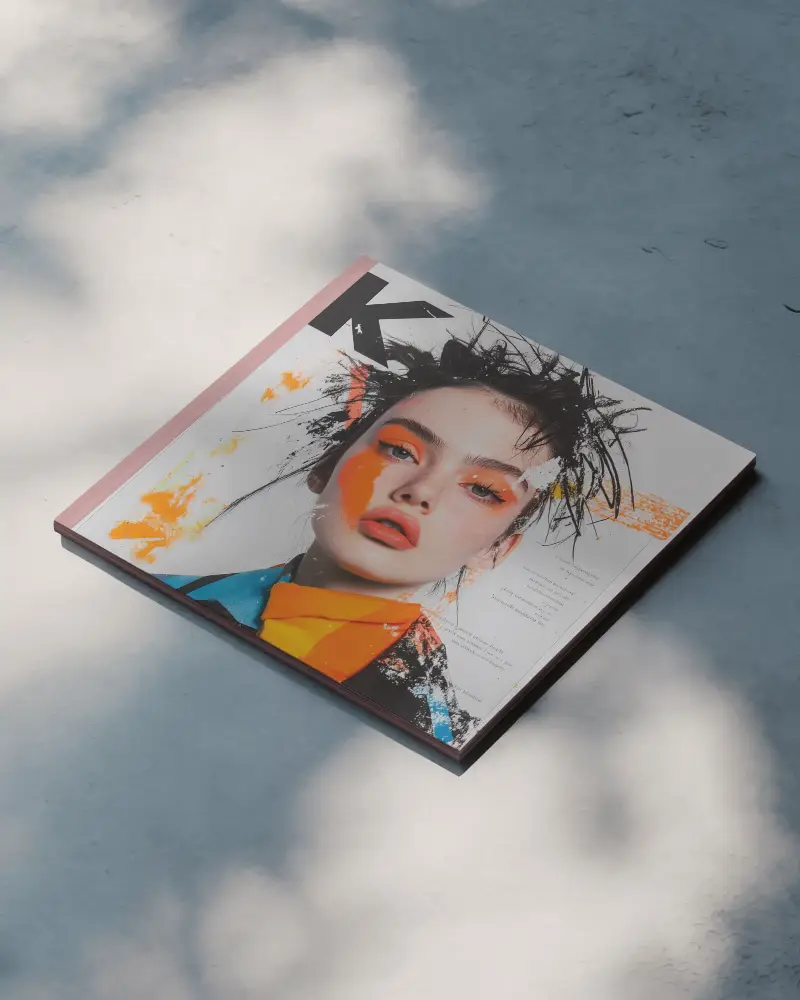
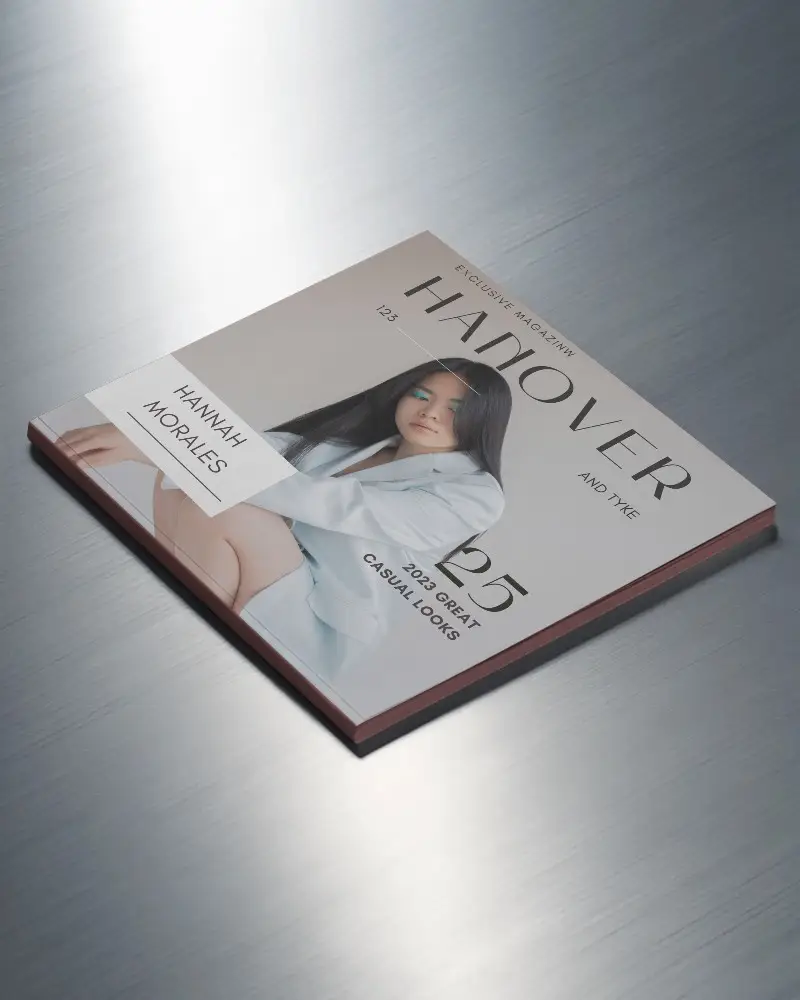
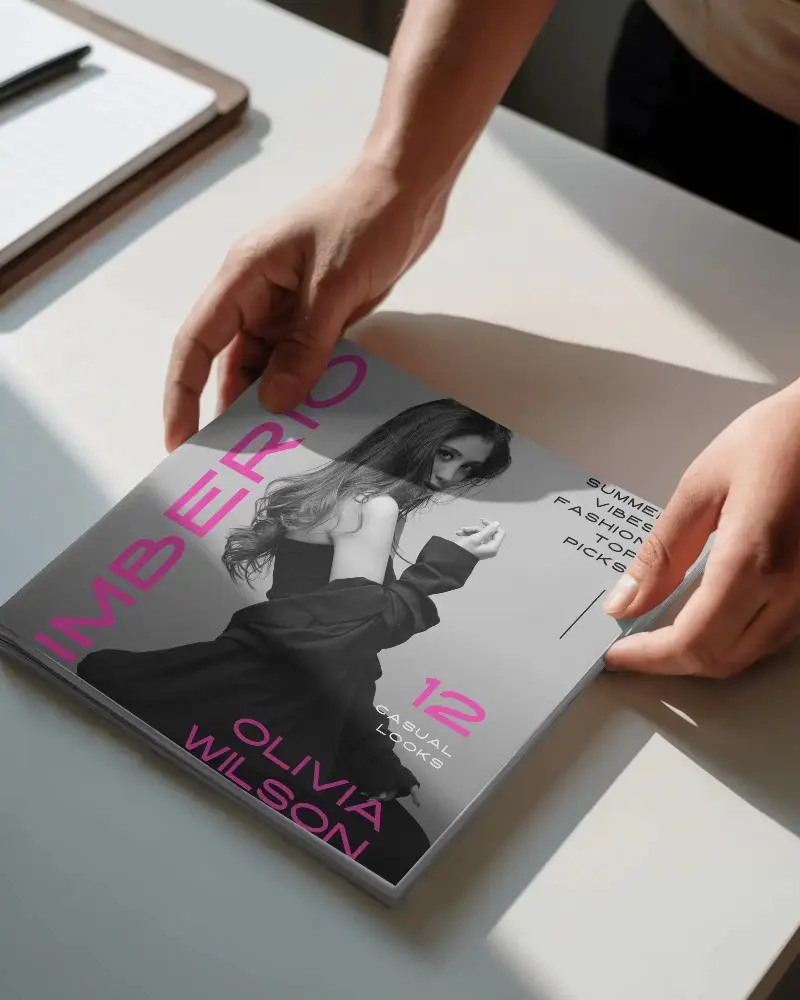
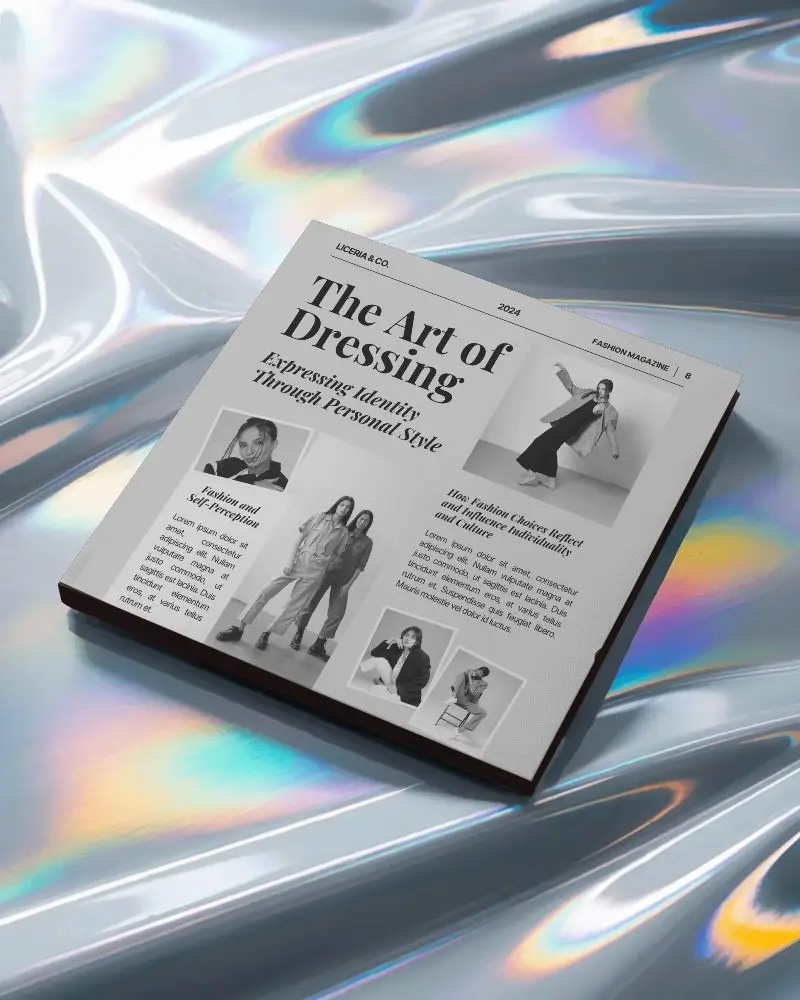
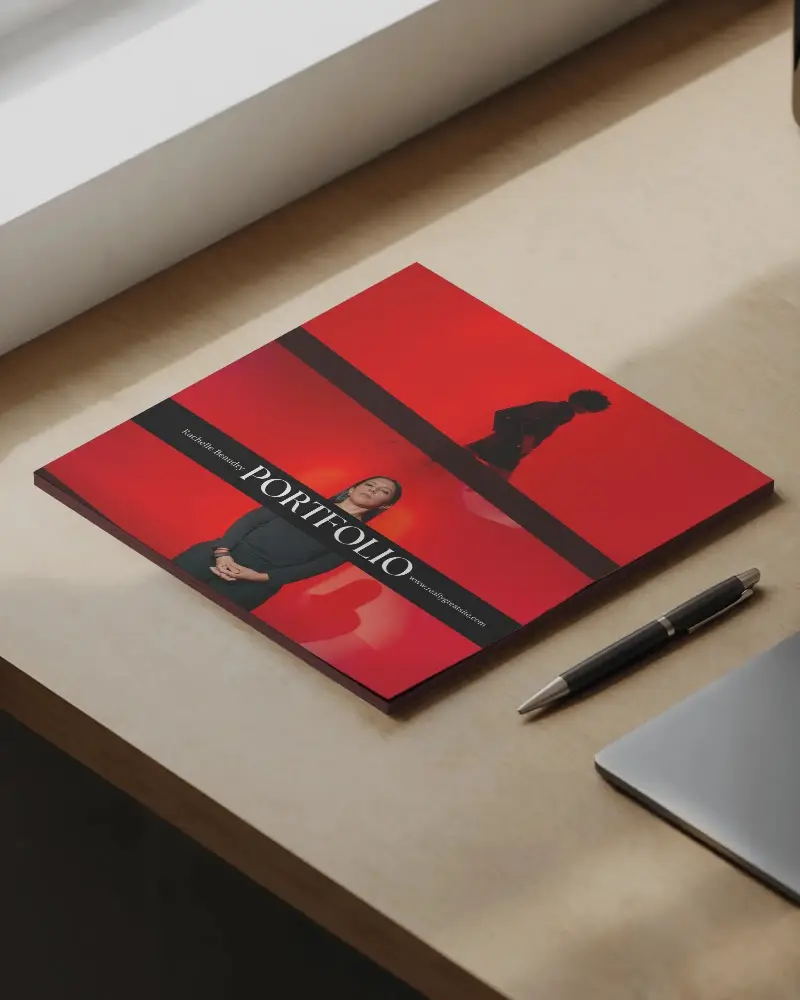
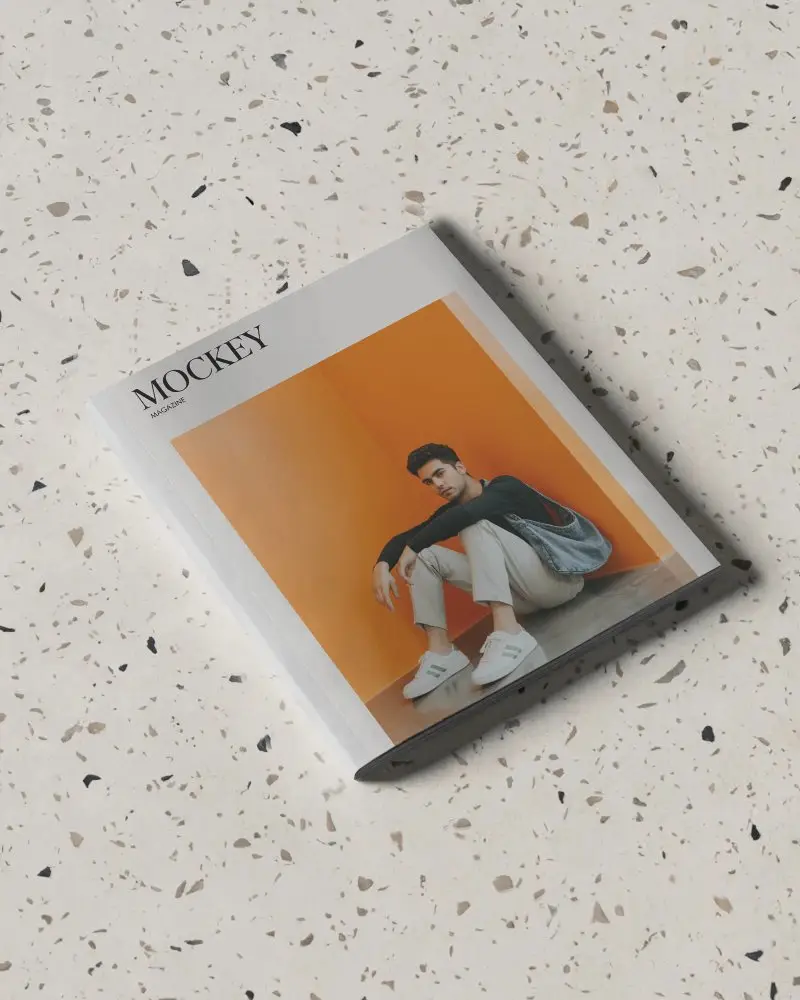
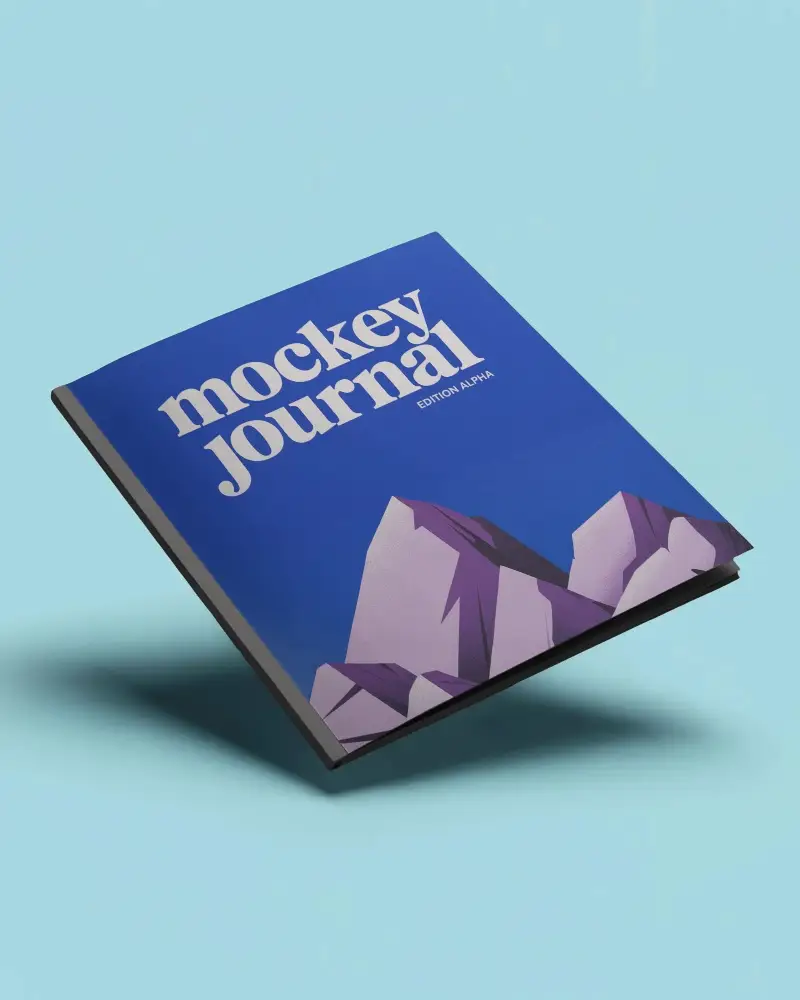
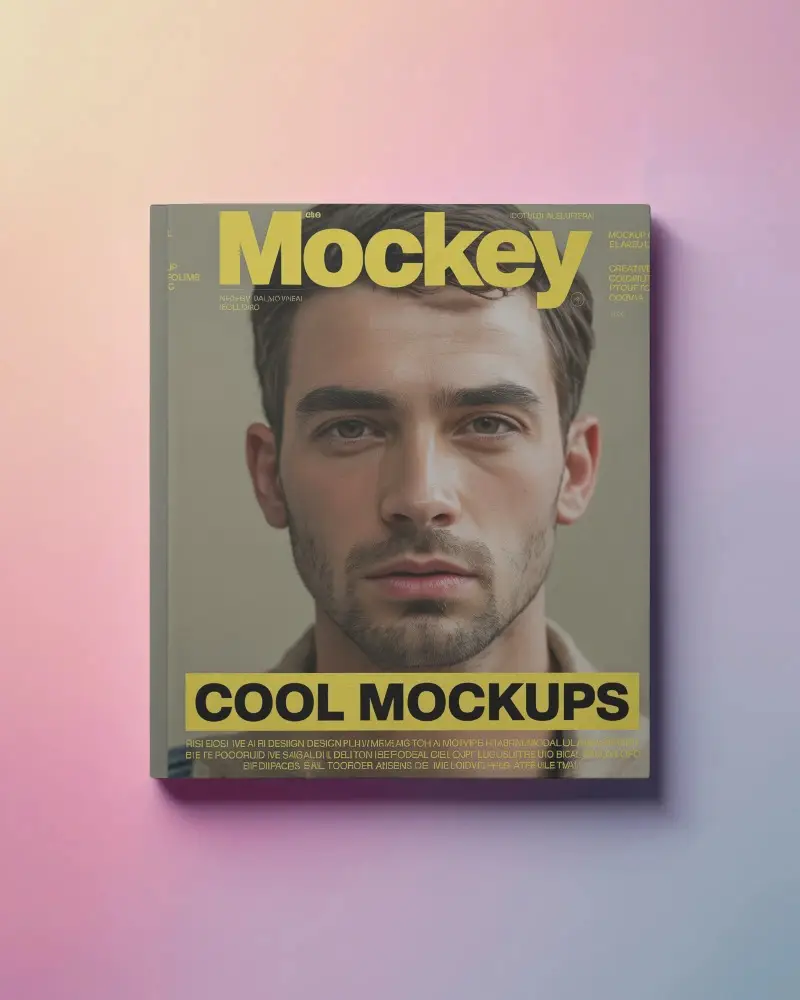
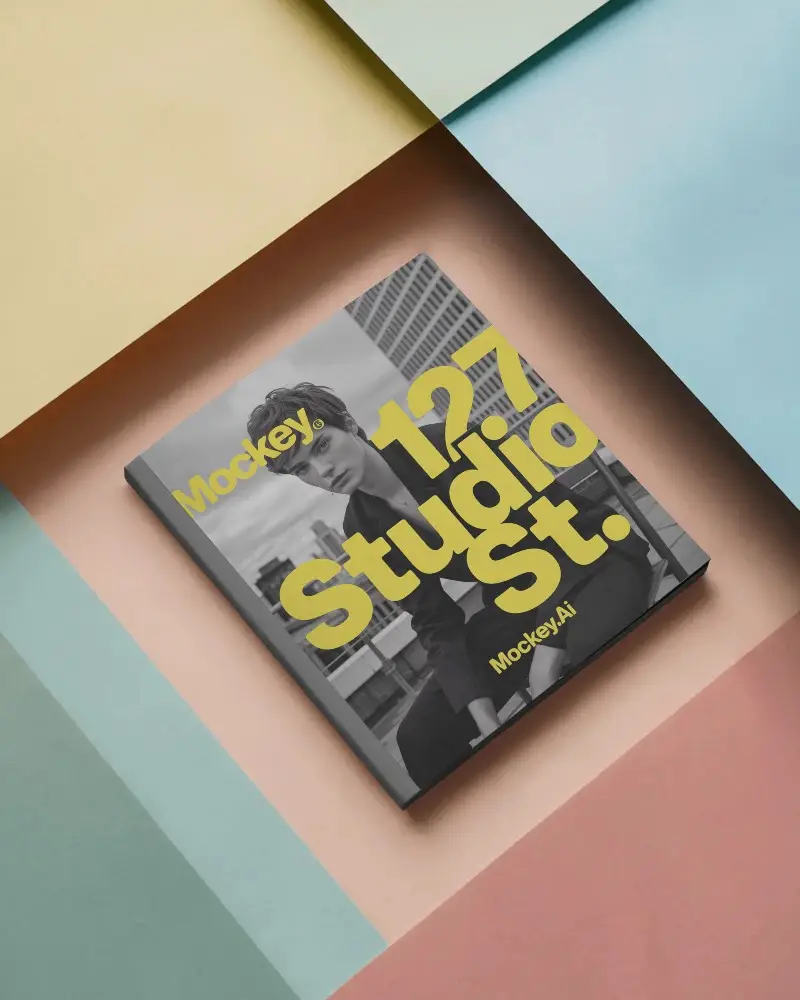
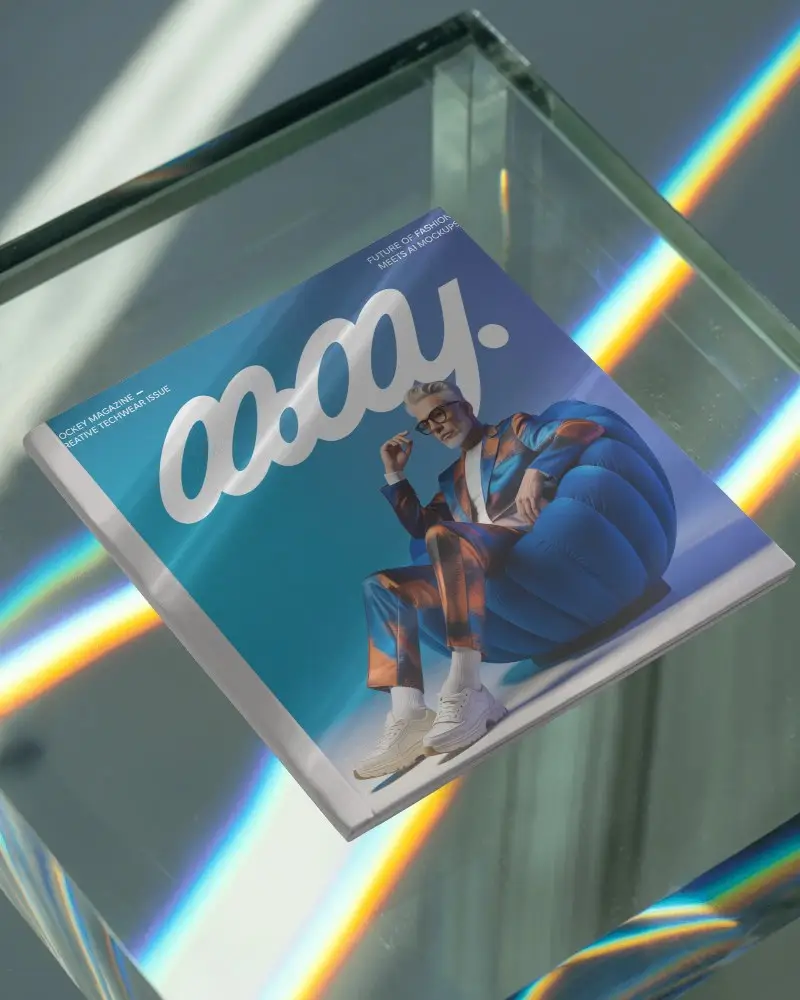
Square layouts bring a modern and balanced feel to magazine designs. A Free Square Magazine Mockup helps you present your artwork in a clean, realistic format. Upload your design to Mockey and see your square spread come to life in seconds.
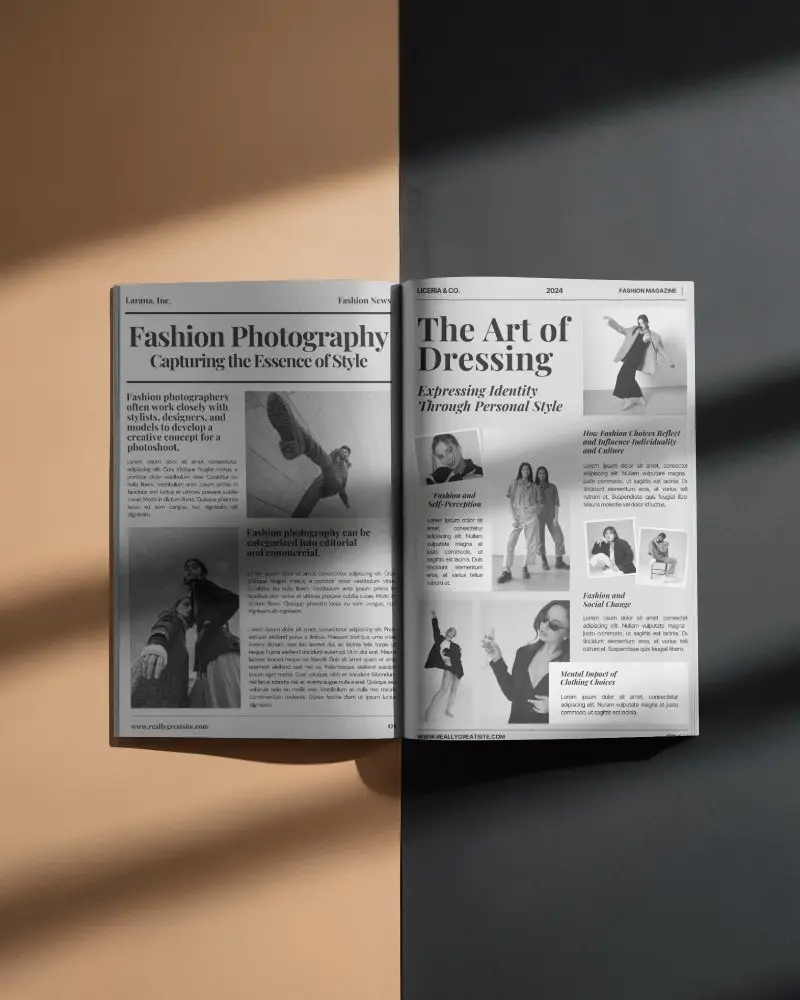
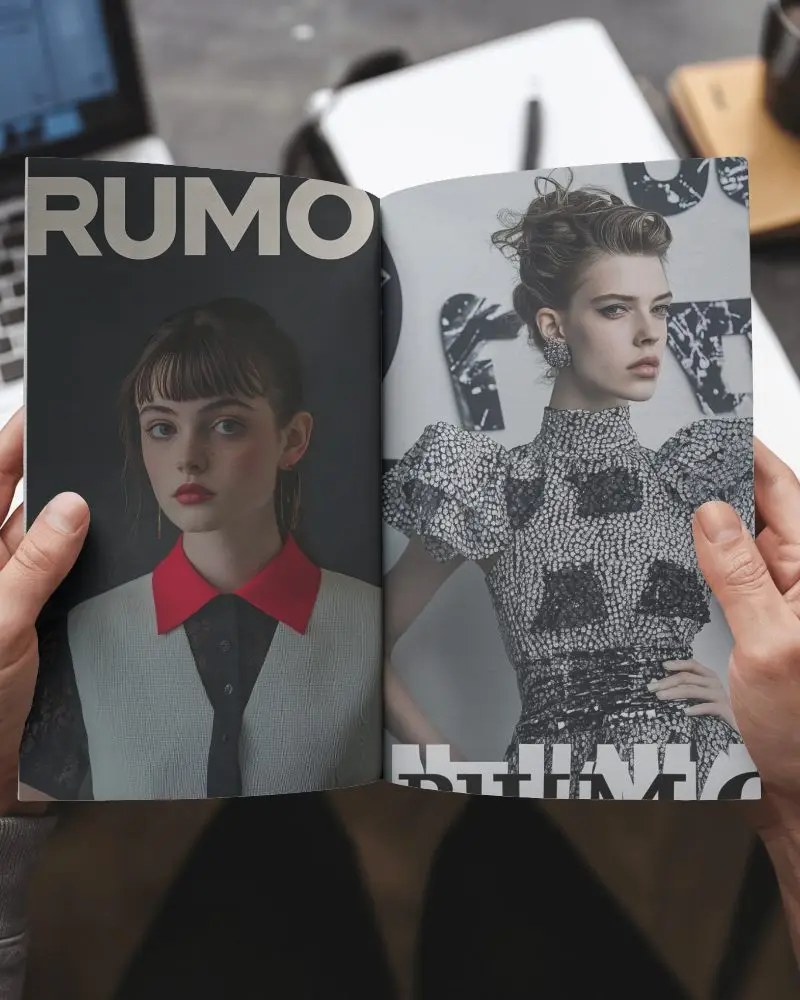

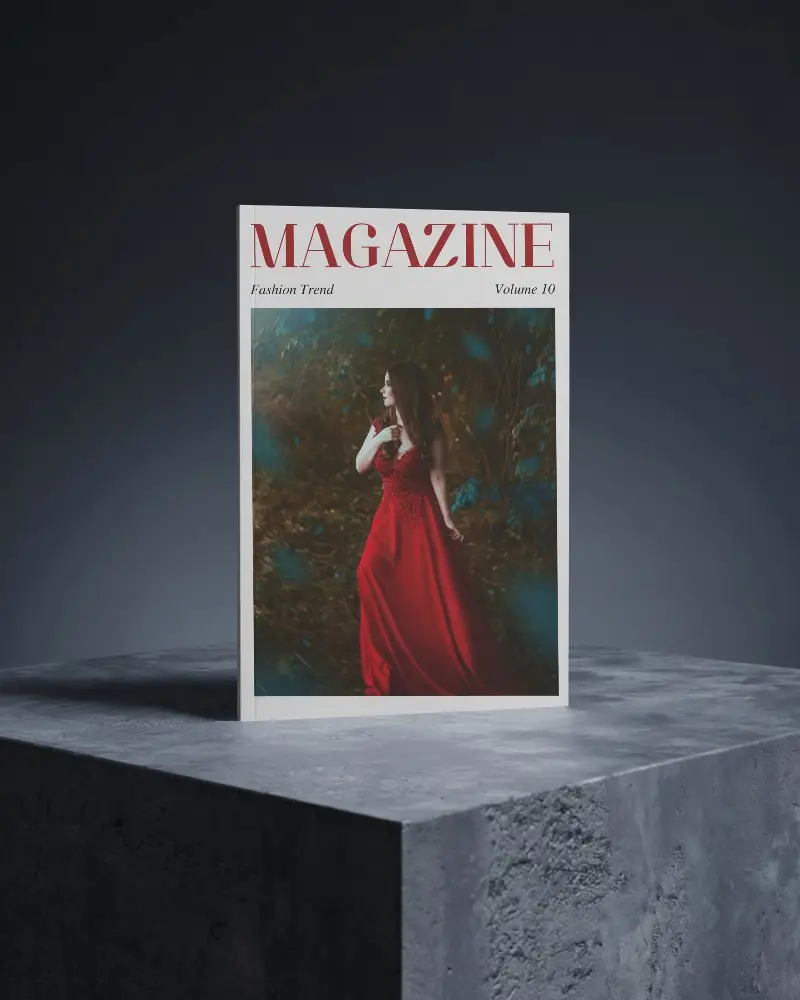
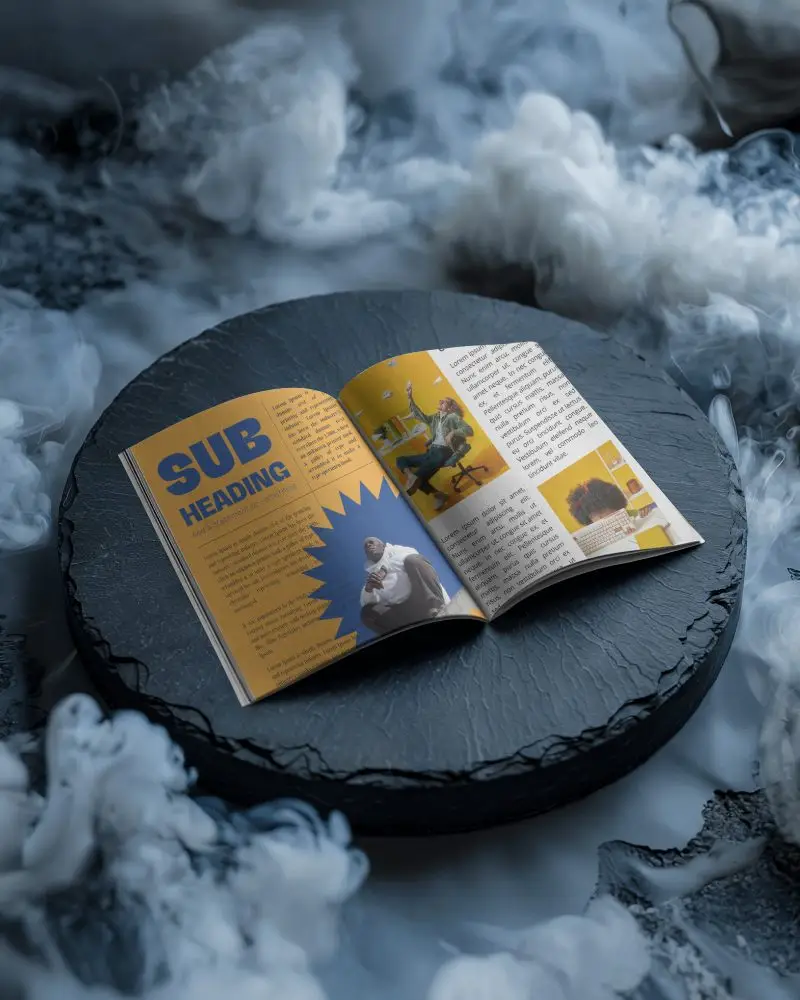



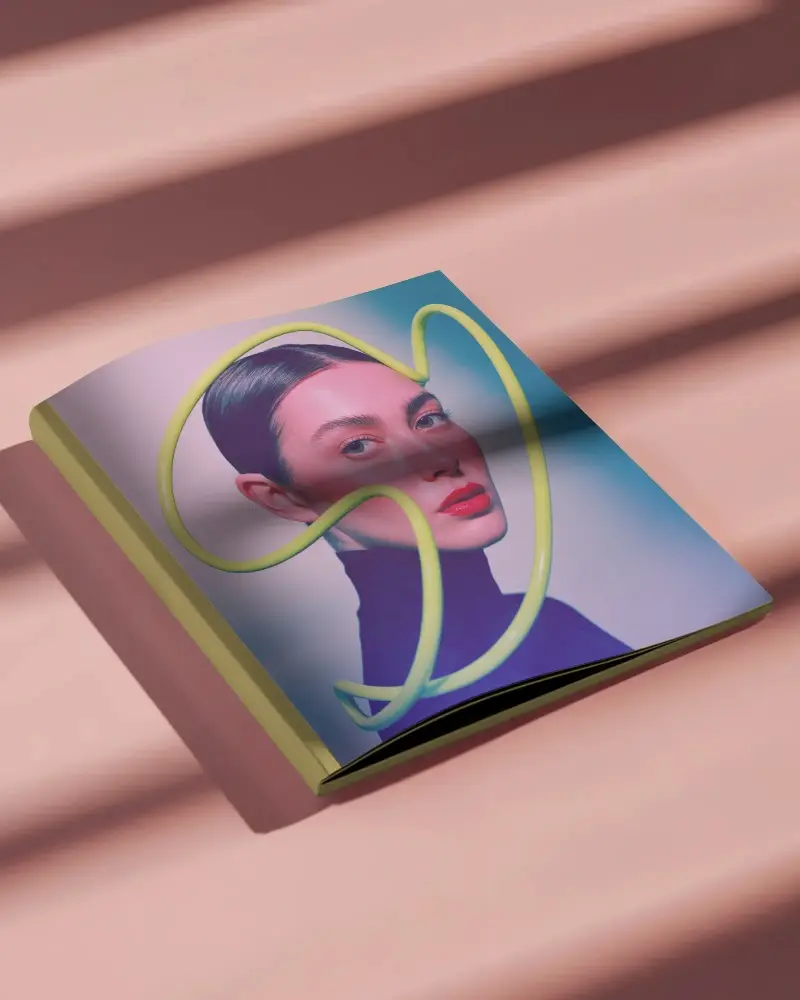
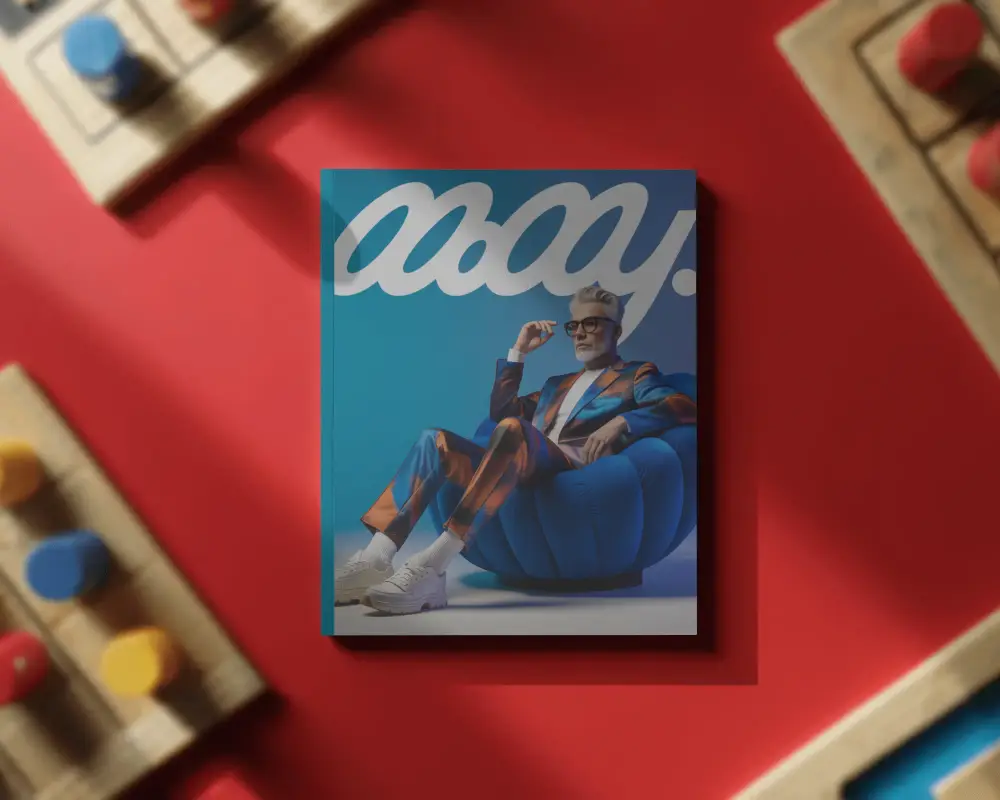
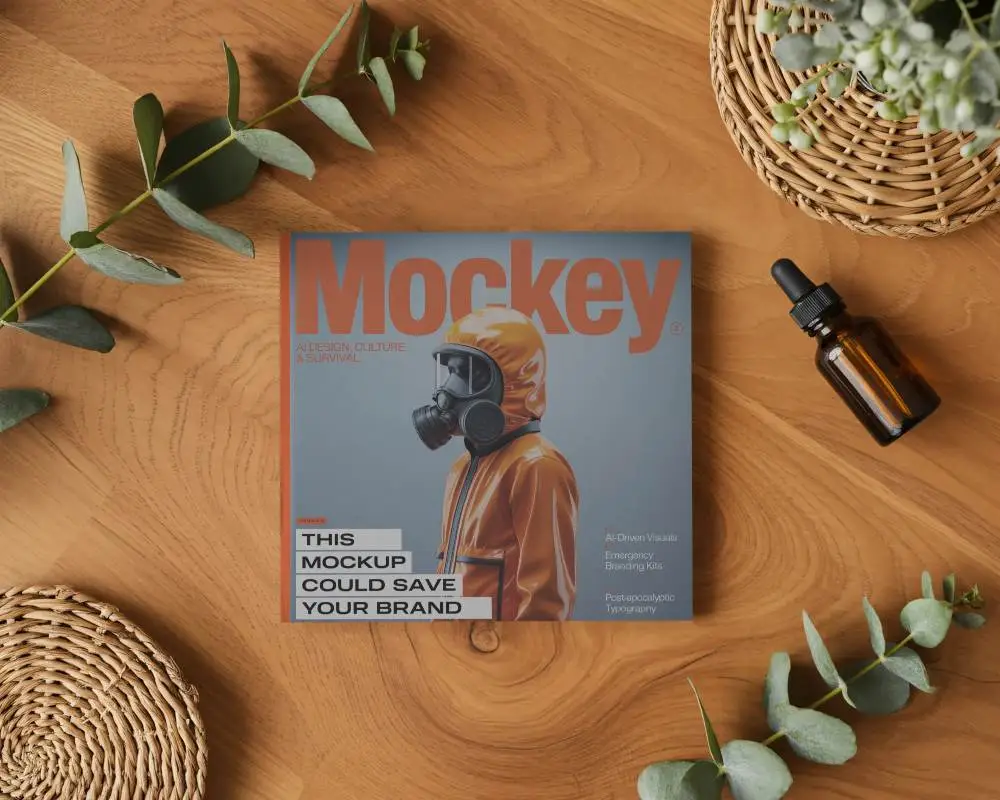
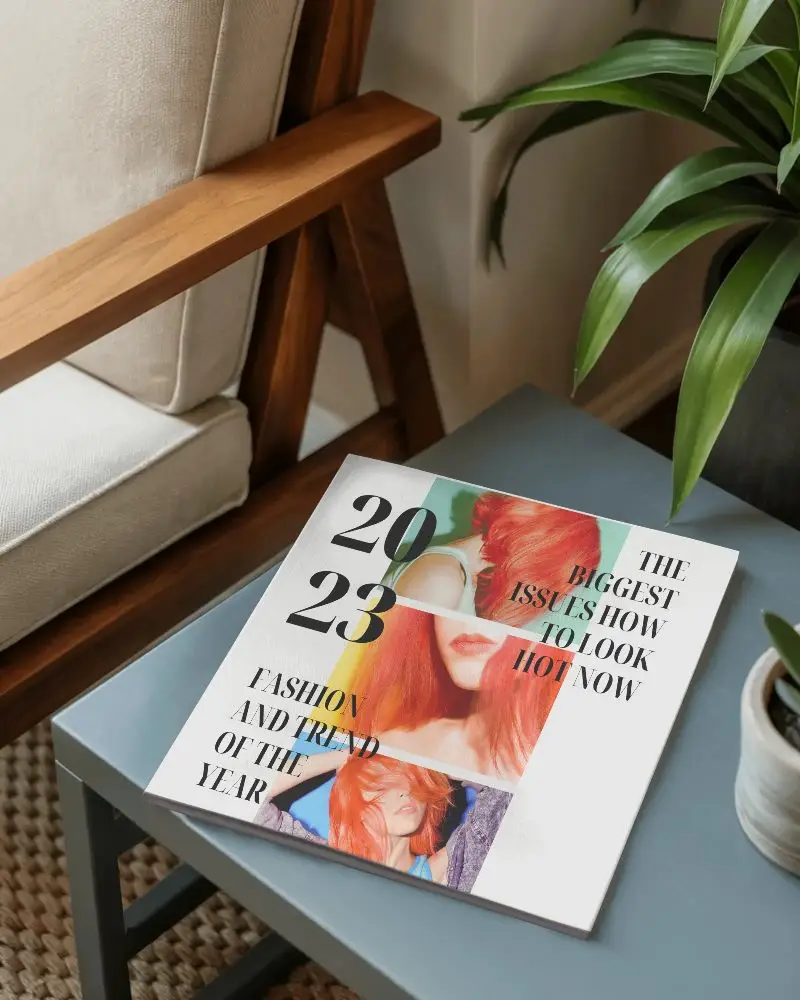


How to Create a Square Magazine Mockup with Mockey
To create a square magazine mockup in Mockey AI:
- Step 1: Go to Mockups > Print > Magazine and select a Square magazine template.
- Step 2: Click Upload Design to add your layout. Adjust colors and positioning as needed.
- Step 3: Click Download to save your square magazine mockup in JPG format or higher quality based on your plan.

FAQs on Square Magazine Mockups
What is a Square Magazine mockup?
A square magazine mockup shows how a square-shaped magazine will look with your custom design. Tools like Mockey AI allow you to place your designs into ready-made templates easily.
Can I download a Free Square Magazine Mockup without Photoshop?
Yes, you can create and download a free square magazine mockup using Mockey AI without Photoshop. Simply upload your design, customize it, and download it as a JPG file.
Is a Free Square Magazine Mockup suitable for print presentation?
Square magazine mockups are ideal for presentations and showcasing designs, but they are not intended for direct printing. They help visualize how the final magazine will appear.
Does a Free Square Magazine Mockup support high-resolution exports?
With the free plan, you can export square magazine mockups in standard quality JPG format. High-resolution downloads are available with paid plans.
Can beginners create a Free Square Magazine Mockup easily?
Yes, beginners can easily create square magazine mockups using Mockey AI thanks to its simple interface and easy-to-use editing tools.