Free Backdrop Banner Mockup for Social Media, Event & Advertising
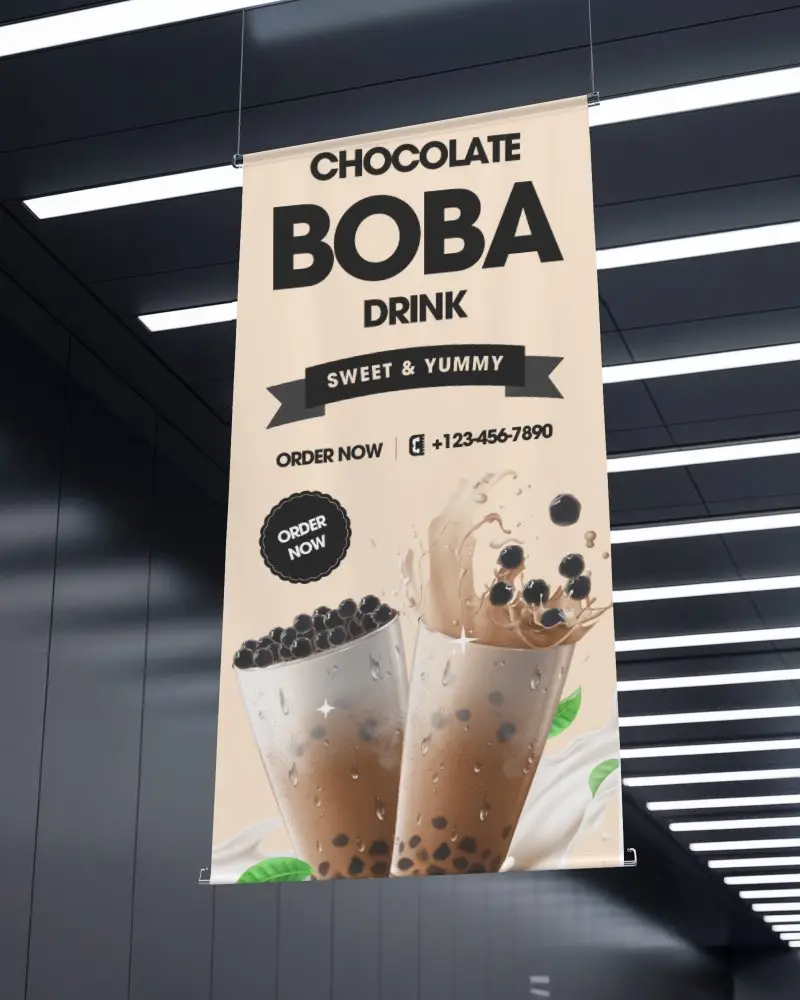
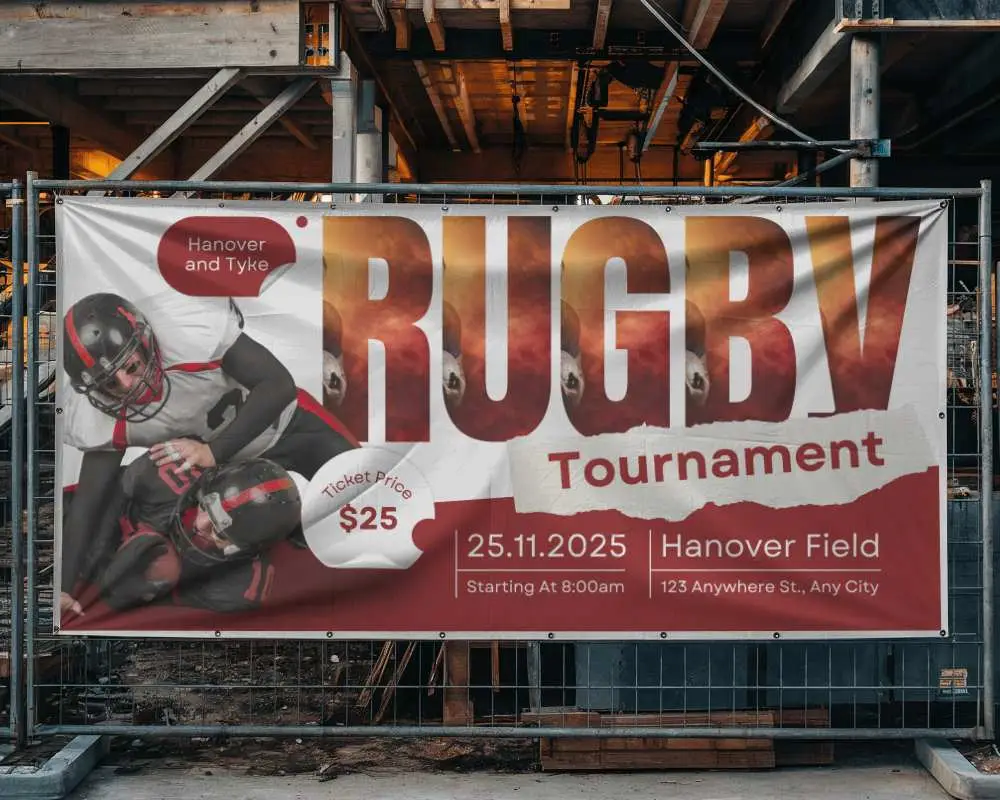
Get a free Backdrop banner mockup in high resolution without watermarks with Mockey. Perfect for social media, branding, events, advertising, and marketing presentations.
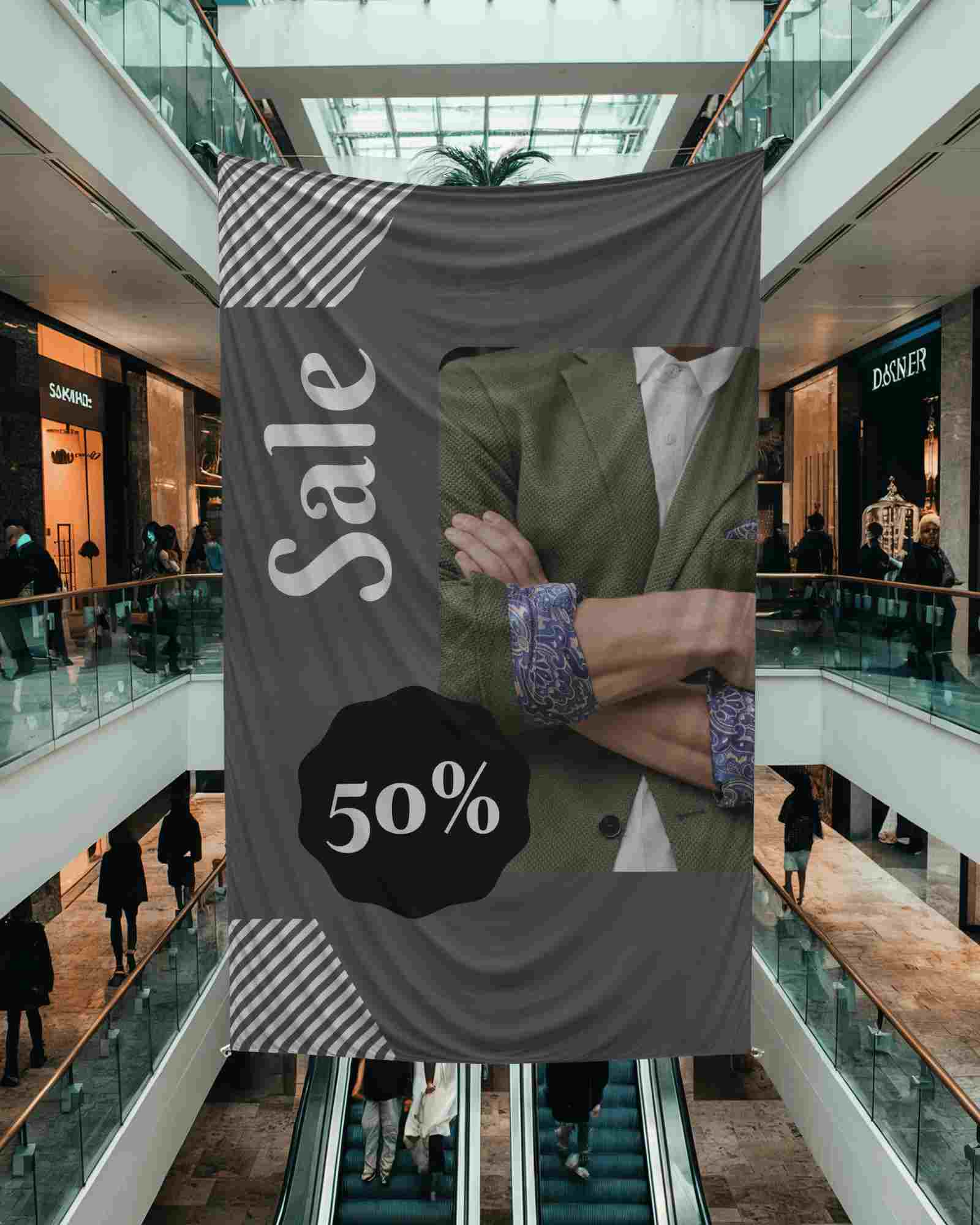

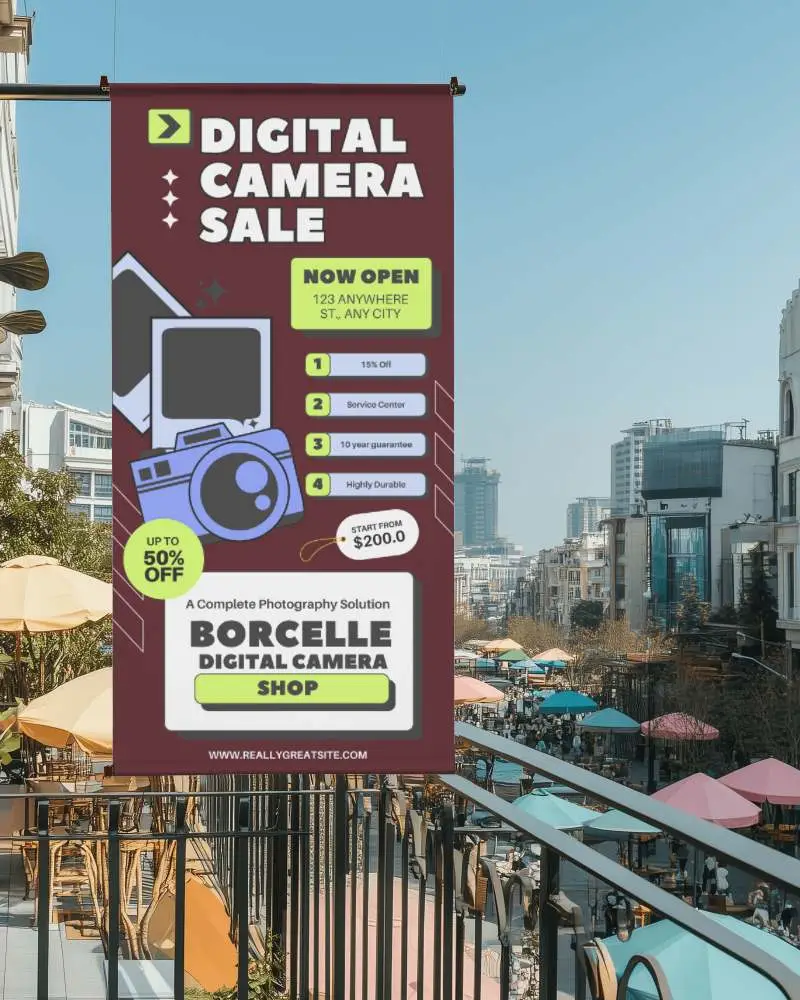
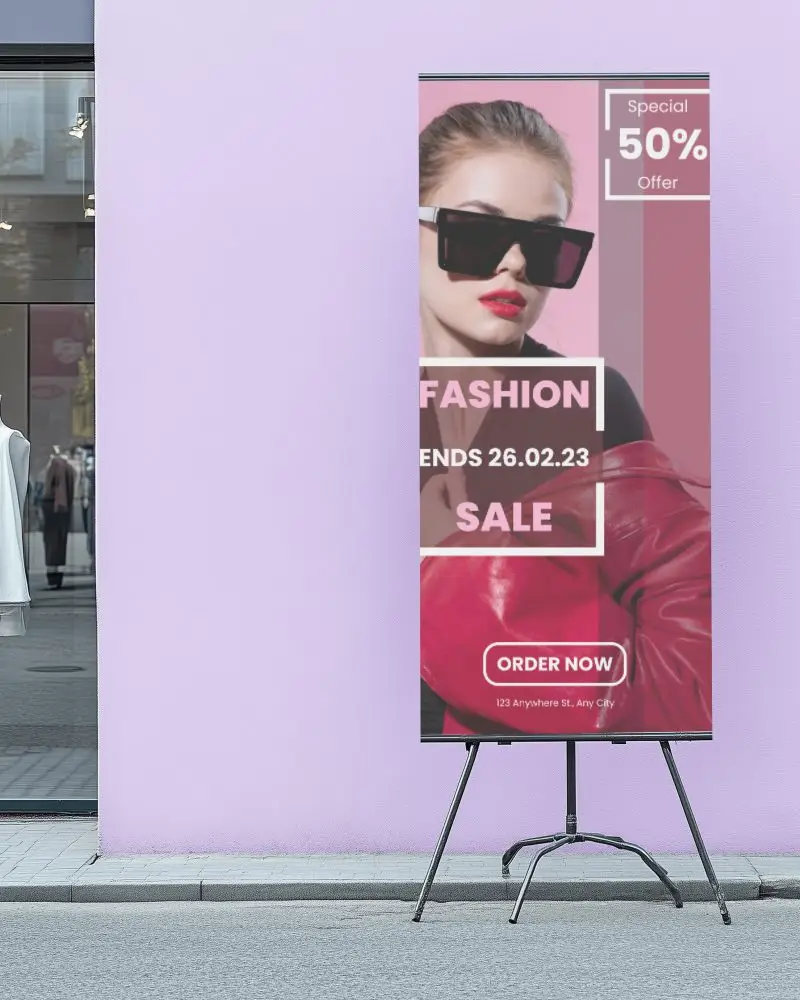
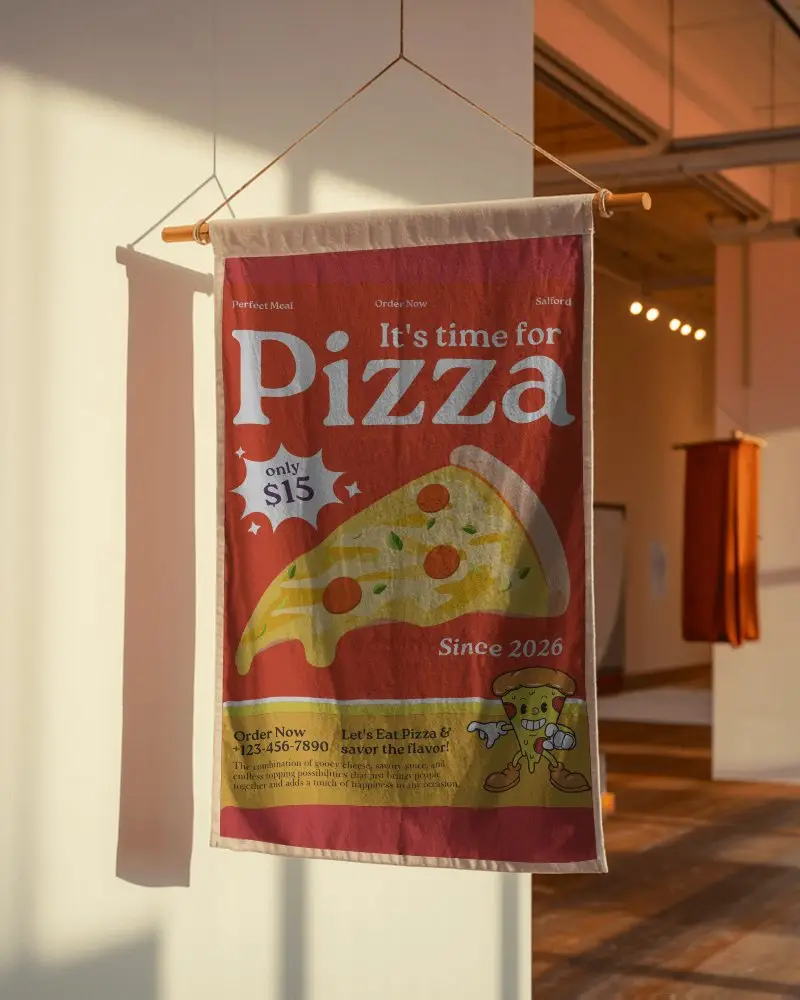
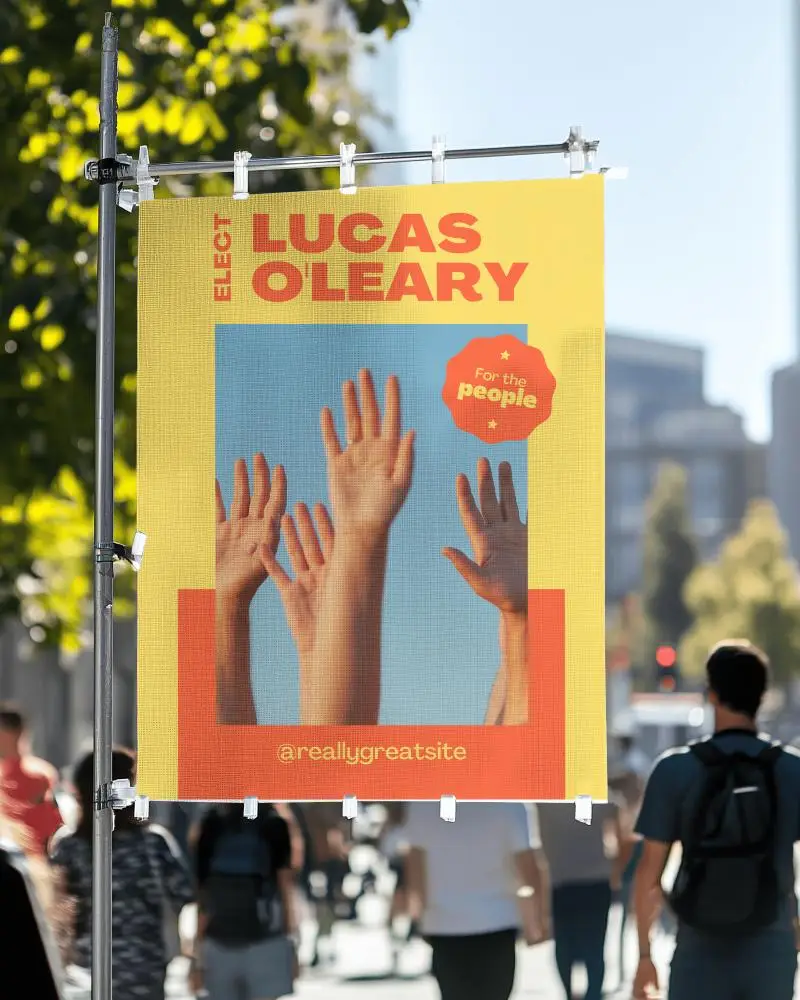
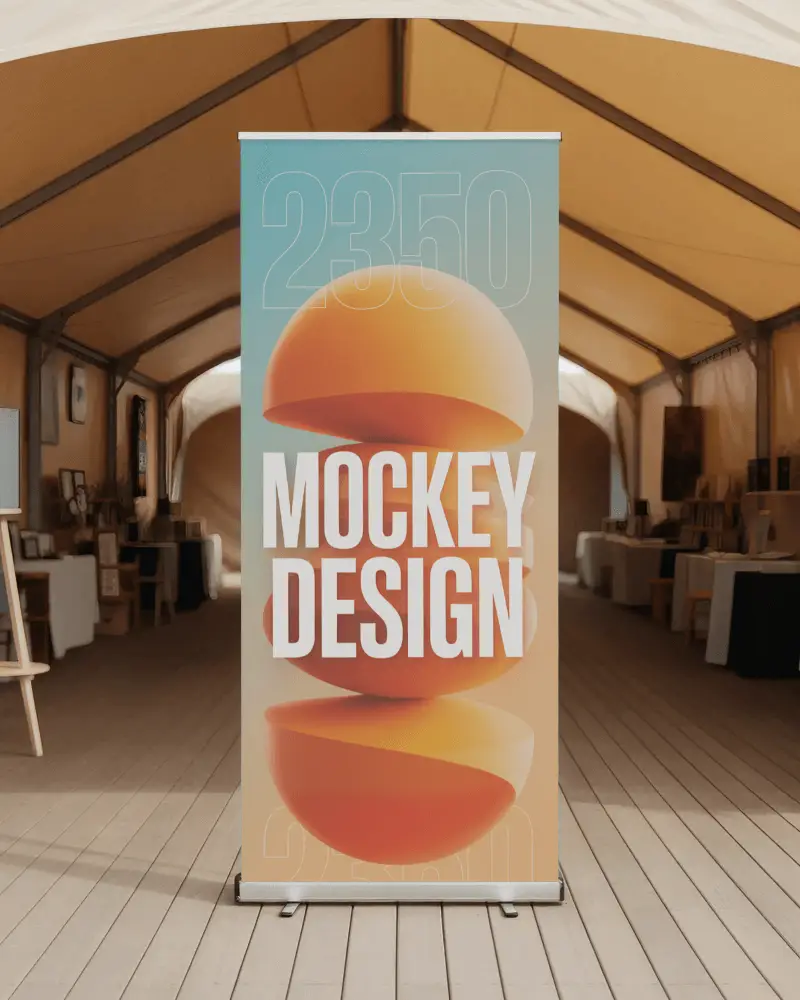
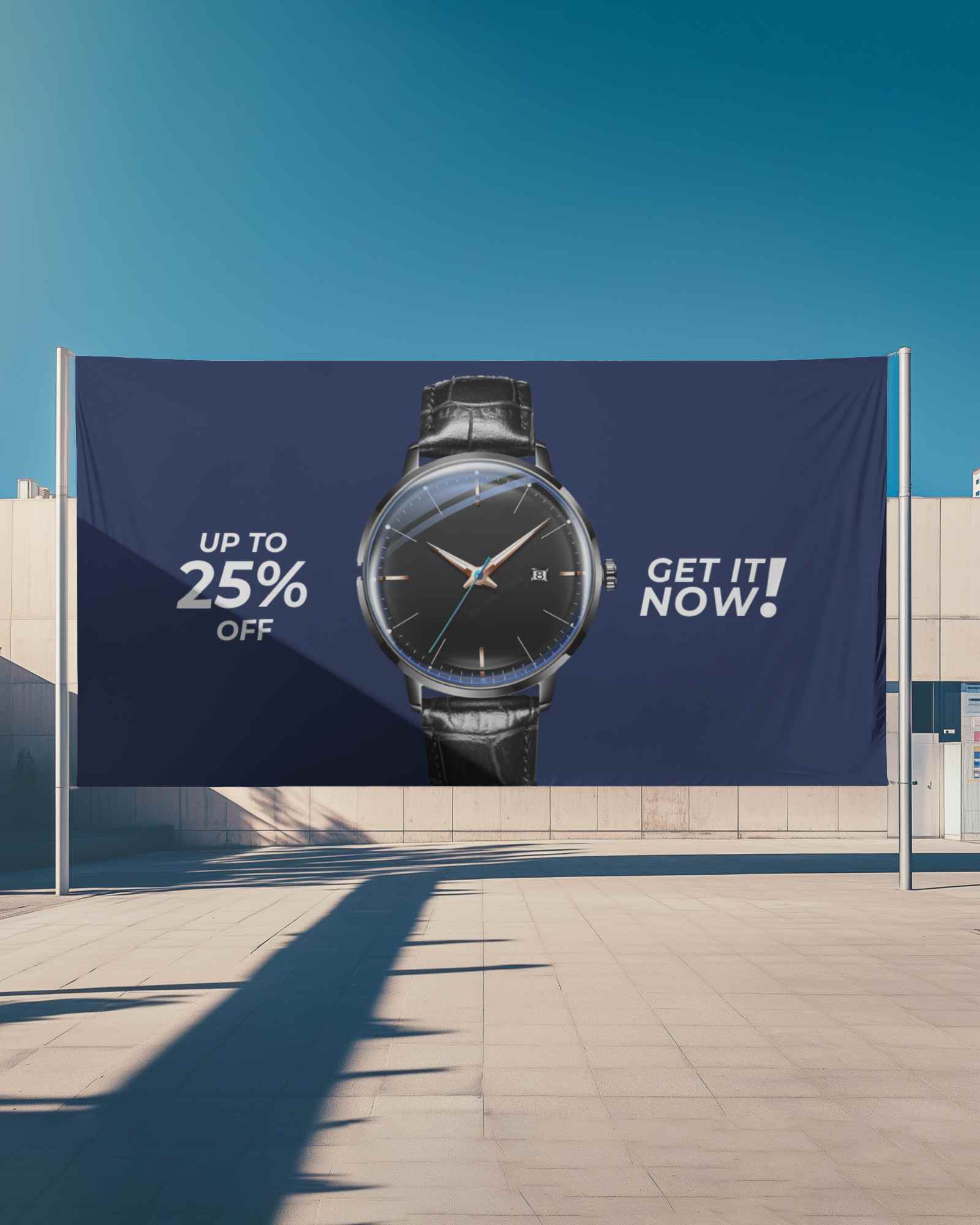
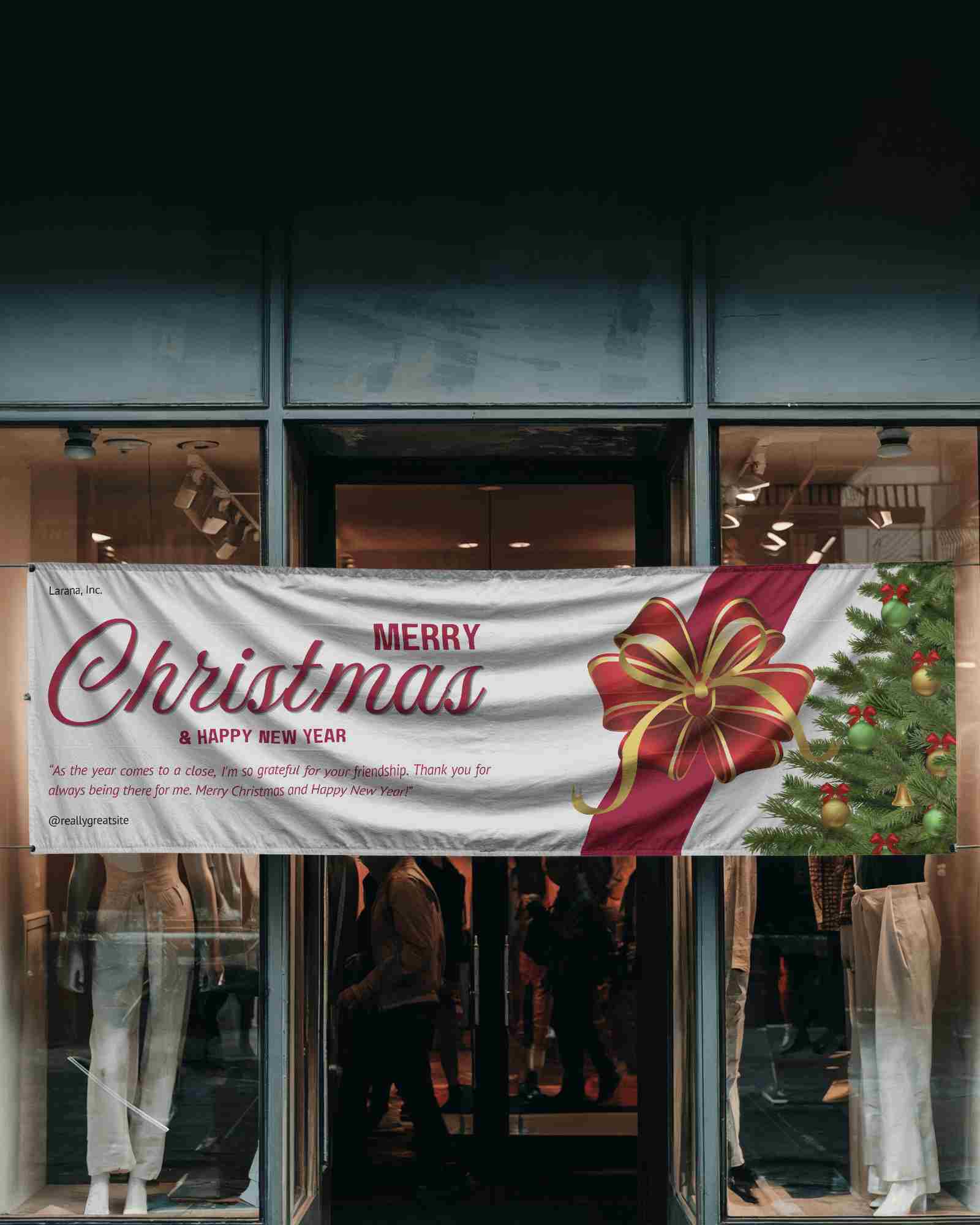
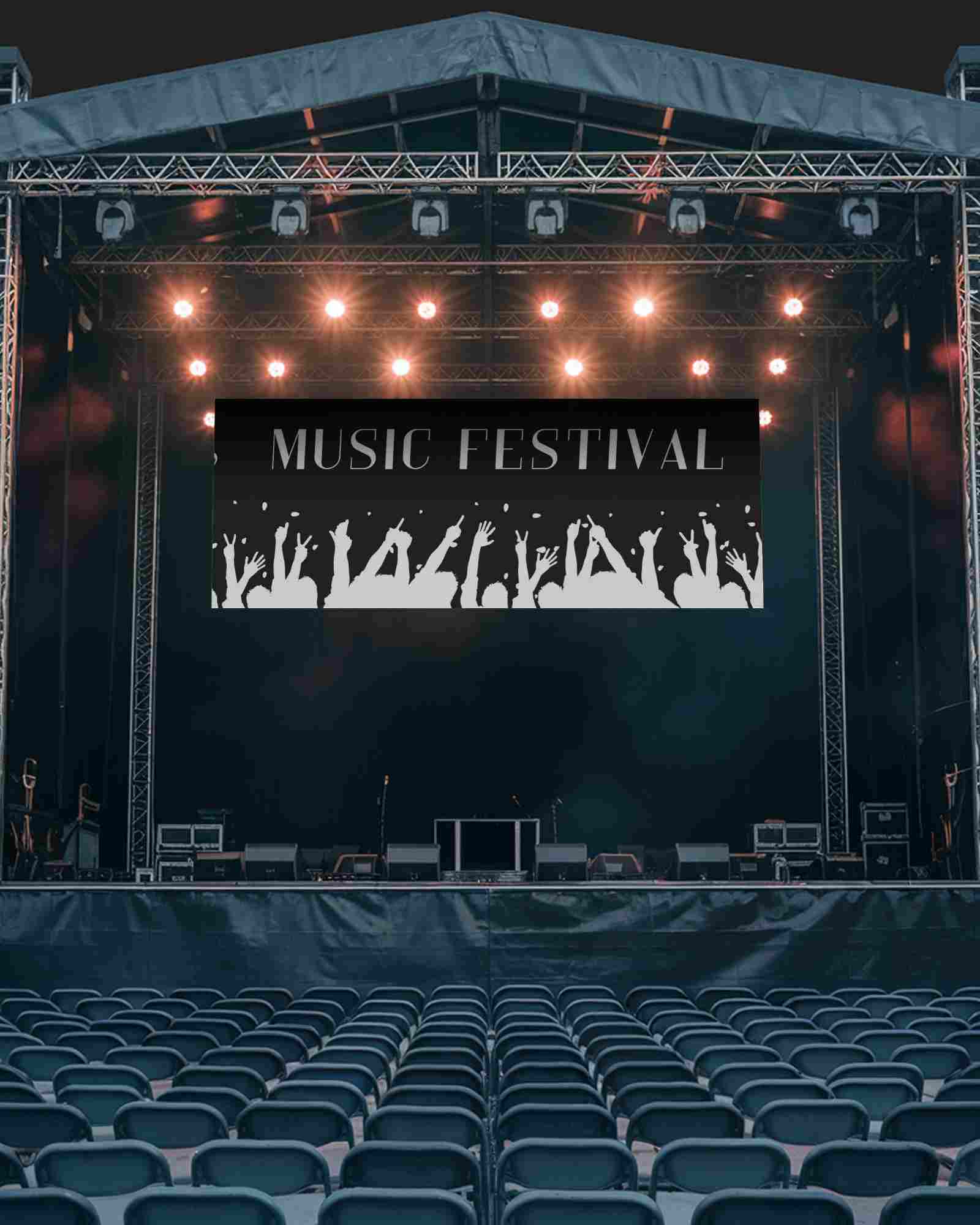

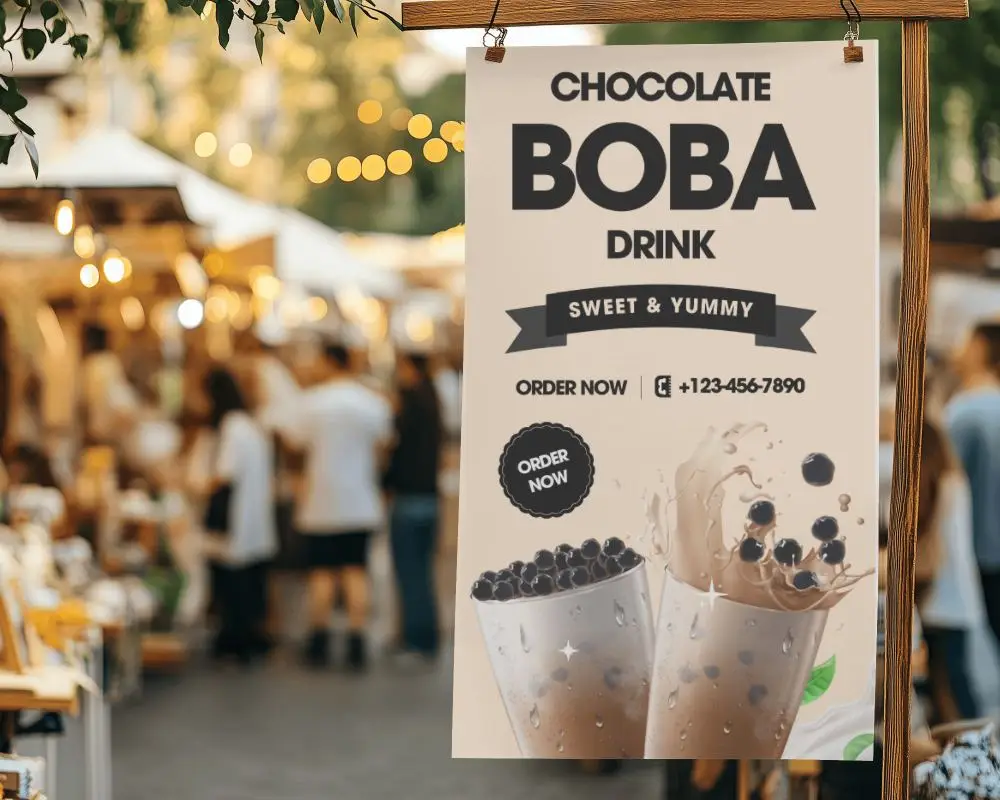
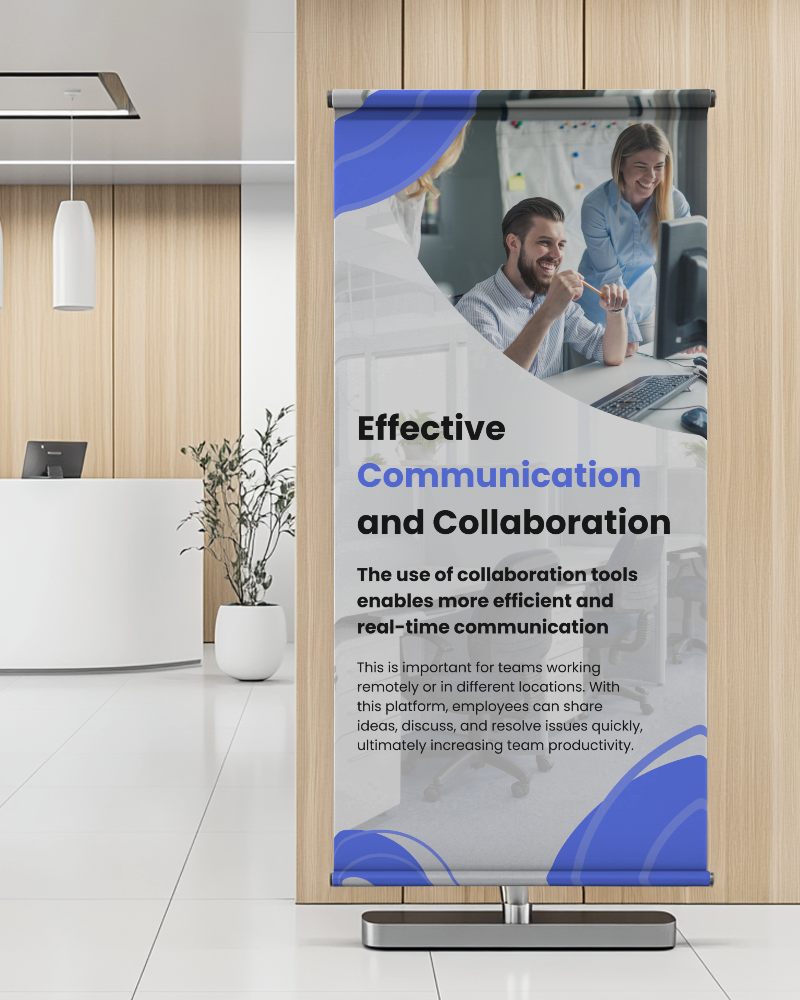


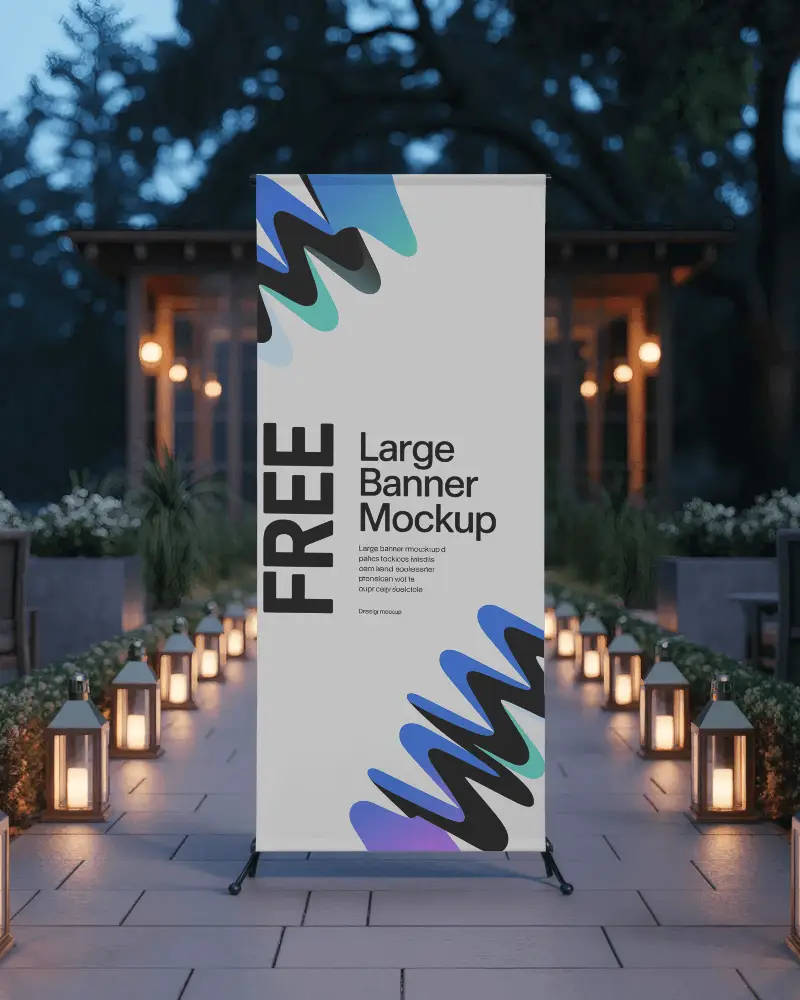
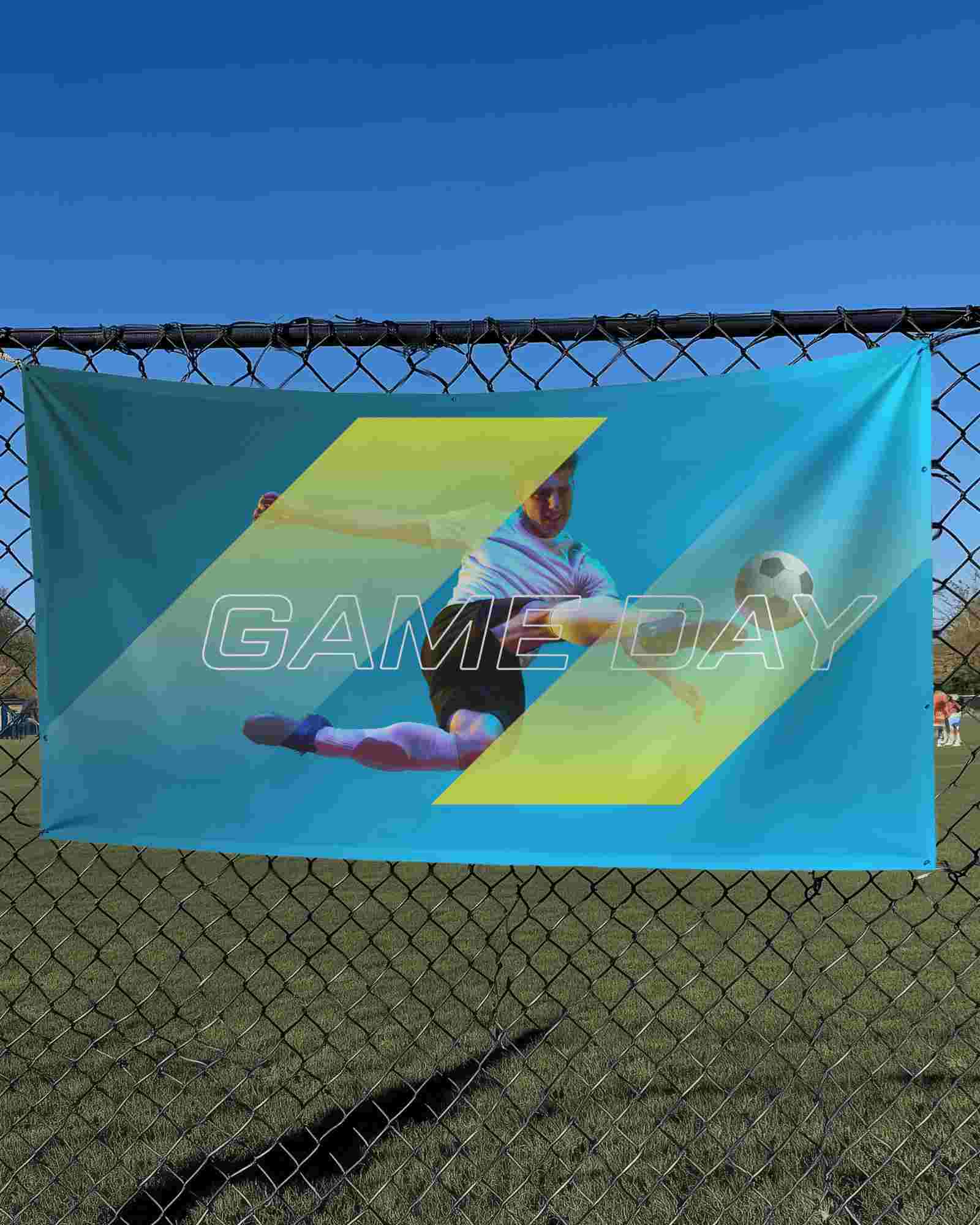
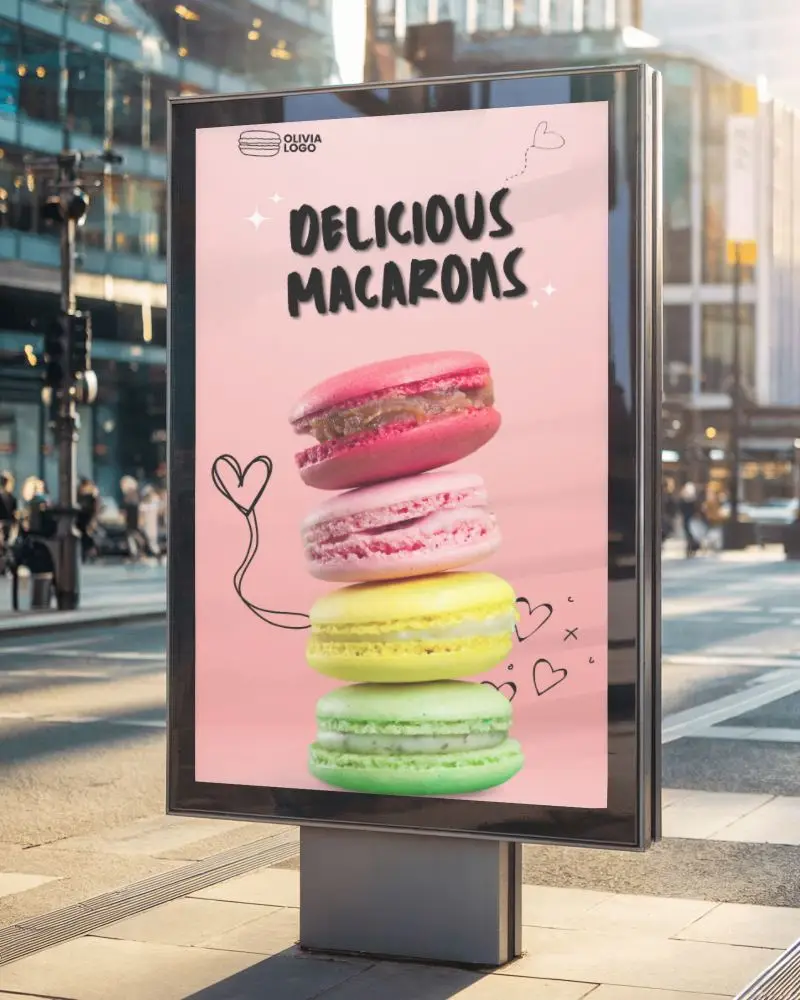
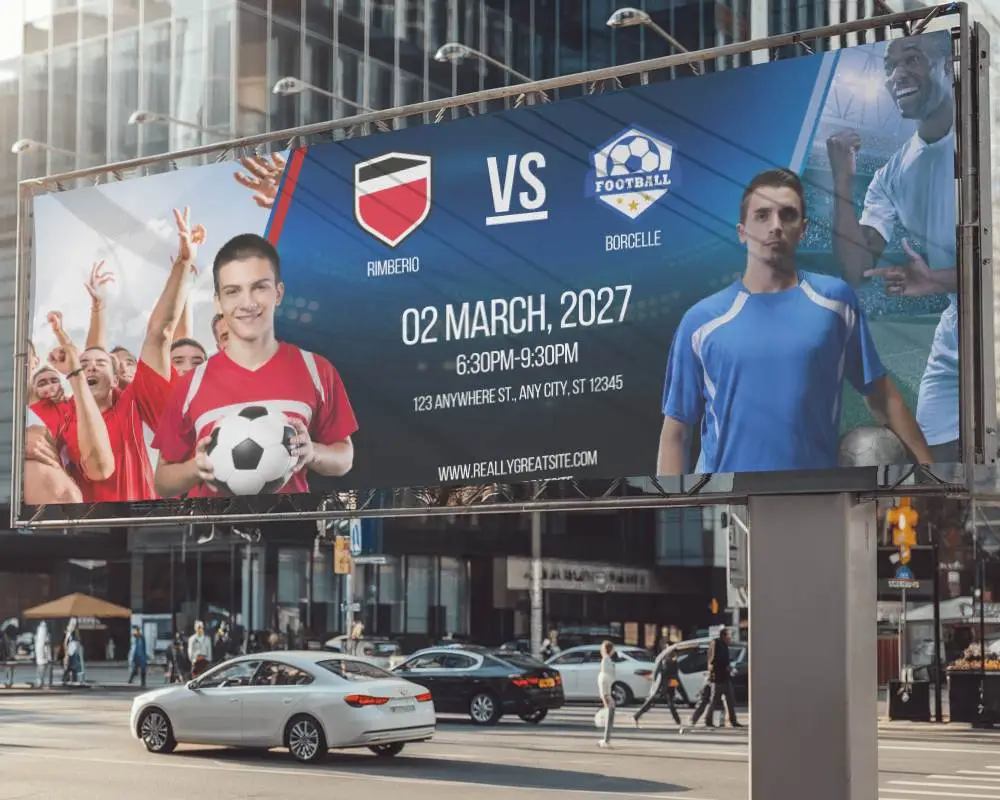



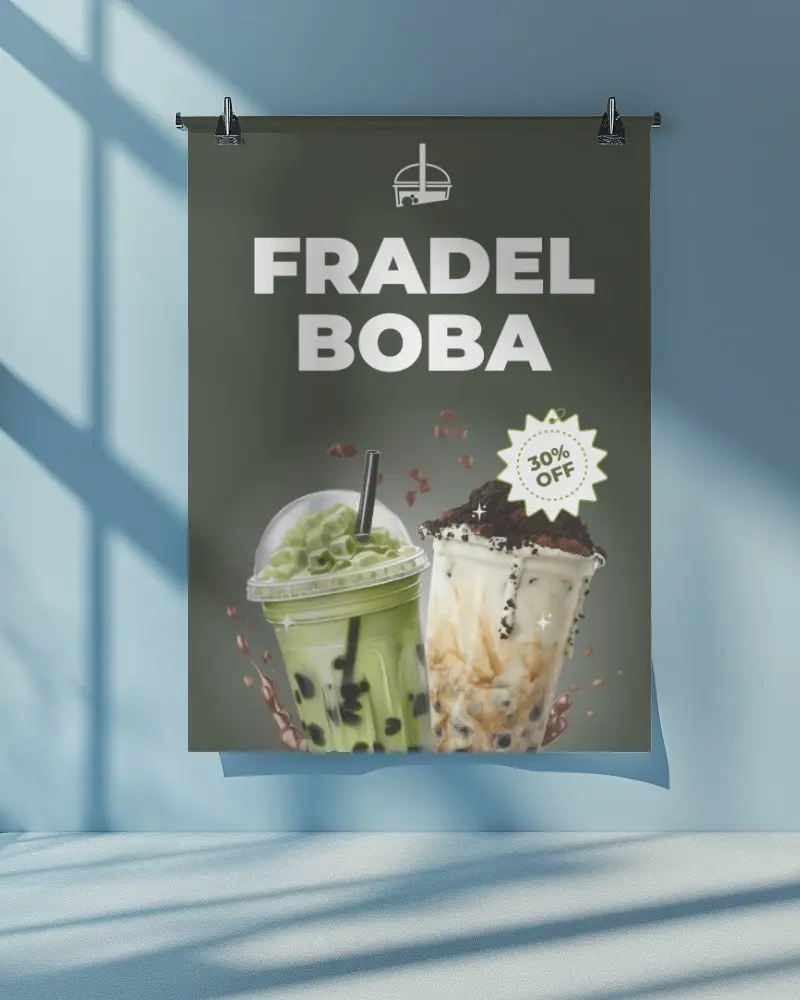
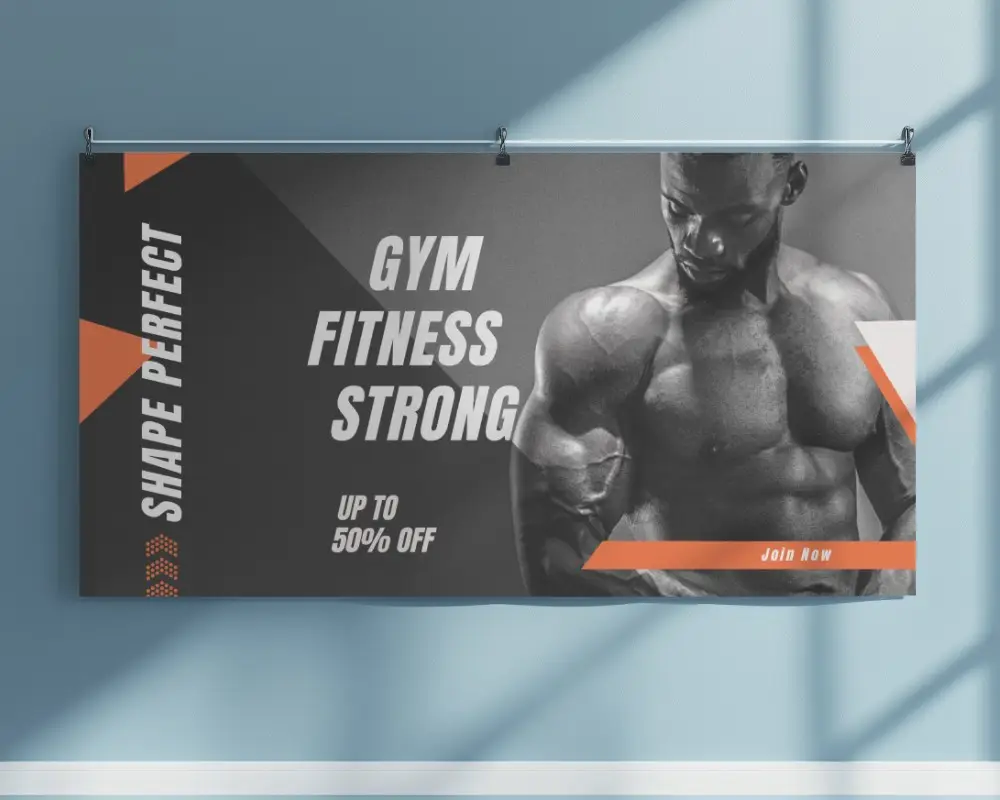
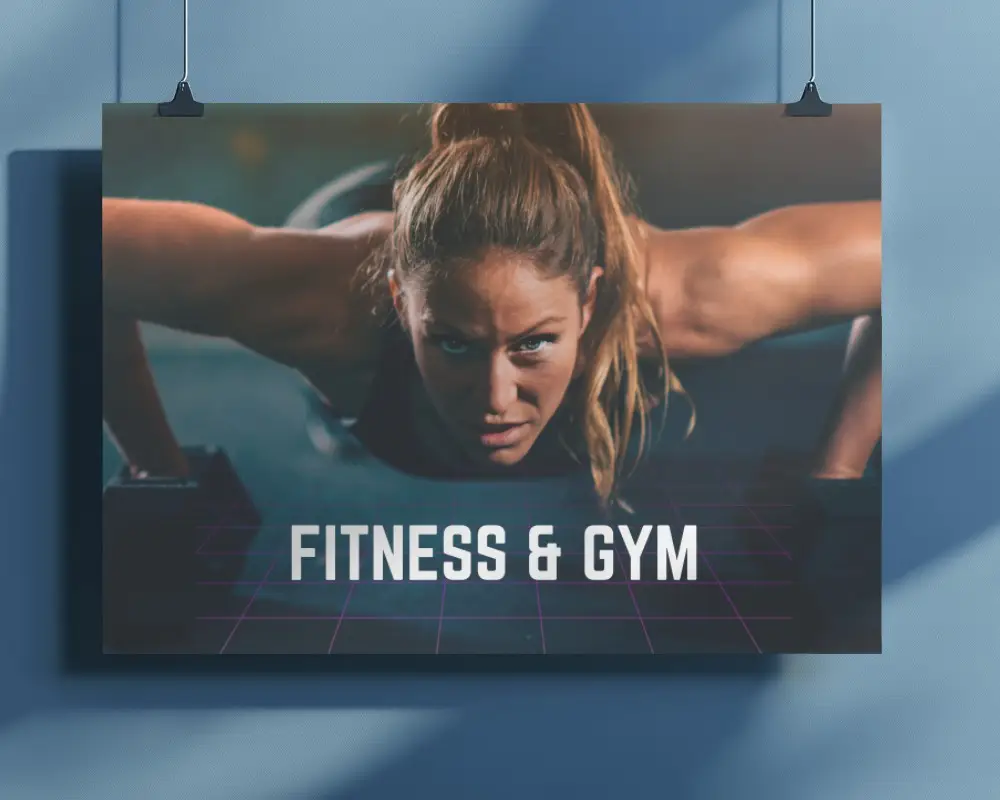
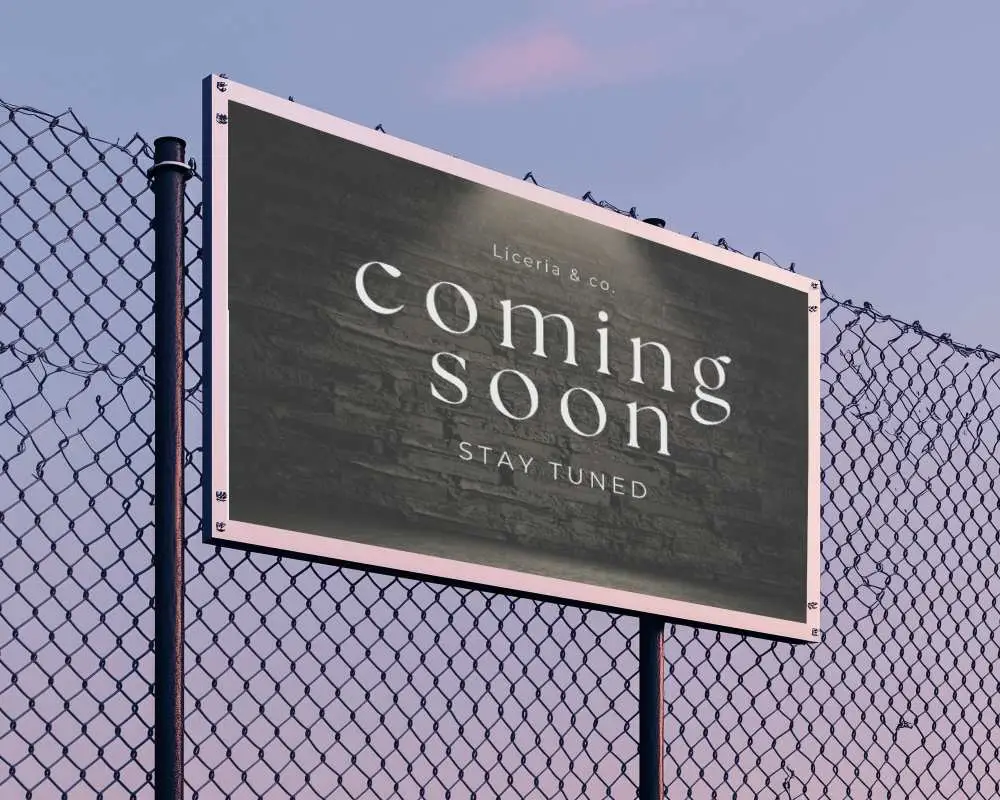
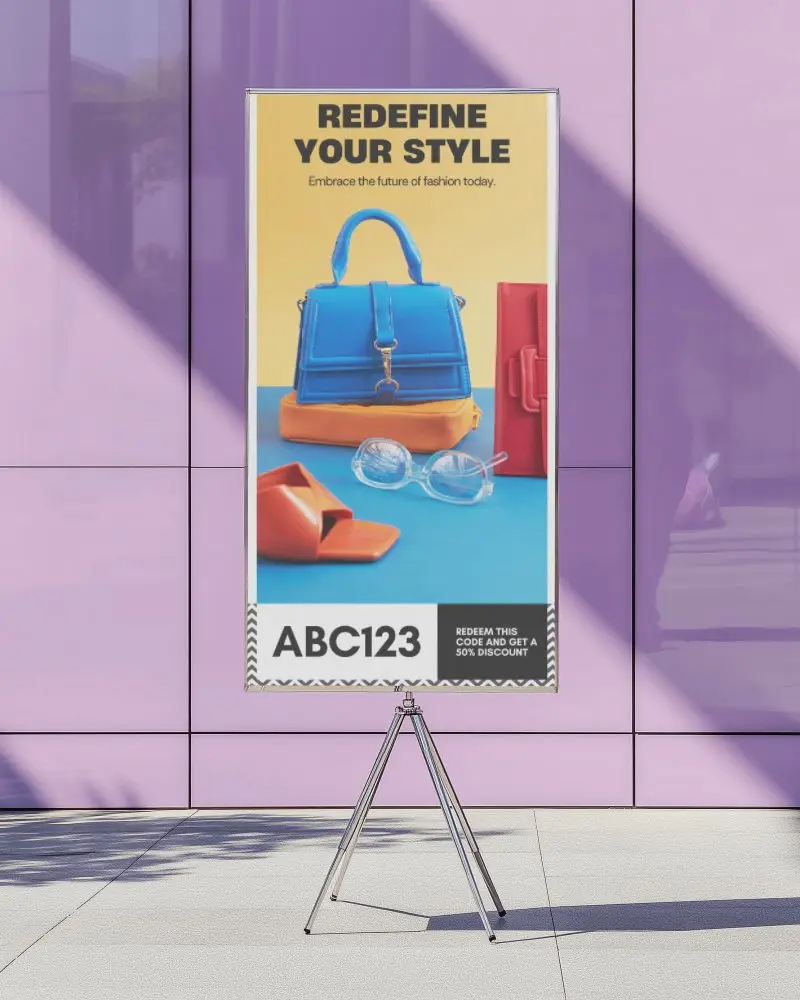
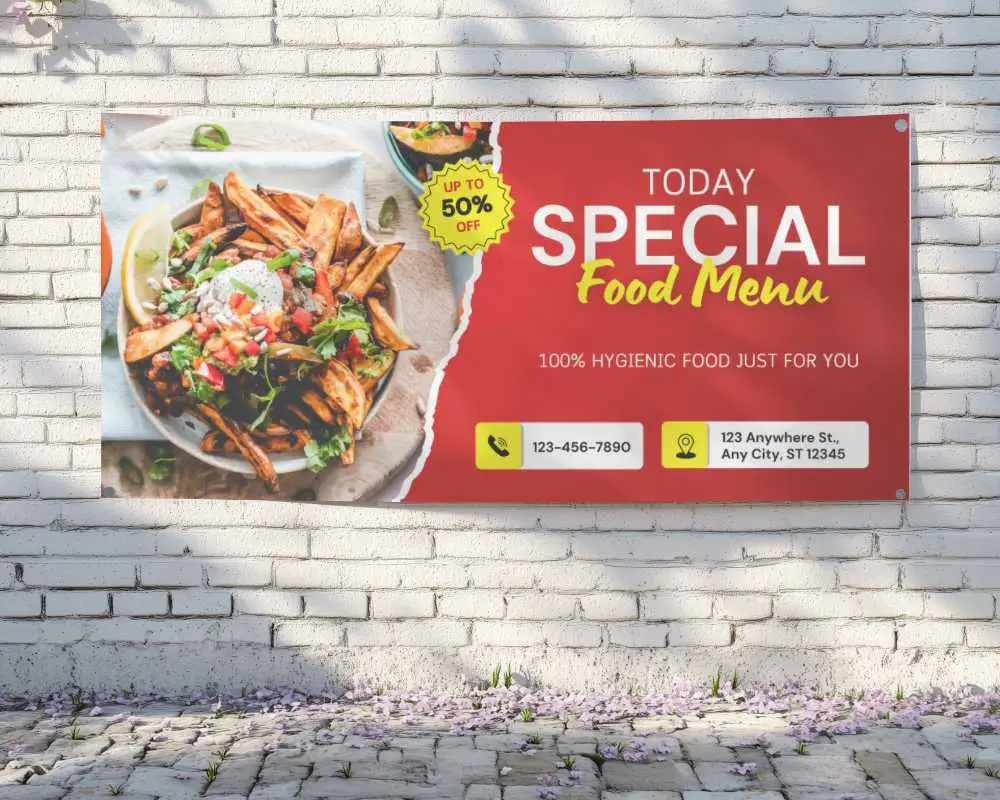
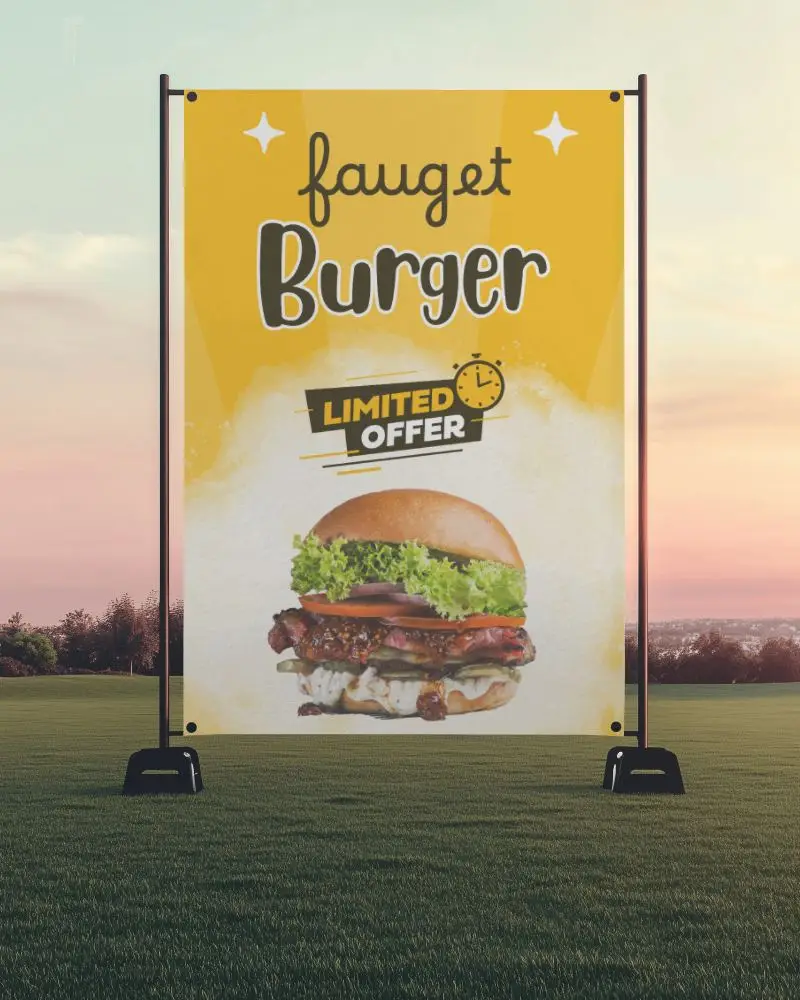
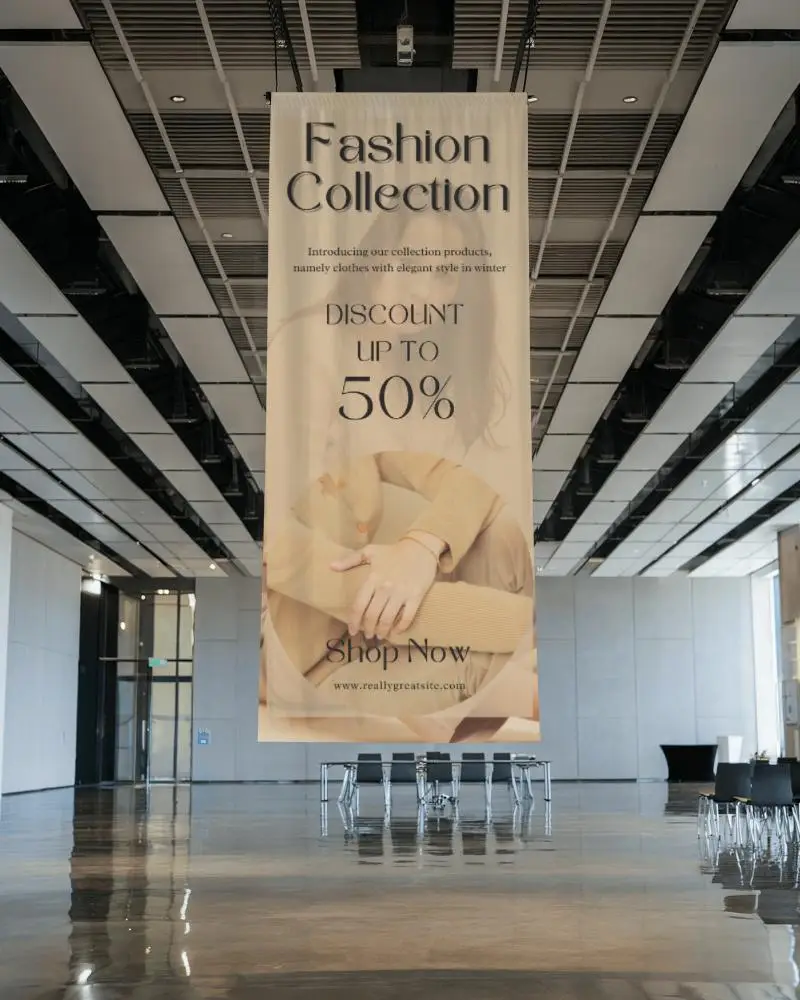
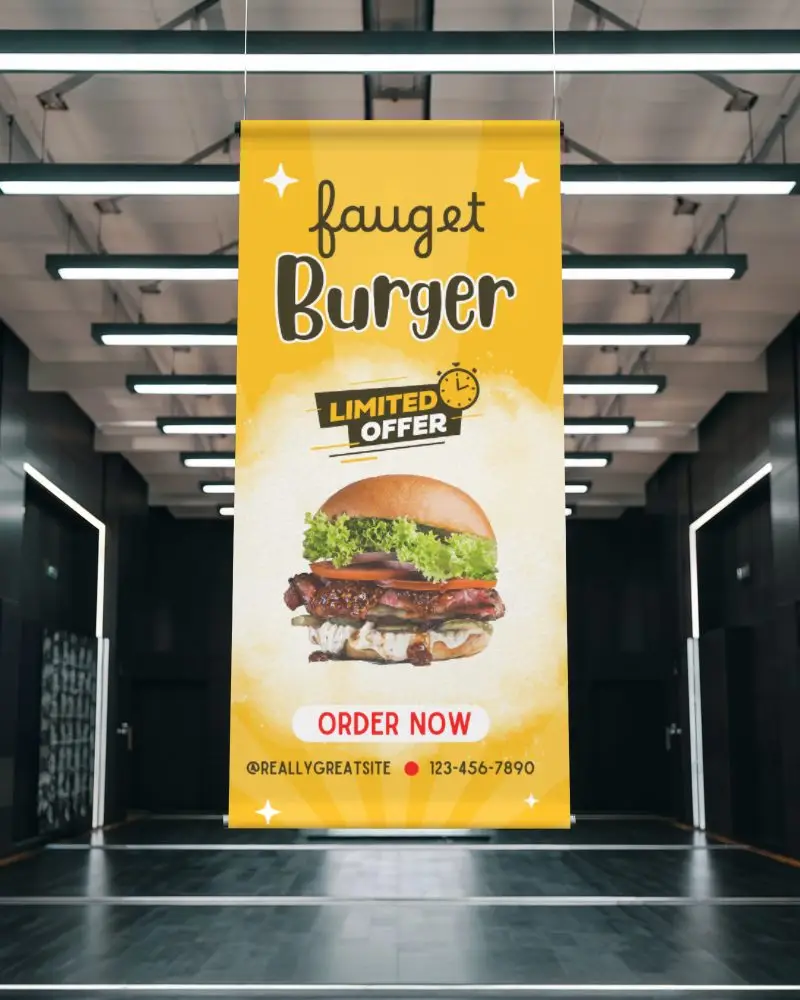
How to Make Backdrop Banner Mockup with Mockey
To create a backdrop banner mockup in Mockey AI:
- Step 1: Join Mockey AI and navigate to: Mockups > Print > Banner > Backdrop.
- Step 2: Choose a backdrop template, upload your design, and customize the look using built-in tools.
- Step 3: Click Download and save your banner mockup in PNG or JPEG format.
FAQs on Backdrop Banner Mockups
What is a Backdrop banner mockup?
A backdrop banner mockup is a digital template that shows how a banner will look at events or ads.
Why create a Backdrop banner mockup?
Creating a backdrop banner mockup helps changes before printing, and saves money by avoiding mistakes. It’s useful for events and marketing.
Why Use Mockey’s Backdrop Banner Mockup?
Mockey's Backdrop Banner Mockup is easy to use, creates high-quality images fast, works for many uses, saves time, and is free for everyone.
Can I customize the Backdrop banner mockups on Mockey.ai?
In Mockey AI, you can customize the backdrop banner mockup using a ready-made template. You can also change its color, adjust your design, and see how it looks by pressing the preview button.
Do I need any design software to use Mockey.ai?
You don’t need extra apps to use the Mockey AI mockup generator. You can change designs, colors, and more right there without any other software.
What file formats can I download my Backdrop banner mockup in?
Mockey AI lets you customize a template and save it as a PNG or JPEG file. You can do this on any device, like a phone or computer.
How do I access the free Backdrop banner mockups on Mockey.ai?
Join Mockey AI, go to Mockups, choose Banner under Print, and check the top of the templates for the Backdrop tag.
Is this Backdrop banner mockup free?
Mockey AI lets you make free backdrop banner pictures. Pick from 500+ designs, add your own, and download without limits or watermarks.