Free Hanging Banner Mockup for Social Media, Event & Advertising
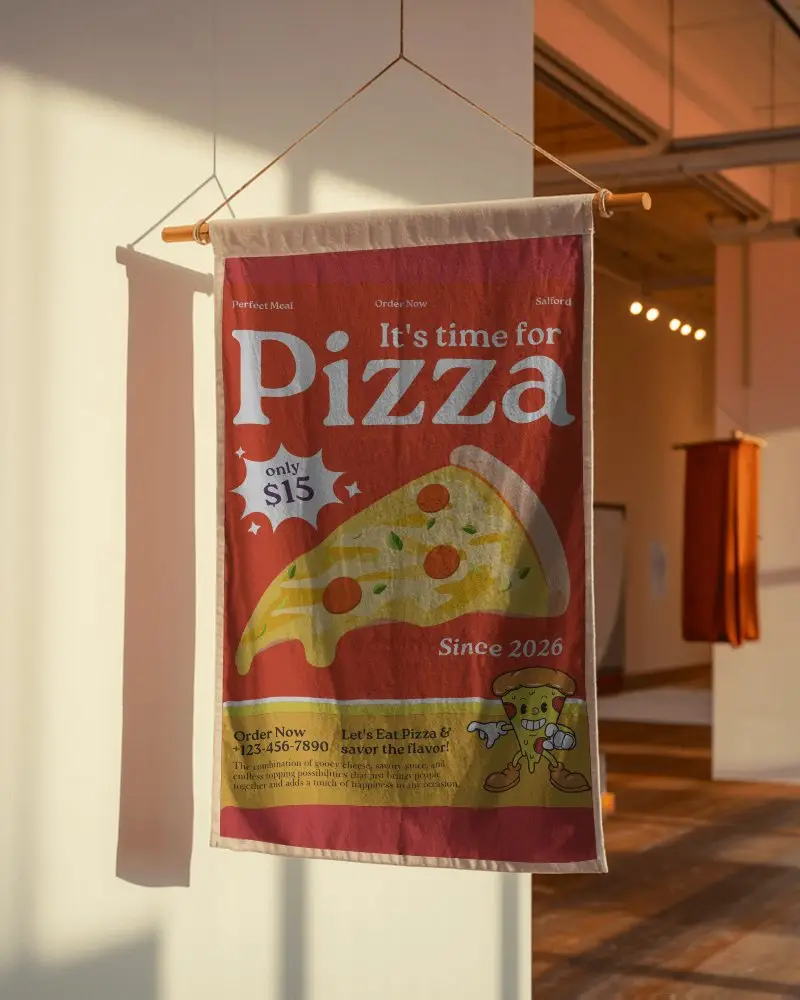
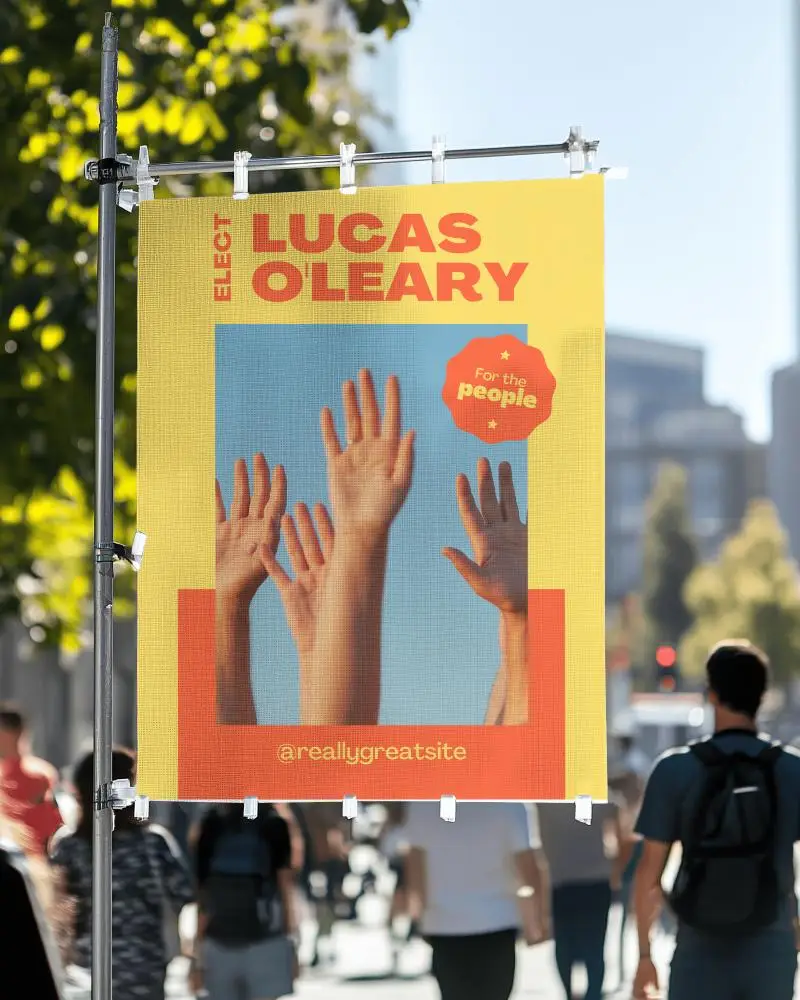
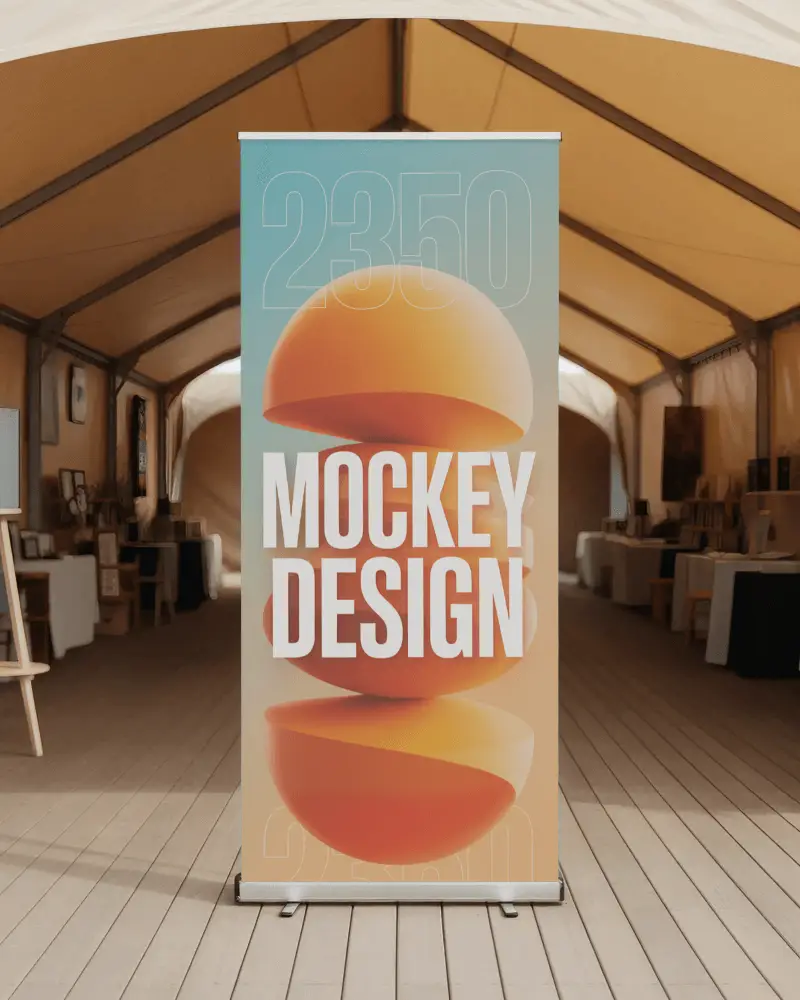
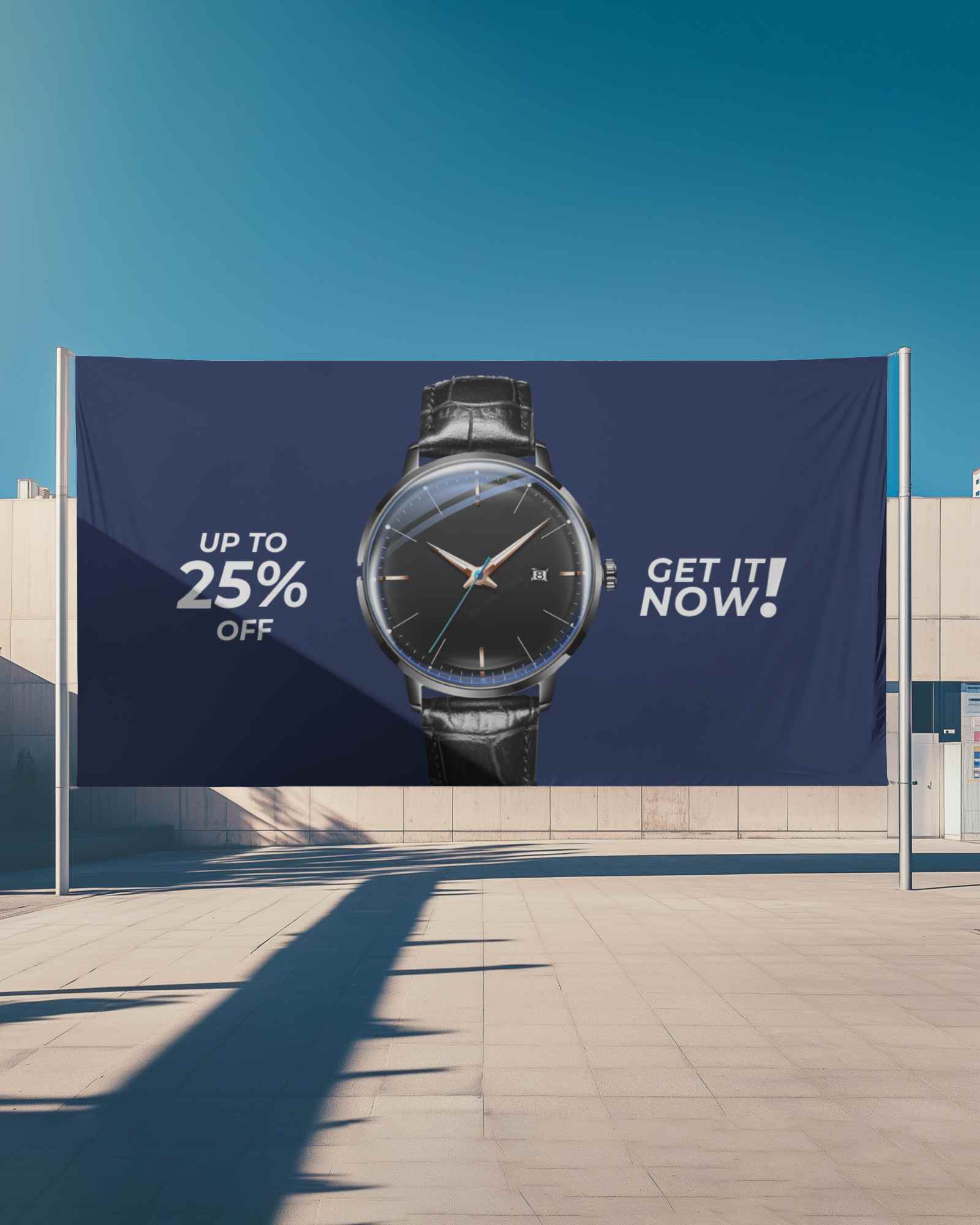
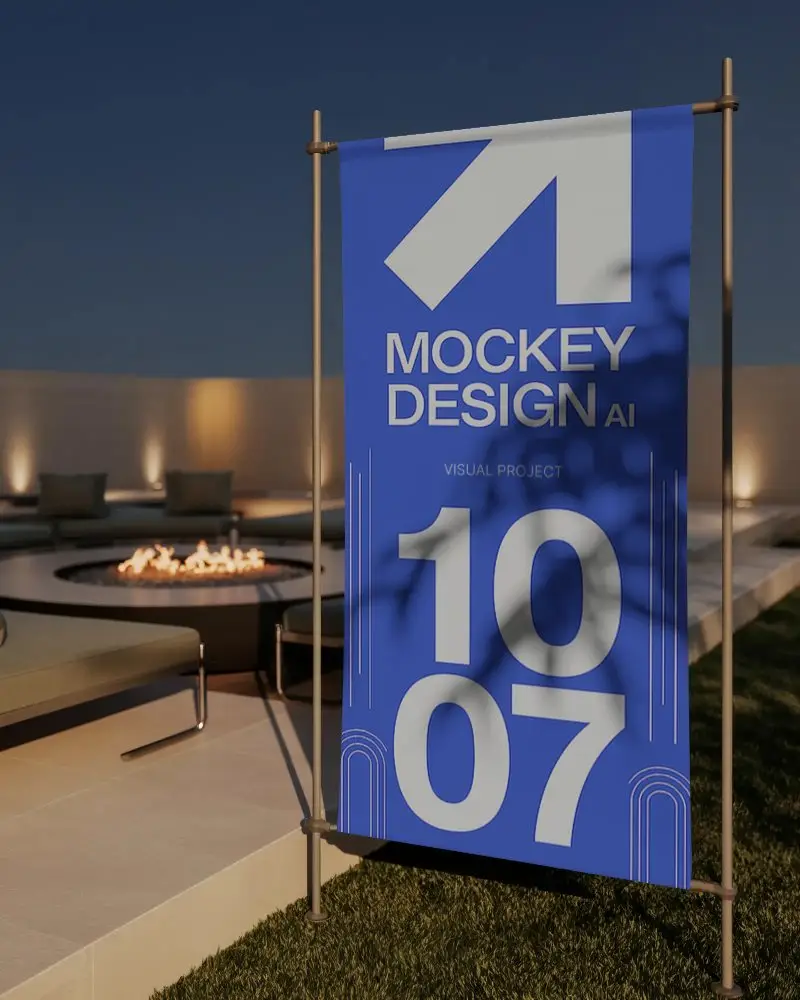
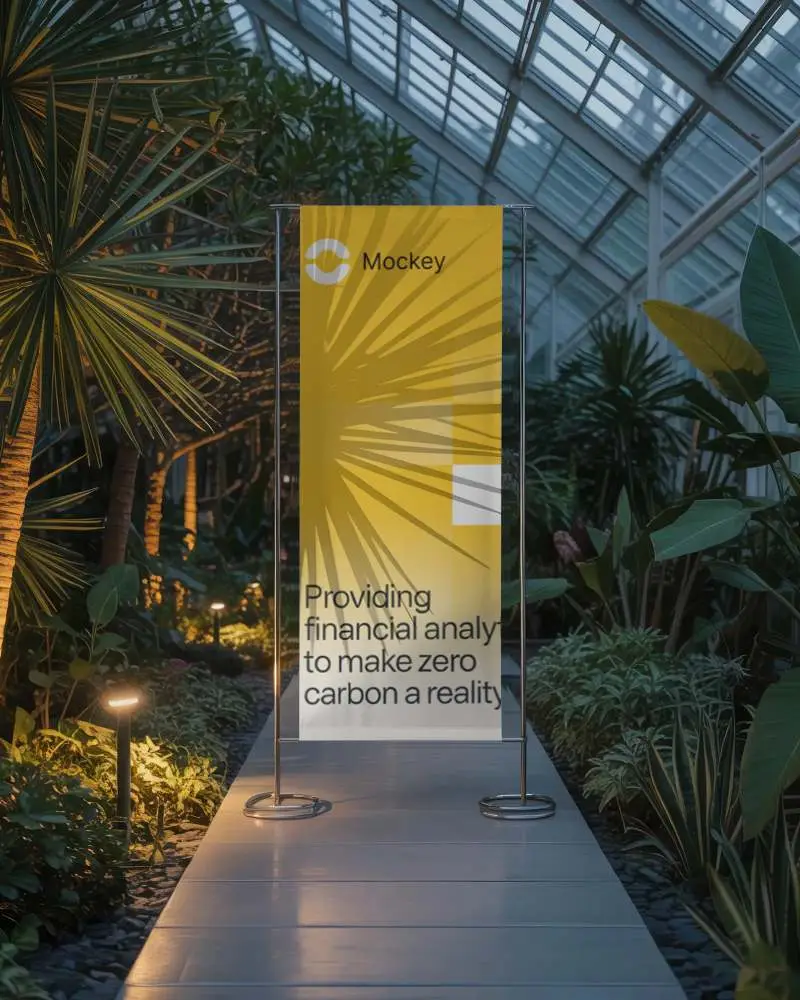
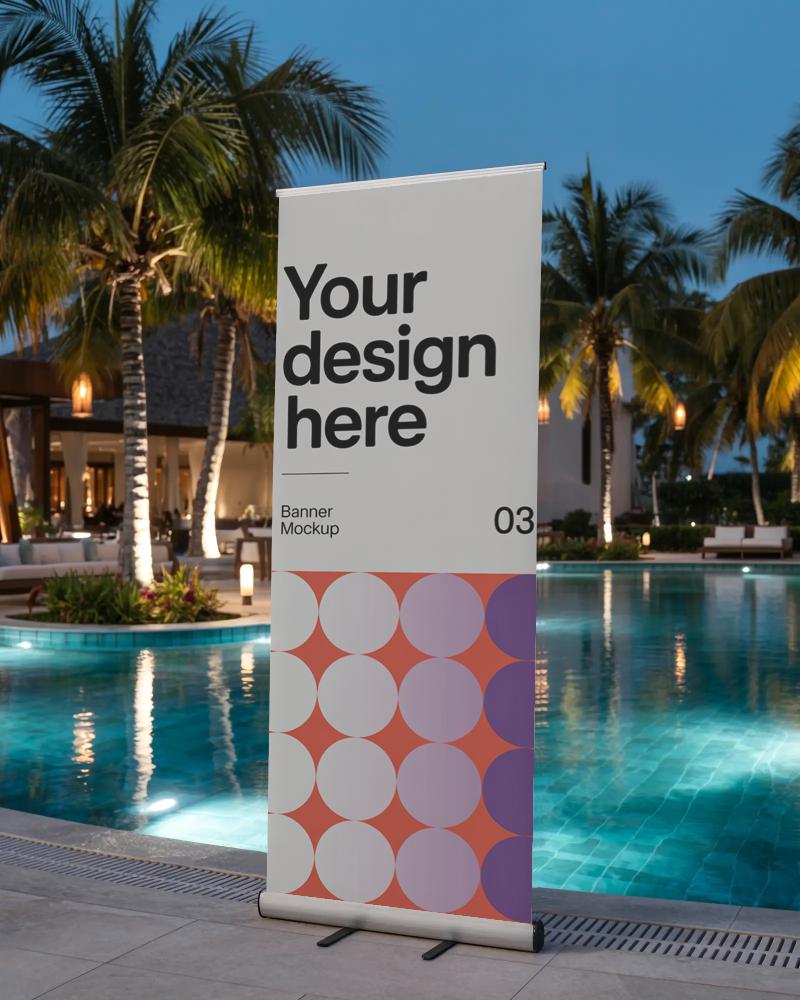
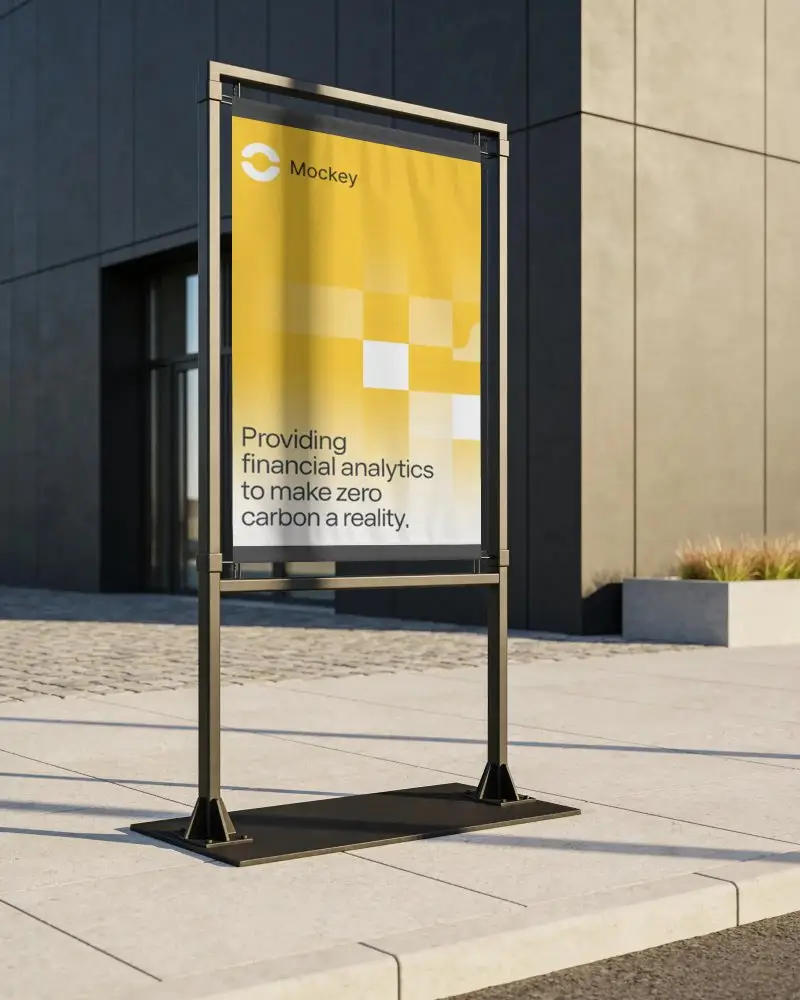
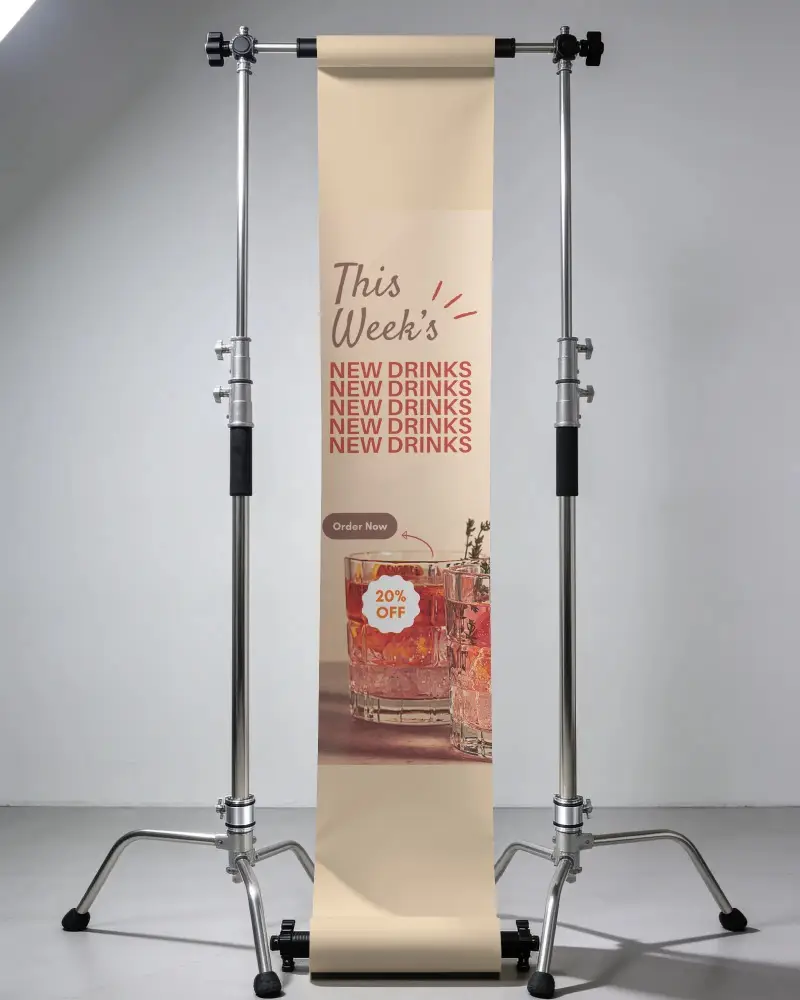
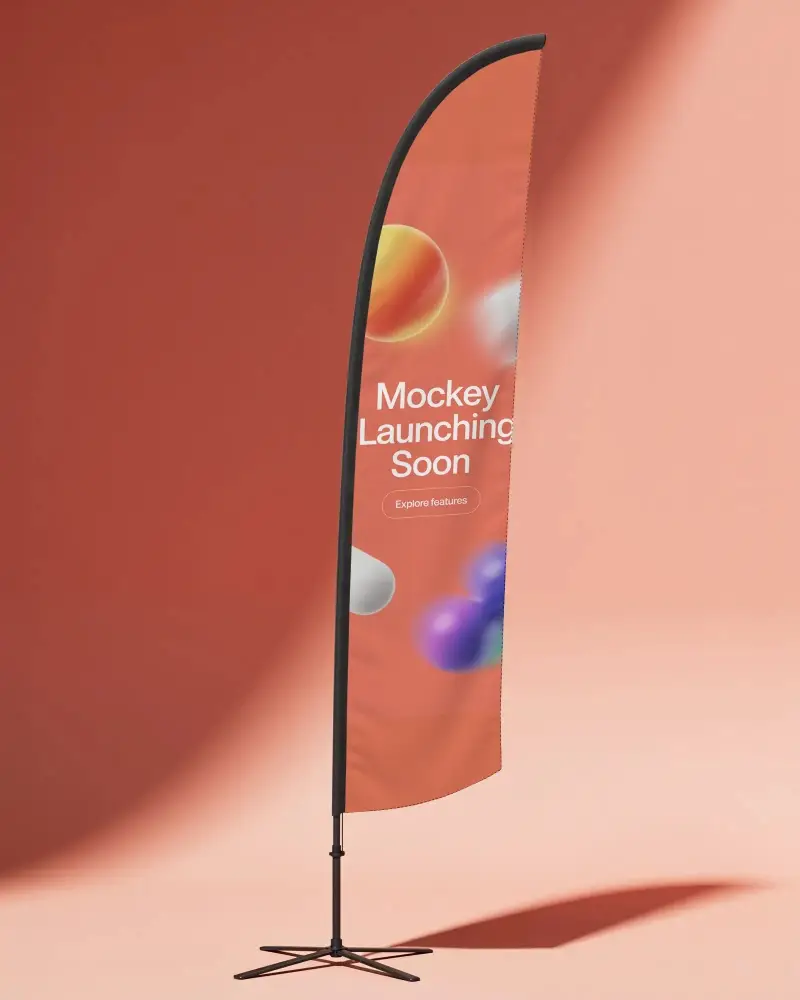
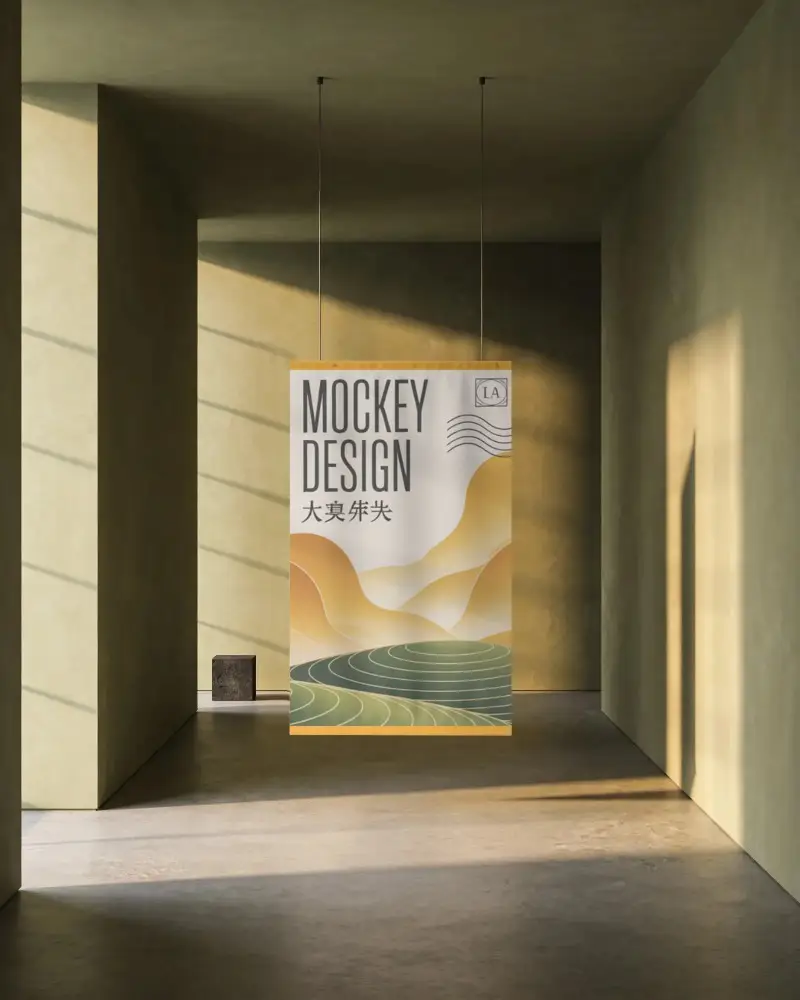
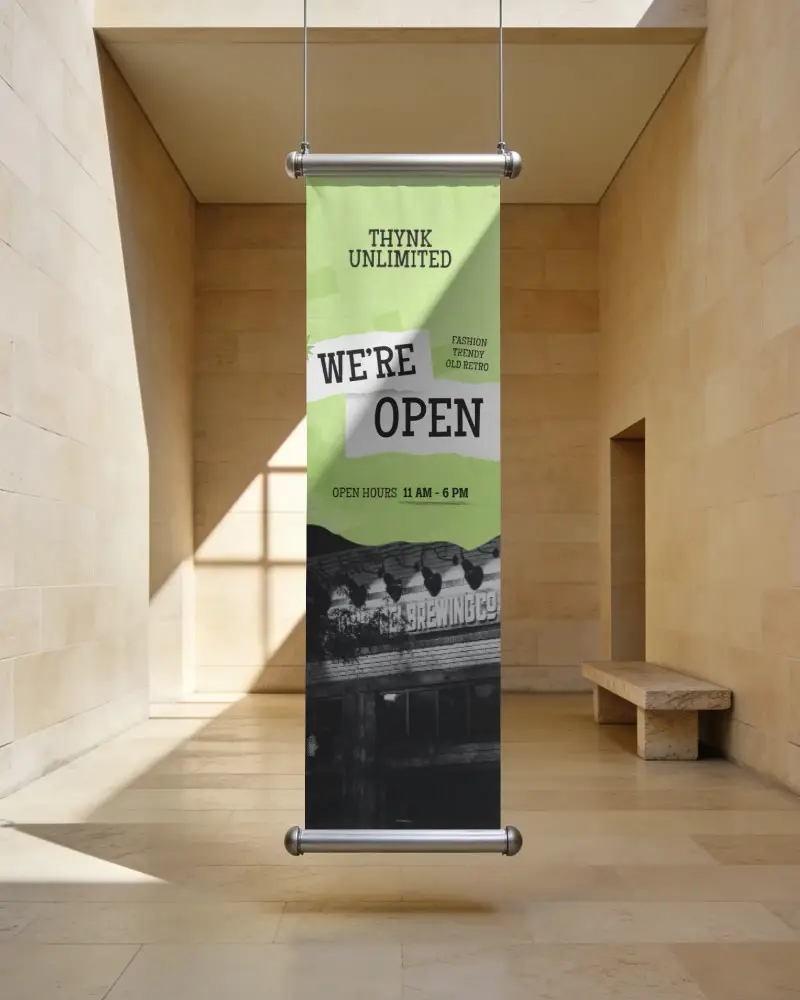
If you're looking to present your banner designs in a more impactful way, hanging banner mockups are the perfect solution. They help transform simple graphics into realistic presentations that clients and audiences can instantly relate to. Mockey AI makes this process seamless by offering high-quality mockups that are easy to customize and built for modern branding needs.
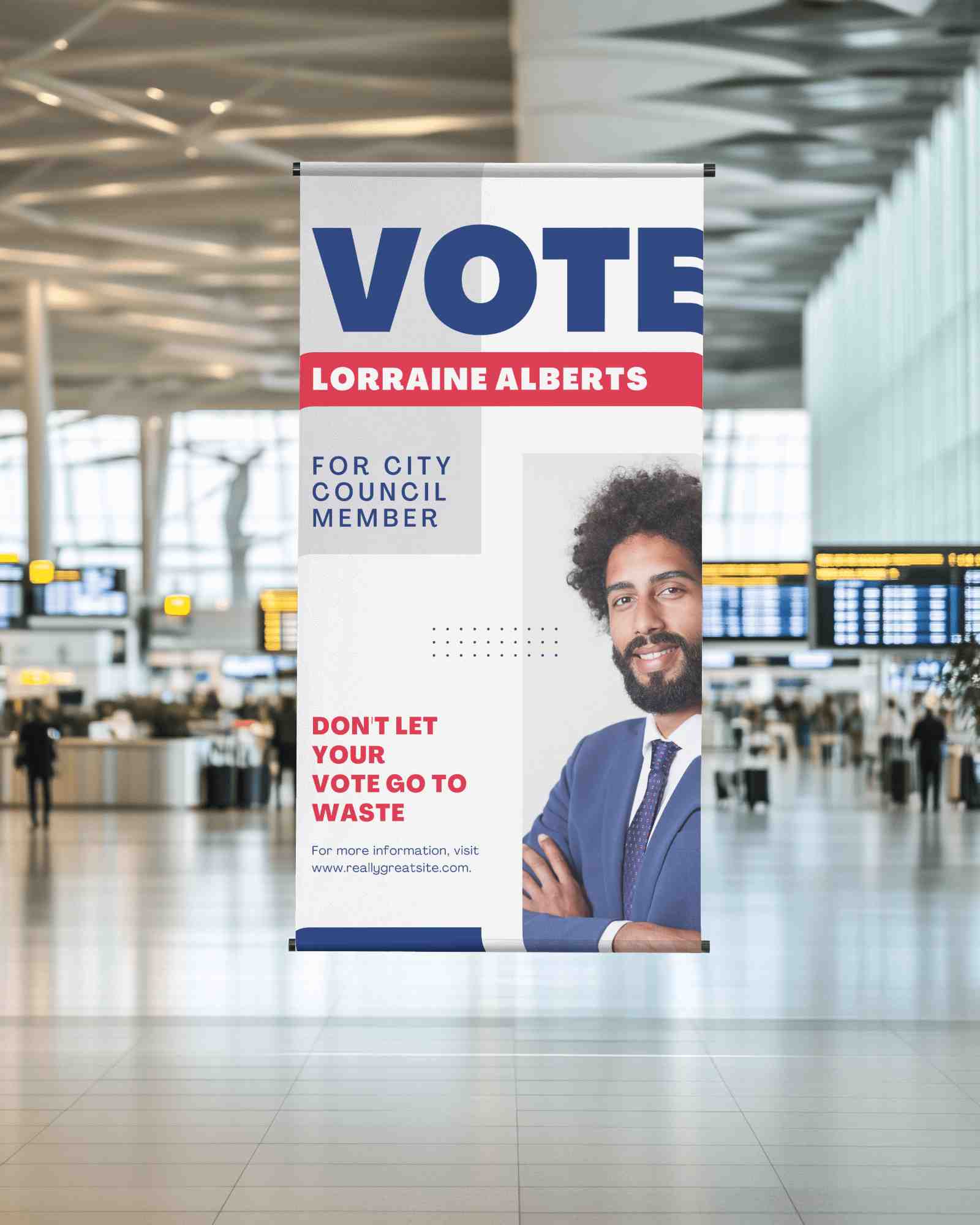
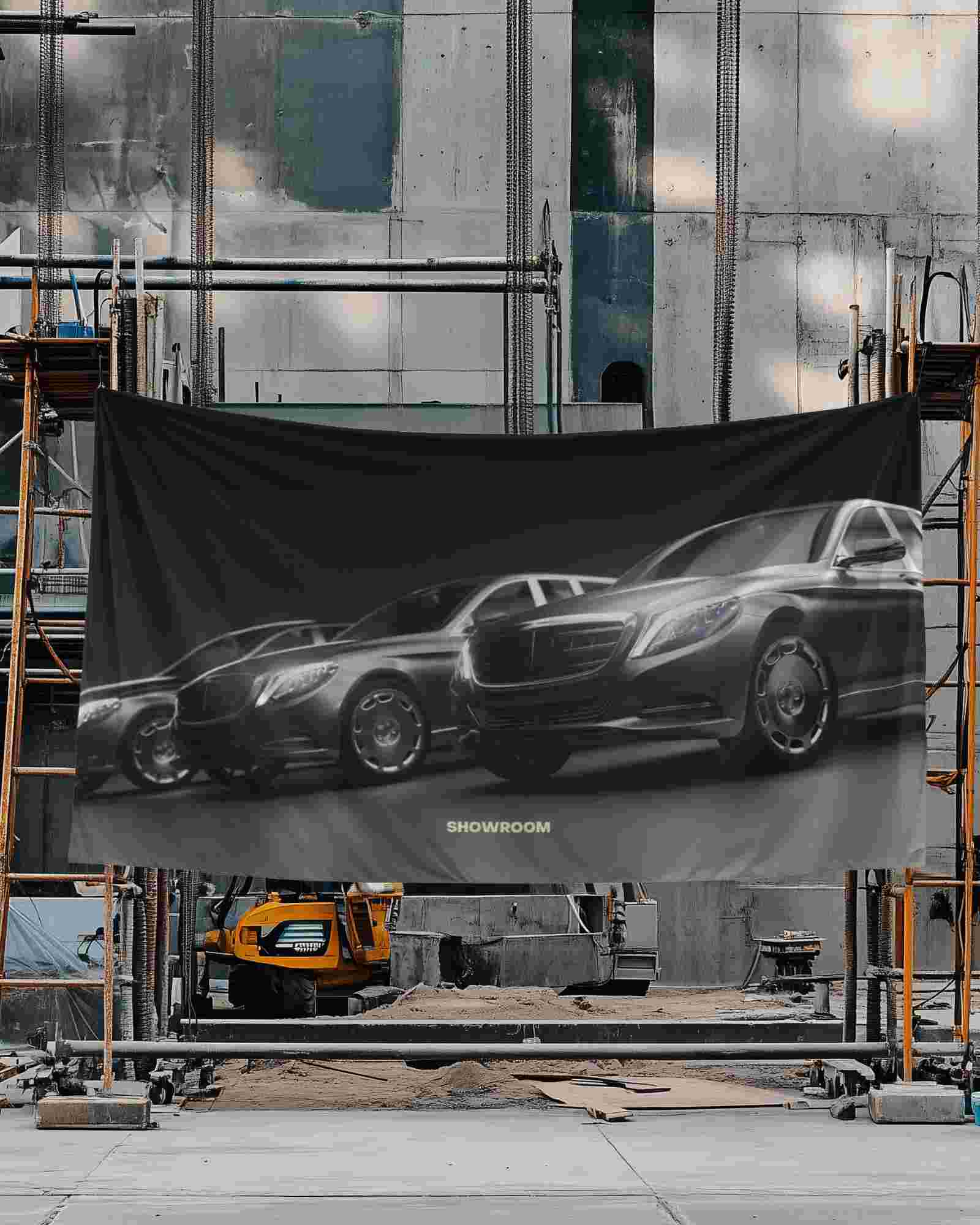
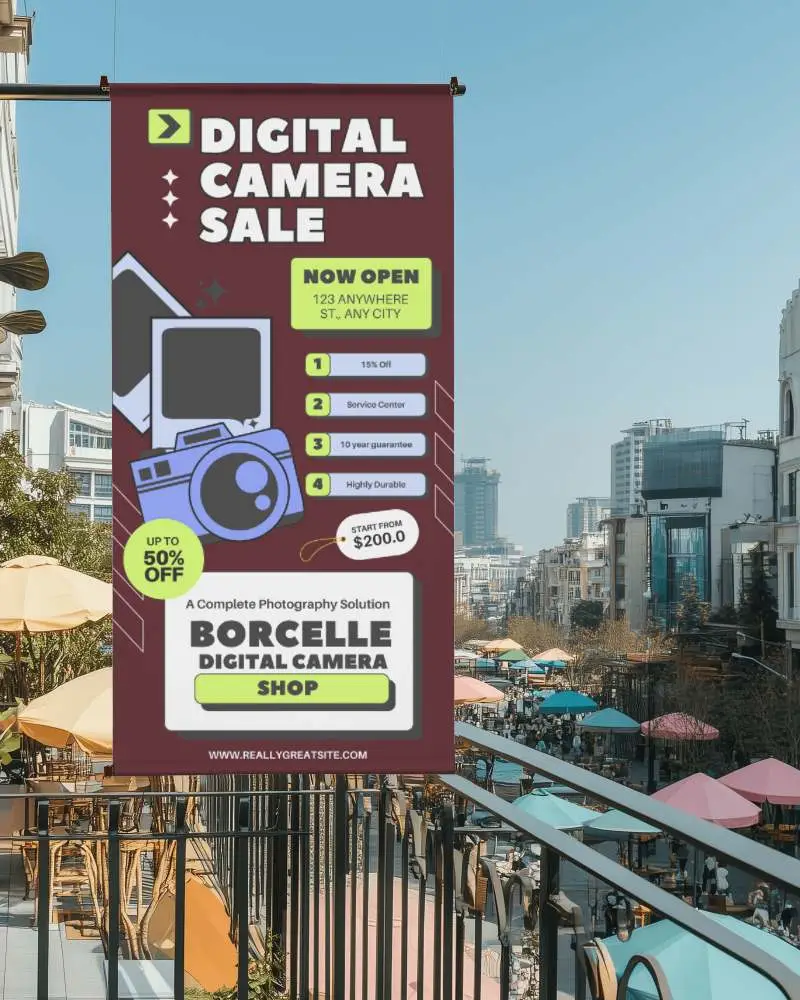
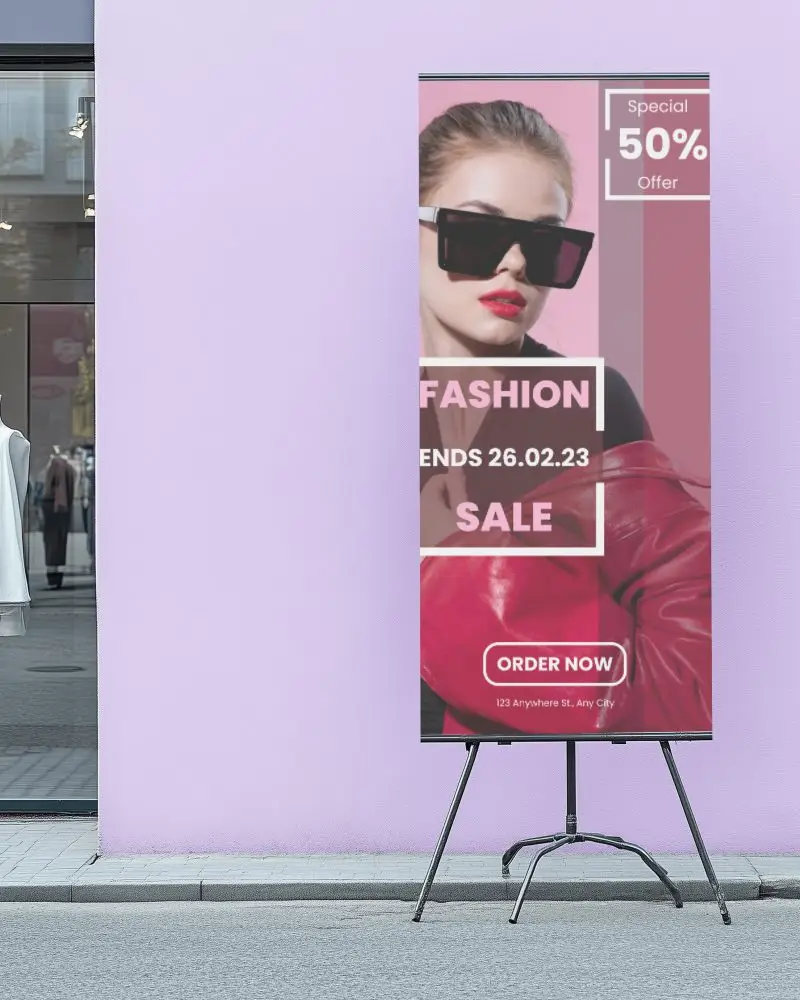
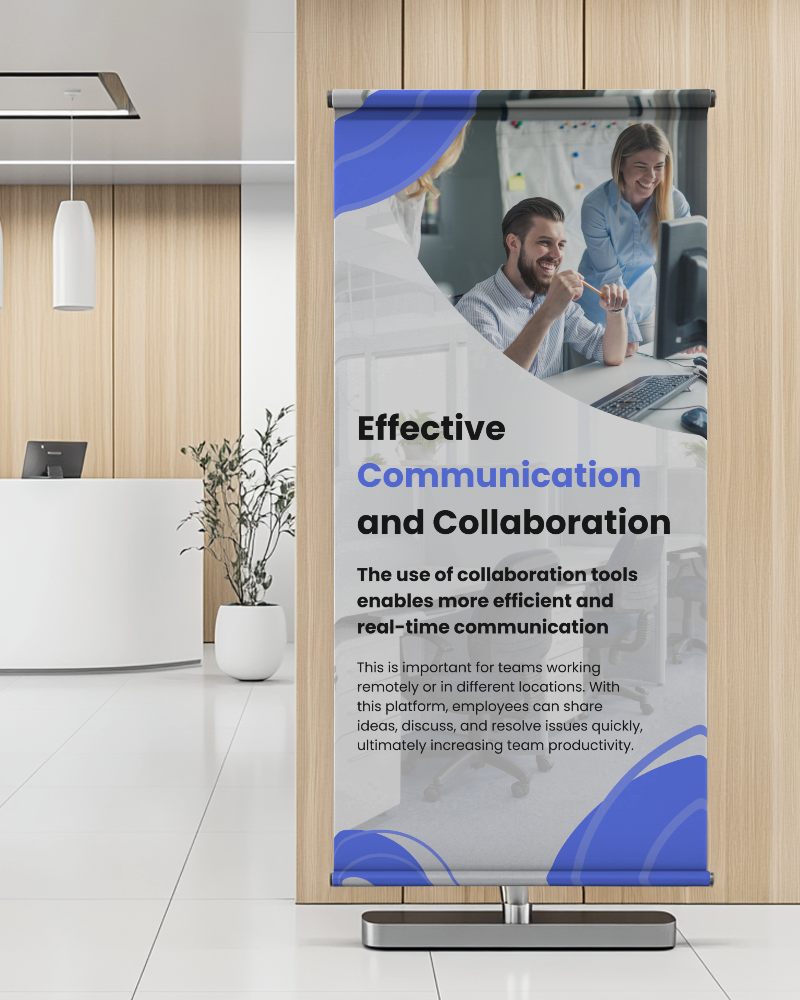

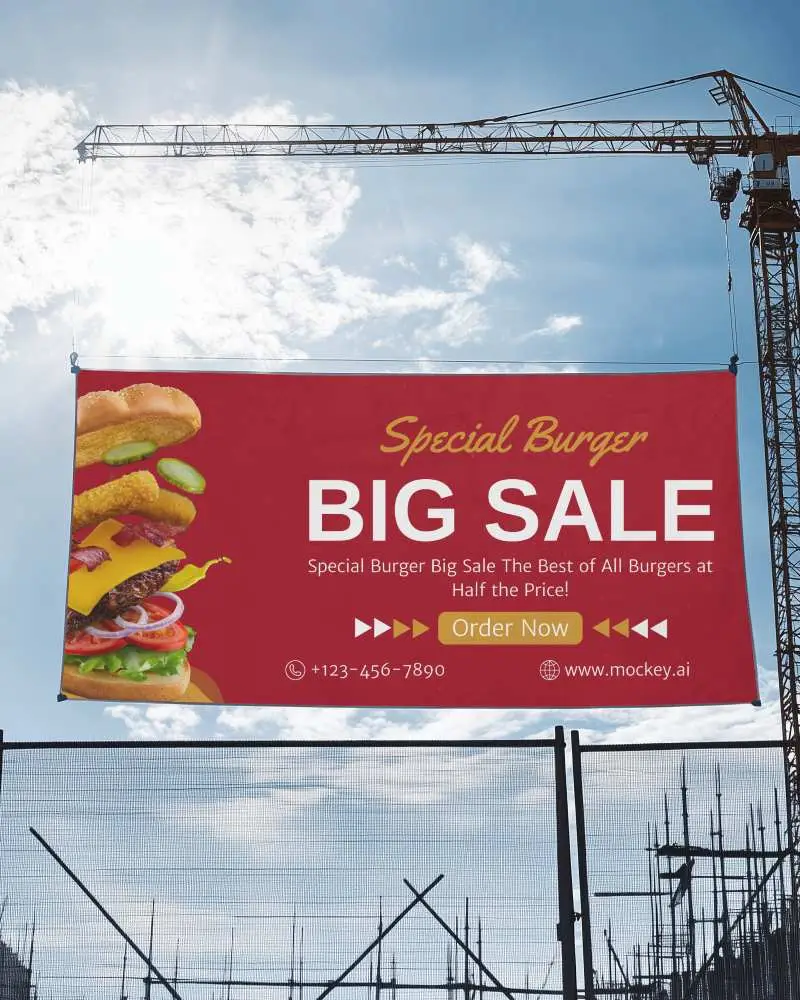
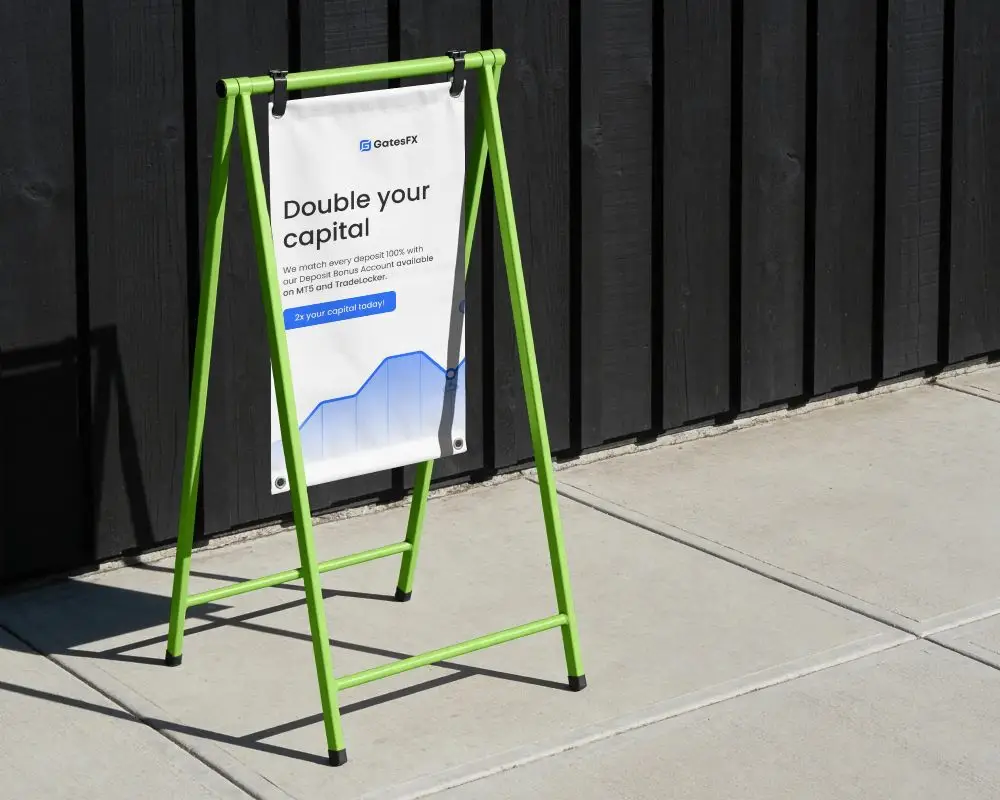
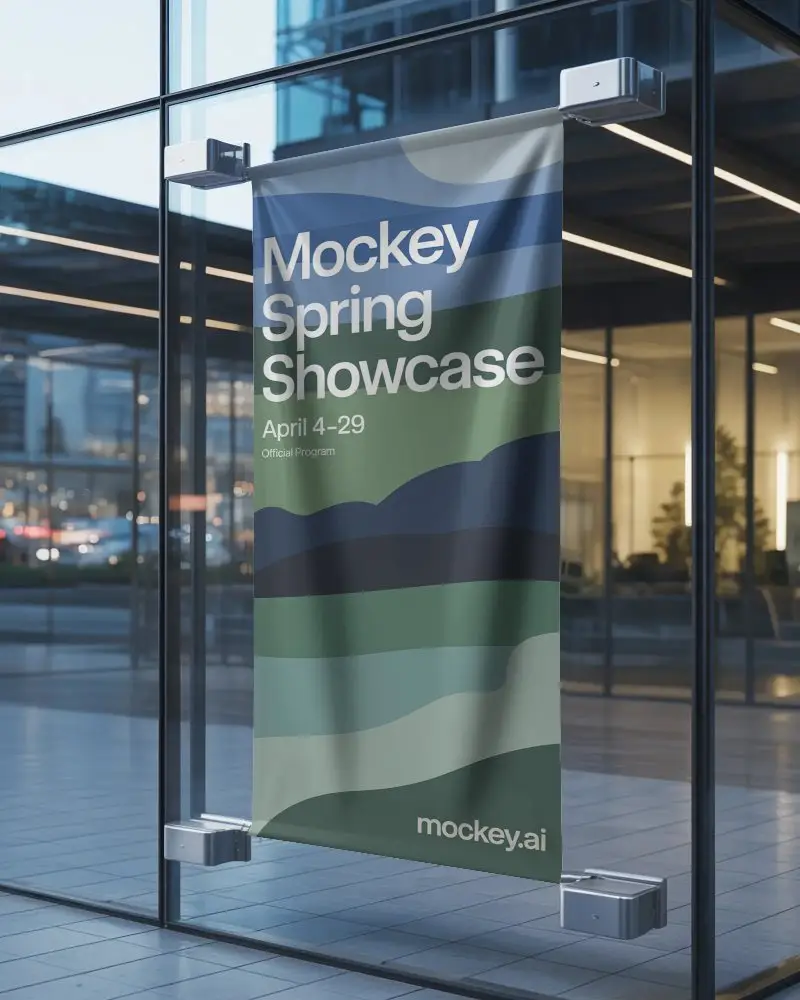
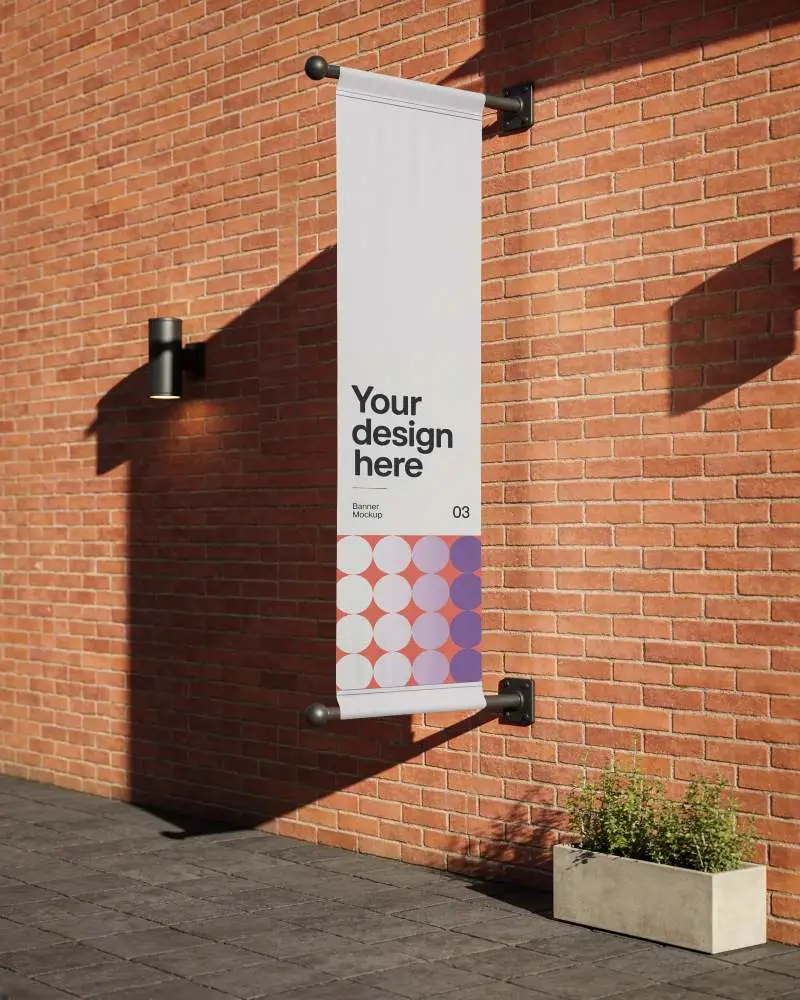
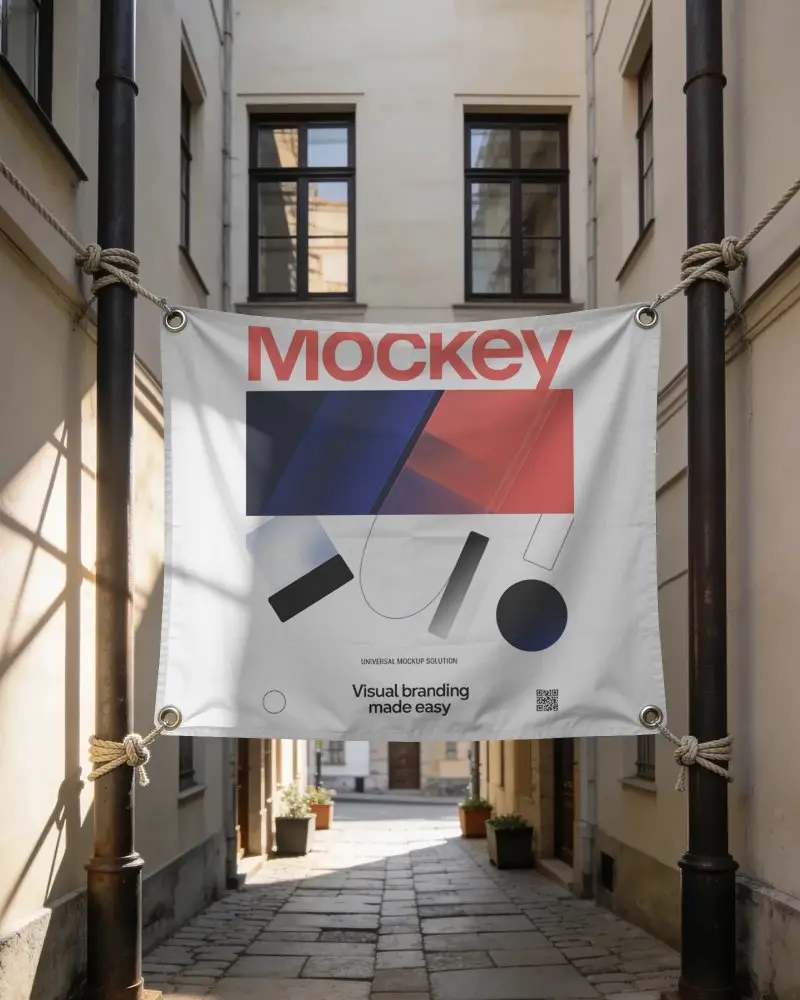
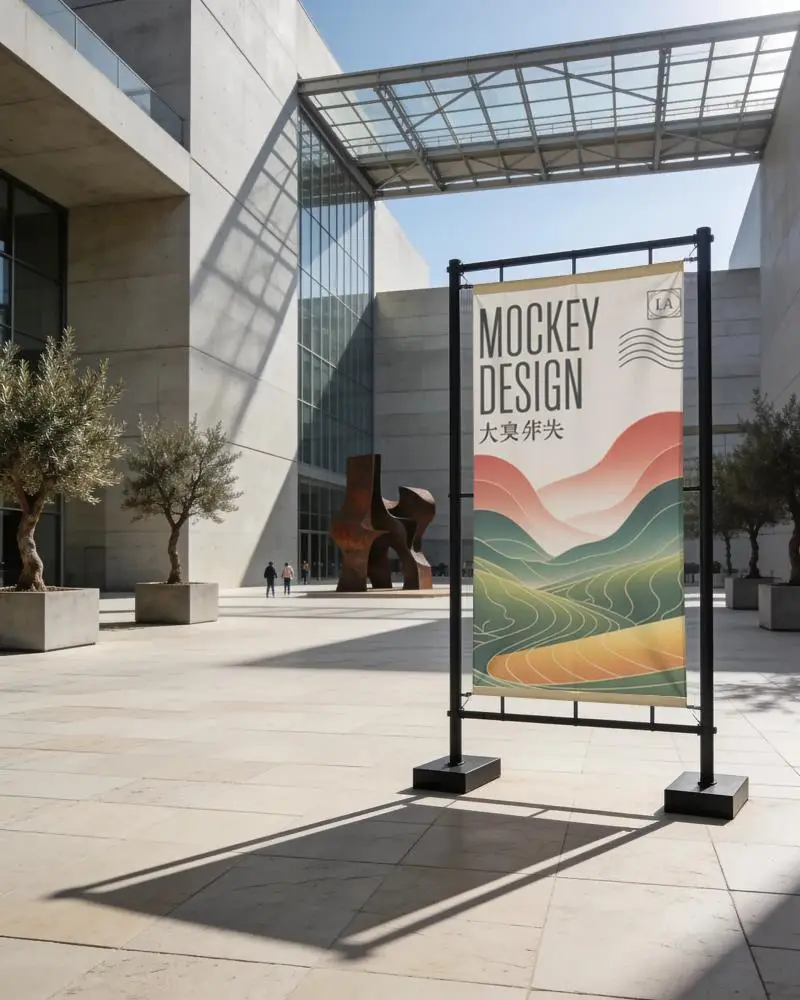
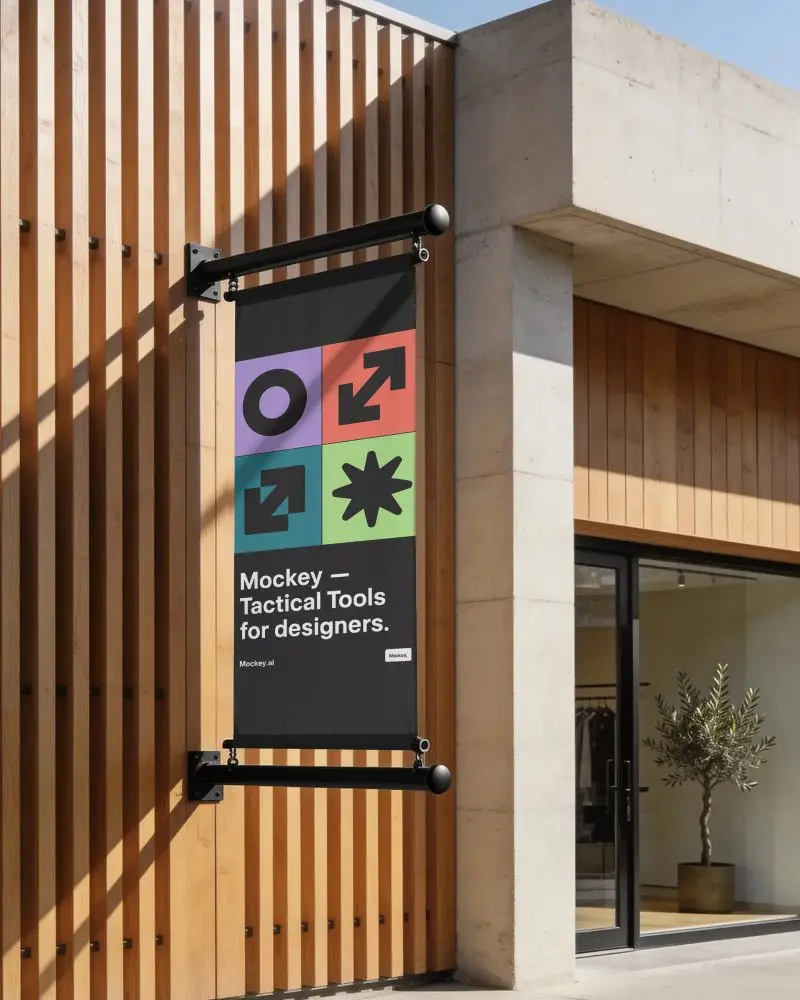
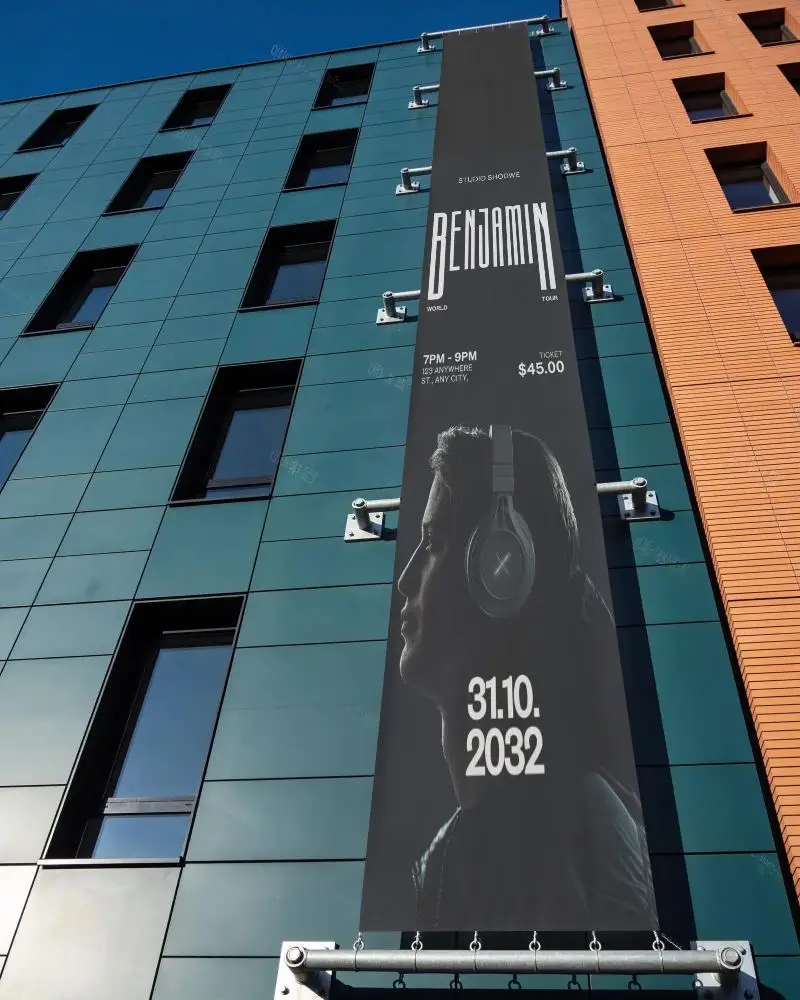
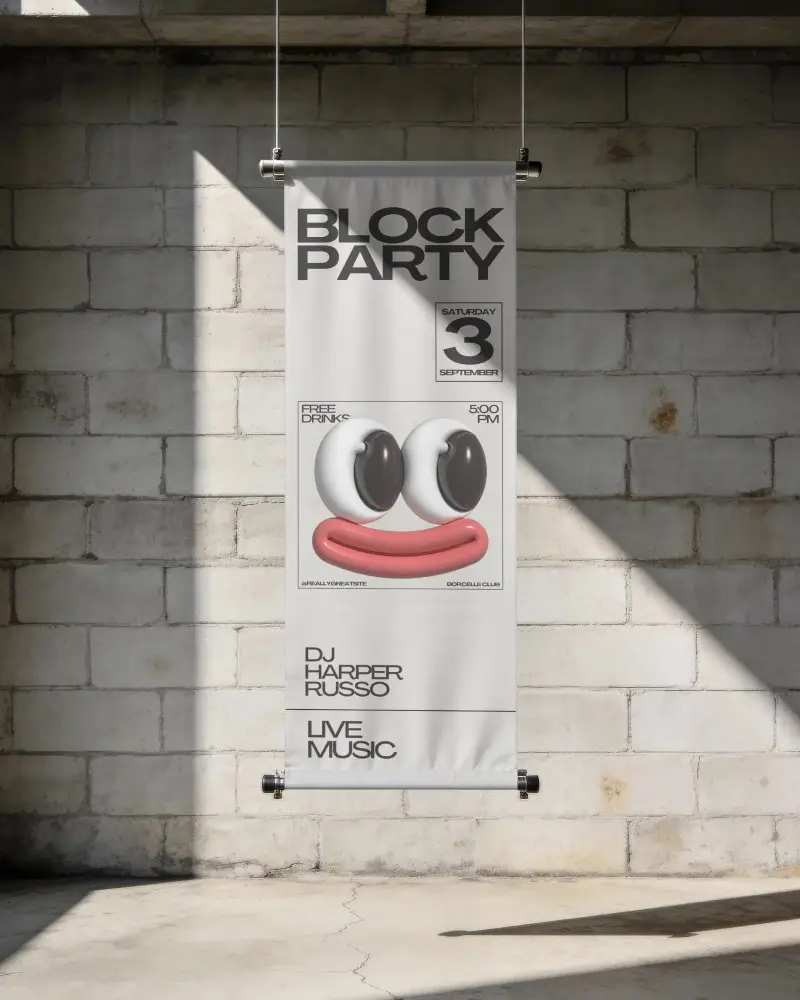
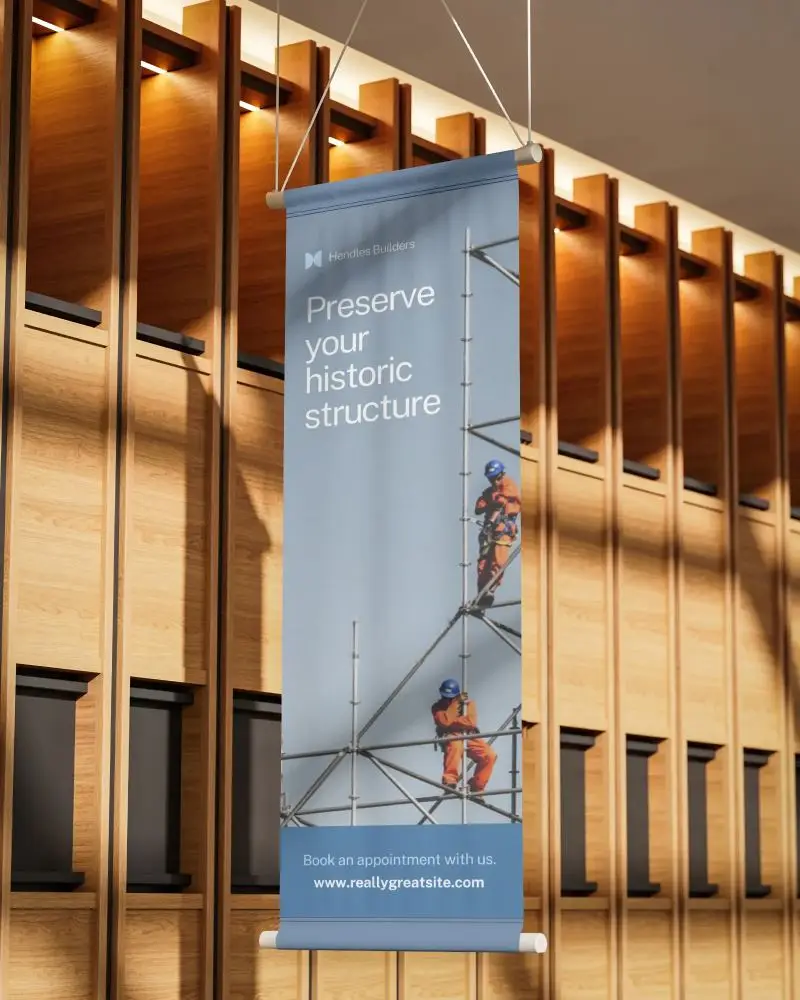
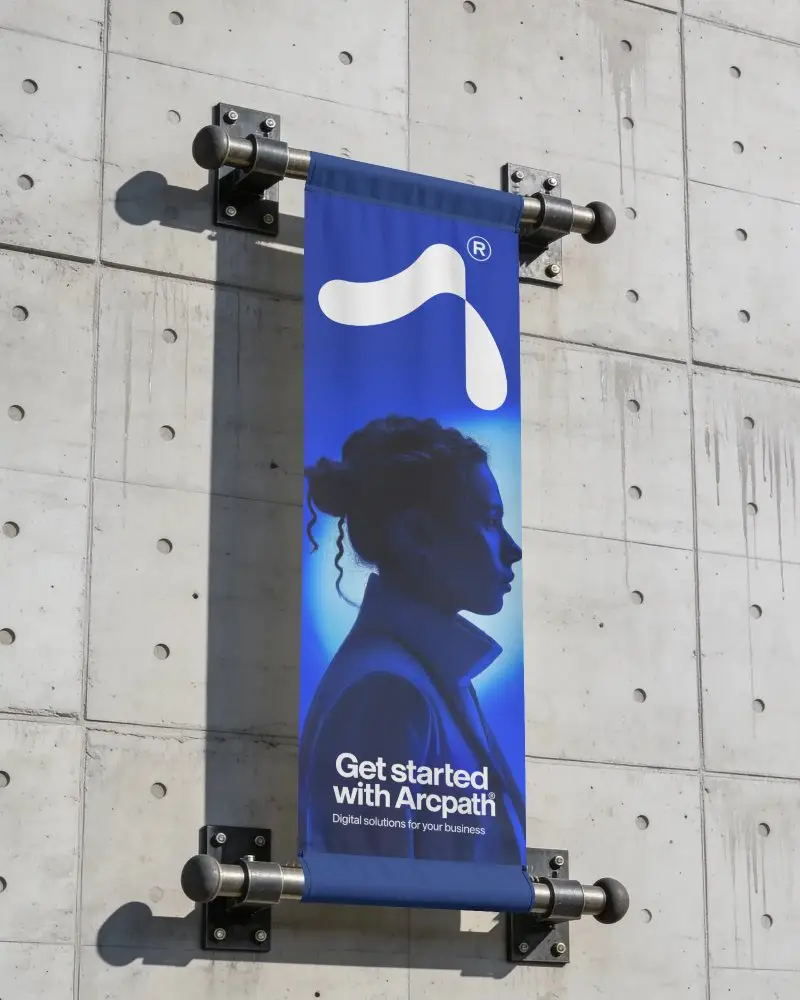
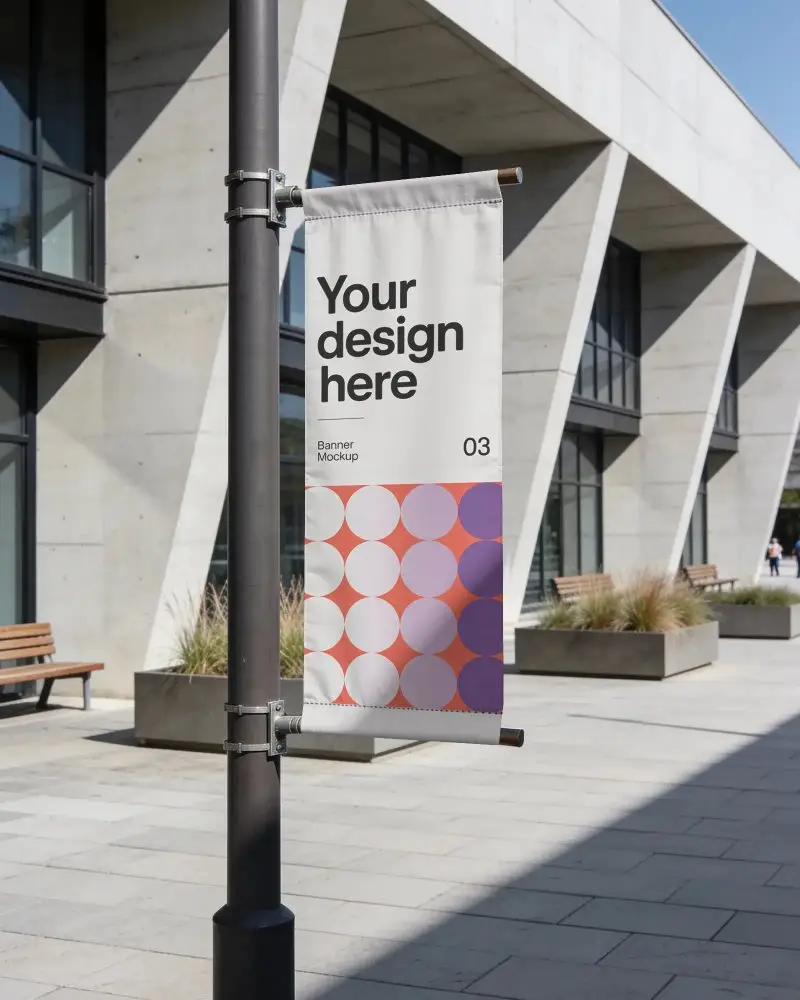
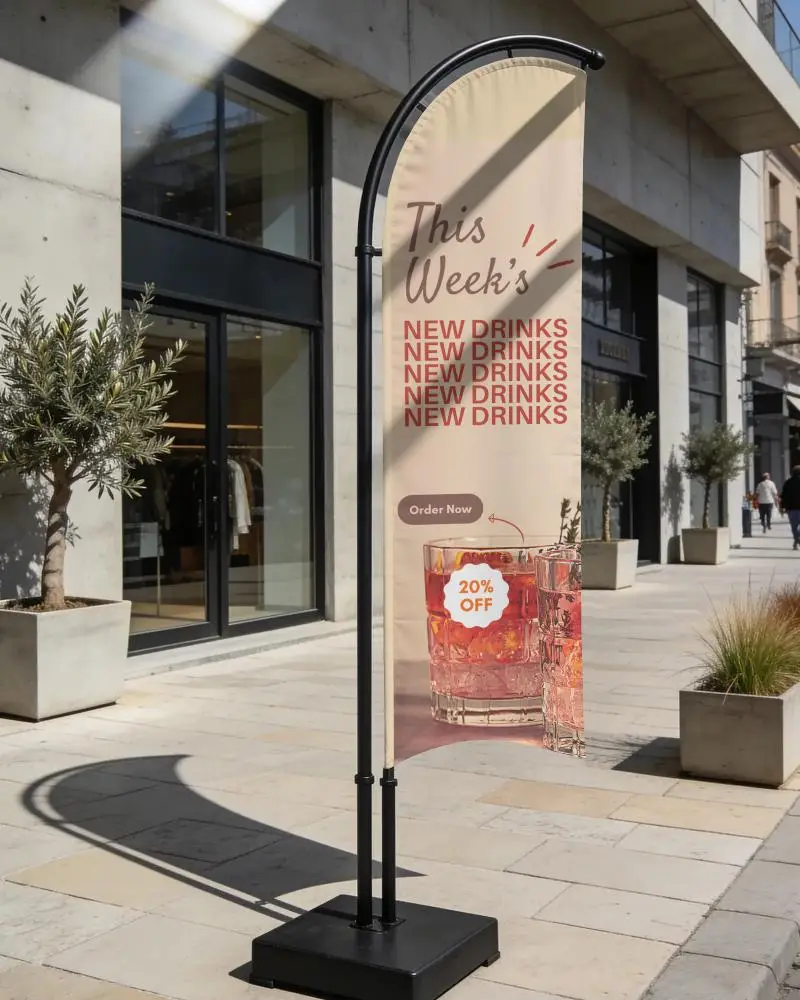
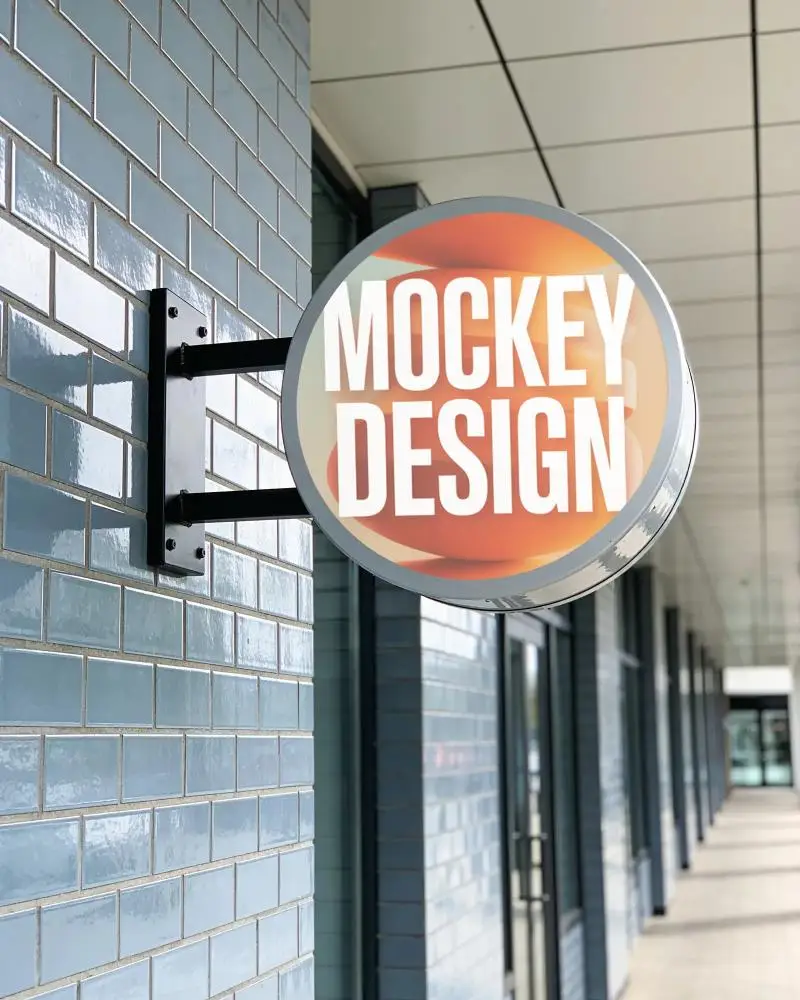
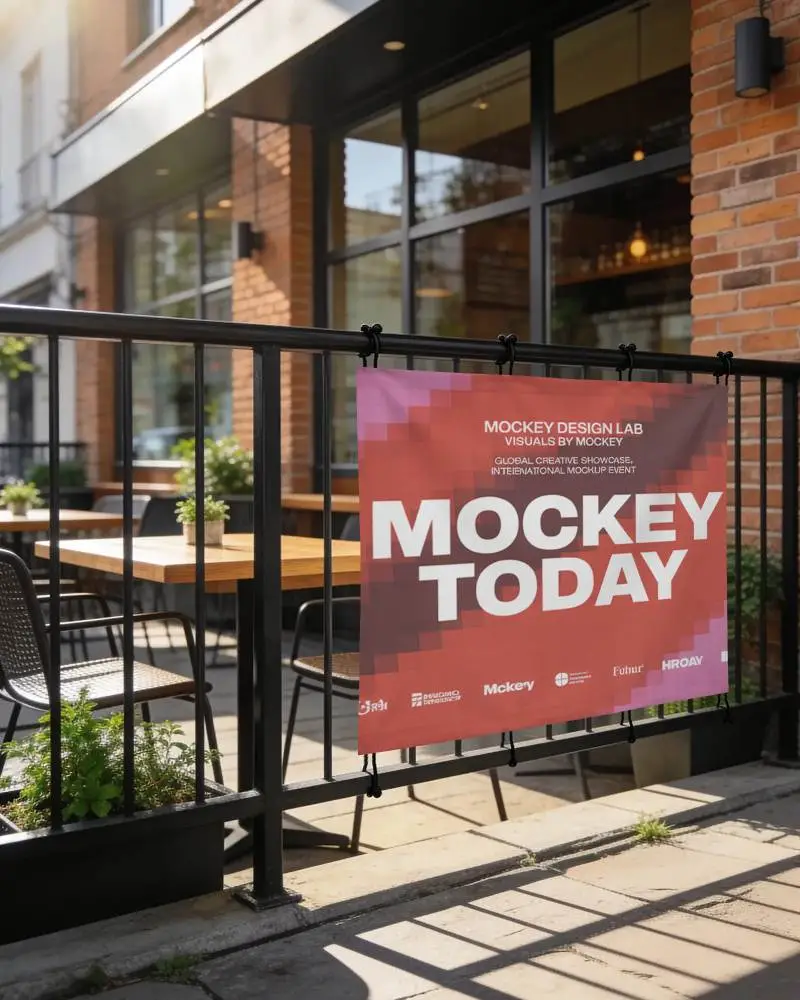
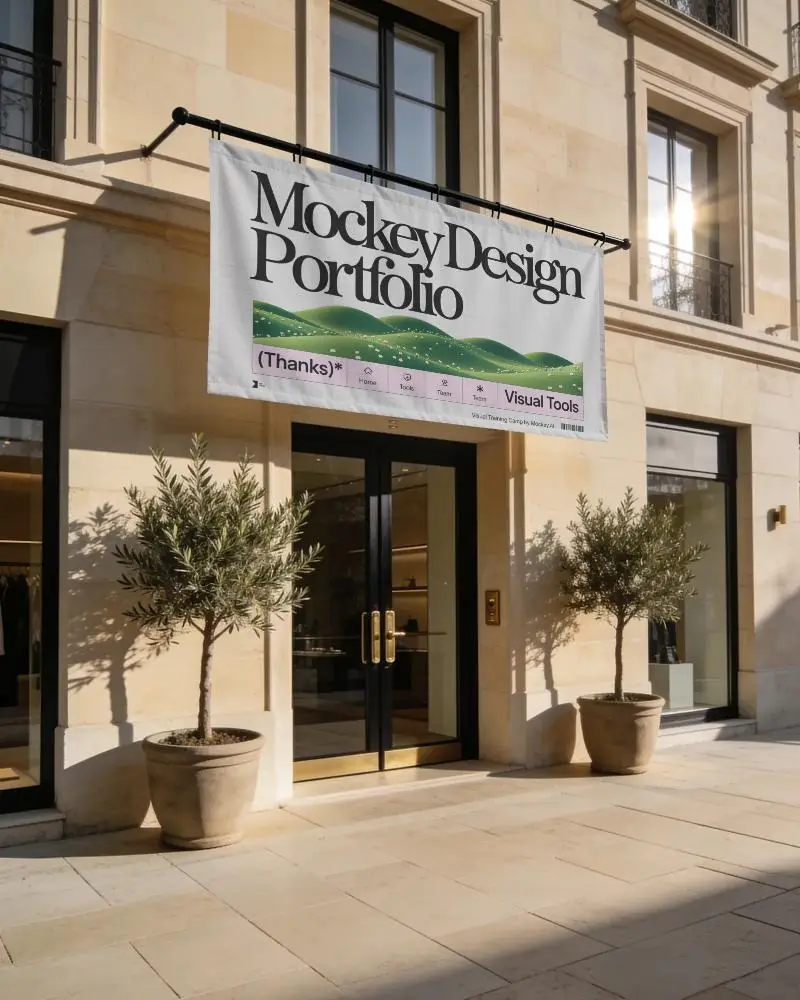
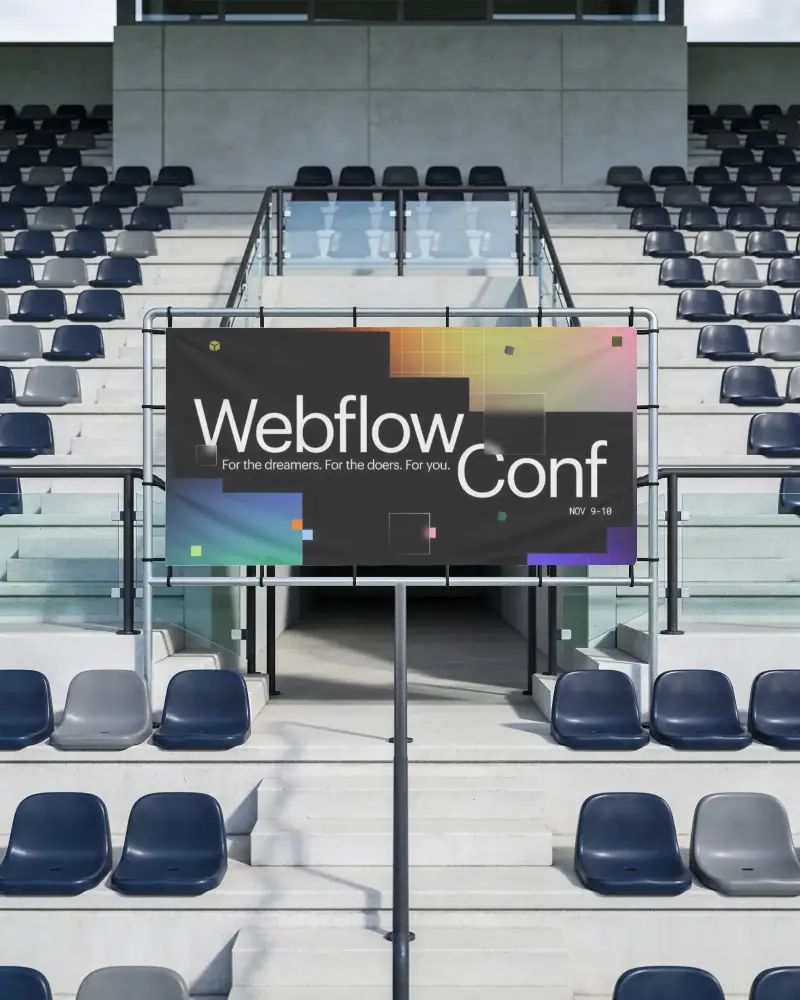
How to Make Hanging Banner Mockup with Mockey
To create a hanging banner mockup in Mockey AI:
- Step 1: Sign up on Mockey and follow: Mockups > Print > Banner > Hanging.
- Step 2: Choose a template, upload your design, and customize using AI tools and color controls.
- Step 3: Click Download and save the file in JPEG or PNG format.
FAQs on Hanging Banner Mockups
What is a Hanging banner mockup?
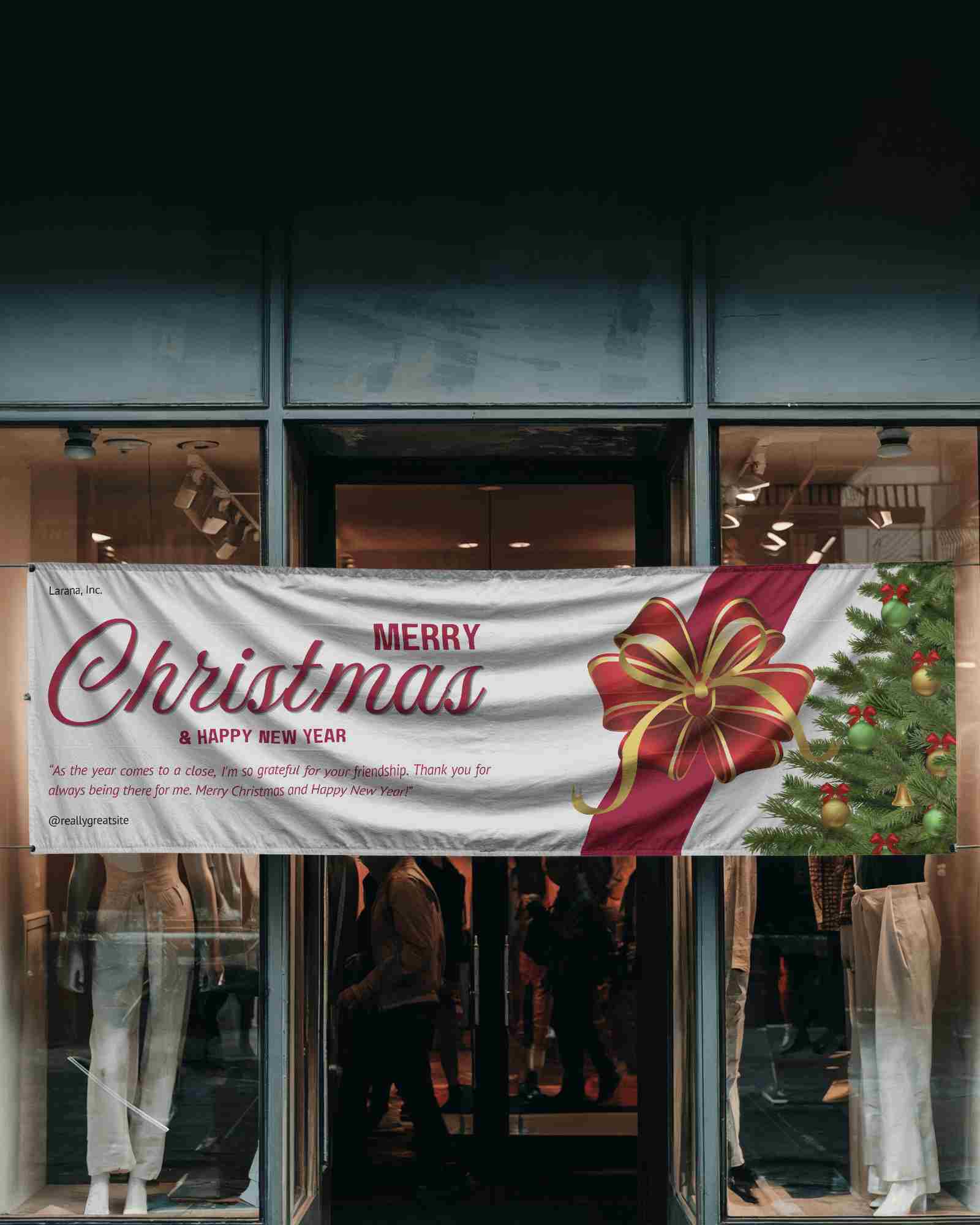
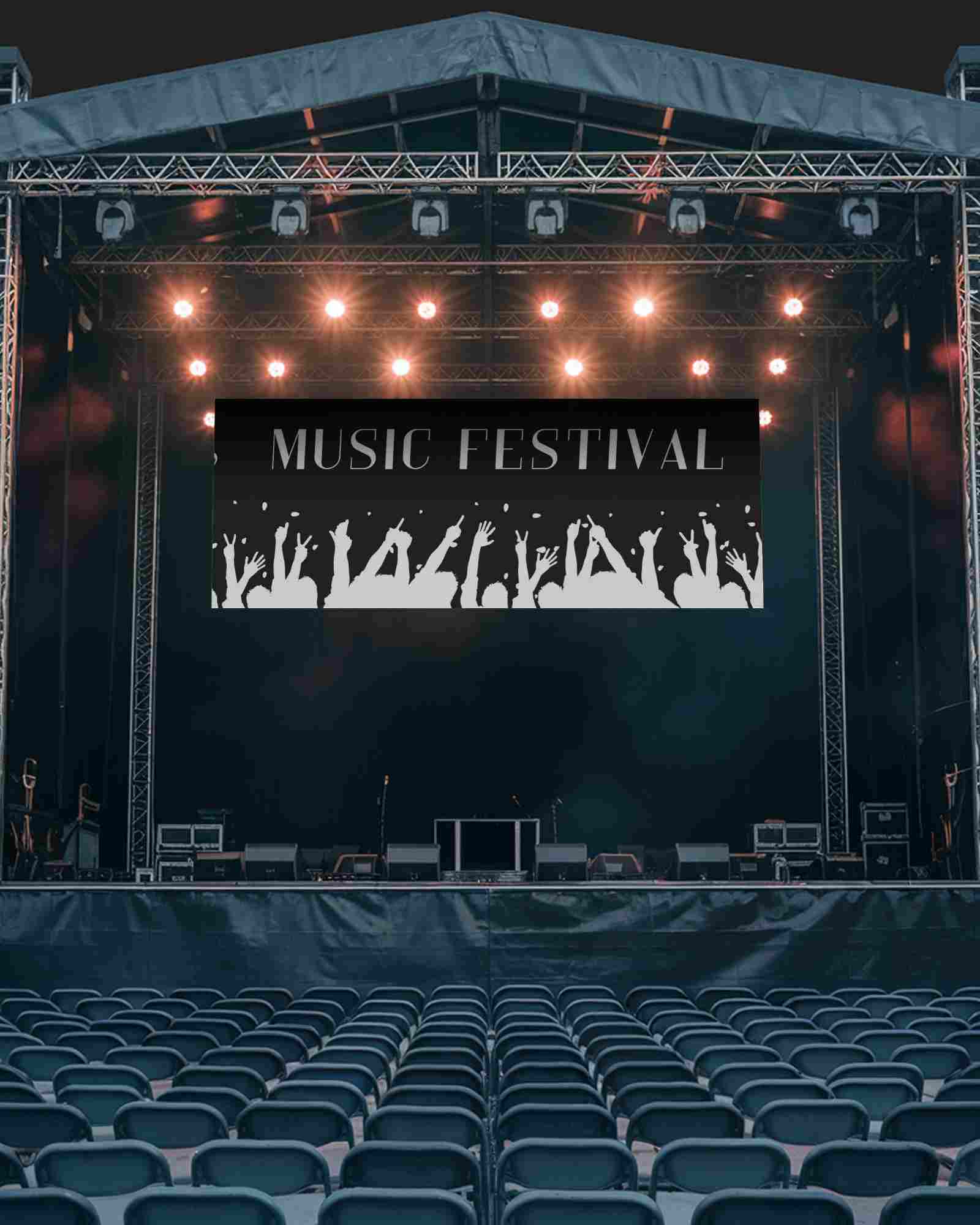
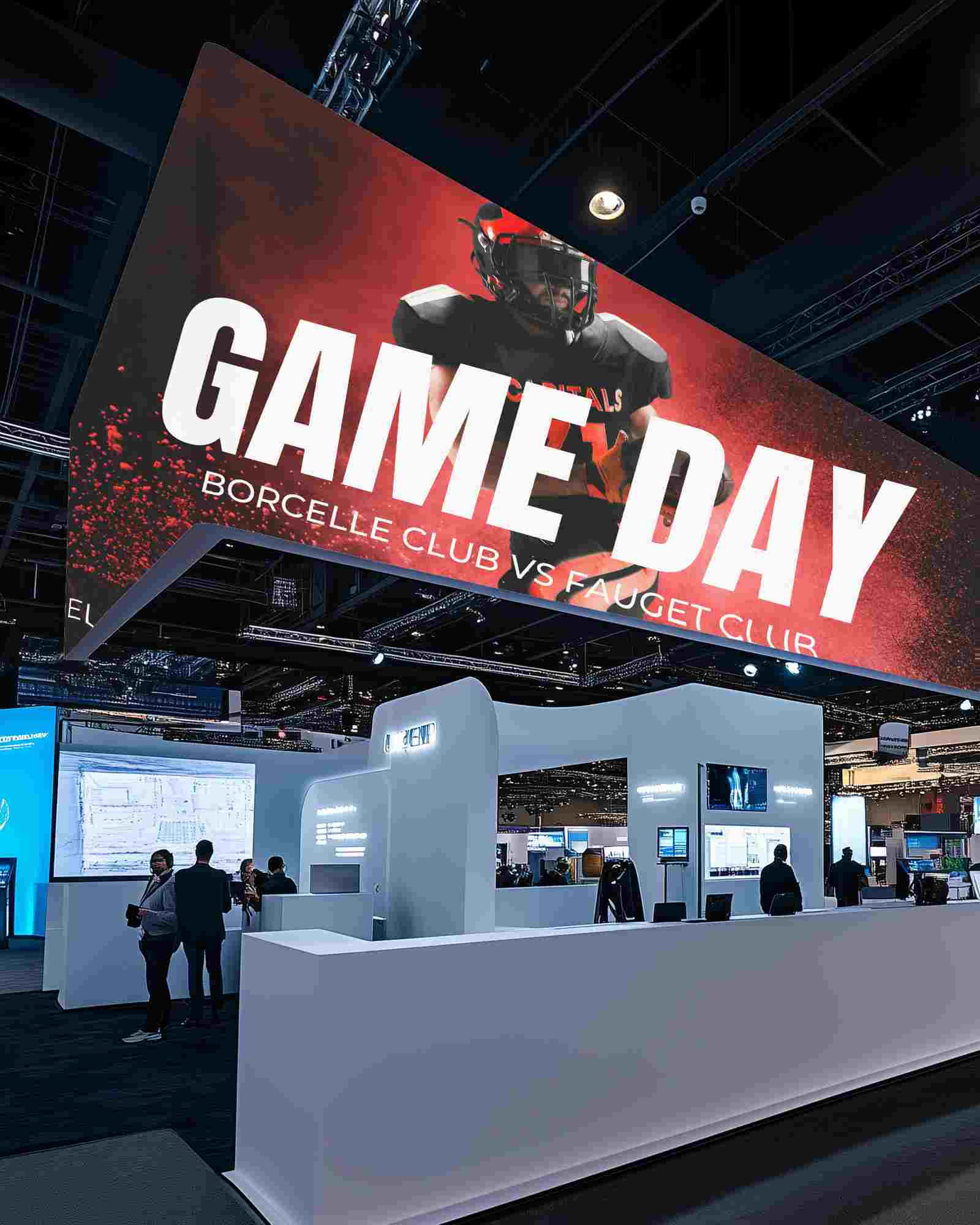
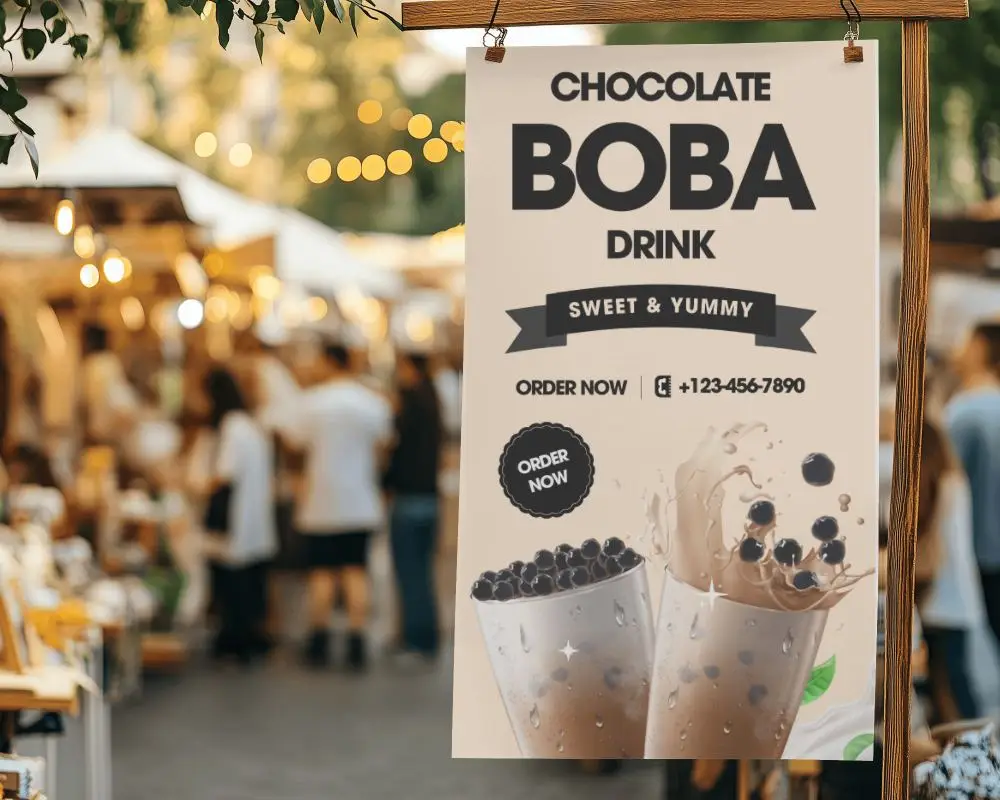
A hanging banner mockup is a digital picture that shows how a banner will look with a custom design when hanging.
Why create a Hanging banner mockup?
Creating a hanging banner mockup saves time, lets designers change designs easily, and helps see how it fits in different places.
Why Use Mockey’s Hanging Banner Mockup?
A hanging banner mockup from Mockey saves money, works for ads or events, is easy to use, and makes designs look professional for clients.
Can I customize the Hanging banner mockups on Mockey.ai?
With Mockey AI, you can easily customize your hanging banner mockup by changing colors, and backgrounds, and using AI tools for cool visual effects.
Do I need any design software to use Mockey.ai?
You don’t need any extra software to use Mockey AI. Just open your web browser, sign up for free, and start customizing your templates.
What file formats can I download my Hanging banner mockup in?
Mockey AI lets you save your hanging banner picture in PNG or JPEG format whether you use a PC or mobile device.
How do I access the free Hanging banner mockups on Mockey.ai?
After signing up on Mockey AI, go to the mockups section, choose Banner under the Print category, and find the hanging tag at the top of all the templates.
Is this Hanging banner mockup free?
Mockey gives free hanging banner mockups in JPEG format, three times a day. If you want them in PNG, you need to upgrade to the Starter.