Free Vertical Banner Mockup for Social Media, Event & Advertising
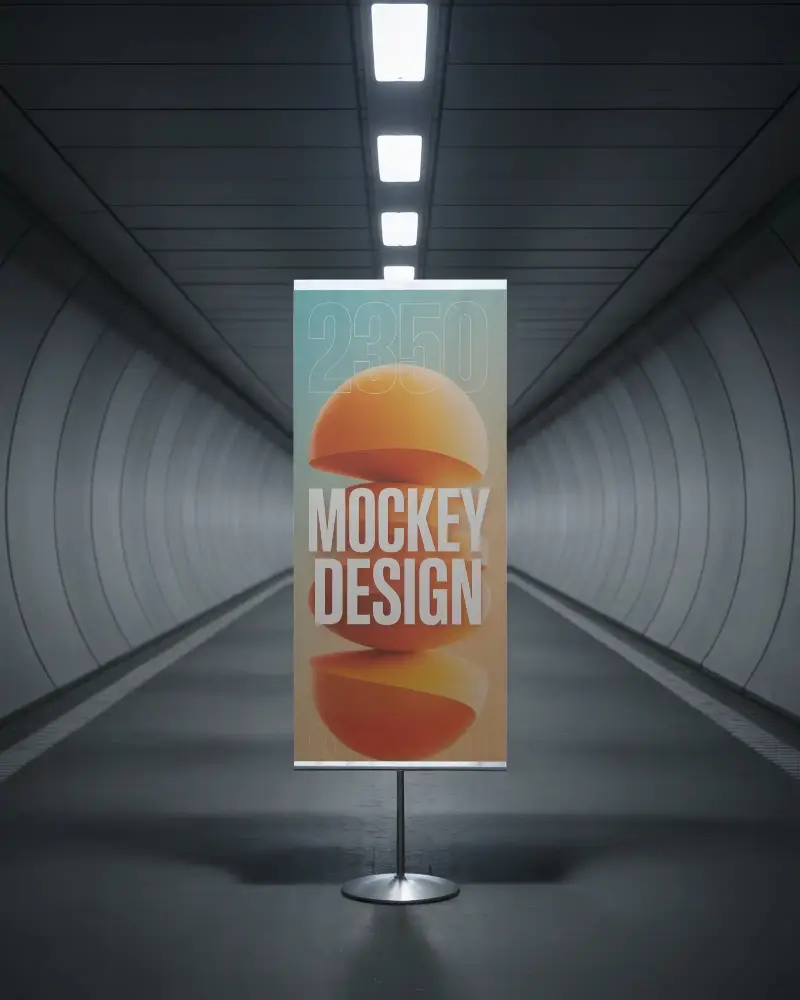
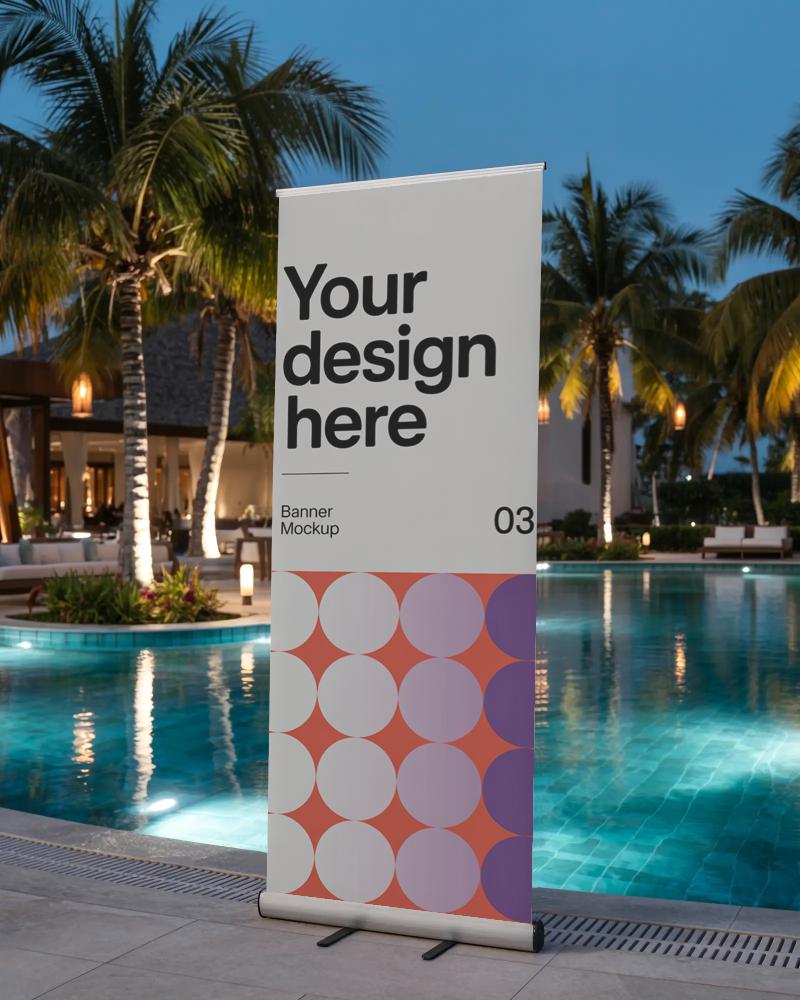
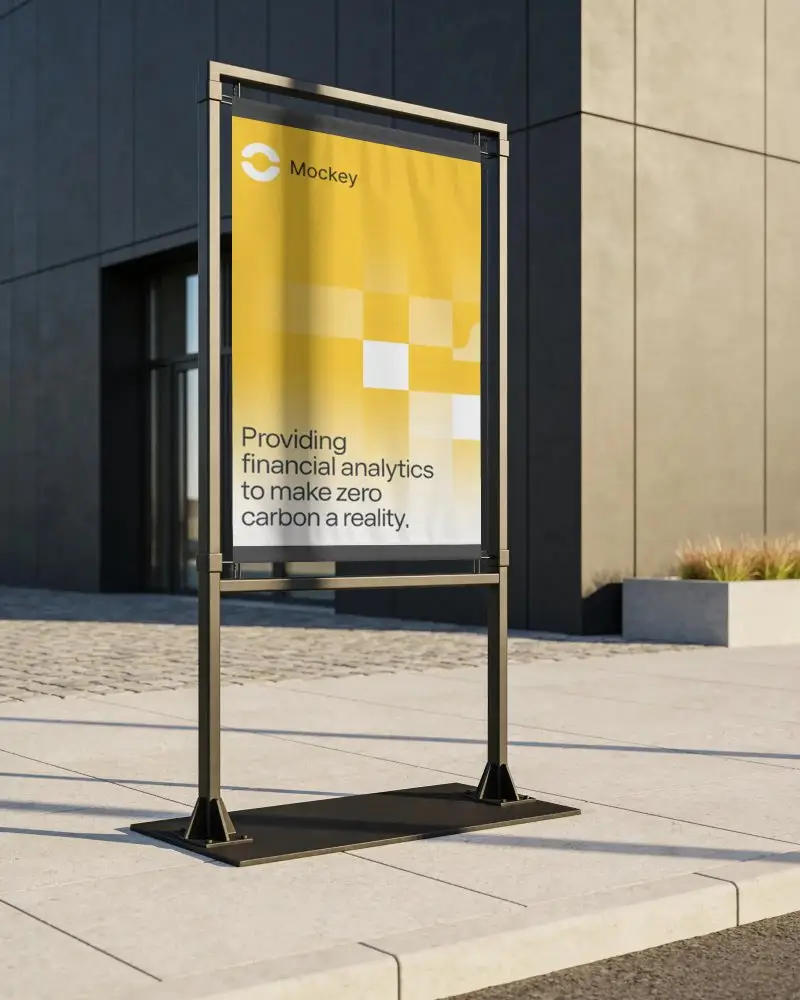
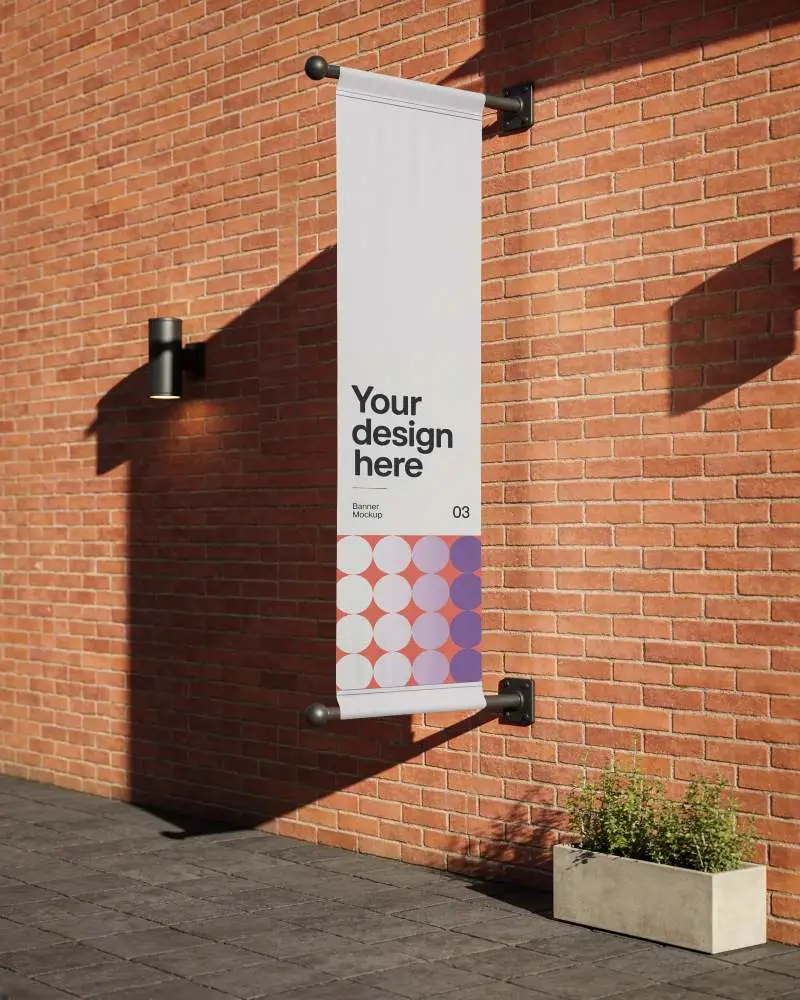
Get a free Vertical banner mockup in high resolution without watermarks with Mockey. Perfect for social media, branding, events, advertising, and marketing presentations.
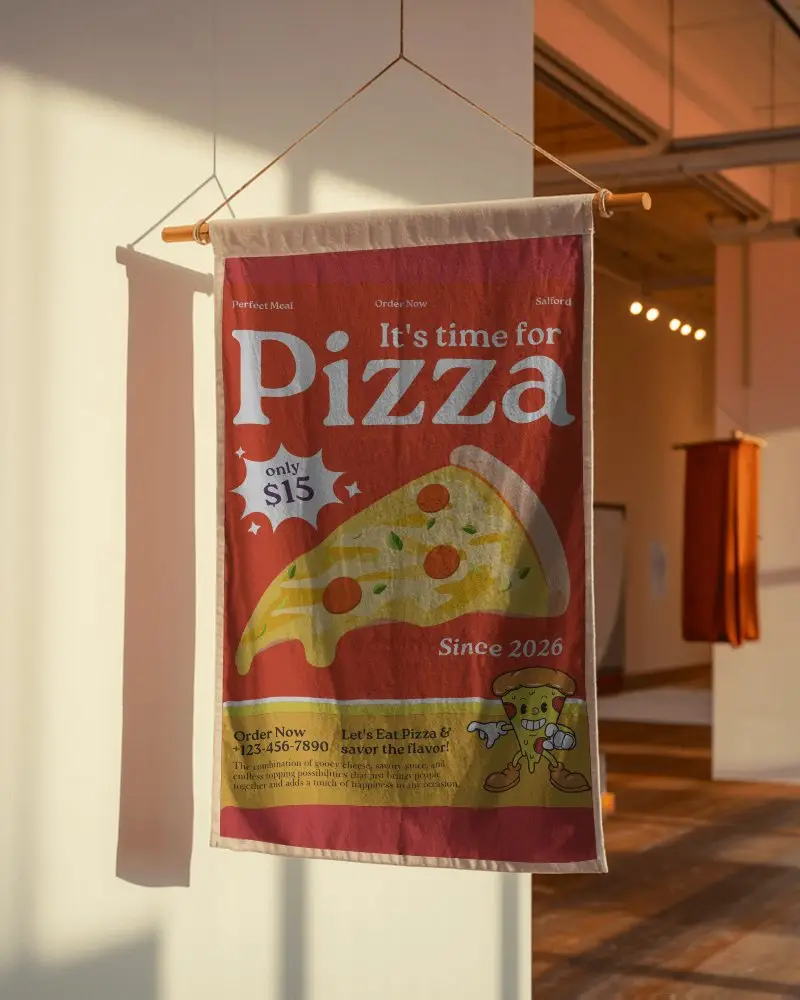
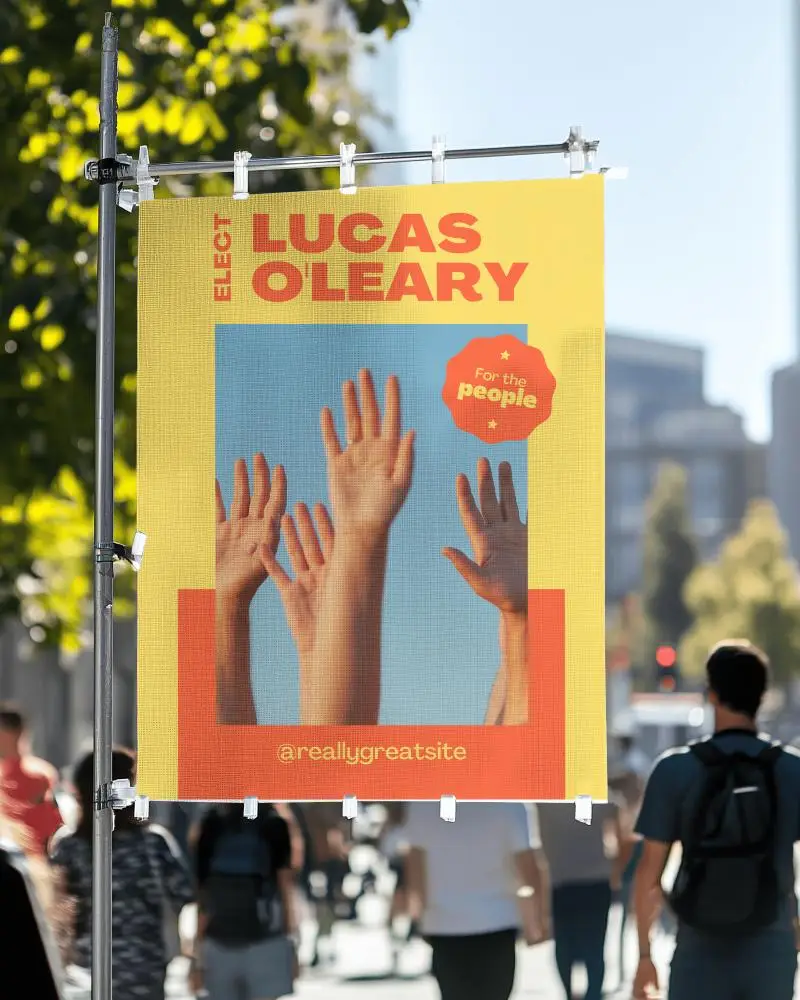
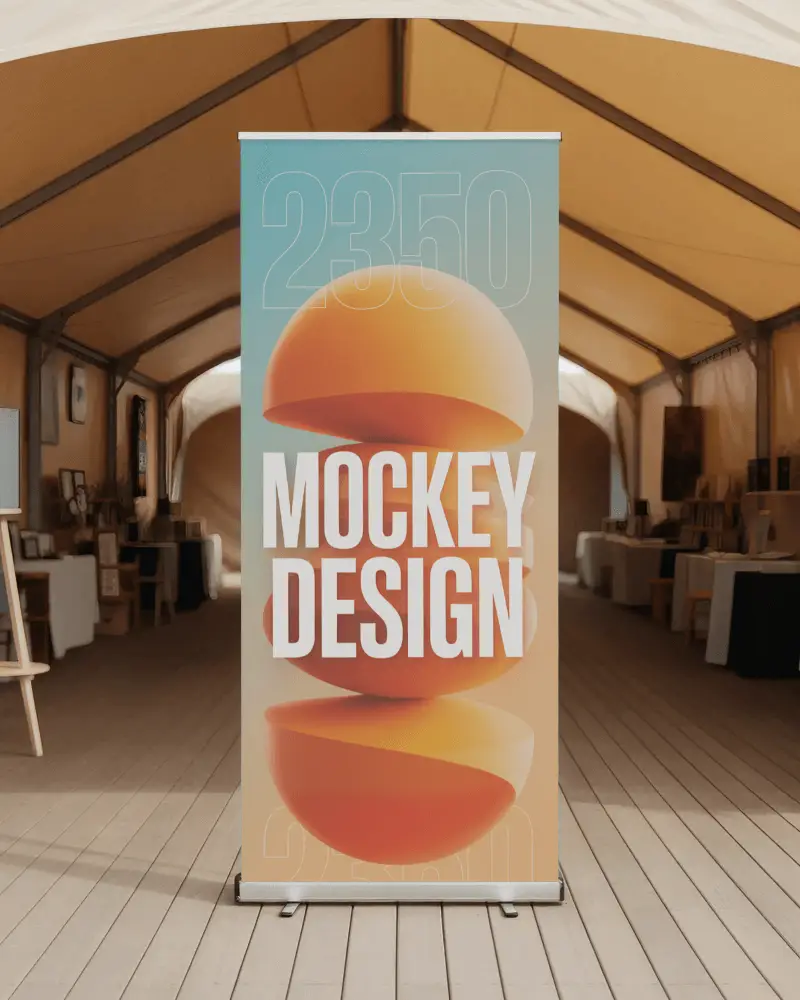
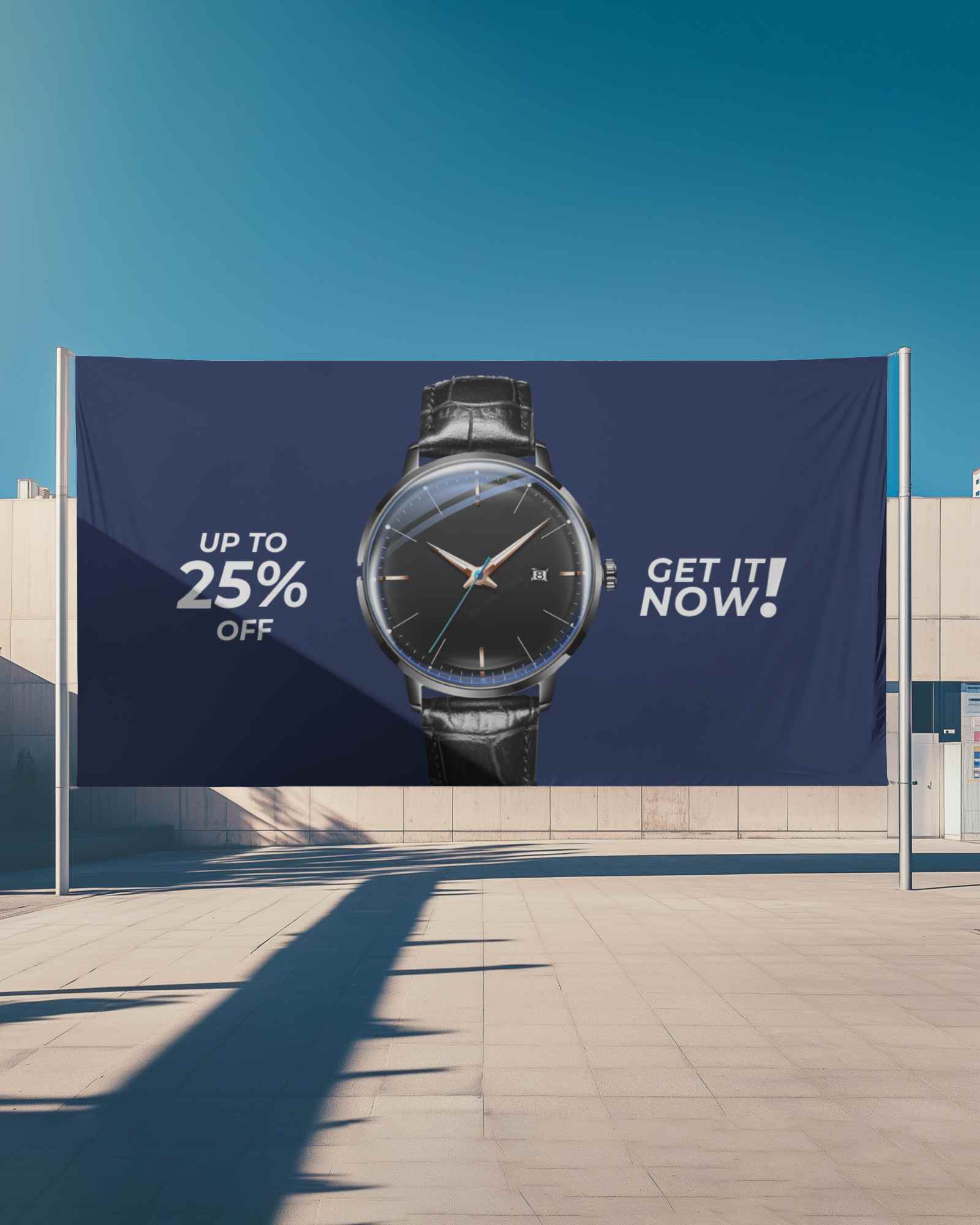
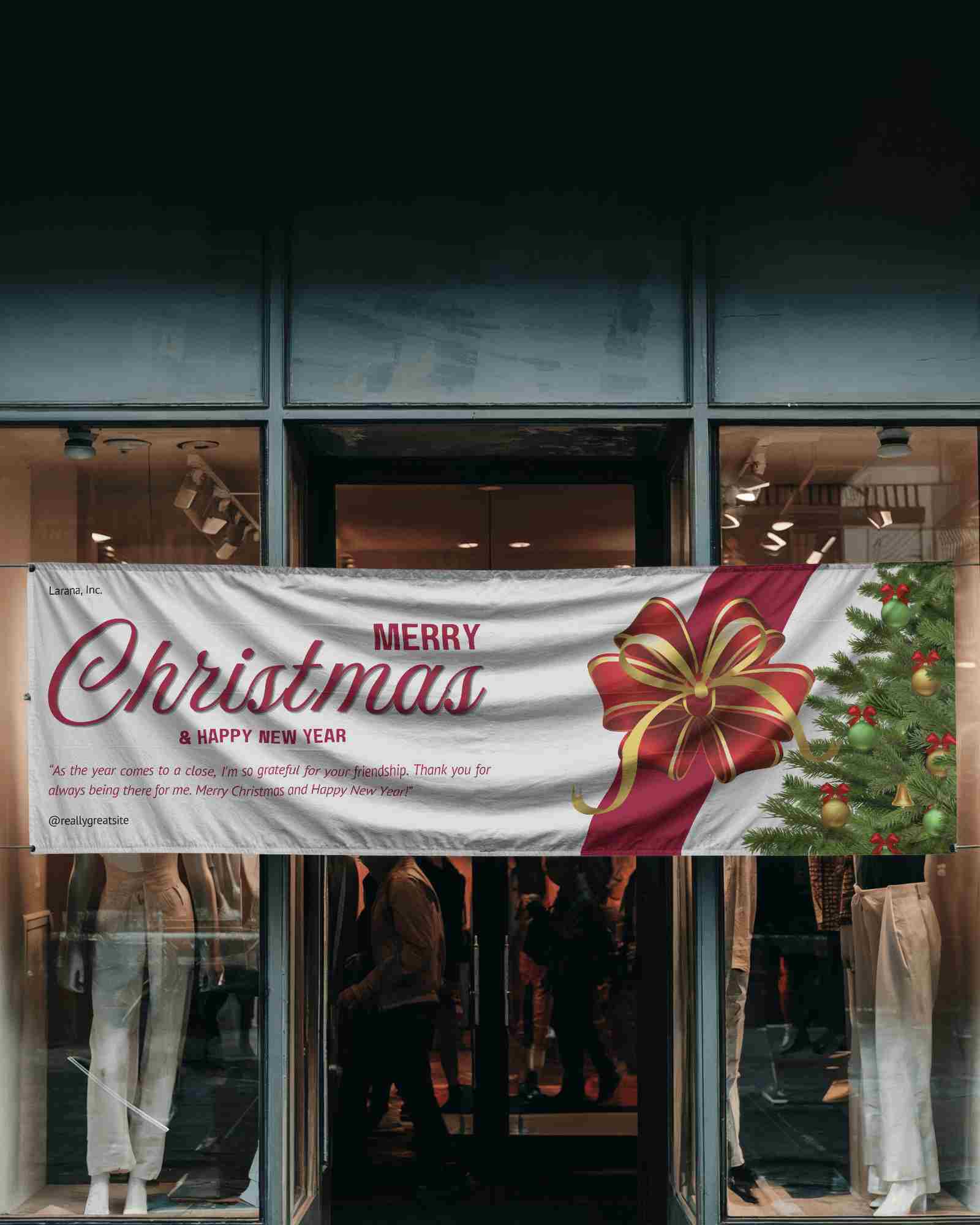
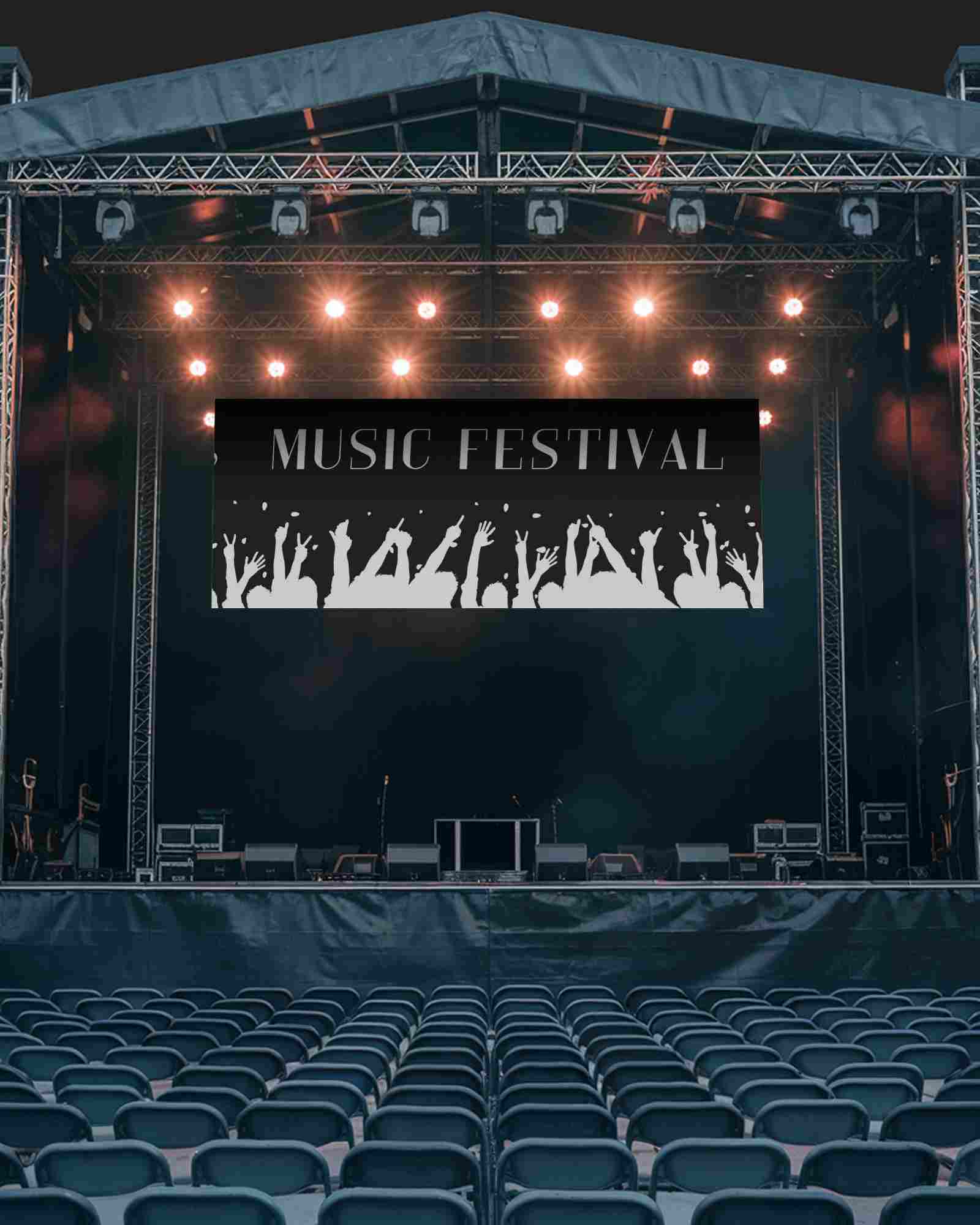
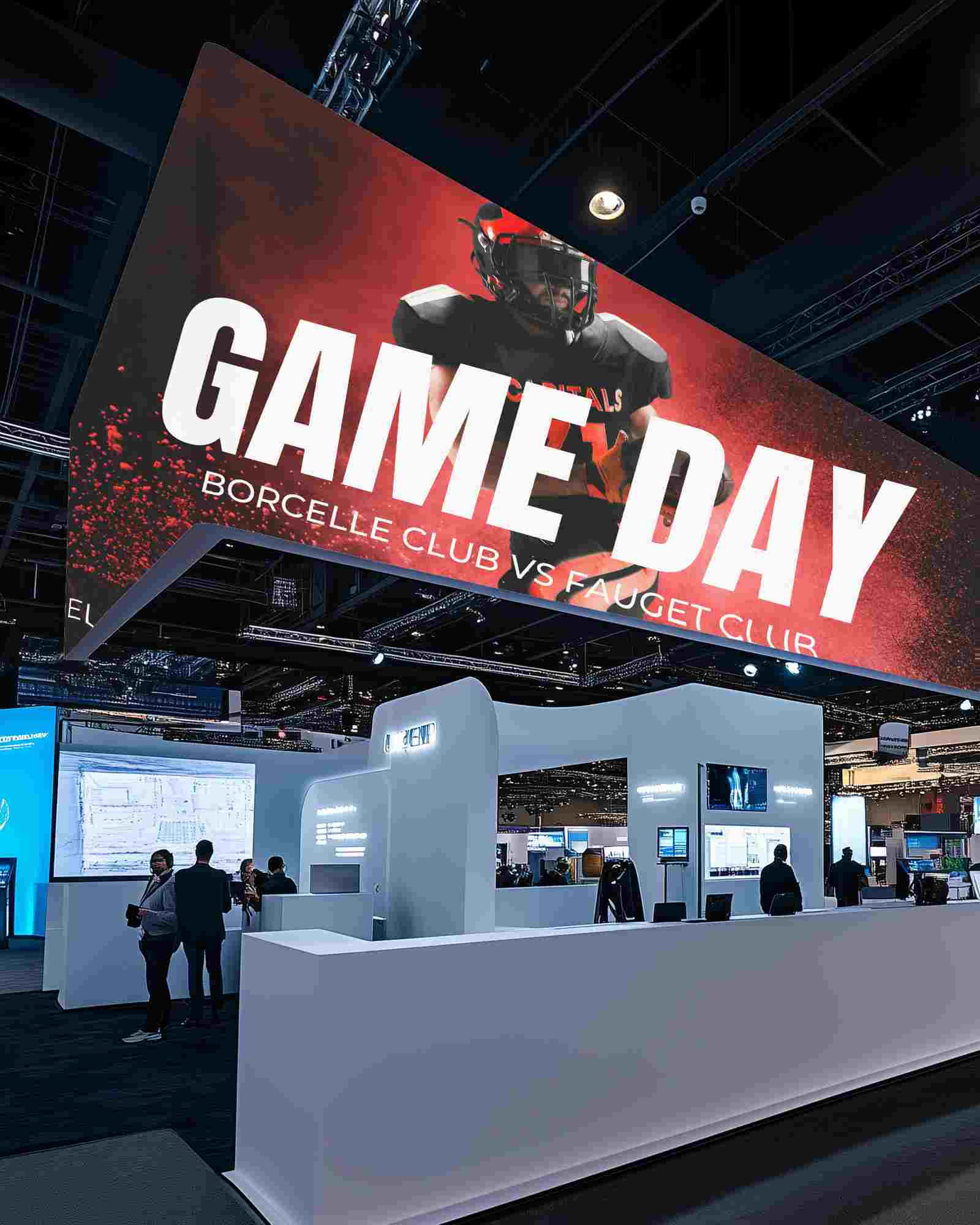
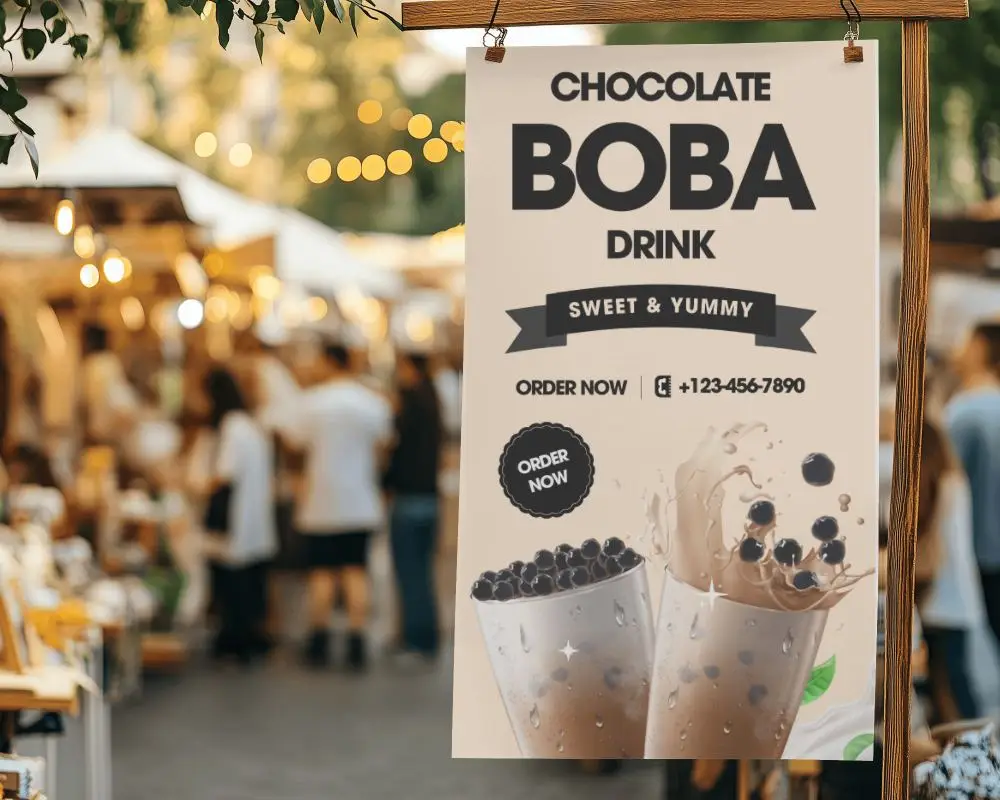
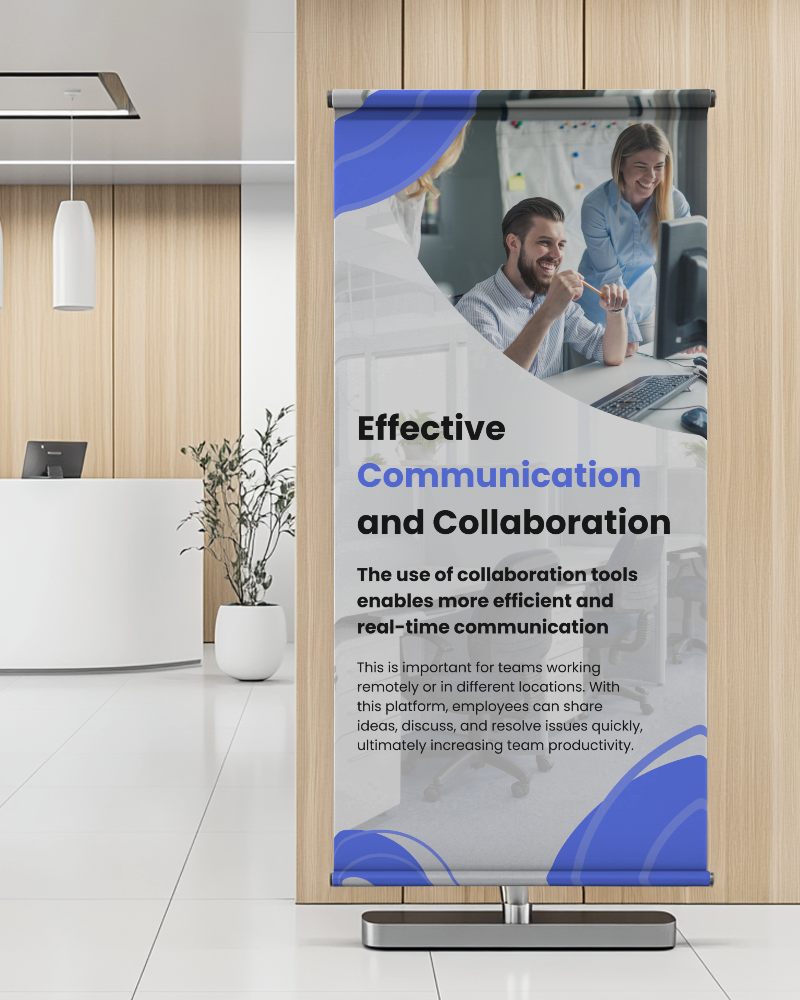


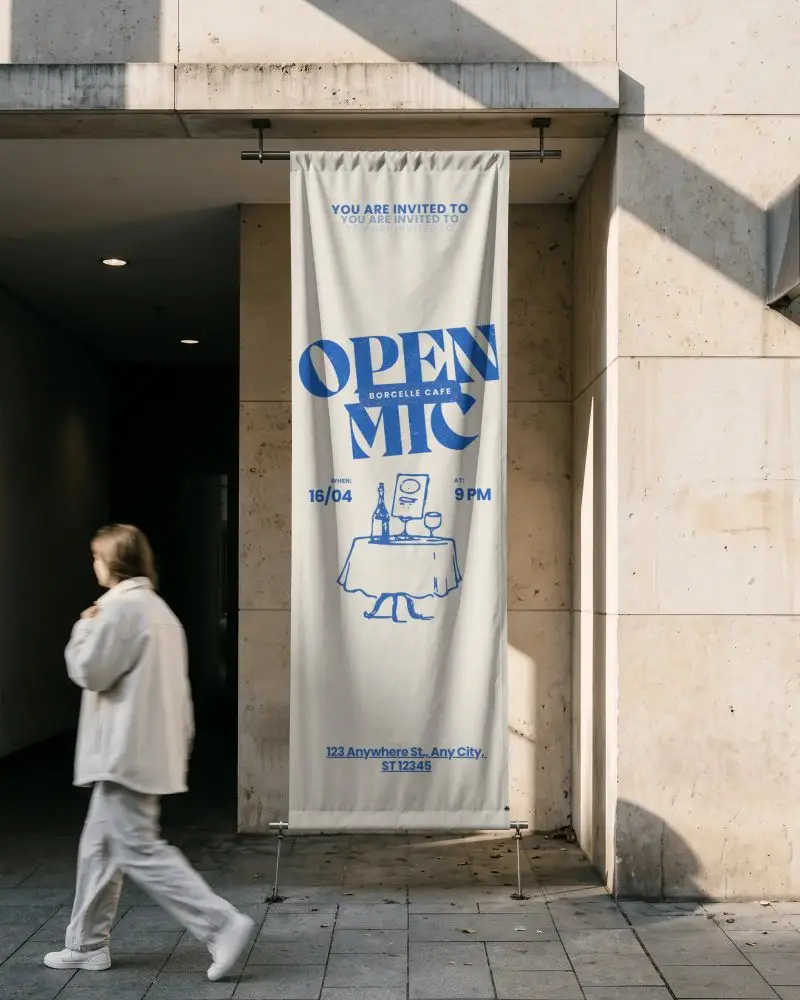
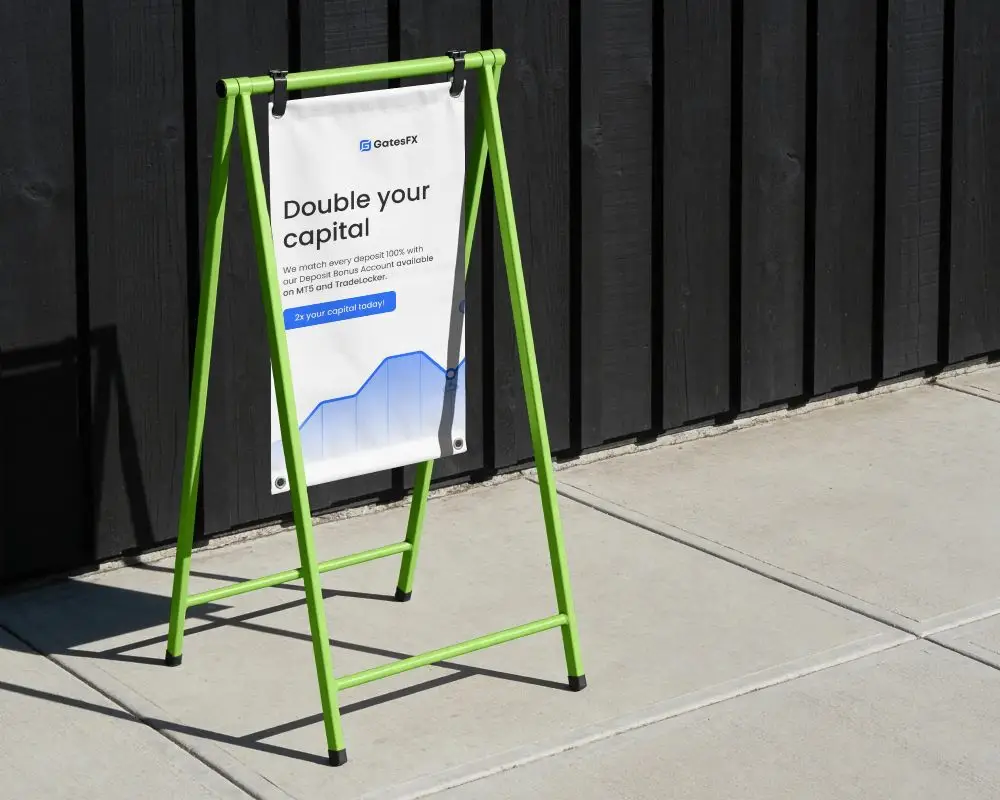
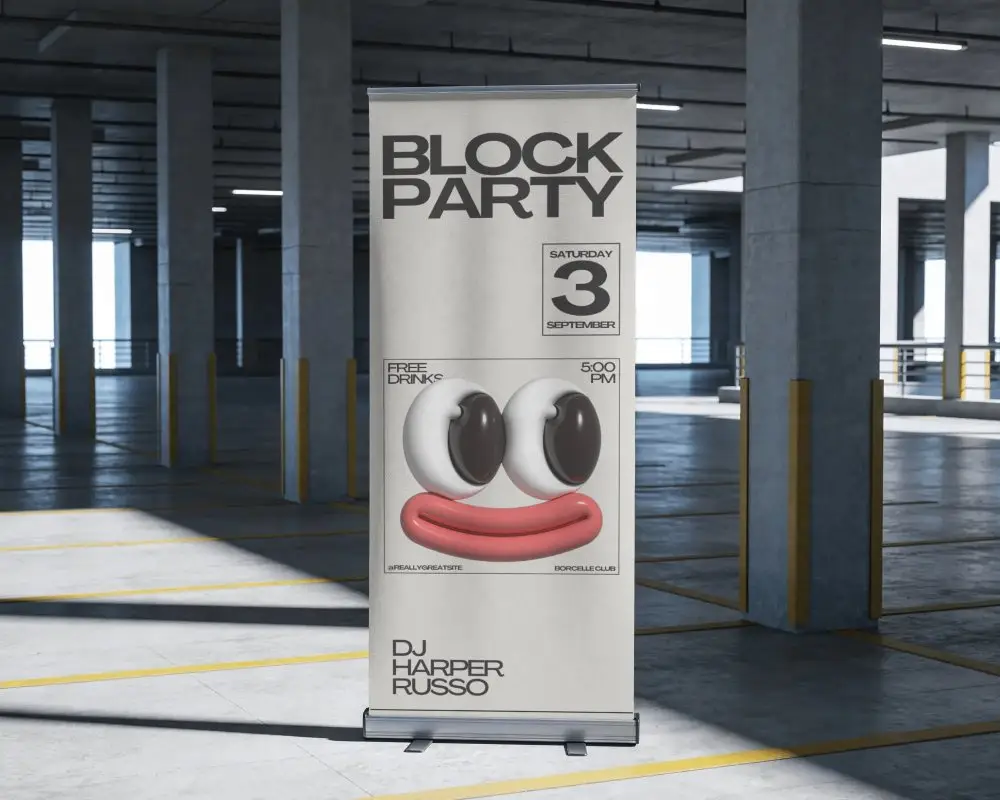
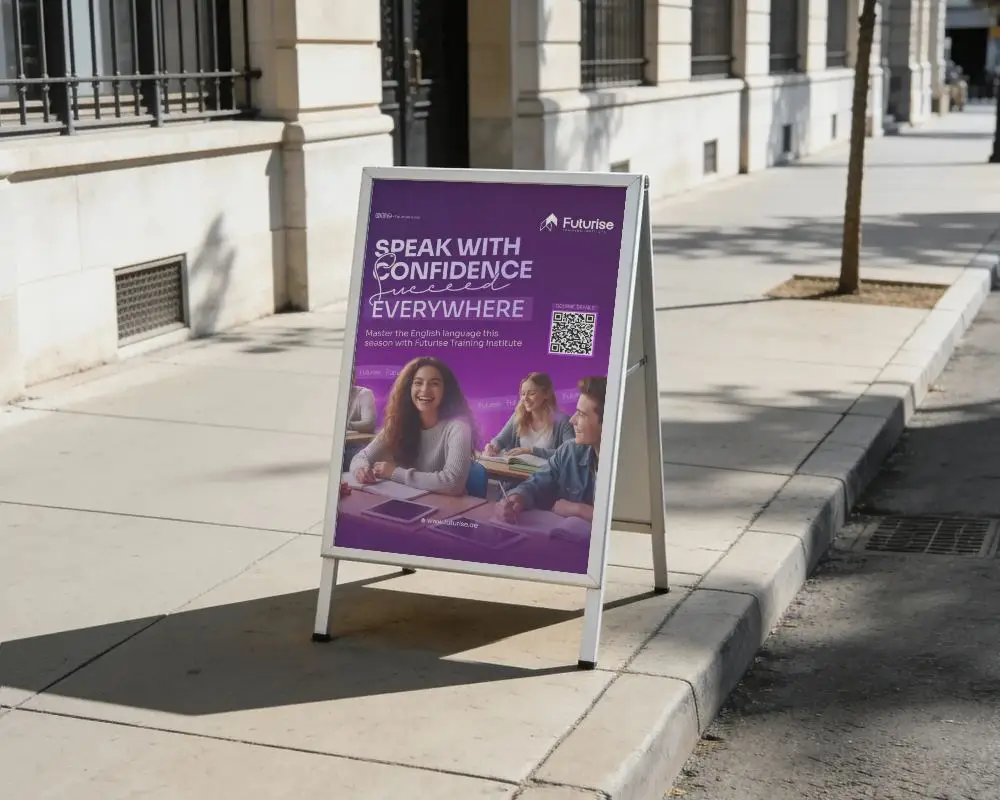
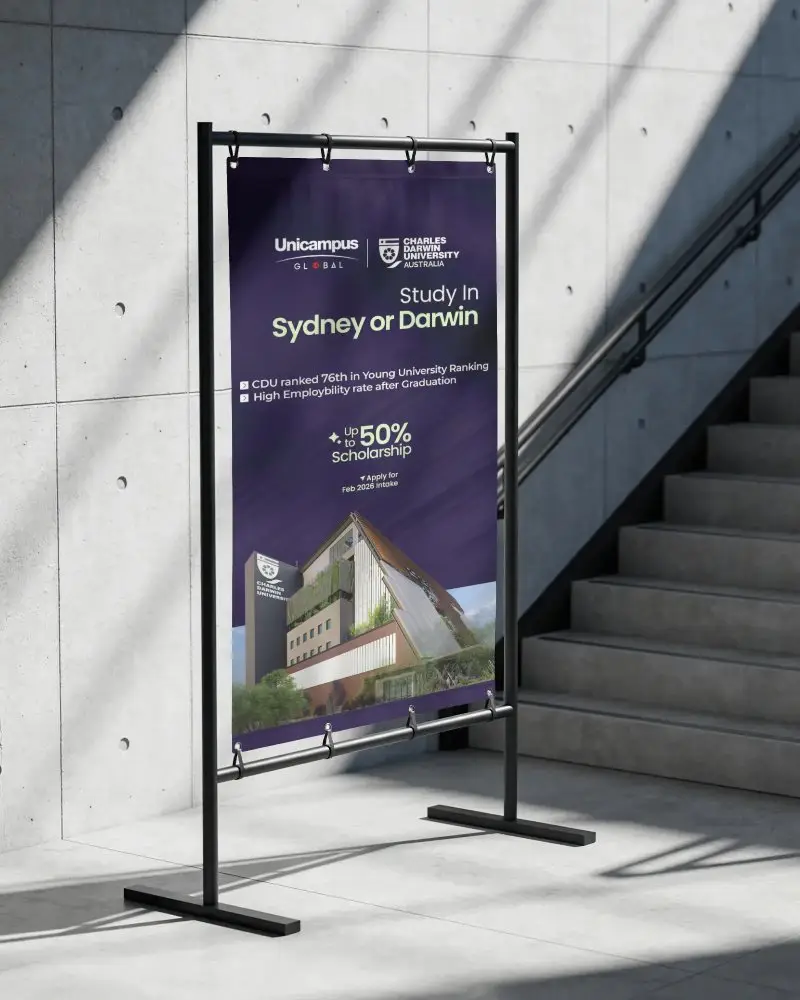
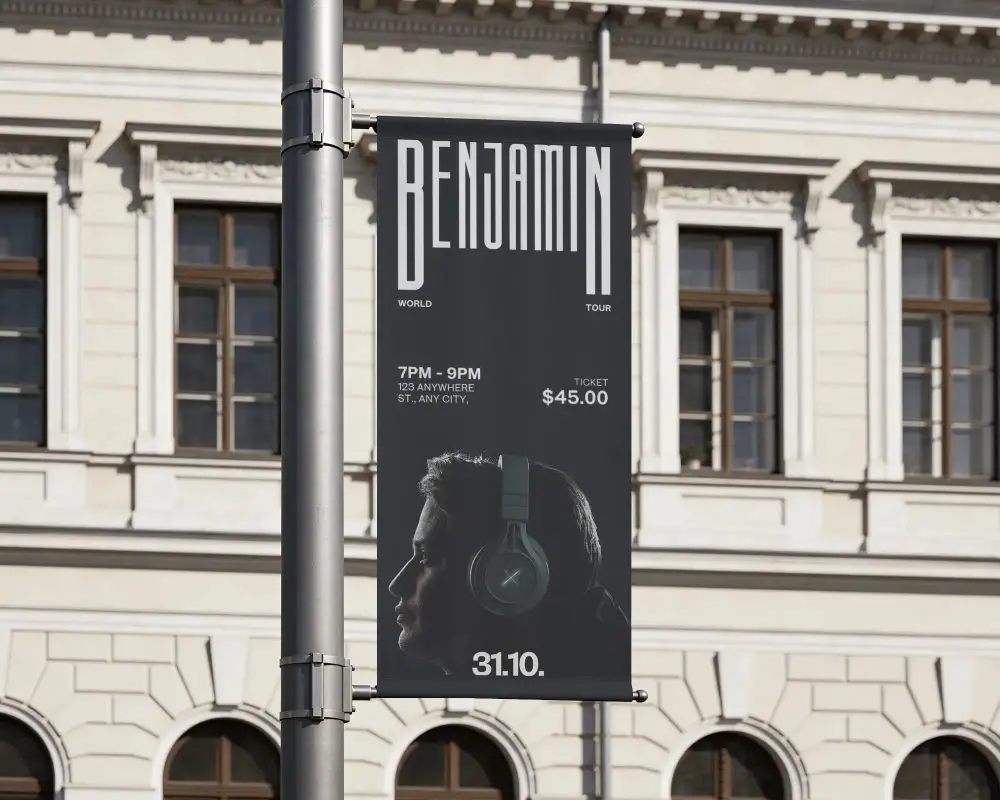
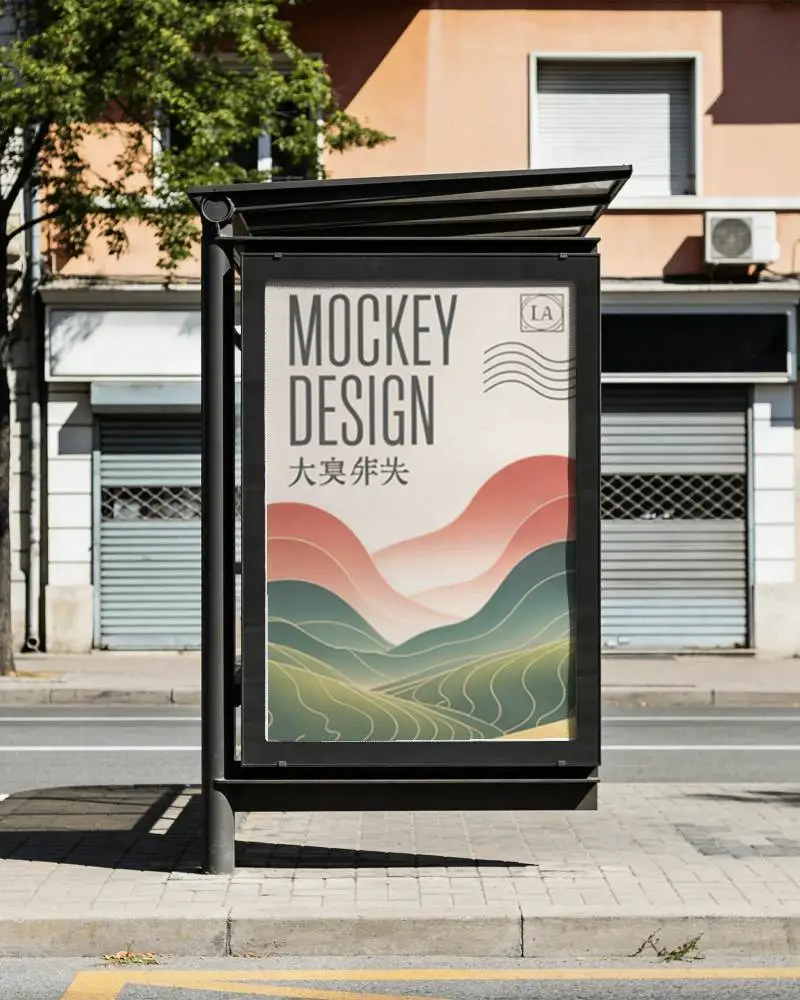
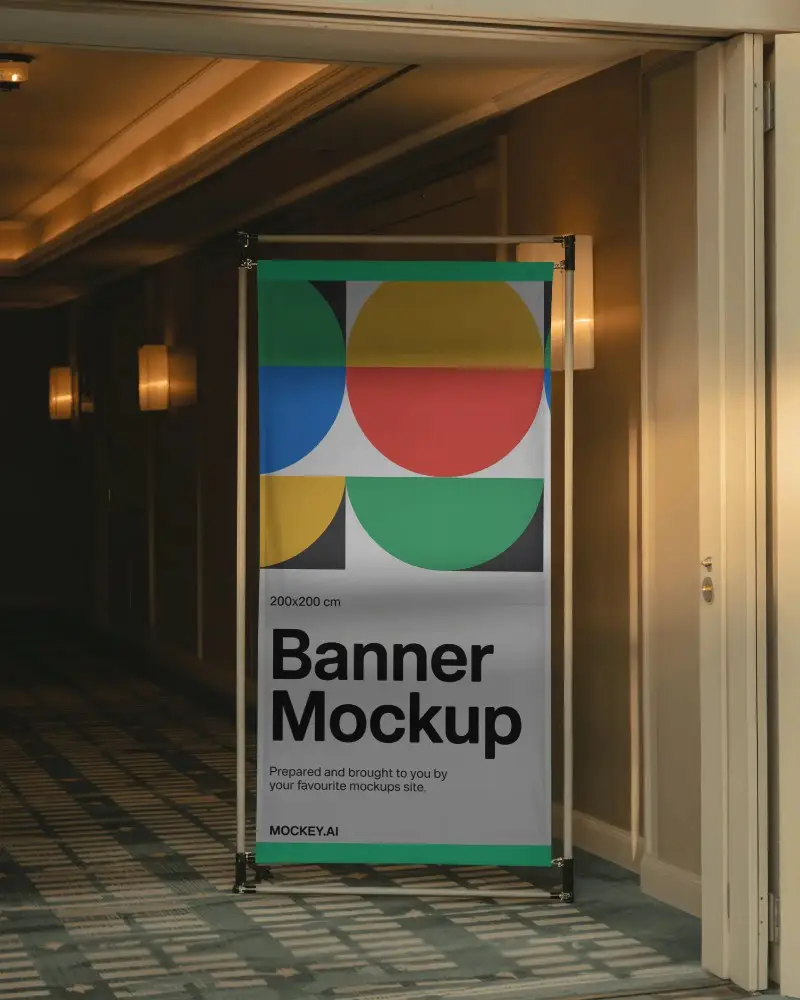
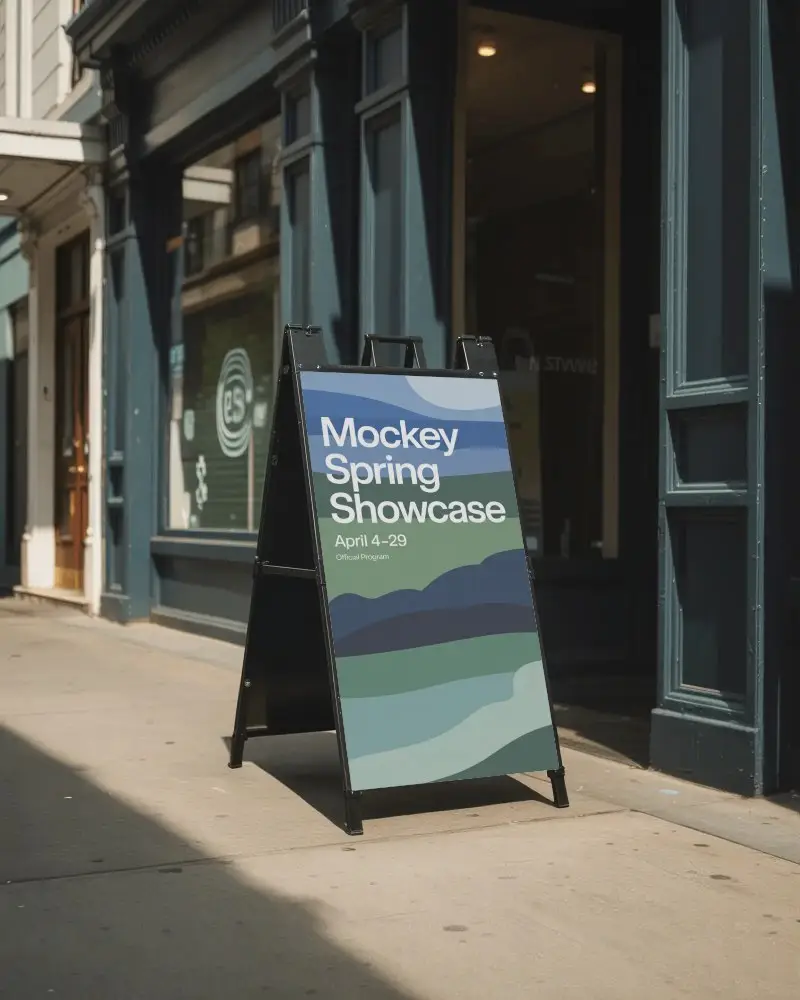
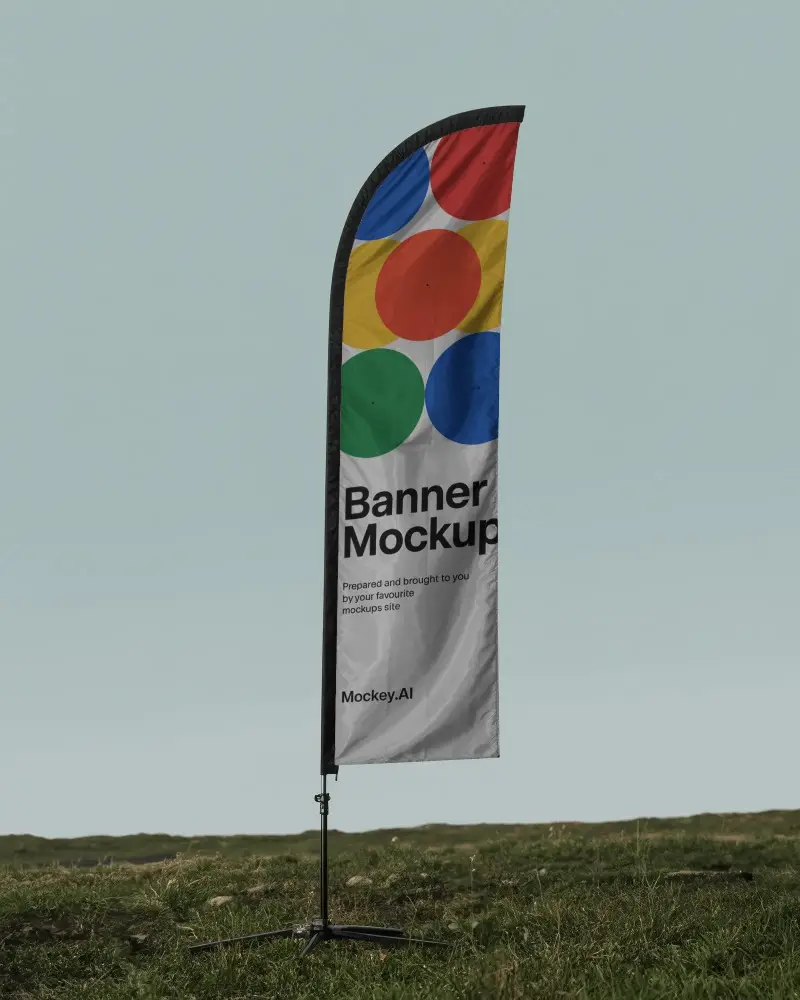
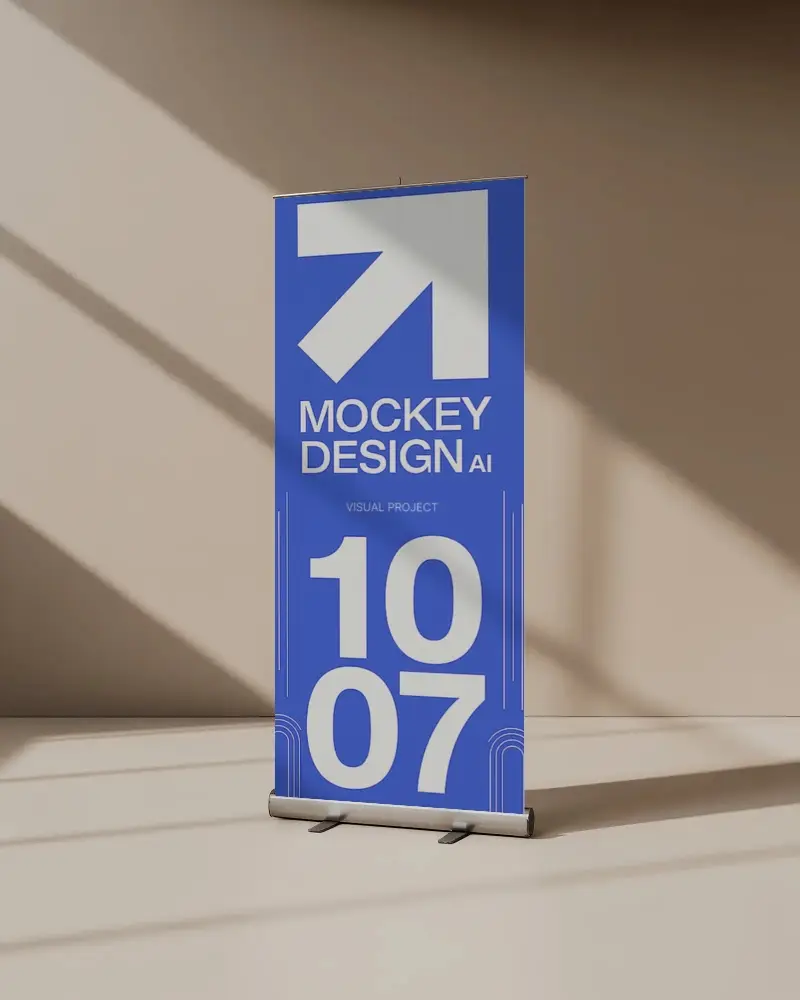
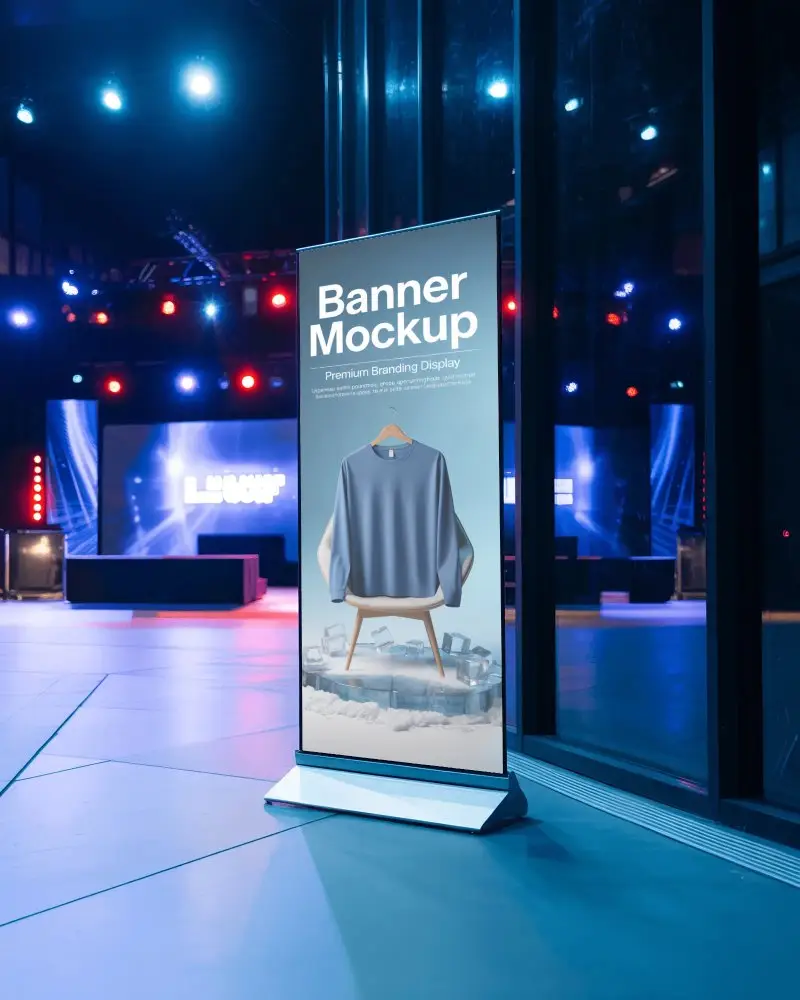
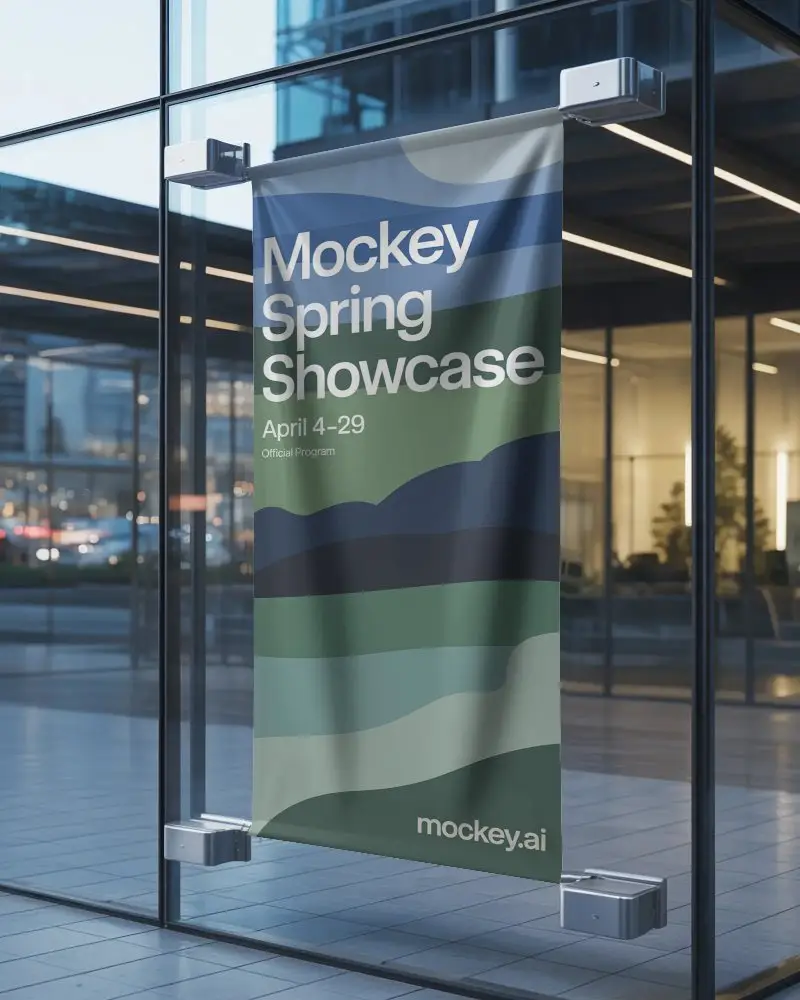
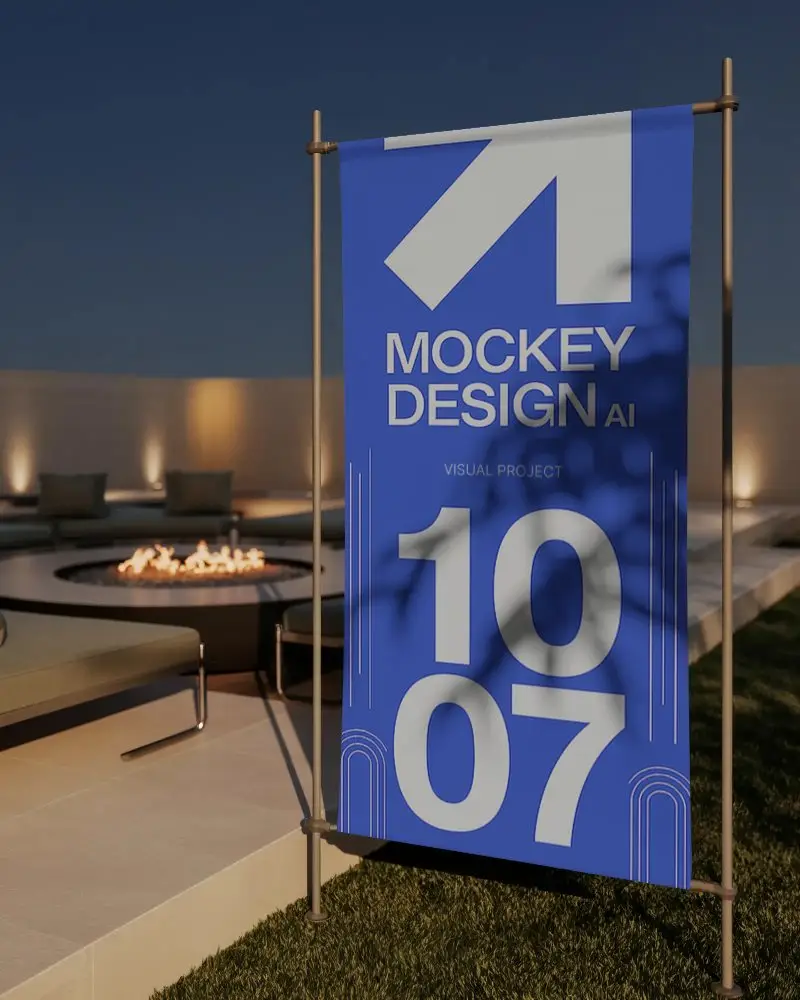
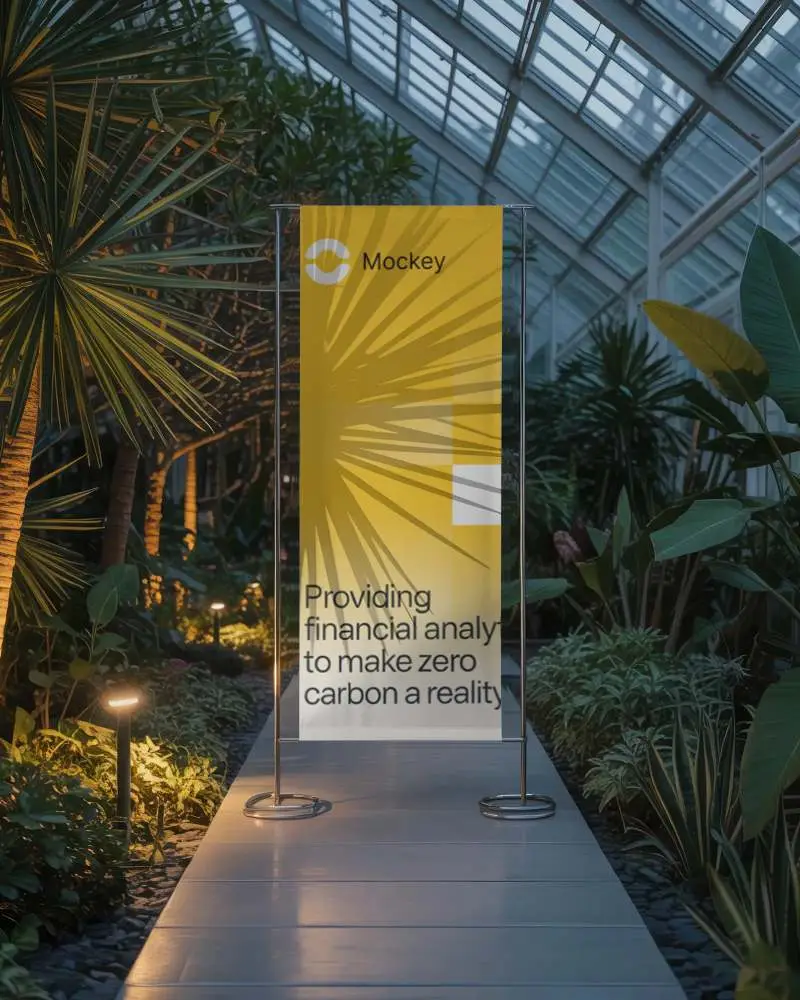
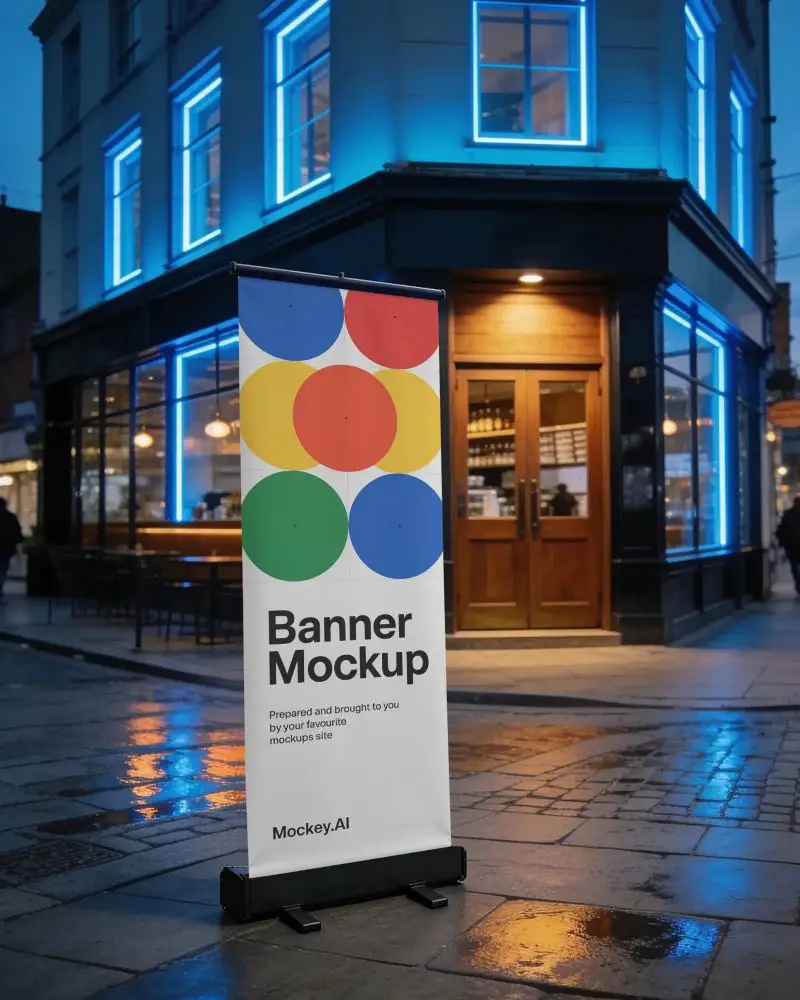
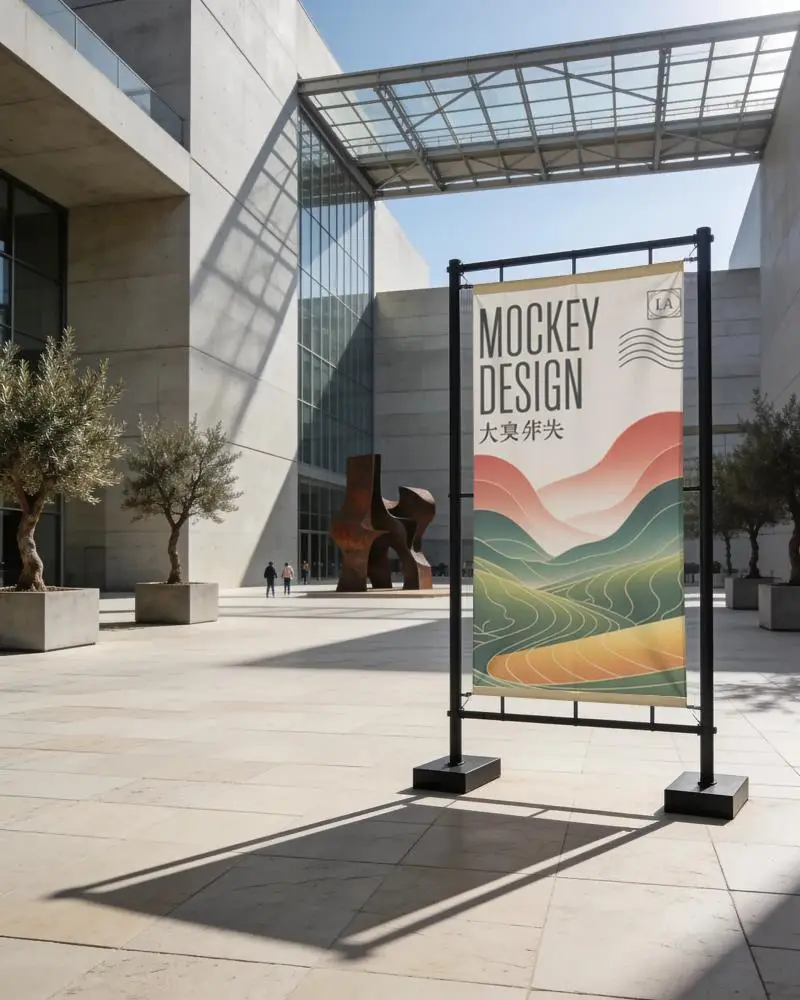
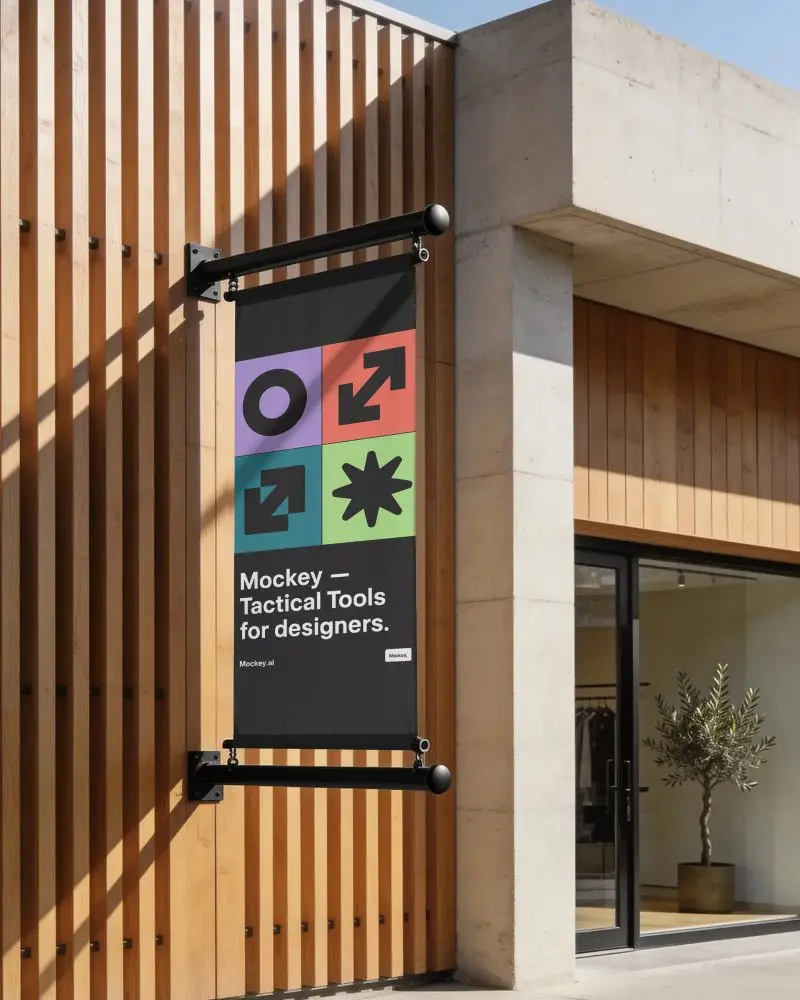
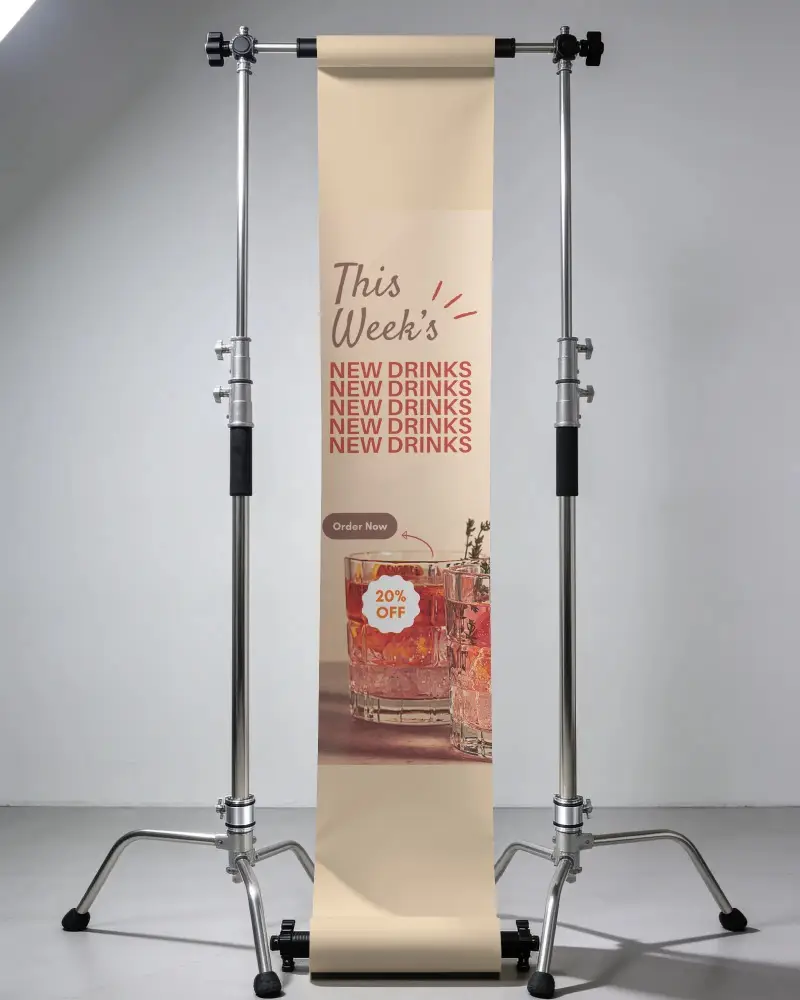
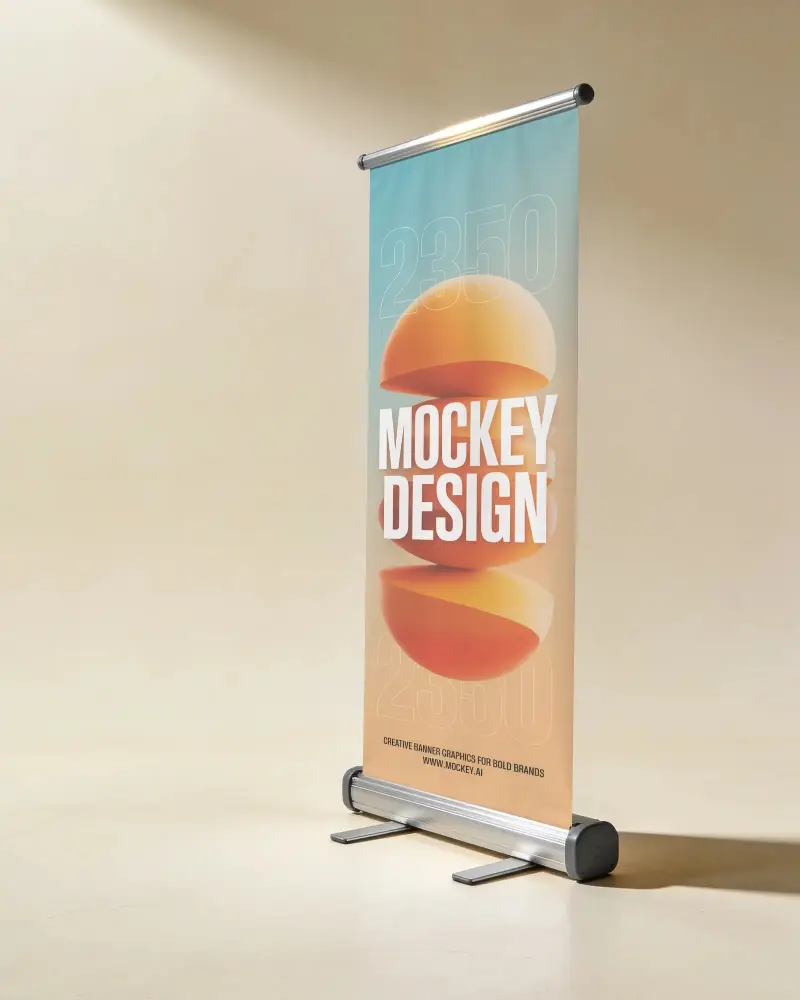
How to Make Vertical Banner Mockup with Mockey
To create a vertical banner mockup in Mockey AI:
- Step 1: Sign up on Mockey and go to: Mockups > Print > Banner > Vertical.
- Step 2: Choose a template, upload your design, and customize using colors, backgrounds, or AI effects.
- Step 3: Click Download and save your mockup as PNG or JPEG.
FAQs on Vertical Banner Mockups
What is a Vertical banner mockup?
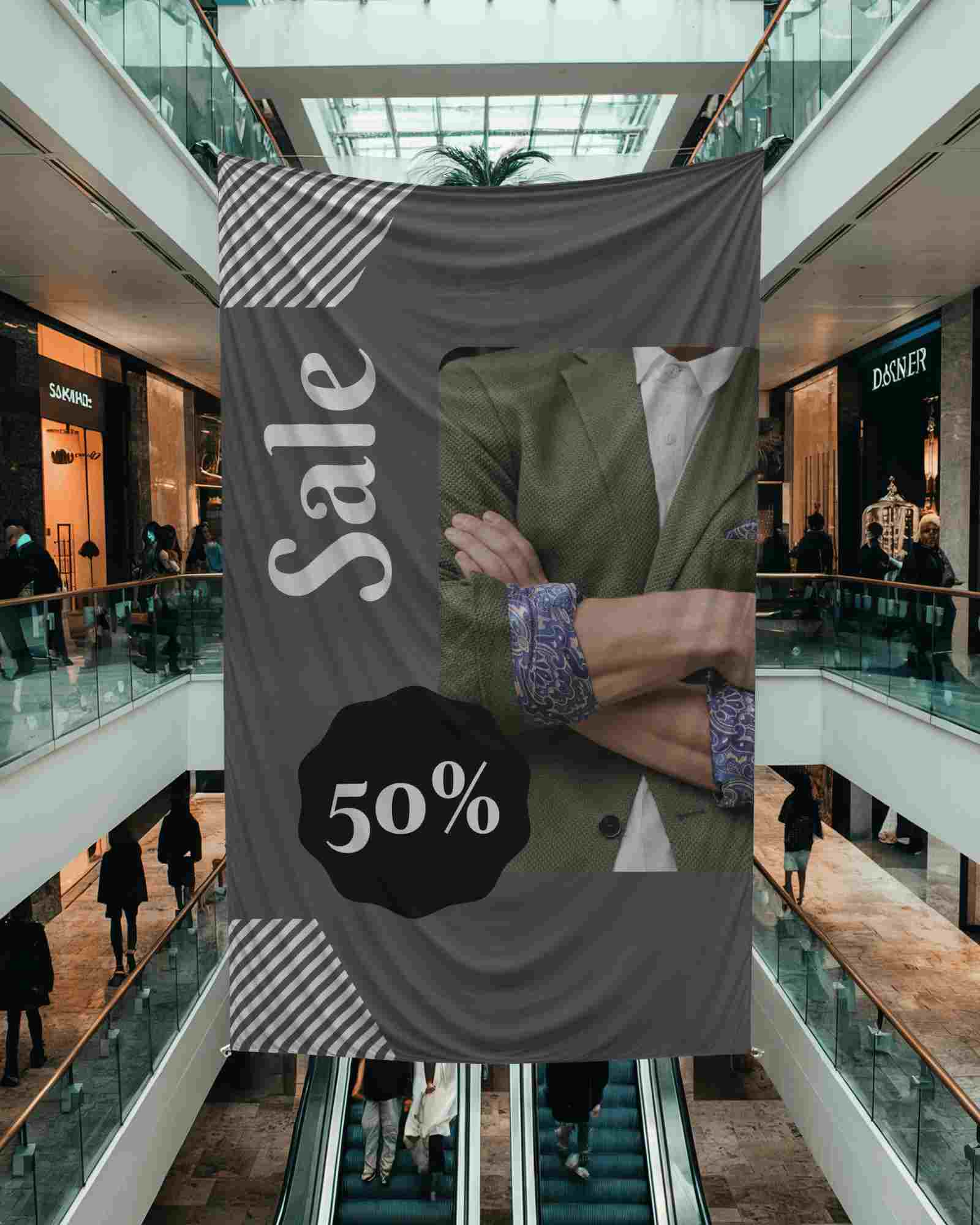
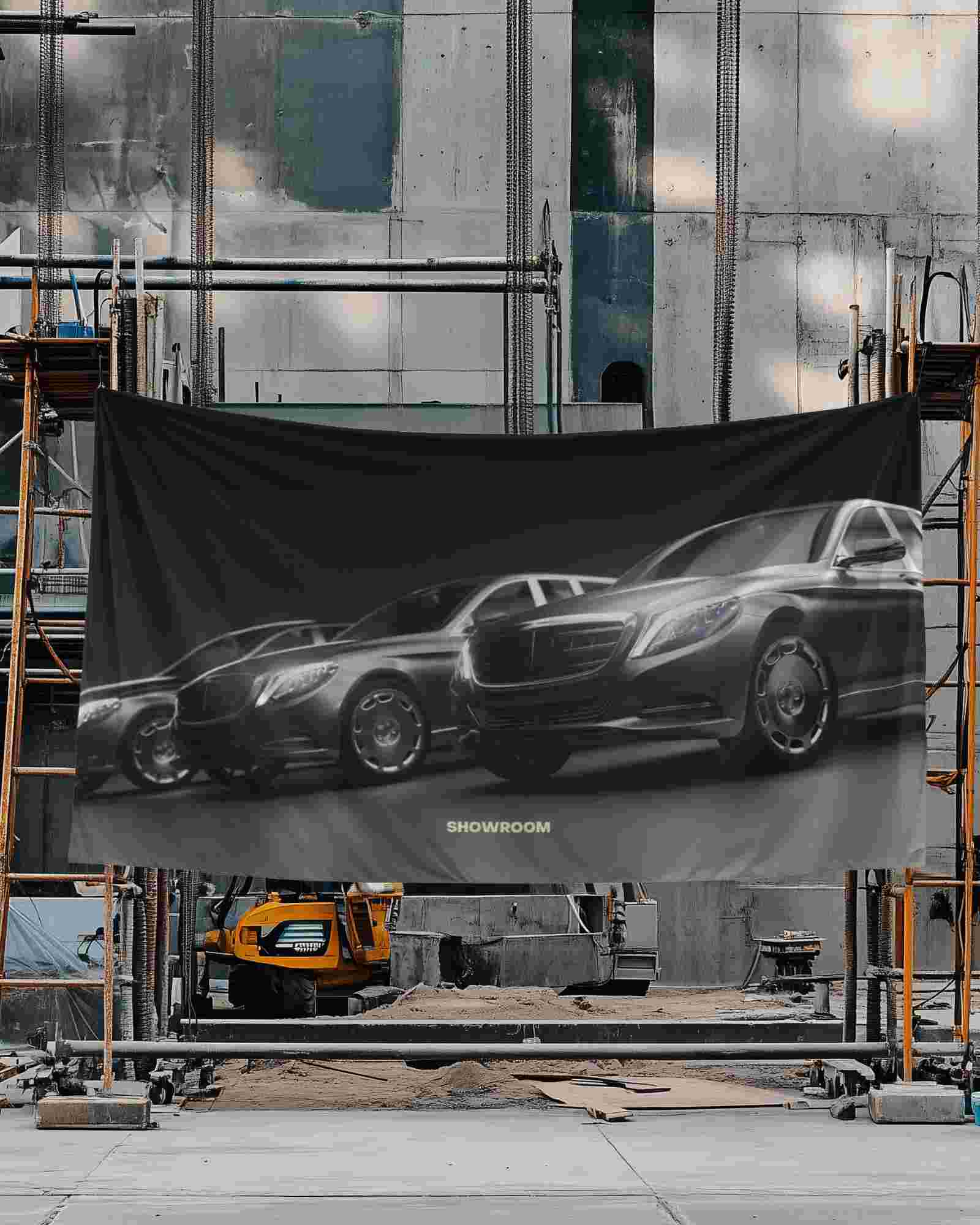
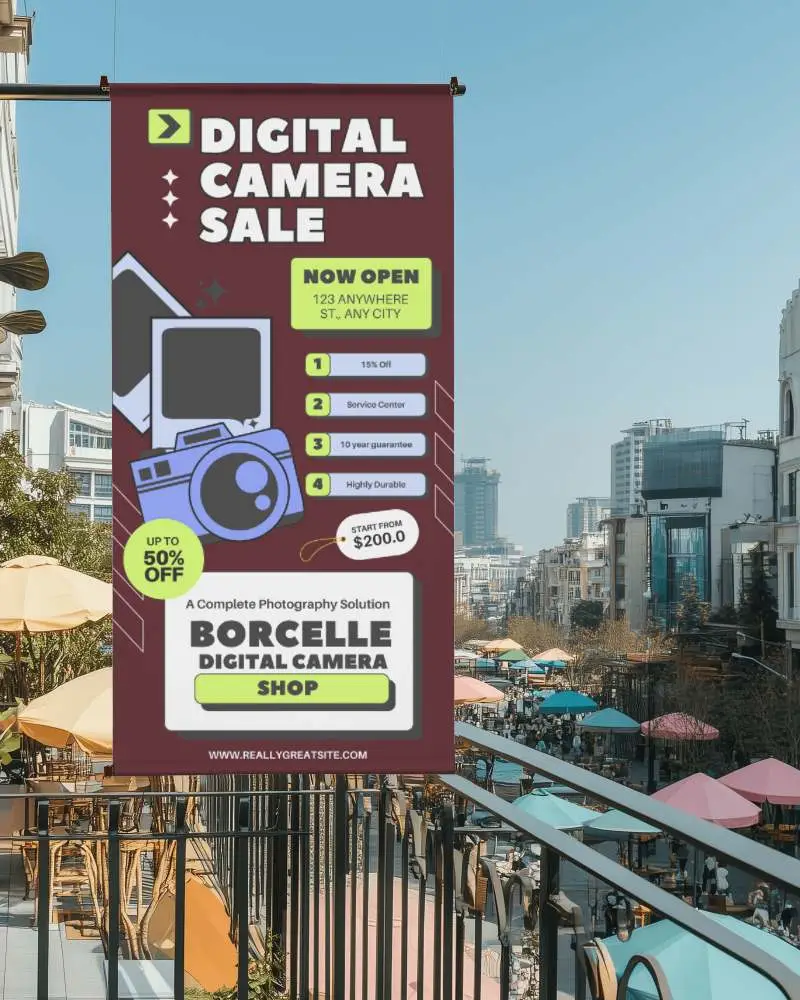
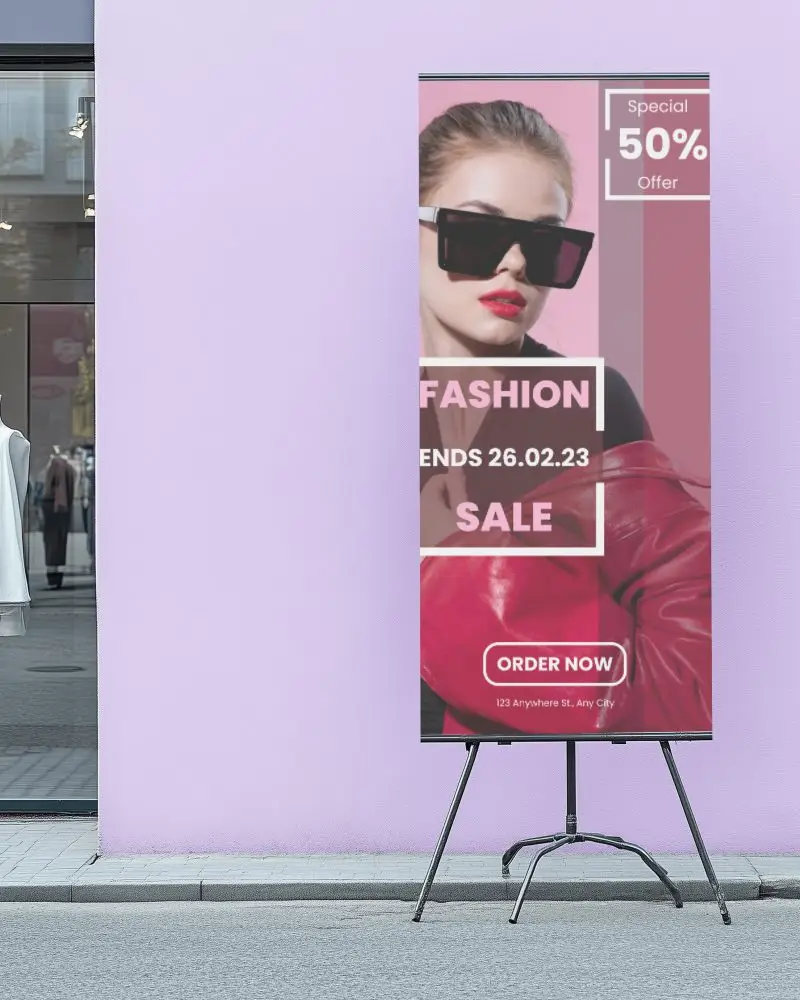
A vertical banner mockup is a picture that shows how a vertical banner will look in the real world.
Why create a Vertical banner mockup?
Creating a vertical banner mockup shows how the design will look before printing, saves money by avoiding mistakes, and makes it easier to share ideas with others.
Why Use Mockey’s Vertical Banner Mockup?
Mockey’s Vertical Banner Mockup makes designs look real, easy to change, and best for advertisements, events, and social media.
Can I customize the Vertical banner mockups on Mockey.ai?
Yes, you can customize a vertical banner mockup using a high resolution template. Also, modify colors, change the background, or use AI tools for visual representation.
Do I need any design software to use Mockey.ai?
You don’t need to download any software to use Mockey AI. Just open your internet, make a free account, and start changing designs the way you like.
What file formats can I download my Vertical banner mockup in?
Mockey AI helps you save your vertical banner mockups as a PNG or JPEG file using any device.
How do I access the free Vertical banner mockups on Mockey.ai?
First, sign up on Mockey AI. Then, open the Mockups section, pick Banner from the Print category, and look at the top of the templates to find the vertical tag.
Is this Vertical banner mockup free?
Mockey AI offers free vertical banner mockups. You can easily add your own design using advanced AI tools and download the final template for free.