All-Mockups
30,000+ Free High-Quality Mockups: Browse, Edit & Download Online
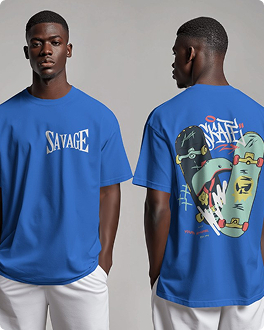
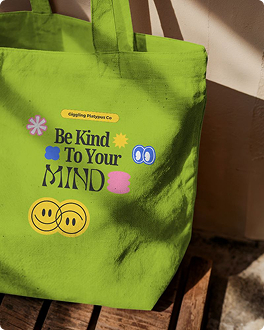
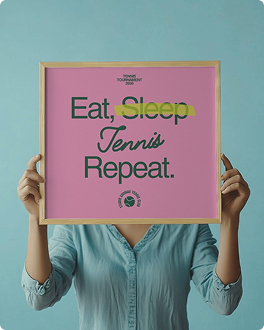
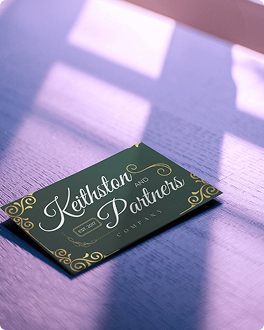
Finding the perfect high- quality mockup shouldn't take hours. That's why we built a massive, totally free library of over 30,000 premium mockup templates. Perfect for POD stores, eCommerce brands, and client presentations, you’ll find exactly what you need right here. Browse thousands of apparel, packaging, and print mockups below. Customize your favorite scene online and instantly download watermark-free PNG or JPG files.
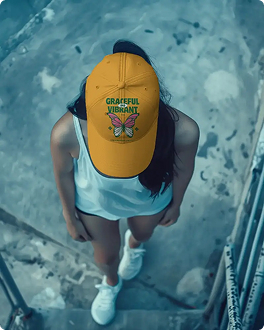
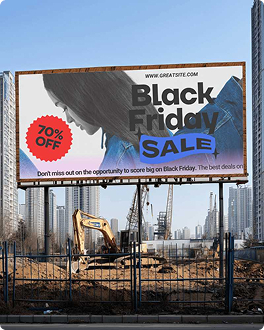
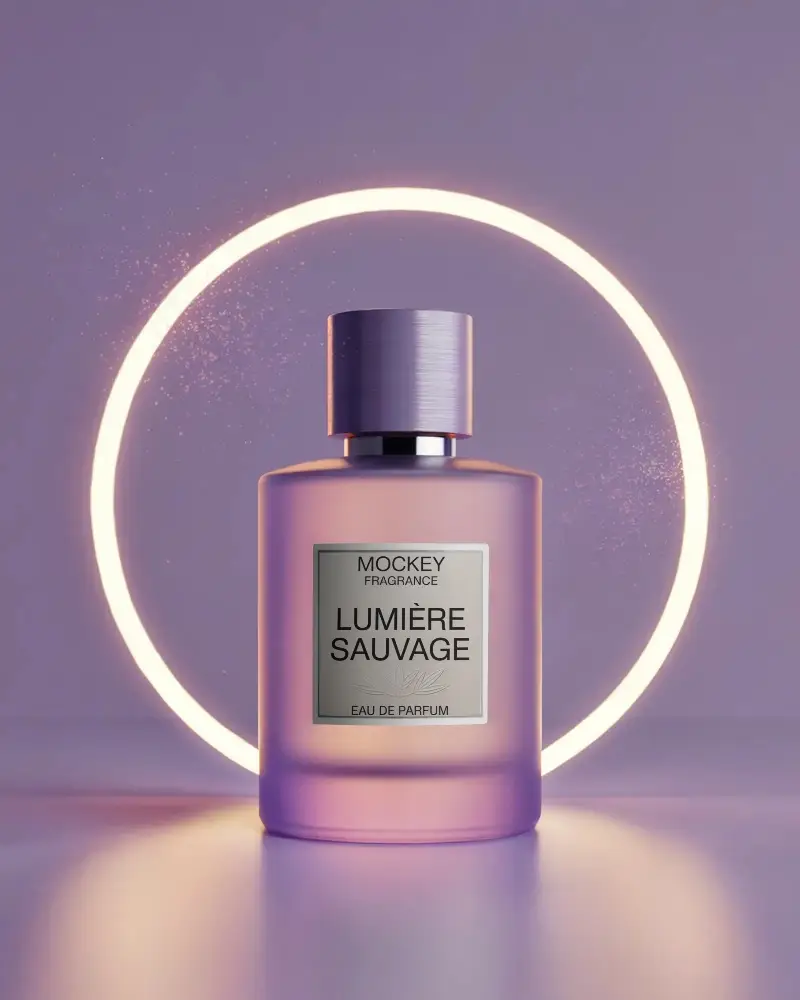
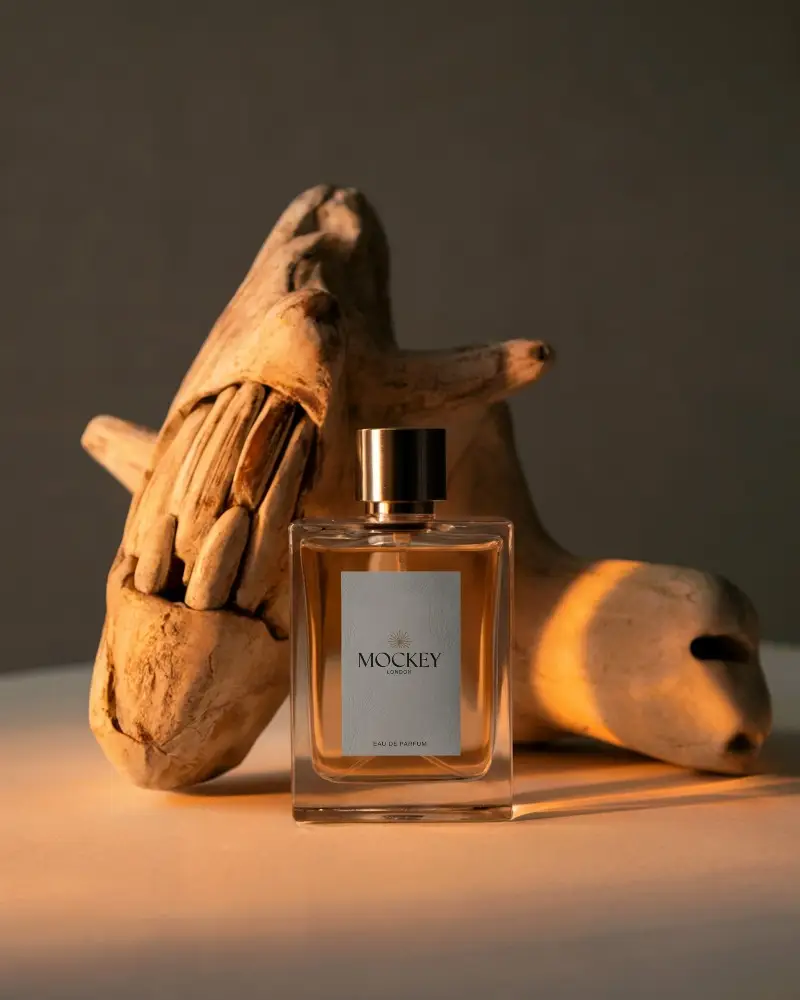
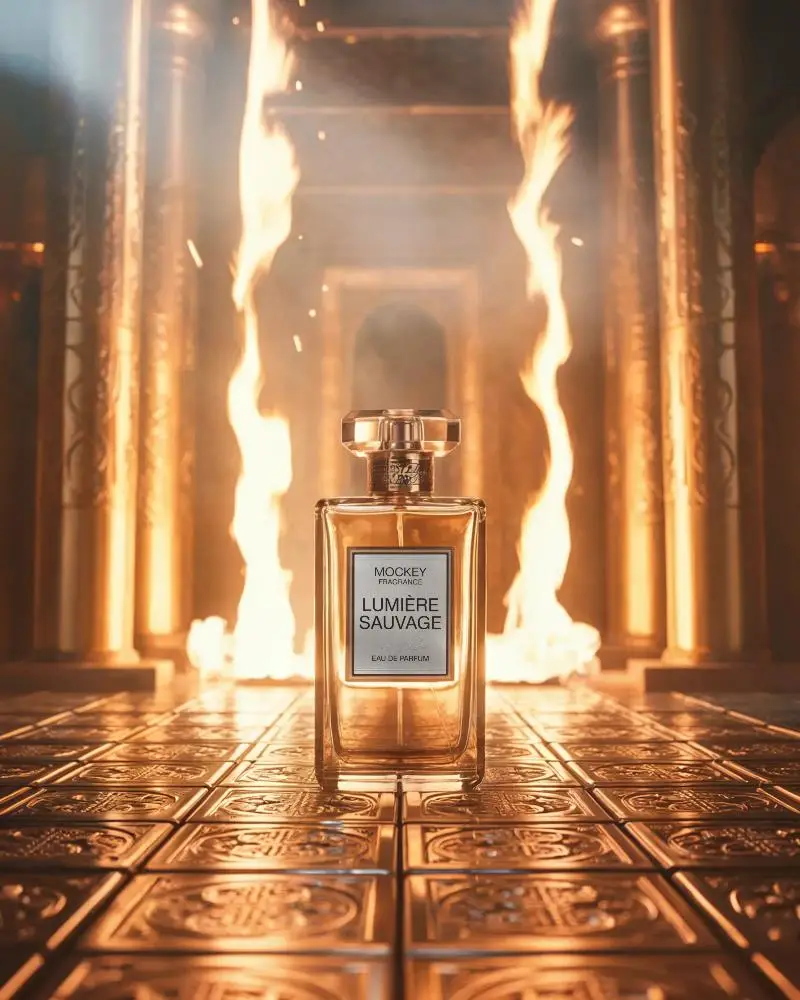
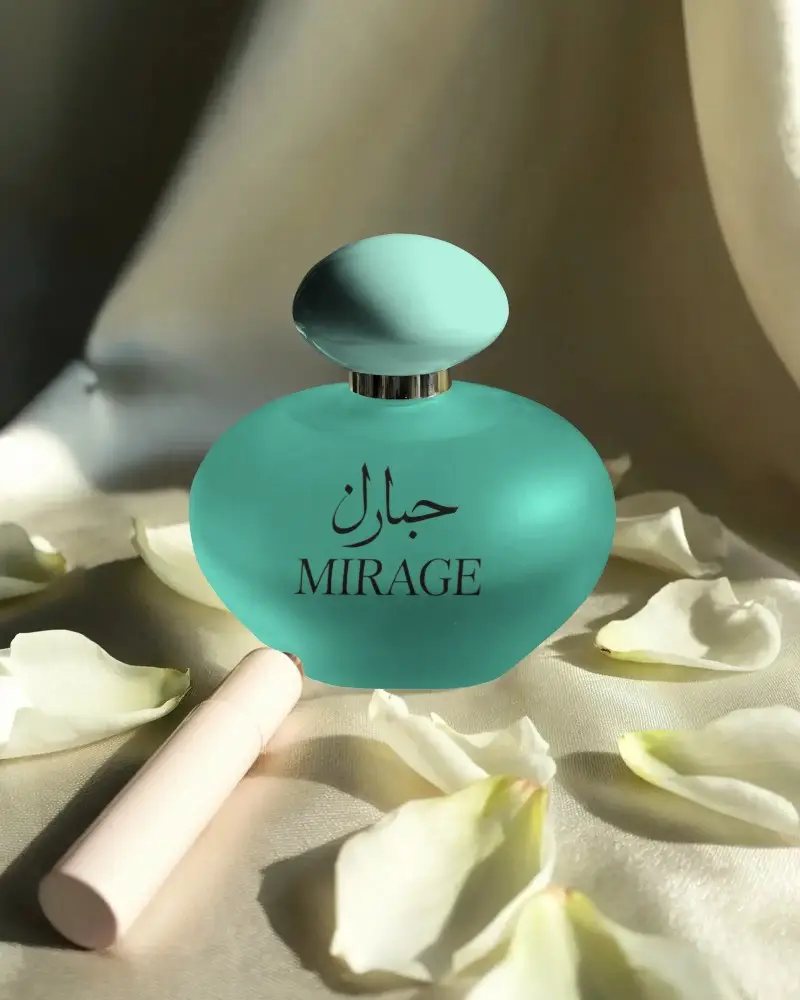
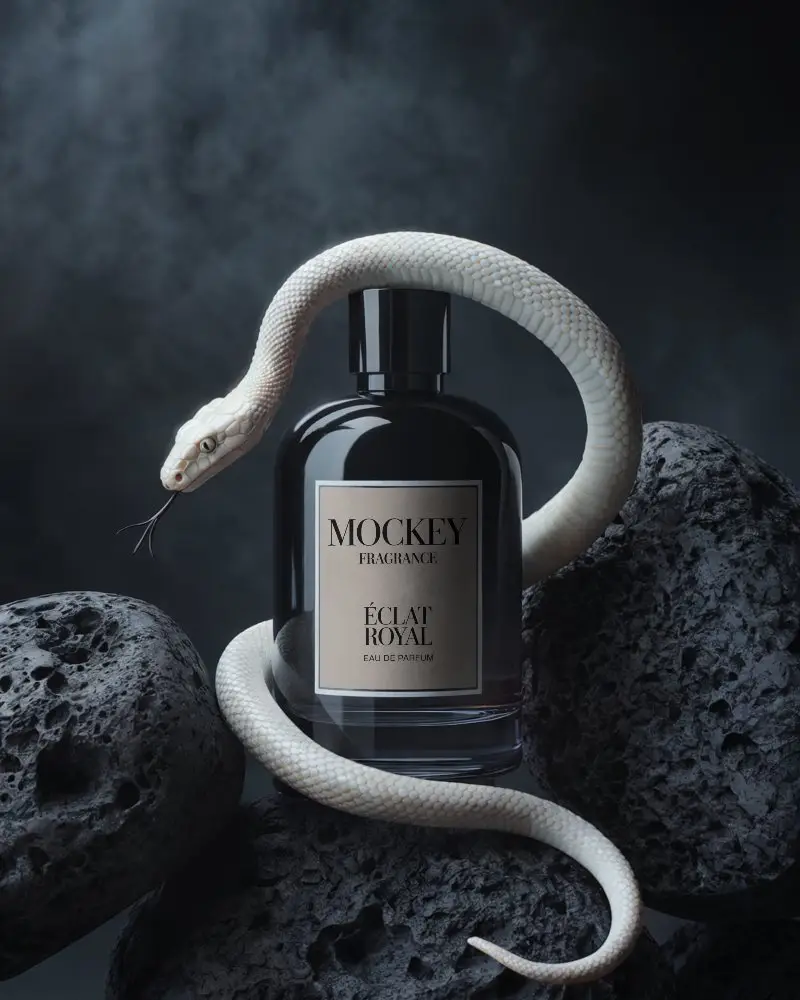
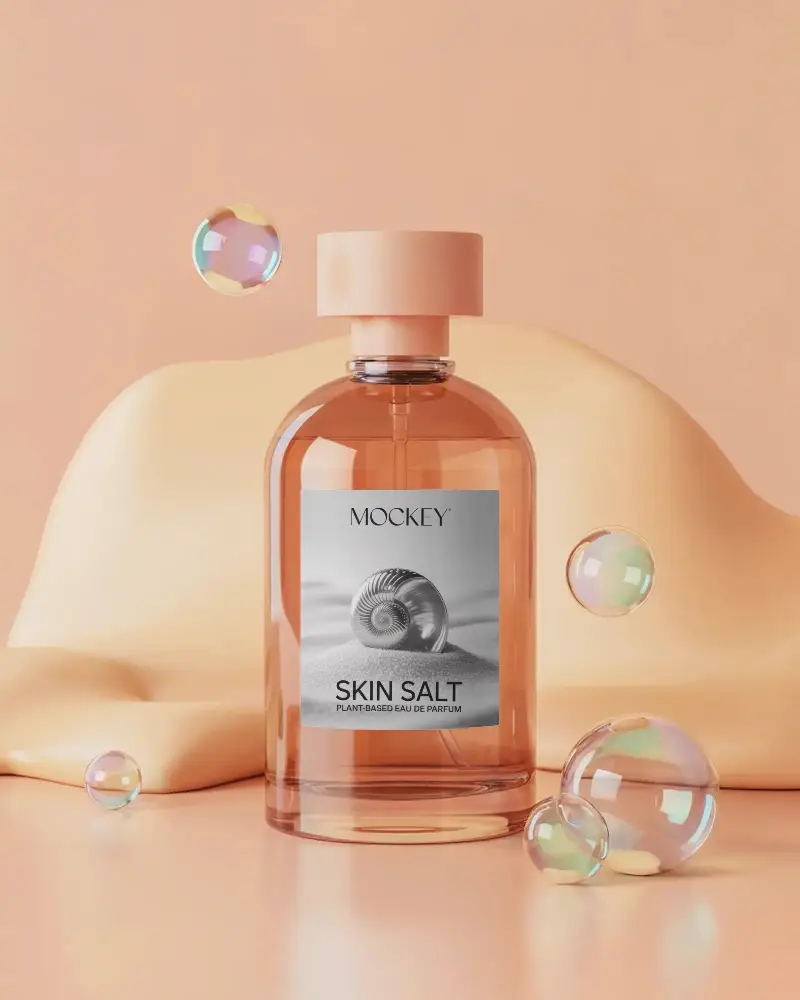
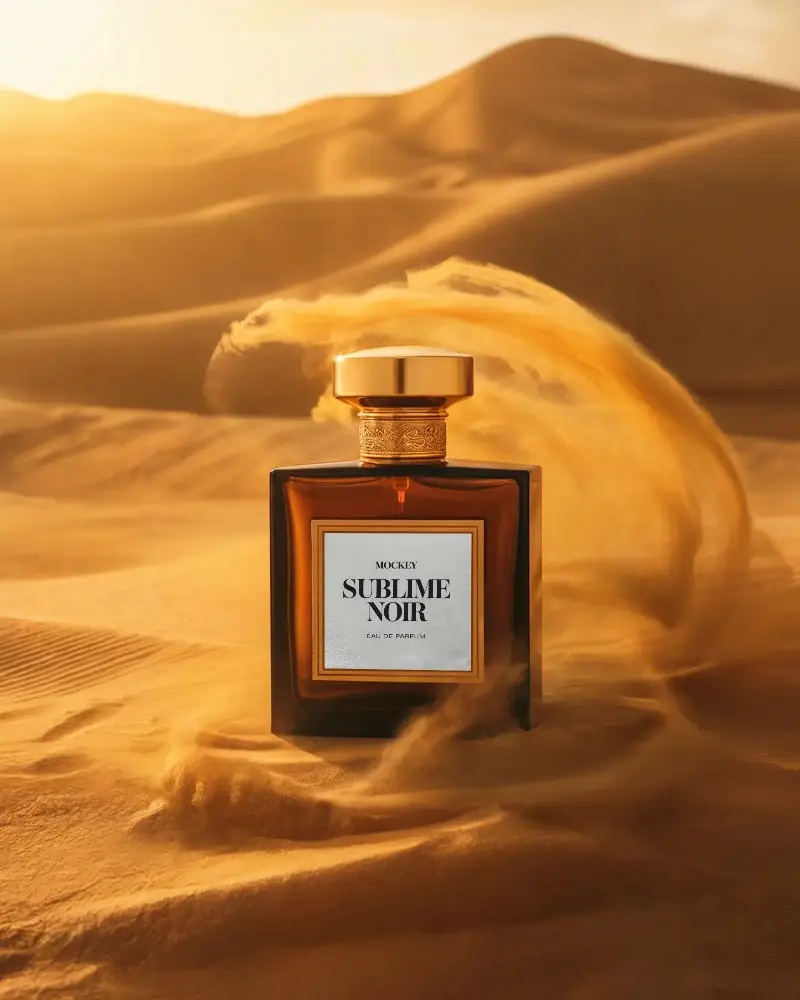
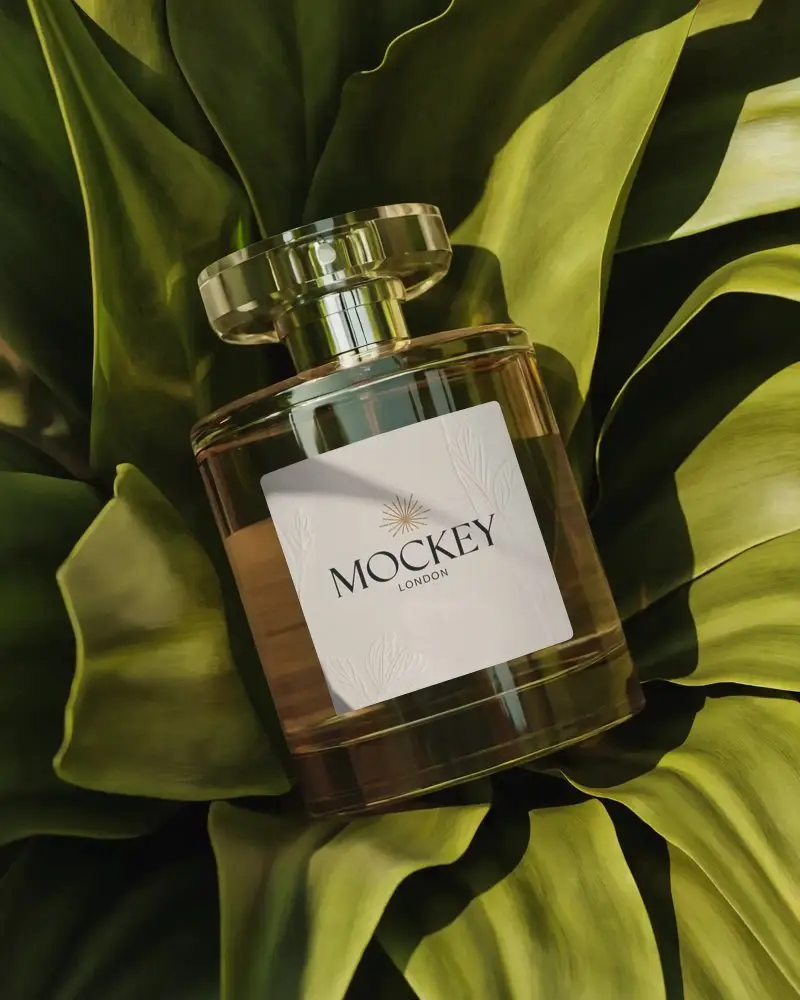
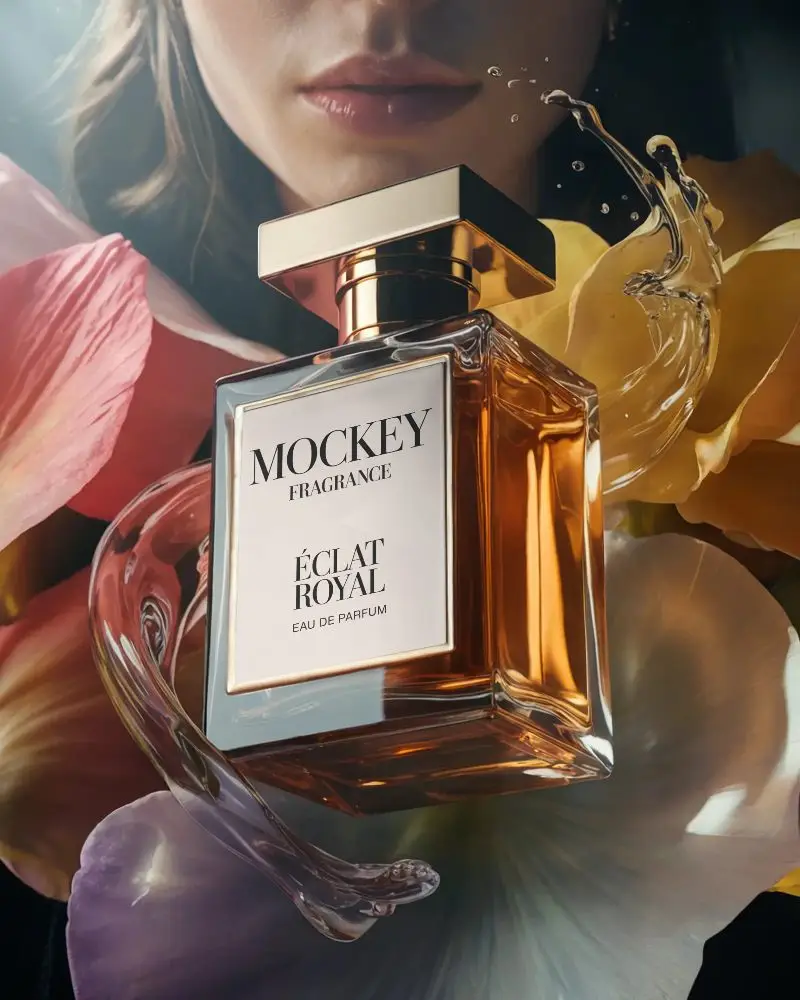
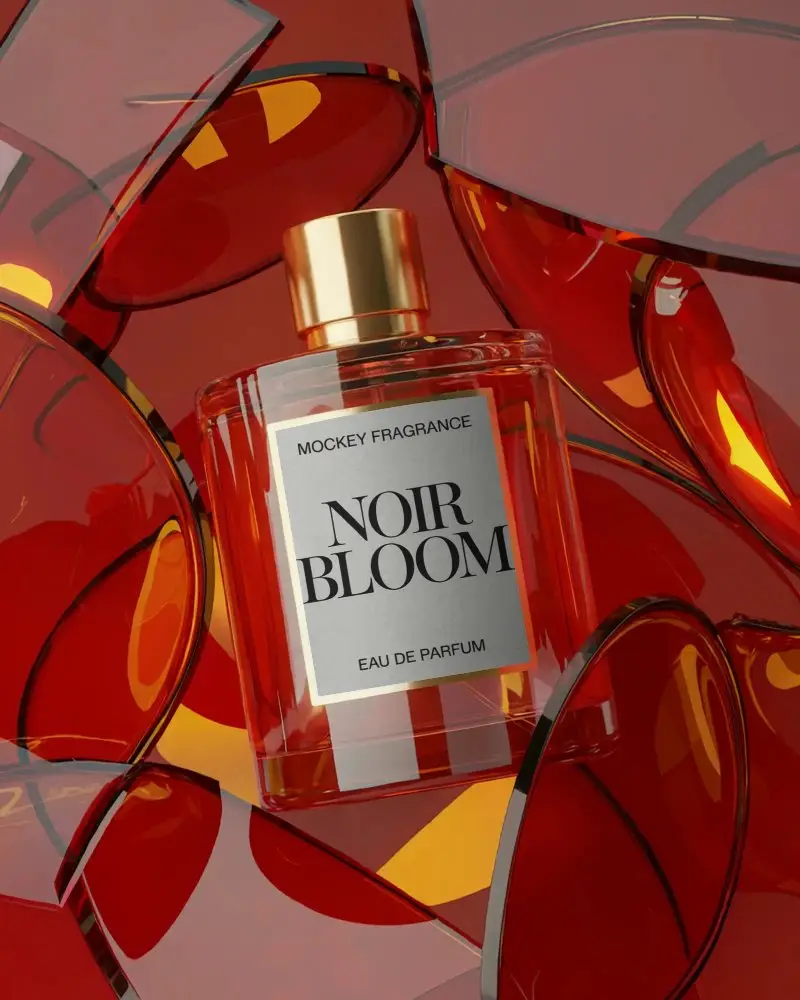
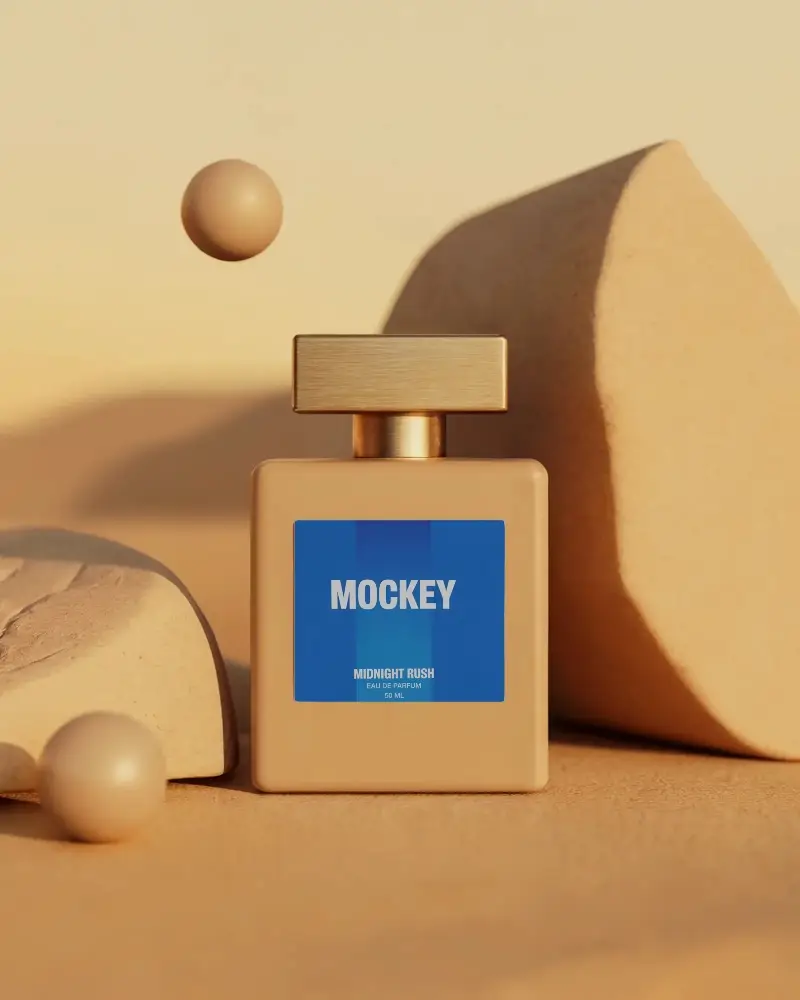
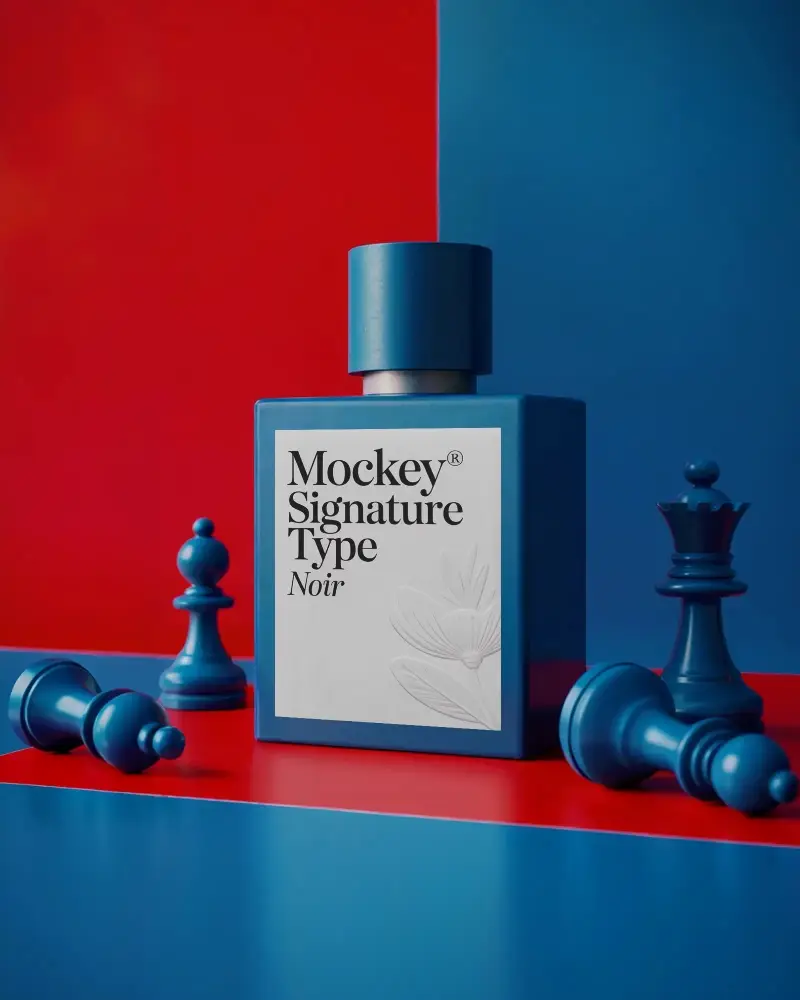
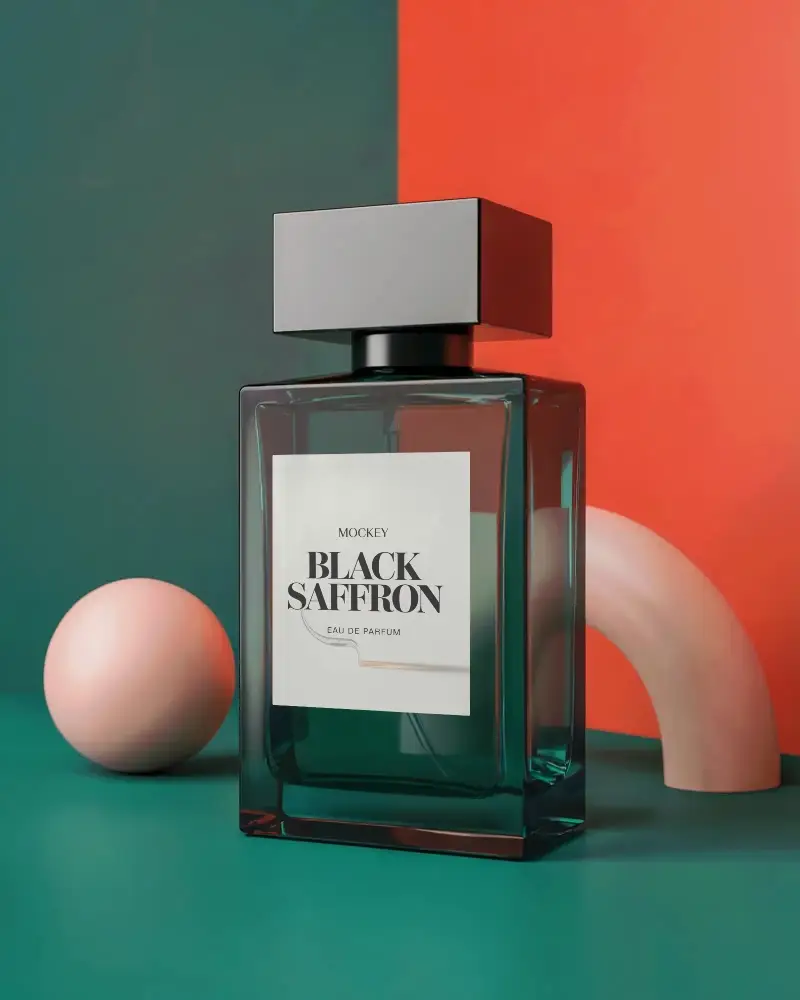
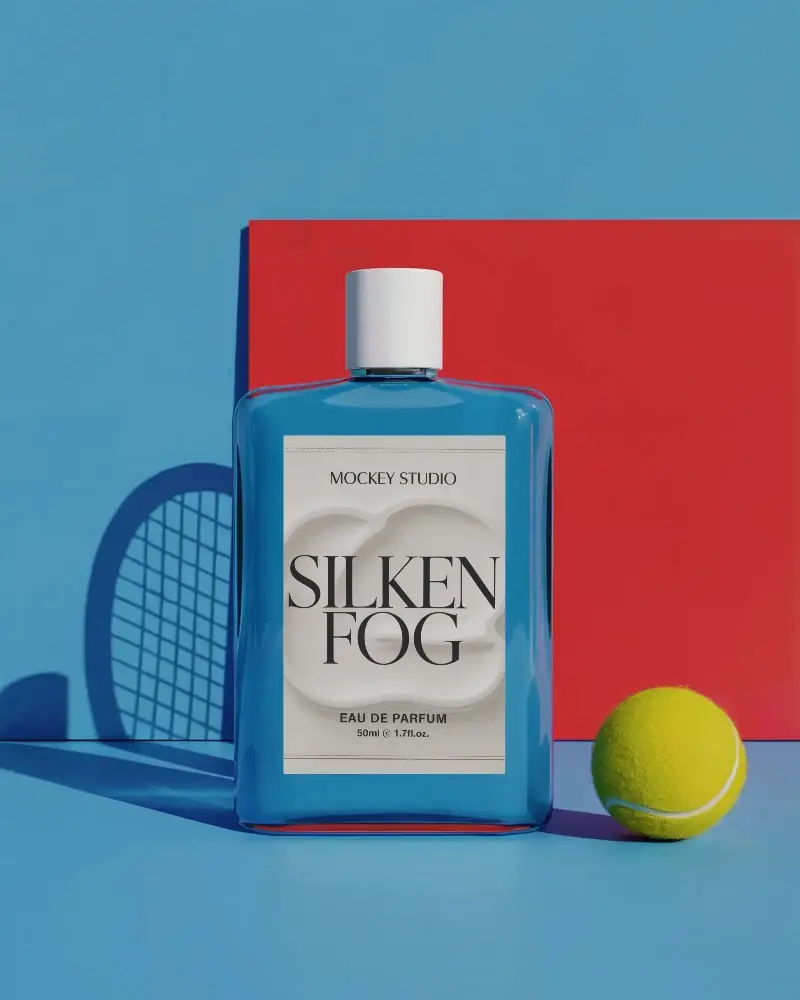
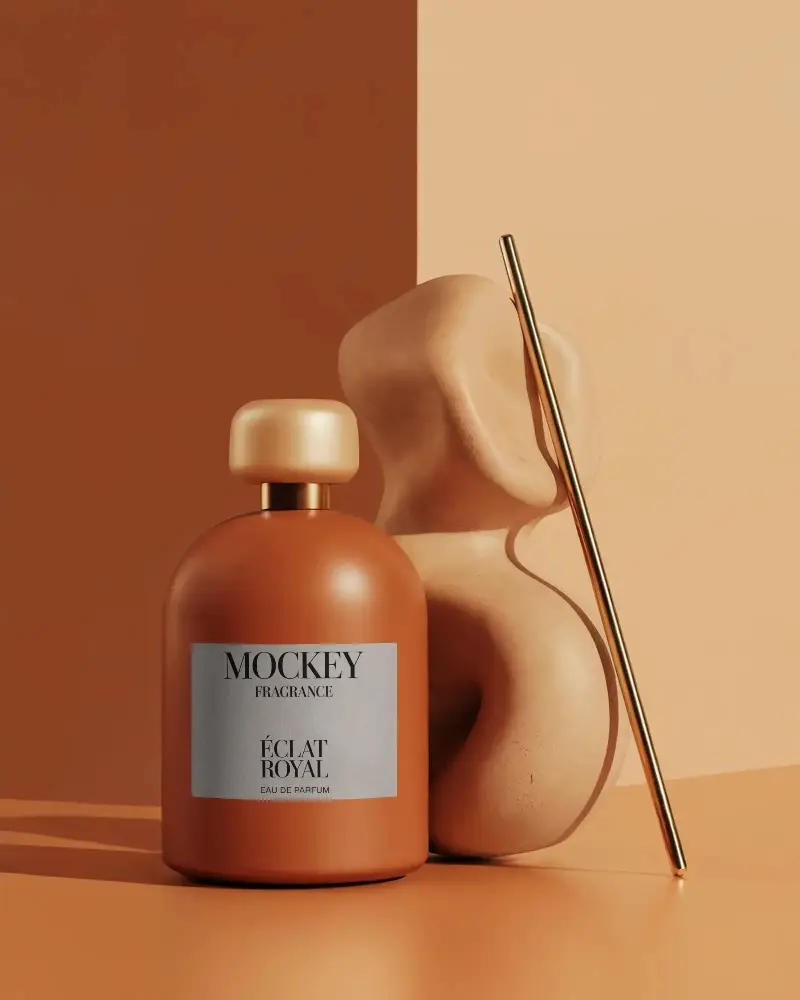
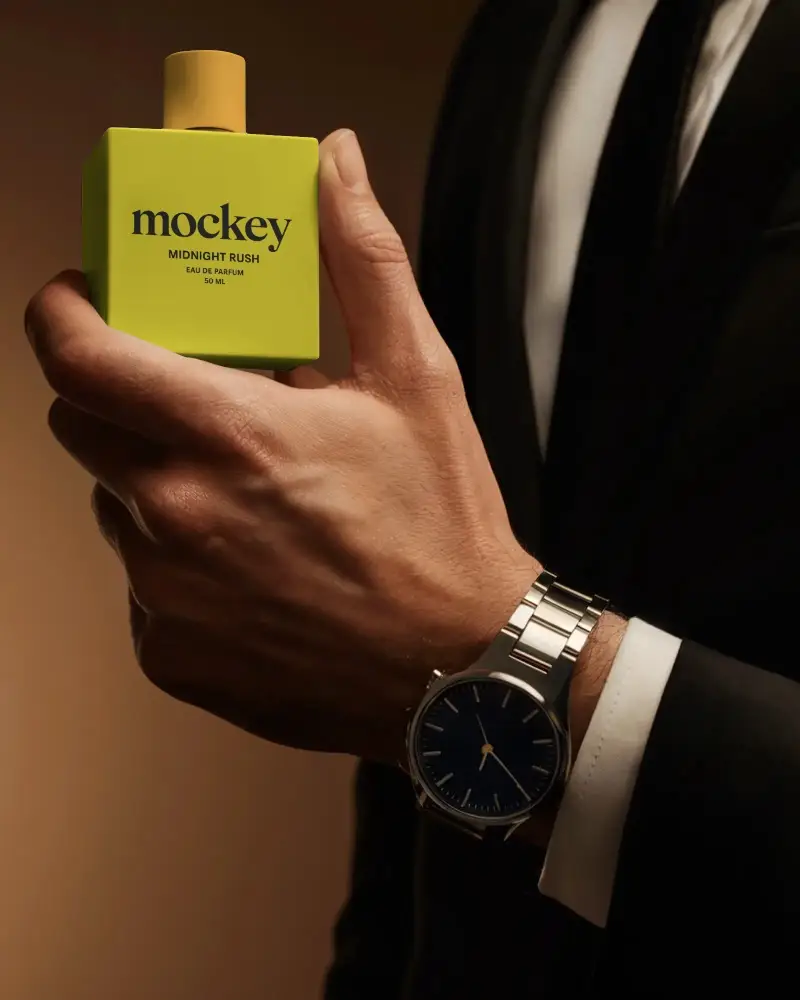
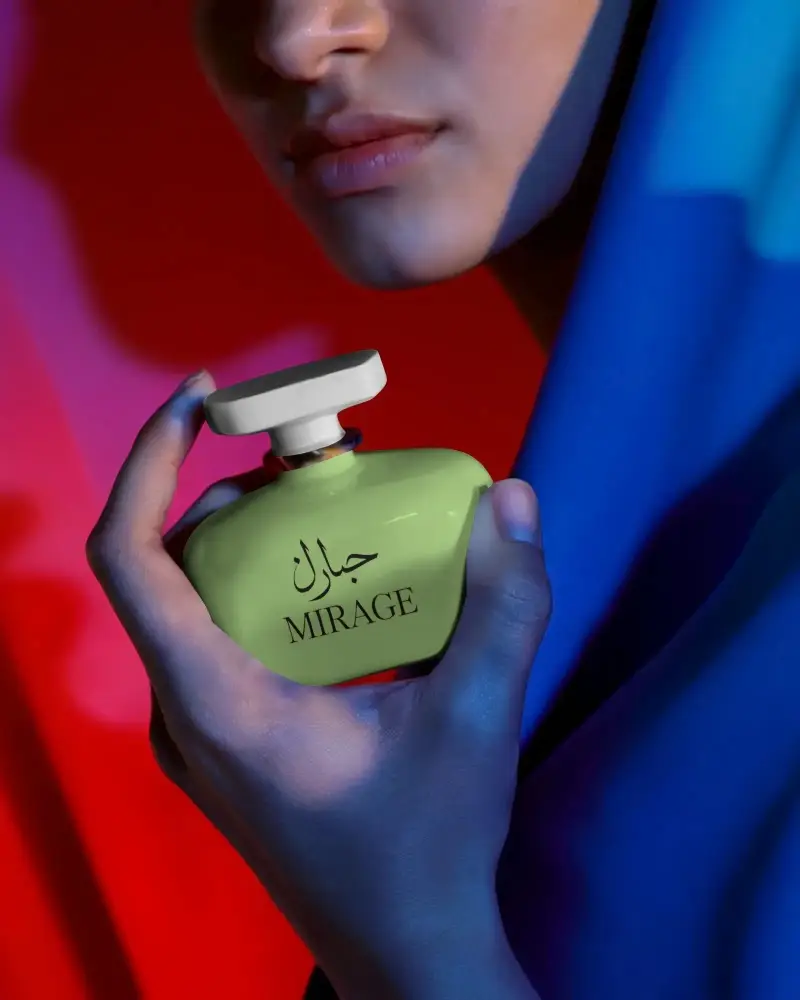
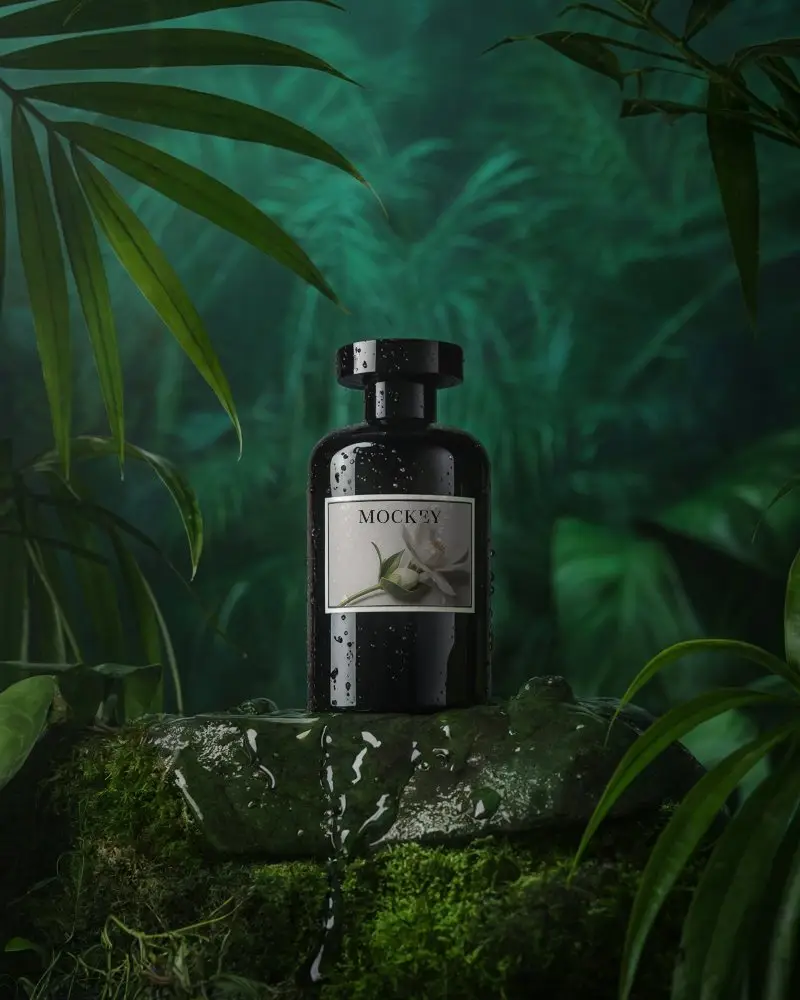
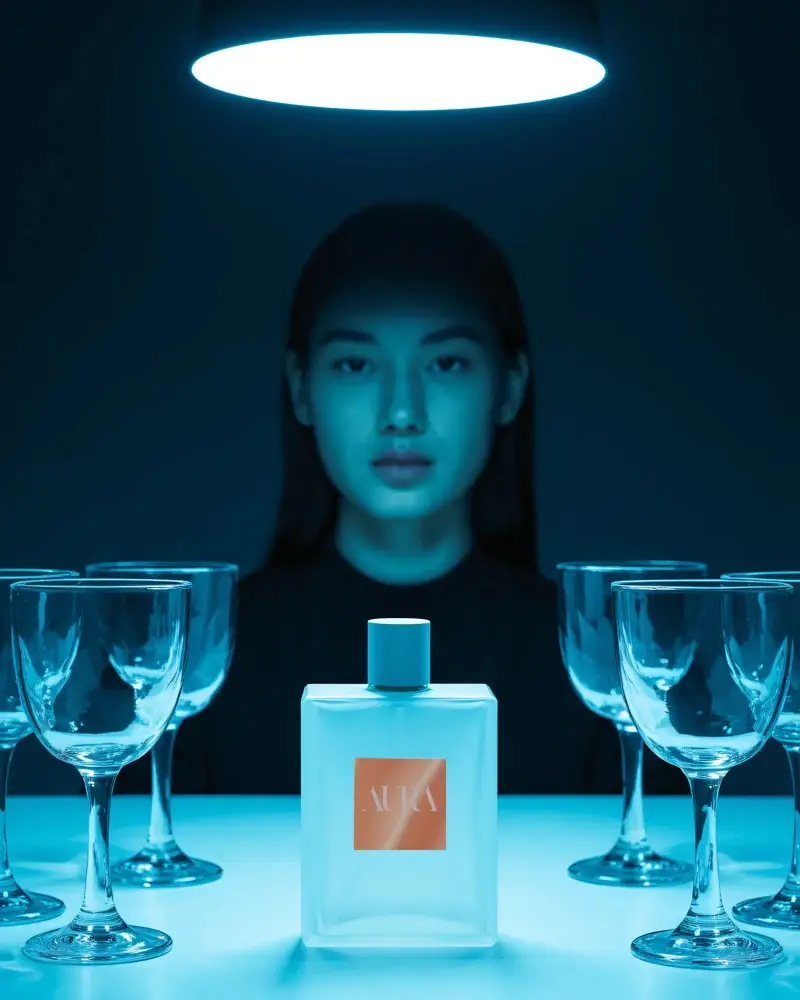

How to Create Mockups with Mockey AI
To create mockups with Mockey AI, follow these steps.
1.
You’ll see a large library, from which you need to select one mockup that fits your brand’s needs.
2.
Upload Your Design
Upload your design in the format of PNG, JPG, or WEBP by going to the editor page.
3.
Customize Easily
The built-in tool allows you to change the colors, or you can use other AI tools.
4.
Download
By pressing the Download button, you can save the mockup in any format or size you like.
Bulk Mode
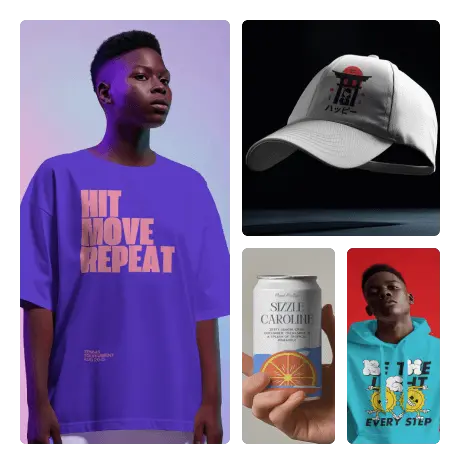
Top Mockup Categories Designers Are Using
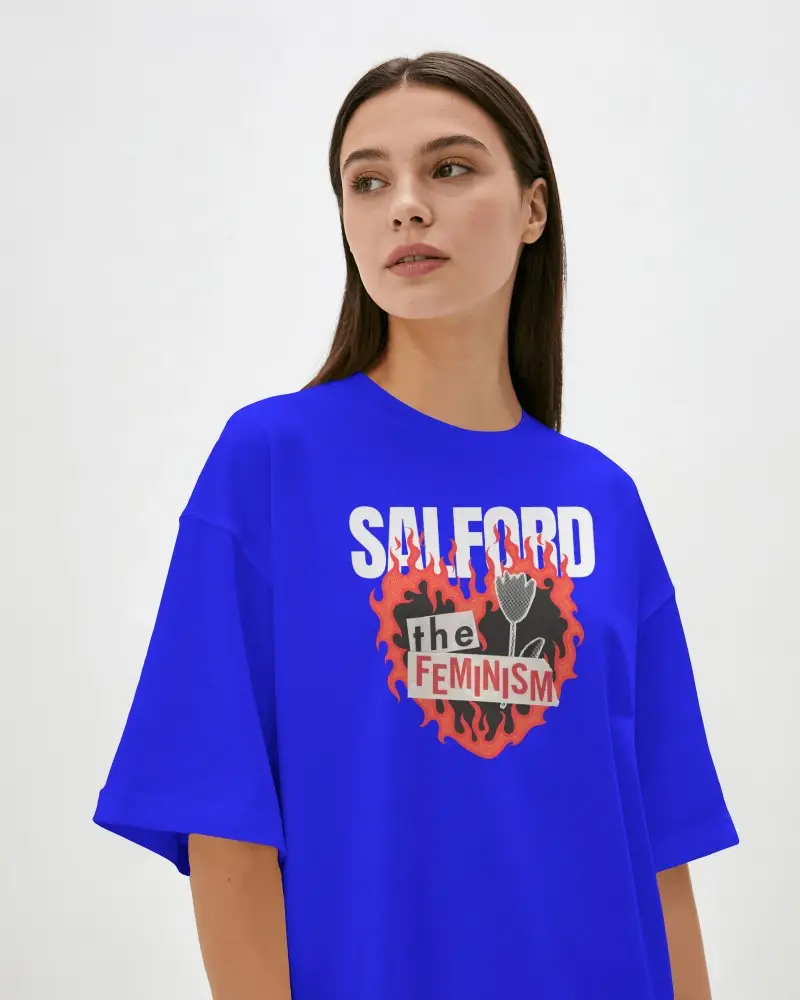
Apparel Mockups
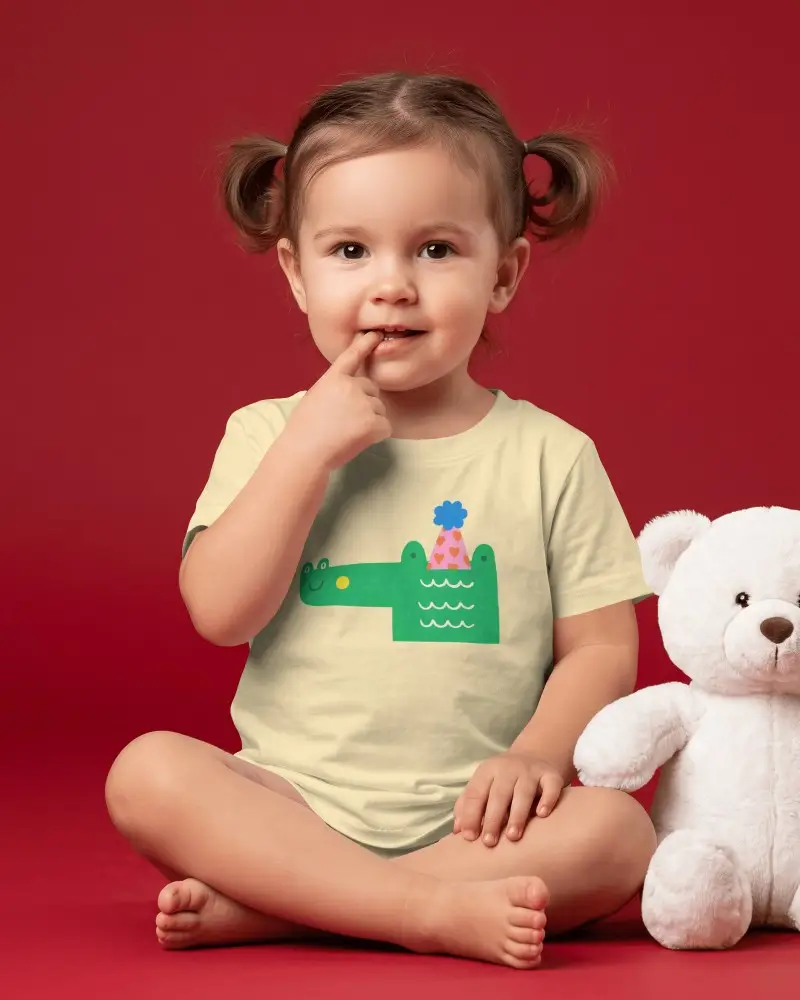
Baby Mockups
Accessories Mockups
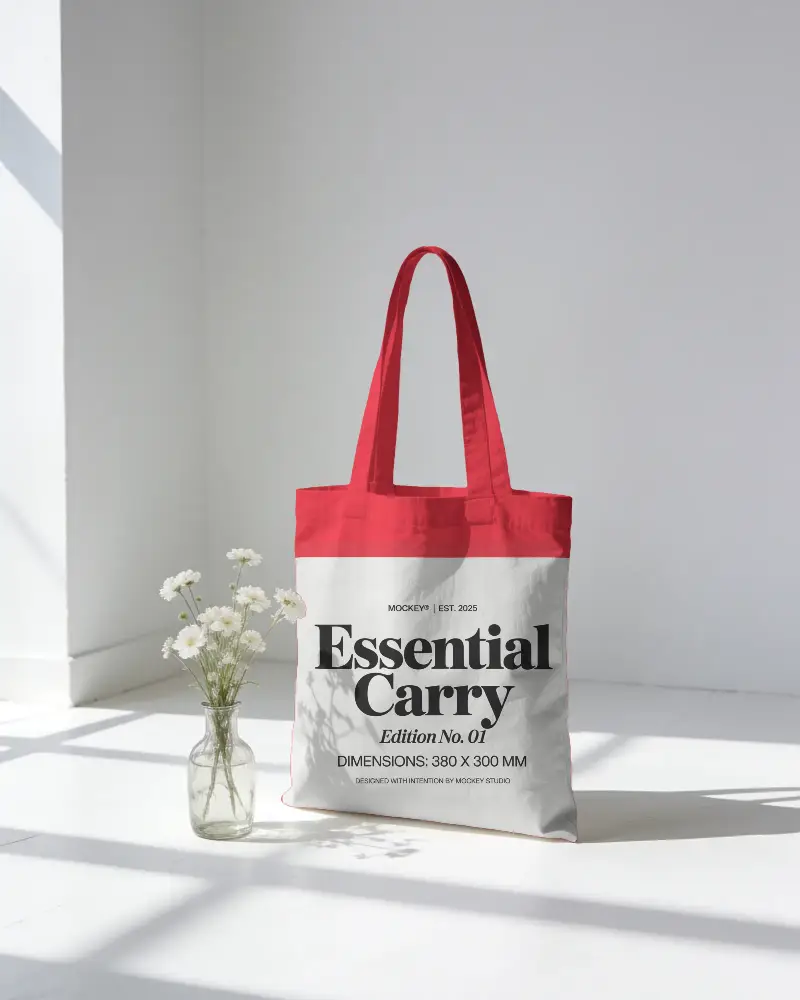
Home Decor Mockups
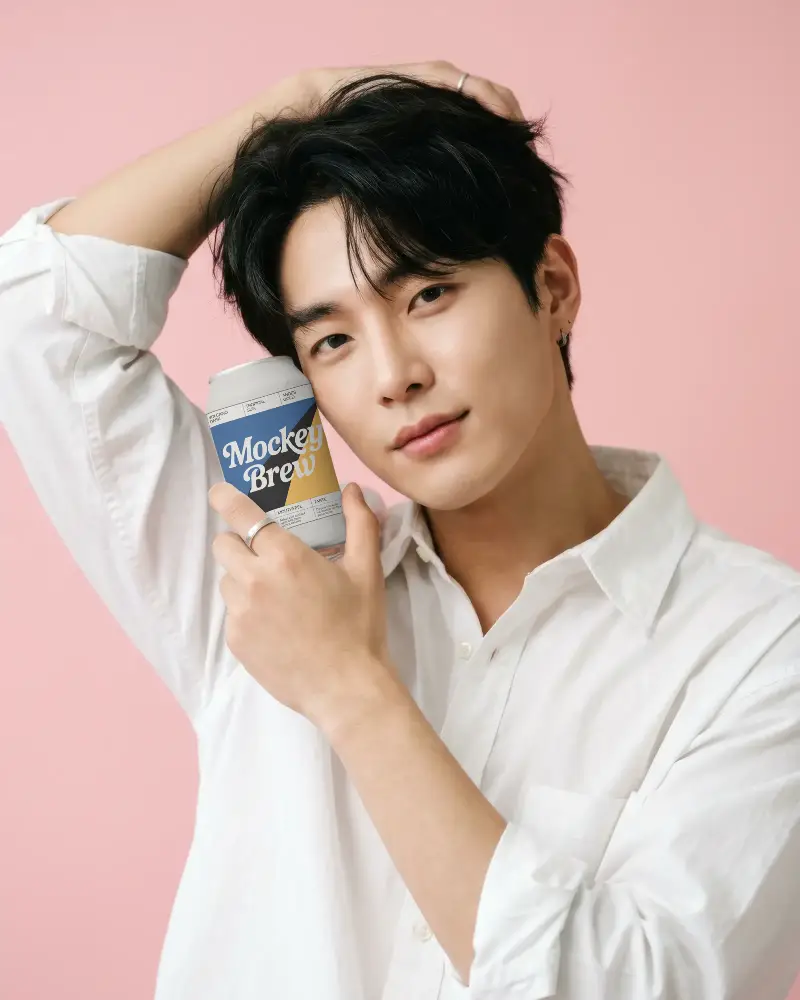
Print Mockups
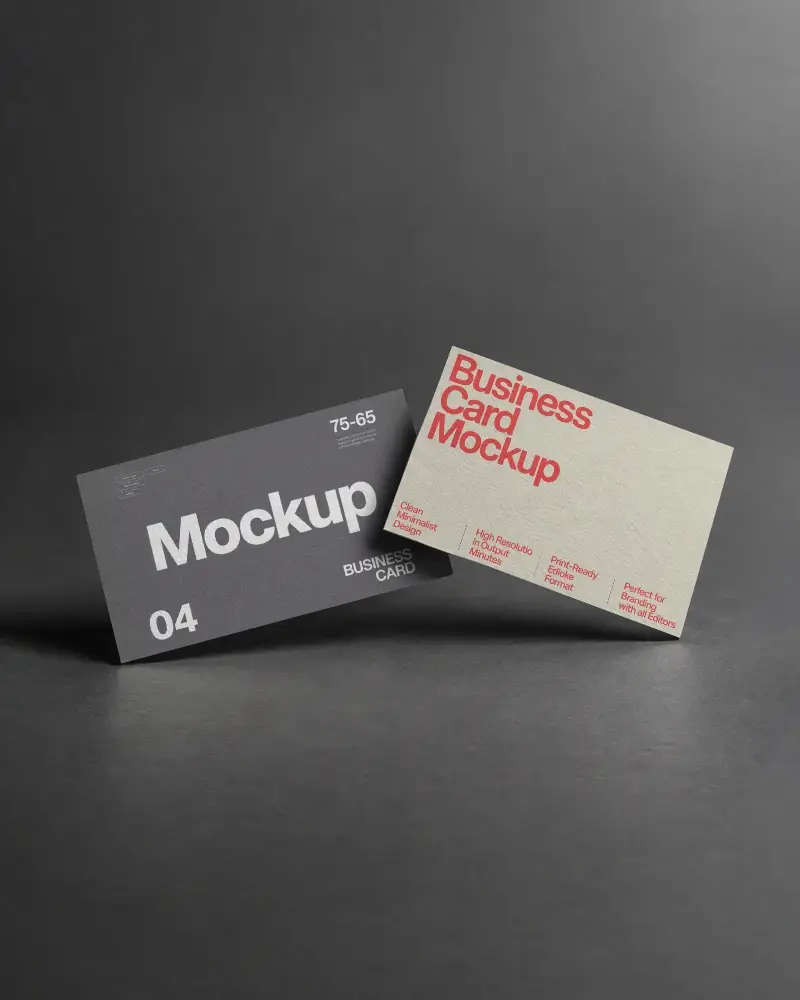
Packaging Mockups
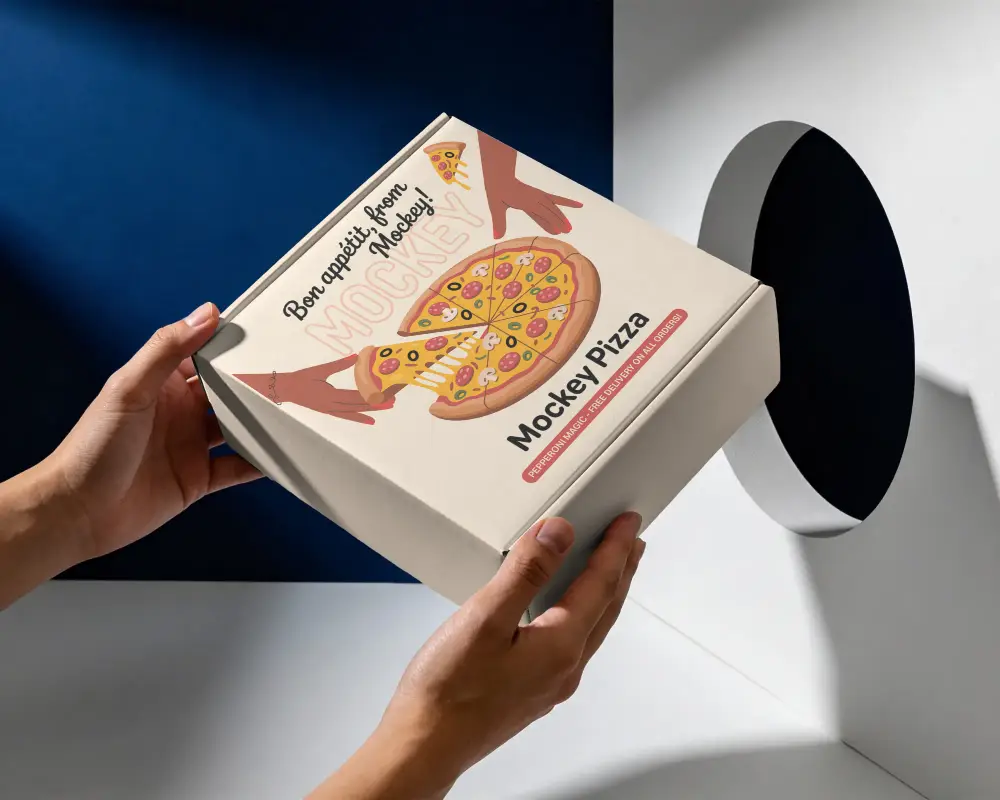
Device Mockups
Jewelry Mockups
Seasonal Mockups
Product Mockups
Etsy Mockups
3D Mockups
Why Choose Mockey AI
- AI mockup templates
- Fast, responsive UI
- High-resolution results
- Mockup bundles
- In-built editor
- Affordable pricing plan
- Fresh mockups added every week
- Friendly customer support
Powerful Features
- Warping
- Text prompt support
- Bookmark template
- Multiple designs to upload
- Animation support
- Real-time preview
- Custom mockup
Real Benefits
- Save time on every project
- No design skills required
- Works directly in your browser
- Easy for beginners
- Better product presentation
- Commercial use
- Best for Print-on-Demand sellers
Bulk Mode
What Our Users Are Saying
FAQs on Mockups
What does mockup mean?
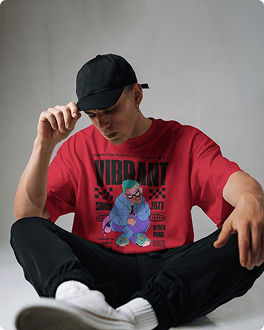
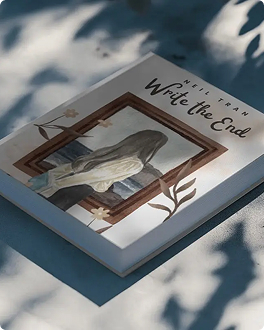
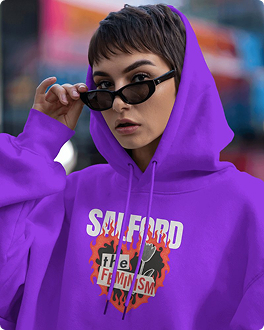
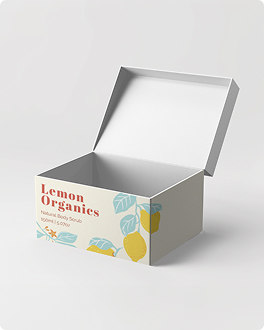
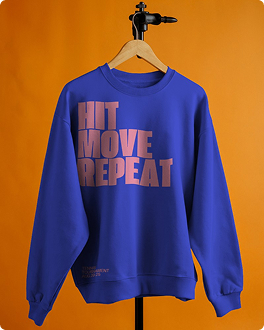
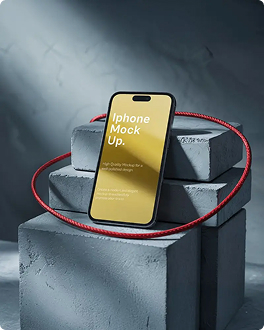
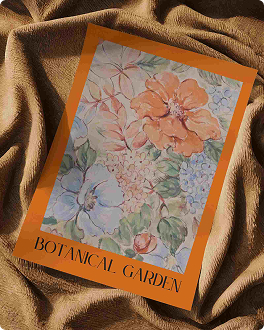
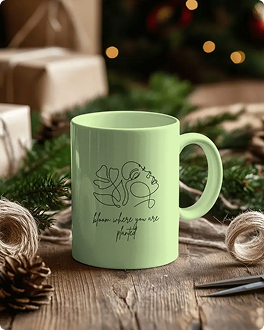
Mockups are digital images that show a product where you can upload your own design. You can show your concept to clients or customers before production starts. If they like the design, you can move forward with manufacturing or selling it.
How do I customize a mockup template with my design?
To customize the mockup template, select one and upload a design to it. Then, change the color, use the warping feature, or turn it into an animation if needed.
Where can I find my saved mockups?
You can find your saved mockups in the Projects section on the Mockey dashboard. All your saved designs are organized into projects, making them easy to access, edit, and manage later. You can also use the Continue Editing section to quickly resume working on your most recent mockups.
Can I get Customer Support in Mockey AI?
Get priority assistance from our dedicated support team. Simply visit the Contact section in the footer of our homepage to submit a form or email us at [email protected] or [email protected] for quick support.
Are Mockey AI's mockups available in JPG or PNG files?
Mockey lets you download mockups in high-quality JPG or PNG formats, perfect for digital and print use. Customize your design without any effort and export it watermark-free.
Where can I find free mockup templates for branding?
Mockey AI is a free online mockup generator tool with over 30,000 templates for products such as t-shirts, business cards, and more. Its easy-to-use editor lets users customize designs and download high-quality, watermark-free mockups at no cost. The platform is also available on the Play Store for added convenience.
Do I need design experience to create a mockup?
If you want to generate a mockup, you don’t need to learn any skills or take any course. Mockey AI is better than Adobe Photoshop when it comes to easy customization.
Why are mockups used?
Mockups are created so you don’t need to produce the custom product in advance, whether it’s a t-shirt, a mug, or anything else. If a customer likes your design, they’ll place an order. Then you can begin the manufacturing process.
What image formats can I upload?
Mockey.ai lets you upload designs in PNG, JPG, and WebP formats. For the best results, use transparent images. You can create free mockups for items like t-shirts, hoodies, business cards, and stickers.
Will my mockup have a watermark?
With Mockey, you can create and download mockups without any watermark. It’s made to give you high-quality results for free, with no restrictions.
What are the different types of mockups?
Different types of mockups, including apparel, accessories, home decor, print, packaging, devices, jewelry, logos, and baby products.
How frequently are new mockup designs added?
Mockey AI adds hundreds of new mockup designs every week across different product categories like t-shirts, posters, books, banners, and more. So every time you visit, you will find it fresh.
How can mockups be designed effectively?
If you want to create an effective mockup, make sure the design looks natural on the product and the image quality is excellent. These details attract customers. If you're changing colors, they should still look realistic.