In this tutorial, you’ll learn how to make a hoodie mockup in Photoshop step by step. Even if you’re using Photoshop for the first time, you’ll be able to follow along easily.
Need a hoodie mockup fast? Try the hoodie mockup generator on Mockey AI, where you can pick from different hoodie styles!
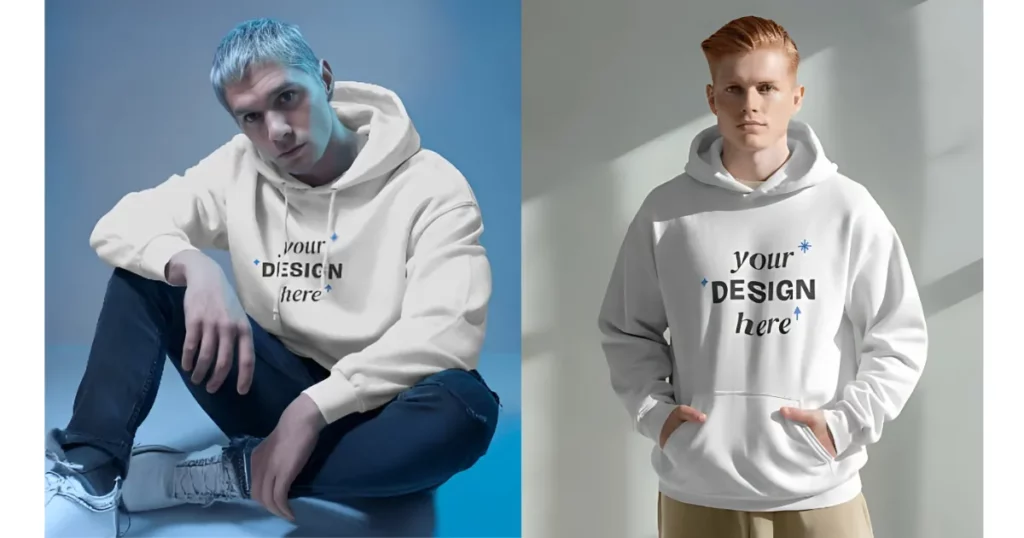
A step-by-step tutorial on how to make a mockup of a hoodie in Photoshop.
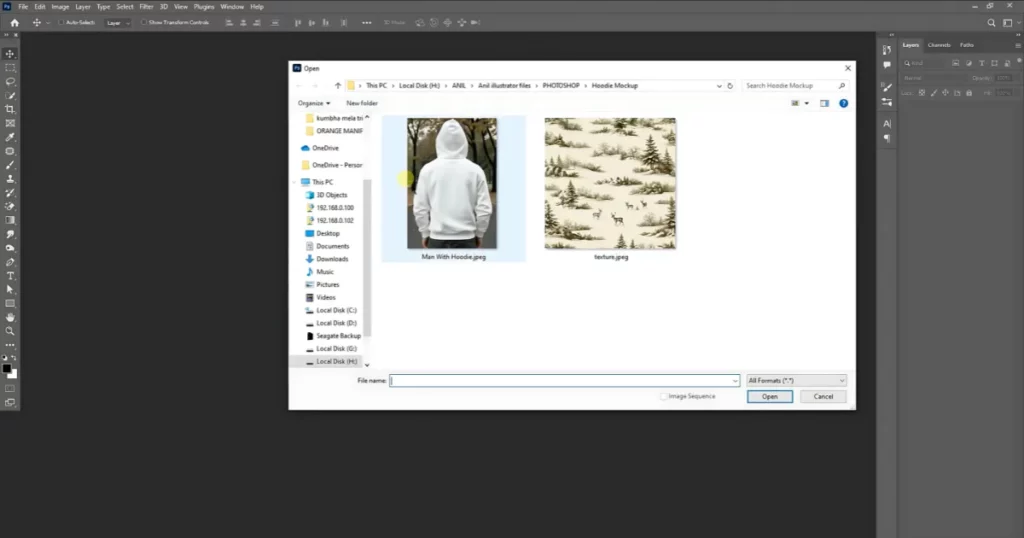
Go to File > Open. Select the man with the hoodie image and click Open.
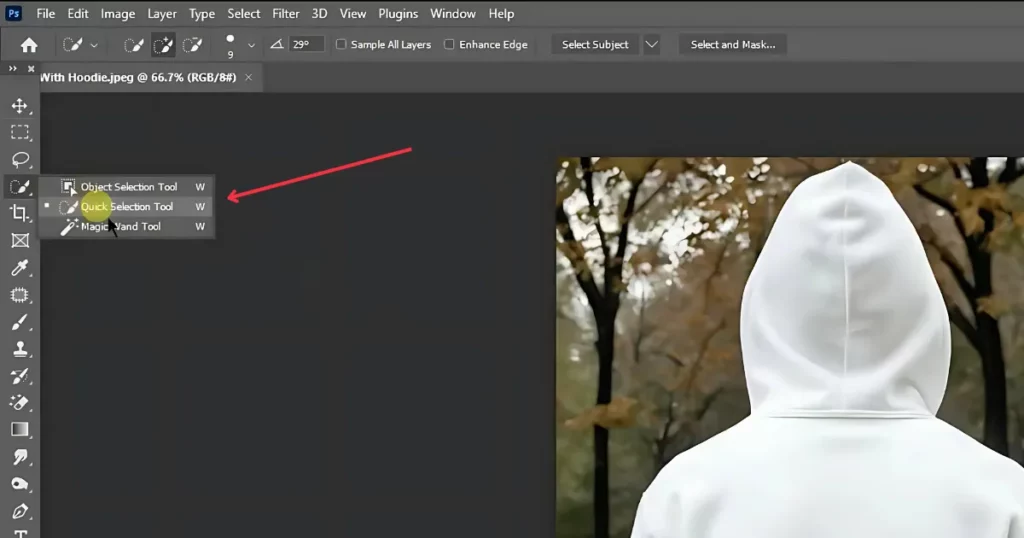
Use the Quick Selection Tool to outline the hoodie.
Press Ctrl + J twice to create two copies of the hoodie layer. Hide the top layer and select the middle layer.
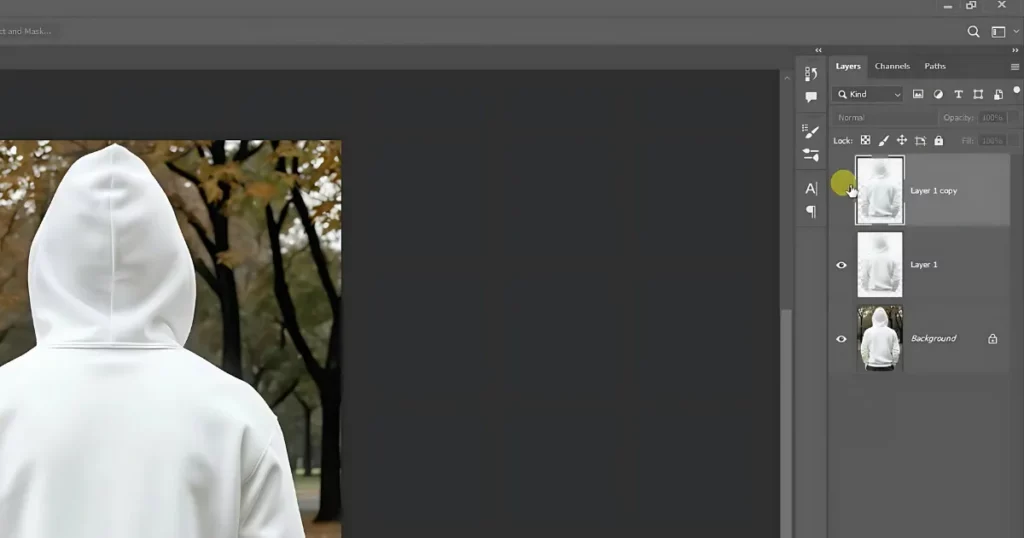
Select the Rectangle Tool. Please set it to Shape mode and choose any color. Draw a rectangle over the hoodie area.
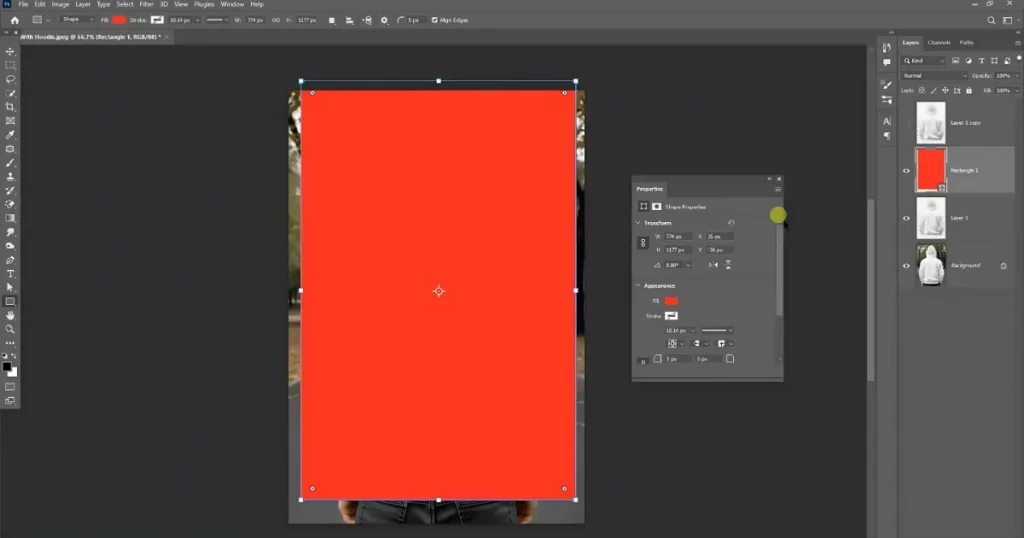
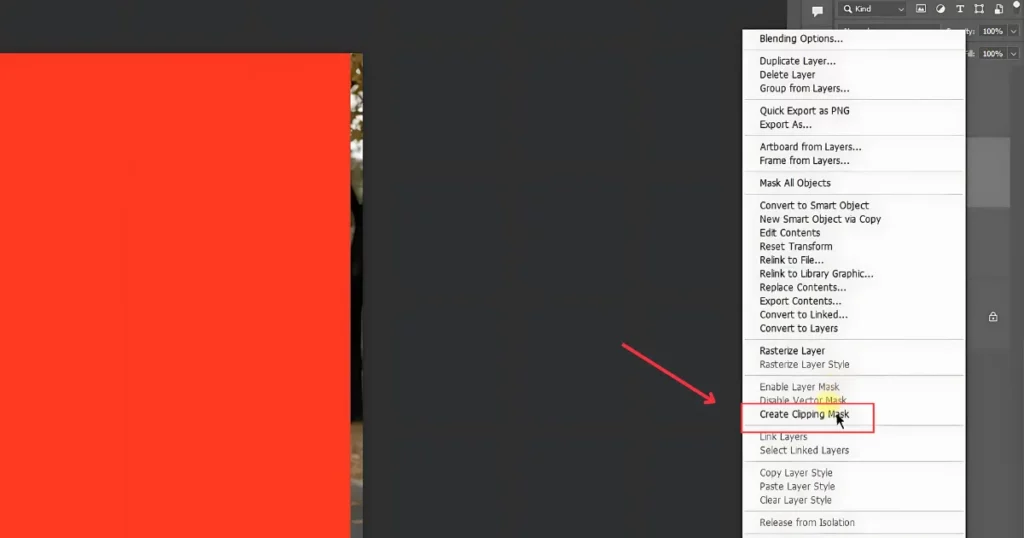
Choose Convert to Smart Object from the menu when you right-click the shape layer. Right-click again and choose Create Clipping Mask.
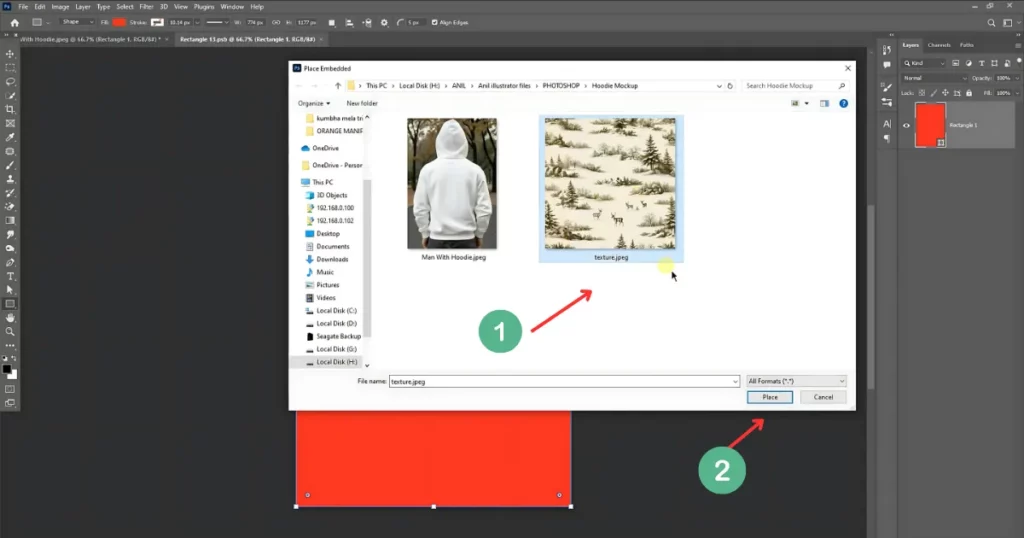
Double-click the shape layer. Go to File > Place Embedded. Select a texture image and click Place. Adjust the texture as needed.
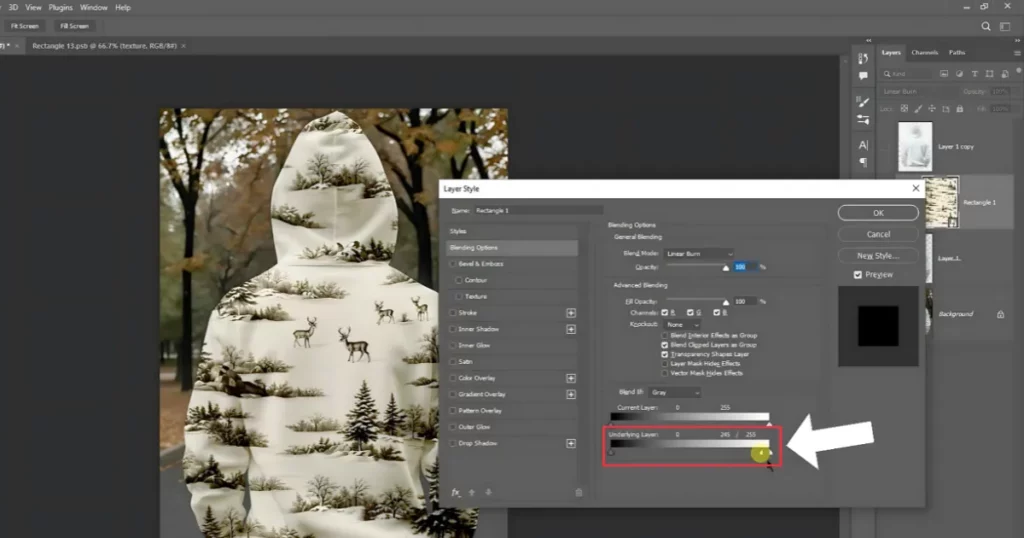
Go to File > Save. Open the main window. Change the Blend Mode to Linear Burn. Right-click the layer and select Blending Options. Adjust the Underlying Layer settings and press OK.
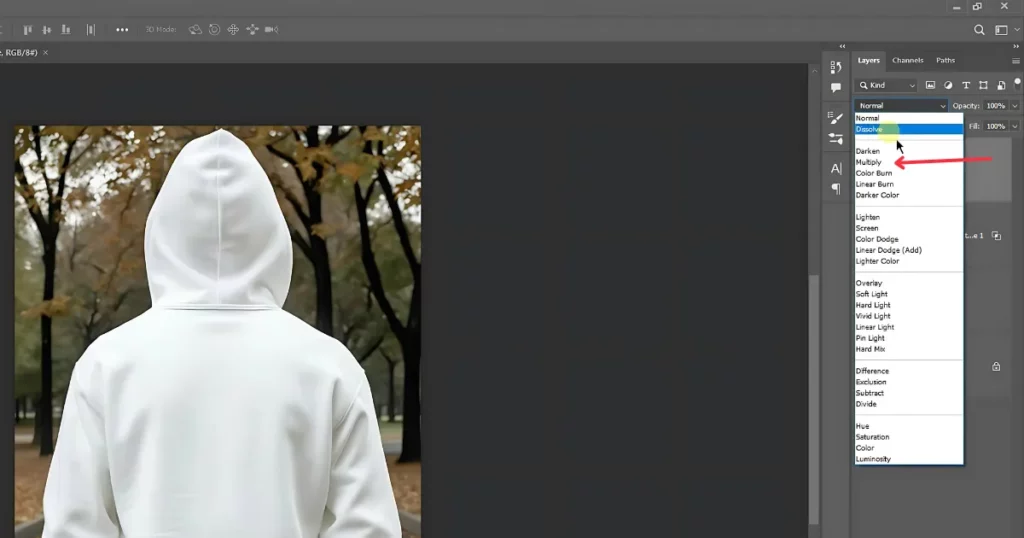
Unhide the top hoodie layer. Set its Blend Mode to Multiply.
That’s it. Follow this quick guide on how to make a hoodie mockup in Photoshop. We took the idea from Flash Graphics.
Mockey AI is the online mockup generator that lets anyone make pro-looking hoodie mockups, even without design skills and Photoshop.
You can pick from different hoodie types, change the background, and switch hoodie colors. It also has advanced AI tools like AI Photoshoot, and AI Anime and removes & blurs backgrounds to make your mockups look even better.
A tutorial on how to make a hoodie mockup using Mockey AI is given below.
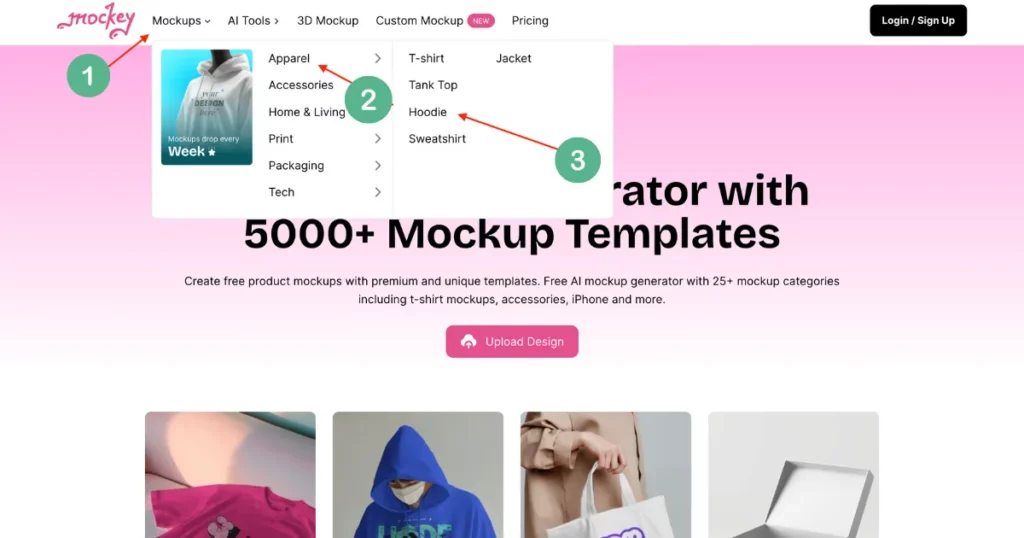
Go to the Mockey AI website, and sign up there. Head to Mockups, and choose the Hoodie in the Apparel section.
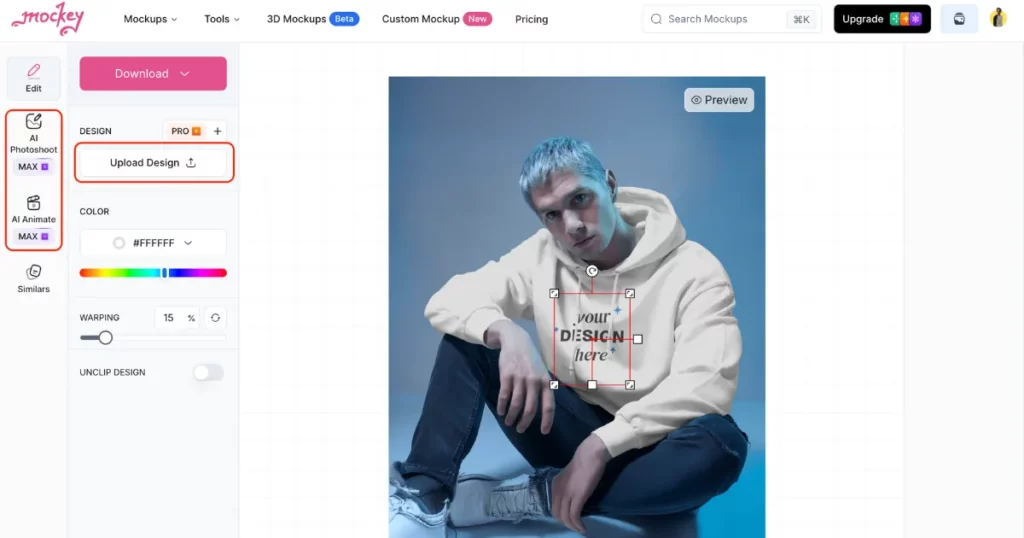
Pick a hoodie template and add your own designs, logos, or images on the next page. Change the color, adjust the background, and resize your logo as needed.
You can also use AI tools such as AI Photoshoots and AI Anime. For this, you need to upgrade to the Creator plan.
Once you’re happy with your design, download it to your computer. You can download it for free!
Congrats! You did it! ???? Now you know how to make a hoodie mockup in Photoshop and Mockey AI.
Remember, Mockey AI is one of the best mockup websites and has free hoodie templates and easy design tools. Just sign up there and start customizing!
To create a black hoodie mockup in Photoshop, start by opening a hoodie PSD file and hiding the shadows. Then, draw a rectangle over the front of the hoodie and convert to smart object. Add your design using a clipping mask and warp it to match the hoodie’s shape. Finally, apply a displacement map to make the design look more realistic.
To create a 3D hoodie mockup in Photoshop, start by getting a 3D hoodie model and adjusting its angle. Launch Photoshop and open the 3D model’s PSD file. Hide the shadows and place a rectangle over the front of the hoodie. Convert the rectangle into smart object, clip it to the hoodie, and warp it to match the fabric’s shape. Finally, add your design, apply a displacement map, and make adjustments to ensure it looks natural and realistic.
Mockey AI lets you create free hoodie mockups. Just upload your design or logo and see it in real-time. You can change colors, backgrounds, and more. Plus, you get high-quality downloads with no watermarks. There are many templates for zip-ups, pullovers, and custom hoodies!
You can get free hoodie mockups without watermarks from sites like Mockey AI. With Mockey, you can customize templates online and download them fast.
Related Reading:

Sangram Sahoo
I’m a content writer with 4 years of experience. I specialize in creating practical content around mockups, print-on-demand, apparel, and e-commerce design.
