Free Fitted Cap Mockup Templates
Bring your cap design to life on Mockey.ai. Use our fitted cap mockups to easily create and customize your hat designs with realistic details.
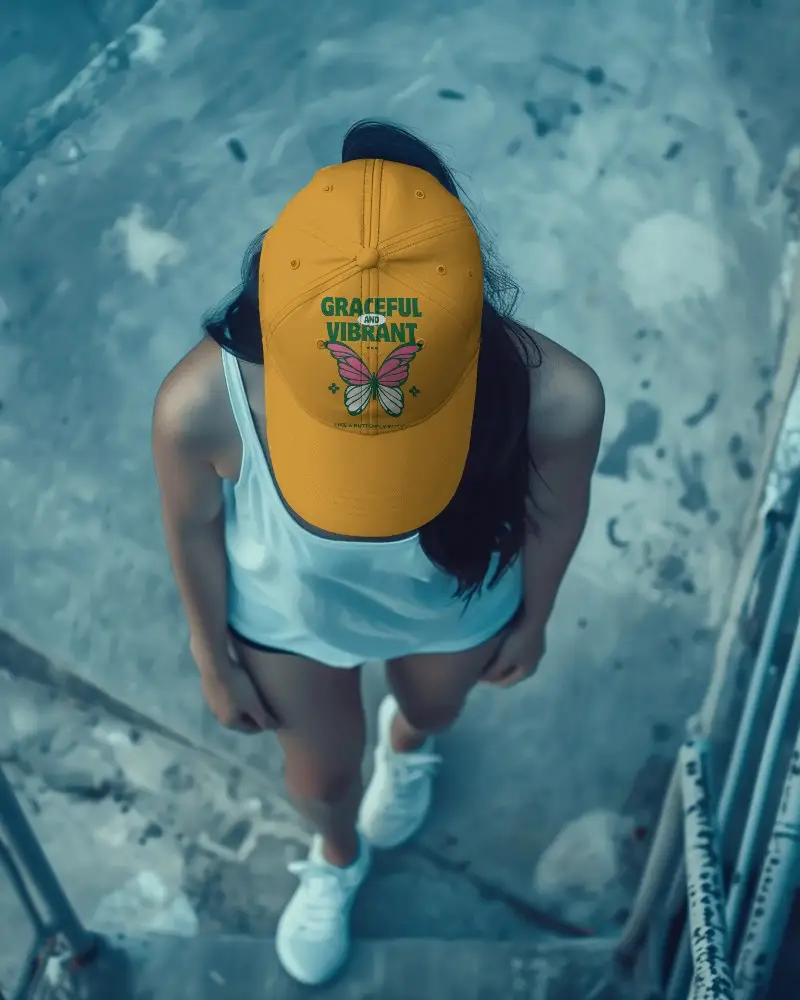
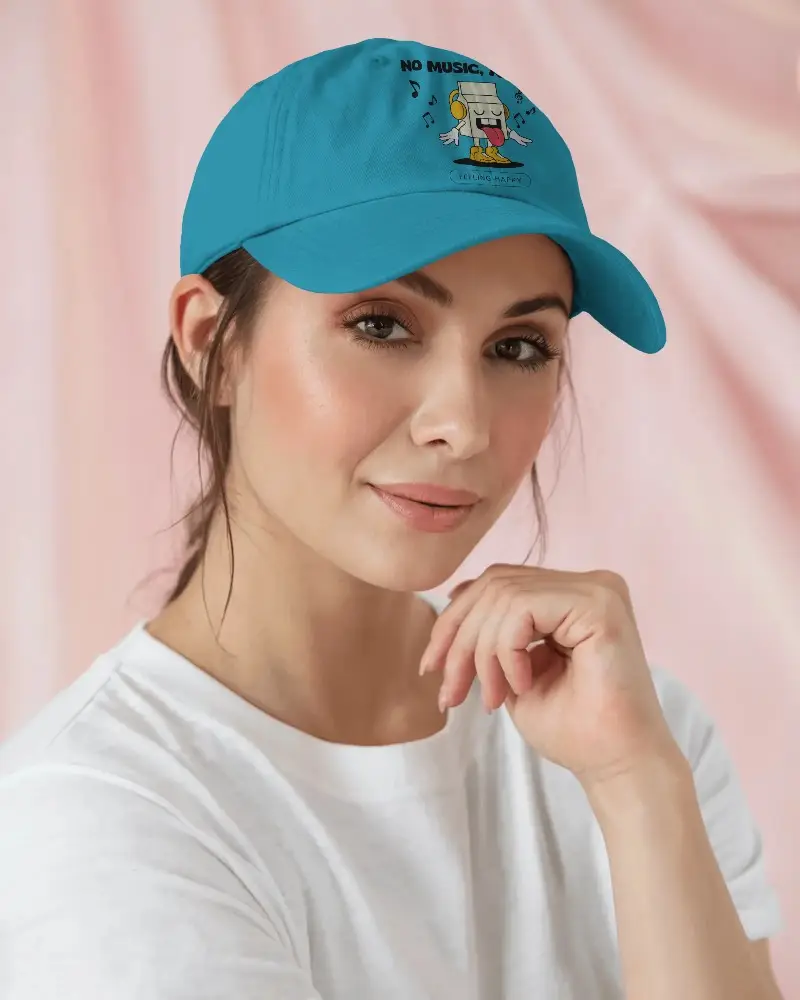
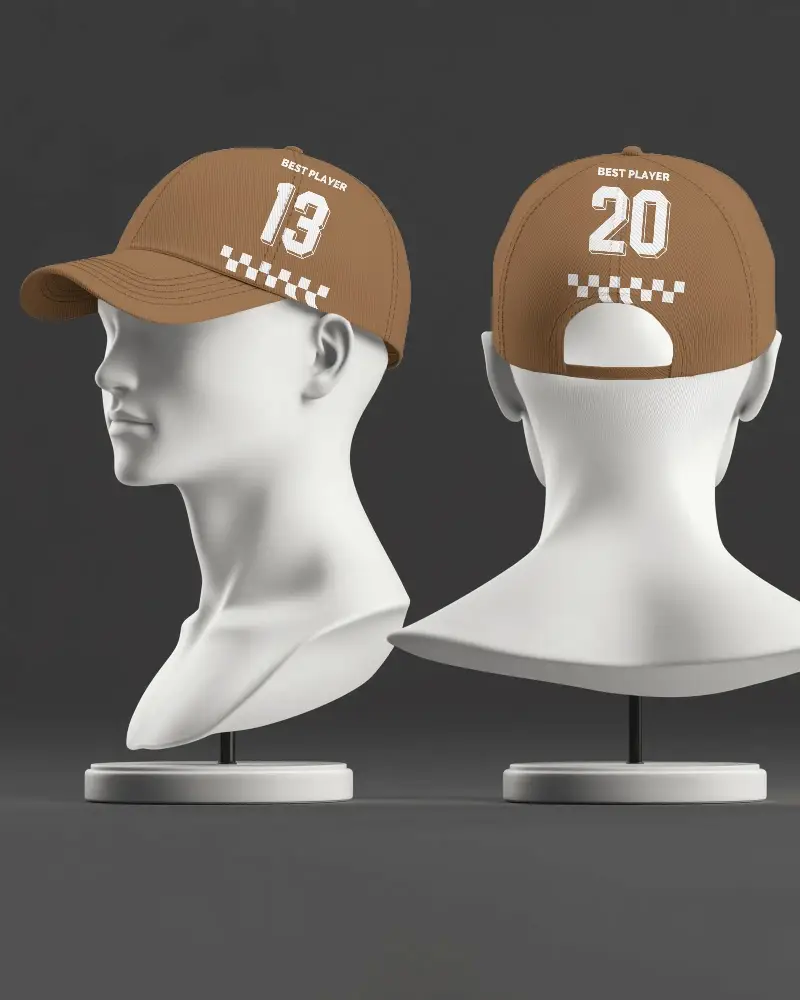
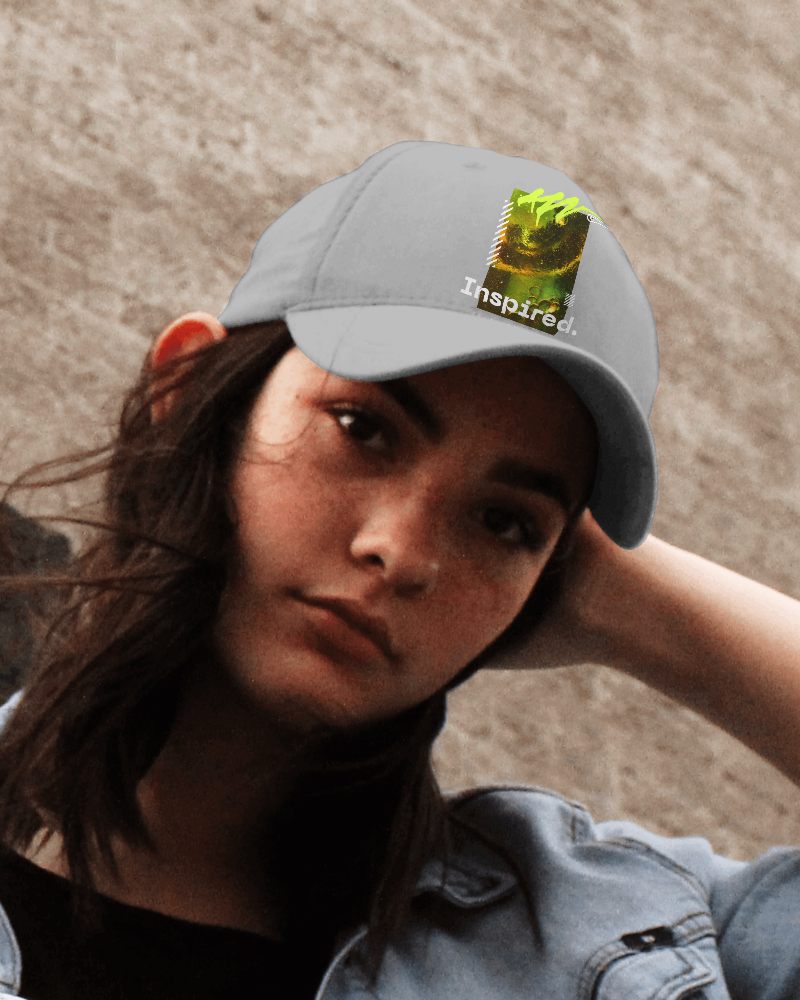



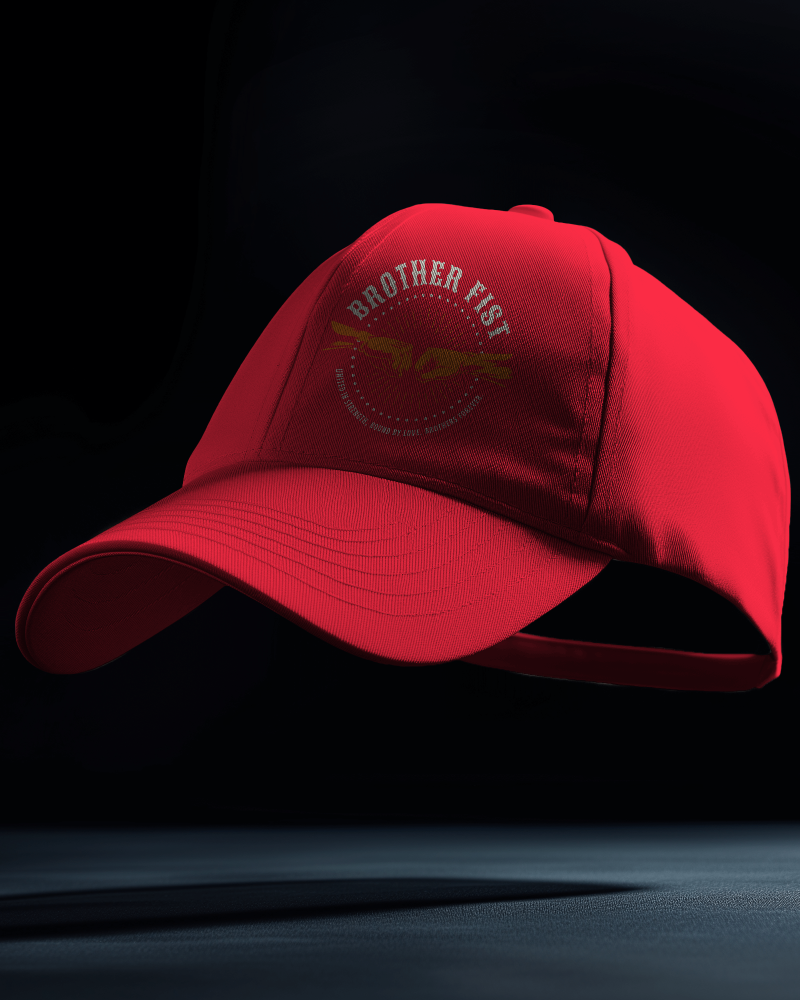


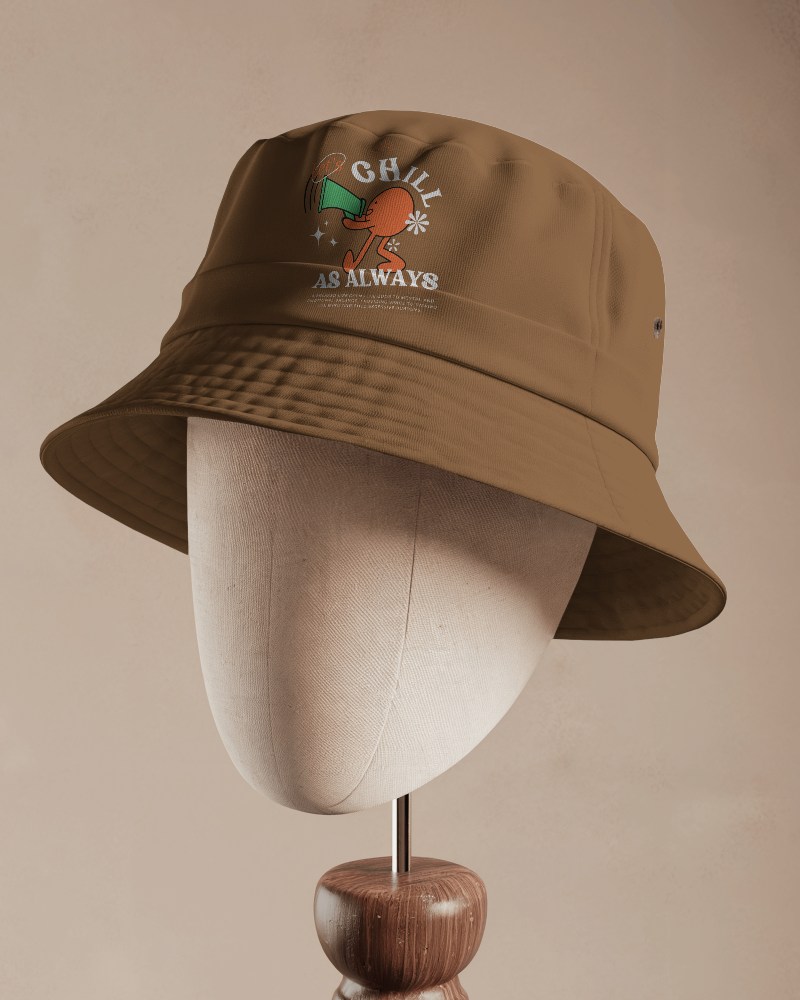

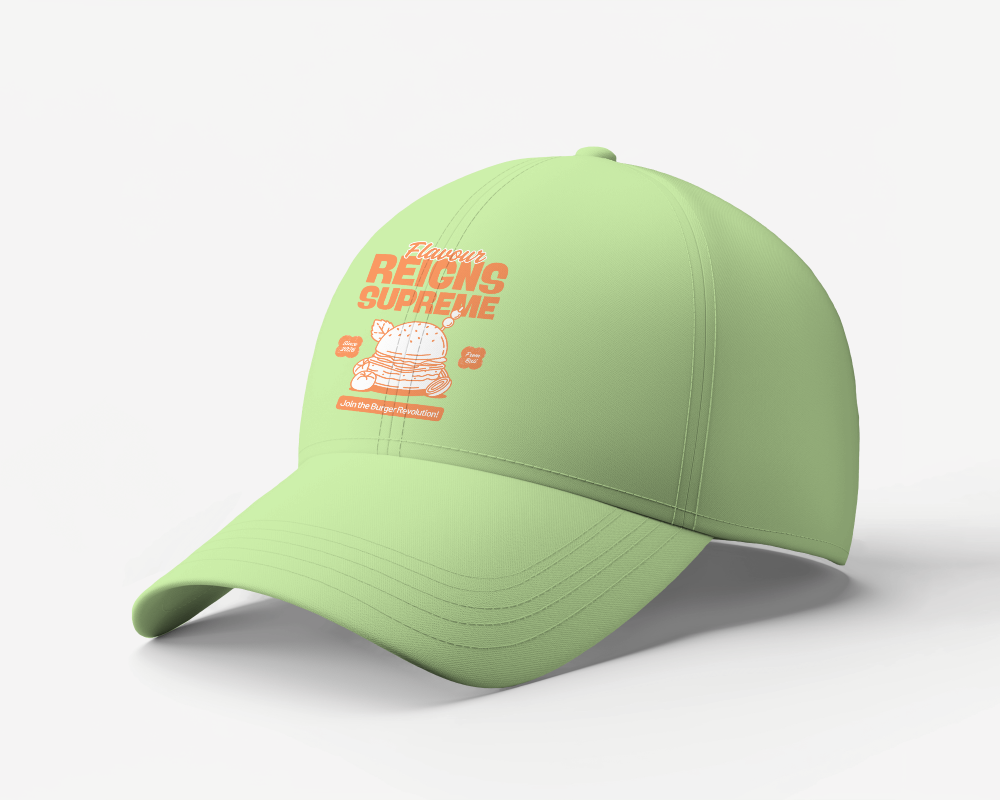
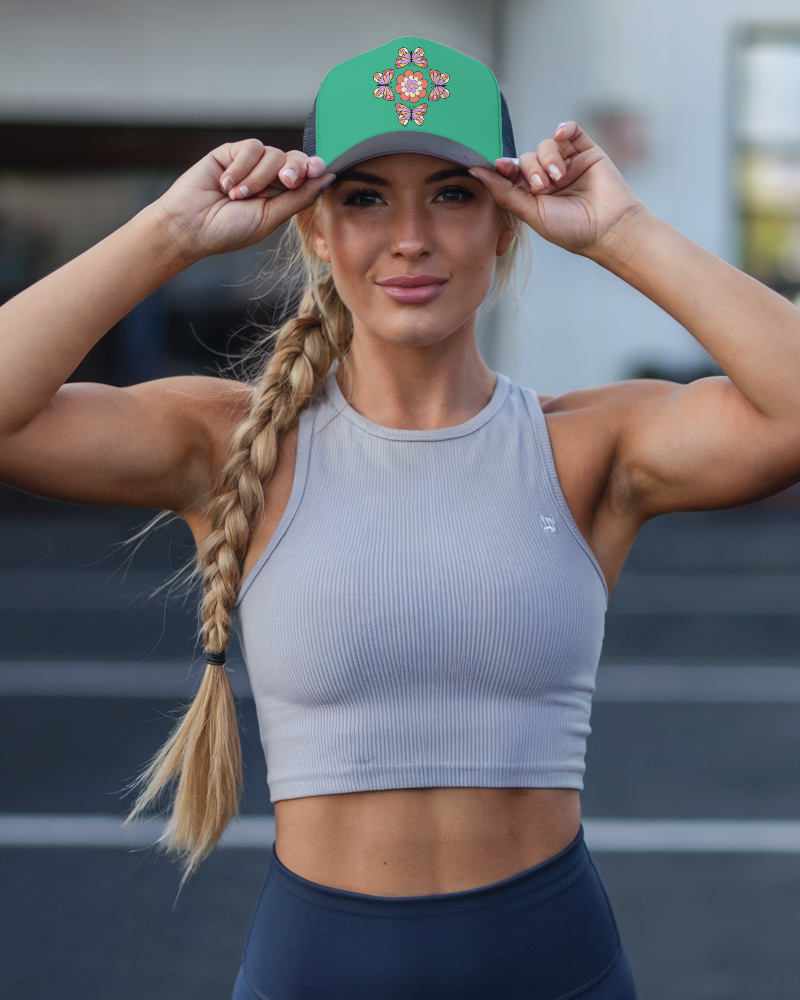

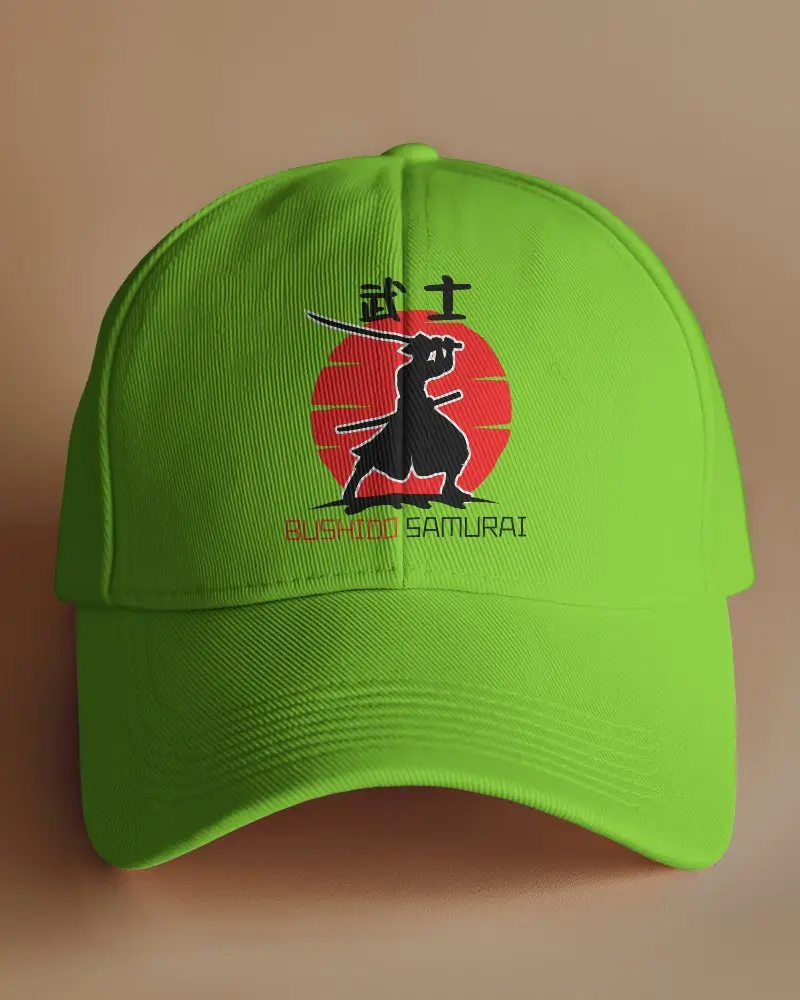
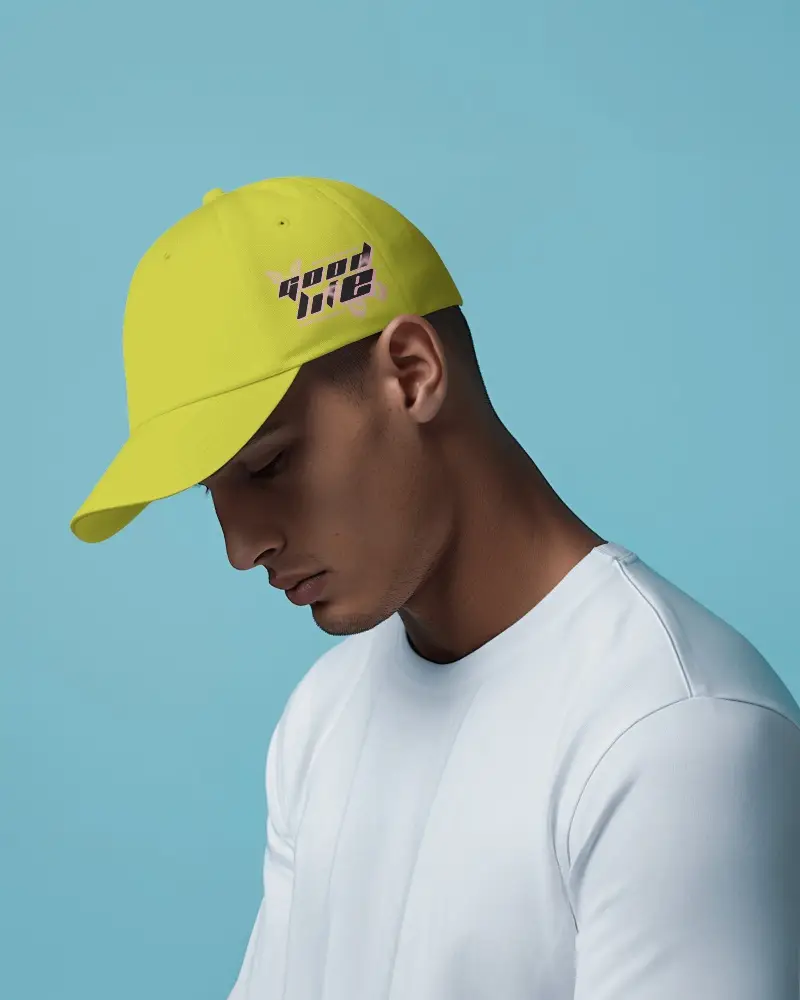
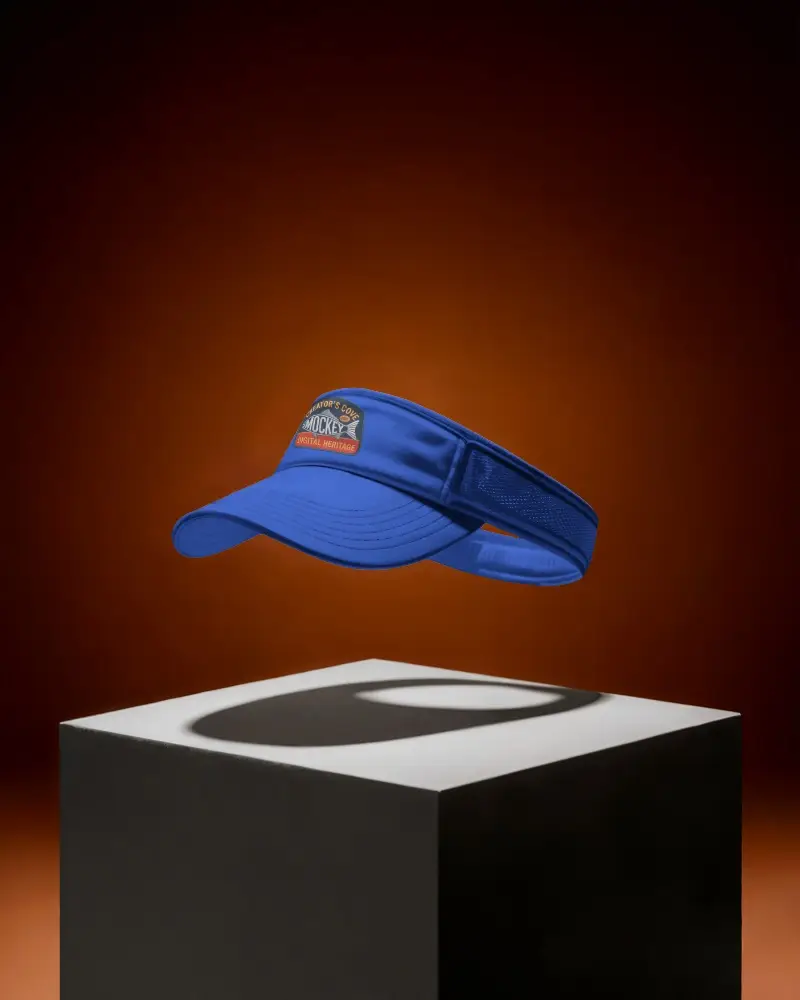
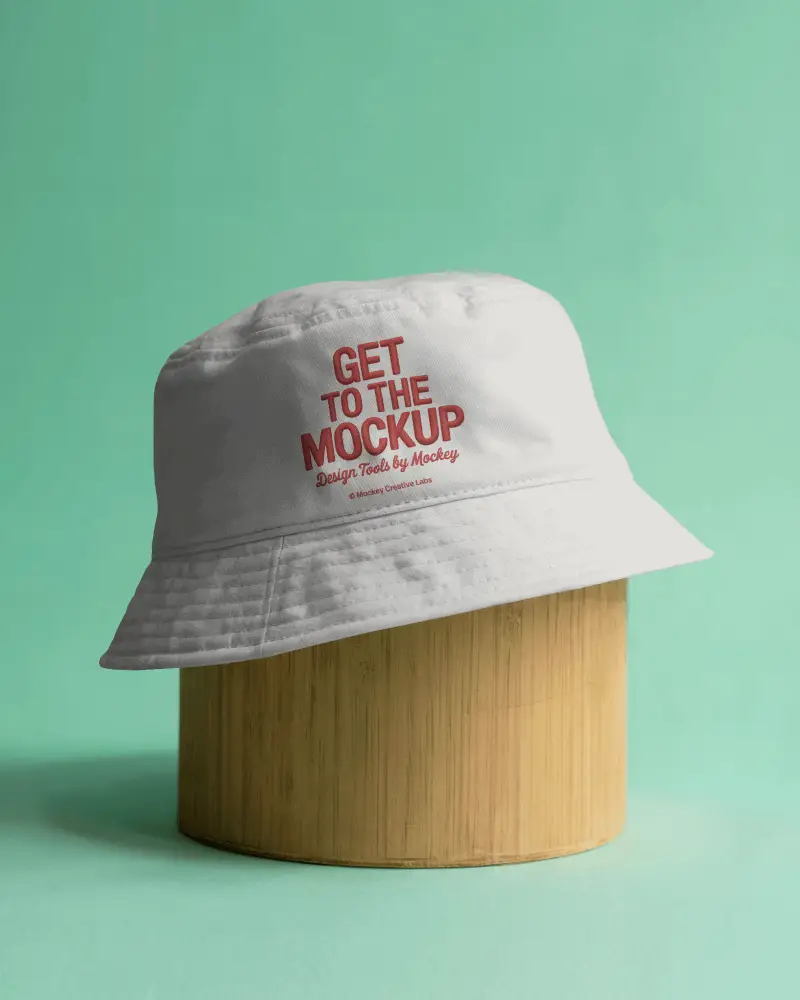

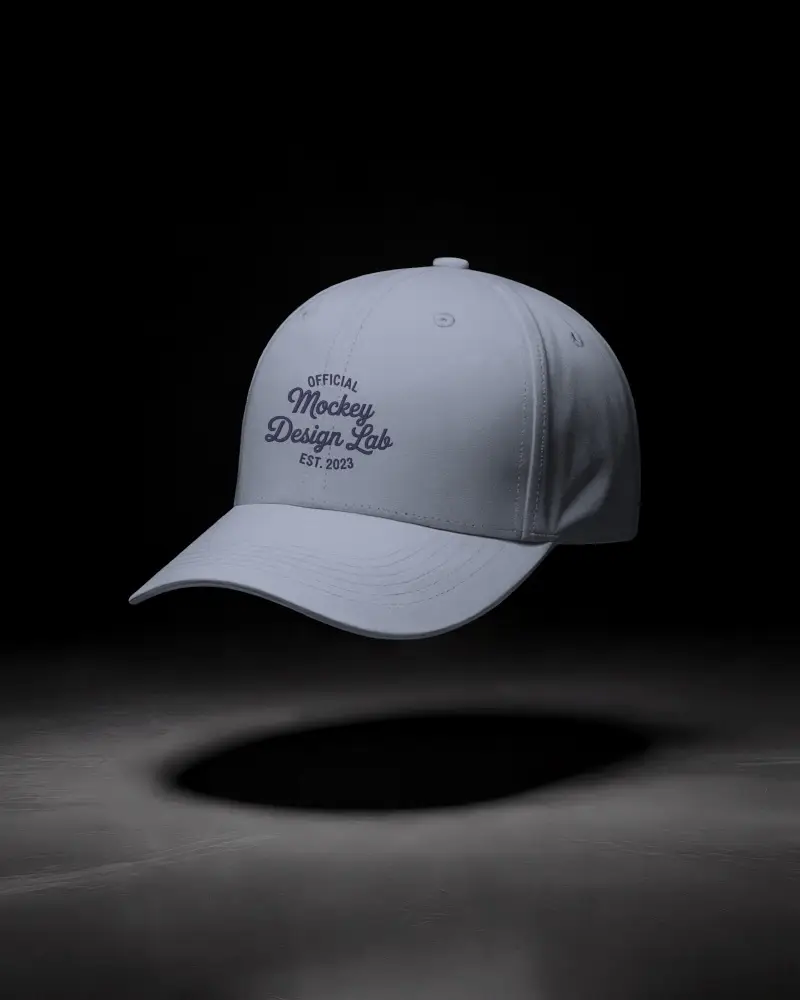
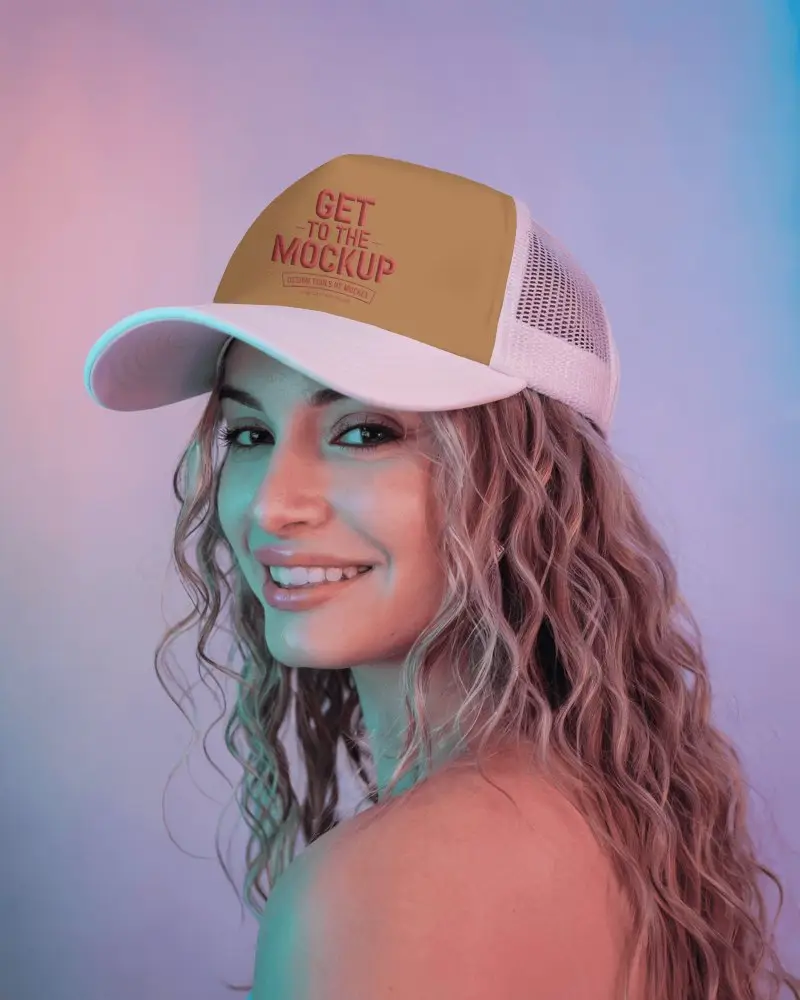
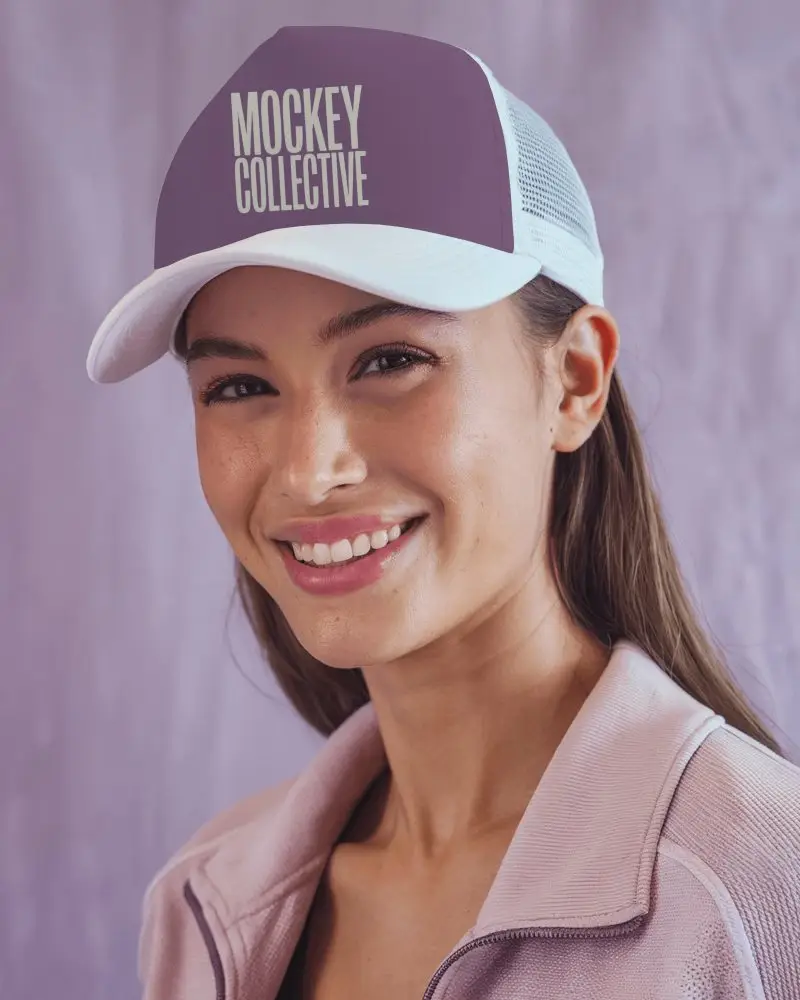

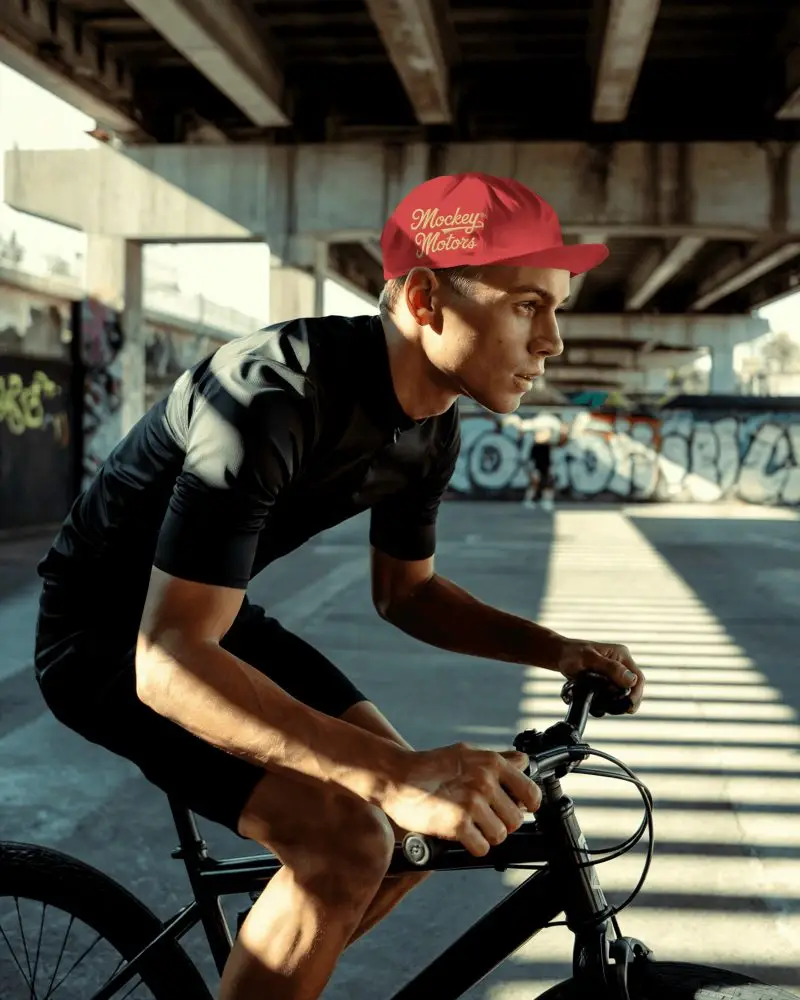
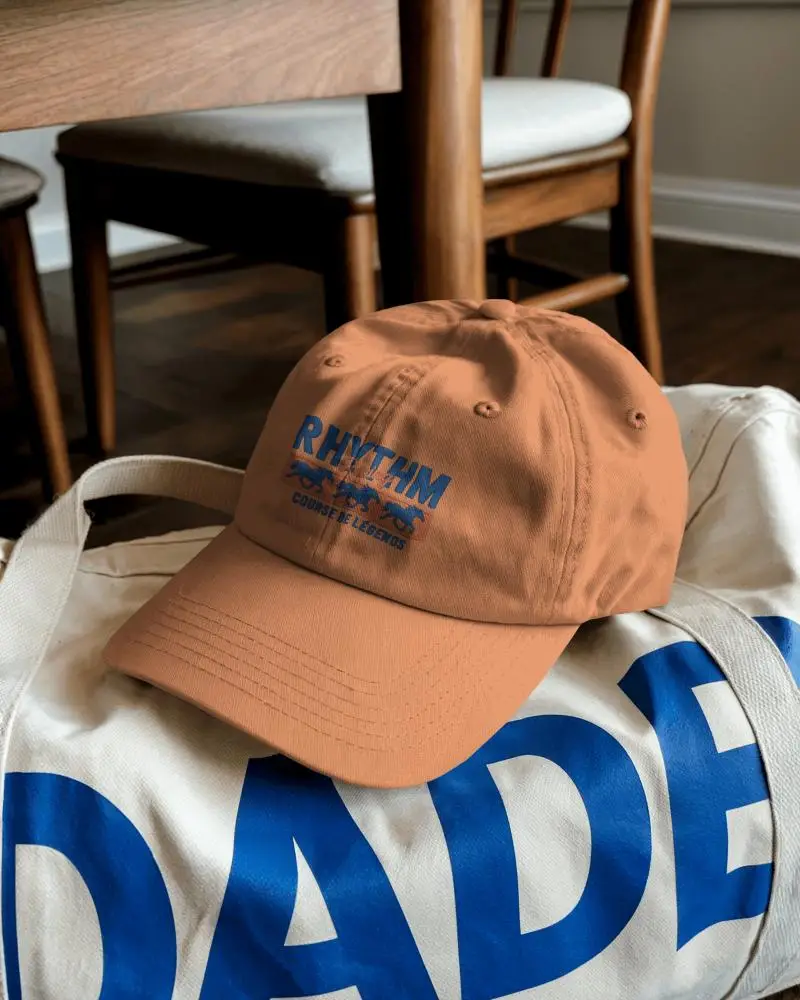


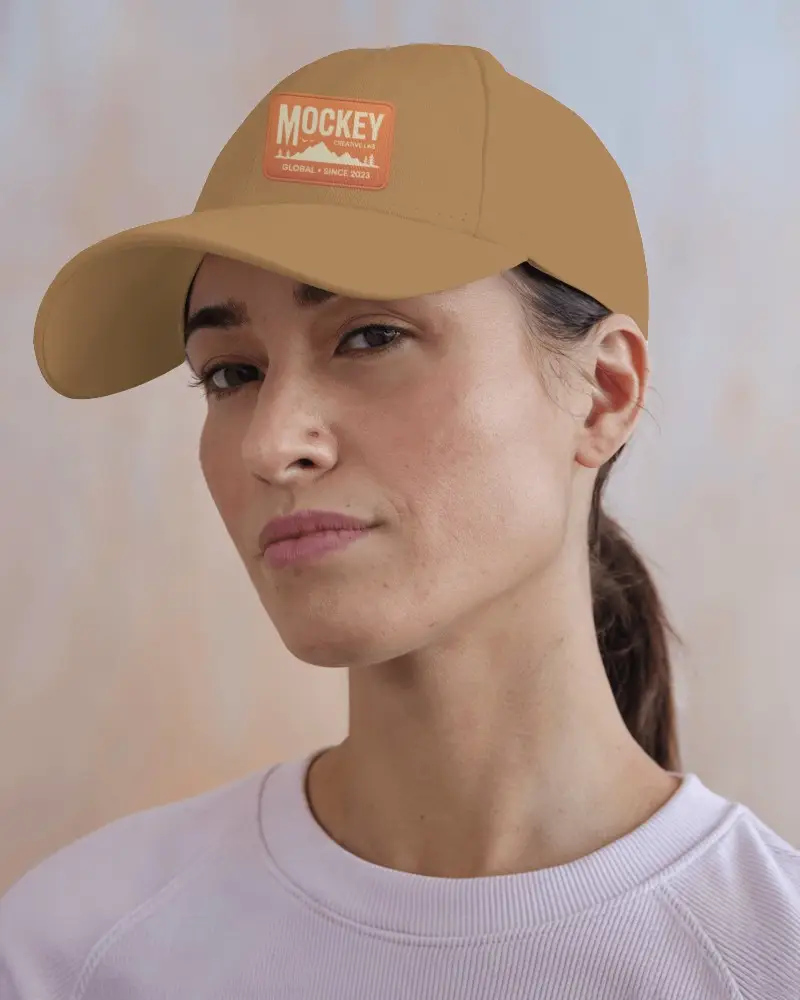
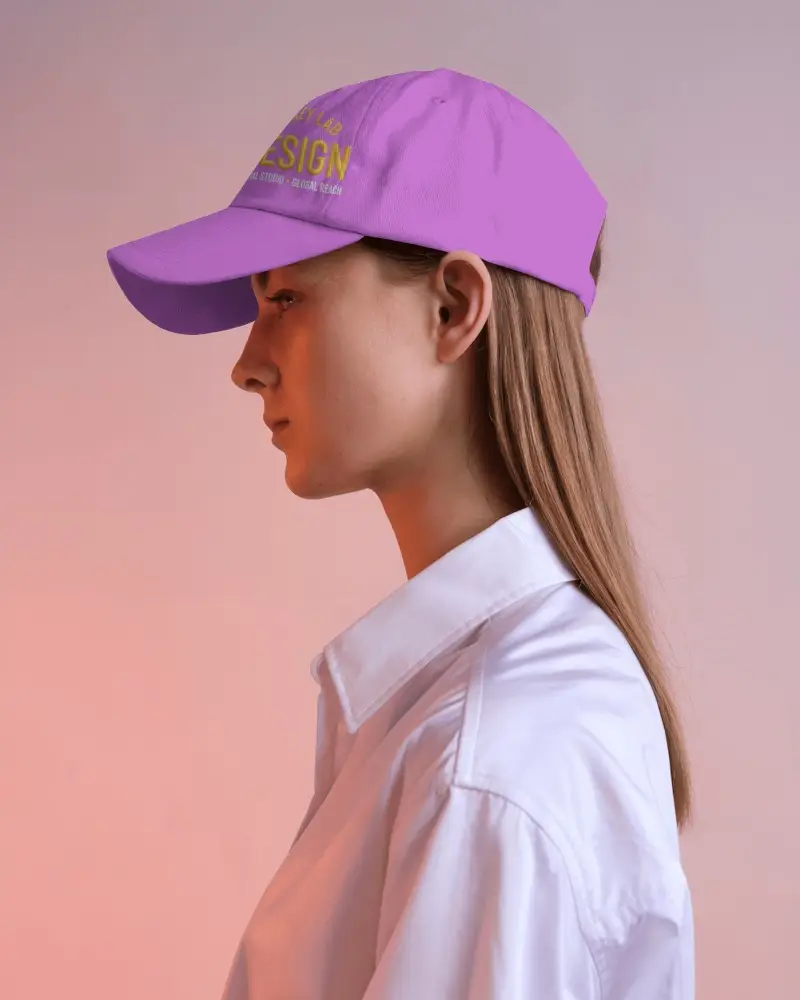
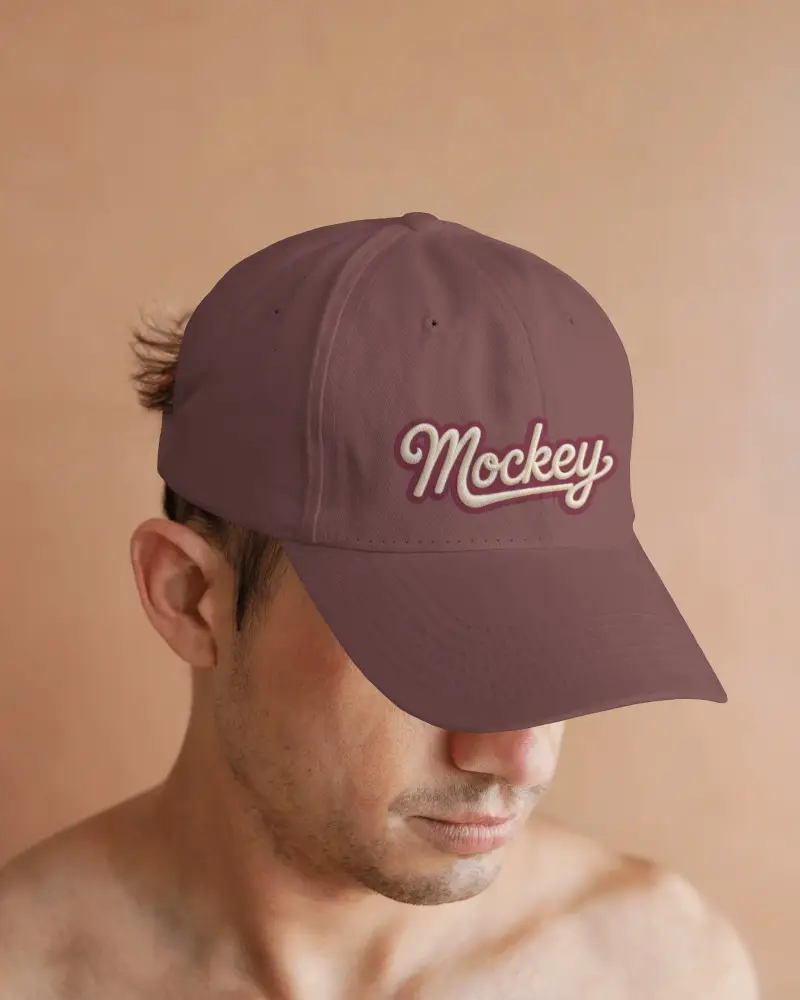

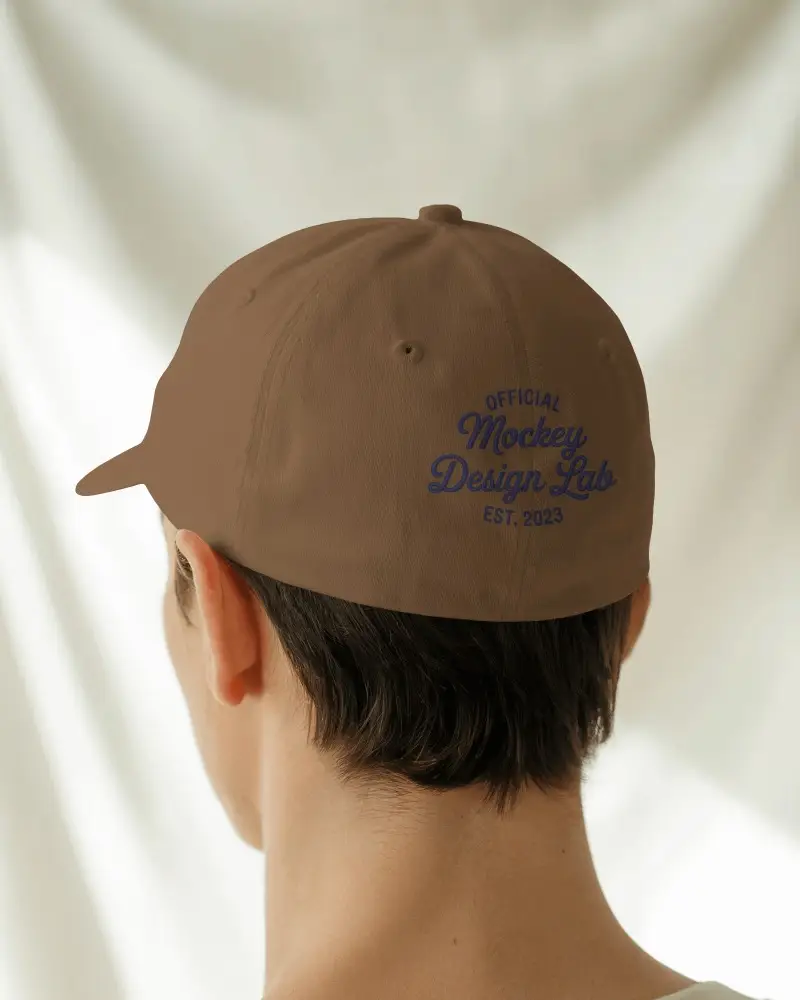
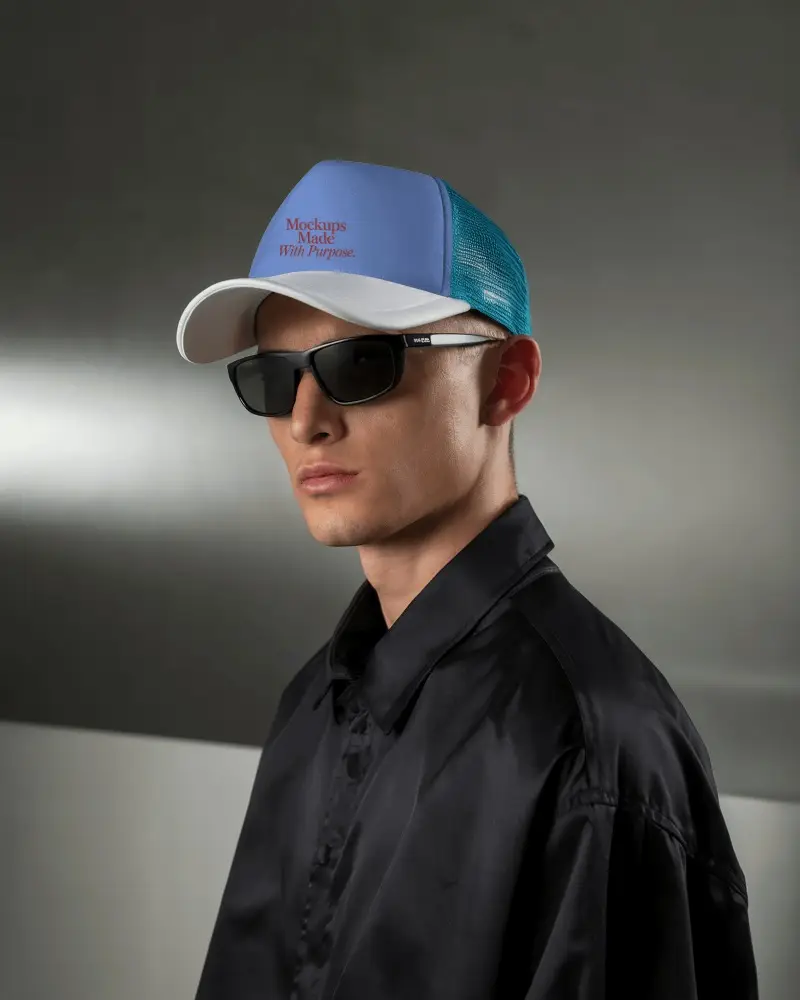



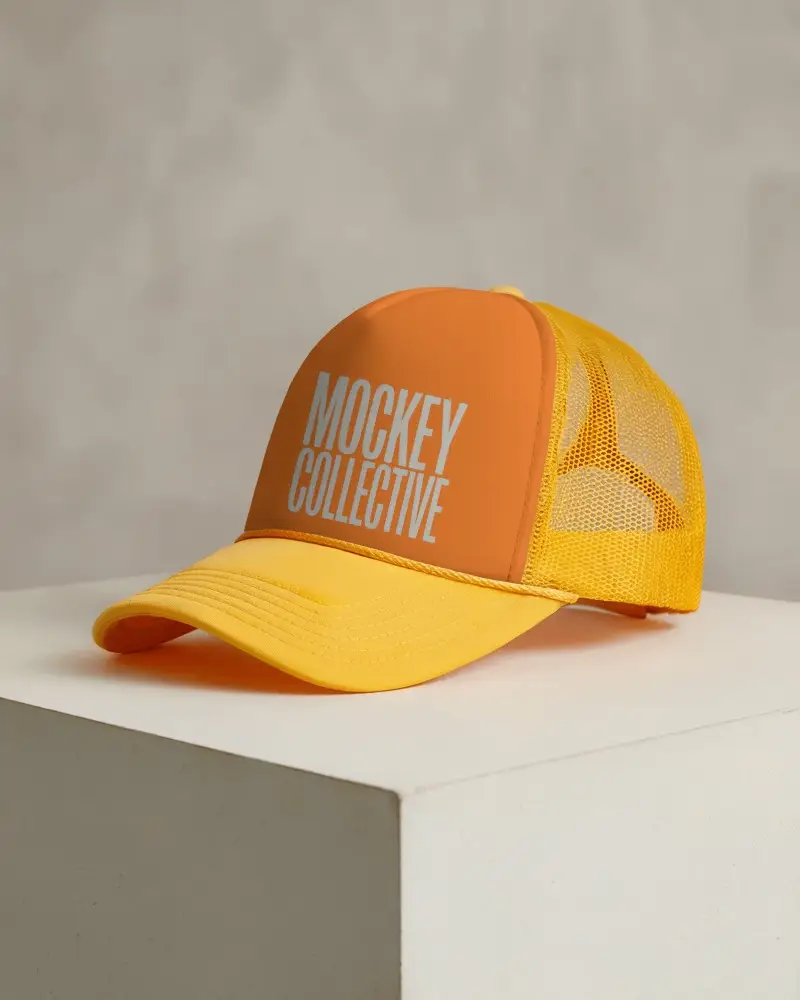
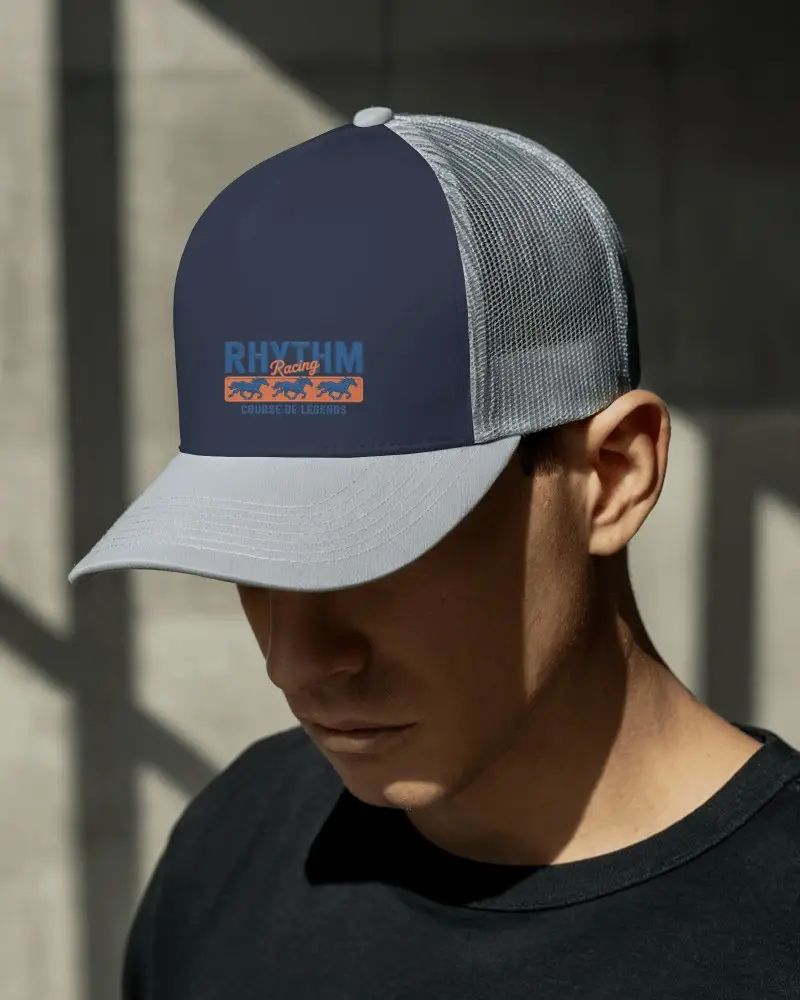



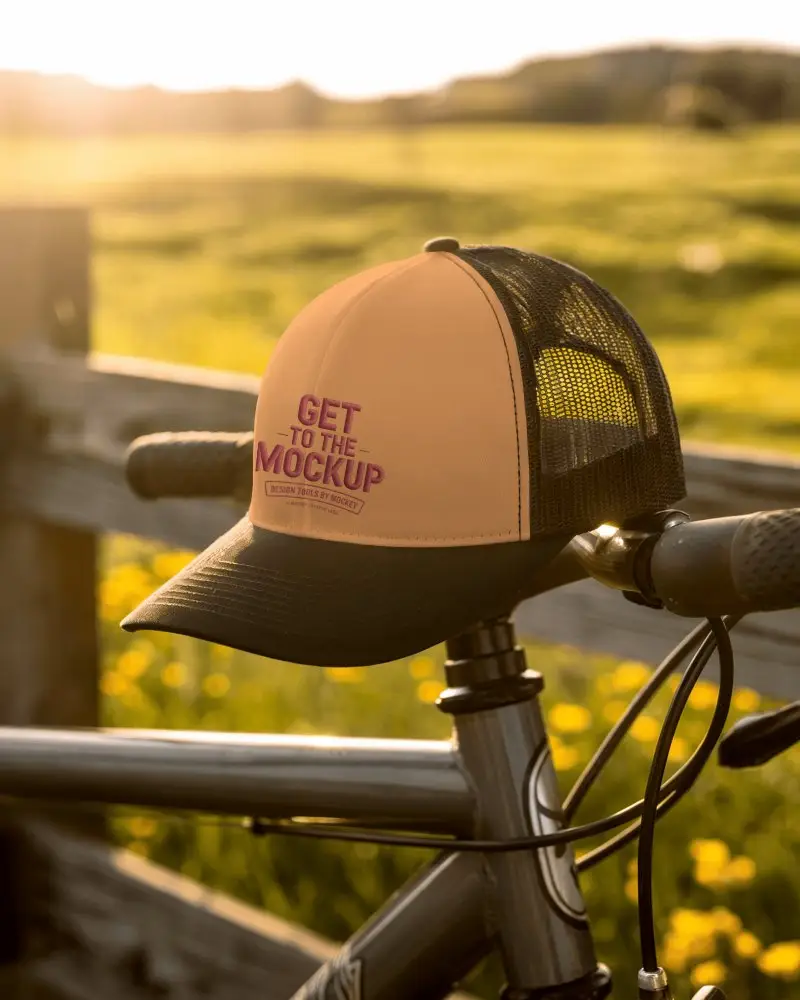
How to Create a Fitted Cap Mockup with Mockey
Follow these easy steps to create a fitted cap mockup using Mockey AI
- Step 1: Go to Mockups > Accessories > Cap > fitted-cap tag in the menu.
- Step 2: Select a fitted cap template from the gallery.
- Step 3: Click 'Upload Design' to add your artwork or logo.
- Step 4: Customize the color, adjust size/position of your design.
- Step 5: Download the fitted cap mockup in PNG or JPEG format.

FAQs on Fitted Cap Mockups
What is a Fitted Cap Mockup?
A fitted cap mockup is a picture made on a computer to show how a cap design will look on a fitted cap.
How can I create a fitted cap mockup?
Open Mockey AI, tap on Mockups, then Accessories, then Cap. Pick the fitted tag. Upload your logo, change colors if you like, and then press Download to get your fitted cap in PNG or JPEG.
Can I customize the cap color and design?
Yes, you can pick a new color and move your design or logo around. You can make it bigger, smaller, or turn it any way you like inside the fitted cap template.
Can I download my fitted cap mockup in high resolution?
Click the Download button to save your fitted cap mockup. You can choose a 1600x2000 pixel or 800x1000 pixel size. It will be saved as a photo file like PNG or JPEG on your device.
Is it free to create a fitted cap mockup?
Use Mockey AI to make free fitted cap mockups. Pick from over 100 styles and change colors, designs, and more.
Where can I use my fitted cap mockup?
Mockey AI helps you make fitted cap mockups that look real and nice. You can pick from many styles, change colors, add your design, and download them free with no watermarks.