How to Remove Background With AI Online (2026)
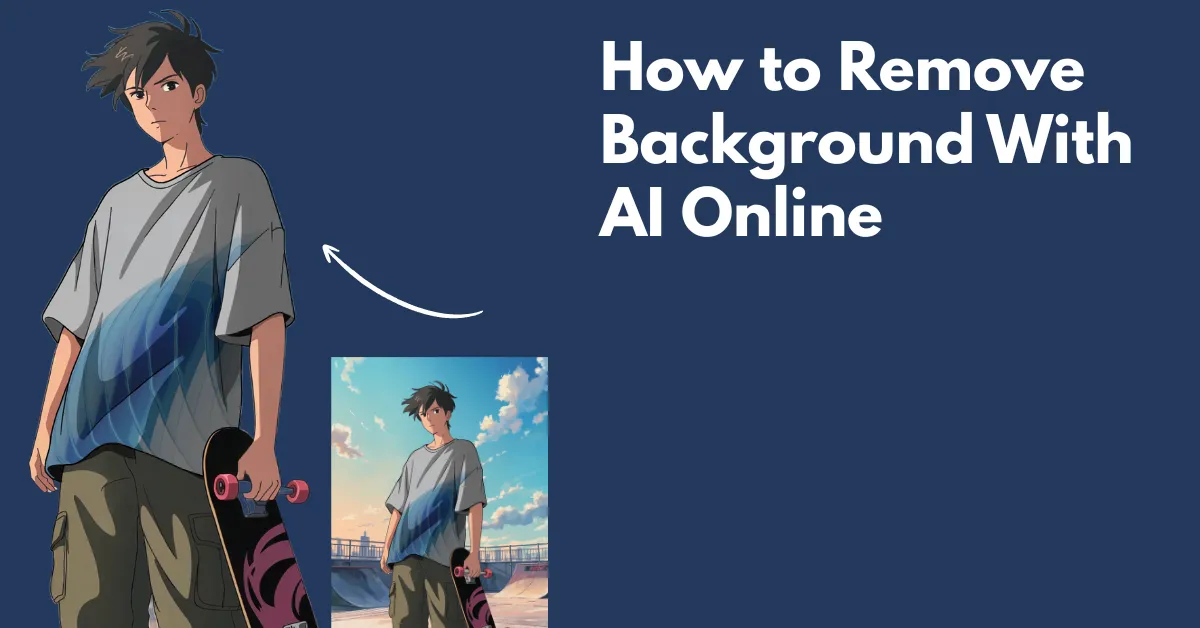
How to remove background with AI? Use Mockey.ai’s AI Image Background Remover to upload an image, select the type and click Remove Background to erase it.
Traditional background removal was a slow, manual process. Designers had to zoom in, mask hair, refine edges, and repeat steps, often spending 20–40 minutes on a single image. An AI background removal tool has changed this. Today, the same task can be completed automatically in about 10 seconds with accurate results.
So instead of marketing fluff or tool lists, this post breaks down how to remove background with AI and what people genuinely think after using it in real projects.

Table of Contents
What Does Remove Background With AI Mean?
Some people hear “AI” and think text-to-image, generative fill, fake photos, and deepfakes. But background removal is not that.
Remove Background with AI means a machine-learning model trained on millions of images to identify the main subject and separate it from the background. The model analyzes edges, shapes, and contrast to detect what should remain. It then removes the background and exports the result as a transparent PNG or cut-out. The model does not create new pixels; it only detects and separates existing ones.
Why Is AI Background Removal So Big All of a Sudden?
AI background removal didn’t get popular by accident. It improved rapidly because of the demand for faster content workflows in e-commerce, social media, and digital marketing.
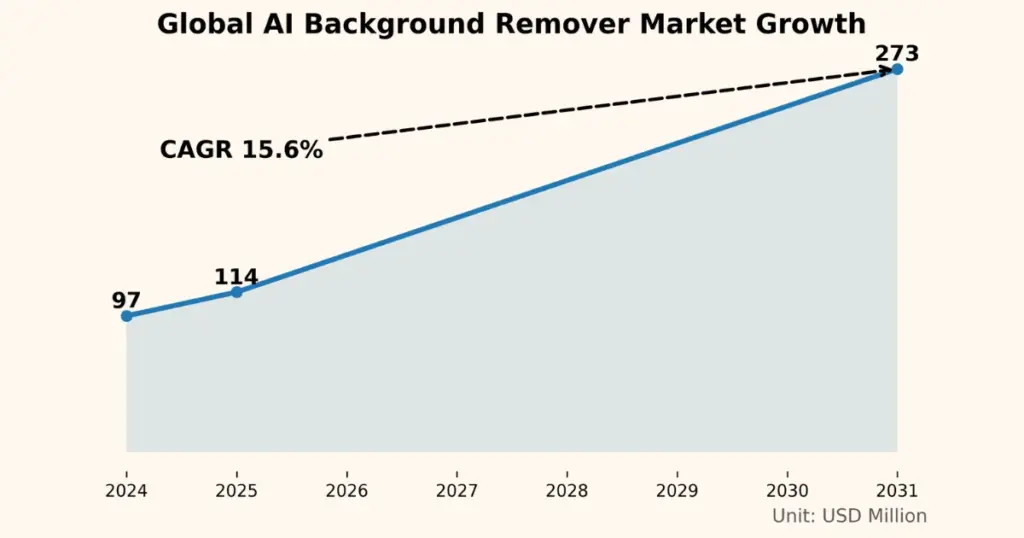
That growth shows up in the numbers, too. The global AI background remover market is on a strong growth path. It is expected to reach USD 273 million by 2031, expanding at a steady annual rate of 15.6% during the forecast period.
How to Remove Background with AI Step-by-step
For this, we’ll use one of the best AI background removers, Mockey.ai’s Remove Background tool. Follow these steps on how to use AI to remove background:
Step 1: Open Mockey.ai’s Remove Background tool
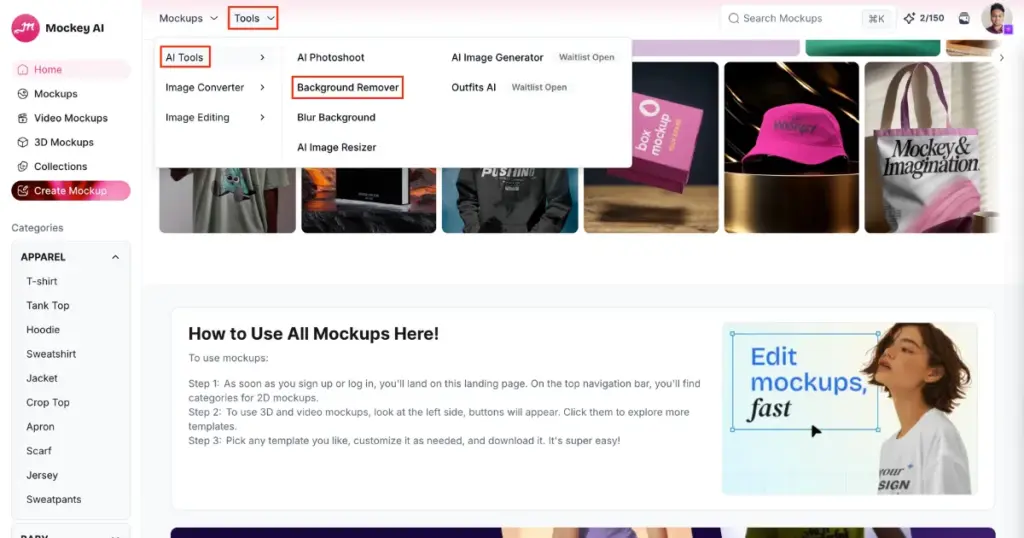
Visit Mockey.ai and create your account by tapping the “Login/Sign up” button. After this, you will land on a page where you need to click on “Tools” in the navigation bar. Once you click it, follow AI Tools > Background Remover.
Now upload or drag and drop the image file to get started. The tool works with PNG and JPEG formats.
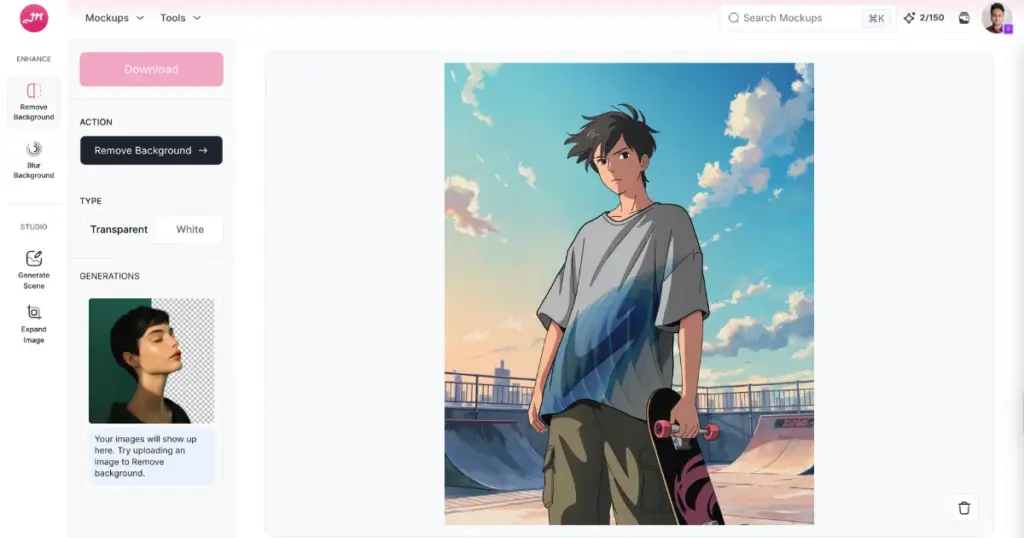
Keep in mind that a high-resolution image with well-defined edges helps the AI read details more accurately and deliver an accurate output.
We used an anime image that was created using this platform’s anime T-shirt mockups. If you want, you can also create it with the help of T-shirt mockups.
Step 2: Select Type and click the Action Button
Now you need to select the type. This means choosing whether you want a white background or a transparent one.
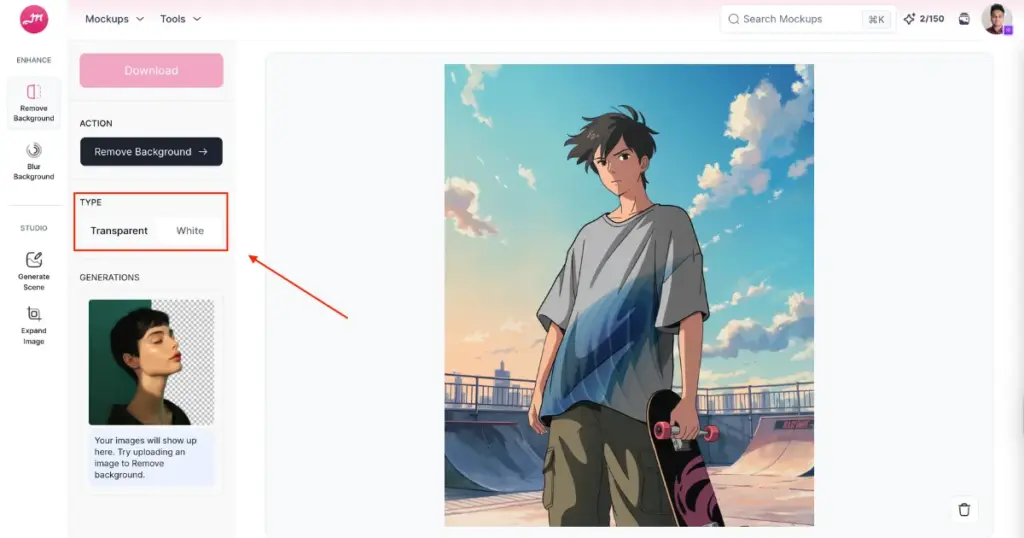
We’ve selected the transparent option here.
Next, go to the Action section and click on Remove Background.
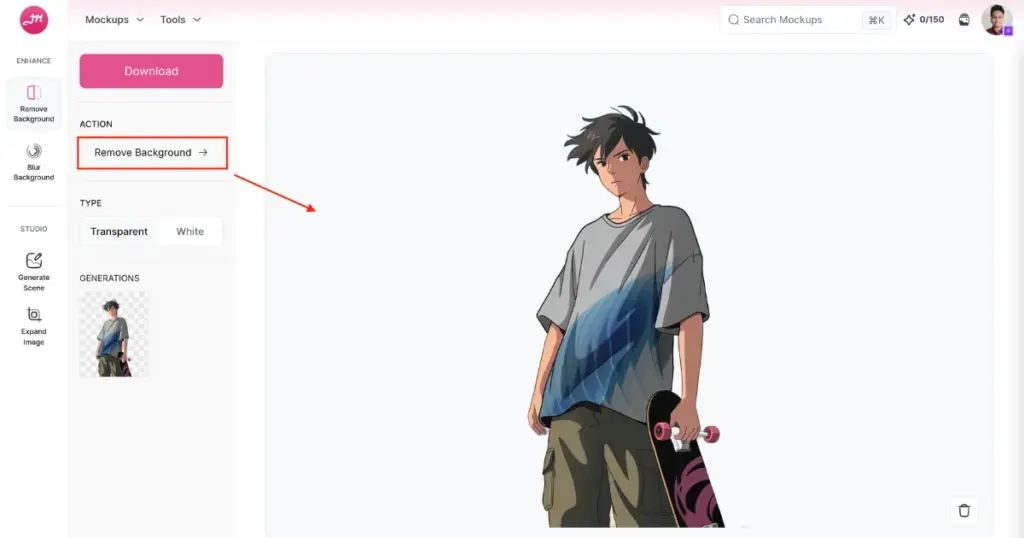
Step 3: Click Download to Save in PNG
Now just click the Download button, and you’ll get the image in PNG format.
As you can see, the result is generated within seconds. People often complain that AI tools struggle with hair or shadows, but look at the output here. It delivers a very impressive result.
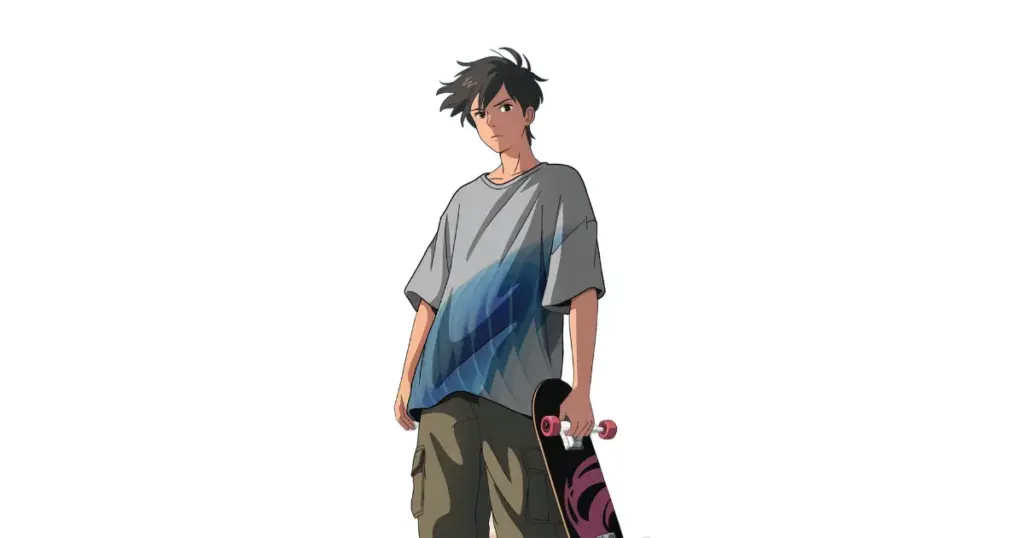
Traditional background removal in Illustrator often means tracing edges by hand, which takes time and patience. AI speeds this up by spotting patterns such as hair, skin, and product outlines on its own.
Difference Between Background Removal and Generative Fill
What is the difference between background removal and generative filling?
| Background Removal | Generative Fill |
| Removes pixels | Creates new pixels |
| Keeps original subject | Fills gaps |
| Non-creative | Creative but risky |
| Accuracy-focused | Can hallucinate details |
Conclusion
Now you understand how to remove background with AI. Using AI background removal isn’t about replacing designers; it’s about eliminating friction and killing repetitive work.
Use Mockey.ai’s Remove Background and turn the background to a white or transparent background according to your choice.
FAQs
Why was Background Removal so bad in the past?
Before AI, background removal was a manual process. Designers relied on tools like the Pen or Lasso Tool, Refine Edge, and Mask Brush. Old tools relied on edge detection, contrast differences, and manual cleanup. It worked 60–70% of the time if you were skilled.
What changed with AI Background Removal?
AI models don’t just look for edges; they understand objects. They’ve learned what humans and their hair look like, where shadows usually belong, and how foreground differs from background semantically. That’s why AI can cut out hair strands, handle fuzzy edges, and detect subjects even on messy backgrounds.
Why do people use an AI background remover?
People use an AI background remover for e-commerce, YouTube thumbnails, mockups, and marketing.
How does AI Background Removal actually work?
You upload an image, and the image is resized. The AI model predicts a segmentation mask. The mask is applied, and you get an output as a transparent PNG.
Can I still use Photoshop to remove the background?
Despite all the AI hype, nobody serious has ditched Photoshop. Most users report that AI tools remove around 80–90% of the background automatically, with Photoshop used only for final touch-ups. However, it’s still used for edge cleanup, shadows, and color fixes. The way to remove background in Photoshop is to refine what AI starts, not to replace it.

Sangram Sahoo
I’m a content writer with 4 years of experience. I specialize in creating practical content around mockups, print-on-demand, apparel, and e-commerce design.