Free 3D Spray Bottle Mockup Online
Create realistic 3D spray bottle mockups online. Showcase your product designs with stunning templates powered by Mockey AI’s smart mockup generator.
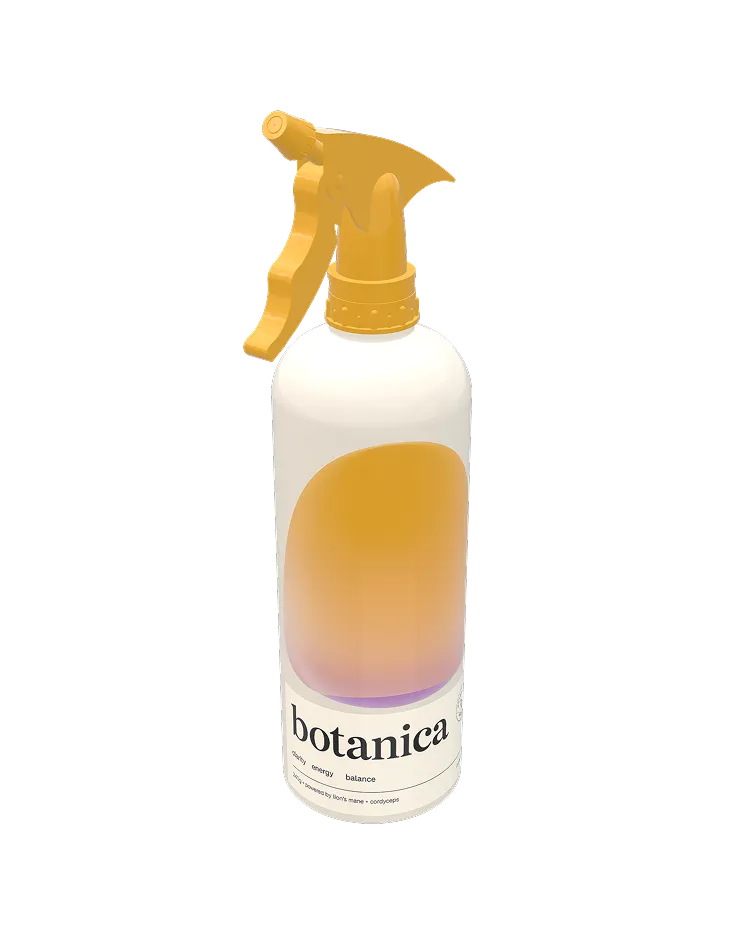
How to Create a 3D Spray Bottle Mockup with Mockey
To create a 3d spray bottle mockup:
- Step 1: After signing in, select 3D Mockups on the left. Under “Categories,” select “Packaging” and choose “Spray.” Pick a template to start.
- Step 2: Add your image, change the label and cap color, and customize the background.
- Step 3: Choose a “Motion” to save the 3D spray bottle mockup in animation or download it in image format.
FAQs on 3D Spray Mockups
How can I create a 3D spray bottle mockup for free?
Follow 3D Mockups > Packaging > Spray, choose a template, and add an image. Make it animated or download it as an image. But in image format, you'll only get a JPG with a size of 500 × 281 pixels.
Can I customize the label and cap color in a 3D Spray Bottle Mockup?
Yes. Also, options to change the spray and nozzle caps as well. The color looks realistic on the spray bottle. To apply a single color to the entire spray bottle, you’ll need to go to the page where you upload the image.
What file formats can I download for a 3D Spray Bottle Mockup?
If you want to download the 3D spray bottle mockup with motion animation, it will be available in MP4 format. For image files, you’ll get PNG and JPG formats.