Free Bottle Mockups | Water, Plastic, & Glass Bottle Mockups
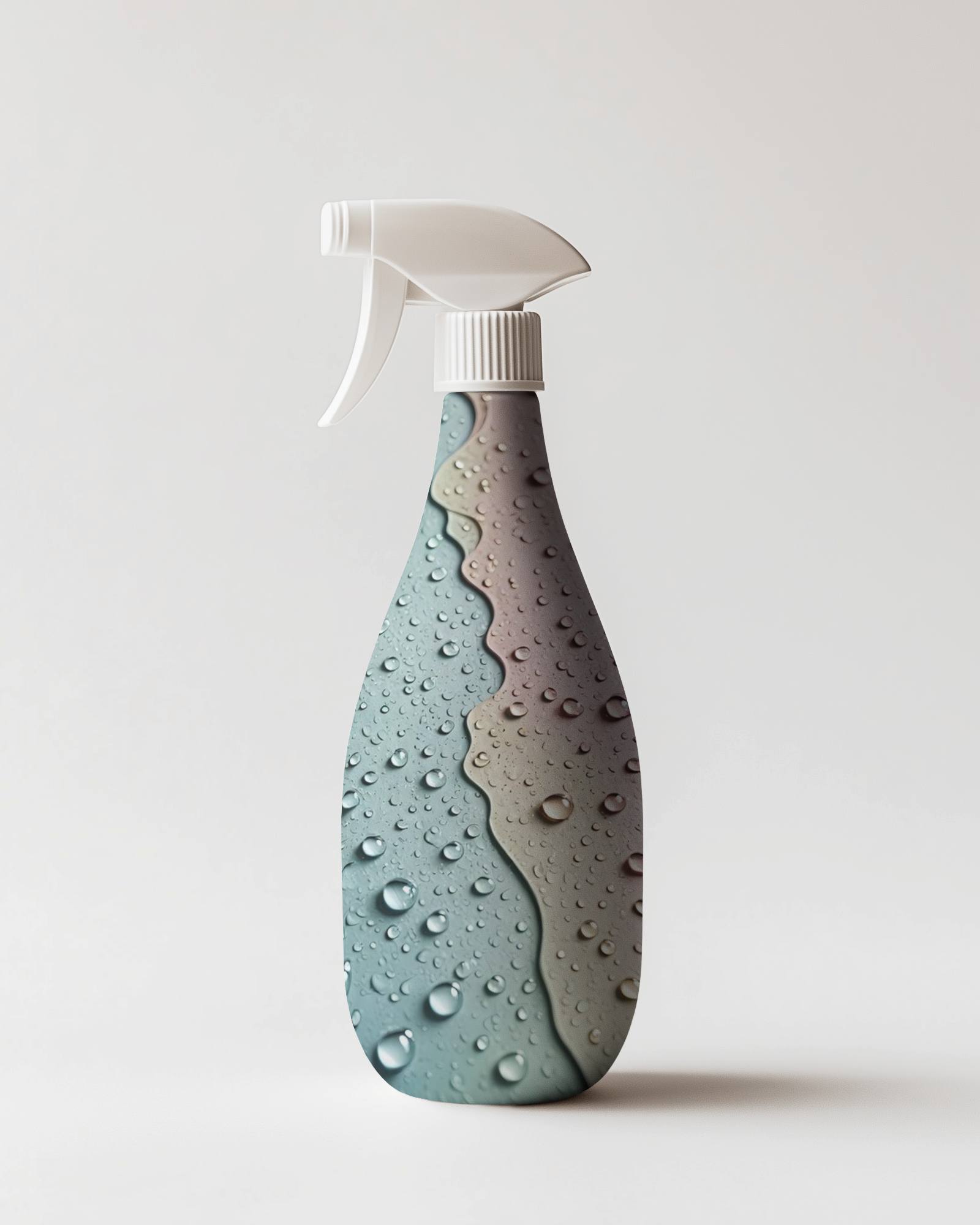
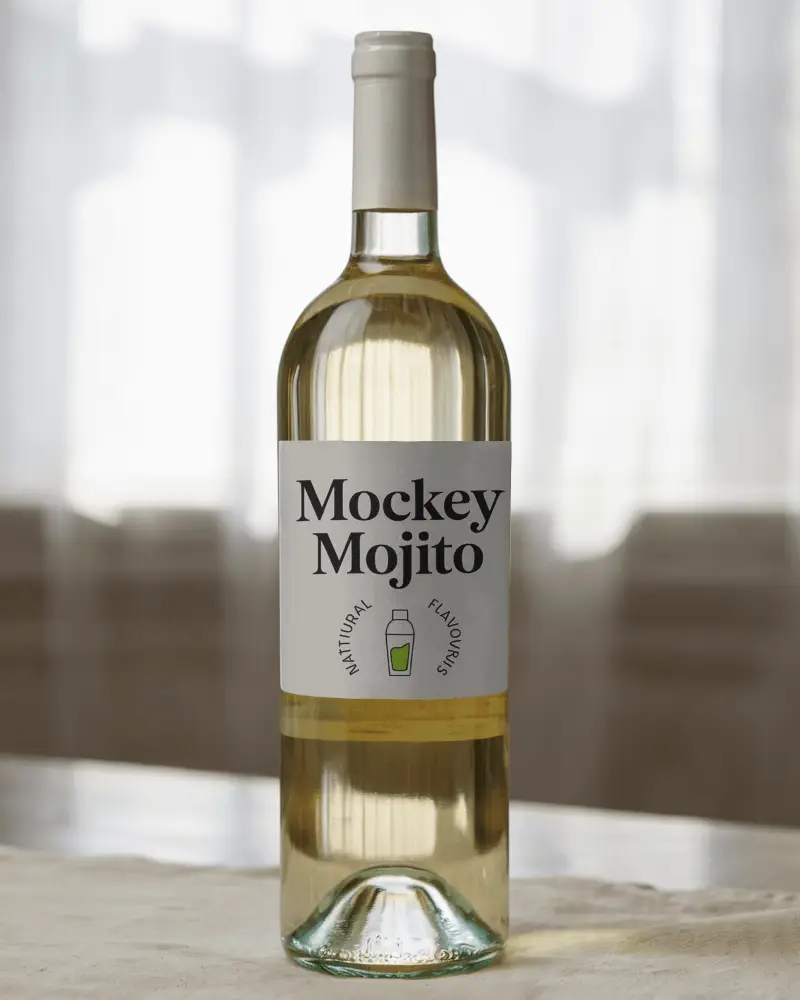
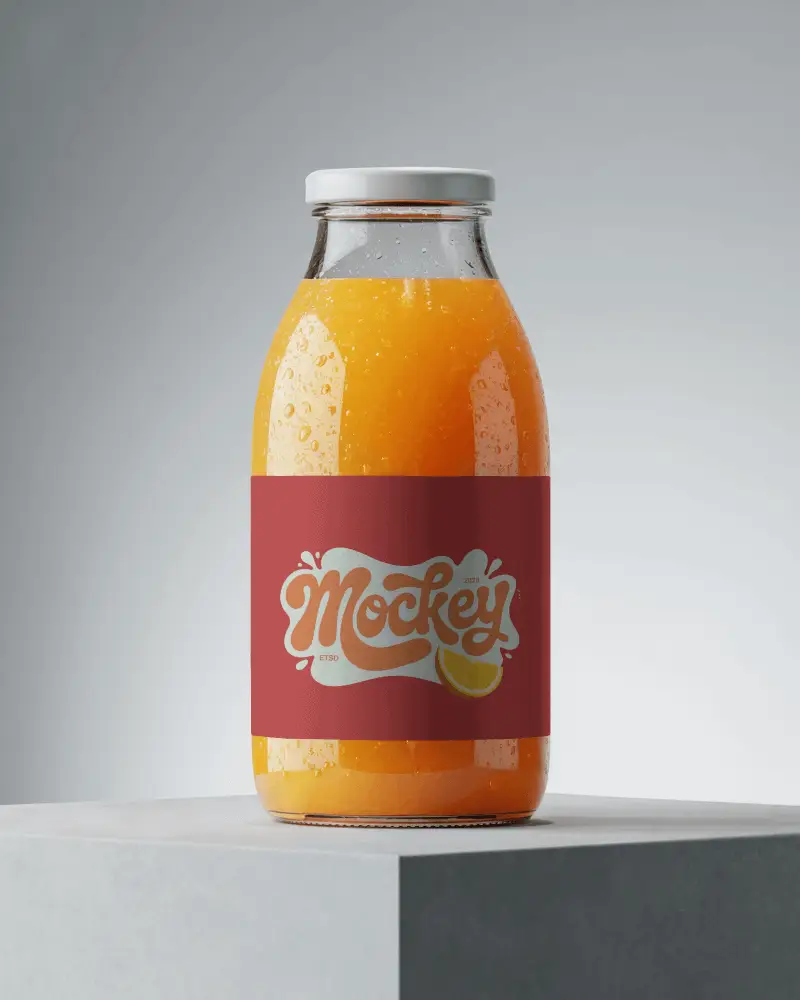
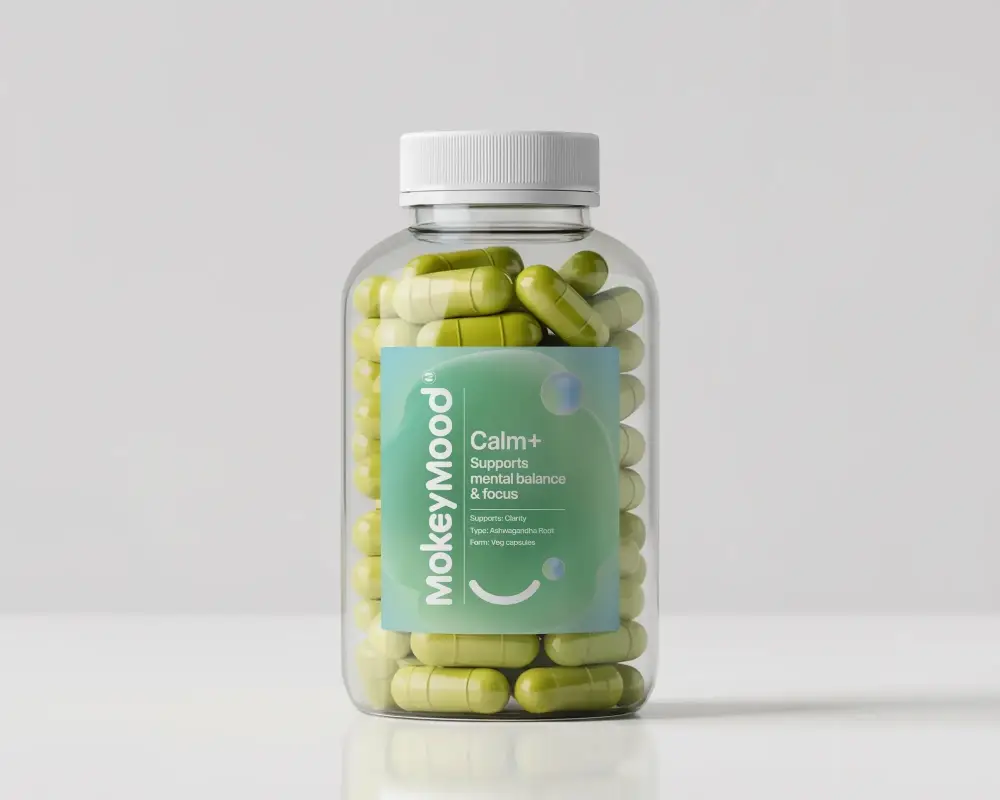
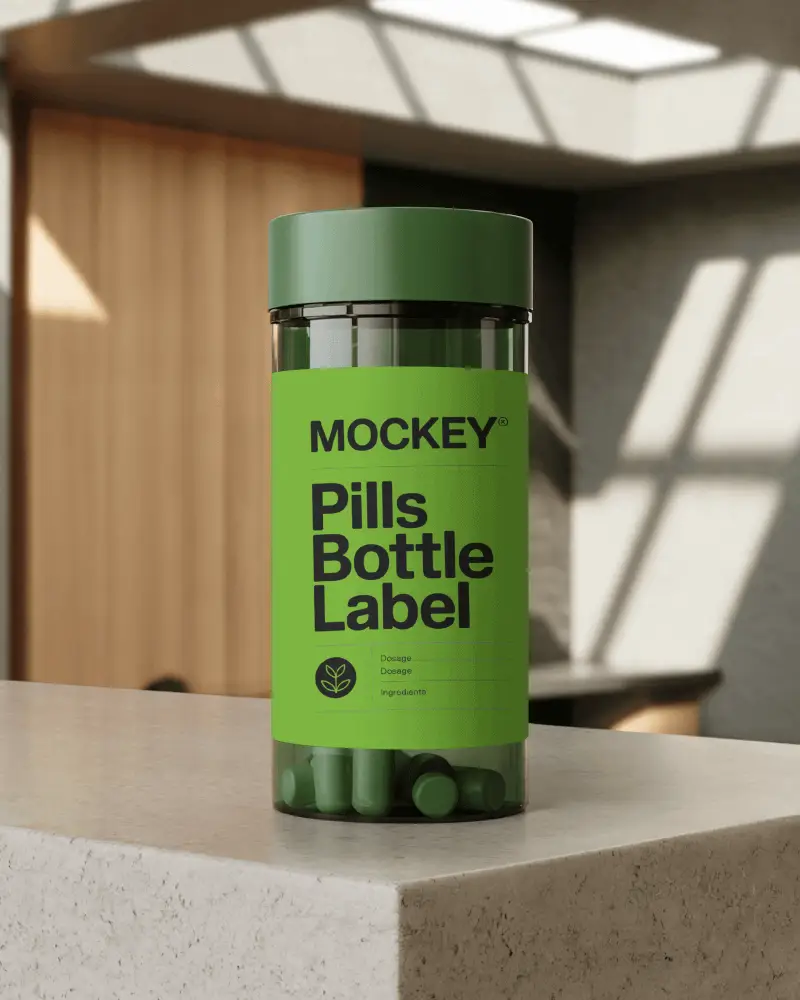
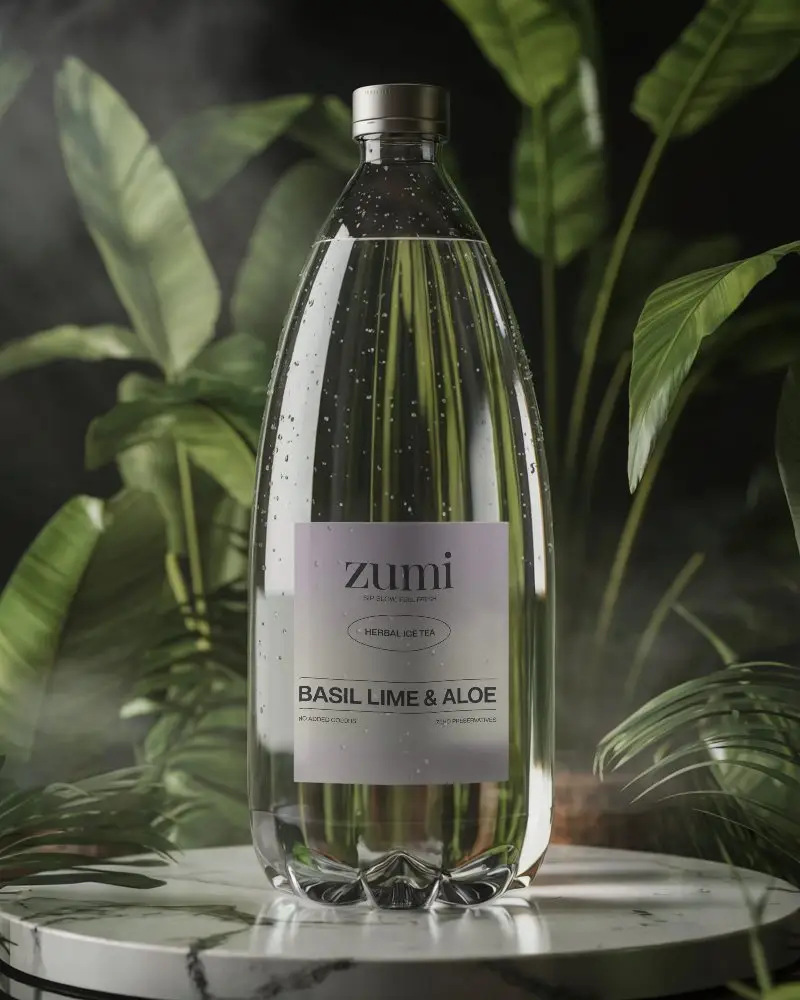
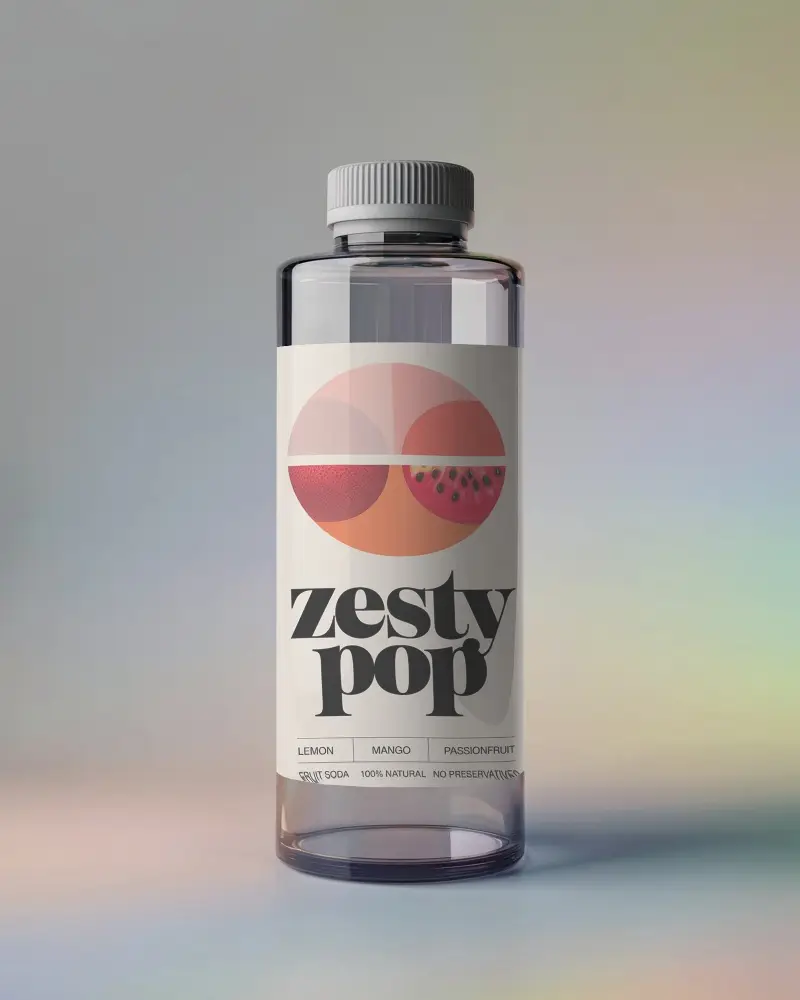
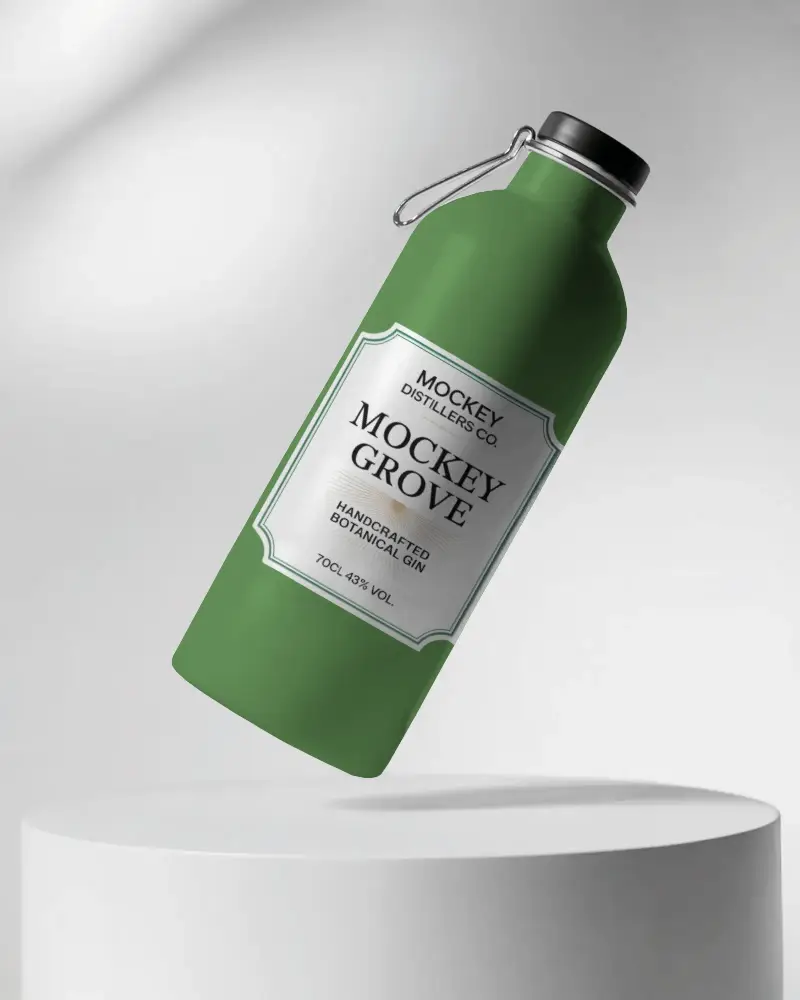
A bottle can make the same label look completely different. That's why this collection includes bottle mockup templates for glass, plastic, metal, beverage, and supplement packaging, so you can compare styles, fine tune your design, and choose the one that feels right before production.
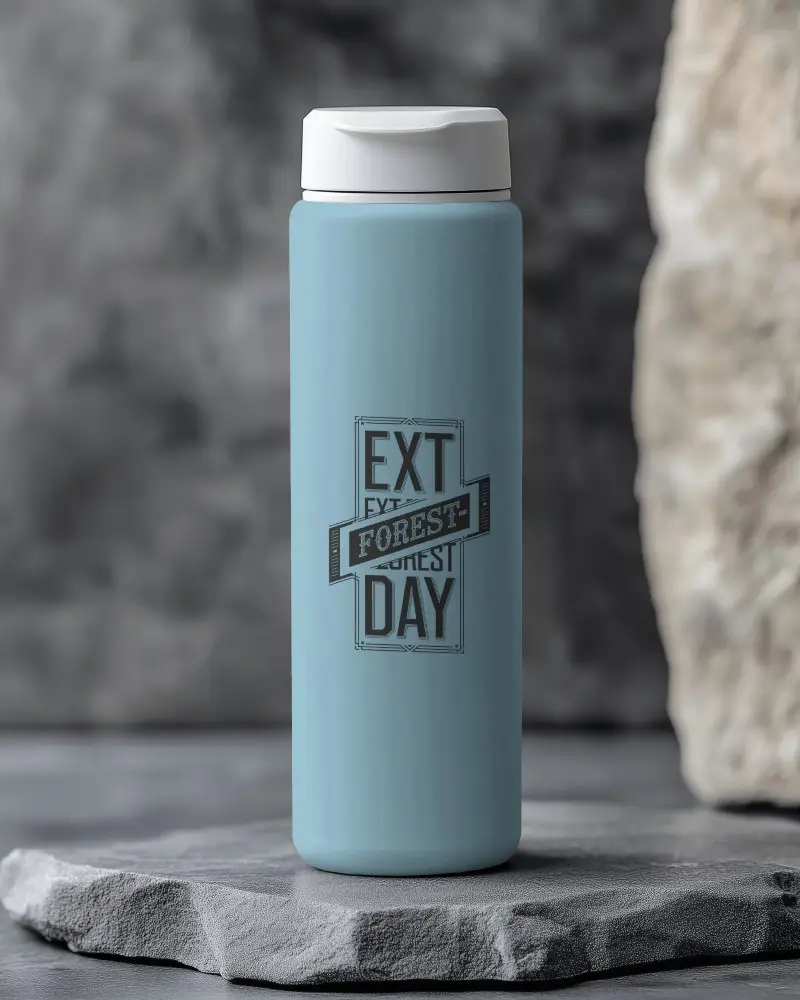
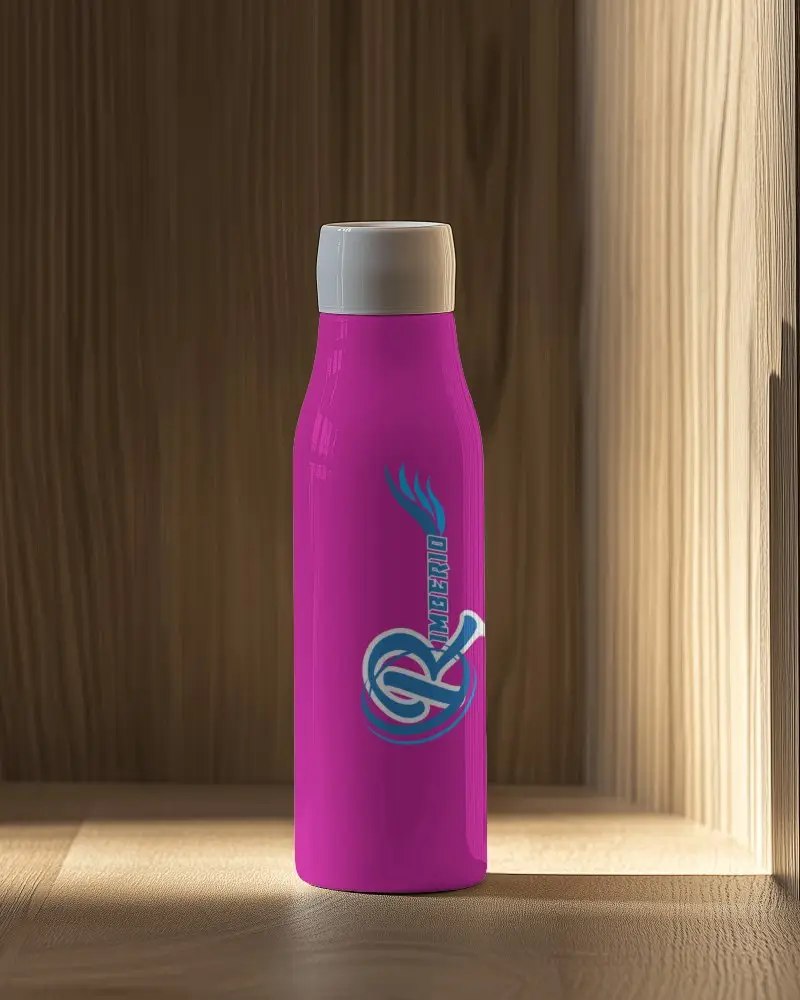
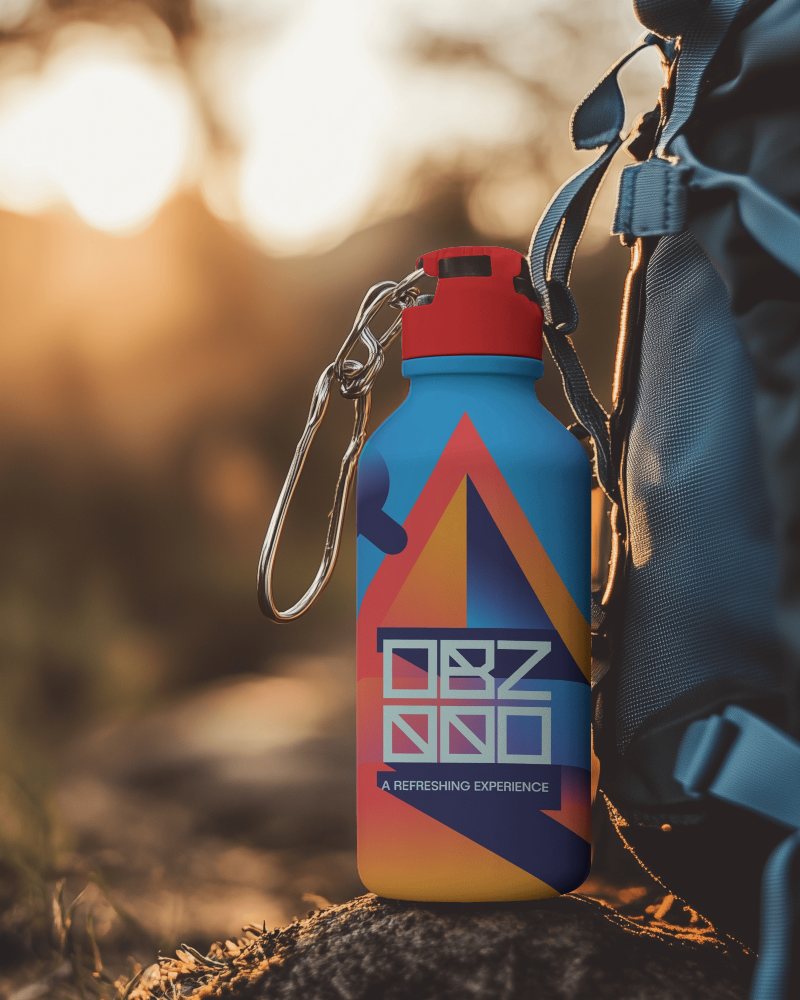
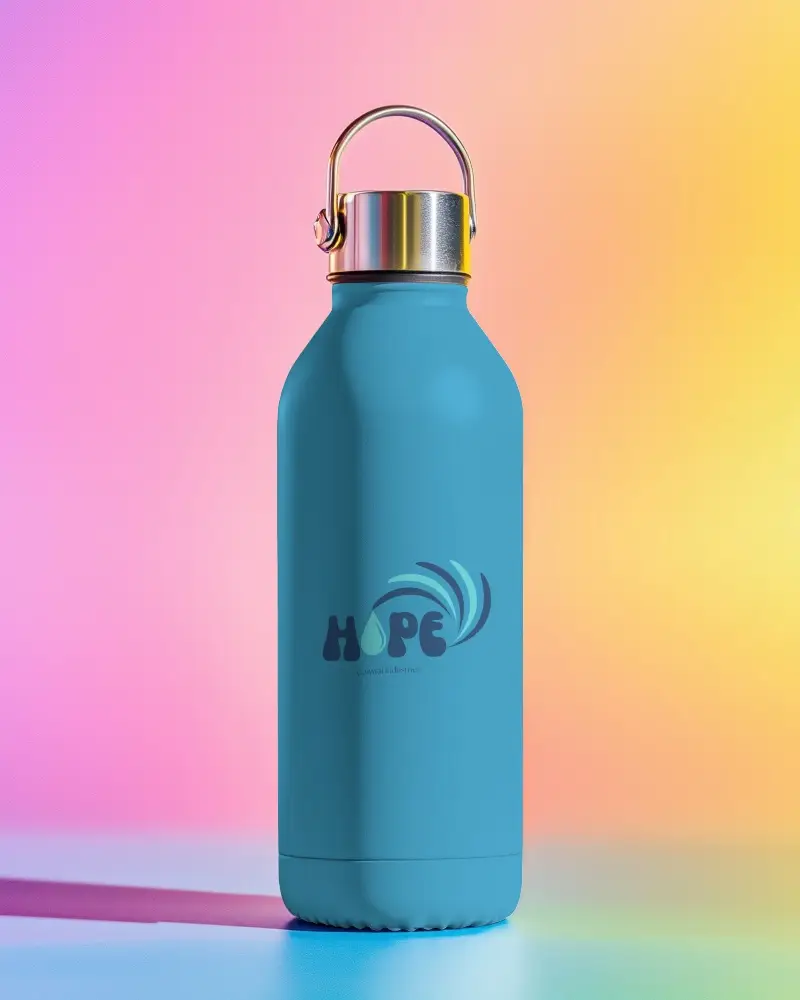
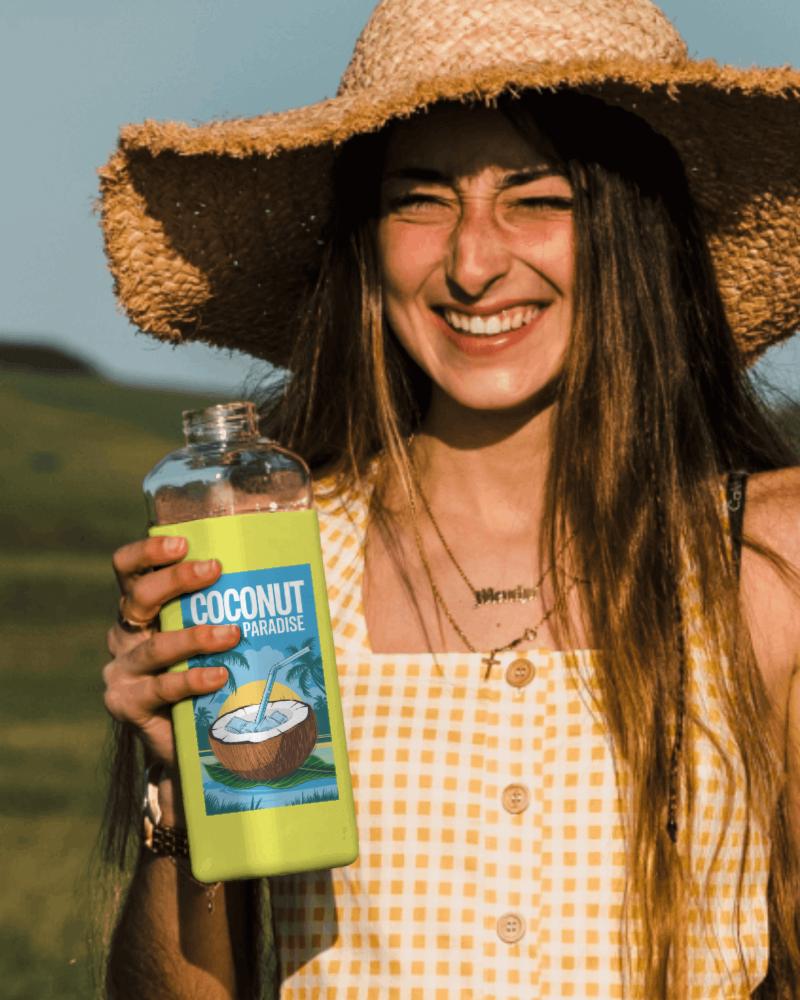
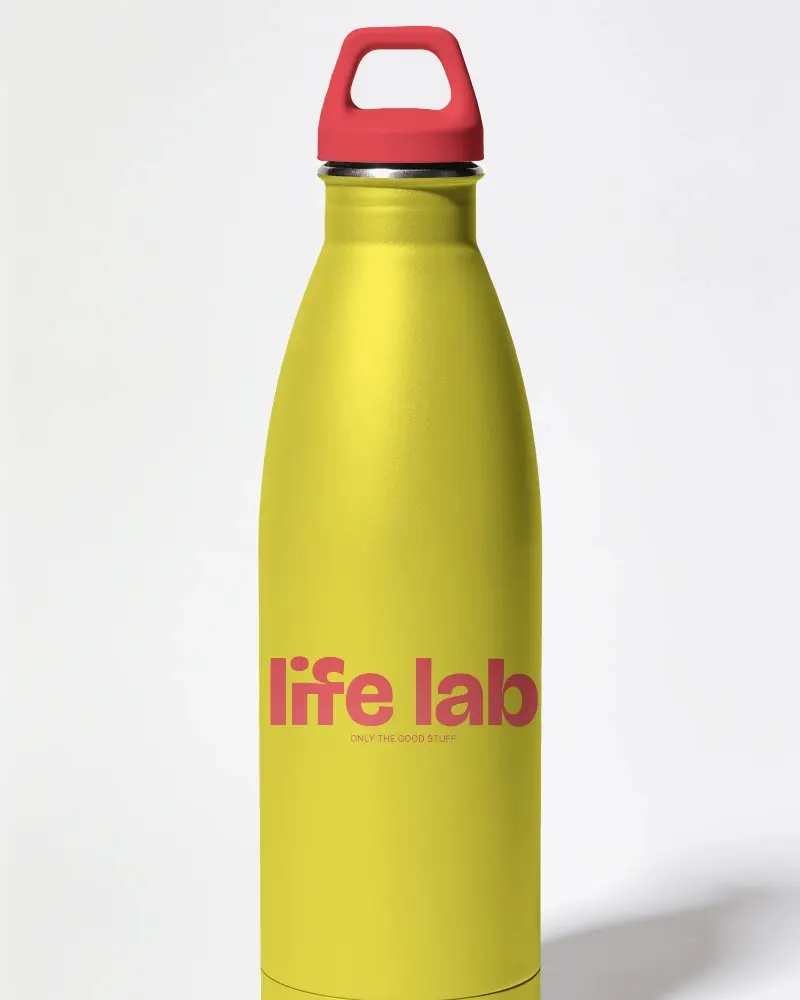
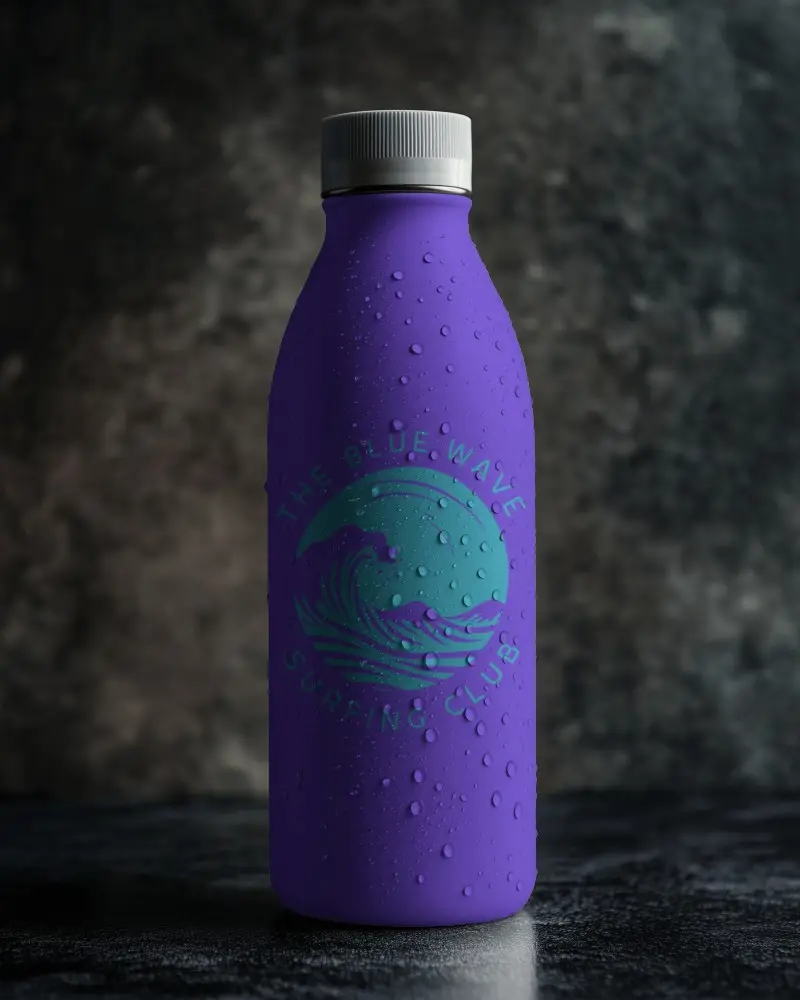
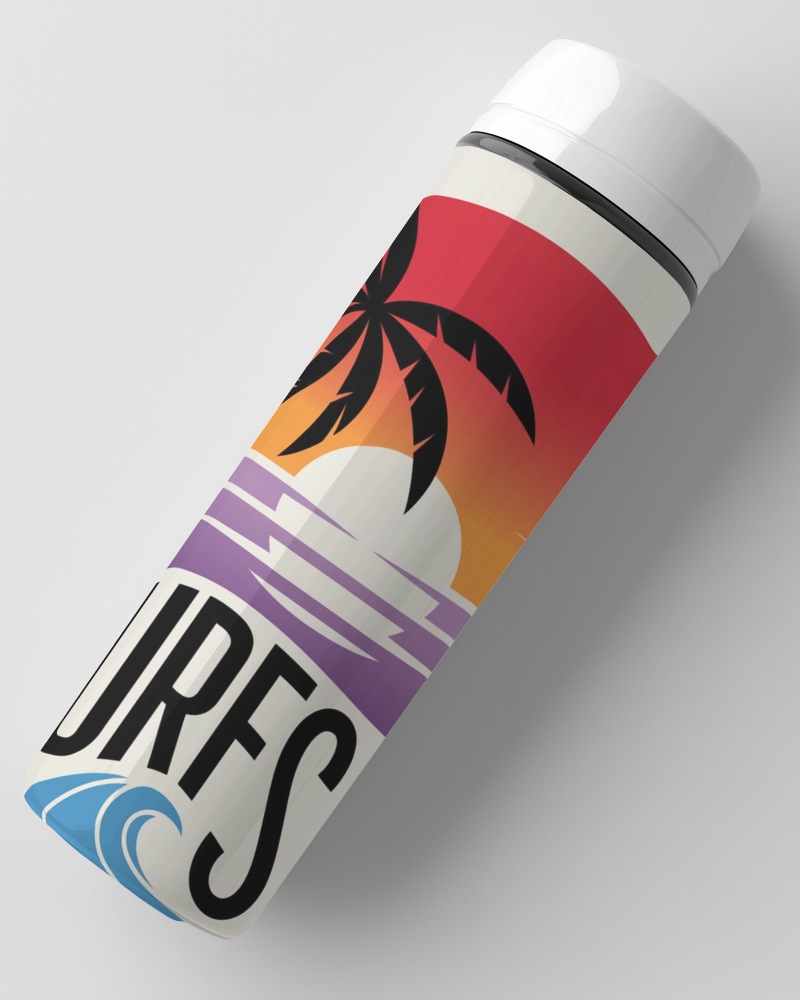
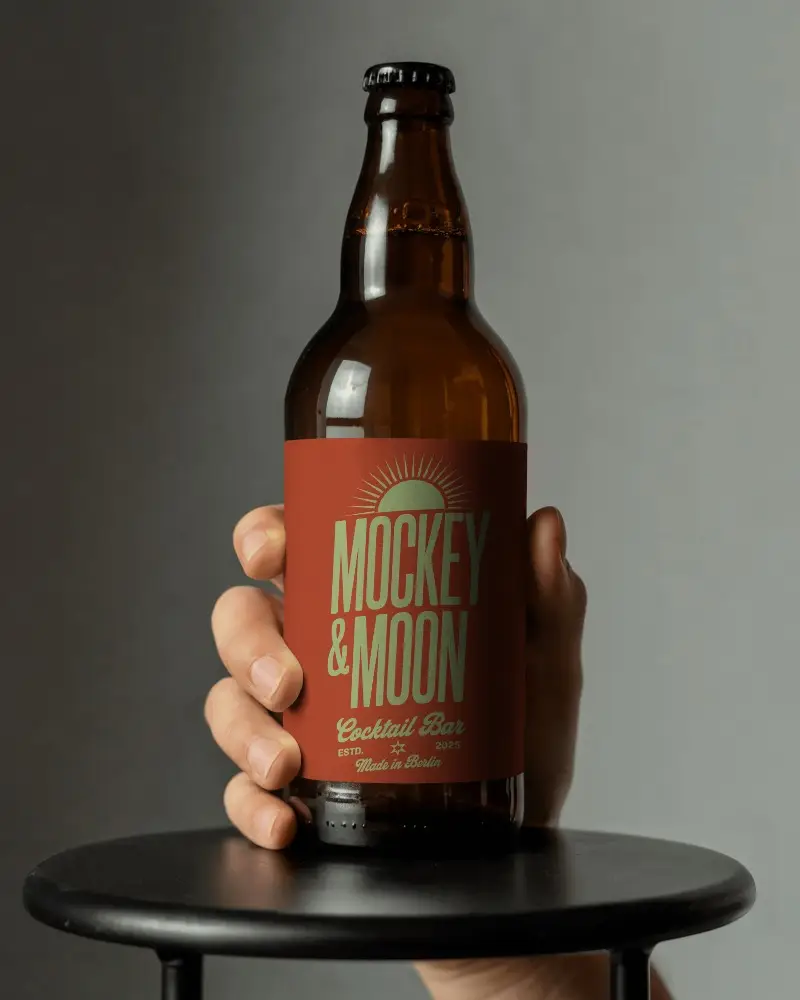
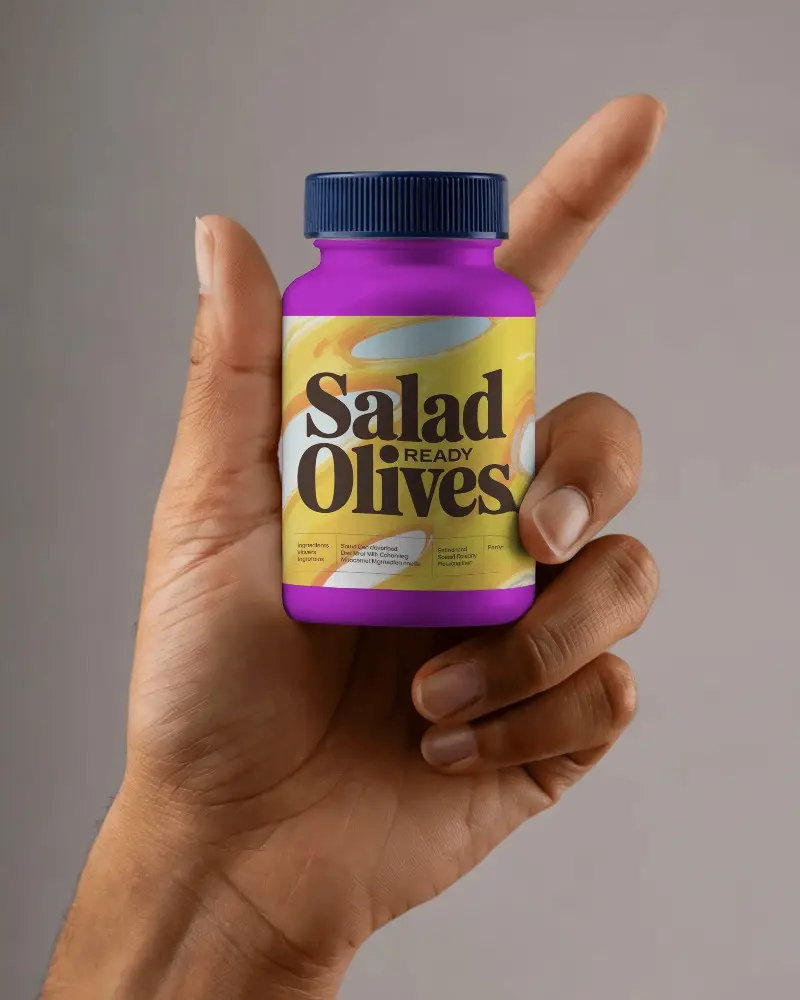
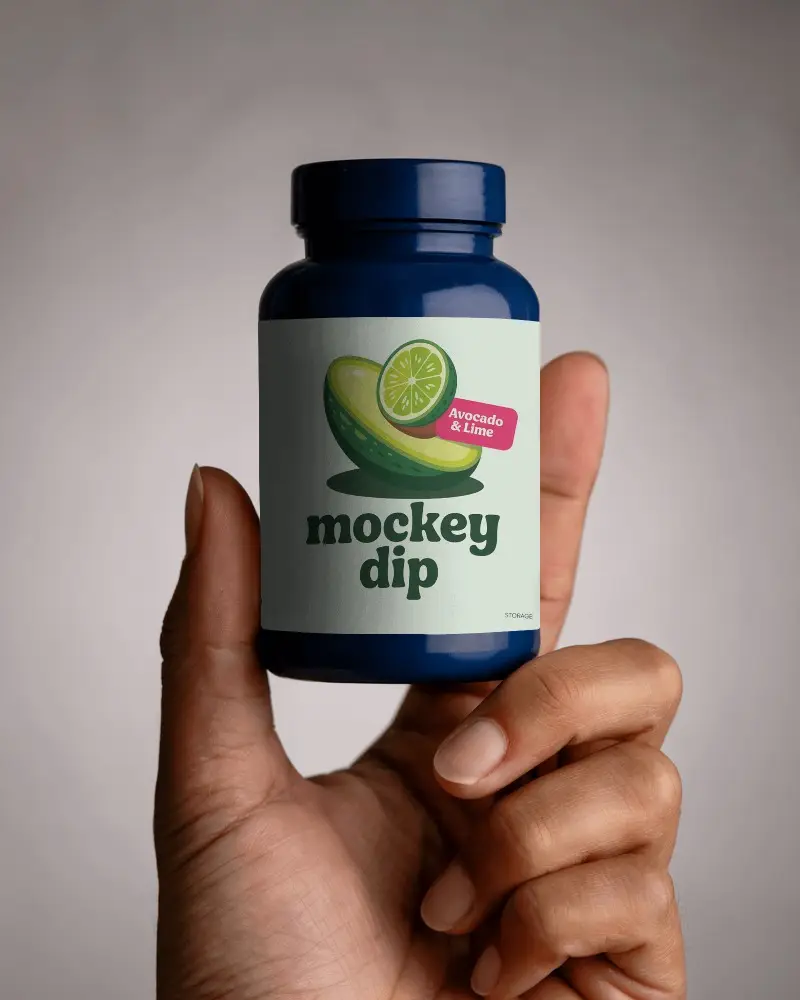
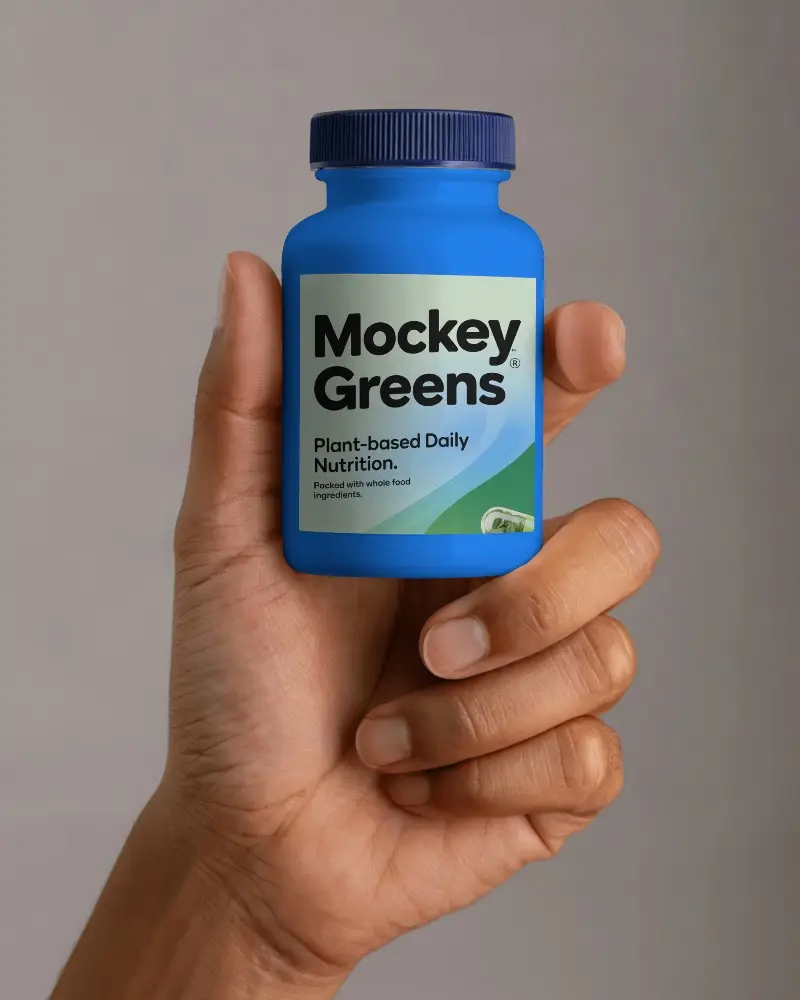
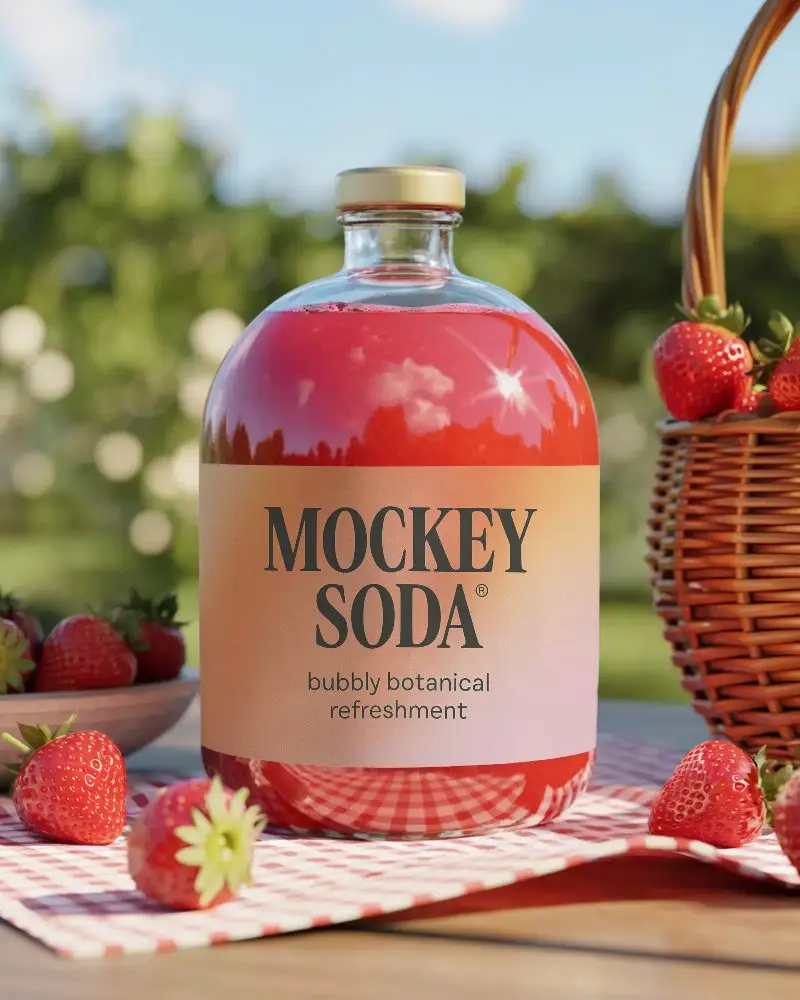
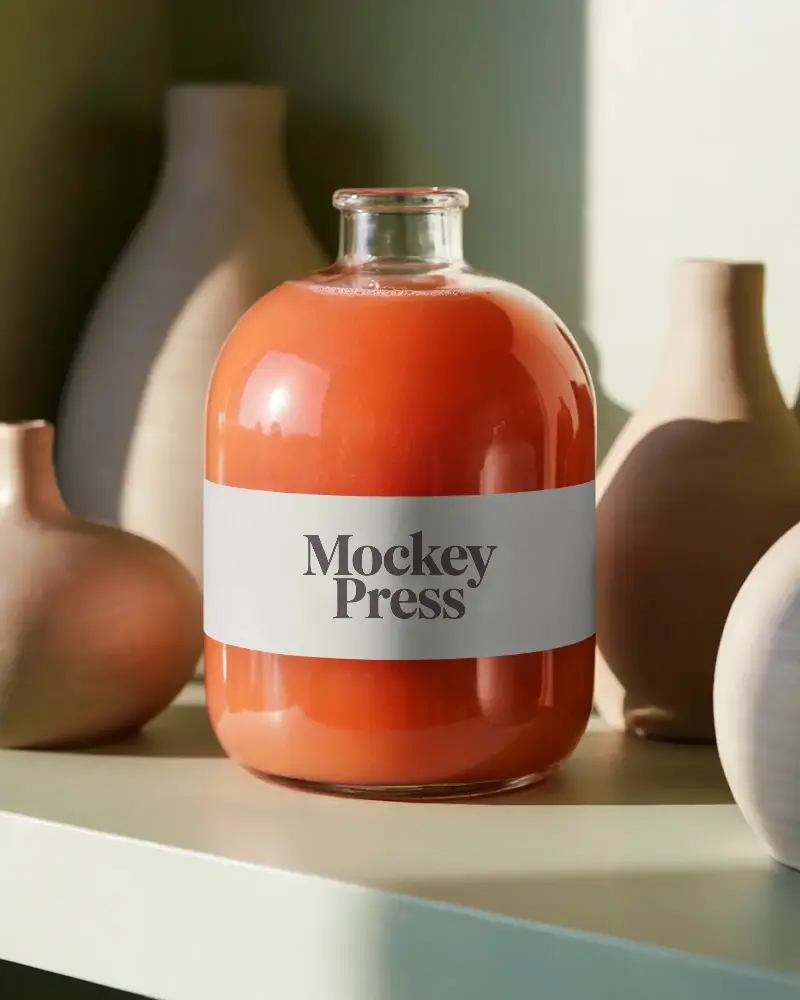
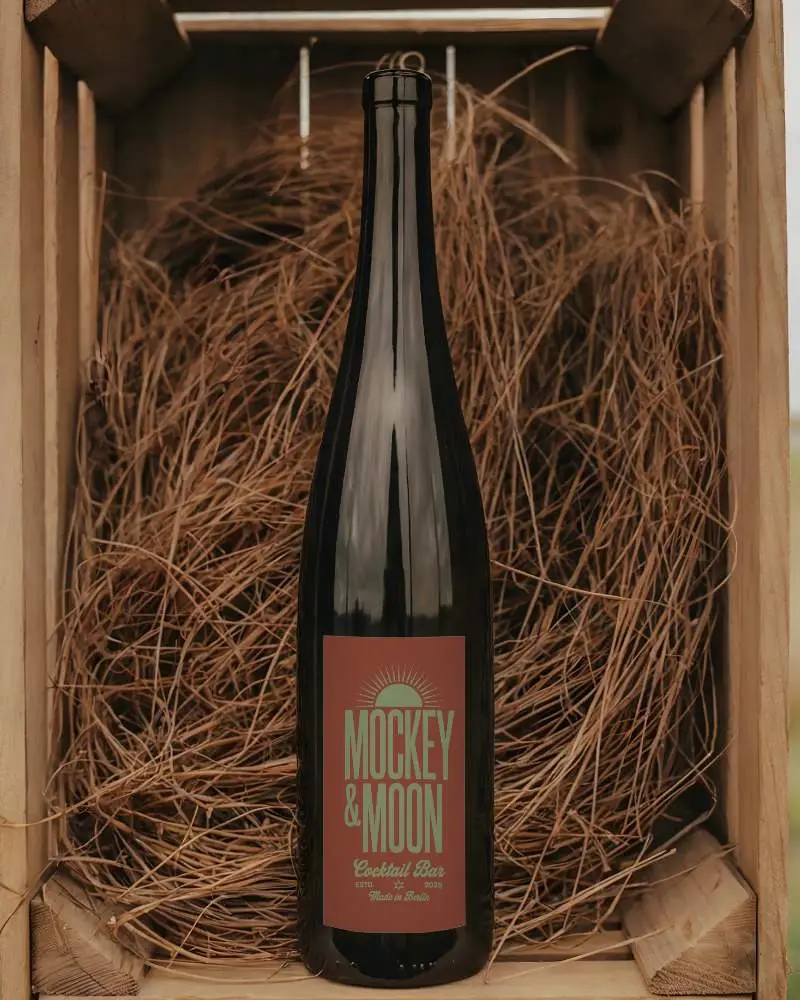
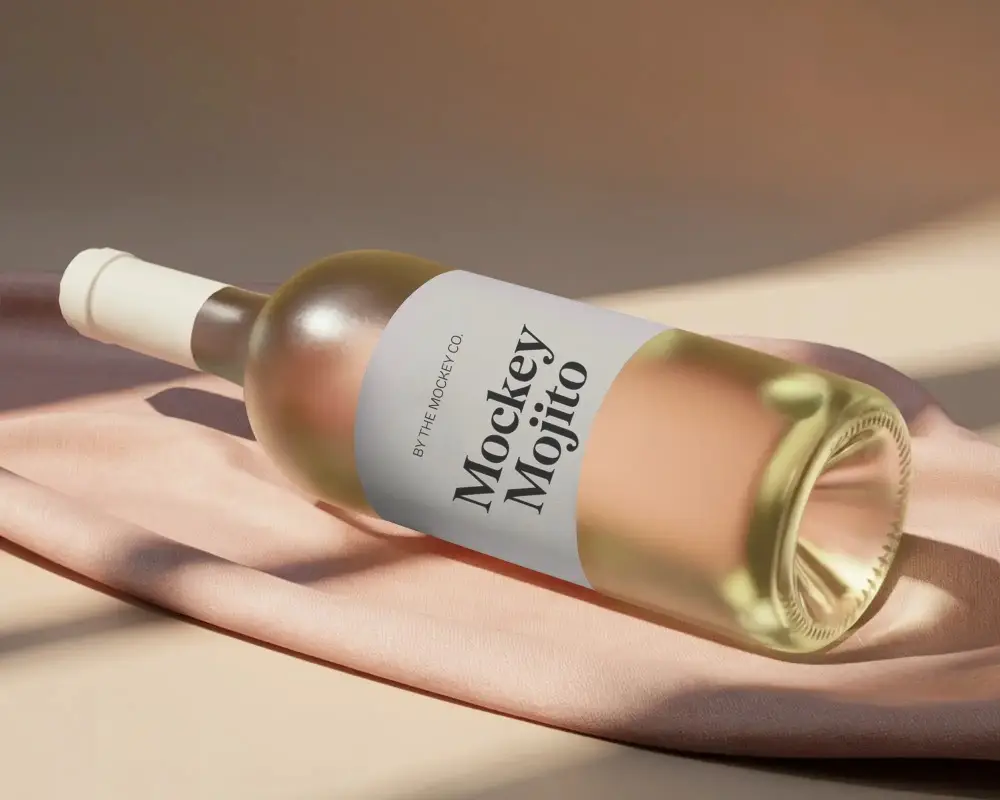
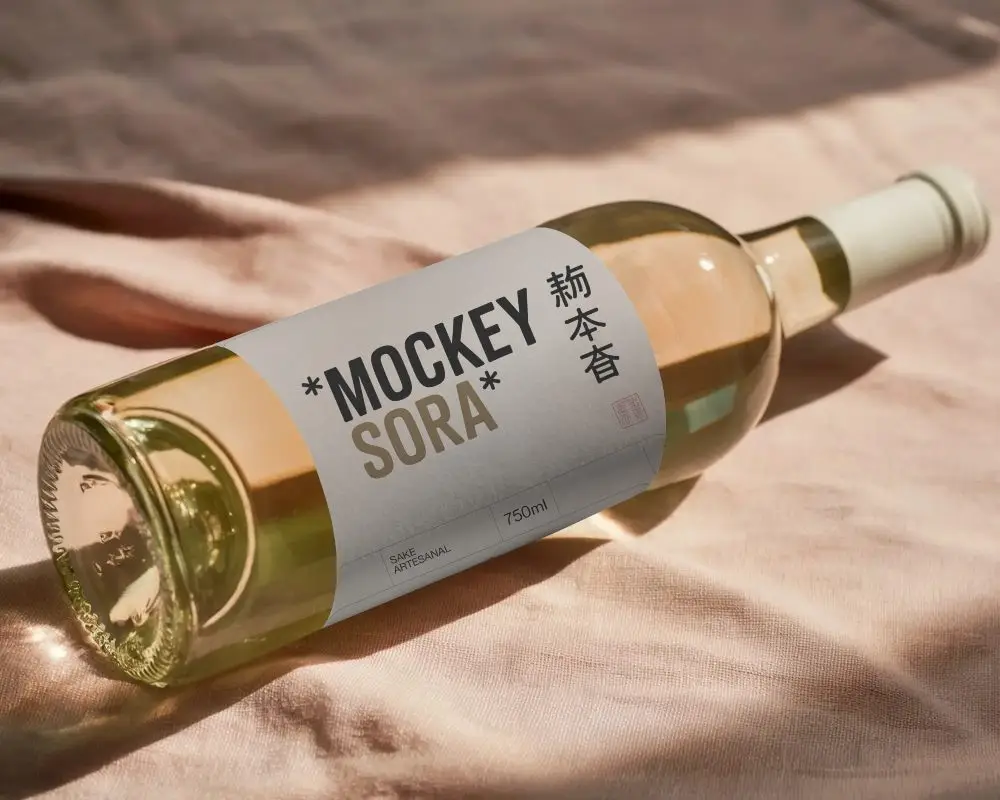
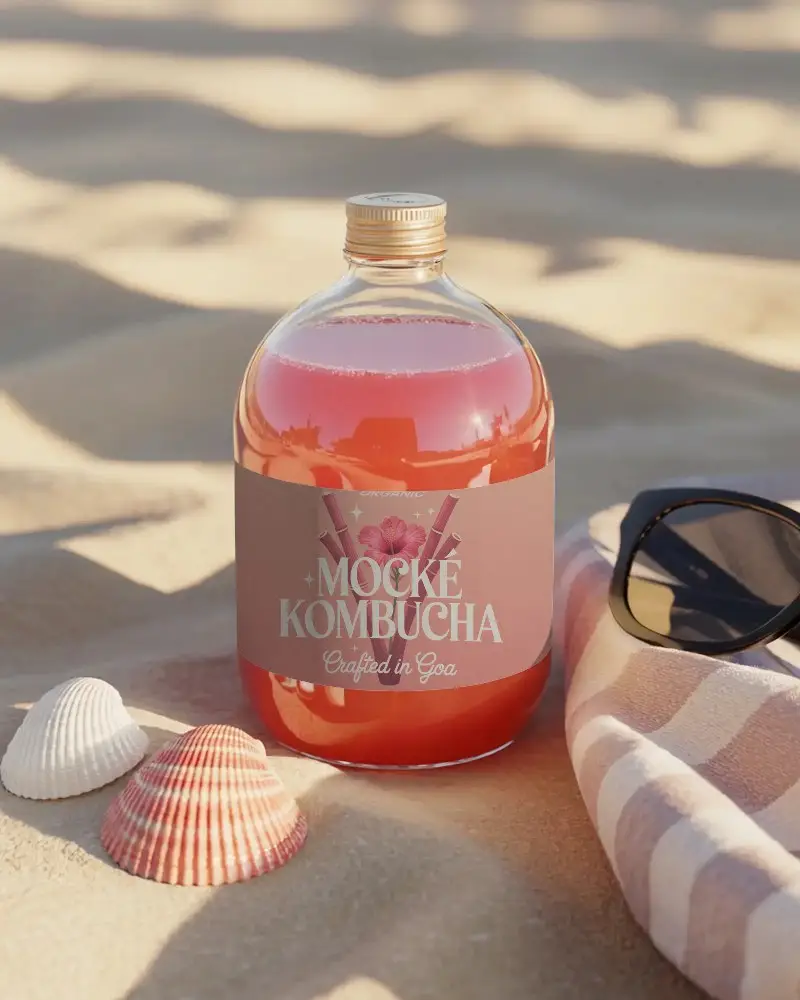
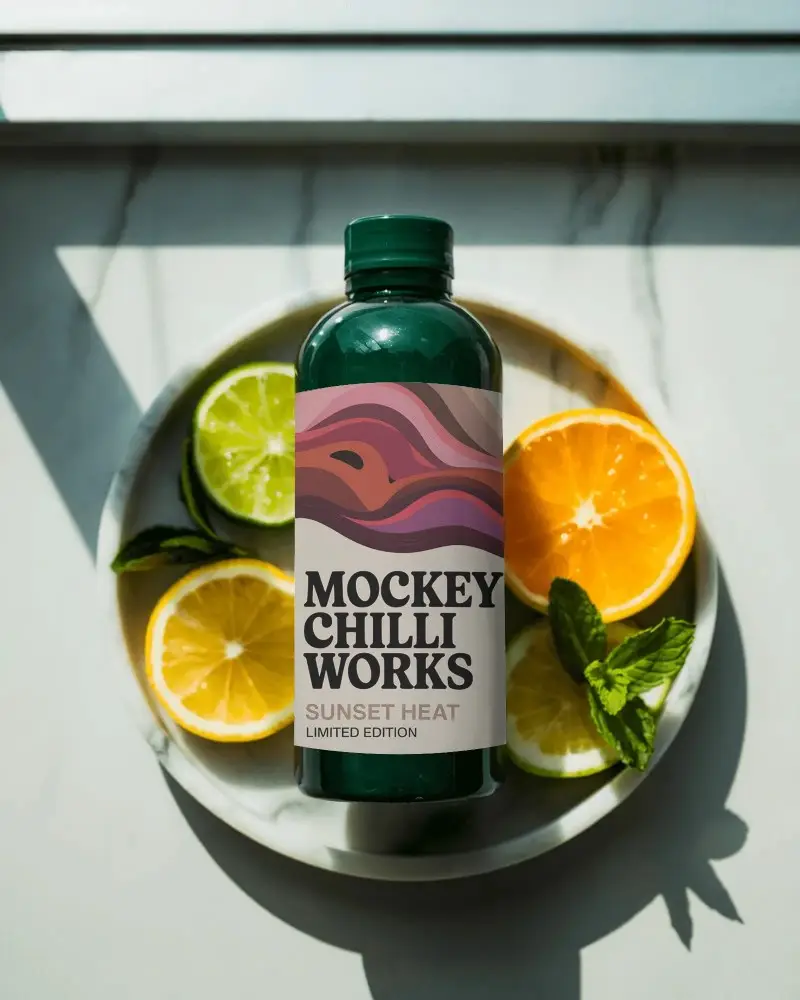
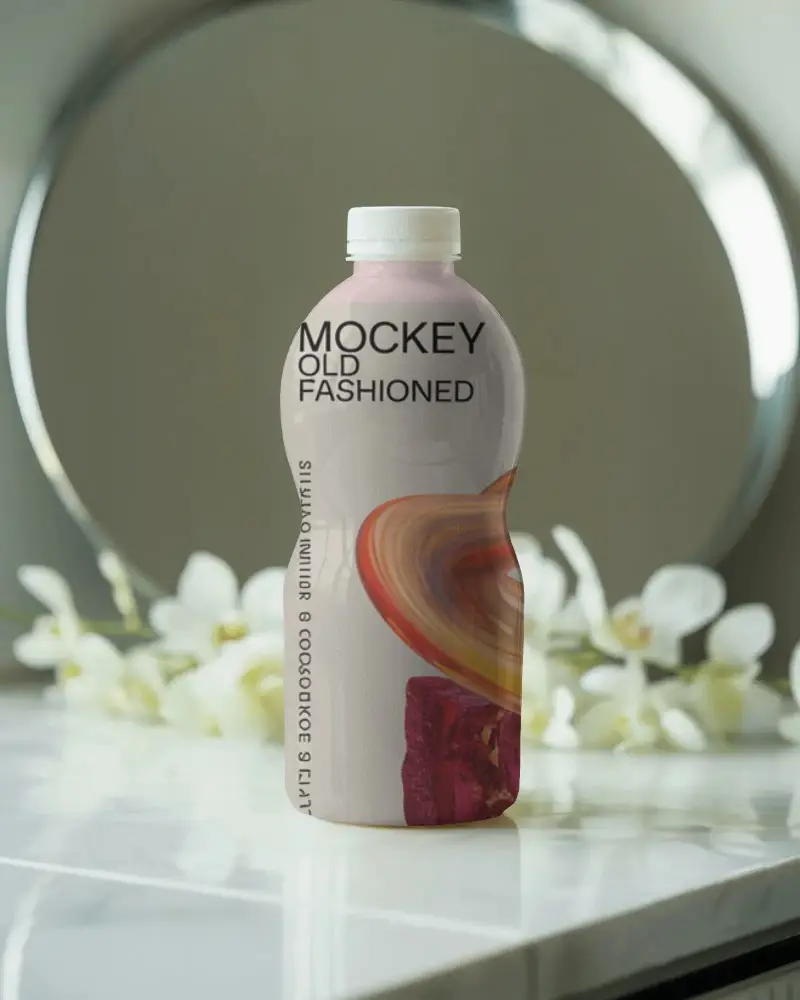
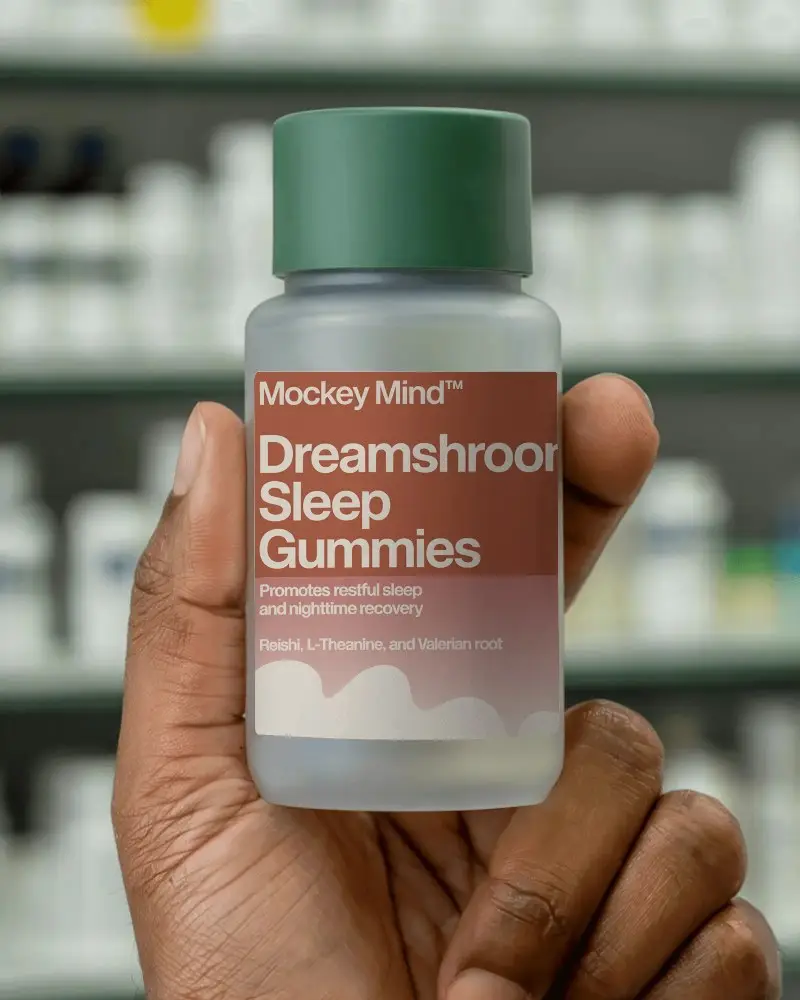
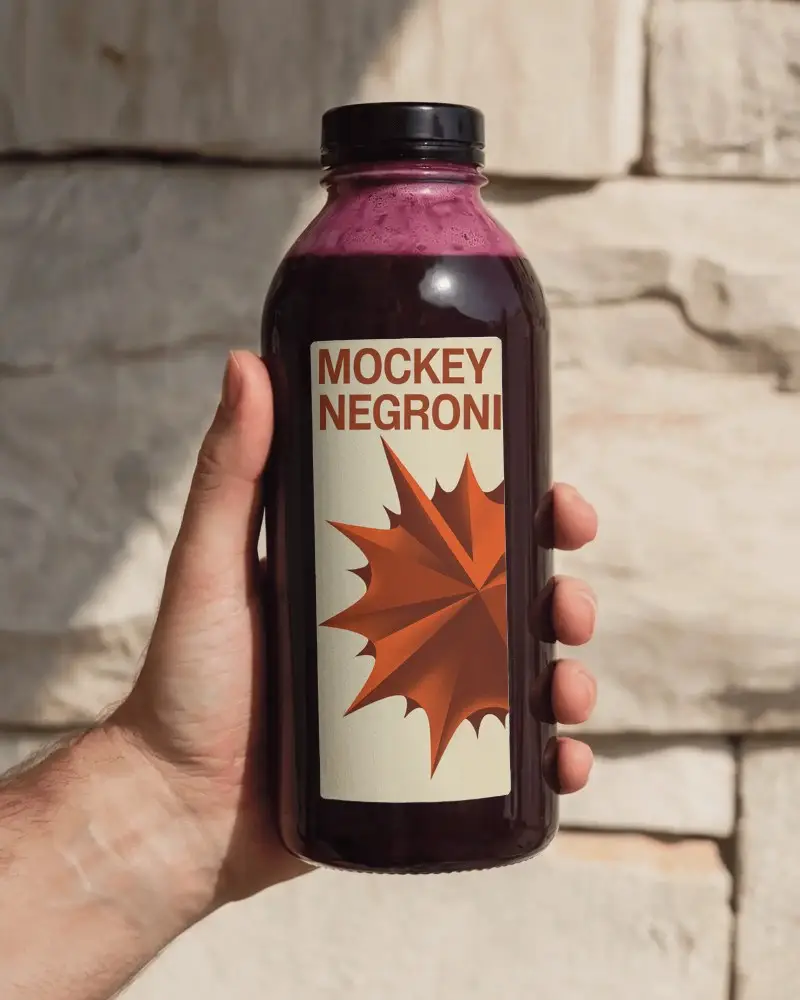
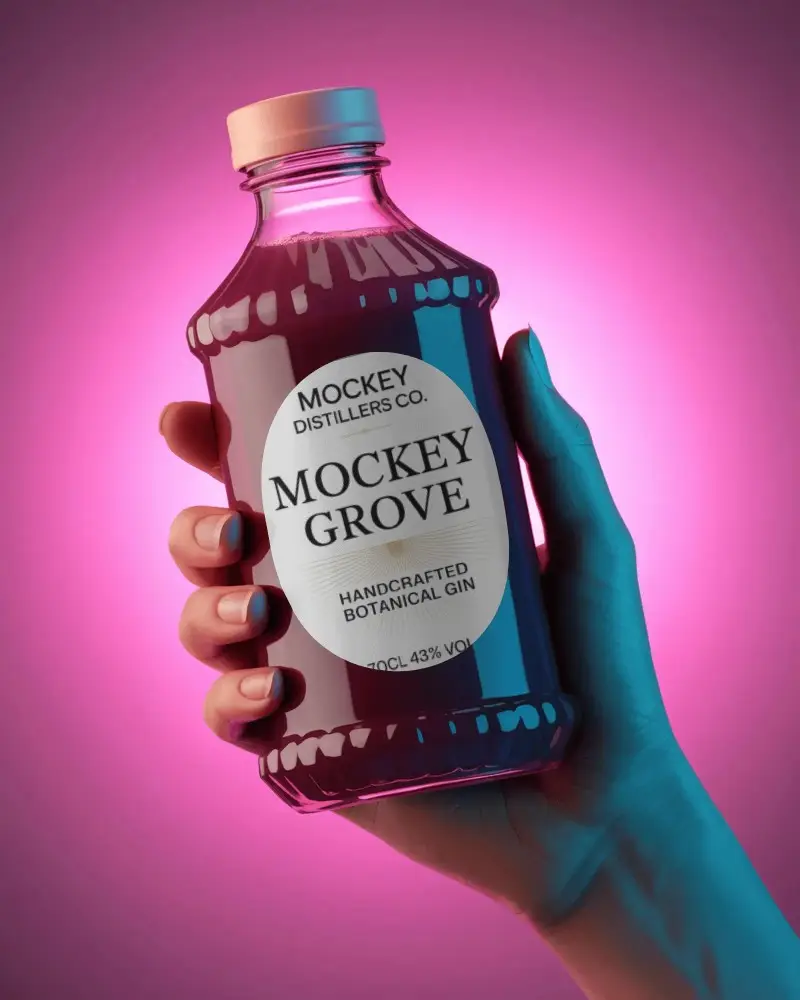
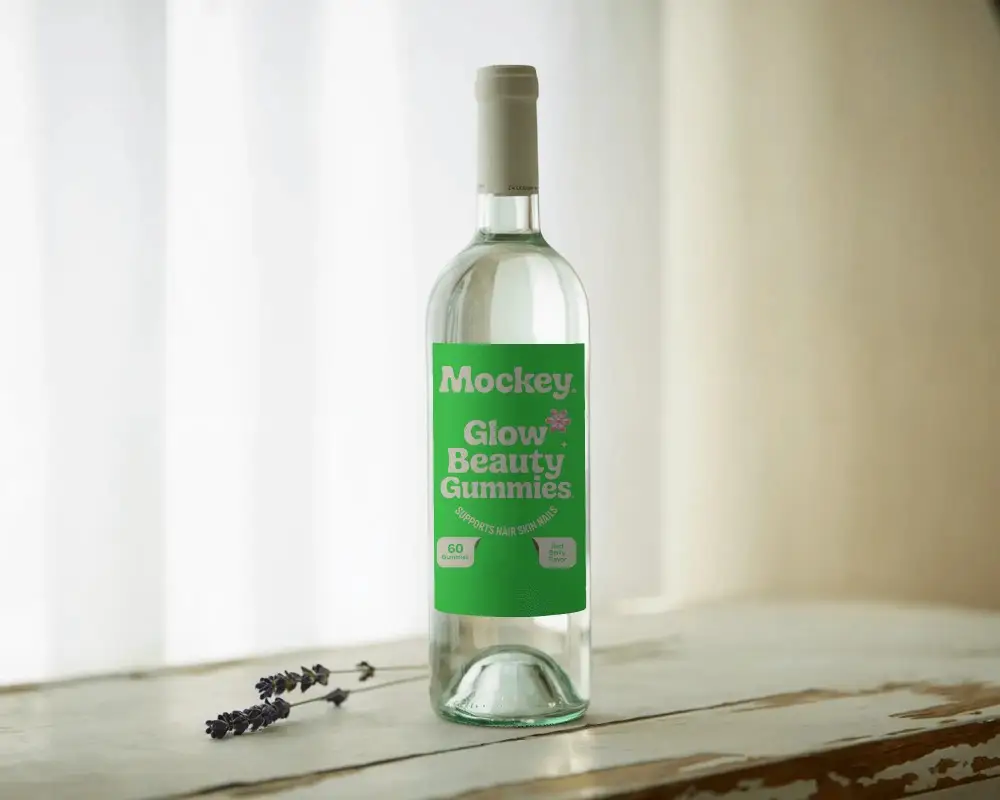
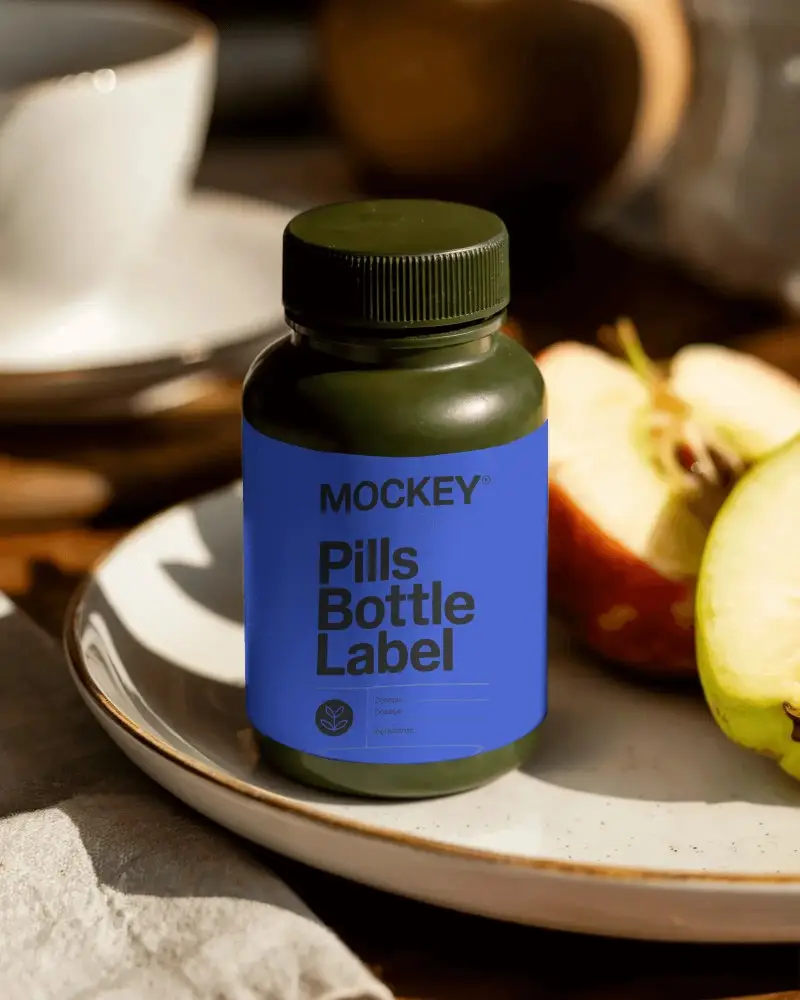
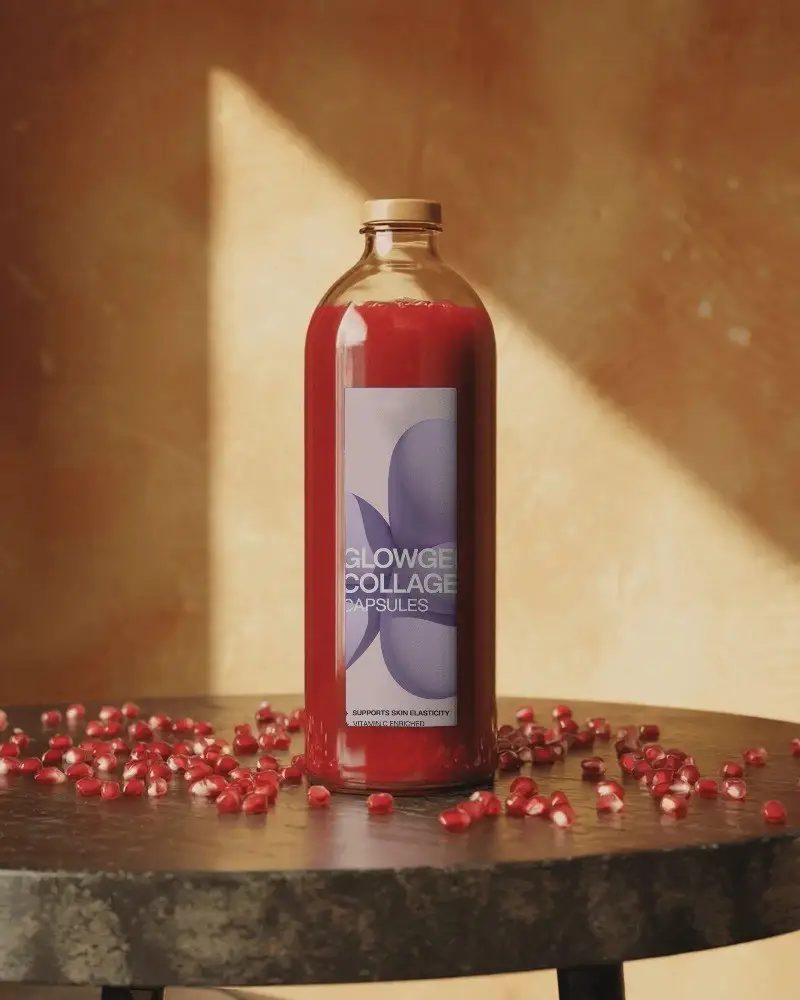
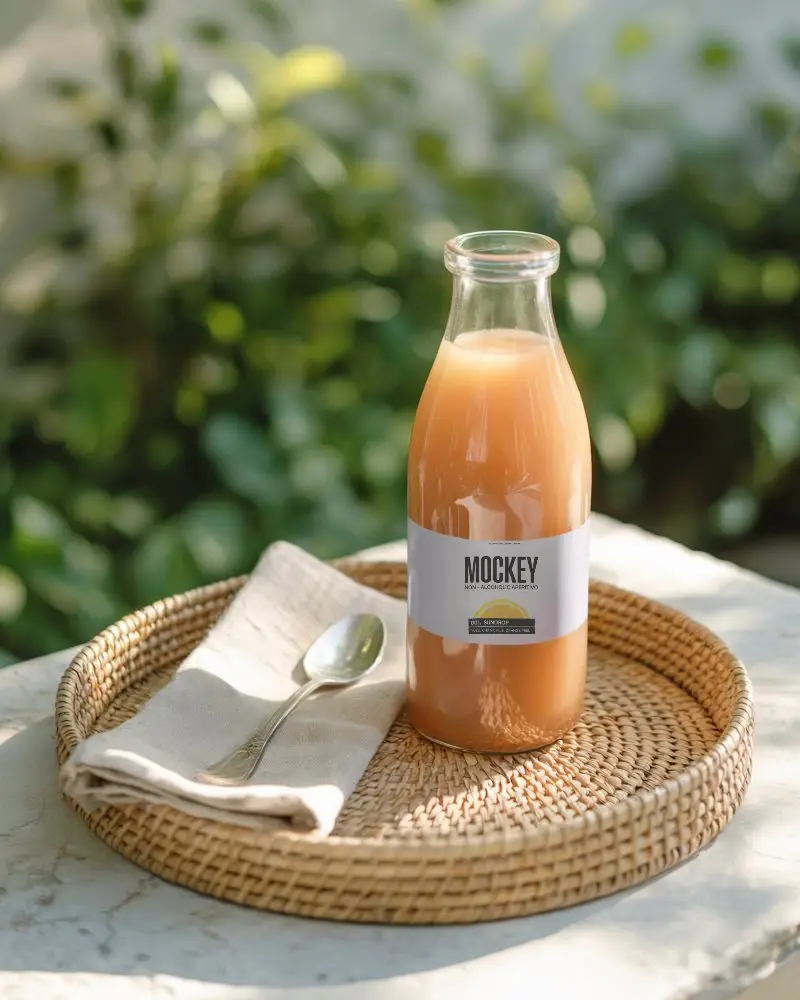
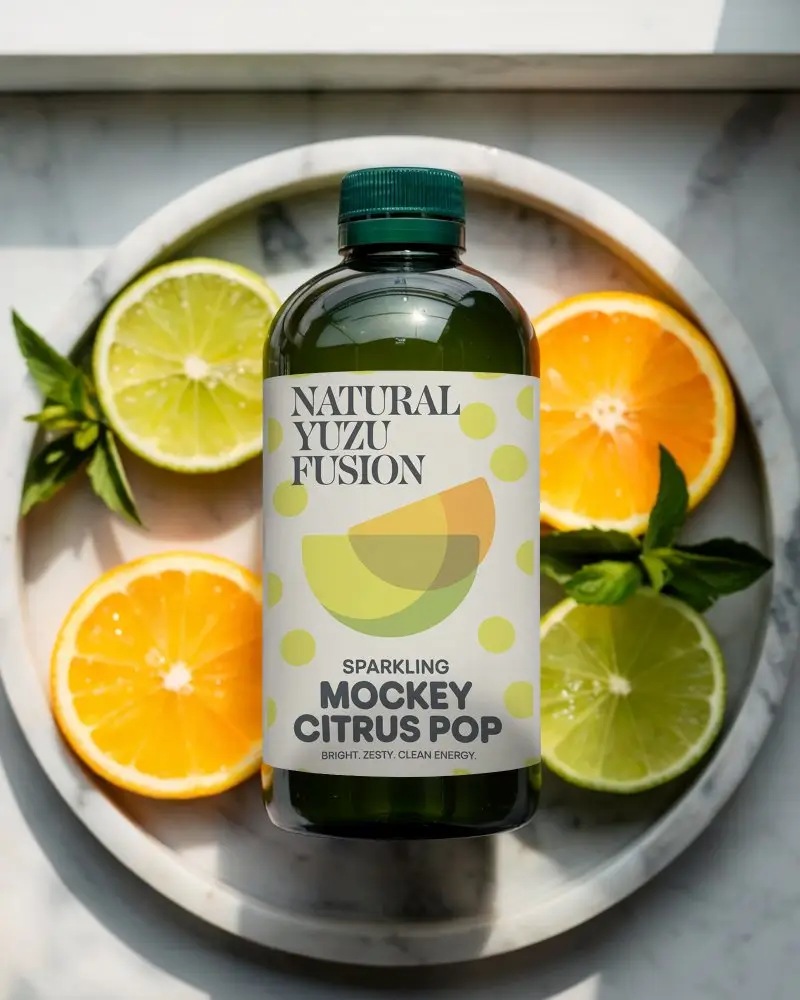
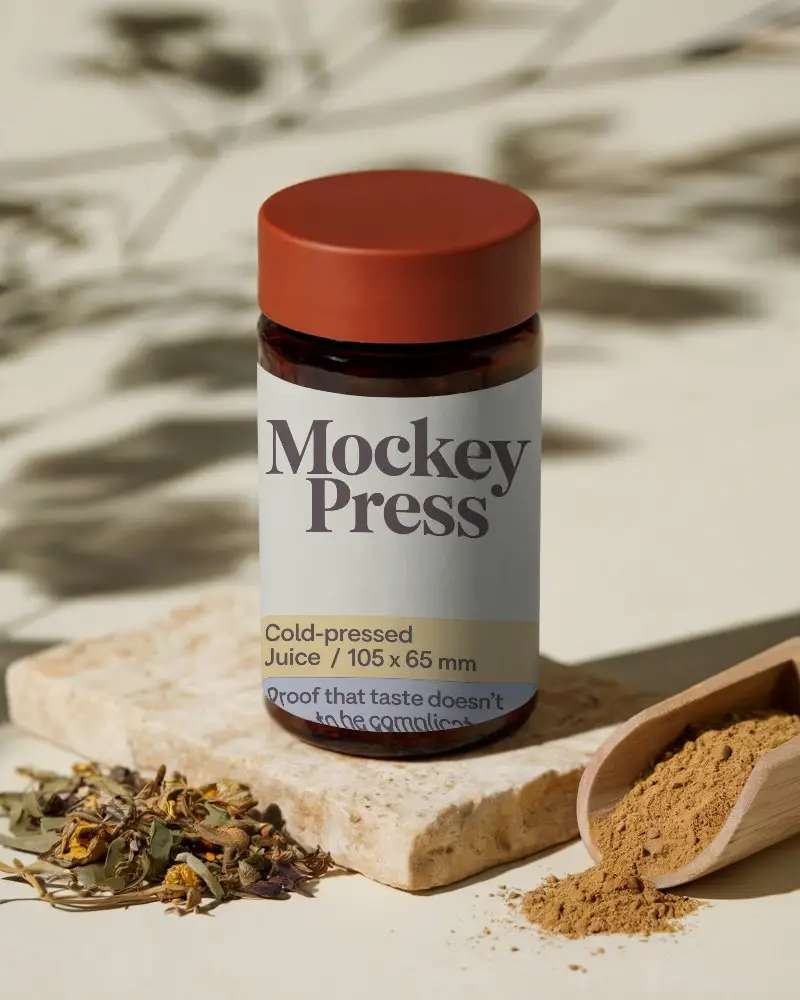
How to Create Bottle Mockup with Mockey AI
To customize bottle mockups
- Step 1: Choose from water, perfume, wine, juice, or supplement bottles.
- Step 2: Upload the brand image or design and adjust it.
- Step 3: Change the bottle and cap color.
- Step 4: Use warping and Place Anywhere to position your label.
- Step 5: Also, use Multi Shot, Photoshoot, and Animate AI tool.
- Step 6: Download the bottle mockup in your preferred format.
FAQs on bottle Mockups
How to add an image to Bottle mockup?
To add an image to a bottle mockup on Mockey.ai, start by picking a bottle design you like from the template options. Then, upload your image by clicking the upload button. You can adjust the position of your image, make any final touches to the design, and download the finished bottle mockup
Can I download bottle mockups in PNG format?
You can download bottle mockups in PNG format, but you’ll need to upgrade to the Starter to access this feature. With the Starter, you’ll get better access to high-quality mockups and other premium resources.
What types of bottle mockups are available?
There are many different kinds of bottle mockups, like ones for water, plastic bottles, blue-colored bottles, glass bottles, metallic ones, sports bottles, protein shakers, and drink bottles.
How can I make my bottle mockup look more realistic?
To make your bottle mockup look more realistic, try using Mockey's high-quality templates. You can add different backgrounds and colors to give it a lifelike feel and better highlight your product’s brand.
Are these bottle mockups free for commercial e-commerce use?
Free plan bottle mockups are for personal use only. If you're adding these to your online store or product listing, you'll need the Starter plan to unlock commercial use.
Are there any watermarks on the free downloaded bottle mockups?
No watermarks on any download, even on the free plan. What you download is exactly what you get, ready to use right away.
Can I customize the cap color and background color of the bottle templates?
Yes, you can change the cap and bottle color using the extracted color, color wheel, or hex code. Background color can't be directly changed on these templates.