Msi Desktop Desktop Mockup Templates
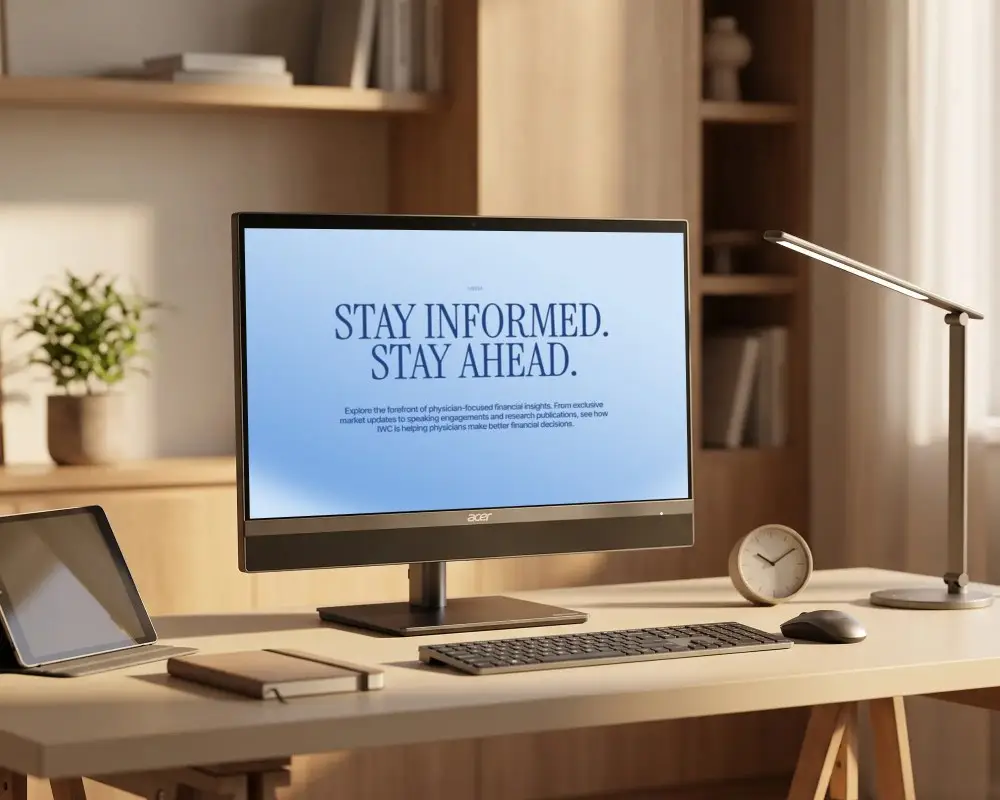
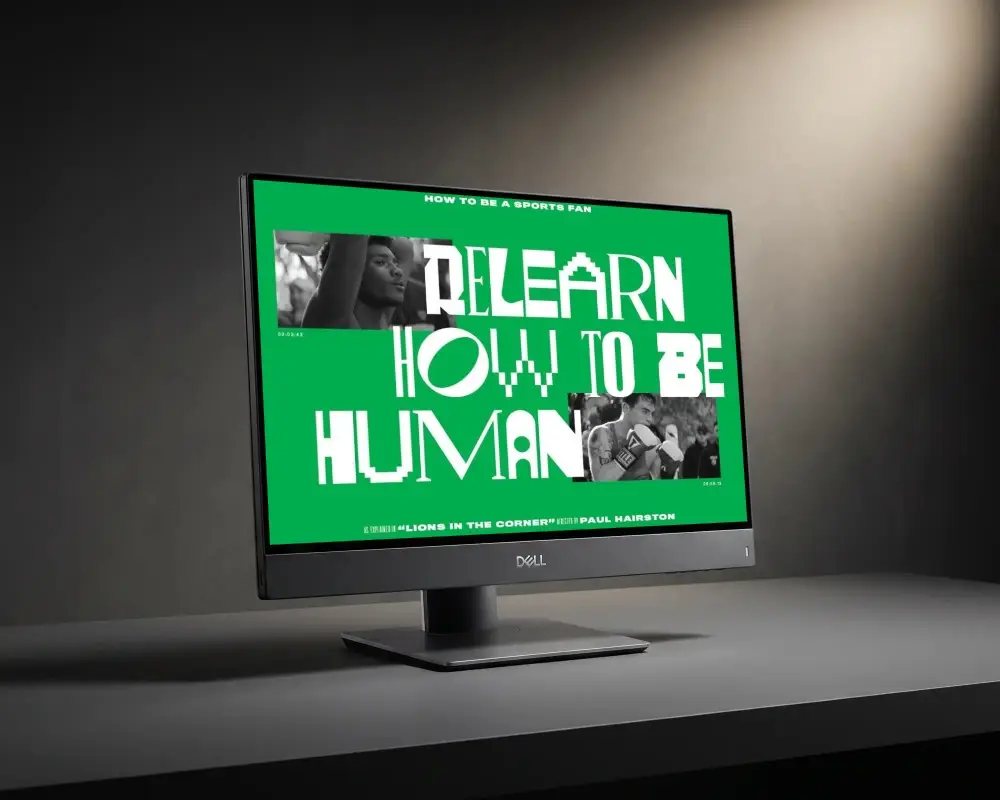
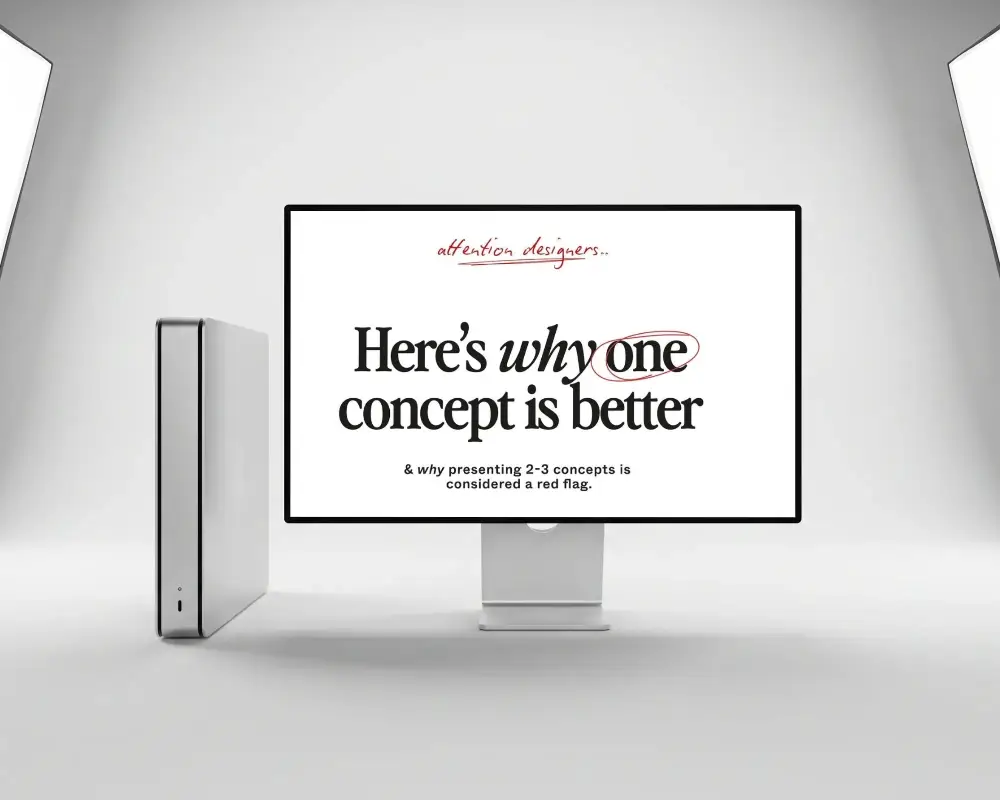
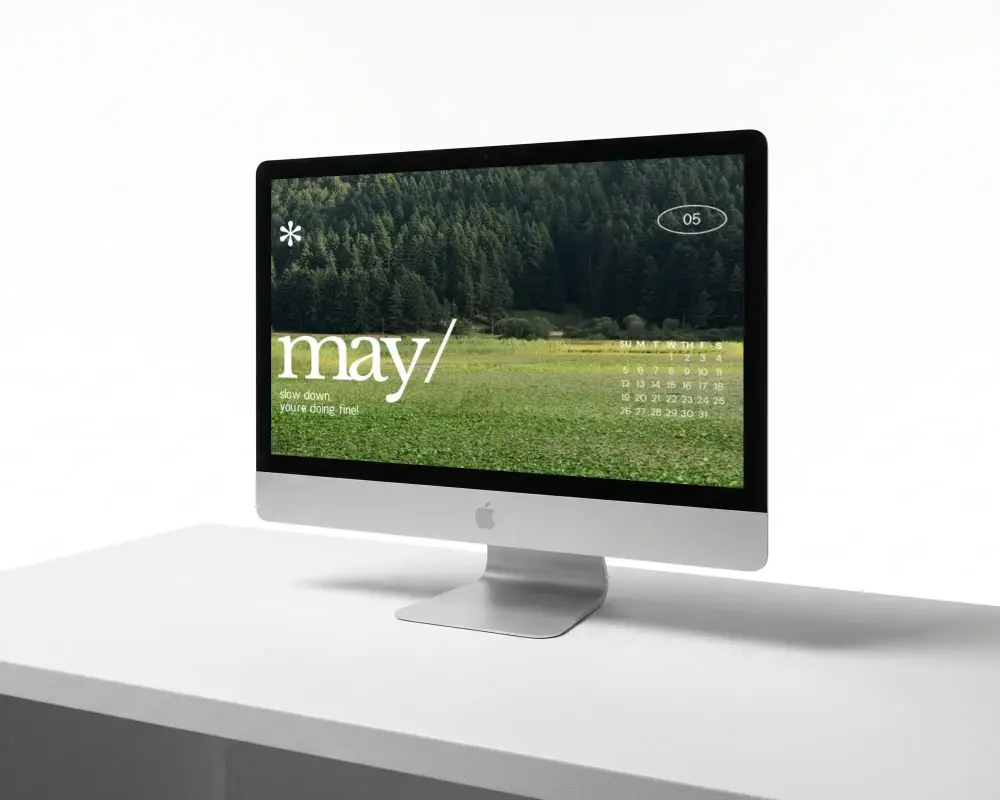
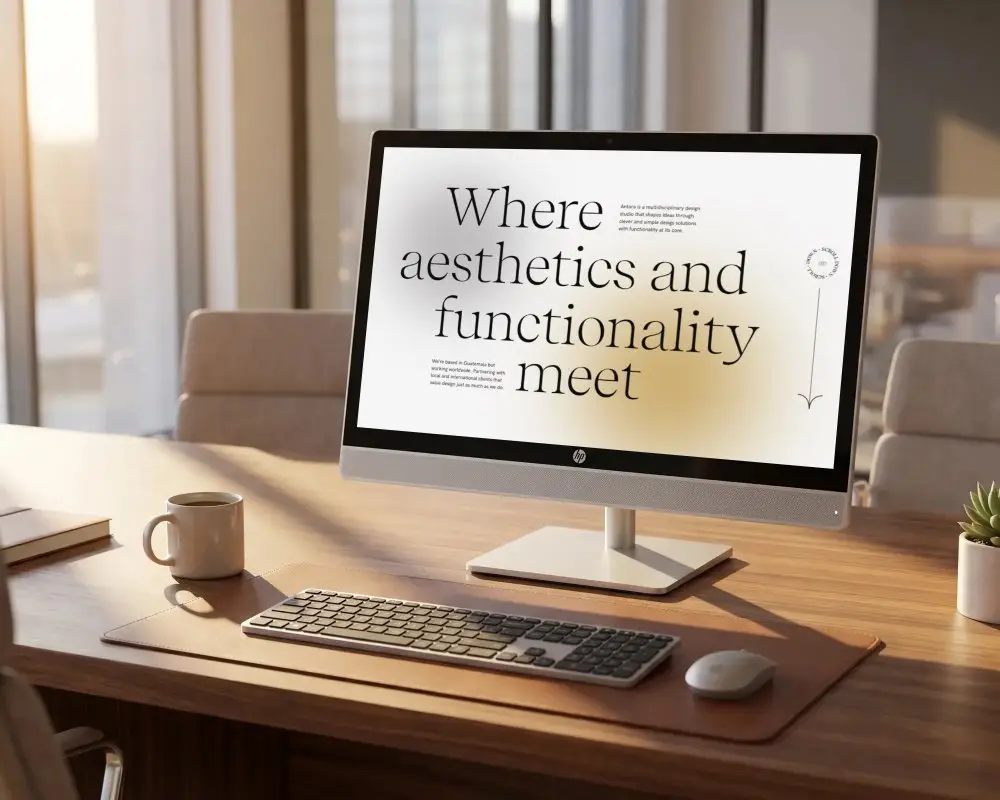
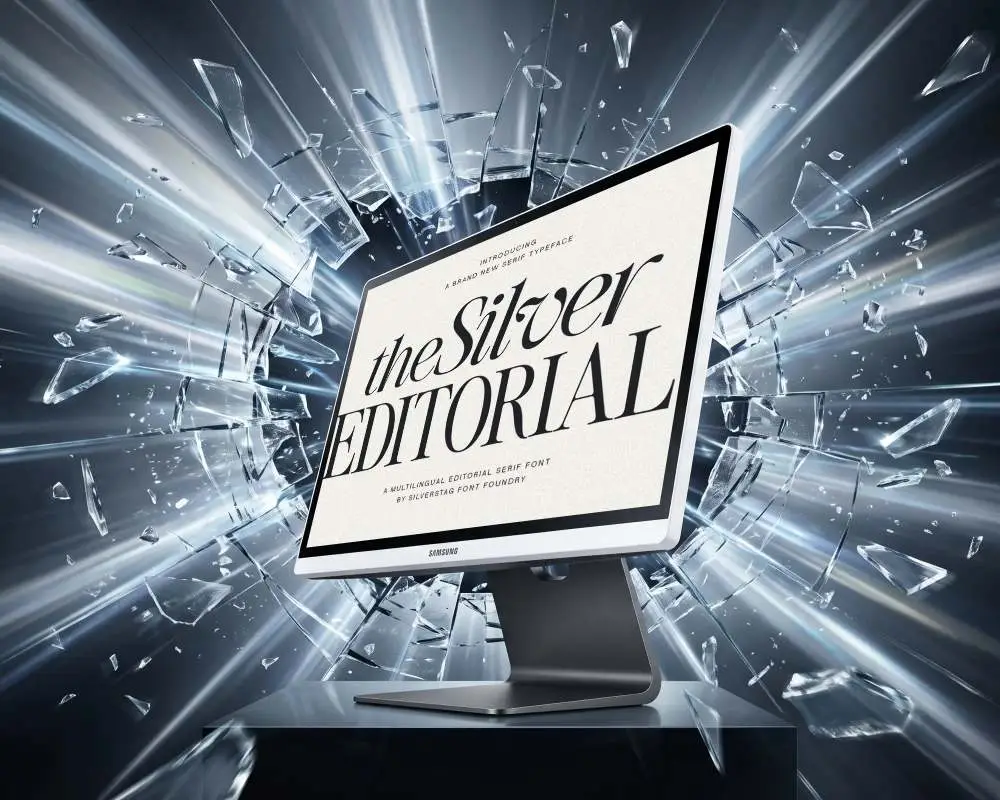
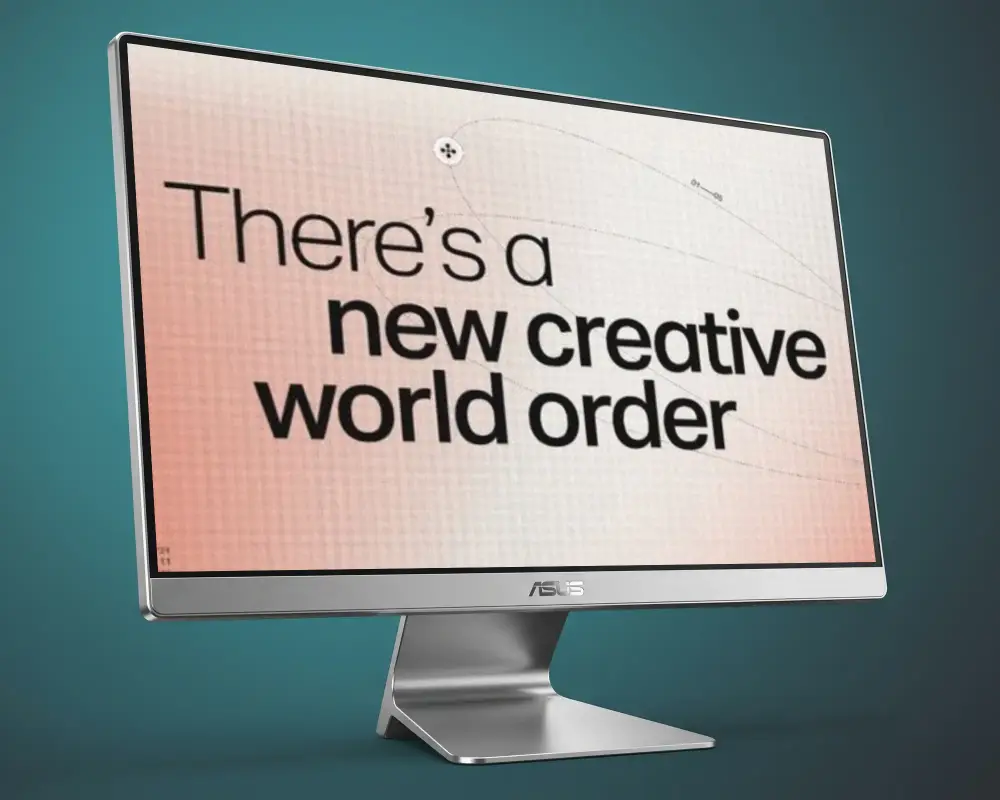
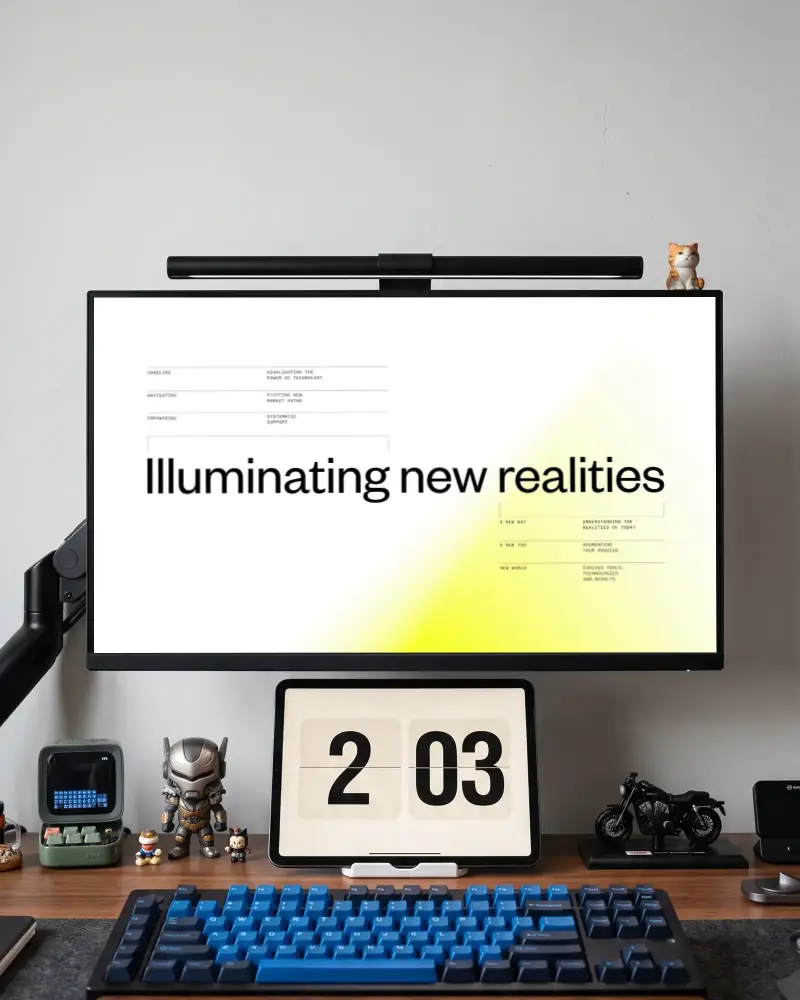
Show your website or app on a real desktop screen with Mockey AI. Choose from a wide range of Msi Desktop desktop mockup templates, customise the layout, and download a clean, professional image ready to use anywhere.

How to Create a Msi Desktop Desktop Mockup with Mockey AI
To create a Msi Desktop desktop mockup:
- Step 1: Browse Mockey's library and select a Msi Desktop desktop style that fits your project.
- Step 2: Upload your screen design, crop it, or set up multi-angle shots if needed.
- Step 3: Tap Download to save your mockup as a PNG or JPG file.

FAQs on Msi Desktop Mockups
What is a Msi Desktop desktop mockup?
A Msi Desktop desktop mockup is a ready-made template that shows how your website or app looks on a real desktop screen. It helps designers present work clearly, align with developers, and share ideas before anything gets built.
Why use a Msi Desktop desktop mockup instead of a screenshot?
A plain screenshot lacks context. Placing your design inside a realistic desktop frame makes it easier for clients and teams to understand the layout, spacing, and overall feel of the product.
Can I customise a Msi Desktop desktop mockup on Mockey?
Yes. You can crop, rotate, create multiple angle shots, and even animate your design inside the mockup. A live preview is available before you download.
Are these desktop mockups free for commercial use?
The free plan covers personal use only. Paid plans include commercial use rights, so you can use the mockups in client work, ads, and product pages without restrictions.
What formats can I download the mockup in?
You can download in PNG or JPG format. If you convert the mockup into an animation using Mockey's Bring to Life feature, it can also be saved as an MP4 video.