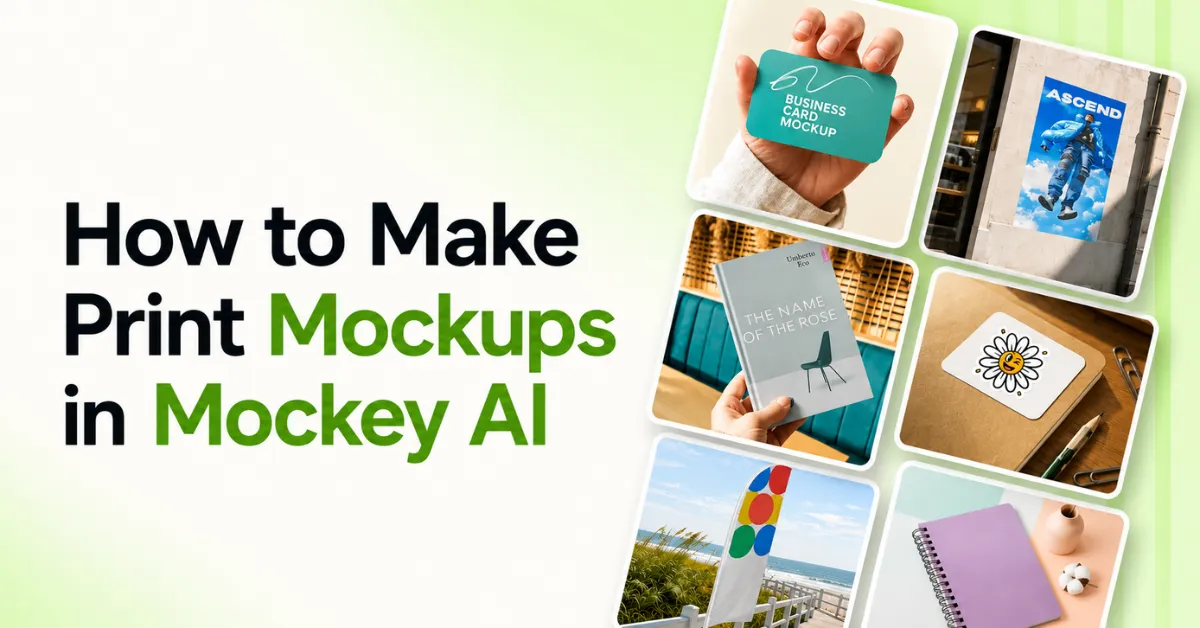
Learn how to make print mockups in Mockey AI. Pick a template, upload your design, adjust it, and download it in minutes.
Key Takeaways
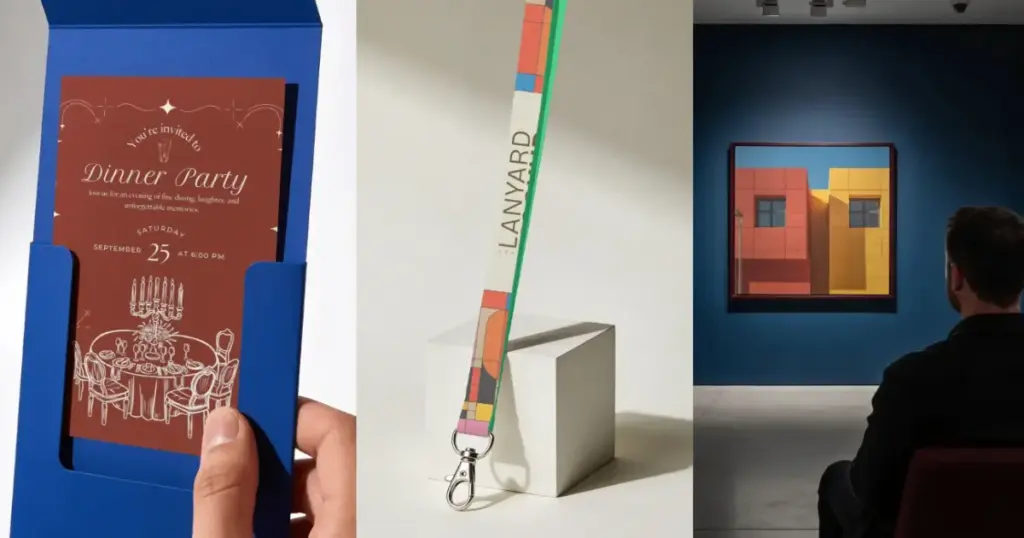
It’s hard to show off your book cover or poster if you’ve ever designed one. It needs context, like a hand holding it or an outdoor scene. That’s exactly what a print mockup does, and Mockey AI makes the whole process painless.
Here’s a full walkthrough of how to make print mockups in Mockey AI, from signing up to downloading your final image.
A print mockup is a realistic preview of how your design will look in the real world, like a book cover shown on an actual book, a poster on a wall, or a business card on a desk. It turns a flat file into something your audience can actually picture using.
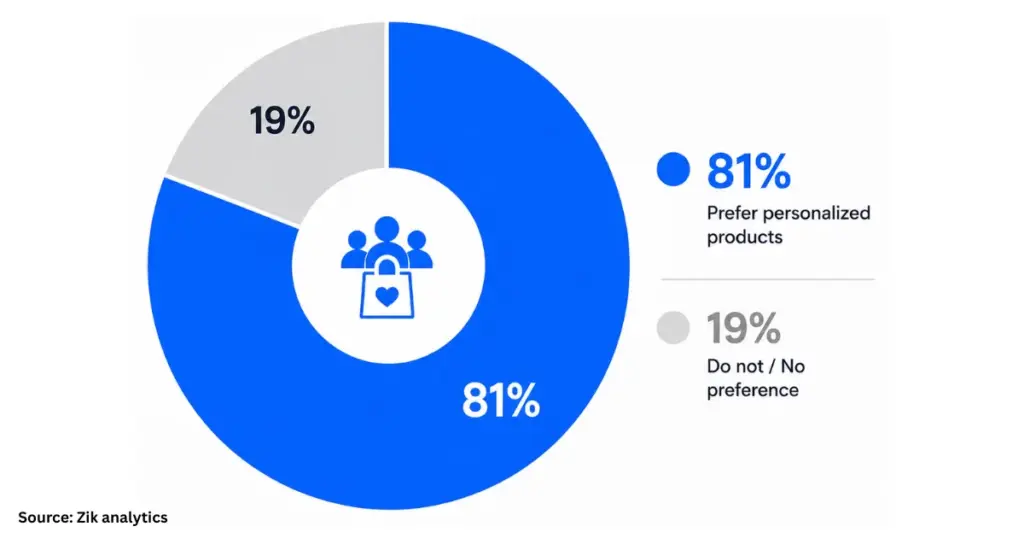
Buyers want products that feel made for them. 81% enjoy buying personalized products.
A mockup lets them picture that before they buy.
Mockey AI’s Print category covers:
| Business Card | Book | Poster |
| Flyer | Brochure | Banner |
| Billboard | Magazine | Lanyard |
| Sticker | Canvas | Notebook |
| Greeting Card | Invitation Card | Label |
| Id Card |
One reason to choose Mockey AI for print mockups is that it is the best mockup site for print-on-demand sellers. As you explore it, you’ll see how well it understands what sellers need.
Here are the steps on how to make a print mockup in 2026.
Before you can create anything, you’ll need to sign up on Mockey AI. There’s no way around this; even the free tier requires an account.
Speaking of the free tier, it’s a good place to start if you just want to test the mockups, but it comes with real limits: only 3 downloads a day, JPG files only, and personal use only (no commercial use). If you’re serious about using this for client work or your own brand, you’ll want to upgrade.
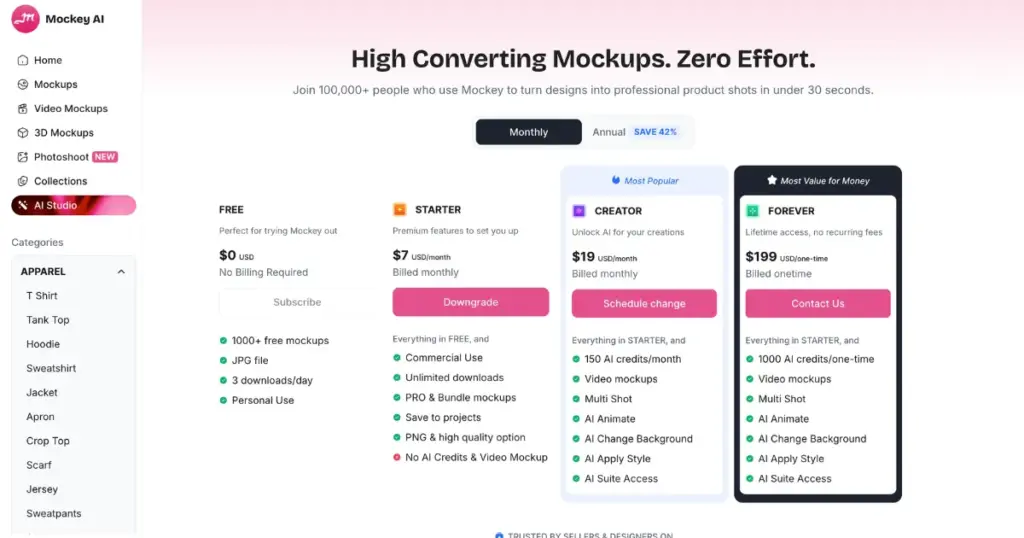
The Starter plan is the natural next step at $7/month (note: pricing varies by region — users in the US will see it listed at $9.90/month). It opens up commercial use, unlimited downloads, and more.
There’s also a Creator plan at $19/month and a Forever plan at $199.
Once you’re signed in, you’ll land on the Home dashboard. This is your control center. It shows your recent downloads, lets you continue editing where you left off, suggests templates based on your last design, and keeps your projects organized in one place. You’ll also see your credit balance in the top right corner, which matters once you start using AI features.
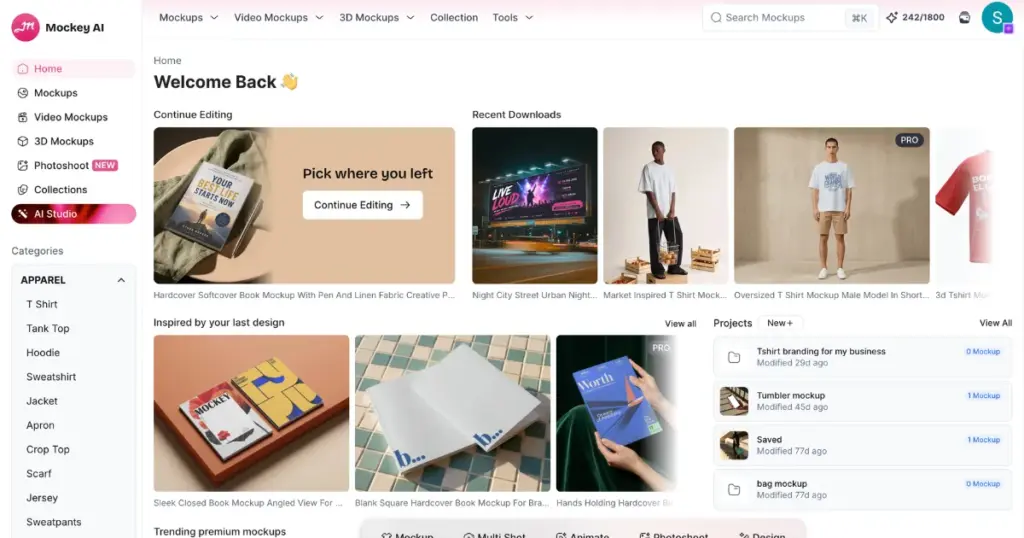
On the left sidebar, you’ll find three main categories: Mockups, Video Mockups, and 3D Mockups. Each of these gives you access to ready-made templates. You don’t have to build anything from zero.
Since this guide is about static print mockups specifically, we’ll focus on the “Mockups” section; however, it’s worth knowing that video and 3D options exist if you ever want to animate your designs later.
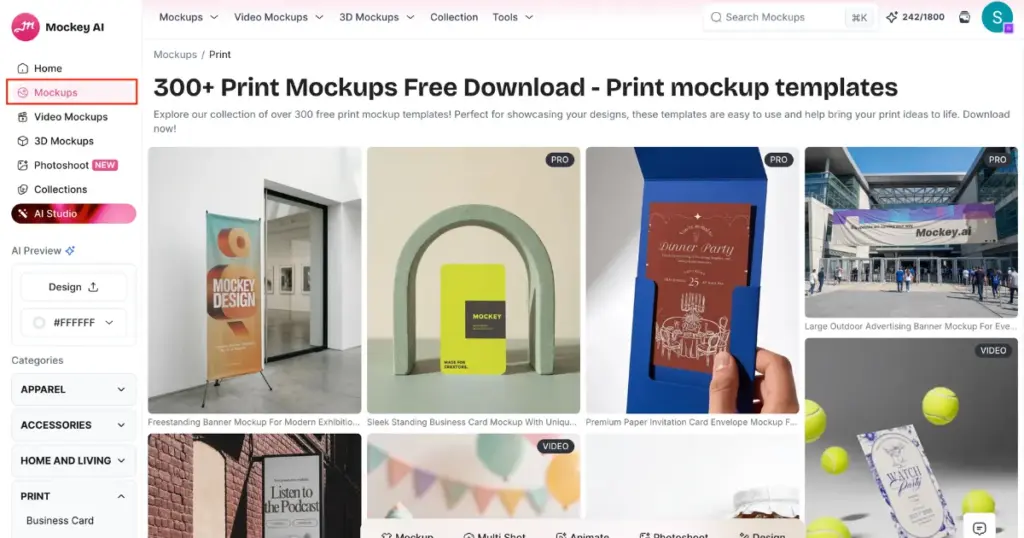
Head into Mockups and click on “Print.” This opens up a huge library of over 10K+ free print mockup templates covering everything from business cards and books to posters, flyers, banners, brochures, lanyards, billboards, and more.
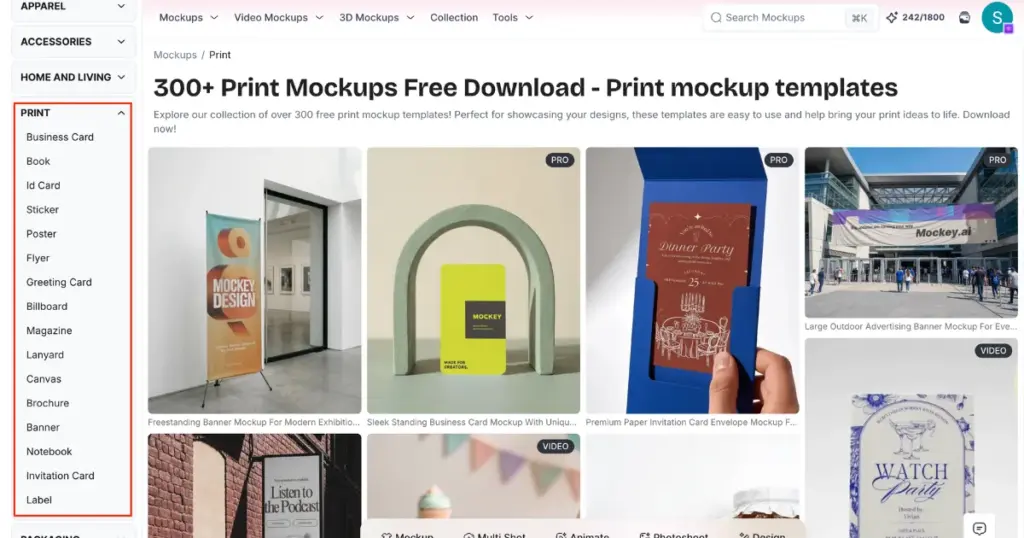
Whatever your print item is, there’s a dedicated category for it.
Let’s use a book mockup as an example, since it’s a great way to see how the whole system works.
Right at the top, you’ll see style filters. This lets you narrow down to exactly the kind of shot you’re picturing.
This same filtering pattern shows up across other print categories too. Pick business cards or lanyard mockups online, and you’ll find similar style options tailored to that item.
Once you’ve picked a template you like, upload your design file. Mockey AI then gives you a set of adjustment tools so your design fits the mockup perfectly:
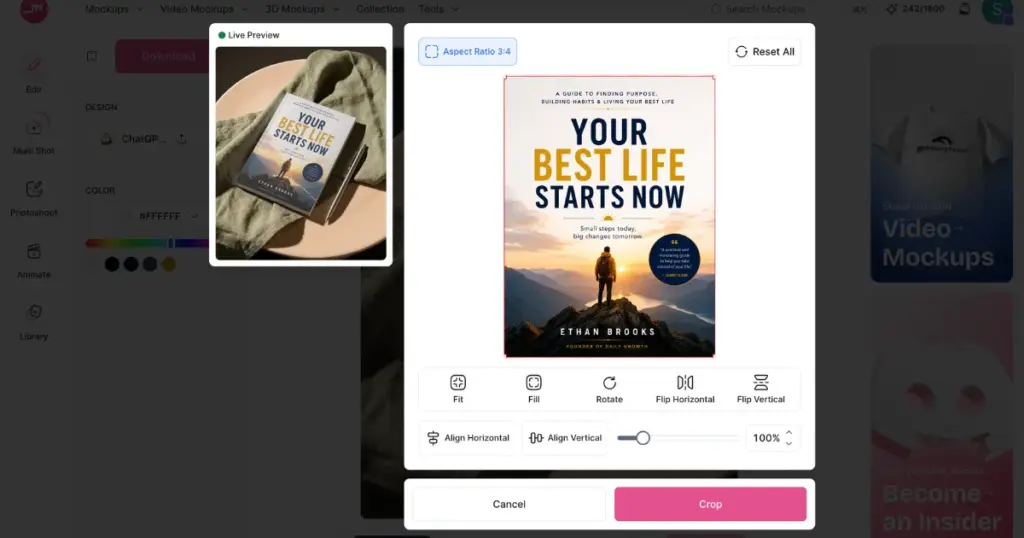
There’s also a live preview panel so you can see exactly how your design will look on the actual mockup before you commit to it. Once everything looks right, hit crop to lock it in.
After cropping, you land on the main editor. Here you can:
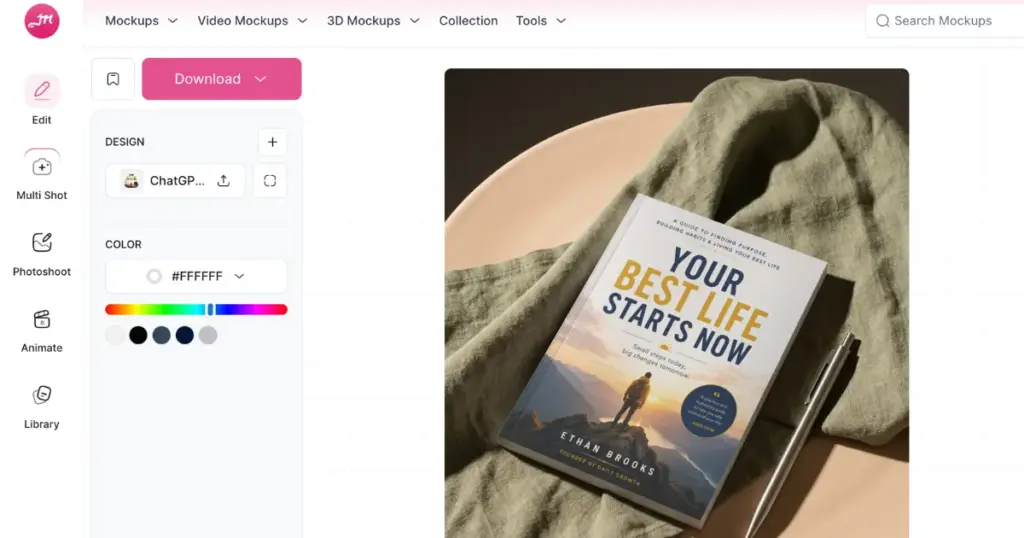
On the left, you’ll also notice icons for Multi Shot, Photoshoot, Animate, and Library. These tie into Mockey AI’s broader toolkit in case you want to expand beyond a single static image later.
When you’re happy with everything, hit Download, and your finished mockup is ready to use.
Templates are great, but what if you don’t want to use a pre-built scene at all? That’s where AI Studio comes in.
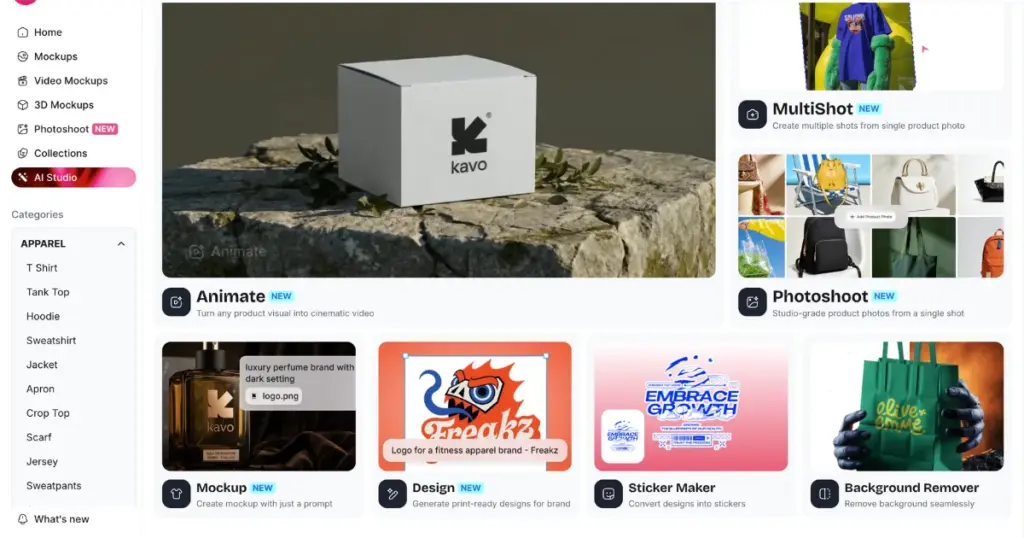
Instead of picking from existing templates, you can upload your design and simply describe what you want. For example, asking to place your design on a book, a business card, or virtually any object, just through a text prompt. AI Studio also includes:
Keep in mind these AI-powered tools aren’t free. Each generation uses credits, and you’ll need at least the Creator plan to access them.
Now you know how to make print mockups.
Whether you go the template route or lean on AI Studio to generate something custom, Mockey AI makes it simple to turn a flat design into something that actually looks real. Start with the free plan to get a feel for it, and once you’re ready to use it for actual client or business work, the Starter plan is more than enough to get you fully unlocked.
And if you want to see how it stacks up against other tools, this roundup of the best mockup tools is worth a look.
There’s a free plan, but it’s capped at 3 downloads a day, JPG only, and for personal use. Commercial use and unlimited downloads require the Starter plan.
Yes, through AI Studio. Upload your design and describe what you want instead of choosing from the template library.
Yes. AI Studio runs on credits and needs at least the Creator plan.
Business cards, books, posters, flyers, brochures, banners, billboards, magazines, lanyards, stickers, canvas, notebooks, greeting cards, invitation cards, labels, and ID cards.

Sangram Sahoo
I’m a content writer with 4 years of experience. I specialize in creating practical content around mockups, print-on-demand, apparel, and e-commerce design.
