How to create digital mockups? For that, visit Mockey AI and generate different types of free mockups without any watermark.
Whenever you need to create digital mockups, why go anywhere else? This is the best AI mockup generator. From AI templates to editing tools, everything is available here. Now, relax, let’s go step by step on how to create digital mockups using Mockey AI.
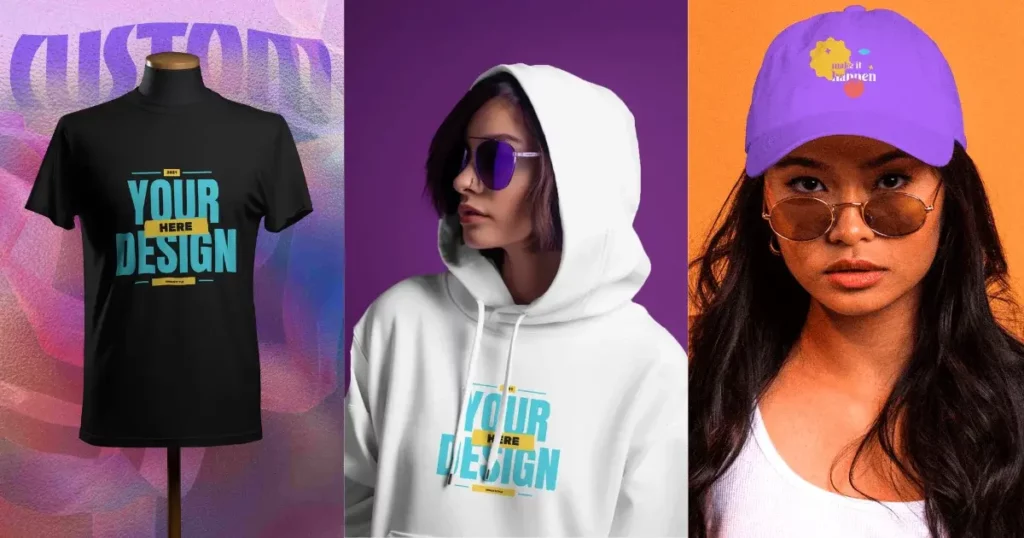
Now we’ll show you how to create digital mockups on your PC. But you need to use the best AI mockup generator — Mockey AI. Let’s go through the steps.
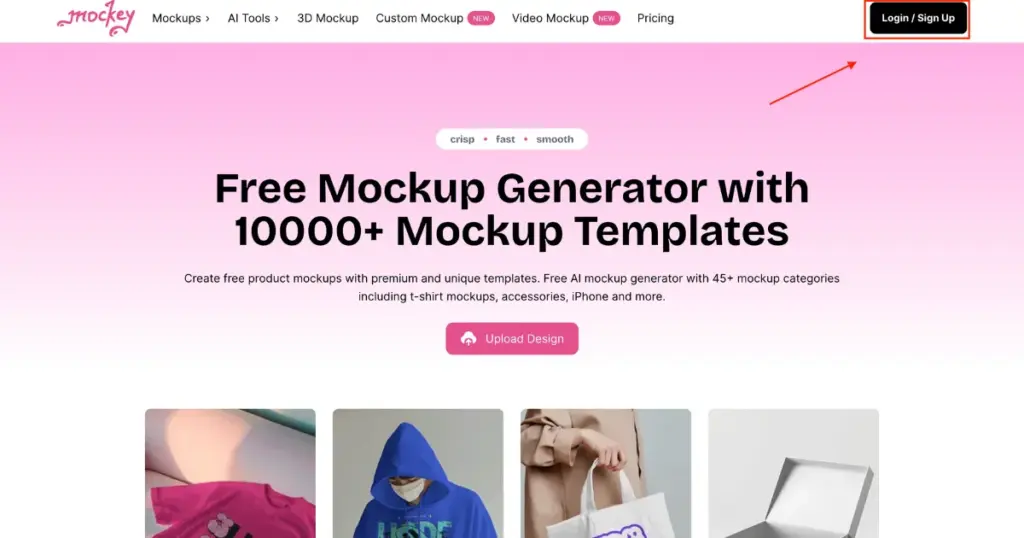
The very first step is to sign up. Without creating an account, you won’t be able to access anything.
Go to the homepage. Click on the Login/Sign Up button. Create your account.
Once done, you’ll be redirected to a main page where you can access everything, including 3D mockups and video mockups. But for now, we’ll focus only on static mockups.
On the left-hand side of the page, you’ll find a menu. Click on “Mockups”. Inside this, you’ll see Categories.
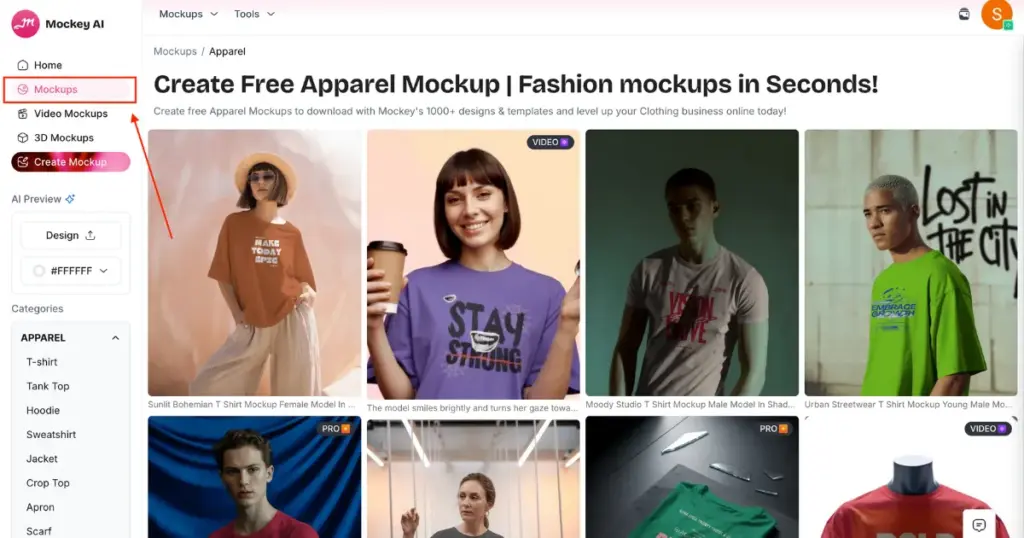
From these categories, you can choose the type of product you want. For this tutorial, let’s go with T-shirt mockups.
Under “Apparel”, search for T-shirts. Open the T-shirt catalog page.
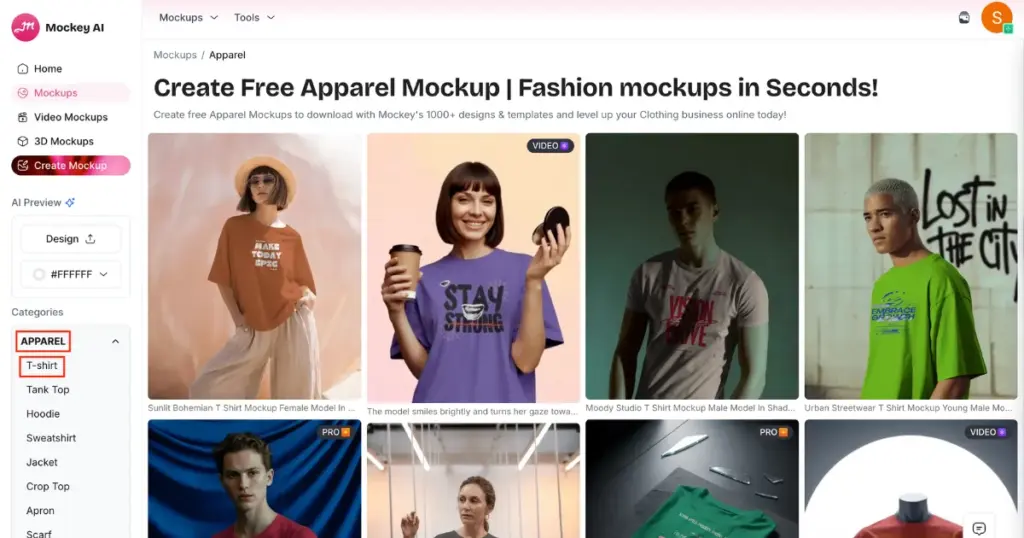
Here you’ll find multiple templates with different styles, tags, and colors. This variety makes it fun to explore.
You need to pick one template to continue. If you want an oversized T-shirt, filter it using the tag bar. If you prefer a V-neck design, select it from the tag options.
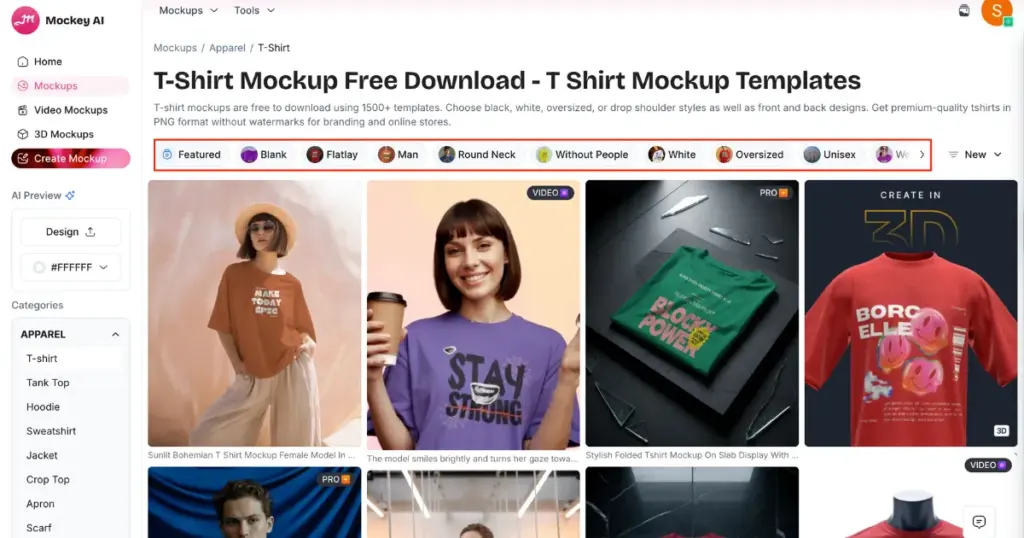
Once you make your selection, you’ll land on the editing page.
This is where the main work happens. Click on “Upload Design”. Choose any image from your device.
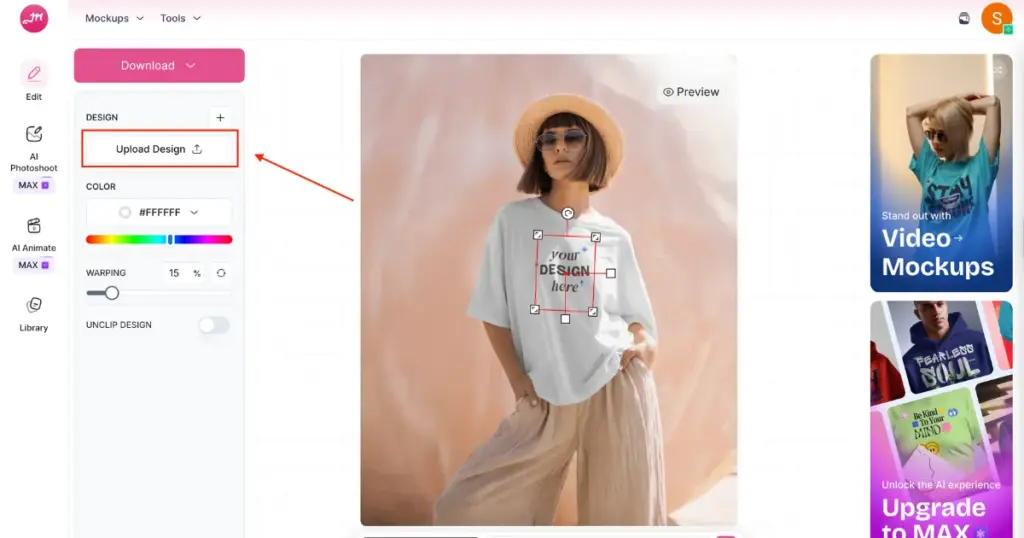
Your design will instantly appear on the T-shirt template and adjust itself naturally, as if it’s printed on a real product.
You’re not limited to just uploading a design. You can also change the T-shirt color, adjust the background, and resize or reposition your design. Everything updates in real time to look realistic.
Before downloading, make sure everything looks perfect. Click on the Preview (eye) icon. This lets you check your mockup in detail before saving it.
Once you’re happy with the design, click the Download button. Choose the format (PNG or JPG). Select the size you prefer.
That’s it! Your digital mockup is ready. When you check it, you’ll see how realistic and natural it looks.
On PC, you’ve already understood. If you create a digital mockup using a mobile device, the steps will be almost the same but with a few small changes. That’s why we’ll quickly explain it to you.
You must have loved our guide on how to create digital mockups. If reading it felt easy, imagine how simple it would be to generate them. By the way, you can use Mockey AI on both a laptop and a phone—it’s user-friendly on both. The UI is smooth. What more do you need? So go ahead, sign up now and enjoy creating digital mockups.
Yes, there is an AI mockup generator called Mockey AI where you can easily create digital mockups. Everything on it—AI templates, AI design tools, AI models, and AI backgrounds—is powered by artificial intelligence. But the best part is, even though it’s AI-generated, everything looks completely real. That’s because our expert team carefully curates and selects only the highest-quality mockups to make sure they meet professional standards.
Mockey AI. You don’t even need to think of any other name. It’s the best out there. When it comes to digital mockups, this is the true alternative to Placeit. Yes, I agree that Placeit has been in this industry for many years, but Mockey AI has already left it behind.
Sign up on Mockey AI first if you want to create book mockups. Just go to ‘Print,’ select ‘Book,’ and pick a great template. After that, adding your design, editing, and downloading will only take seconds to complete.

Sangram Sahoo
I’m a content writer with 4 years of experience. I specialize in creating practical content around mockups, print-on-demand, apparel, and e-commerce design.
