Looking at how to record Google Meet for free on any device? You’re in the right place. Here’s the simplest way to do it.
Recording a Google Meet call has many benefits. You might want to save it to watch later, share it with absent colleagues, or use it for training purposes.
Plus, recorded screencasts can be handy for tutorials, demos, marketing, and blog content.
Recording Google Meet calls isn’t always an option due to various reasons like settings or account limitations.
However, there are solutions! This guide will help you how to record Google Meet calls on any device, no matter your situation.
If you use Google Meet, you might want to record meetings. It could be to share what happened with colleagues who missed it or to keep notes for later.
We’ll show you some methods to record Google Meet:
Let’s get started!
Not everyone can record on Google Meet. You need to meet two requirements:
Before you start recording, ensure you’re recording to the cloud. For recording locally, there won’t be a “Record Meeting” button.
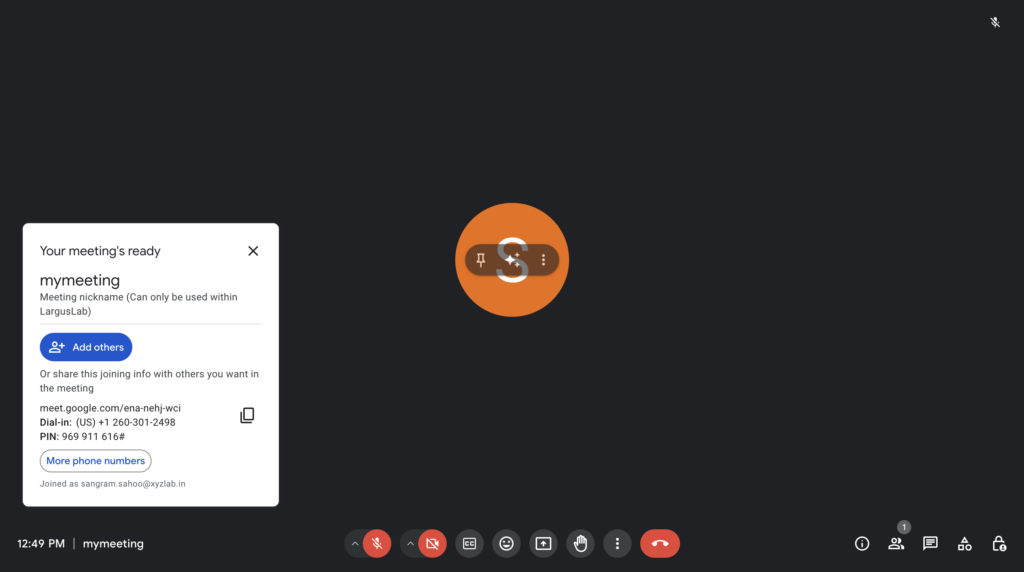
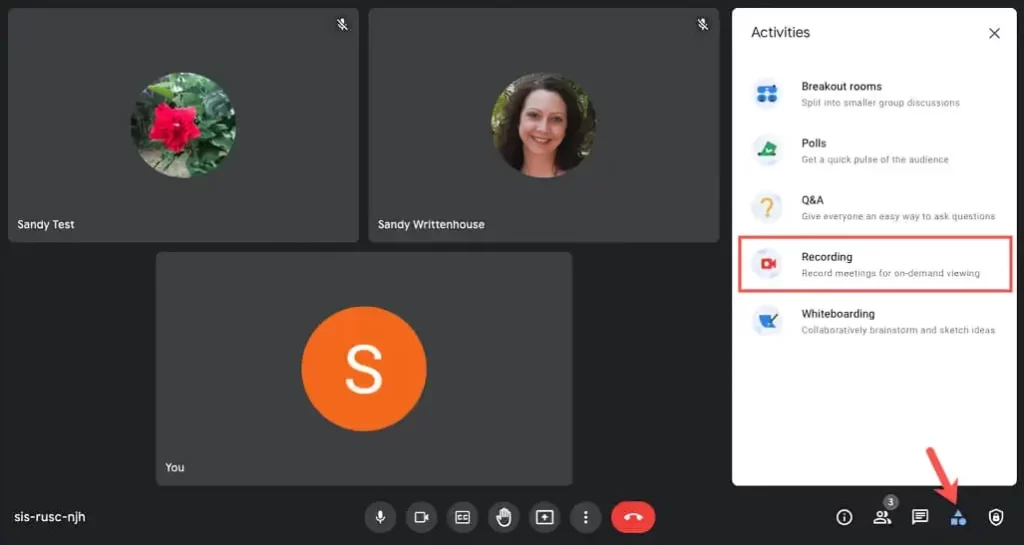
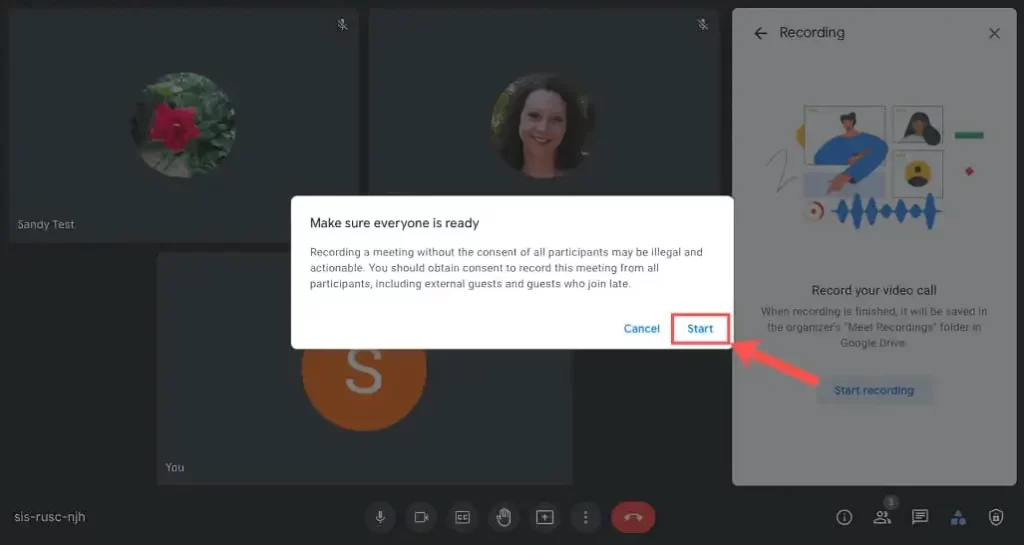
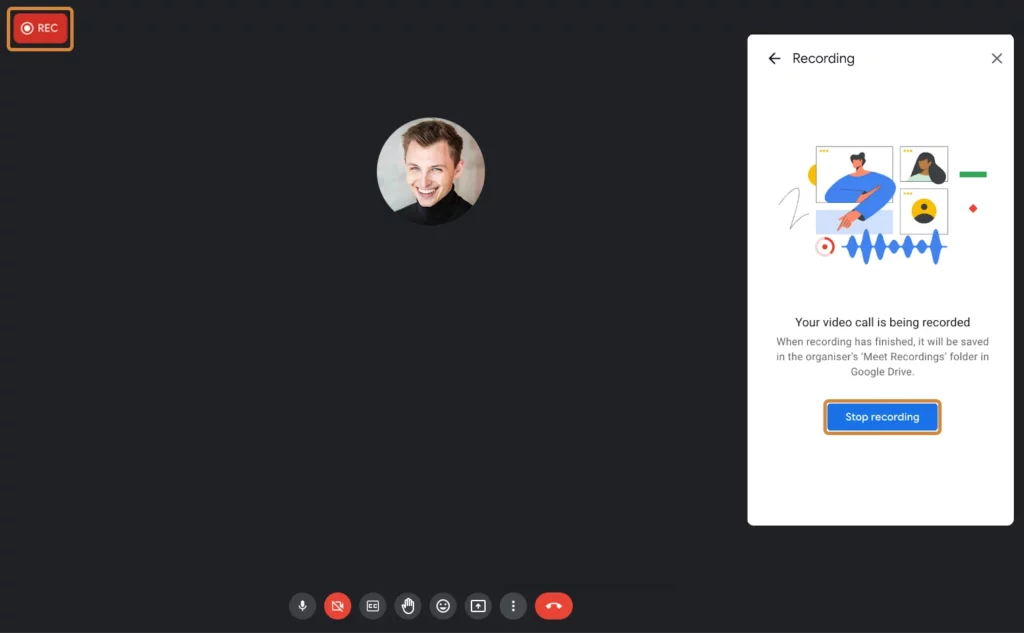
The recording of Google Meet will be saved to the organizer’s Google Drive in the Meet Recordings Folder. Organizers and participants of the meeting will also receive a mail with the link to the recording.
Record Google Meet for free with FlexClip Screen Recorder. No limitations, just start recording.
What Sets It Apart:
To use Flexclip:
To edit recording in Flexclip:
You can’t record a Google Meet on your phone, but you can use its screen recording tool instead.
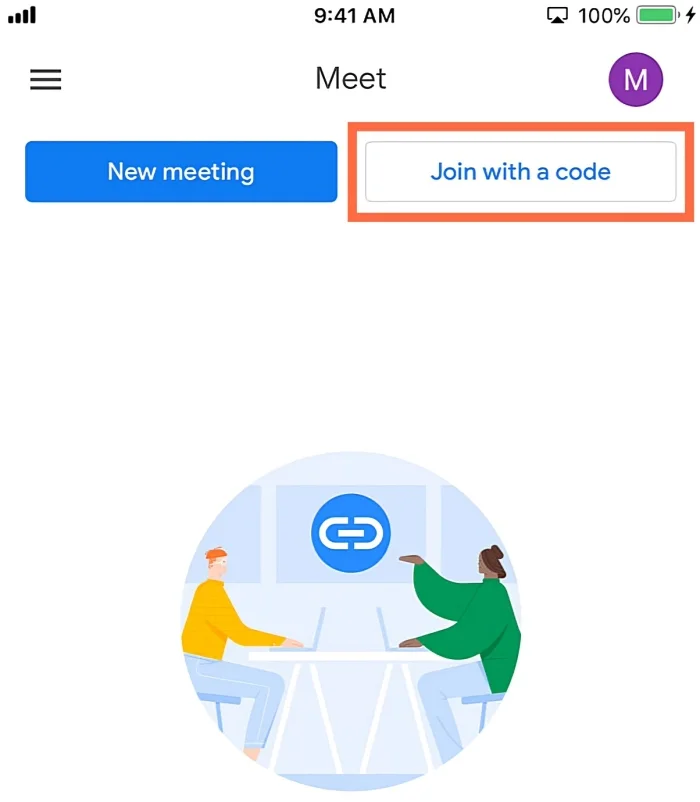
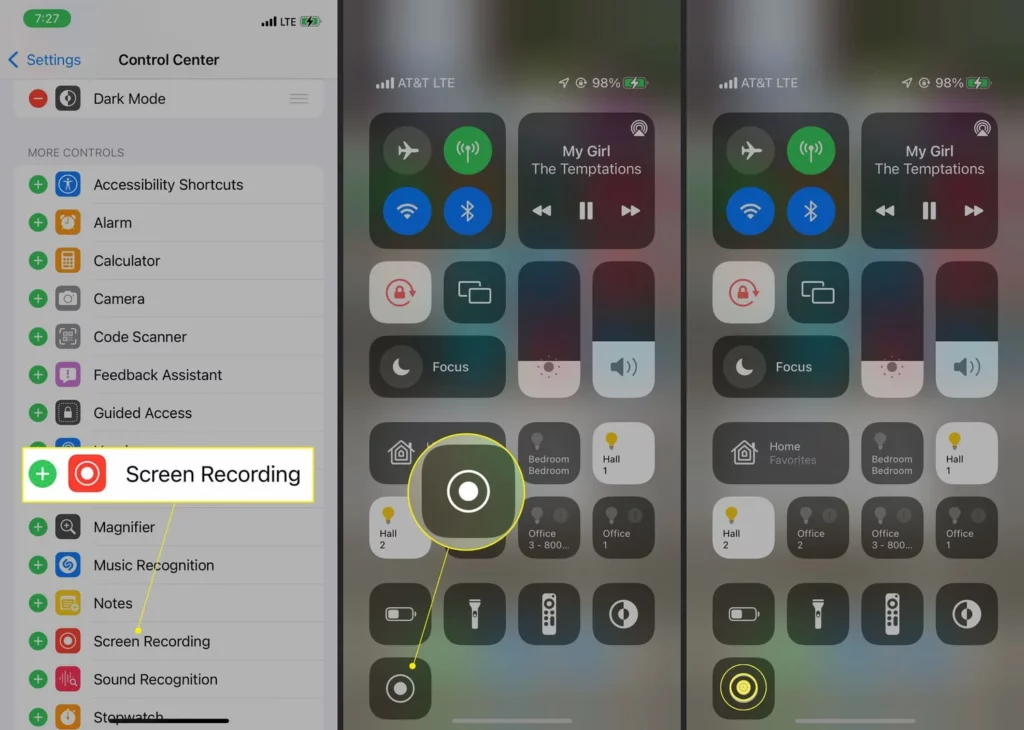
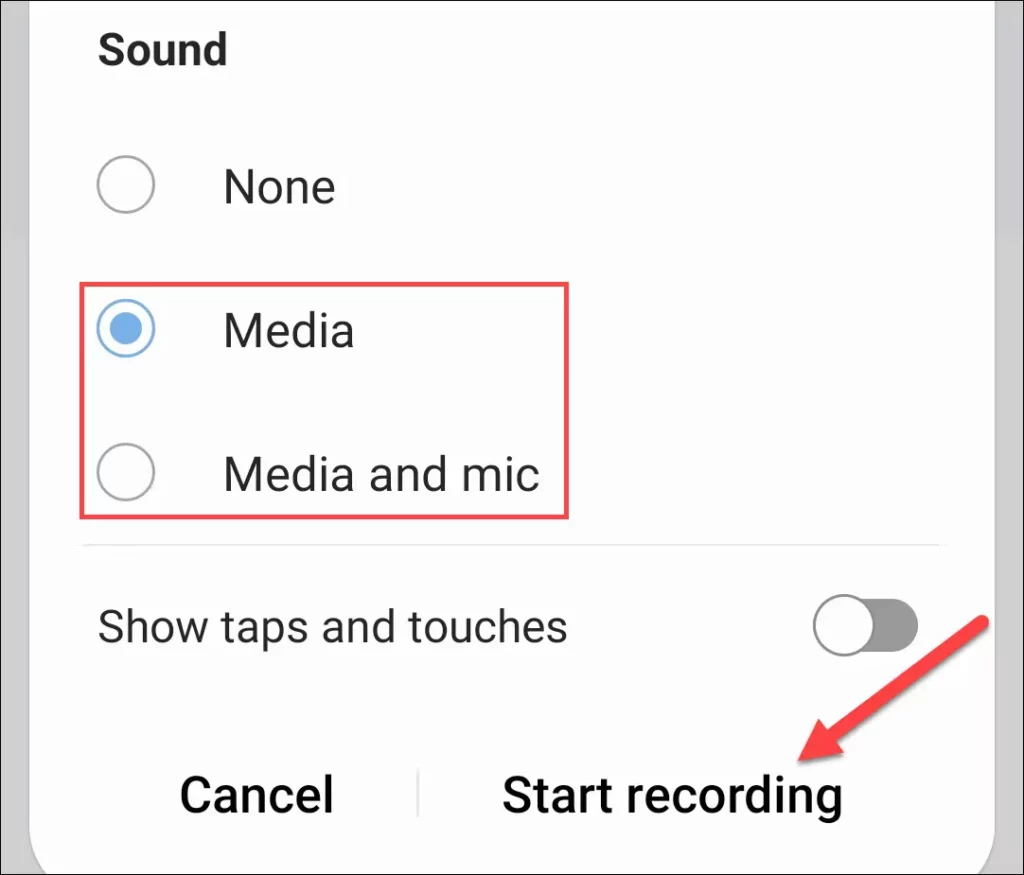
To record Google Meet without permission:
To record a Google Meet, make sure your Workspace account meets Google’s rules and you have permission.
It’s wise to get everyone’s permission on the call and tell them how you’ll use the recording.
You can let them know why you’re recording, like for training or keeping records. If your Workspace account can’t record by Google’s rules, there are other options.
Here’s a simpler guide to record a Google Meet meeting without the record button:
You can’t change much in Google Meet’s recording menu, but you can adjust video and audio settings for better quality. Nobody wants to sit through an eight-hour video of your blurry face looking confused or silent, sounding like WALL-E.
Make sure your audio and video settings are set up correctly.
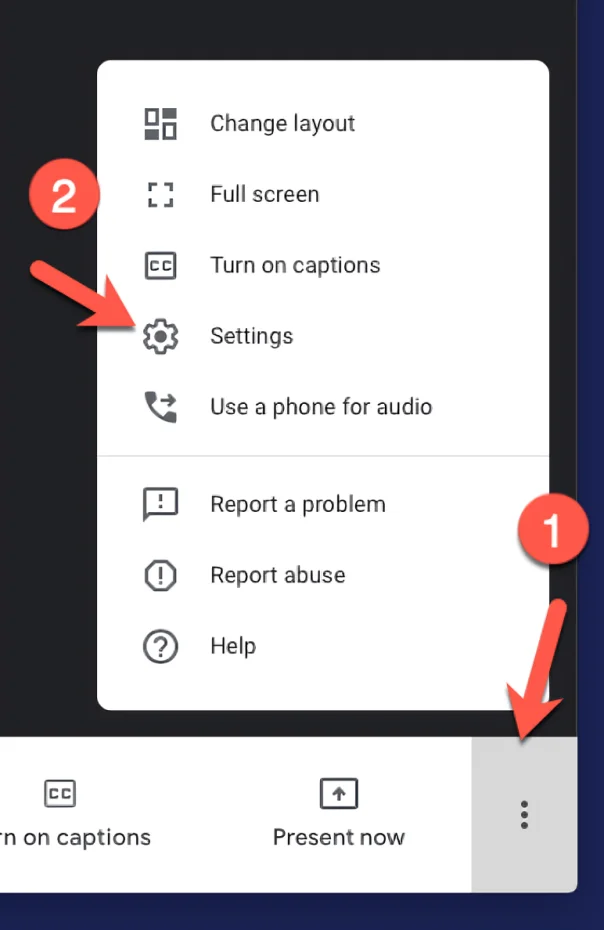
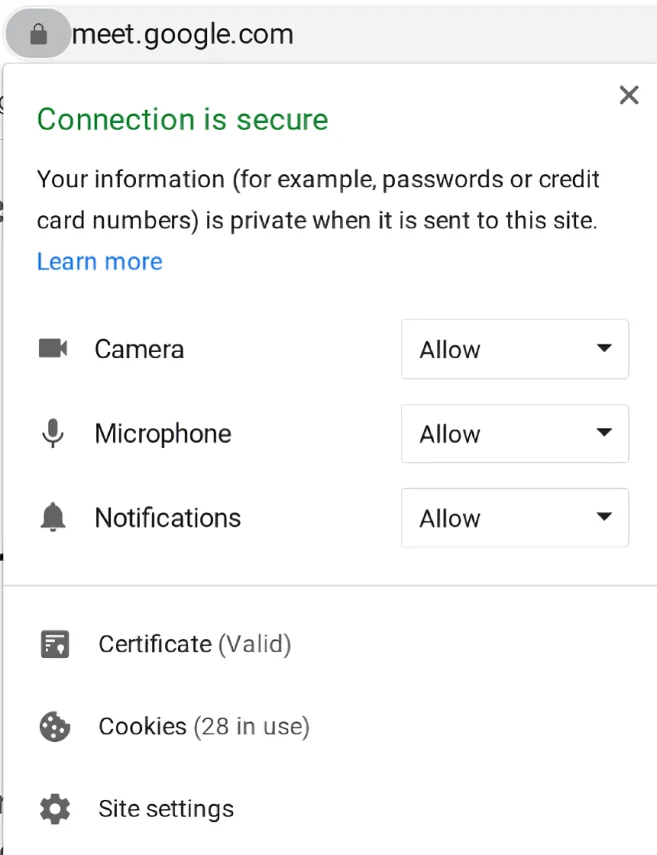
Let’s chat about resolutions. If you’re not into gaming, never set up a new TV, or been out of the loop for the last couple of decades, resolution basically means how clear something looks. When it comes to videos, you’ll notice two resolutions in the Video settings.
Send resolution is how clear your camera’s video looks to others in the meeting. If you crank it up, others get a better-quality video of you.
Receive resolution is how clear the video of other people looks to you. If you bump it up, you get a better view of others in your meeting.
Just remember, higher resolution means better quality, but it also means bigger file sizes if you’re recording. If you’ve got plenty of space on your Drive, you’re good to go.
Recording meetings isn’t just about comfort—it’s about practicality too.
First off, it’s handy for reference. Let’s say you chat with a new client about a partnership. Having that meeting recorded gives everyone involved a clear reference point, preventing misunderstandings.
Secondly, recordings are great for training and presentations. You can record yourself going through topics for your team, and creating useful materials.
Lastly, in HR, recording interviews helps decision-makers review candidates thoroughly. It’s a failsafe against any selective memory mishaps.
To record your screen, your device likely has a built-in tool. But if you want to do more than just record, like improving audio or video quality, you’ll need special software. There are lots of options out there, but here are our favorites.
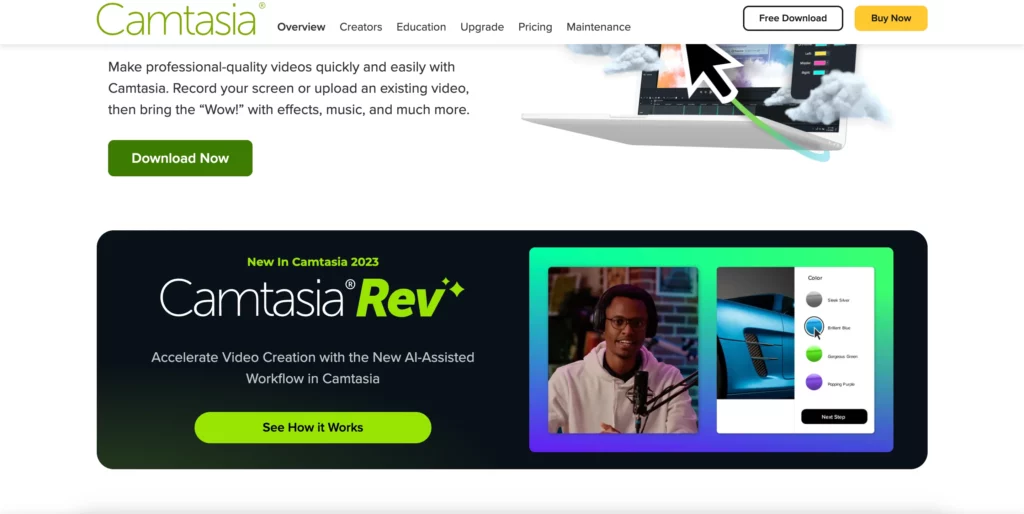
Camtasia is great for recording Google Meet calls and making polished explainer videos and webinars. It offers screen and audio recording, editing tools, transitions, and over 1000 royalty-free assets.
You can then upload your creations to YouTube or Vimeo. Pros: robust editing, fast rendering. Cons: pricey and lacks a mobile app.
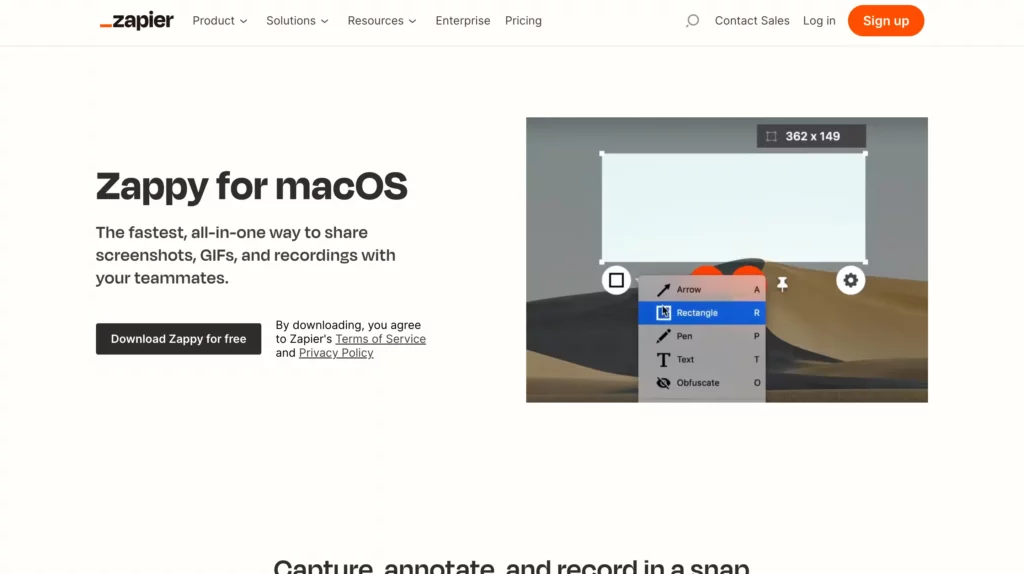
Zappy is great for recording Google Meeting calls hassle-free. It captures your screen activity without any editing features. You can add basic annotations like text, boxes, or arrows. The recordings are saved locally or in the cloud for paid users. It’s free and easy to use, but only works on MacOS and lacks editing options.
Some folks might not like being recorded or recording others, and that’s understandable.
Always let everyone know before you start recording. It’s about being polite and giving people the option to participate.
Turning your Google Meet recordings into useful stuff, like HR tools or training material, can be quite a project in itself.
However, we have covered how to record Google Meet on laptop and phone in a step-by-step guide.
You can also explore free alternatives to Google Meet that offer free recording options.
Where are Google Meet recordings saved? My Drive contains a folder called Meet Recordings for the organizer. The recording link is emailed to the organizer and the person who started it. An event link is added as well. Other windows or notifications are not recorded.
Make sure your admin has enabled recording in the Google Admin console. Use Meet on a computer, as recording isn’t available on other devices. You can’t record if you’re only presenting from a laptop while already in a conference room.
Yes, you can record your Google Meet, but only if you have a Google Workspace account with the necessary permissions from your administrator.
Camtasia and Zappy make it easy to record Google Meet meetings without limits on participants or time.
Press Windows + Alt + R to start or stop recording a Google Meet video call.

Sangram Sahoo
I’m a content writer with 4 years of experience. I specialize in creating practical content around mockups, print-on-demand, apparel, and e-commerce design.
