Free 3D Box Mockup Online | 3D Box Packaging Mockups
Boxes are everywhere, from cereal to pizza and mailers. Create eye-catching designs with Mockey.ai. Try a 3D box mockup and export in JPG, PNG, or MP4 easily!
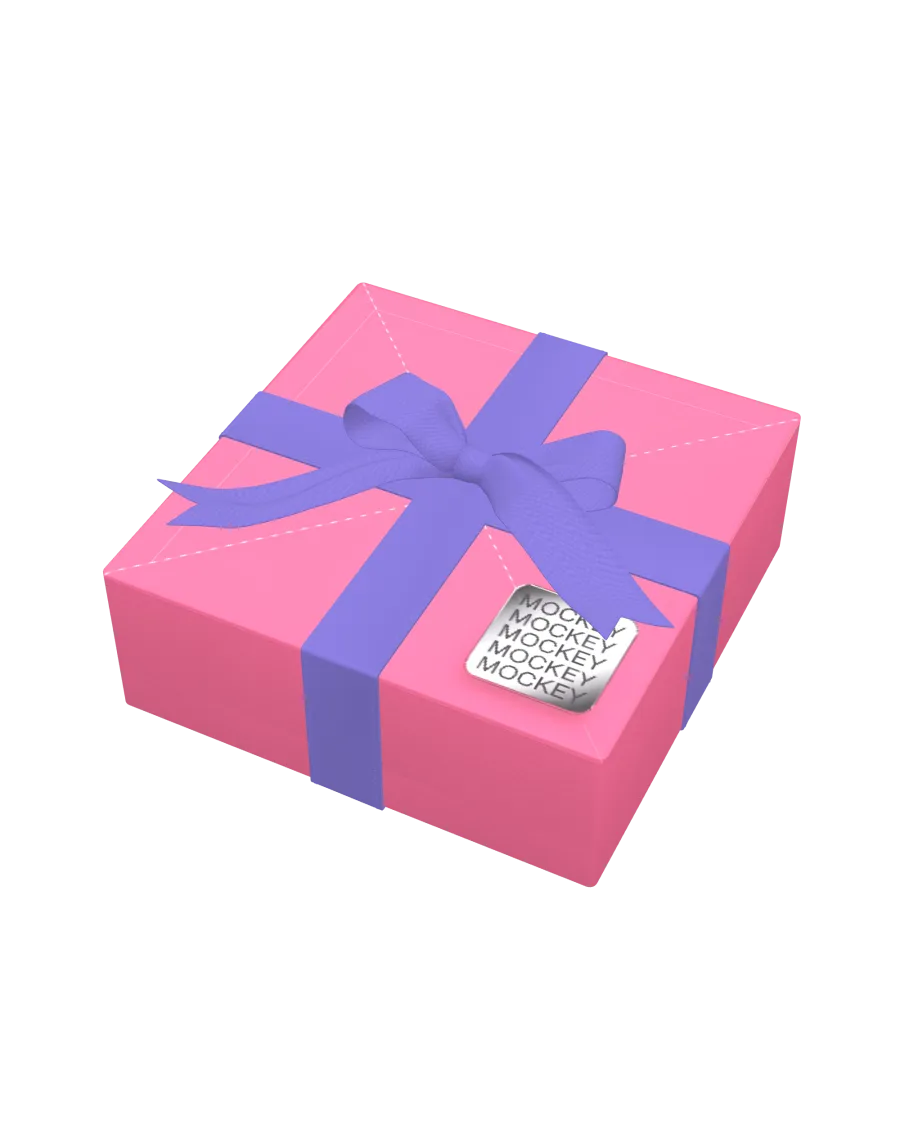
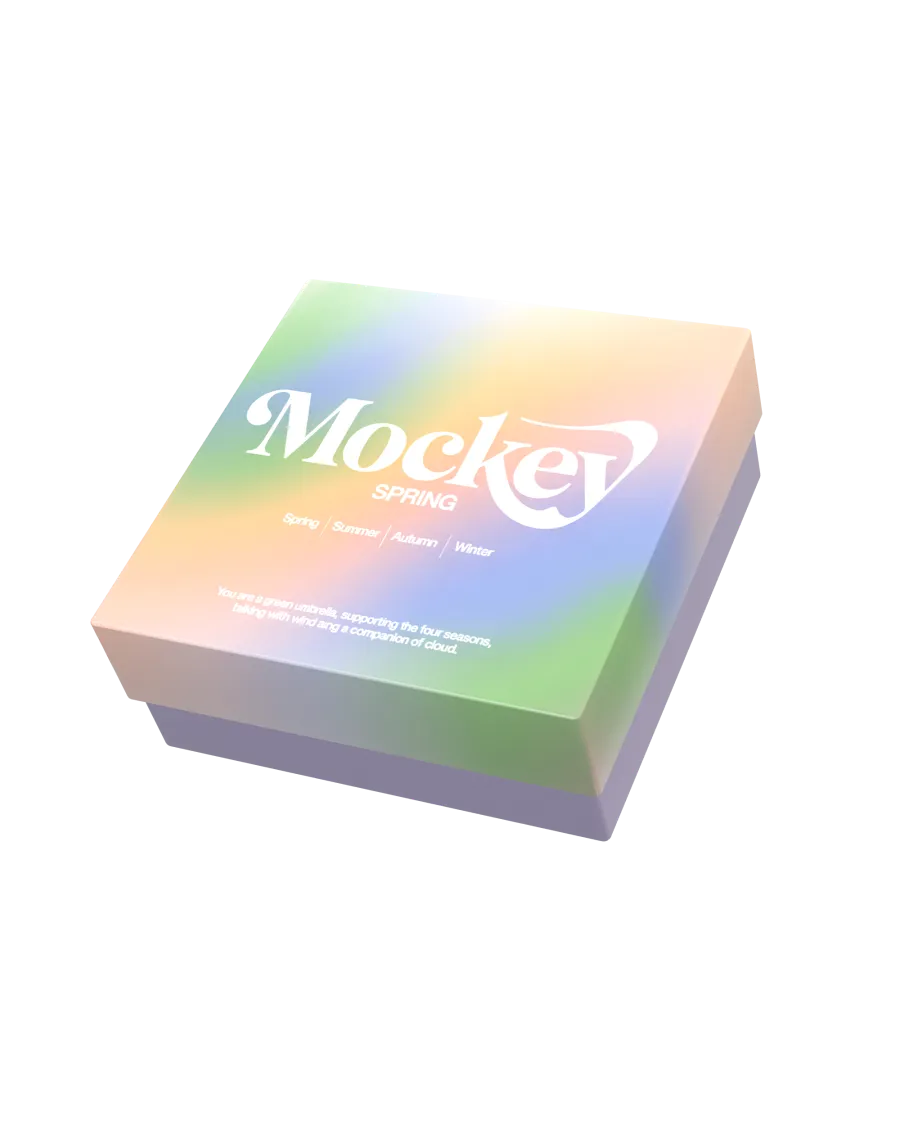
How to Create a 3D box Mockup with Mockey
To make a 3D box mockup in Mockey AI:
- Step 1: Go to 3D Mockup, select Box under Packaging, and pick an open or closed box template.
- Step 2: Upload your images, choose a box color, and set a background in 360°, gradient, or solid color style.
- Step 3: Select the aspect ratio, then download your 3D box as a PNG, JPEG, or a short WebM video (up to 5 seconds).
FAQs on 3D Box Mockups
What is a 3D box mockup?
A 3D box mockup is a digital model of a box that you can customize by changing its texture or background. You can also save it as a high-quality image or video, up to 5 seconds.
Why should I use a 3D box mockup?
Using a 3D box mockup converts flat designs into engaging, realistic visuals that display your packaging. It promotes presentations and communicates product details while saving time and resources.
How can I create a 3D box mockup?
Make a 3D box mockup in Mockey AI by designing the box and adding textures. Then, place it on a nature or indoor background to make it look realistic.
Can I customize a 3D box mockup?
With Mockey AI, you can easily change the colors, textures, and background of a 3D box mockup to match your design. Get full creative control with easy-to-use tools
What file formats can I export my 3D box mockup in?
Mockey AI lets you save your 3D box mockups in different formats. You can download them as high-quality images (PNG, JPG) or as a short video (up to 5 seconds).
Are 3D box mockups free to use?
Mockey AI provides free 3D box mockups for personal and business use.
Can I use a 3D box mockup for e-commerce?
Yes, you can use Mockey AI’s 3D box mockups for online selling. Just customize the images, material, and size, then export high-quality images or videos to display on the store.